
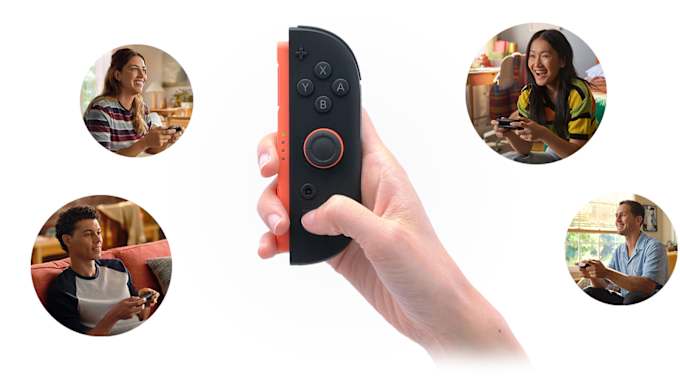
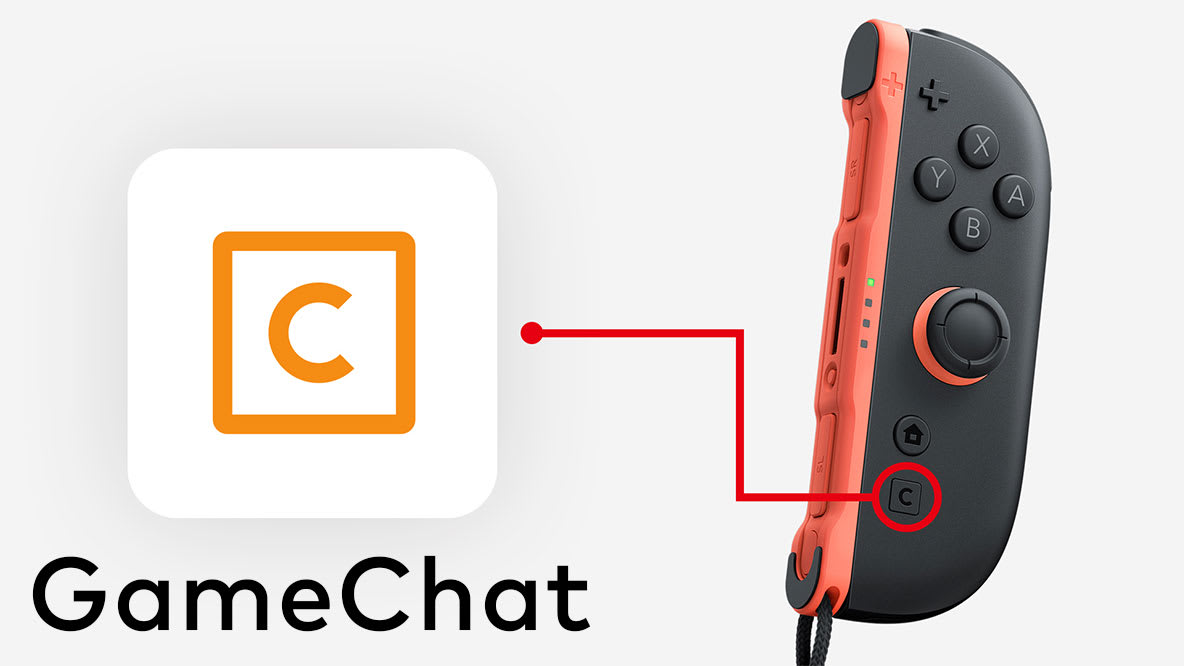
Do you and your crew have Nintendo Switch 2 systems? Eager for an in-person hangout, but just can’t wrangle the crew? Well, it might be time to push that mysterious C Button on your right Joy-Con 2 controller and try out GameChat*!
 Chat what?
GameChat is an online feature exclusive to Nintendo Switch 2. It aims to recreate that feeling of sitting on a couch with friends and playing together—even if everyone is scattered across different suburbs, states, or even countries.
There are a few different things you can do with GameChat:
Up to 12 people can use voice chat in a group. Nintendo Switch 2 has a built-in microphone, so no additional mic is needed!
Up to four friends can share their screens with each other. They’ll pop up as little video feeds on the bottom of your screen—you can also shrink or expand these feeds if you want.
With a compatible USB camera (sold separately), four friends can also show a video feed of…themselves! You can even display your game screen as your background—it’s kind of like having your own personal livestream just for your friends.
Share** compatible games online—you’re able to share games and play with friends who also have a Nintendo Switch 2 system. (Note: You can share games in the same room as well, but this local version of GameShare does not use GameChat.)
How do you get started?
There are a couple things to note before you start chatting. Since this is a Nintendo Switch 2 feature, everyone joining the chat group will need to have Nintendo Switch 2. Each person will also need to do a one-time setup which requires access to the phone number registered to your Nintendo Account. You can also manage which friends on your Friend List can use GameChat with you.
Importantly, GameChat will be free until 31st March—after that, it requires a Nintendo Switch Online membership***. Oh, and if you’re under the age of 16, there are a few more steps to make sure you’re chatting in a safe way. To start with, make sure a parent or guardian is helping you with setup.
You’ve got options!
OK, now that everything is set up, press the C Button on the right Joy-Con 2 controller to bring up the GameChat menu. Time to start inviting your friends to a chat! They will receive a notification on their system (they may also receive a notification on their smart device if they’ve set up the Nintendo Switch app****).
Now, by pressing the C Button again, you can bring up the Menu. A few icons will pop up that allow you to mute or unmute your microphone, turn your camera on and off, share your screen, and check your Settings. You can also select one of your friends in chat to get additional options for that person—such as expanding their game screen if they’re sharing it.
Fine-tune the experience
While the Menu is open, you can further customise things by going to Settings (the little gear symbol on the right). Here, you can do a few things:
If you find that the video screens on the bottom take up too much space, go to Screen Layout and then Expand Main Screen. You can also remove the feeds completely if you just want to focus on your game but still chat with your friends.
The Chat Audio section will help you adjust volume.
Camera Video is where you’ll find options for how to display your video feed. You can mess with the zoom setting, have the camera just focus on your face, or choose ‘no background’ if you’d rather not show the laundry behind you waiting to be folded.
Check out Accessibility if you need additional voice audio options. For example, you can display voice audio as on-screen text messages or convert text messages in GameChat into voiced audio.
Neat stuff to know
There’s a bunch of tech crammed into the microphone that’s built into the system, so give it a try! It’s been tuned to isolate voices and dampen background noise.
Sharing your screen isn’t always about showing off how good you are at games. You can use it to introduce your friend to a new game, help each other out if someone is stuck on a specific level, or just have your friends watch along and chat as you play. Remember that everyone can play different games at the same time and just chat—so it really can be your own little hangout spot!
If you’re interested in a game that your buddy is screen sharing, press the C Button, select your friend, and then select View Software Information. This will send you to Nintendo eShop to learn more about that game.
We hope you have fun chatting!
*Internet, Nintendo Switch Online membership and Nintendo Account required for online features, including GameChat. Compatible USB camera required for video features. Terms and GameChat requirements apply. nintendo.com/au/support/ Games, systems, memberships and some accessories sold separately.
**Nintendo Switch 2 and GameChat required for each user engaging in GameShare via GameChat. Internet, Nintendo Switch Online membership (sold separately) and Nintendo Account required for online features, including GameChat. During the GameChat Welcome Offer period, GameChat can be used without a membership. Terms and GameChat requirements apply. nintendo.com/au/support/
***Nintendo Switch Online membership (sold separately) and Nintendo Account required for online features. Membership auto-renews after initial term at the then-current price unless cancelled. Internet access required for online features. Terms apply. nintendo.com/au/switch-online/
****Nintendo Account, compatible smart device and persistent internet required. Nintendo Switch Online membership (sold separately) required for certain features. Data charges may apply. Terms apply. nintendo.com/au/switch-online/