
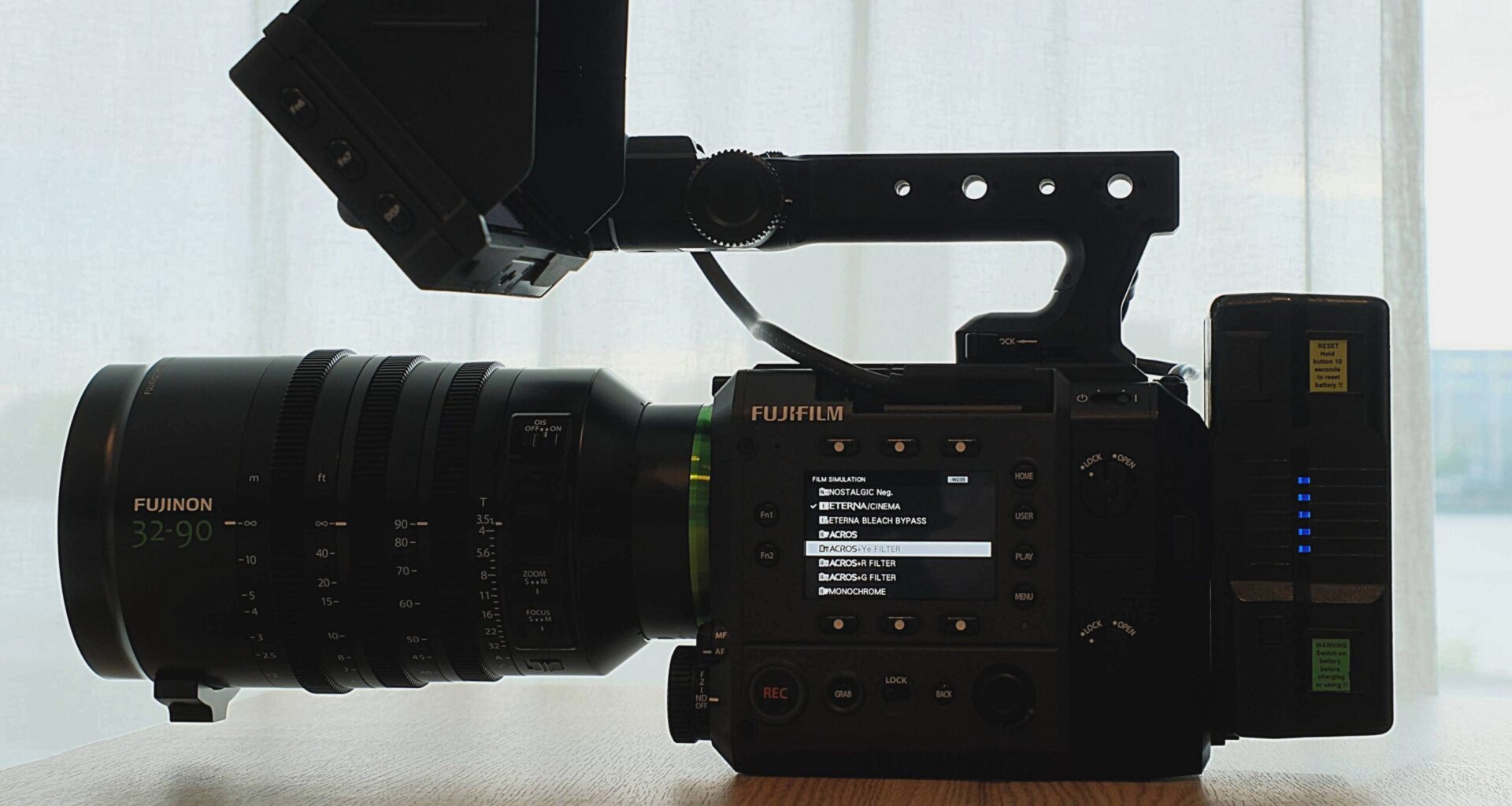
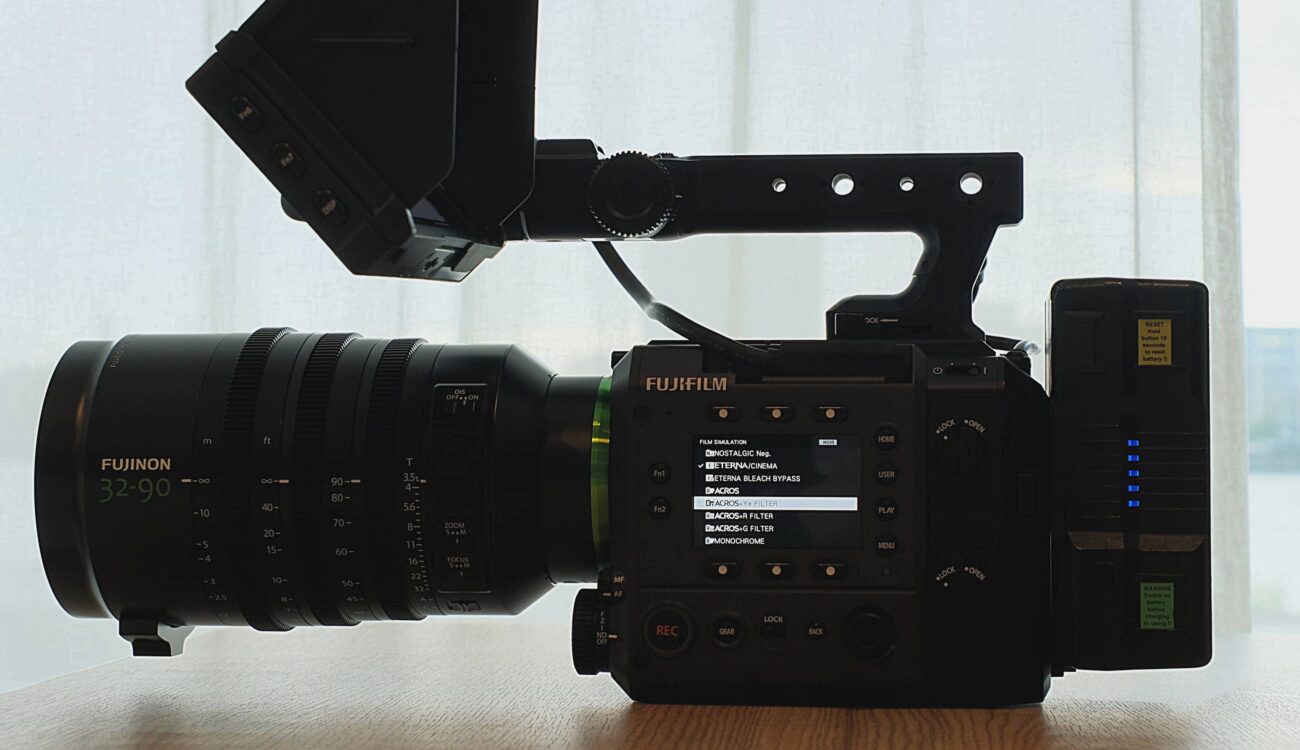
FUJIFILM has released a new hands-on video for the GFX ETERNA 55, focusing on the camera’s project setting menu structure. In this more than eight-minute walkthrough, Michael from FUJIFILM North America guides viewers through the project setting menu of the camera. And if you haven’t done so, we invite you to take a close look at our GFX ETERNA 55 first look review here.
Following the earlier Chapter 1 “Camera Set-Up” video and Chapter 2 “Basic Functions”, this tutorial
details image format, resolution, and frame rate options, impacting final video quality. Learn about F-Log, HLG, and media recording settings for optimal results.
The PROJECT settings menu is a critical starting point for any production setup on the GFX ETERNA 55. The first option users will encounter is IMAGE FORMAT, which determines the active sensor area for capture. Available choices include GF (full sensor width), Premista (a slightly smaller area tailored specifically for the FUJINON Premista line of zoom lenses), 35mm, anamorphic (35mm), and Super 35. Matching the selected image format to the lens coverage is essential for proper operation.
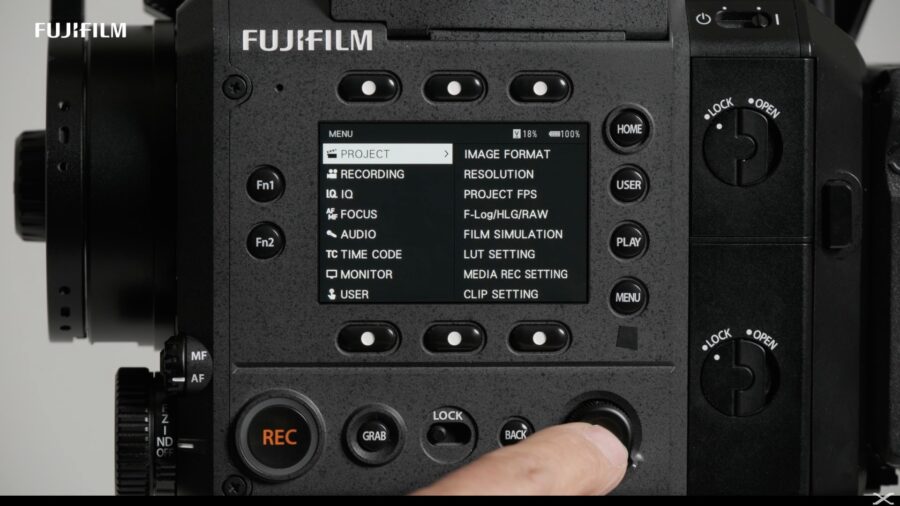 The FUJIFILM GFX ETERNA 55 Project menu. Credit: FUJIFILMResolution and frame rate options
Underneath the image format selector sits the RESOLUTION setting, which adjusts dynamically based on the chosen image format. Options include 4K [4:3] open gate for GF, along with 16:9, 17:9, HD, and extended resolutions such as 5.8K. The PROJECT FPS setting determines the timeline frame rate for editing and distribution, which can differ from the recording frame rate. For slow motion, for example, users might set a PROJECT FPS of 24 while recording at 48 or 60 frames per second.
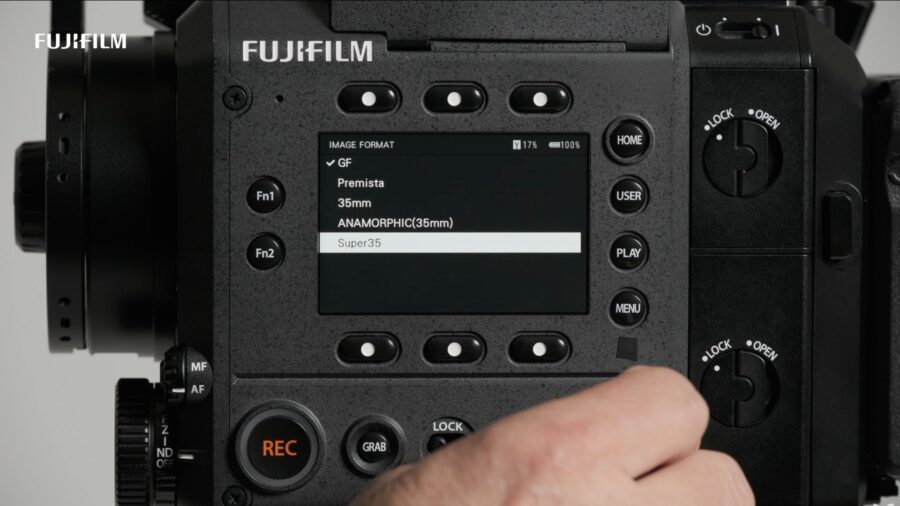 The IMAGE forma menu. Credit: FUJIFILMTone curves, dynamic range, and color science
The F-Log/HLG/RAW setting controls the tone curve and, by extension, the dynamic range captured in recorded files. One option is FILM SIMULATION, which keeps the recording in Rec.709 color space while allowing users to select from 20 built-in FUJIFILM film simulations. These provide pre-graded looks without the need for log-based color correction in post.
For log workflows, the camera offers F-Log, F-Log2, and F-Log2 C. F-Log2 and F-Log2 C share the same tone curve and dynamic range, but differ in color gamut. F-Log2 uses F-gamut, which is equivalent to Rec.2020, while F-Log2 C employs FUJIFILM’s proprietary F-gamut C color space, covering approximately 80% of the theoretical ACES color space. FUJIFILM developed F-gamut C to deliver significantly improved color accuracy and reproduction in post-production. An HLG (hybrid log-gamma) option is also available, combining a Rec.709-like rendering in shadows with a more logarithmic response in the midtones and highlights.
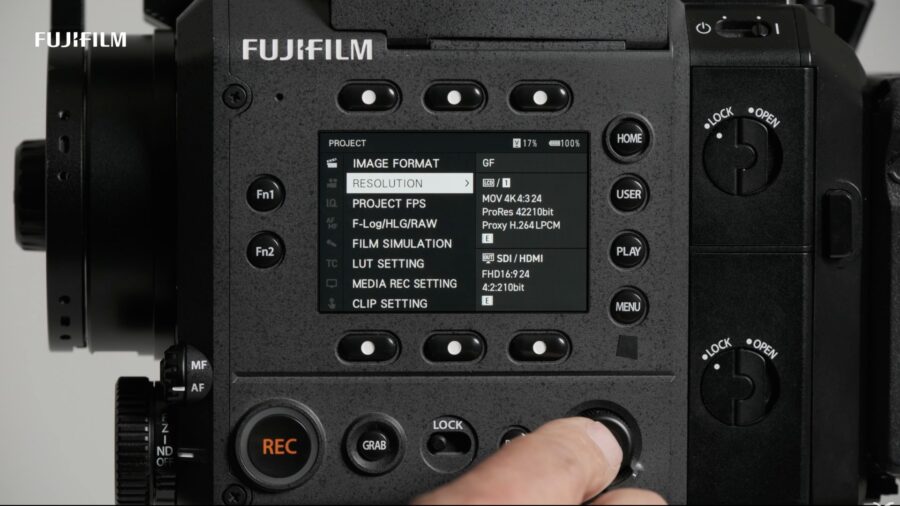 The RESOLUTION menu. Credit: FUJIFILMRecording media and codec options
The MEDIA REC section handles recording destinations. Slot one accepts CFexpress Type B cards, slot two takes SD cards, and additional options include BACKUP, SEQUENTIAL, and SSD recording. The camera’s rear USB-C port automatically detects connected solid-state drives, though users must format and initialize the SSD from within the camera before use.
FILE FORMAT offers two recording containers: MXF (which supports more extensive metadata) and MOV (widely compatible across camera systems). Under MEDIA REC SETTING, codec choices include H.265 4:2:2 in both ALL-Intra and Long GOP flavors, as well as ProRes HQ, ProRes 422, and ProRes LT. A proxy recording option is also available when ProRes is enabled, with H.264 and ProRes Proxy as the two proxy formats. Proxy files are stored in a dedicated folder on the CFexpress Type B card.
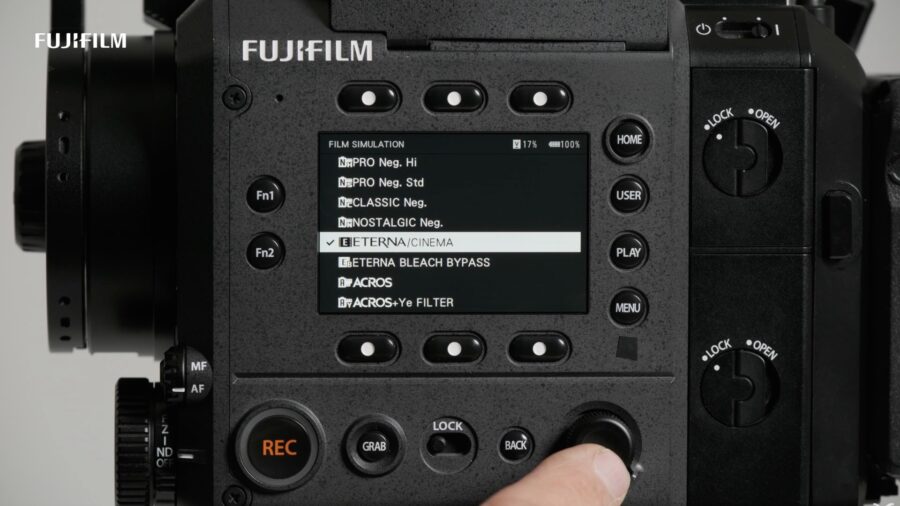 The FILM SIMULATION menu (Partial). Credit: FUJIFILMClip settings and camera identification
The CLIP SETTING section allows users to assign a CAMERA ID, following the standard motion picture convention of lettering cameras A, B, C, D, and so on. The selected letter becomes the first character in every recorded file name. The REEL NO setting starts at 1 and increments sequentially as new memory cards are inserted throughout a production, maintaining organized and traceable media management across the entire shoot.
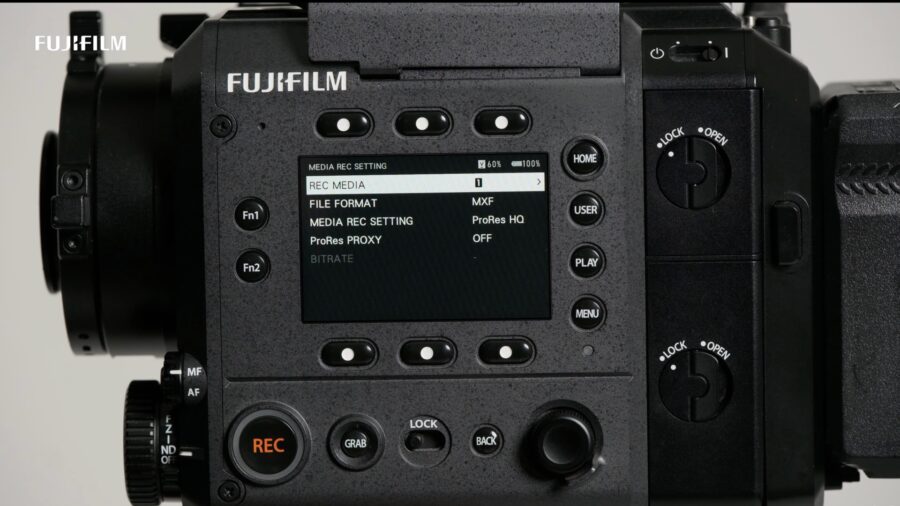 The MEDIA RECORDING setting menu. Credit: FUJIFILMPrice and availability
The FUJIFILM GFX ETERNA 55 is available to order for $16,499.95 / €13,285.30. Here is a link to the camera’s spec sheet for those who want a consolidated technical overview. For more information, please see the FUJIFILM website.
That covers the key elements of the FUJIFILM GFX ETERNA 55’s PROJECT settings menu. What are your thoughts on FUJIFILM’s approach to menu organization and codec options on this camera? Let us know in the comments below!