
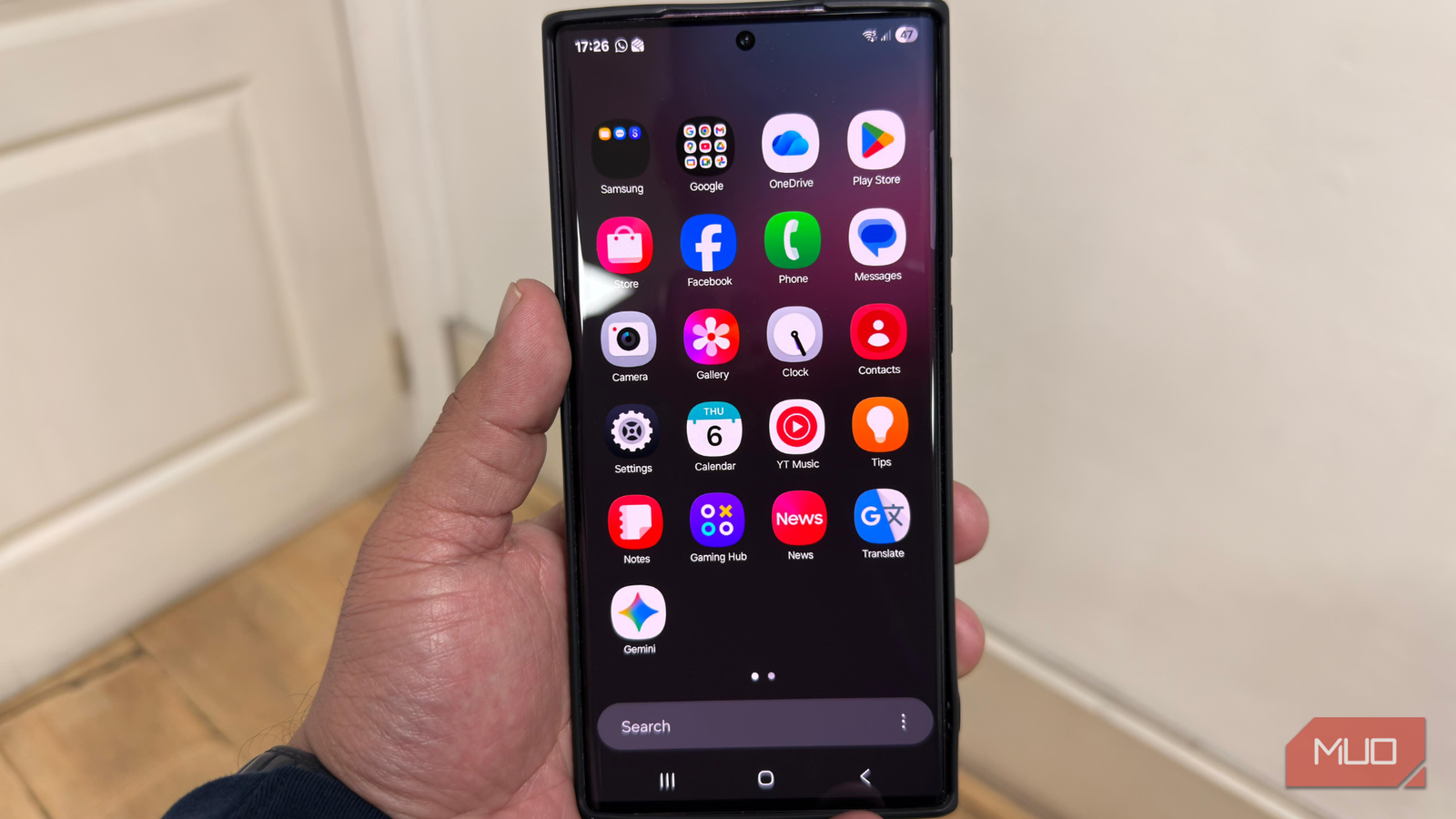
I was thinking that my phone is acting up slowly only because of its aging hardware. My apps took forever to open, scrolling felt a little laggy, the battery wouldn’t last long, and the overall performance was a little sluggish. Sometimes, I would think only a new flagship Android phone could fix these issues for me. Later on, I realized the problem wasn’t the hardware, but some settings.
That’s when I decided to dig into the settings app on my phone and make some changes. Thankfully, with just a few simple tweaks, my phone felt smoother, snappier, and more enjoyable to use. If you’re stuck in the same situation, you don’t need a flagship phone. All you have to do is change some settings.
Adjust animation speed
Reduce the visual delay
 Screenshot by Digvijay Kumar – No attribution is required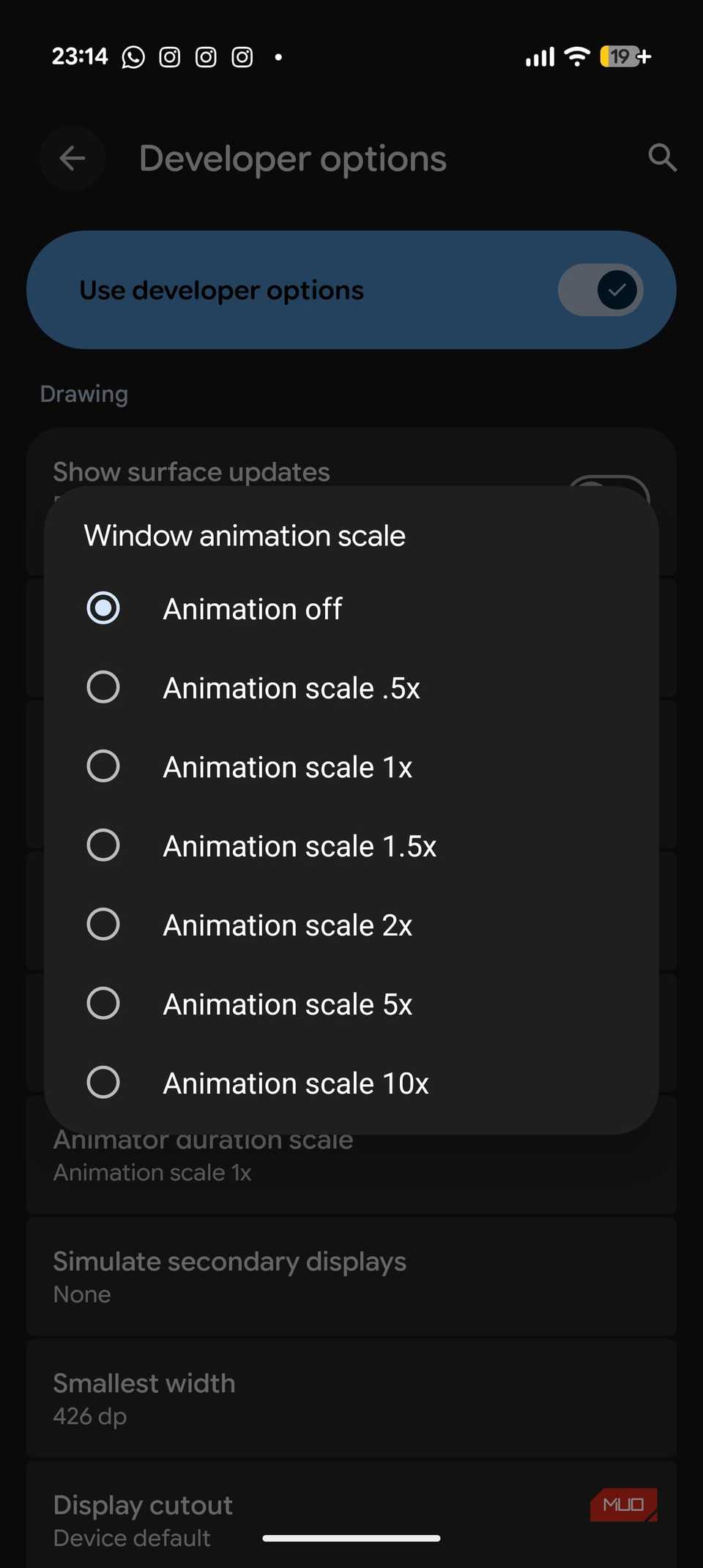
Modern Android phones have fancy animations for opening apps, transitioning between screens, moving between menus, and whatnot. Of course, these visual effects offer a polished and smoother experience, but they can also make your phone deliberately slow. As a result, you might feel a slight lag every time you swipe or tap on your phone.
I decided to turn off animations, and it immediately made my phone more responsive without breaking the functionality.
Here’s how to adjust or disable animations on Android:
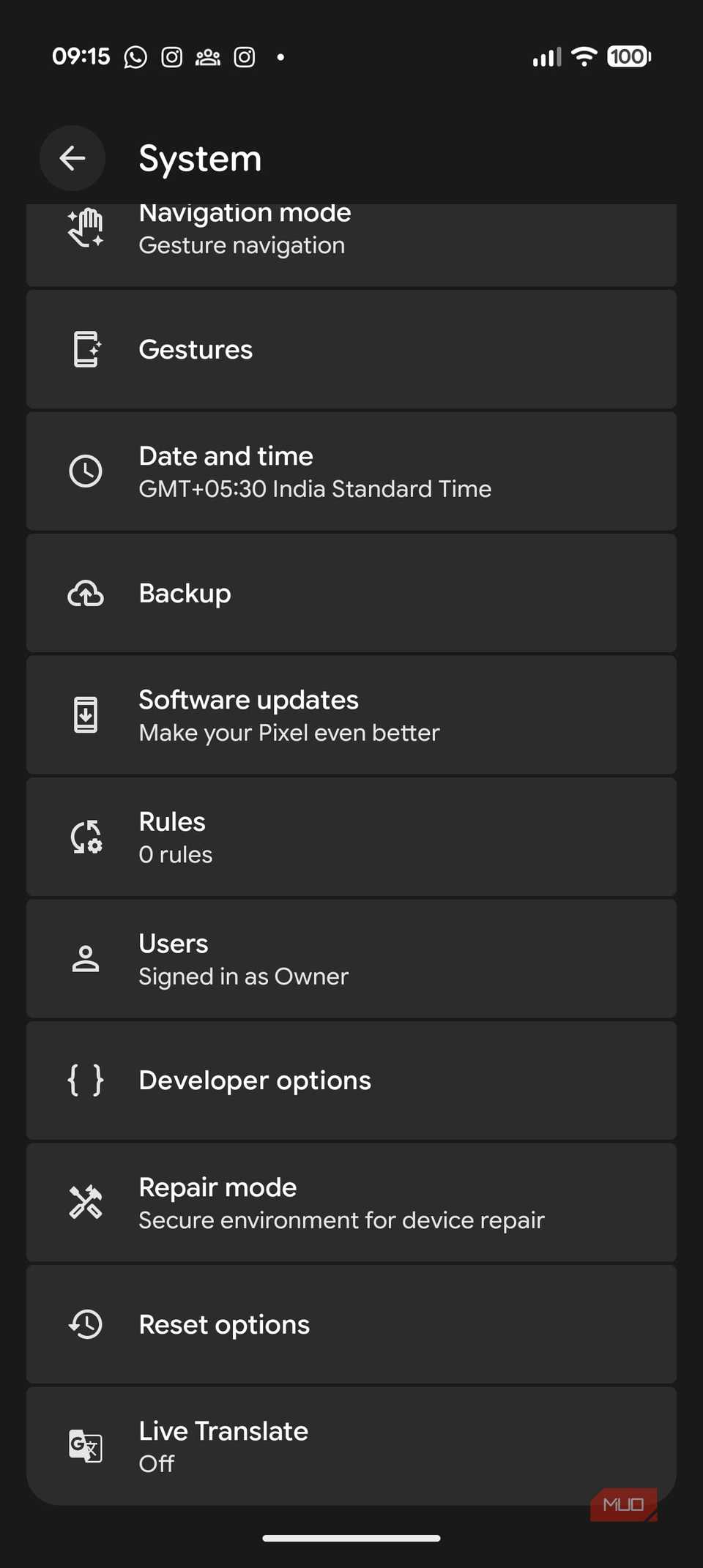
First, you have to enable Developer options on your phone. For this, go to Settings -> About Phone.
Here, tap the Build number seven times.
You’ve now entered developer mode.
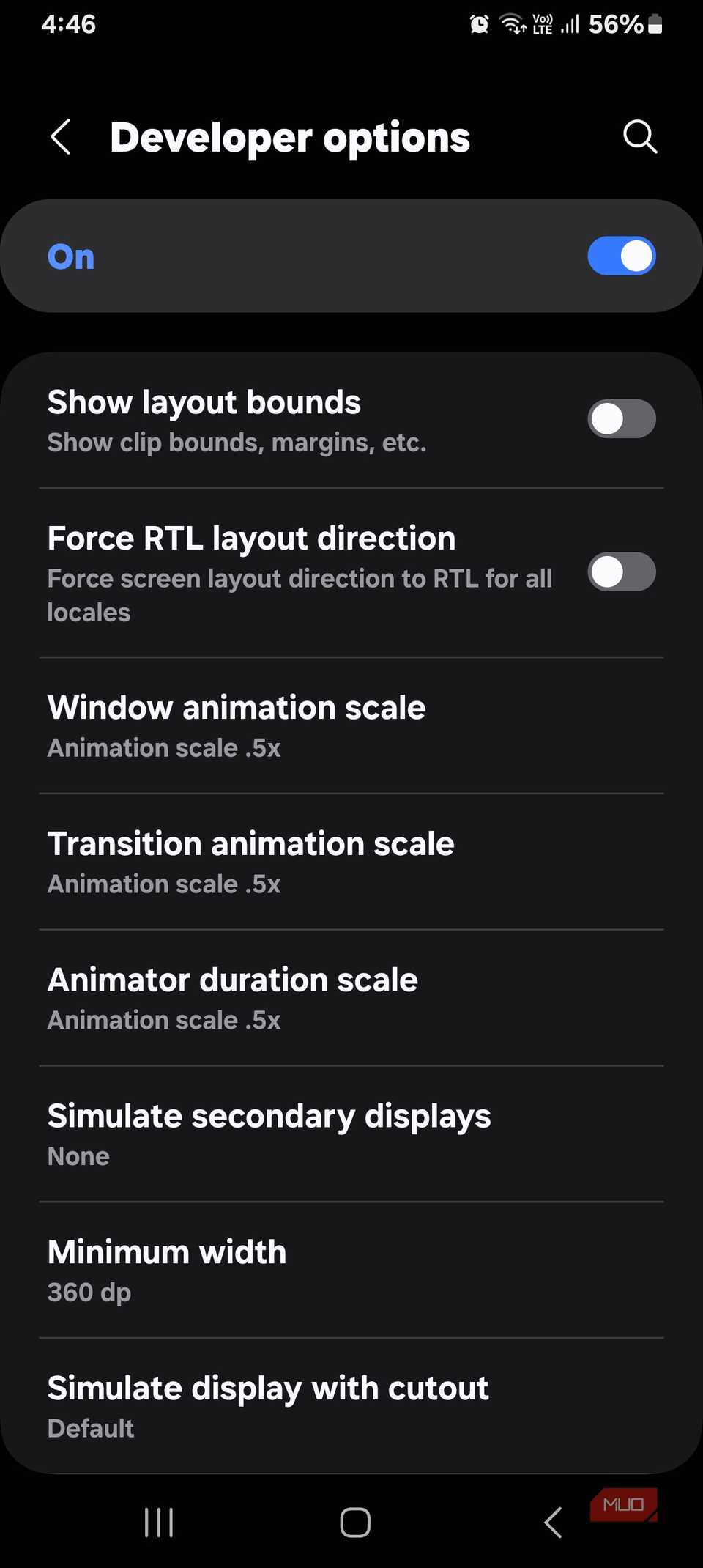
Next up, head to System -> Developer Options.
Under the Drawing section, look for Window, Transition, and Animator Duration scale options.
Turn off the Animation option in each one of them.
Once I’ve turned off animations, I feel as if I’m using a brand-new phone. It gave me the perfect dose of power that my phone needed.
Uninstall unused apps
Digital decluttering starts here
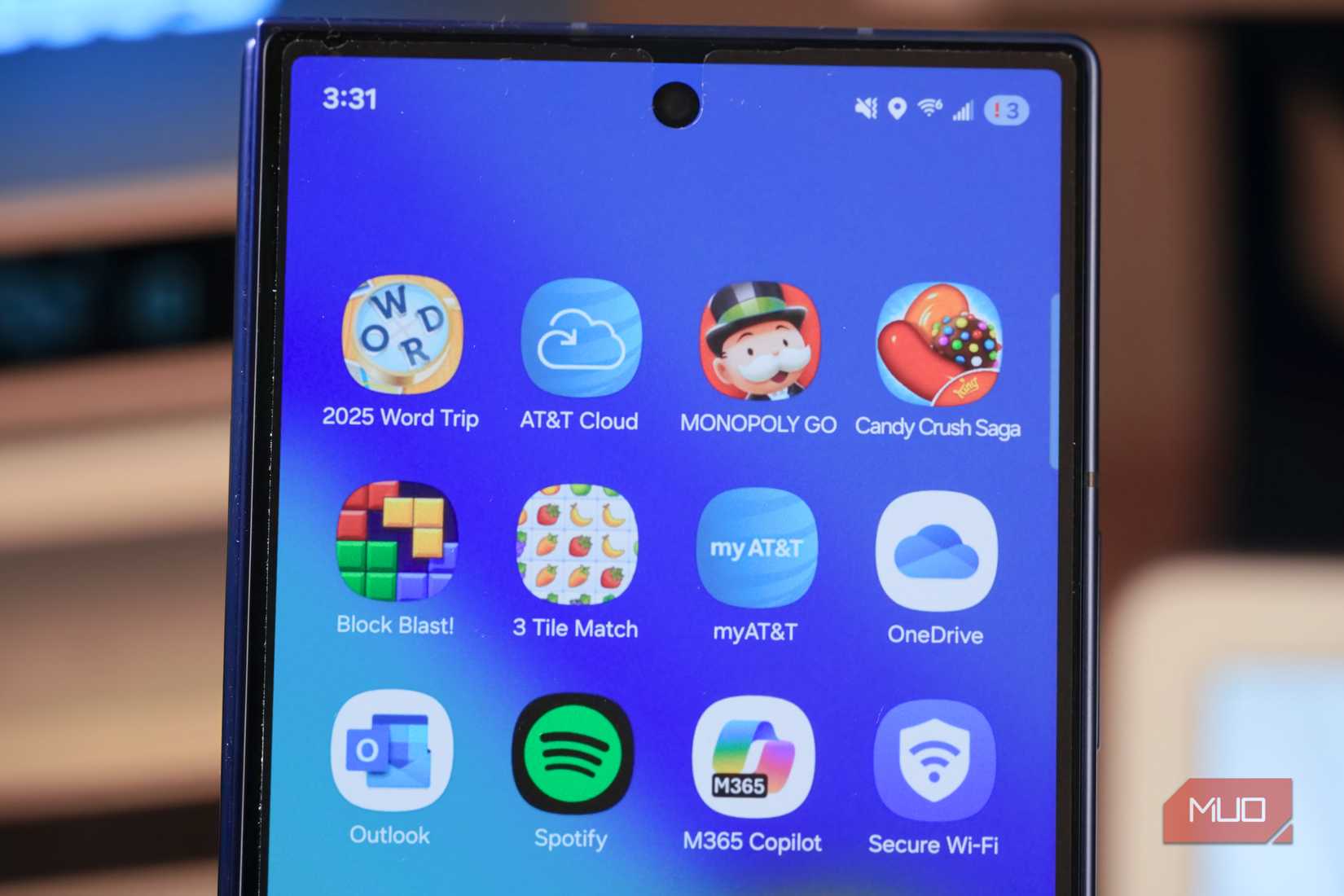
Credit: Brady Snyder / MakeUseOf
Most of us have dozens of apps on our phones that we haven’t even opened for months now. Every app takes up storage, and some even keep running in the background. It’s fine to have a few apps for occasional use or sentimental reasons. However, having dozens of unnecessary apps can slow down performance.
I paid close attention to my phone and discovered dozens of apps that I don’t even use. I would download some apps for testing or trial and forget about them. They used to stay permanently on my phone, unused and unwanted. This time, I decided to uninstall apps that I don’t use or need on my phone. Surprisingly, I could notice a visible difference right away. I got a cleaner and decluttered home screen, faster app launches, and less lag without having to factory reset my phone.
Reduce background activity
Your idle apps aren’t really idle
 Screenshot by Pankil Shah — No attribution required
 Screenshot by Pankil Shah — No attribution required
 Screenshot by Pankil Shah — No attribution required
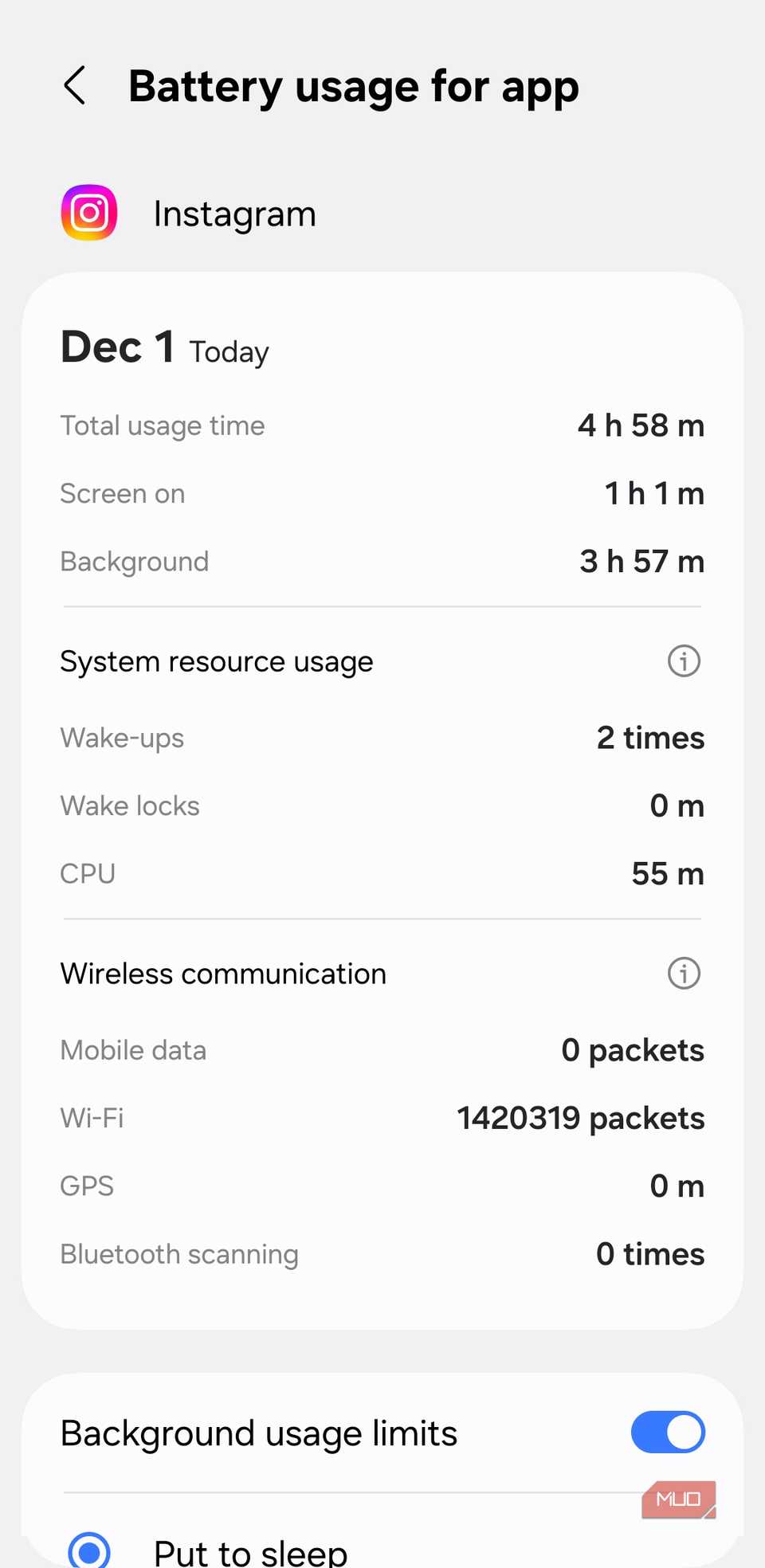
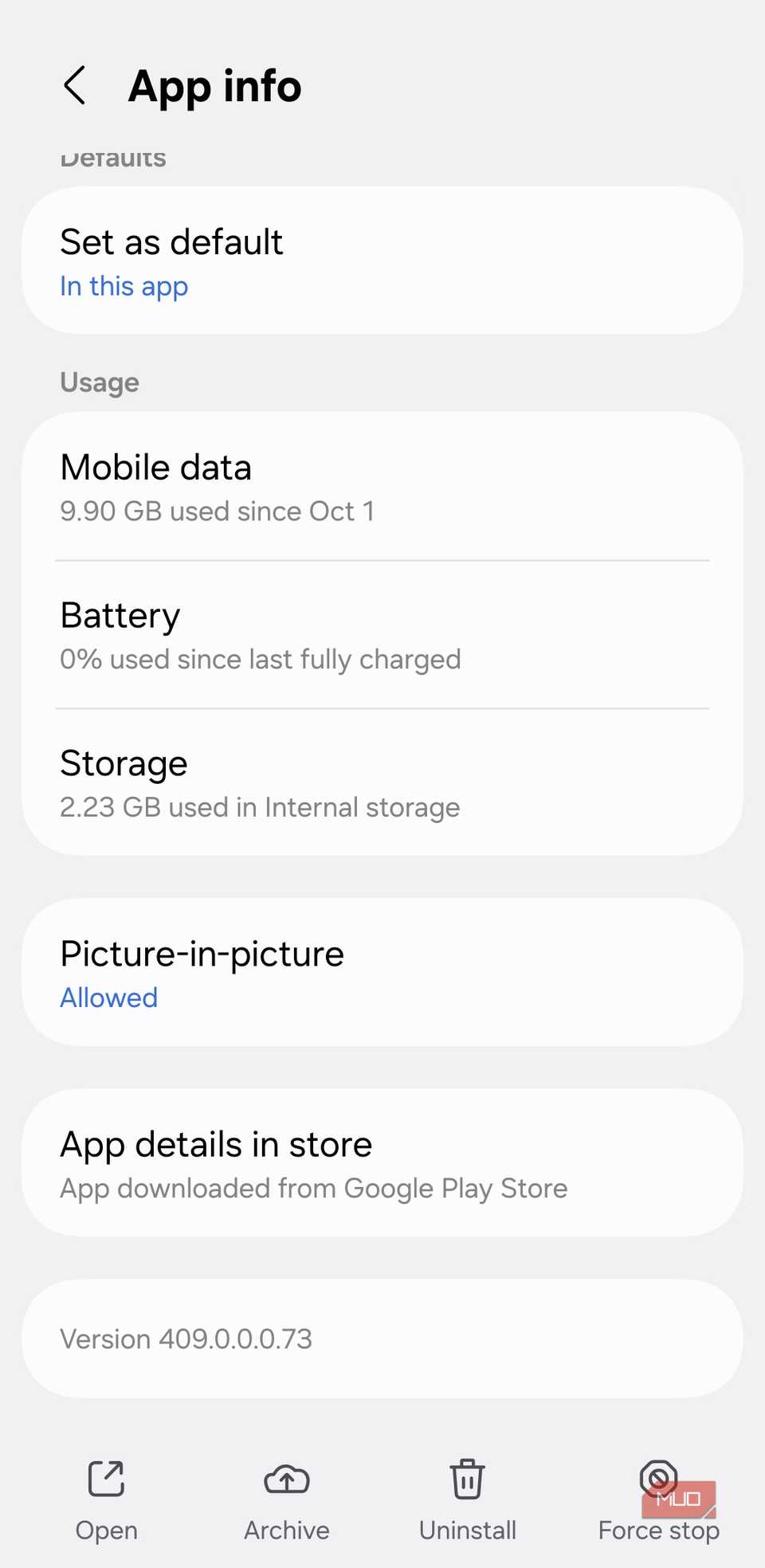
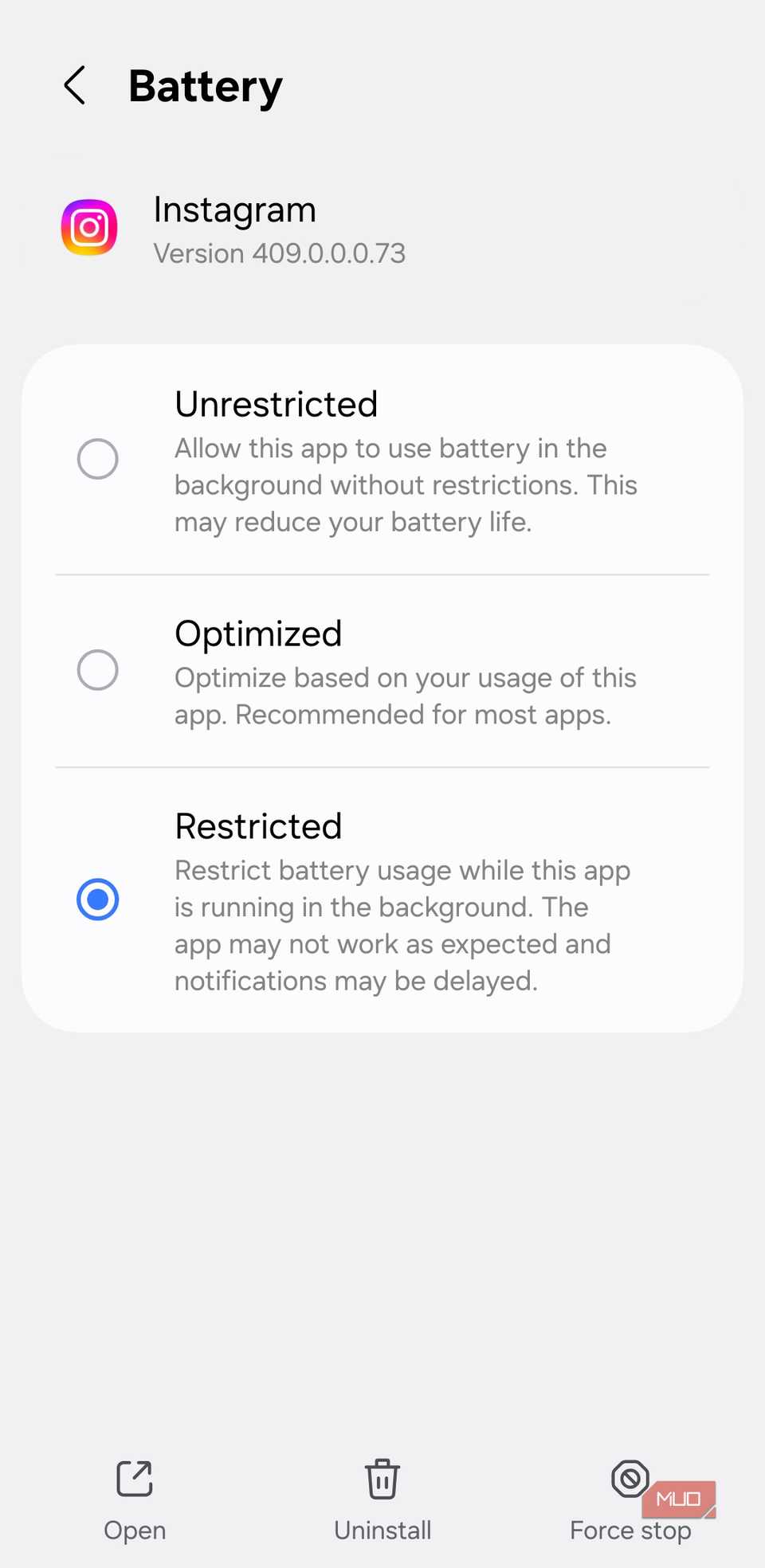
Background app activity is one of those Android settings that look helpful but quietly slow down your phone. There are several apps, such as social media and shopping apps, that sneakily run in the background when not actively in use. They continuously fetch updated content for you, like new emails, notifications, and social media feeds. When you limit the background activity, an app can take longer to update or show notifications. It’s completely fine if an app like Messages genuinely needs to run in the background. However, too many background apps can slow down your phone and destroy its battery life.
It’s a good idea to allow background activity for your important apps, like messages and email, while limiting it for the rest of the apps. This will free up valuable CPU and memory cycles, which makes your phone feel snappier and more responsive.
Clear app cache
Clear it out, speed it up
Amir M. Bohlooli / MakeUseOfCredit: Amir M. Bohlooli / MakeUseOf
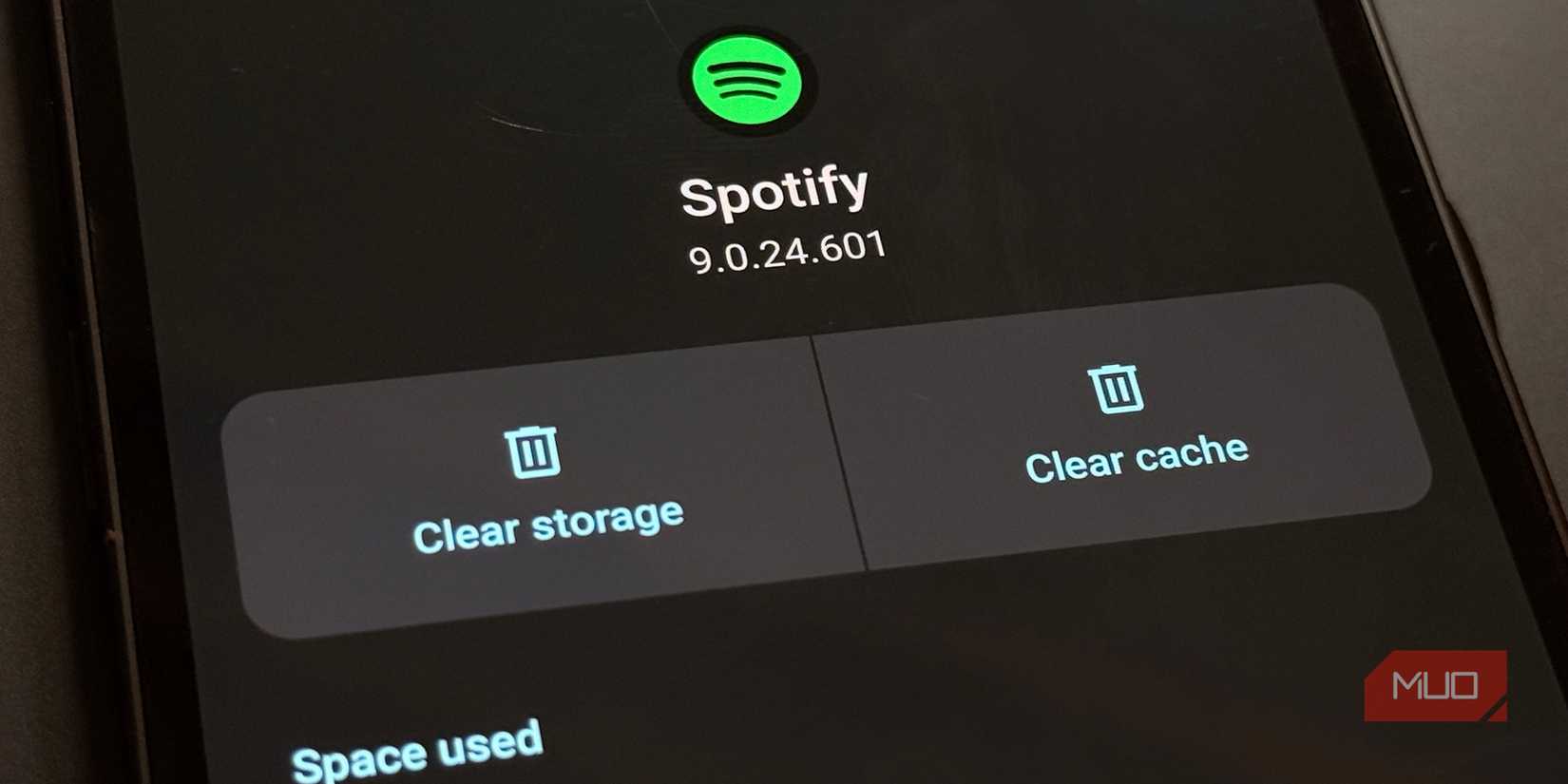
Let me admit it: I ignored cache for a long time, thinking it was harmless. Over time, the apps on our phones build up cached data in the background. Cache is a temporary data storage that saves frequently used app data to speed up loading times. That being said, it also slows down your phone, which hampers the user experience.
Here’s how to clear app cache:
Long-press the app icon and tap the small “i” (info) button.
Go to Storage and cache and hit the Clear Cache button. The process barely takes up a few seconds.
When I cleared the cache on my phone, the difference was day and night. Yes, it removed my app preferences, login sessions, and other data. But in return, I got smoother scrolling, faster responses, and a noticeable overall improvement. Now, I make sure to clear the cache for my most frequently used apps every 15 to 20 days.
Free up some storage space
Give your phone some room to breathe
Pankil Shah / MakeUseOfCredit: Pankil Shah / MakeUseOf
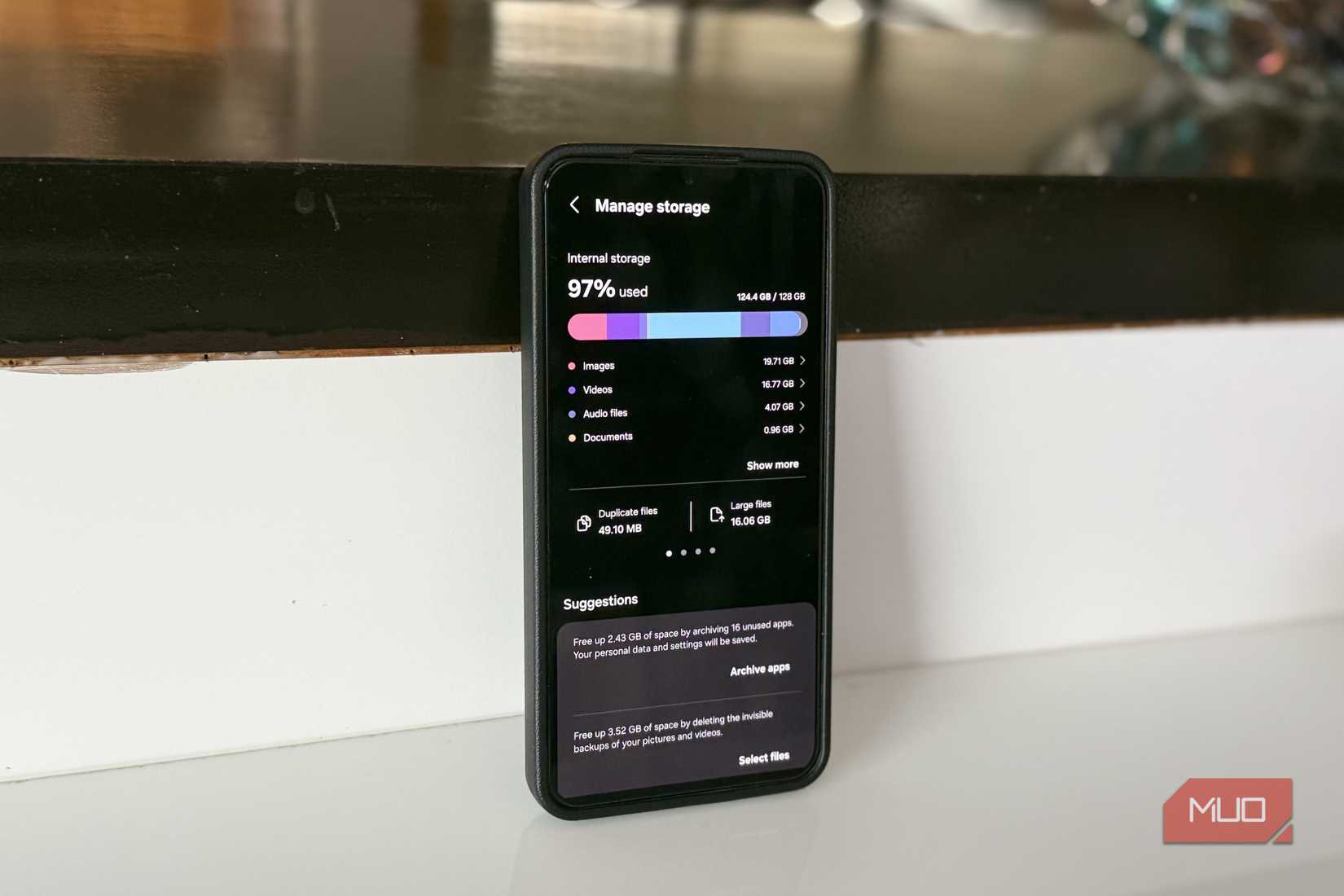
We all know that our smartphones bog down when the storage space is very limited. But we still don’t pay attention to storage until it reaches a level that our phones through annoying storage warnings now and then. I had also used about 90% of my storage space without even realizing it . When I got damn frustrated with the slow performance, I decided to do some digital cleanup.
I deleted some older files and downloads that I don’t need. I also made sure to back up my important data, so I don’t have to worry about losing anything later on. Once I deleted unnecessary data and got back a few free GBs, my phone’s speed improved dramatically.
Install system and security updates
Don’t ignore the update notification
Credit: Keval Shukla / MakeUseOf
Frankly, I’m not someone who updates her smartphone as soon as an update is released. Sometimes, I’m just lazy or don’t want to change the look and feel of my phone. The initial version of a software update might have some bugs or change familiar features. That being said, it’s important to install the latest software and security updates on your phone.
Android regularly releases software updates with bug fixes, performance improvements, new features, and crucial security patches. If you miss an important update, it might slow down your phone or leave it vulnerable to security risks. After I updated the software, my phone felt smoother, and apps stopped crashing randomly.
Perform regular restarts
The simplest fix most people ignore
Pankil Shah / MakeUseOfCredit: Pankil Shah / MakeUseOf
This is one of the simplest but most overlooked ways to speed up your smartphone. You might feel that rebooting your phone is inconvenient and unnecessary. But you must also know that regular rebooting fixes common glitches, improves battery, clears memory, shuts down background processes, and gives a fresh start to the system. Therefore, it’s one of the easiest and quickest ways to improve the functioning of your phone without changing any settings.
Don’t replace your phone right away
After spending a few minutes adjusting animations, limiting background processes, cleaning up storage, and making other changes, my old smartphone felt surprisingly fast. I’m not saying that it will turn your budget phone into a premium flagship, but it will definitely give the best possible experience out of it, so an upgrade won’t feel urgent.
Sometimes, the best upgrade is getting new hardware; it’s unlocking the full potential of what you already have.