
The frantic energy of getting the drop on an opponent. The thrill of a perfectly landed combo. The immersion of racing at high speeds along a winding track. Gaming in 2026 demands visual fidelity that keeps pace with your reflexes. And that means prioritizing motion clarity. A crisp, fast-moving image keeps you in control, but a blurry mess of pixels robs you of crucial visual details, turning exhilarating moments into frustrating guesswork.
The good news? You don’t have to put up with distracting blur anymore. The monitor market in 2026 is full of new options that offer next-level motion clarity, and they’re available at a wide range of price points. So let’s unlock the full potential of your gaming rig. Here, we’ll take a deep dive into what makes smooth movement so critical and how to choose a display that delivers. This guide will cover the underlying technology, historical limitations, current solutions like OLED and G-SYNC Pulsar, and some advice for finding the best monitor for your gaming setup and budget.
The critical role of motion clarity in modern gaming
Motion clarity directly impacts your ability to perform at a high level. In competitive games, milliseconds matter. A clear image allows you to track targets more accurately, react faster to changing situations, and ultimately gain an edge over your opponents.
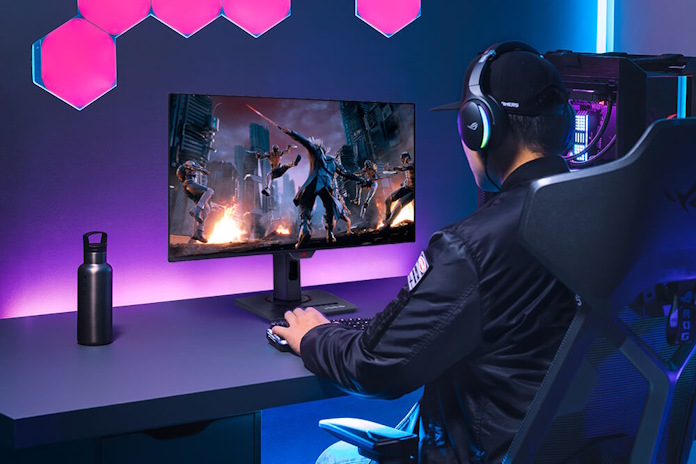
Consider a fast-paced first-person shooter: identifying a fleeting enemy silhouette requires precise visual information. A blurry image forces you to rely on guesswork instead of skill. Similarly, in racing sims, accurately judging distances and cornering speeds depends on clear visuals, especially at high velocities.
To see motion blur in action, try this experiment. Connect an older office monitor to your PC, load up a 3D game, and just take a moment to take in the image. When you’re not moving your character or moving your mouse, you’ll see a baseline level of sharpness and crispness. Now move your mouse just a little bit, but constantly. Notice how blur enters the equation now that everything is in motion.
Now, hopefully you’re not gaming on such a monitor — that’s not what those displays were designed for. But even among gaming displays, some monitors are better equipped than others at providing clear images with moving content. For a closer look at how your monitor performs when it comes to motion clarity (and many other tests of your display’s capabilities), try the UFO Motion Tests from Blur Busters.
The ghosts of motion blur past: sample and hold and pixel transition times
We’ve seen how motion blur can interfere with your gaming experience. But by now, you might be asking why your display is blurry in the first place.
To tell the whole story, we have to go back to the 1990s, the heyday of CRT monitors. With CRTs, images were only illuminated briefly before fading out. This behavior meant that they didn’t hang on to an image, which made it easier for your eyes to track moving objects between each frame — making them a great fit for the classic fast-paced arcade fighting and FPS games of the era.
But CRTs had one big problem: they took up lots of space. When slim-and-trim liquid crystal display (LCD) panels became readily available in the early 2000s, many people gratefully reclaimed their desktop and living room space by switching to the newer tech.

Those early LCDs had advantages over CRTs beyond their space-saving designs, but they were limited in their battle against motion clarity for two reasons. The first is a fundamental limitation in their architecture, called “sample-and-hold.” Unlike CRTs, standard LCDs display each frame statically until the next one arrives, with no “break” between frames, causing your eyes to track a series of static images that instantly shift from one point to the next. As a result, you’ll always perceive a certain amount of blur in this scenario, even if there’s nothing blurry in the images themselves. For that reason, we call this form of blur “perceptual” blur — it’s created by your eyes, not the display.
Compounding the issues of sample-and-hold were slow pixel response times. Pixels can’t instantly switch between two colors. They take a certain amount of time to transition from one color to another. During this transition, you see a temporary blended state that can appear blurry. Early LCD panels had relatively sluggish transition speeds. The result? A frustrating lack of sharpness and definition during dynamic gameplay, particularly in fast-paced titles like first-person shooters or racing simulators.
Gaming monitors have made incredible strides when it comes to pixel response times, and as we’ll see, you have new tools for combatting the specter of sample-and-hold, too. But to effectively compare your options, you’ll need to understand how response times are measured and compared.
Understanding pixel transition times and gray-to-gray (GtG) specifications
Pixel response time is typically measured in milliseconds (ms), with lower numbers indicating faster switching speeds. In general, gamers seek out response times less than 5ms, with sub-1ms response times preferred by enthusiasts. Response times of 10ms and up are okay for most productivity tasks and everyday computing, but if your work involves digital assets, you’ll want a faster display.
However, it’s crucial to understand how these measurements are taken and what’s communicated by the response time measurement on a monitor’s product page. The challenge with communicating pixel response time is that it varies. It varies quite a lot, actually, depending on what color you’re transitioning from and what color you’re transitioning to. The most common specification is “Gray-to-Gray” (GtG), which measures the time it takes for a pixel to transition between shades of gray. This isn’t necessarily representative of real-world performance, as games involve complex color changes beyond simple grayscale transitions.
Crucially, GtG is usually presented as an average. That’s helpful information, but it might not tell you everything you want to know. A monitor might be generally fast, but perhaps it struggles with transitions from dark shades to light shades, leading to smeary blacks. Other times, you might be given a minimum GtG value. That’s helpful for understanding the speed of a monitor in its best-case scenario. It might also help you compare models from different manufacturers, but again there might be more to the story.
A complete look at how a gaming monitor handles motion clarity typically involves a full table of measurements looking at a range of starting points and end points. That’s a bit more information than the average gamer is looking for from a product page, but you can find this data on the sites of reputable independent reviewers, as in this review of the ROG Swift OLED PG32UCCDM Gen 3.
How different LCD technologies stack up when it comes to motion clarity
The industry responded to motion blur first by relentlessly pursuing faster pixel response times and improved transition speeds. Early solutions focused on optimizing existing LCD technologies. Twisted Nematic (TN) panels offered quicker switching speeds than other types, making them popular among competitive gamers prioritizing responsiveness. However, TN panels suffered from limited color accuracy and narrow viewing angles – colors would shift noticeably when viewed from off-center positions.
Later innovations, such as In-Plane Switching (IPS), balanced speed with wider color gamuts and better image quality. IPS technology offered superior color reproduction and consistent viewing angles but traditionally lagged behind TN in terms of response time. Vertical Alignment (VA) panels emerged as a compromise between TN and IPS, offering good contrast ratios and decent response times, though they often exhibited slower switching speeds than IPS. Today, most LCD gaming monitors use a speedy IPS panel, though VA panels remain a budget-friendly option for dark-room gaming.
Display manufacturers also developed a technique called “overdrive” that helps with motion clarity. Overdrive works by accelerating pixel switching speeds, but it can sometimes “overshoot” its target, leading to halo artifacts around fast-moving elements. You can usually adjust overdrive settings in your monitor’s OSD, but the ideal overdrive level depends on your frame rate, which fluctuates naturally over time. So in 2026, we think that your best LCD gaming monitor options include Variable Overdrive Technology. This automatically adjusts the setting in real-time to give you the best image quality with minimal overshoot.
The OLED advantage: incredible pixel transition speeds
Modern LCD gaming monitors offer much better motion clarity than LCDs from even a few years ago, but in 2026 they compete with a game-changing panel tech: Organic Light Emitting Diode (OLED).
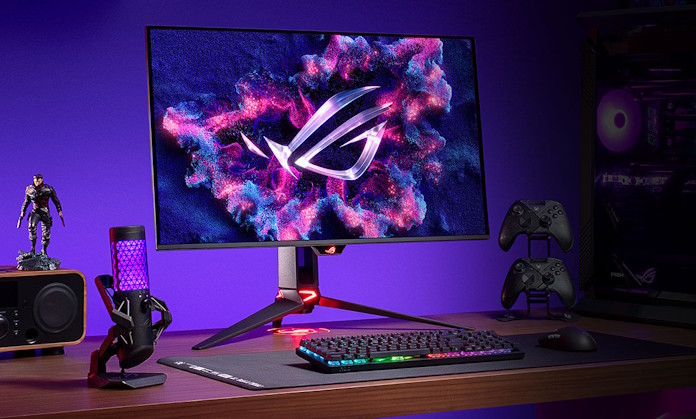
OLED displays offer a generational leap forward in motion clarity. Each pixel in an OLED display is capable of incredibly fast pixel transitions. Response times as low as 0.02ms are on the table. This allows for incredibly sharp and detailed images even during the most frantic action. The near-zero response time of OLED panels effectively removes the ghosting and blurring that results from slow pixel transitions, providing a truly immersive and responsive gaming experience.
And that’s not the only advantage that OLED panels bring to the table. They’re perhaps best known for their near-perfect blacks. When a pixel is turned off, it emits no light, creating infinite contrast ratios and stunning visual depth. While historically more expensive than LCDs, OLED technology is becoming increasingly accessible, offering gamers a premium visual upgrade that dramatically enhances motion clarity. The inherent advantages of self-emissive pixels make OLED the gold standard for motion performance.
How OLED gaming monitors tackle sample-and-hold
OLED gaming monitors all but eliminate one source of motion blur, but what about the pesky problem of sample-and-hold? To a certain extent, OLED gaming monitors can address this source of motion blur just through sheer overwhelming speed. Grab a model like the ROG Swift OLED PG27AQWP-W, which offers a 1440p 540Hz mode to go along with its 0.02ms response time, play a game that your system can run fast enough to take advantage of that 540Hz refresh rate, and you’ll be hard-pressed to spot motion blur of any kind. It has an even higher gear, too, through its 720p 720Hz mode.
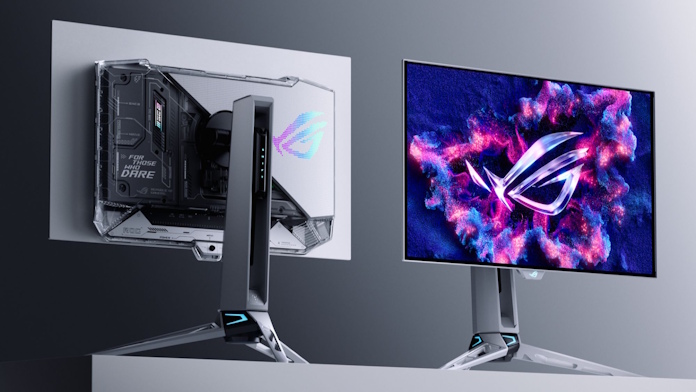
The trick, of course, is running your games at frame rates that high. At 1440p, mainstream gaming rigs with modern graphics cards can play competitive games that fast, but you might well have games in your library that run closer to 100FPS at your preferred settings. You might also be playing console games on your OLED monitor, and those typically cap at 120FPS.
For these scenarios, most ROG OLED gaming monitors offer a mode called Extreme Low Motion Blur (ELMB). With this mode activated, the monitor inserts a black frame between every normal frame. This ensures that each image is only visible to your eyes for a brief moment, minimizing the blur created by the sample-and-hold effect. Activating ELMB does require that half of your monitor’s refresh rate be devoted to these black frames, and it can’t be used in conjunction with G-SYNC or FreeSync. But if you’re using a monitor like the ROG Swift OLED PG32UCDM Gen 3, and you’re playing a game that can’t saturate its 240Hz refresh rate, ELMB gives you a way to enjoy high-end motion clarity.
G-SYNC Pulsar combines otherworldly motion clarity with variable refresh rate support
Try this on for size: incredible motion clarity, ultra-fast refresh rate, and G-SYNC, all working together seamlessly. Not long ago, that combination would have seemed like a holy grail. In 2026, it’s ready and waiting to give you next-level gaming experiences.
The tech is called G-SYNC Pulsar, and it brings astonishing motion clarity to the LCD gaming monitor scene. It maintains pristine clarity for fast-moving objects, and since it works alongside G-SYNC without a fuss, you get next-level clarity across the monitor’s huge variable refresh rate range.
How does G-SYNC Pulsar work? It uses backlight strobing to crush the motion blur created by sample-and-hold. Carefully tuned pulses of the backlight ensure that each frame is only visible for a brief moment, all but eliminating persistence blur while keeping the image bright. This tech runs without fuss alongside variable refresh rate tech, too, making sure that you never have to choose between ultra-clear gameplay and the low-latency, tear-free visuals of G-SYNC. Right now, you can secure this game-changing tech through the ROG Strix Pulsar XG27AQNGV.
Picking a monitor for motion clarity
With all this in mind, we’re able to make some specific recommendations for your next gaming monitor. In 2026, you’re not limited by the technology of the past. High-end motion clarity is available at any budget, with premium options providing a next-level experience that you’ll enjoy for years to come.
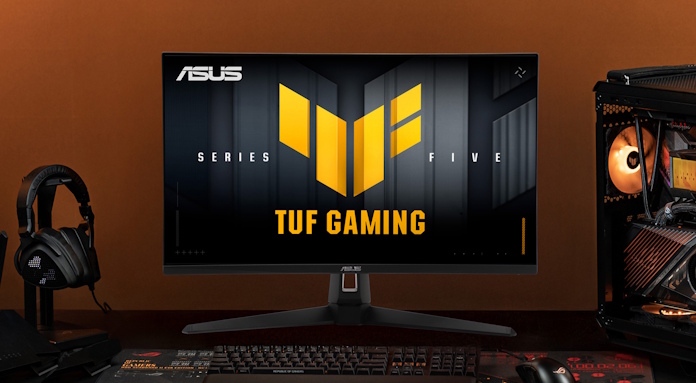
For budget gamers, we think that the new TUF Gaming Series 5 monitors offer the best balance of performance and value. Take the TUF Gaming VG27AQM5A, for instance. This 27-inch LCD gaming monitor offers a striking feature set with its 300Hz refresh rate, 2560×1440 resolution, AMD FreeSync™ Premium and NVIDIA® G-SYNC® compatibility, and response times that range as low as 0.3ms. Just a few years ago, those specs would have put the VG27AQM5A firmly in the premium category. Today, it can be yours for $299.99 (USD).
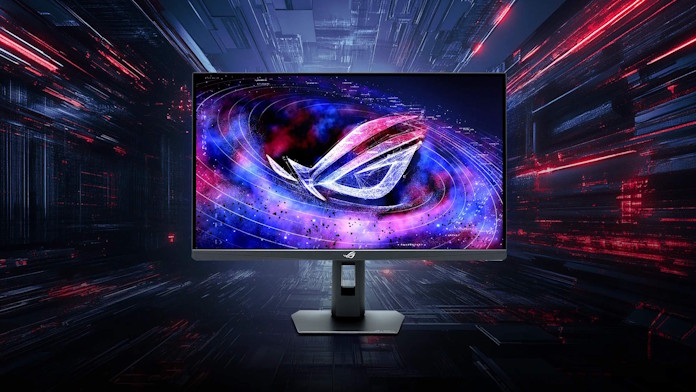
If you have a bit more wiggle room in your PC upgrade budget, you can access some truly next-level technologies. The ROG Strix Pulsar XG27AQNGV has a lot to offer between its G-SYNC Pulsar tech, 360Hz refresh rate, and 2560×1440 resolution. Delivering 4x effective motion clarity, it’s perfect for gamers looking to gain an edge over the competition.
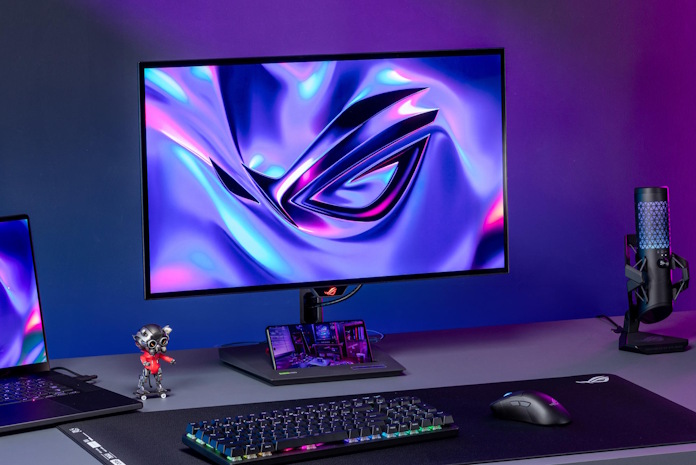
Perhaps you’d prefer the contrast and color performance of an OLED panel. Cutting-edge OLED tech is available for mainstream gamers, too, and at prices that might be lower than you expect. Take the ROG Strix OLED XG27AQWMG, for instance. Available for $649.99 (USD), this monitor packs a Tandem OLED panel that delivers 15% higher peak brightness, 25% larger color volume, and 60% longer OLED lifespan versus previous-generation WOLED panels. Between its 280Hz refresh rate and 0.03ms response time, you’ll have fast, fluid, and clear imagery in any game you play, and you’ll get modern amenities like a Neo Proximity Sensor that switches to black screen whenever you step away from your PC.
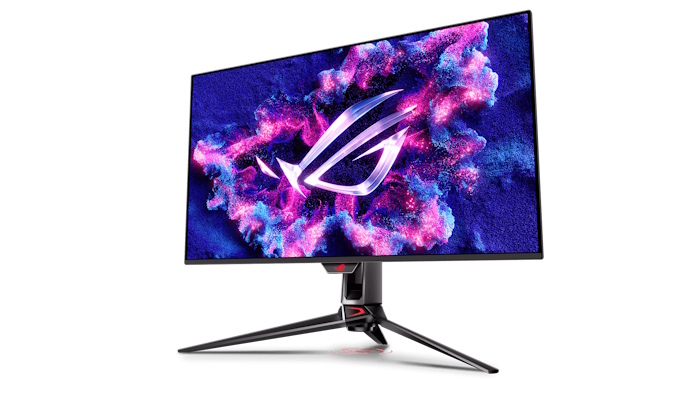
Perhaps you’d rather skip straight to the front of the line and experience the finest gaming visuals available today. We’ll point you to the ROG Swift OLED PG32UCDM Gen 3. This monitor goes big in all the right ways. It boasts a big 32-inch diagonal with a lusciously detailed 4K resolution. Its bleeding-edge QD-OLED panel gives you vibrant colors and supremely inky blacks, and it’s tuned for excellent performance in well-lit rooms thanks to its BlackShield™ film. You’ll get future-proof connectivity thanks to a DisplayPort™ 2.1 UHBR20 port and a USB Type-C port with 90-watt Power Delivery. And it’s primed to give you pristine motion clarity thanks to its 240 Hz refresh rate and 0.03ms response time.
The future is clear
Gamers had to grapple with motion blur for far too long, but today the war is largely over. Modern display technologies allow for incredibly fast response times, minimizing the blur caused by pixel transitions, and you have multiple options for sidestepping persistence blur, too. If you’re looking for a game-changing upgrade in 2026, a new monitor is your best play. Grab a display that’s equipped to crush motion blur, and get ready to see the difference.
Frequently asked questions
Q: What is motion clarity, and why is it important for gaming?
A: Motion clarity refers to how sharply moving objects are rendered on a display. Poor motion clarity results in blurriness or ghosting, making it difficult to track fast-moving targets accurately. It’s particularly crucial for competitive gaming where precise visual information is essential, but also enhances immersion and enjoyment in all genres.
Q: My monitor has a high refresh rate (144Hz, 240Hz). Does that guarantee good motion clarity?
A: A higher refresh rate reduces the duration of each frame’s display time, which can help improve motion clarity. However, it doesn’t solve motion blur on its own. The underlying panel technology must be capable of transitioning each pixel to a new color well before the next refresh cycle.
Q: What is sample-and-hold, and how does it affect motion clarity?
A: Sample-and-hold is a method for displaying frames required by most LCD monitors. In contrast to older CRT monitors, on which images faded out before the next one arrived, LCD monitors rely on sample-and-hold, a method which displays each image statically until the next one arrives. This creates persistence blur as your eyes track moving objects, perceiving a smeared trail instead of distinct positions.
Q: I’ve heard about Black Frame Insertion (BFI). What does it do and are there any downsides?
A: Black Frame Insertion briefly displays a black frame between regular frames to reduce persistence blur, somewhat mimicking the rolling scanout of classic CRT monitors. BFI halves the effective refresh rate and can reduce overall brightness. That said, the reduced refresh rate isn’t always a concern, especially for console gamers, and modern OLED gaming monitors maintain excellent brightness levels with BFI activated.
Q: What are TN, IPS, and VA panels, and how do they differ in terms of motion clarity?
These are all types of LCD panels.
TN: TN panels offer fast response times but have limited color accuracy and viewing angles. TN panels have largely been replaced by Fast IPS panels.
IPS: IPS panels provide good color accuracy and wide viewing angles. Traditionally, their response times were slower, but that’s no longer true with Fast IPS technology.
VA: VA panels offer good contrast ratios for deep blacks and often provide a good balance between speed and image quality.
OLED panels generally, but not always, surpass LCD options in motion clarity thanks to their incredibly fast response times.
Q: What’s “ghosting” and how can I minimize it?
A: Ghosting refers to visible trails behind moving objects caused by slow pixel response times. Minimize ghosting by choosing a monitor with fast response times (1ms or lower), optimizing overdrive settings carefully (if using an LCD), and ensuring your GPU is capable of delivering high frame rates.
Q: What role do NVIDIA G-SYNC and AMD FreeSync play in motion clarity?
G-SYNC and FreeSync synchronize the refresh rate of the display with the output of your graphics card, eliminating screen tearing and stuttering. This creates a smoother overall experience which reduces visual inconsistencies. They don’t directly address motion clarity but contribute to a more fluid image.