
Table of ContentsCompare Specs: Our Picks Side by SideThe Pro Tools: Making the Most of Adobe FireflyAdvanced Image Manipulation and Background ControlStylisation and Creative AssetsGenerative Mood BoardingStep-by-Step: Animating Static AssetsYou’ve Got a Video: What Now?Pricing and Availability
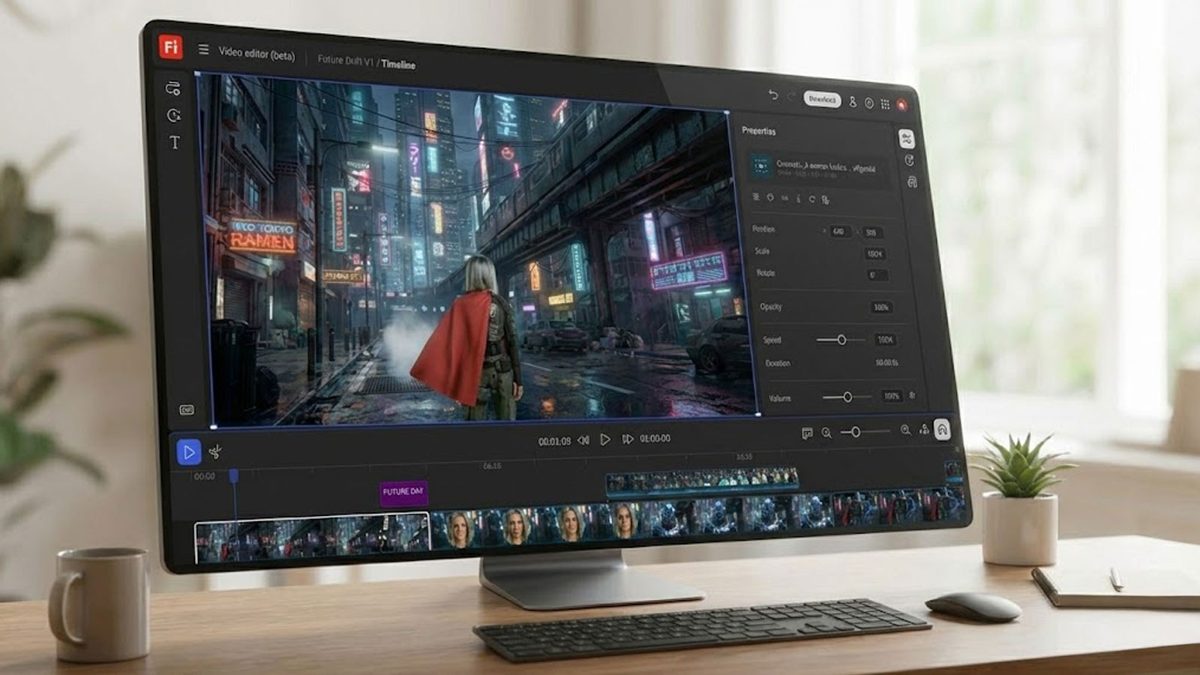
Lately, it seems like AI generated video is everywhere. Social media is flooded with clips of varying quality, and maybe you’ve even tested out a version of the functionality yourself. Text to video generation has been around for a few years now, but the number of AI tools at creatives disposal has exploded, especially in the past 12 months. In 2025, Adobe expanded its Firefly generative AI suite with the introduction of the Firefly Video Model. This expanded the image editor to include image to video functionality, allowing users to generate motion clips from either static images, text prompts, or a combination of both.

Adobe Firefly
Get unlimited image generations until March 16
Whether you’re looking for a free ai video generator, or a paid, fully featured video editor, the Firefly video model is designed to produce commercially safe content, perfect for conceptual mockups or B-roll footage. And with a free version accessible through the Firefly web interface, Adobe has made it easy to get started and explore some of this new AI-powered functionality. In fact, Adobe is currently offering unlimited image generations on Firefly until 16 March. With unlimited generations in Firefly on all image models, but for the Firefly Video Model you’ll need to have access to Firefly Pro or Firefly Premium.
With this all being said, while Firefly as a platform is incredibly accessible, finding specific features or using a new tool for the first time isn’t always intuitive. And when a platform is as jam packed with features as Adobe’s suite is, it’s hard to even know the breadth of features at your disposal. So, here is our guide to making the most of the Firefly online video editor. Less about video editing tips, more about highlighting our favourite features of the video editing software.
The Pro Tools: Making the Most of Adobe Firefly
While the video model is the latest addition, Adobe Firefly also functions as a comprehensive ai photo editor and image editor, offering a suite of tools designed to prep assets before they are animated. Giving you full control over what is being generated and from what assets, the whole way through the process. For creators requiring a versatile photo editor, the Firefly platform helps across some key areas:
Advanced Image Manipulation and Background Control
The pre-eminent feature in the Firefly toolkit is (and always has been) the background remover. This incredibly powerful AI-powered tool allows users to remove backgrounds or remove backgrounds from images with high precision while maintaining the original resolution.
Transparency: Instantly make backgrounds transparent or use the transparent background maker to create clean assets for compositing.
Colour Adjustment: For product photography, users can remove white backgrounds or change background colors to meet specific brand guidelines.
Object Removal: The “Generative Fill” capability acts as an ai object remover, allowing you to remove people from photos or remove unwanted objects from photos by simply brushing over them and letting the AI interpret the surrounding pixels.
Upscaling and Restoration: The photo enhancer and photo unblur features can unblur pictures online and make photos HD, which is essential when working with lower-resolution source files or old photo restoration projects.
Geometry Tools: Standard technical edits are handled via the image cropper and image flipper. Firefly allows you to crop images, mirror images, or flip images online to correct composition before applying motion.
Stylisation and Creative Assets
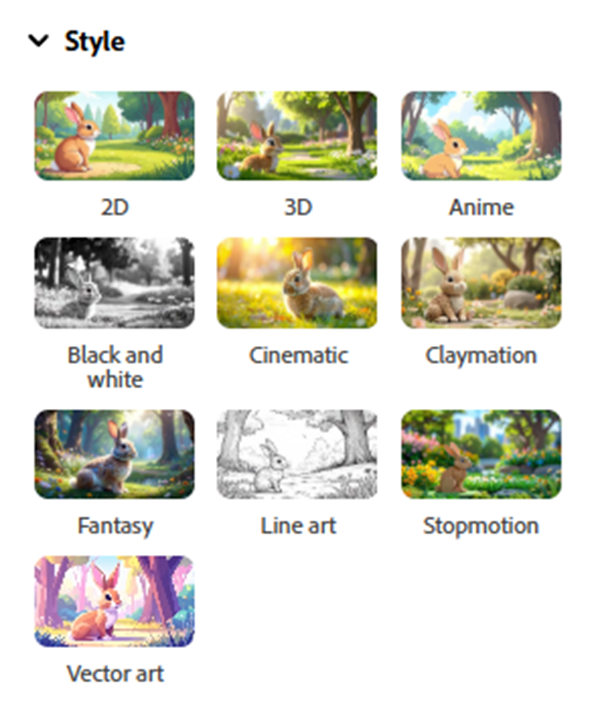
Beyond standard edits, Firefly allows users to turn photos into paintings, turn photos into cartoons, or even convert an image to pixel art. These artistic filters are particularly useful for creating consistent thumbnails or stylized B-roll. You can also add text to photos directly within the interface to create title cards or promotional overlays.
Generative Mood Boarding
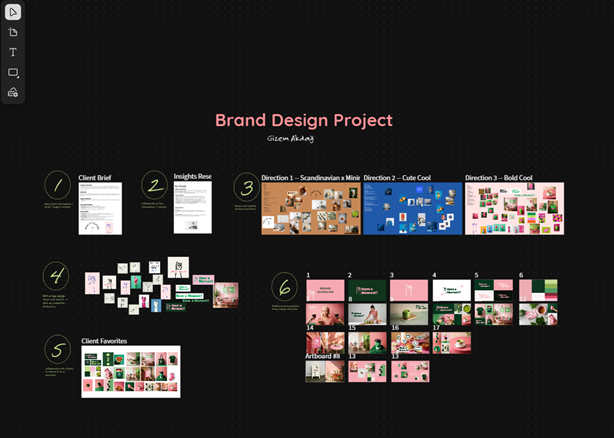
For large-scale projects, Firefly Boards offers a generative approach to concepting. This workspace allows you to combine images, textures, and text to set a design direction. It streamlines the creative process by allowing you to:
Remix Styles: Quickly explore different artistic directions and backgrounds.
Asset Transformation: Modify specific parts of an asset within the board to see how they interact with other elements.
Collaborative Visualization: Centralize your AI-generated assets and text prompts to refine a cohesive visual language before moving into full video production.
Step-by-Step: Animating Static Assets
Lost? Suddenly feeling a little overwhelmed? That’s totally normal. If the Firefly interface is entirely foreign to you, and you’re looking to just get a taste of what the tools can accomplish, here is a step-by-step guide on how to get started using the Image-to-Video feature. It’s relatively simple but a powerful tool which just about anyone can use to produce impressive results, so it’s a good place to start:
1. Navigate to the Video Workspace: Log in to the Adobe Firefly web interface. In the sidebar, select Generate, then locate and select the Image to Video (or Generate Video) module.
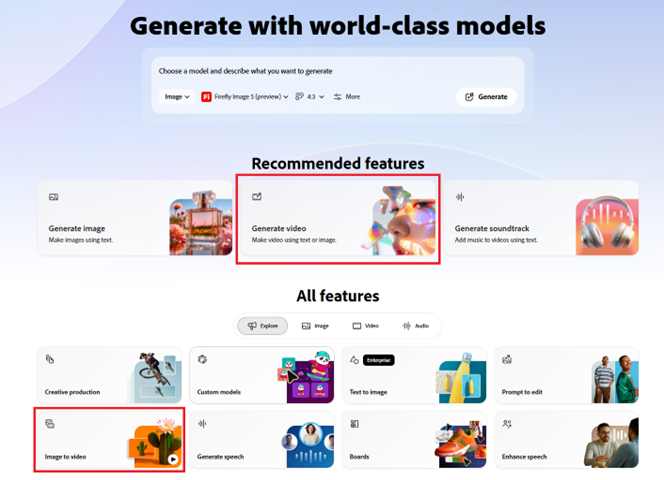
2. Upload Source Images: Use the upload field to import a JPEG or PNG file. This can be a photograph, a digital illustration, or an image previously generated within Firefly.
Note on Transitions: To define a specific start and end point for the animation, upload a primary image as the Start Keyframe and a secondary image as the End Keyframe.
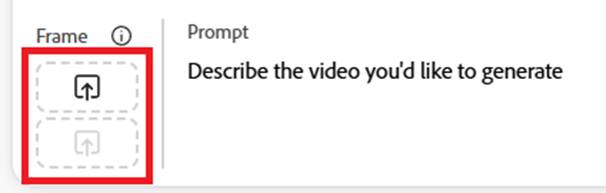
3. Configure Output Specifications: In the settings panel, define the technical parameters:
Aspect Ratio: Select from Widescreen (16:9), Vertical (9:16), or Square (1:1) based on the target platform.
Resolution: Currently, the tool supports outputs up to 1080p (FHD).
Directional Prompts: While the image provides the visual base, a text prompt is used to dictate the specific motion. Use directions such as “flickering lights” or “subtle movement in the background foliage.”
4. Adjust Motion and Style Controls:
Camera Motion: Manually select camera behaviors such as pan, zoom, or tilt to control the virtual lens movement.
Style Presets: If a specific aesthetic is required, apply a preset such as 2D Animation, Line Art, or Claymation to modify the render.
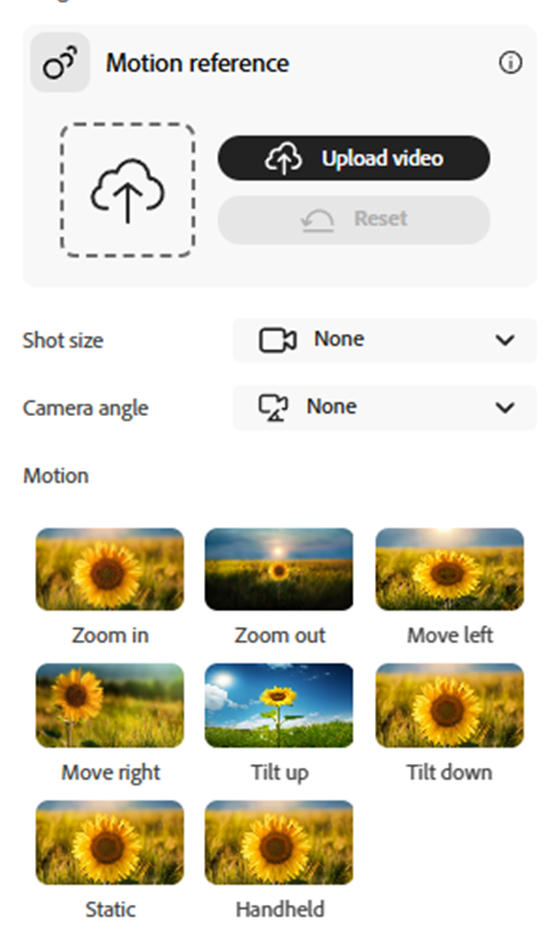
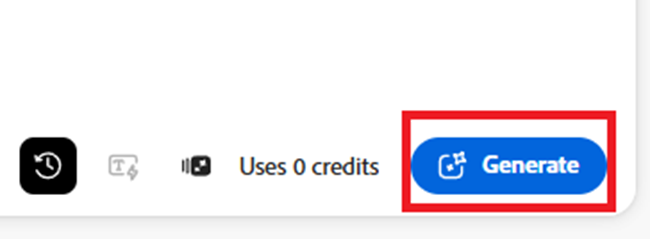
7. Generate and Export: Click Generate to process the request. After reviewing the preview, you can further refine the prompts or motion settings before downloading the final MP4 file.
You’ve Got a Video: What Now?
Congratulations, you’ve made an Image-to-Text video using Adobe Firefly! But Generative AI will never fully replace human creativity, so what else can you do with this new media you’ve created? Adobe has other apps for that. While the core features of Firefly are similar (though more powerful in many key situations) to other generative apps on the market, Adobe’s primary value proposition for Firefly is its integration into the Creative Cloud ecosystem.
The Firefly video generation tool offers native aspect ratio controls and generative editing, all within the same interface that you would use with applications such as Premiere Pro or After Effects. At scale, this streamlined approach allows for the rapid creation of social media assets or placeholders within a professional video editing timeline.
Pricing and Availability
While a free version is available, to make the most of the tools, you’ll want to subscribe to some level of either Creative Cloud or Firefly as a standalone product. Access to the Firefly Video Model is based on a tiered subscription system, broken down using “Generative Credits.” While a limited free tier exists, consistent use requires a paid plan. If you exhaust your monthly allocation of Generative Credits, Adobe provides the option to purchase additional credit packages or upgrade to a higher subscription tier to maintain full functionality.
Firefly on its own comes in three subscription tiers: Standard, Pro, and Premium. Learn more here.
Firefly Standard – A$16.49/mo
Firefly Pro – A$32.98/mo
Firefly Premium – A$329.99/mo
Creative Cloud Pro – A$113.49/mo
Make sure to get started before March 16 to take advantage of the unlimited generations offer, and for more information on the full range of Firefly licences, check out the Adobe website, here.