
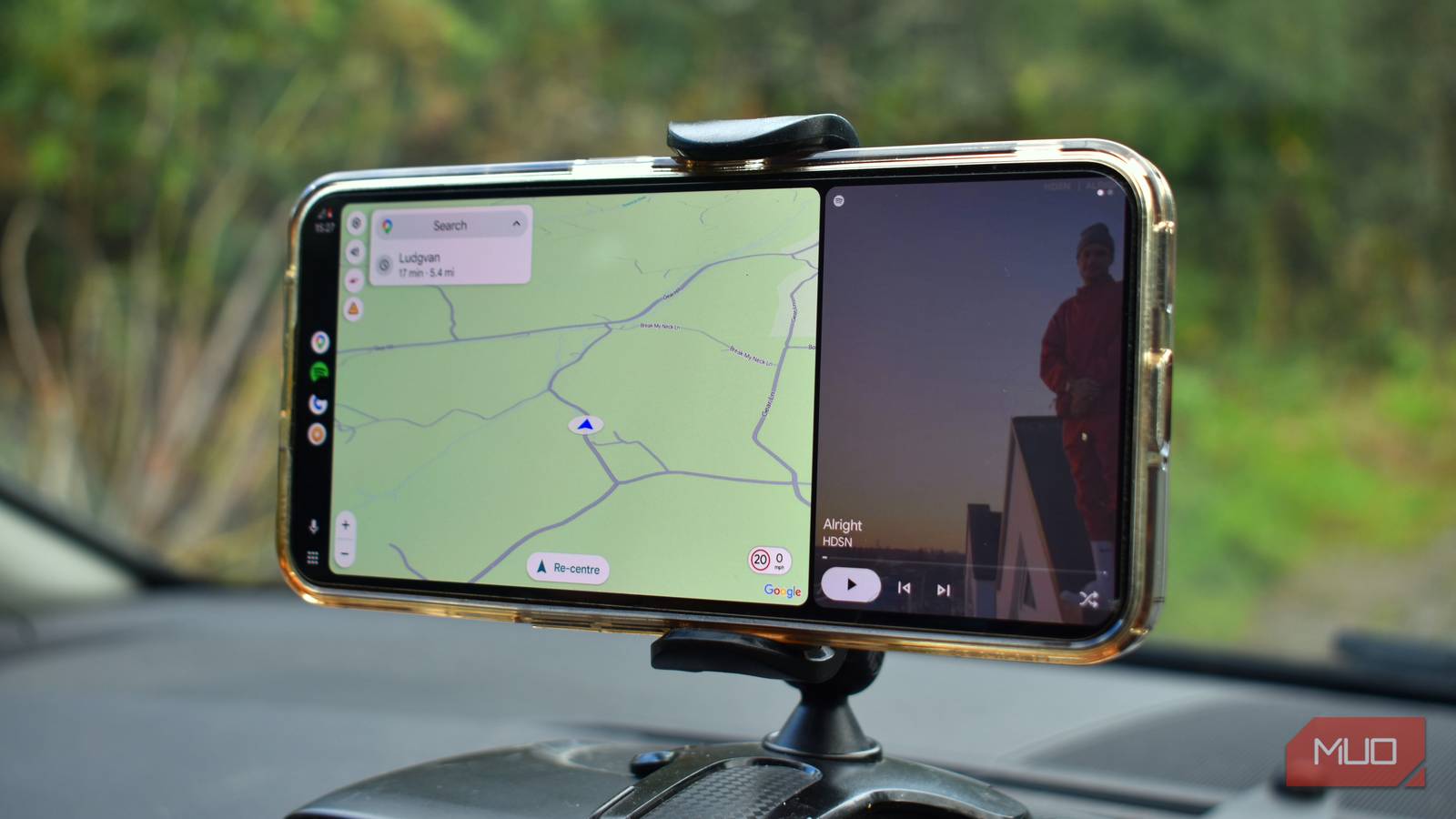
Whenever I drive a hire car, one of my favorite bits of the process is having Android Auto. My regular car is old and doesn’t support Android Auto, which is a pain — and something I’d really love; my next car will definitely have it!
Turns out, I don’t actually need to spend tens of thousands on a new car. I paired the open-source project, Open Headunit, with an old Android smartphone and a $20 Bluetooth-to-3.5 mm audio dongle, and solved my Android Auto problems for good.
Related
I found this Android Auto feature so useful it made me switch from CarPlay
I find the news audio implementation much nicer via Android than iOS.
Open Headunit brings Android Auto to almost any Android device
Put that old phone to good use
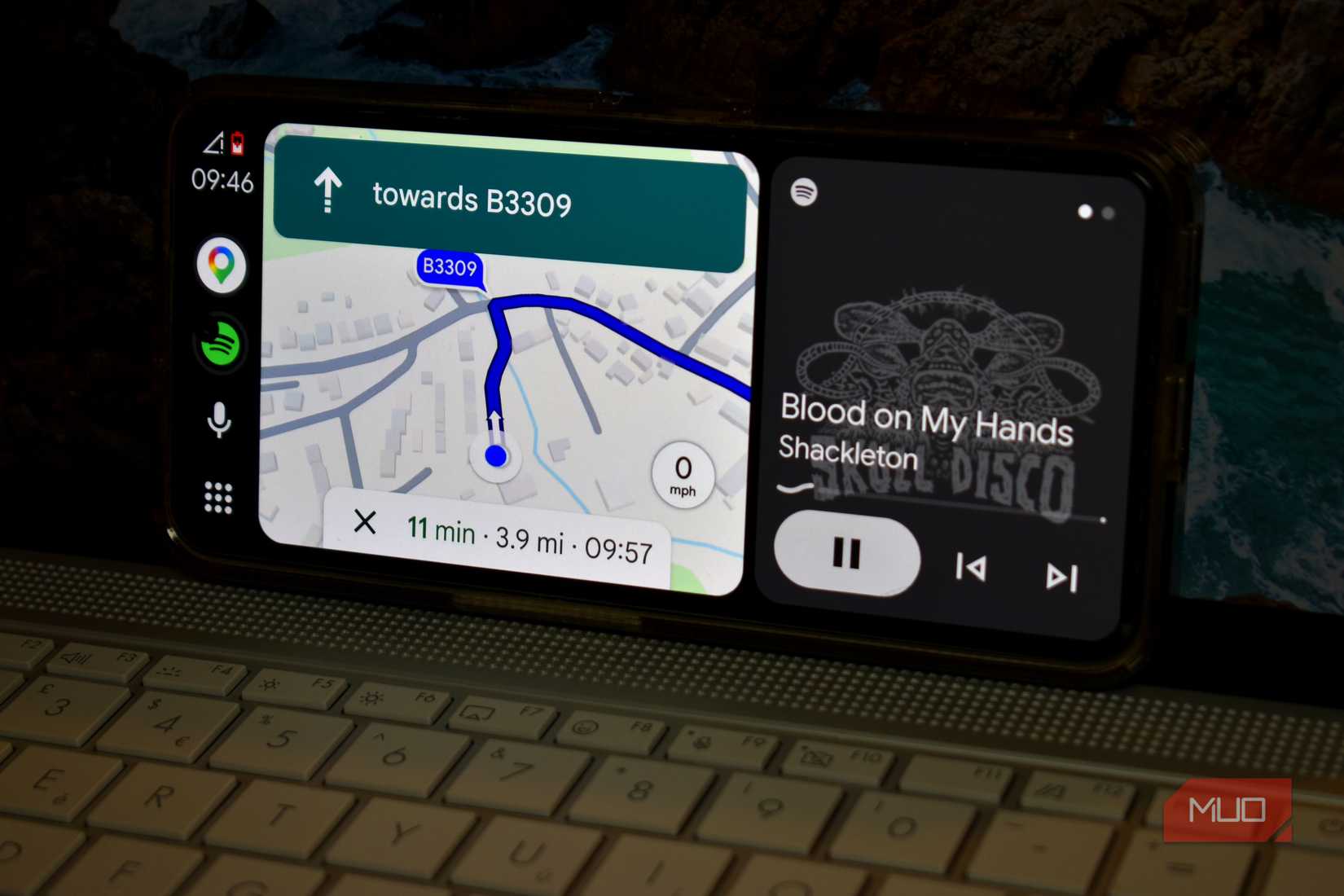
Open Headunit is the perfect way to bring life back to an old Android device, as well as make navigation in your car a bit easier.
It’s a free and open-source app that you can download through the official GitHub as an APK file and sideload it on your device, or, alternatively, you can download it directly from Google Play for $4, helping support developer Andre Rinas and his efforts in bringing this project back to life.
Once installed, Open Headunit lets you run Android Auto without needing to plug into a vehicle, meaning you can run it anywhere you like. Some folks have even taken to running Android Auto at home to cut down on smartphone distractions.
Setting up Open Headunit doesn’t take long
Follow the tutorial and use the connection wizard
Once installed, fire up the Open Headunit app and work through the settings tutorial. There is an option to set the app up without the tutorial, but I found it useful, especially as it wasn’t immediately clear what settings I needed for connectivity.
That’s in part because of how the app and your device access Android Auto. Basically, all Android devices manufactured since around 2018 support Android Auto, but switching how you connect to and access it means different things on different devices. The tutorial can help you Auto-Optimize your device, cutting down on setup time and other headaches.
The first big decision is how you’ll keep the device connected. Android Auto needs a stable internet connection, achieved through USB or an adapter, Wi-Fi, or Self-Mode, for devices with an active internet connection (i.e., still using a cellular connection). I’m using my main phone as a hotspot for the secondary, so I chose Wi-Fi.
Next up, choose your device size, the Android Auto scale size (can be changed later), appearance, audio, and which device Open Headunit should use for GPS navigation (either the device or the connected device). You can also add a unique name to your device at this point if you want, but it’s not required to complete the setup, and like every other option, it can also be changed later.
It’s worth playing around with the Android Auto scale to see what fits best for your smartphone and vehicle. As an example, I set mine to use the Automatic device pixel density of 480 DPI, but that looked absolutely awful. Readable for navigation, but without being able to see any other navigation details. Setting the DPI to around 220 on my device gave me the visual style I wanted without making it difficult to tap any buttons.
From here, your device should change to the familiar Android Auto connection page, where you can choose the Android Auto logo to boot the navigation app.
Use the Wireless Helper if your connection isn’t working properly
Older versions of Open Headunit (when it was known as Headunit Revived) had a separate wireless connection helper app to trigger Android Auto wireless connections on your device. However, the newer version featured here integrates a Wireless Helper mode, which helps to trigger the wireless connection in the background.
If you’re struggling to connect wirelessly, I suggest toggling this setting, restarting the app, and trying again.
I connected the secondary phone to my car with a $20 Bluetooth dongle
Man, my car is real old
As mentioned, my car is old enough that it doesn’t have Wi-Fi, Bluetooth audio, or anything else. Instead, I bought a $20 UGREEN Bluetooth 6.0 to 3.5mm dongle so that I could connect my smartphone to the car, as my old USB-C to 3.5mm adapter cable stopped working.
The same applies to my secondary phone, too. In fact, the UGREEN dongle supports two incoming Bluetooth connections, which in this case would have been really handy. However, as Android Auto also integrates Spotify, it’s easier for me to run it all through one smartphone.
With Open Headunit running, Android Auto open and configured, and Spotify doing its thing, the dongle was the last step in turning my old smartphone into a proper Android Auto unit. Oh, and an in-car mount. You’ll want one of those, too; otherwise, you’ll have to keep glancing down at your smartphone or position it so it doesn’t fall out of place.
Open Headunit isn’t perfect, but it’s fantastic for any old car
I appreciate that I’m lucky enough to have an old Android device hanging around that I can turn into an Android Auto substitute. Other folks may not have that option. But if you do, it’s well worth doing.
Open Headunit won’t solve all of your navigation issues, and in truth, you may simply find it easier to stick Google Maps on your current device with a playlist in the background. It’s worked for years, so why change that?
Still, if you have an old device lying around and 15 minutes spare, you should absolutely try Open Headunit, ready for your next trip.
Related
Your Android Auto is hiding a feature most drivers never find — here’s what it does
This underrated feature can reinvent how your infotainment screen looks.