
I swap smartphones more often than most people because of my job. As such, I’m fairly experienced with the routine of setting up a new device.
There are a few settings I always dive into when setting up my latest smartphone, and that ritual isn’t only about personal preference — it’s about safety.
Modern phones have several safety and privacy features. These have accumulated over time, and now they can help shield your phone from intrusion and protect against a loss of data from theft.
The kicker? Most of them are off by default. That won’t do. Here’s how to turn them on.
Related
My safety shouldn’t depend on which Android phone I buy
Emergency protections should work the same everywhere
These great options are hidden away
You need to know where to find them
You’ve probably heard of some of these features, but how confident are you that they’re actually on?
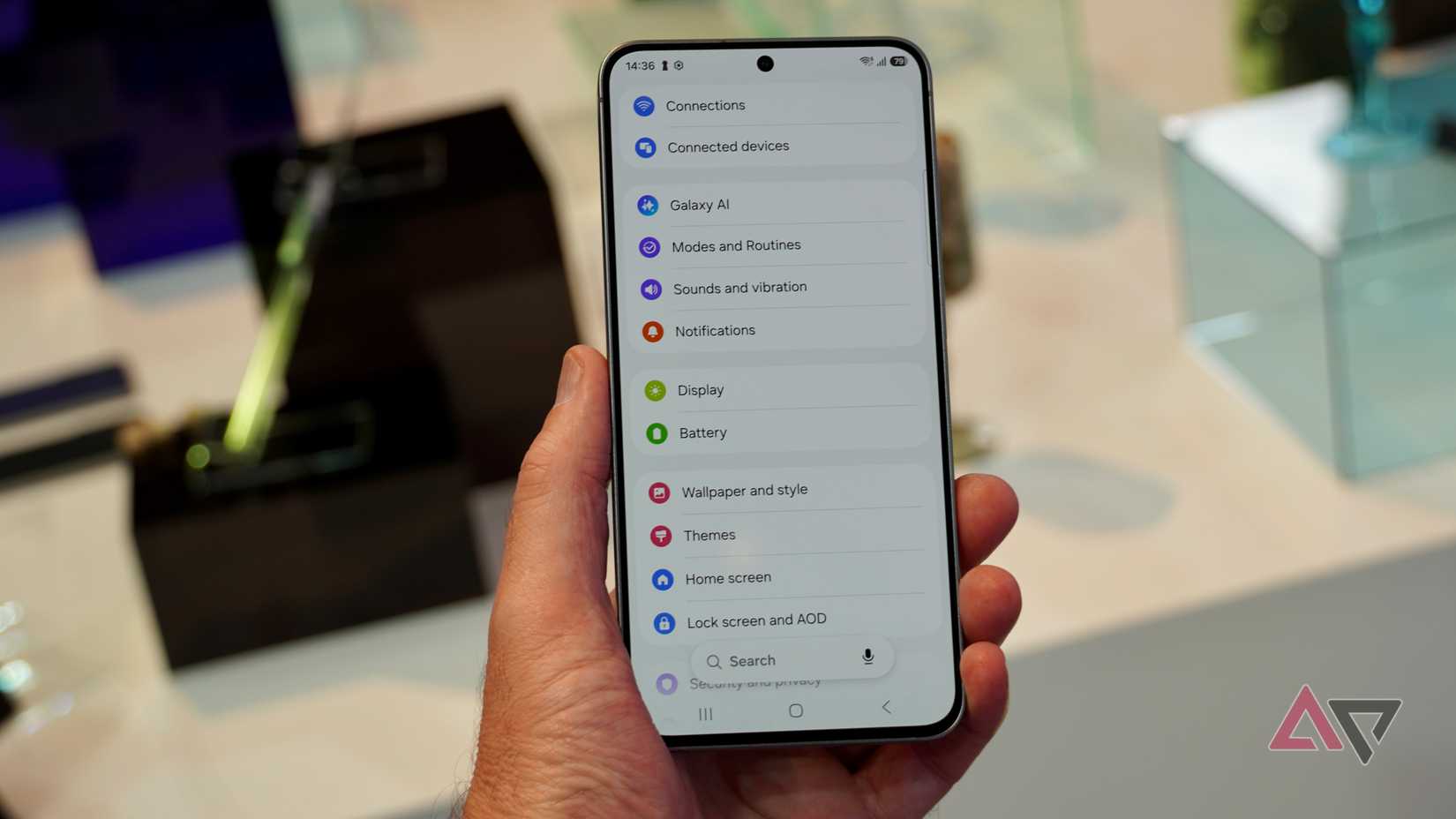
Thankfully, they’re well contained in your phone, and you’re unlikely to have to move much past two categories in your phone’s Settings app.
The location of these two categories will change depending on the model of phone and Android you’re using, but I was able to find everything I needed in the Safety and Emergency and Security and Privacy sections of the Settings app on both my Google Pixel 10 Pro and Samsung Galaxy Z Fold 8.
However, not every phone has all of these, though most modern Android phones should have at least a few. If you’re struggling to find them, the search function in the Settings app is your friend.
Now, on to the settings you need to know about.
Our phones have a lot of safety features, but most are off
They can’t do their good work if they’re off
Credit: Lucas Gouveia / Android Police | Saklakova / Shutterstock
These features and services are off by default, but you should seriously consider turning them on, though you don’t need to.
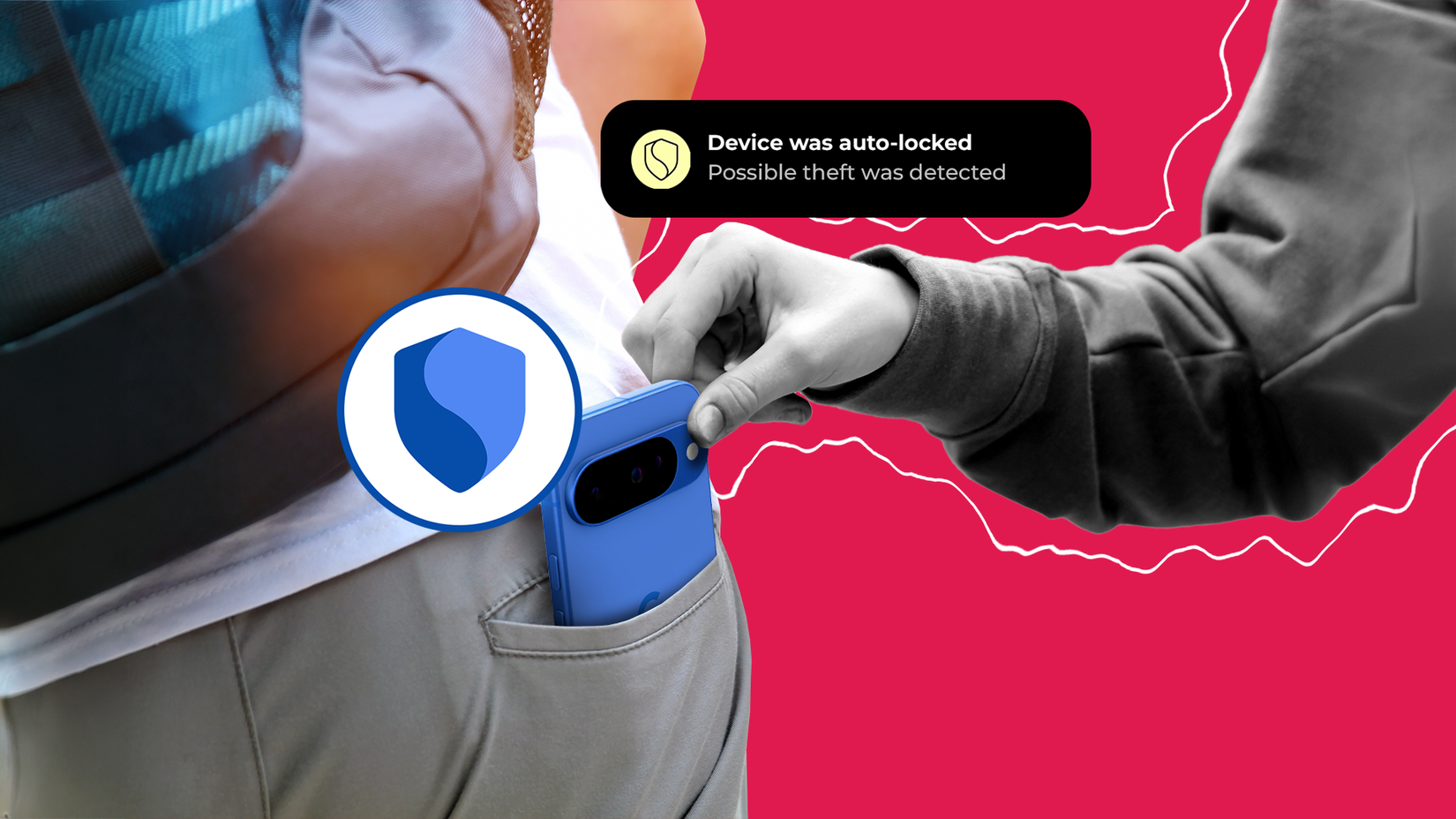
Theft Protection is the first of these on my list. This setting is on by default in certain countries, such as Brazil, but in most others it’s off by default.
“Theft Protection” might make you think a burly fellow will pop out of your phone when it’s being taken from you, but the reality is much simpler and less preventative.
It uses a combination of your phone’s sensors to detect when your phone might have been snatched. It then automatically locks the screen.
If someone snatches your phone while it’s open and unlocked, Theft Protection should detect it and lock your phone, preventing the thief from easily accessing it.
Your phone wasn’t snatched? Then great; use your regular PIN or pattern to unlock your phone.
Offline Device Lock works to thwart thieves as well. Since one of the first things thieves do is disconnect a phone from Wi-Fi or cellular data so it can’t be tracked, Offline Device Lock locks your phone screen if it detects this.
Like the setting above, entering your PIN or pattern will unlock it.
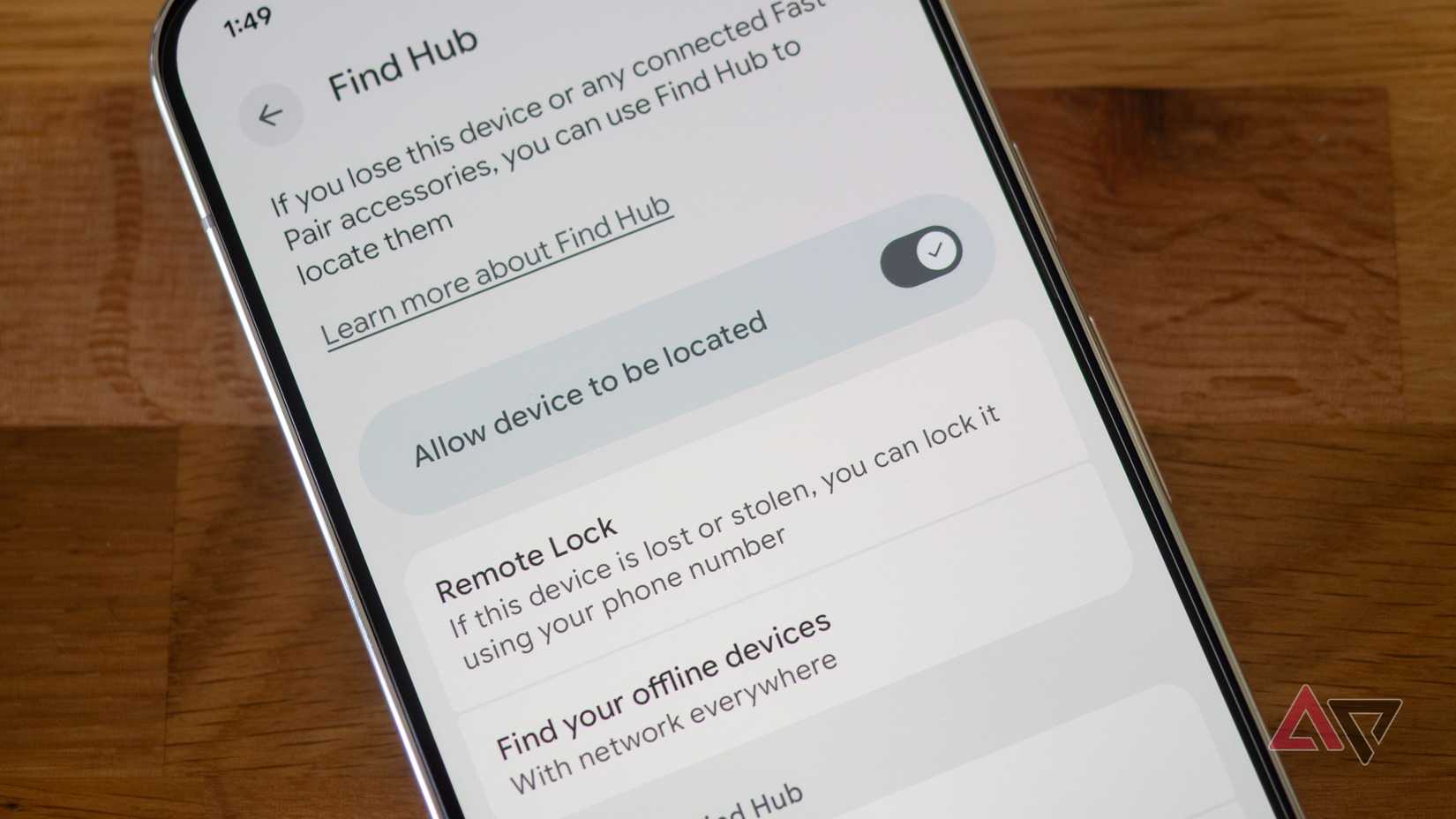
Remote Lock is a feature that allows you to lock your phone without having to be near it. To do so, go to the Android Lock page, enter your phone number, and your phone will be locked. It needs to be online to do this.
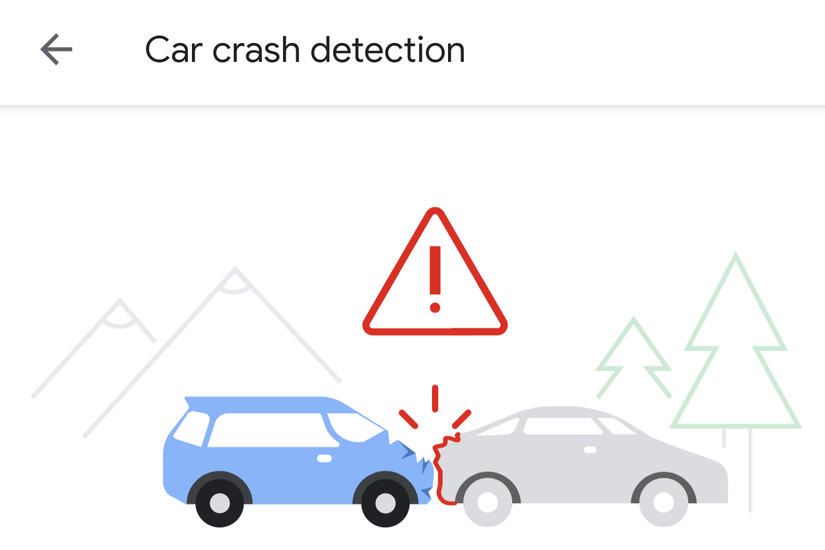
Finally, there’s Car Crash Detection. Like Theft Protection, it uses your phone’s sensors, but this time it uses them to detect when you’ve had a car crash or similar incident, and alerts the authorities if you don’t respond to the alert in time. This one is only available on Pixels.
Some are on by default
But you should still know they’re there
These aren’t the only safety features on your phone, and happily, many are on by default, so they’re active even if you haven’t turned them on.
However, it’s still good to know they’re there. Some function just fine in your ignorance, while others are only effective if you know about them.
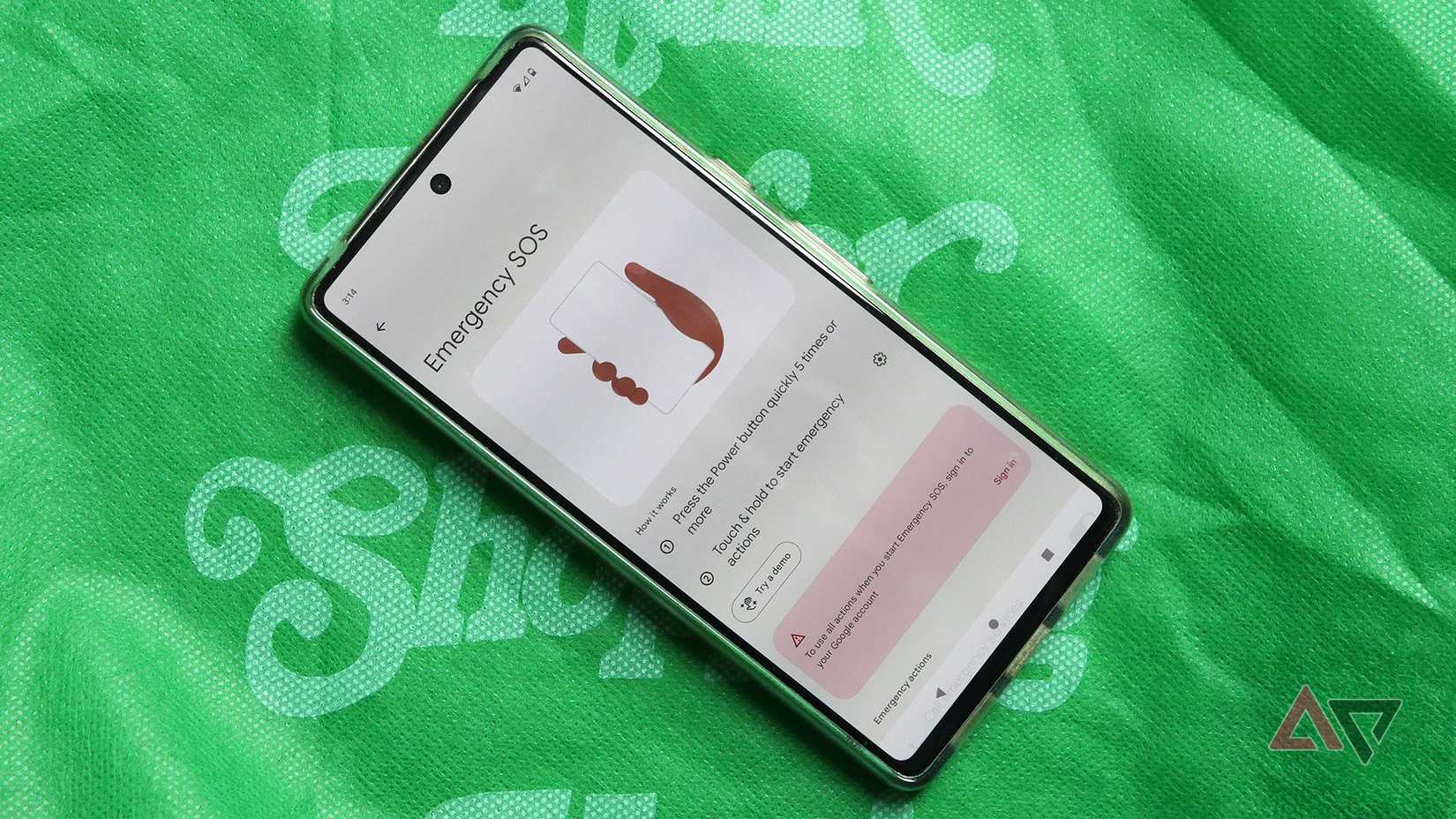
The best example of this is Emergency SOS. It’s on by default, and it triggers if you press the power button quickly, five times in a row. Then, after a five-second countdown, it calls emergency services and shares your information with them.
It’s meant to be a panic button, but you can only use it if you know it’s there. So it’s important you familiarize yourself with this setting if you think you might need it.
Find Hub is also worth knowing about. This is Android’s built-in tracking software, and you can use it to track any Android device linked to your Google account. This is useful in case of theft, but in my life, it’s mostly been used to find a lost phone through the remotely triggered siren.
Don’t sleep on how useful that feature is.
Lastly, and the one you probably don’t really need to know about is Unknown Tracker Alerts. This lets you know if a tracking device is following you. It’s meant to be used to alert people to covertly placed AirTags and similar devices, and it’s extremely effective.
My partner once got an alert because one of my earbuds fell out, and since it can be tracked, it’s worth knowing about.
Hope you never need to use these
But be ready if you do
I turn on all of these the moment I get a new phone. Not because I think I might need them, but because I hope I never do.
Except for Find Hub, which I use all the time to find lost devices, I’ve never used any of these features. I hope I don’t ever have to. But I know that if I do, they’ll be there for me. And that’s important.
You might be tempted to give these a skip. But these are the type of services that you don’t need until the moment you really do.
A bit of forethought and a few minutes of poking around in your Settings app are all you need. It’s worth the time.