
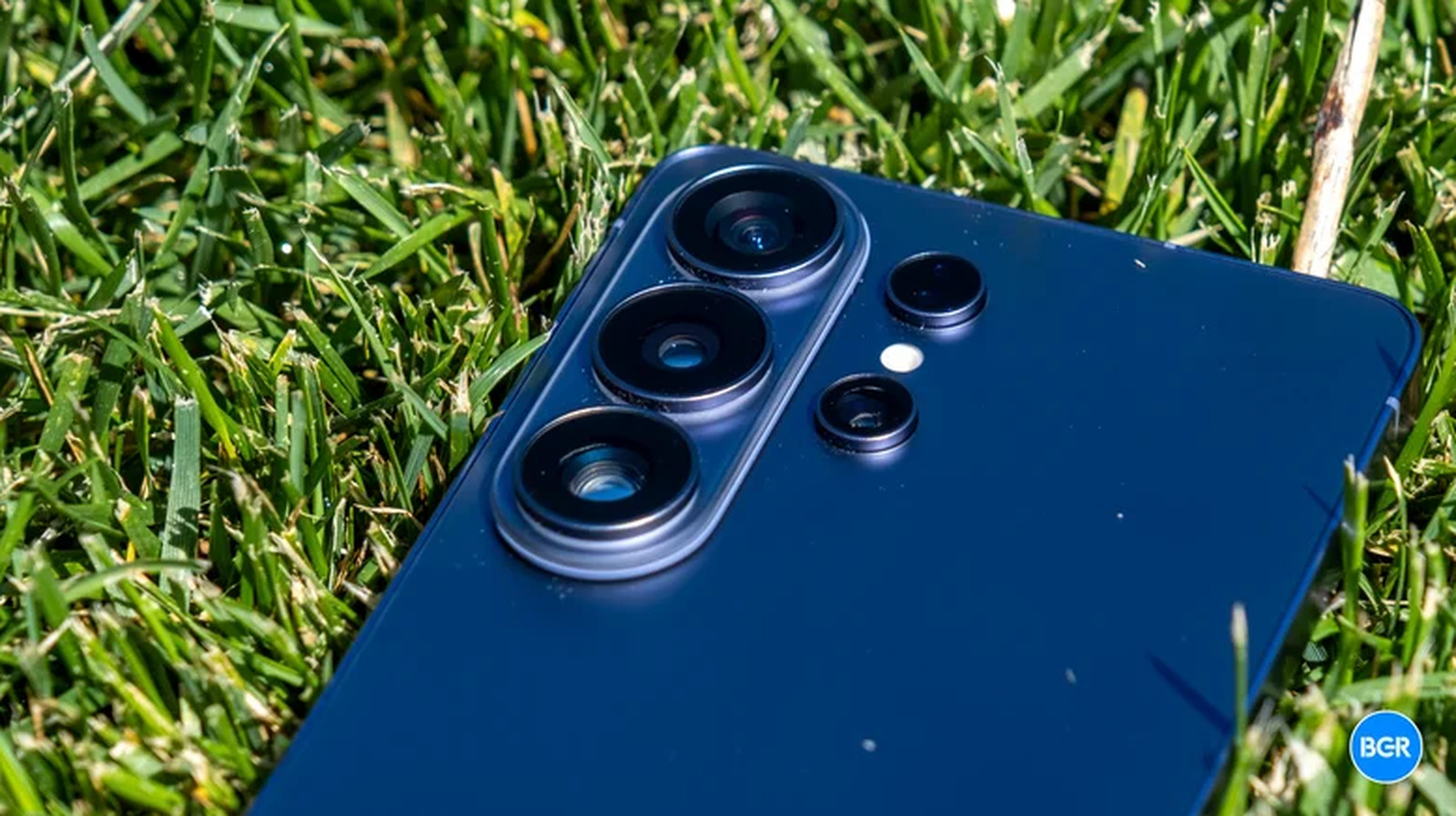
The camera is one of the key selling points for the Galaxy S26 series and especially for the Galaxy S26 Ultra, which features a few exclusive capabilities compared to the regular Galaxy S26 and Plus models. Samsung started promoting some of the new camera features ahead of the Unpacked event, such as the new low-light video recording features, long-range zoom, and AI-assisted camera experiences. But while Galaxy AI can be used to enhance and edit photos, you don’t need artificial intelligence to shoot great content on the new phones. The Galaxy S26 Ultra offers several cool features to improve your photos and videos.
For example, the Galaxy S26 Ultra can capture 24-megapixel photos, and portraits can benefit from a Virtual Reflector tool that allows the user to customize the subject’s lighting. Night mode, which is automatic by default, can be brought back to the Camera experience. Video recording has received a few useful upgrades as well, including a new way to stabilize video and professional video recording tools that can be enabled from the Camera app.
Some of these Galaxy S26 Ultra features are not available natively on the device. That’s because Samsung has two distinct camera-related apps that users should install to enable more advanced camera capabilities. These are Camera Assistant and Expert RAW, available for download for free from the Galaxy Store. Camera Assistant gives users more advanced camera controls and appears as a menu item in the main Camera app’s settings. Expert RAW is an entirely different camera app, which professional photographers may use to edit the RAW files in post-processing.
Shoot 24-megapixel photos
The Galaxy S26 Ultra’s camera features four lenses: 200-megapixel wide, 50-megapixel ultrawide, 50-megapixel telephoto, and 10-megapixel telephoto. But the default shooting mode is 12-megapixel, which can be seen at the top of the viewfinder. Tap it, and you can select 50-megapixel and 200-megapixel options. However, 200-megapixel photos may take up more space (25-40 MB compared to 3-5 MB for a 12-megapixel image).
Given that the Galaxy S26 Ultra can have anywhere from 256 GB to 1 TB of storage, you might be tempted to shoot all your shots in the 200-megapixel mode. But not all images should be captured in full 200-megapixel quality just because you have storage to spare. These shots are best suited for when there’s good lighting with stationary subjects or if you need to crop some part of your image without losing details.
A good alternative for most images is switching to 24-megapixel images. This shooting mode is available after you install Camera Assistant. To enable the feature, go to the Camera Assistant menu in the Camera Settings. Select the 24 MP Resolution menu and turn on the 24 MP in Photo Mode toggle. After that, you’ll find a 24-megapixel shooting mode at the top of the camera app when taking photos. This mode will allow you to capture more detail than the default 12-megapixel resolution, but the Camera Assistant settings do warn users that resolution may still decrease depending on zoom and other camera settings.
You can reduce storage use by ensuring your photos are saved in HEIF instead of JPEG. According to Dday.it, a 24-megapixel HEIF photo will occupy about the same storage as a 12-megapixel JPEG. Go to the Camera app, Settings, and select HEIF in the Photo Format menu.
Use the Virtual Reflector for portraits
Some of your daily photos may include portraits of children, other family members, and friends. Portrait opportunities can appear at different times during the day, including scenarios where the surrounding light is too bright, leaving the subject’s face too dark. The Galaxy S26 Ultra can capture more light than its predecessor thanks to the f/1.4 aperture of the wide camera that allows 47% more light than the Galaxy S25 Ultra’s 200-megapixel camera. This can improve portrait shots in scenes that feature less light than ideal, but that might not be enough for lighting the subject’s face. That’s where the Virtual Reflector feature comes in, a tool that lets you add virtual lighting to the subject’s face.
Unfortunately, the Virtual Reflector feature isn’t available directly in the Camera app in the Portrait mode settings. You’ll need to use Expert RAW to take portrait images with Virtual Reflector. Open Expert RAW, tap the flask (Labs) icon in the lower right corner of the viewfinder, and select Virtual Reflector. You can choose between Silver (neutral) and Gold (warmer) lighting options, and you can set the reflectance intensity and the direction of the light. YouTuber Steven Divish has a video demonstrating the Virtual Reflector functionality complete with camera samples.
Virtual Reflector may not be suitable for all scenes, especially if you’re capturing portraits of children, who may not wait while you adjust the settings. You can test the feature using a cooperating subject and capture portrait photos in both Expert RAW and the regular Camera app. For the Expert RAW mode, try experimenting with different lighting conditions and options to get an idea of what works best, and get used to quickly setting the lighting controls for your next shooting session.
Understand how Night mode works
The 5x telephoto lens captures 37% more light than the Galaxy S25 Ultra’s version, which means zoomed-in photos and videos should look better at night than before. In other words, the Galaxy S26 Ultra should be a better camera for shooting scenes in outdoor settings at night, like going out with friends and family, visiting a city after dark, or capturing images and videos of artists performing at a concert.
Samsung changed how Night mode works starting with One UI 8.5, integrating the feature in the Photo mode rather than having it as a separate shooting mode. To use it, you’ll want to pay attention to the moon icon that appears in the viewfinder. You can use Auto and Max modes while shooting content at night. The latter may be useful when capturing scenes in very dark settings, where you may want a longer exposure. You can disable Night mode by choosing the Off setting. You can restore the Night mode to the Camera app by using the Camera Assistant menu. Go to Additional Modes > Night and turn it on. After that, you’ll find Night mode in the Camera app by swiping to the More menu on the bottom. This can give you better controls over Night mode shooting. That said, Tom’s Guide found “virtually identical results” when shooting scenes at night in automatic mode and Night mode.
You can capture even better night shots with the Astrophotography mode in Expert RAW. This can be used for capturing the stars at night but also for any other static shots. You may need a tripod or some other way of stabilizing the Galaxy S26 Ultra, but the results should be even better than Night mode, according to Tom’s Guide.
Shoot Super Steady video with Horizontal Lock
One important video shooting trick you will want to enable for scenes involving plenty of movement is called Super Steady with Horizontal Lock. Super Steady is a video mode that Samsung first introduced with the Galaxy S10 series that reduces camera shake. However, the Galaxy S26 Ultra comes with the Horizontal Lock feature that allows the handset to maintain the horizon regardless of how you move the phone while shooting video.
Online demos include people shooting video while rotating the Galaxy S26 Ultra by 360 degrees to showcase the Horizontal Lock feature. The resulting video shows almost no trace of that handset movement. The idea here isn’t that you should rotate the phone while shooting video, but that you shouldn’t care whether you accidentally do so. The Horizontal Lock can come in handy in a variety of scenarios, like shooting video at a concert while dancing and moving your hands or running after a child or dog to capture their latest adventures. Go to the Camera app in Video mode, tap the Super Steady icon, and choose the Horizontal Lock feature.
Horizontal Lock may go hand in hand with My FanCam, a new feature in Android 17 (One UI 9) that lets you choose a subject, like a child, artist, or athlete, and have Galaxy AI follow them to keep them centered. As you and the subject move, the video will remain steady and the subject will always be centered. However, My FanCam edits happen in the Gallery app, after recording the video, not while you’re recording.
Master Log video for the LUTs
The default Camera settings will already help you record improved low-light, optically stabilized video, but you can use even more advanced tools. The Galaxy S26 Ultra supports Log video recording with new cinematic LUTs (Look-Up Tables) and introduces a new APV (Advanced Professional Video) codec.
Most users may not want to enable APV for all of their videos. You’ll find it in Camera > Settings > Video format > APV > On, and then as a toggle in the top right corner when shooting video. The codec will help creators who want more control over details and color during editing. This mode will require about 12 GB of storage per minute of recording in 4K at 60 fps in APV HQ. But Log mode (with LUT) is a video shooting mode that more people may want to experience. Go to Camera > Settings > Video format > Log and select Video and Pro Video. You’ll then be able to enable Log and LUT in the camera viewfinder.
Recording in Log (with LUT enabled) has immediate advantages. First, it allows you to preview a coloring mode while recording. Then, users who want to edit clips on their phones can apply other LUTs in the Gallery app. The LUT options are: Standard, Blockbuster, Coming-of-age, Romance, and Thriller. These can be useful when looking to apply a filter-like effect to the entire video before sharing it with friends and family or posting it on social media. Mastering LUTs may save you time editing clips with tools available on social media. Importantly, the phone also offers a Pro Video recording mode, which lets you control the focus, exposure, zoom, and other parameters manually, which can be used independently of Log and APV.
How we chose these Galaxy S26 Ultra camera tricks
Mymy87/Getty Images
Most people will use the Galaxy S26 Ultra’s advanced camera system to take quick photos and videos during their daily routines. They may not need the most advanced shooting modes to take a good-looking photo of a sunset in the city or a video of their favorite artist playing their favorite song at a crowded music event. But a few small tweaks can significantly alter the resulting photo or video. For this list, we focused on the kind of settings that may make a difference given the advances in camera hardware, software, and AI the Galaxy S26 introduces. We looked at different shooting modes in addition to capturing regular photos, like taking portraits and night scenes, and recording video in scenarios that involve moving the camera or clips that can benefit from on-device editing before sharing to Instagram, TikTok, and other video platforms.
Also, we looked at features that are exclusive to the Galaxy S26 series, while keeping in mind the fact that the Galaxy S26 Ultra has the most capable camera system of the three models, and users would benefit the most by employing these tricks on the Ultra rather than the regular and Plus models. Some features might also expand to previous Galaxy models, with Horizontal Lock already available on the Galaxy S25 lineup after the One UI 9 update. Similarly, Virtual Reflector was tested on the Galaxy S25 Ultra in April 2026 via an Expert RAW update that was part of the One UI 8.5 release.
That said, the Galaxy S26 Ultra offers plenty of other camera tricks that can be used to enhance photos and videos beyond what we’ve covered above, especially after installing the key Camera Assistant and Expert RAW apps.