
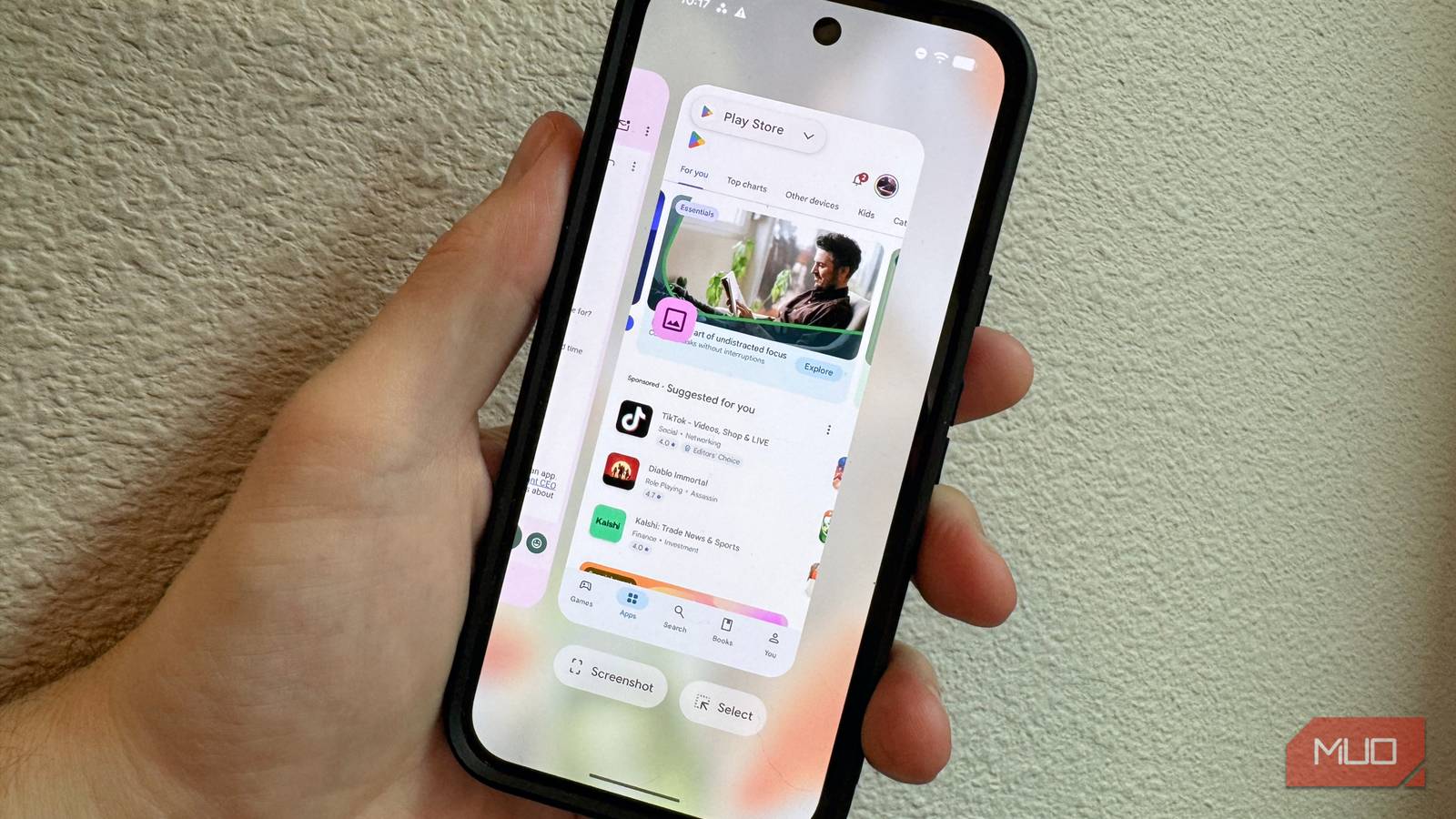
I’ve been saying it for years: manually force-quitting your apps doesn’t save your battery or speed up your phone. In fact, it does the opposite.
The advice many people take is that if your phone feels sluggish, swipe up and away all those apps in your multitasking list. The intuitive idea is that if they’re running in the background, it should give your device’s operating memory, or RAM, a little more room to work in. Unfortunately, while that advice made sense in the early days of smartphones, the sophisticated memory management systems baked into modern Android an iOS have made it invalid. Both platforms have evolved to the point where manual intervention isn’t needed. Yet people still do it, to the point where I’ve stopped saying anything in real life.
But this isn’t real life, so here’s what’s actually happening under the hood and why that sort of “intuitive” housekeeping can actually work against you.

Related
Multitasking feels completely effortless with this free Android launcher
It puts your apps, notifications, and quick actions right where your thumb lands.
Your phone’s OS already manages memory better than you do
How iOS and Android handle background apps
Pankil Shah / MakeUseOfCredit: Pankil Shah / MakeUseOf
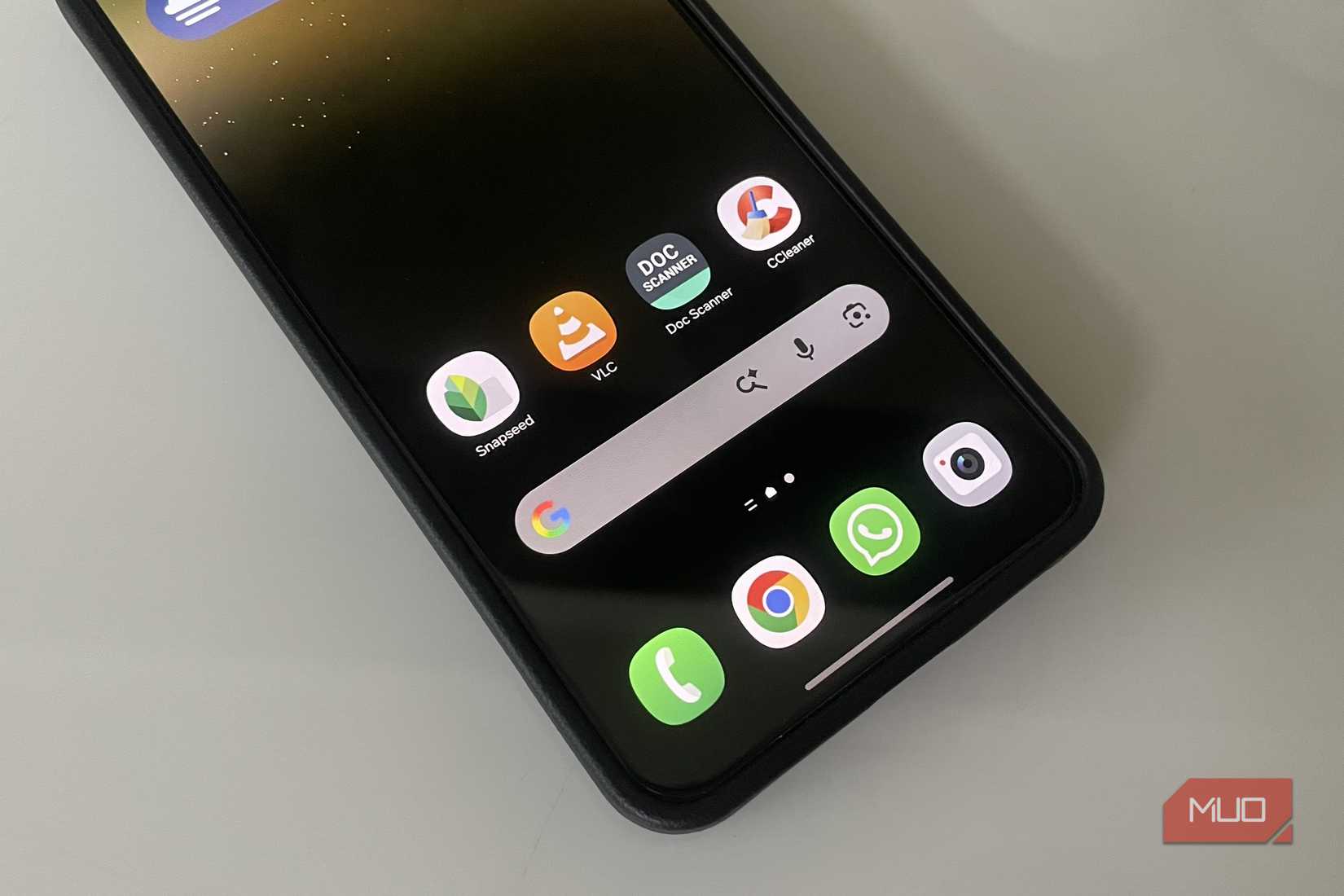
iOS moves unused apps through a tiered state system, labeling them as active, inactive, background, and suspended. Once suspended, apps use zero CPU and barely any memory. When you swipe up on an iPhone (or iPad), you’re really only seeing frozen snapshots of apps, not the live processes themselves. Swiping them away doesn’t really affect apps that are actively running.
Android keeps background apps in a cached process list and reuses them when you go back to that app, which makes app switching faster. The OS kills apps automatically when it needs more memory. The Adaptive Battery system, introduced in Android 9 and powered by on-device machine learning, assigns apps to one of five priority buckets and restricts background activity for apps you don’t use much.
Executives at both Apple and Google have responded to user questions about quitting apps decisively, with Apple’s Craig Federighi famously saying “No” when asked if he quits his apps. Google SVP Hiroshi Lokheimer also said that force-closing apps could slightly worsen performance (if you don’t match what the system has already determined to manage).
The real cost of constantly clearing your apps
What force-quitting actually triggers every time
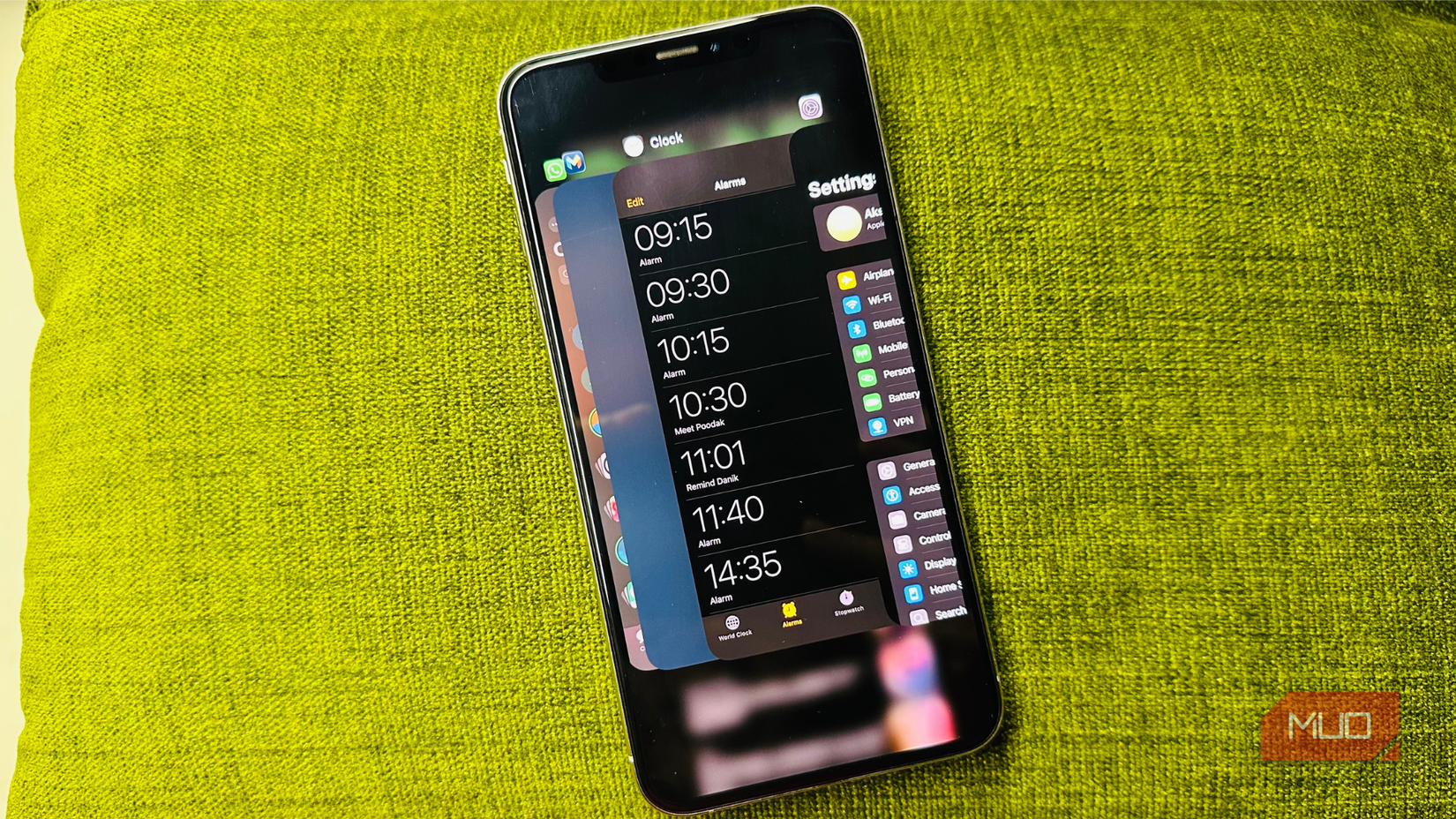
When you relaunch a force-closed app, the OS must fetch data from storage, rebuild the UI, and reconnect all the needed network connections. These CPU-intensive operations aren’t needed by an app that’s been suspended by the OS. Resuming a suspended iOS app, for example, is a simple read-from-memory operation; it’s near-instant, uses very little CPU, and consumes less power than a cold launch. Force-quitting an app eliminates this advantage.
While you might feel like your phone feels faster after you’ve cleared your app switcher, the result is most likely psychological. On iOS, for example, since the app switcher is simply a list of frozen snapshots, swiping them up and away does nothing. Apple’s own support pages say, “You should only close an app if it’s unresponsive.”
Starting with Android 14, Google restricted its killBackgroundProcesses() API that task-killer apps relied on, stating that killing background apps could reduce system performance and even increase battery usage, as it would require full restarts of the apps later.
When background apps do drain your battery (it’s not what you think)
The real culprits hiding in your settings
Your OS has the app switcher covered, but what it can’t do is stop you from giving your apps permission to drain your battery.
On iOS, there’s a setting called Background App Refresh that allows apps to fetch new content while suspended, which can consume CPU and network resources. You can toggle it on or off per app by going to Settings > General > Background App Refresh.
Location services set to Always can drain your battery, too, so setting as many as possible to “While Using” will give you full functionality without any background pings. Find it in Settings > Privacy and Security > Location Services on iOS, and in Settings > Location > App location permissions > [App] > Allow only while using the app on Android.
Fetching your email at frequent intervals can affect your battery life, too. It’s easy to manage on iOS; just switch to manual fetch or longer intervals in Settings> Mail > Mail Accounts > Fetch New Data.
Any apps legitimately running in the background, like Spotify, Maps, fitness tracking apps, and the like, can also consume battery and system resources, so feel free to close those apps as you can. Similarly, widgets that pull in live data, like weather, sports scores, and stocks, keep waking the device, which can be a drain.
On Android, unrestricted social apps can account for a large amount of daily power consumption via background polling. You can restrict this on a per-app basis at Settings > Apps > [app] > Battery.
The habits that actually improve performance
What to do instead of app-swiping
Credit: Christine Persaud / MUO
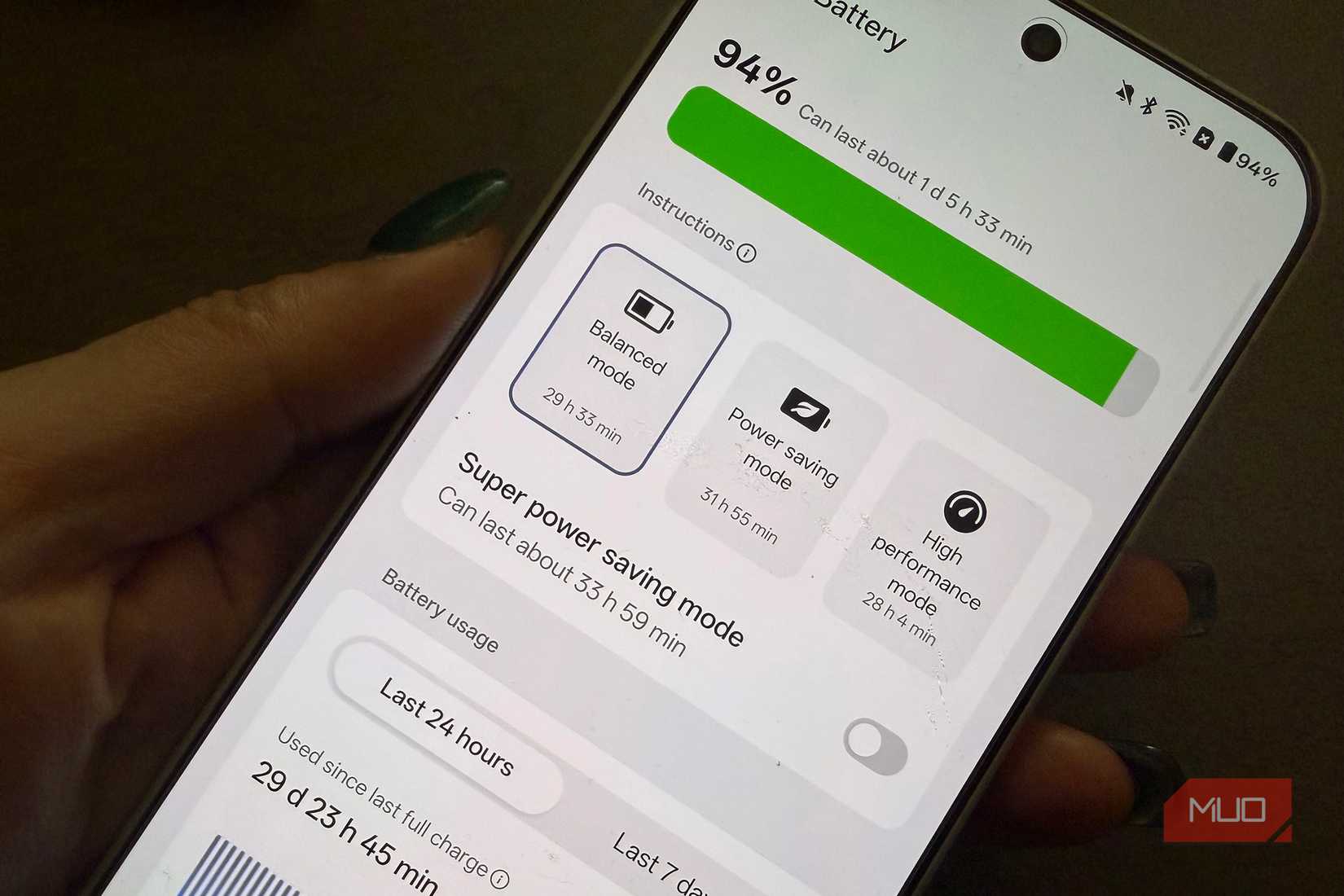
There are a few things you can do to keep your phone running at its best, both performance- and battery-wise. First up, check Settings > Battery to see the actual background power consumption per app. This can surface the real problems; instead of just swiping everything away, you can manage on a more granular basis. Disable Background App Refresh for apps that don’t need real-time data (like social media, shopping apps, games). This won’t keep notifications from keeping you in the know since those come from server pushes, not your device.
Set location access to “While Using” for as many apps as you can, since that will keep battery and network usage down.
You can also enable Low Power mode on iOS (Settings > Battery) or Battery Saver on Android (Settings > Battery > Battery Saver). This will automatically throttle background activity, too. You can also enable Adaptive Battery (Settings > Battery > Battery Saver > Adaptive Battery) and allow the machine learning systems on your phone to learn from your usage patterns and adjust your power over time.
You can also restart your phone once a week or so, which will clear any accumulated cache and reset minor software glitches.
Give your swipe finger a rest — your phone’s got this
The next time you engage muscle memory to swipe away all your apps in the app switcher, don’t. Your phone manages its RAM and battery performance better than you likely ever will. Modern smartphones are superb at taking care of themselves, and the only thing that impacts your performance and battery life is a few settings. Check your location permissions, dial back the Background App Refreshes, and let the OS do what it was designed to do.