
AutoCut is a French-developed AI plugin for Adobe Premiere Pro and DaVinci Resolve that packages ten distinct automation tools into a single subscription, covering everything from silence removal and animated captions to multicam podcast editing and short-form clip extraction. With AutoCut Repeat 2.0 now live and the AutoCut Podcast module recently updated, the suite is clearly in an active development phase worth paying attention to.
The conversation around AI in post-production has been dominated lately by tools focused on rough-cut assembly and transcript-driven editing. CineD has tracked that space closely, from Eddie AI’s native NLE integrations and scripted mode upgrades to Nice Touch’s brief-driven workflow assistant. AutoCut occupies a slightly different lane: rather than handling story assembly or transcript-based rough cuts, it targets the mechanical, time-consuming cleanup that happens after the story decisions are made. Silence removal, take selection, caption generation, profanity bleeping, and chapter marking. The tasks that don’t require creative judgment but still eat hours out of every edit.
The plugin is available for Premiere Pro 2023 through 2026 and for DaVinci Resolve 18.6 and 19 or later, including the free version of Resolve.
 Credit: AutoCut AutoCut Silences: the core feature
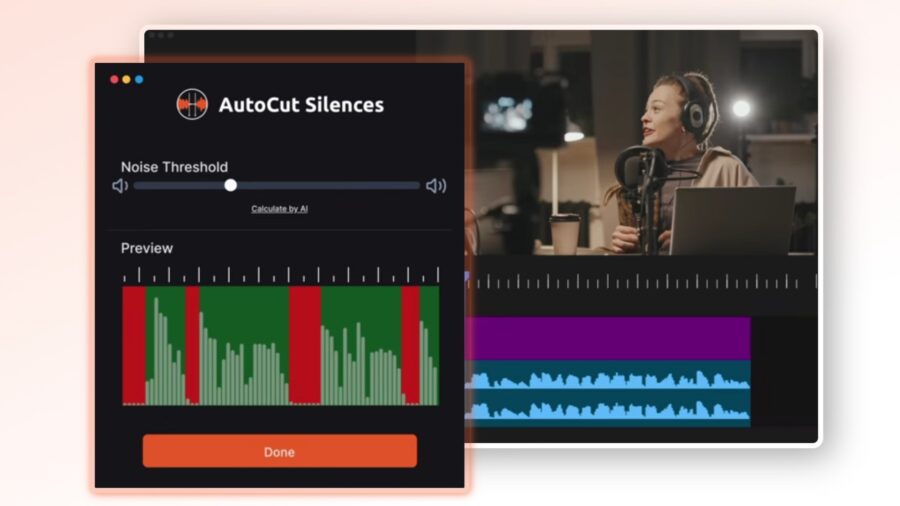
The AutoCut Silences module is where AutoCut began and remains its most fundamental tool. Editors set an in and out point on their timeline, define a noise floor (in dB), and specify thresholds for minimum silence and minimum speech duration. The plugin then detects and removes pauses automatically, with preset profiles ranging from Calm to Jumpy to guide how aggressively it trims. Padding controls let editors retain a small buffer before and after cuts to avoid chopping breathing room, and the transitions menu supports J-Cut, L-Cut, and Constant Power options to smooth the results. For talking-head content, interviews, or any footage where the subject pauses frequently between thoughts, this module can take a multi-hour rough cut down to a watchable assembly without a single manual cut.
The dB threshold is set manually, which means editors working with inconsistent audio levels may need to run analysis before committing to a cut. That’s not unusual for tools of this type, but it is worth noting that the precision of the results is tied directly to the quality and consistency of the recorded audio.
 Credit: AutoCutAutoCut Repeat: best-take selection with 2.0 now live
AutoCut Repeat is the feature that most directly overlaps with capabilities found in tools like Eddie AI, though it targets a narrower use case. Where Eddie focuses on building full rough cuts from transcripts, AutoCut Repeat focuses specifically on identifying repeated takes within a single clip or sequence and surfacing only the best one. The workflow involves three steps: setting an in and out point, selecting the audio language from a list of over 80 supported options, and optionally uploading a reference script for more accurate detection. The plugin then transcribes the material, identifies repetitions, and presents them in a review editor where the user can confirm or adjust selections before the cuts are applied.
Version 2.0 of this module is the most recent update, and it represents the feature AutoCut currently leads with on its homepage. The revision focuses on making the detection and review process more precise, particularly for content with dense repetitions or where a reference script is available to anchor the transcription. The module is positioned primarily for solo creators recording to camera who tend to repeat sentences or phrases until they land a clean take, but it is equally applicable to interview coverage and any single-camera scene with multiple attempts.
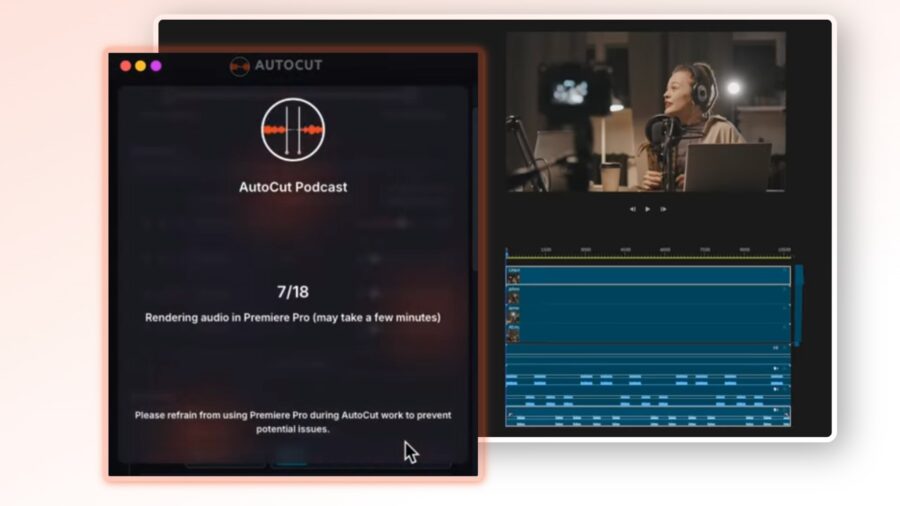 Credit: AutoCutAutoCut Podcast: multicam speaker switching
For podcast and interview productions, the AutoCut Podcast module handles speaker identification and automated camera switching across a multicam timeline. The tool analyzes the audio to determine who is speaking and when, then makes cut decisions to keep the active speaker on screen. This is a meaningful time-saver for productions shooting two or three cameras on a conversation format, where the alternative is manually scrubbing through simultaneous tracks to find every speaker change. The module was updated alongside AutoCut Repeat, though the company has not published a detailed changelog for this revision.
The practical limit worth understanding here is that this is an automated first pass rather than a creative cut. Speaker switching based on audio activity is a reliable starting point for a podcast edit, but it won’t account for visual moments that override who is currently speaking, reaction shots, or cutaway decisions. Editors working on broadcast or high-end podcast productions will likely use the result as an assembly to be refined rather than a deliverable.
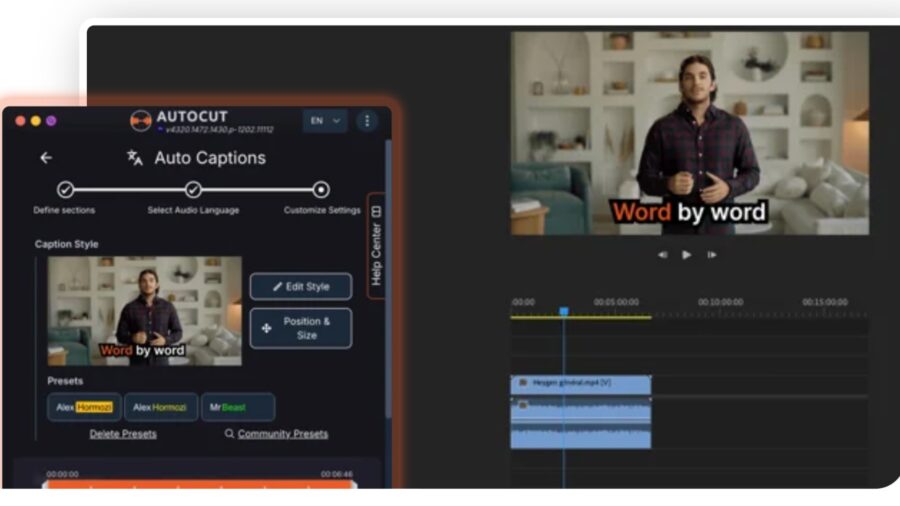 AutoCaptions. Credit: AutoCutAutoCaptions, AutoZoom, and the broader toolset
AutoCaptions generates animated, styled captions directly inside the NLE and supports translation across multiple languages, providing a significantly faster path to captioned content than working with Premiere’s built-in caption tools or exporting to a separate captioning service.
AutoZoom adds dynamic zoom effects timed to audio energy, a feature aimed squarely at social video creators following the style conventions of short-form content on YouTube, TikTok, and Instagram Reels. Similarly, AutoViral identifies high-potential segments in longer recordings for export as short-form clips, and AutoResize adapts existing sequences to vertical or square aspect ratios with subject-tracking reframe logic to keep the main subject centered. AutoB-Rolls draws on the StoryBlocks library to insert contextually relevant stock footage into a timeline based on transcript analysis, though this feature is dependent on the quality of available StoryBlocks material matching the content.
Rounding out the suite are AutoProfanity Filter, which masks expletives with sound effects for broadcast or advertiser-safe content, and AutoChapters, which analyzes long-form videos and produces timestamped chapter markers formatted for YouTube export.
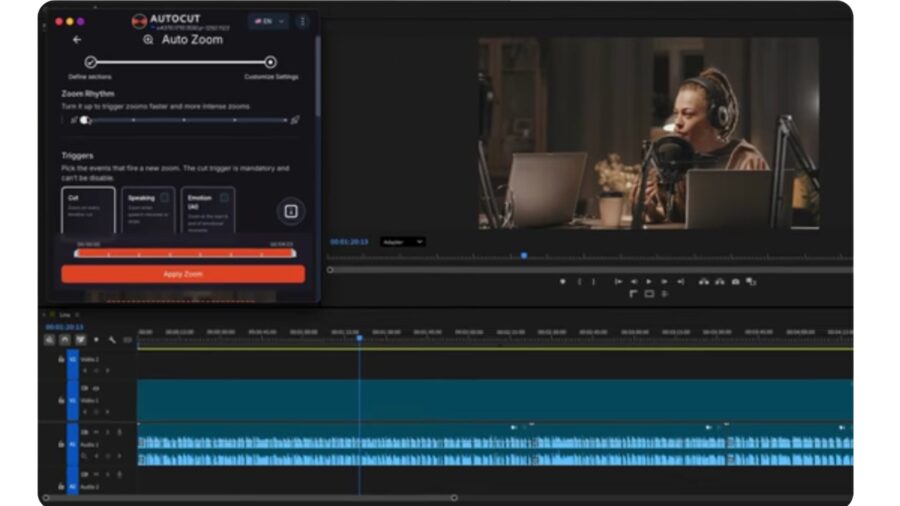 Autocut Zoom. Credit: AutocutWho is this for?
AutoCut’s toolset maps most naturally onto content creators and video journalists who produce high volumes of talking-head footage, solo presenters, podcast producers shooting multicam, and social media editors who need fast turnarounds across multiple formats. The combination of silence removal, take selection, captions, and aspect ratio conversion addresses a realistic stack of tasks for that workflow category. For narrative filmmakers or documentary editors working with complex multi-camera coverage and unscripted situations, tools like Eddie AI’s dirty multicam support or its multi-track audio capabilities may be more appropriate, since the rough-cut assembly problem is a different challenge from what AutoCut primarily solves.
The compatibility with both Premiere Pro and DaVinci Resolve, including the free tier of Resolve, meaningfully broadens the potential user base. A single license activates on one computer at a time, and users can transfer between machines via the AutoCut account dashboard.
Pricing and availability
AutoCut is available now, with a 14-day free trial that requires no credit card. The Basic Plan unlocks AutoCut Silences only and is priced at $6.60 per month billed annually ($79/year), or $9.90 per month billed monthly. The AI Plan, which includes all ten features, costs $14.90 per month billed annually ($178.80/year) or $19.80 per month on a monthly basis. The Enterprise Plan starts at three seats and is priced at $19.90 per seat per month billed annually ($238.80 per seat per year, totaling $716.40 for the minimum three-seat configuration), and includes priority support, on-demand demo calls, team licensing, and centralized billing.
More information is available at autocut.com.
Have you already integrated AI automation into your editing pipeline, and if so, which parts of the process have you found it most useful for? Don’t hesitate to let us know in the comments below!