
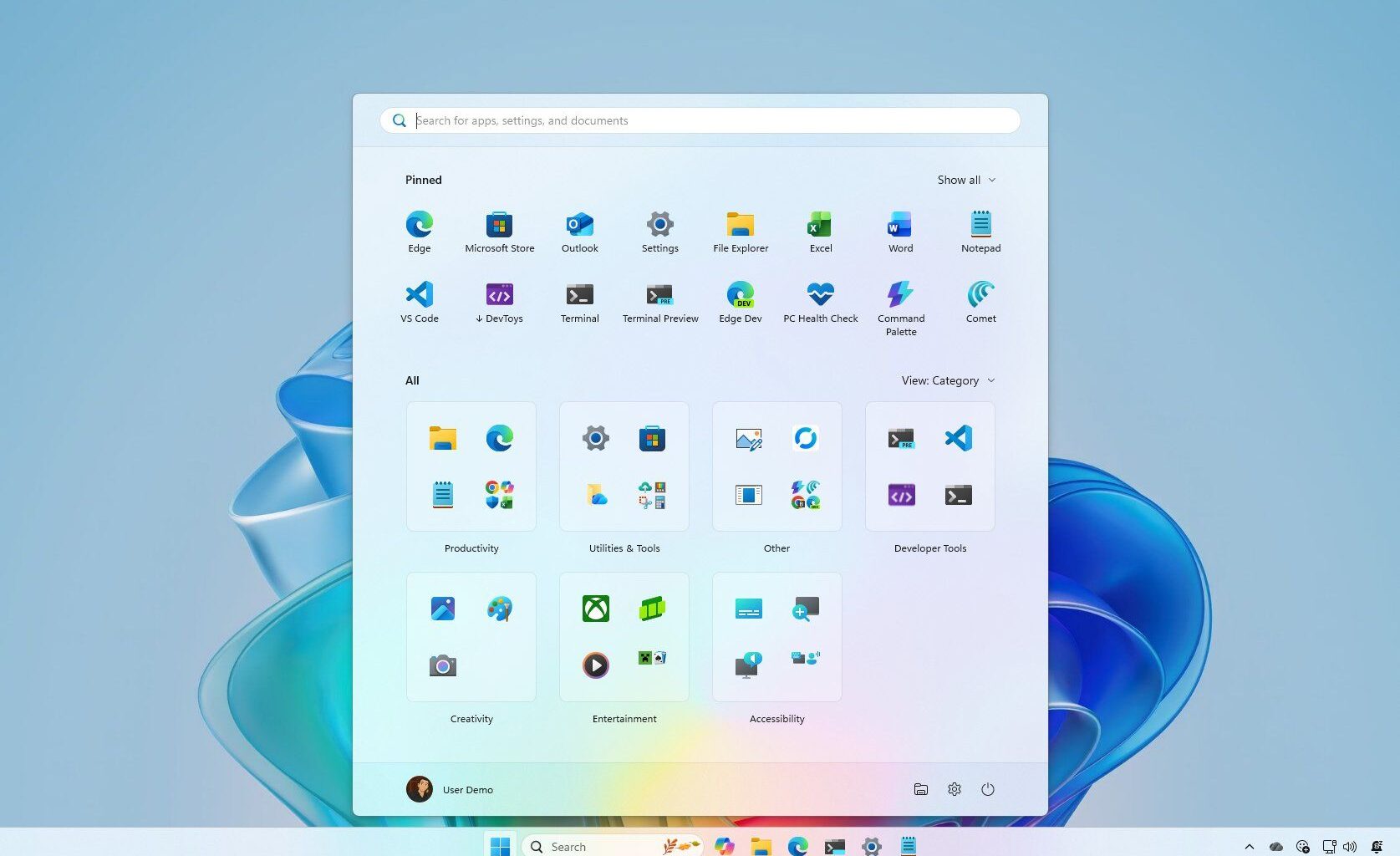
Microsoft is officially rolling out a new Start menu for Windows 11, introducing a design that combines the different pages into a single, larger, scrollable layout.
Also (and perhaps more importantly), the company is adding a way to hide the “Recommended” section.
You may like
Windows 11 new Start menu design for versions 25H2 and 24H2
The new design for the Start menu will roll out as part of the November 2025 Security Update, and it’ll take some time until it arrives for everyone.
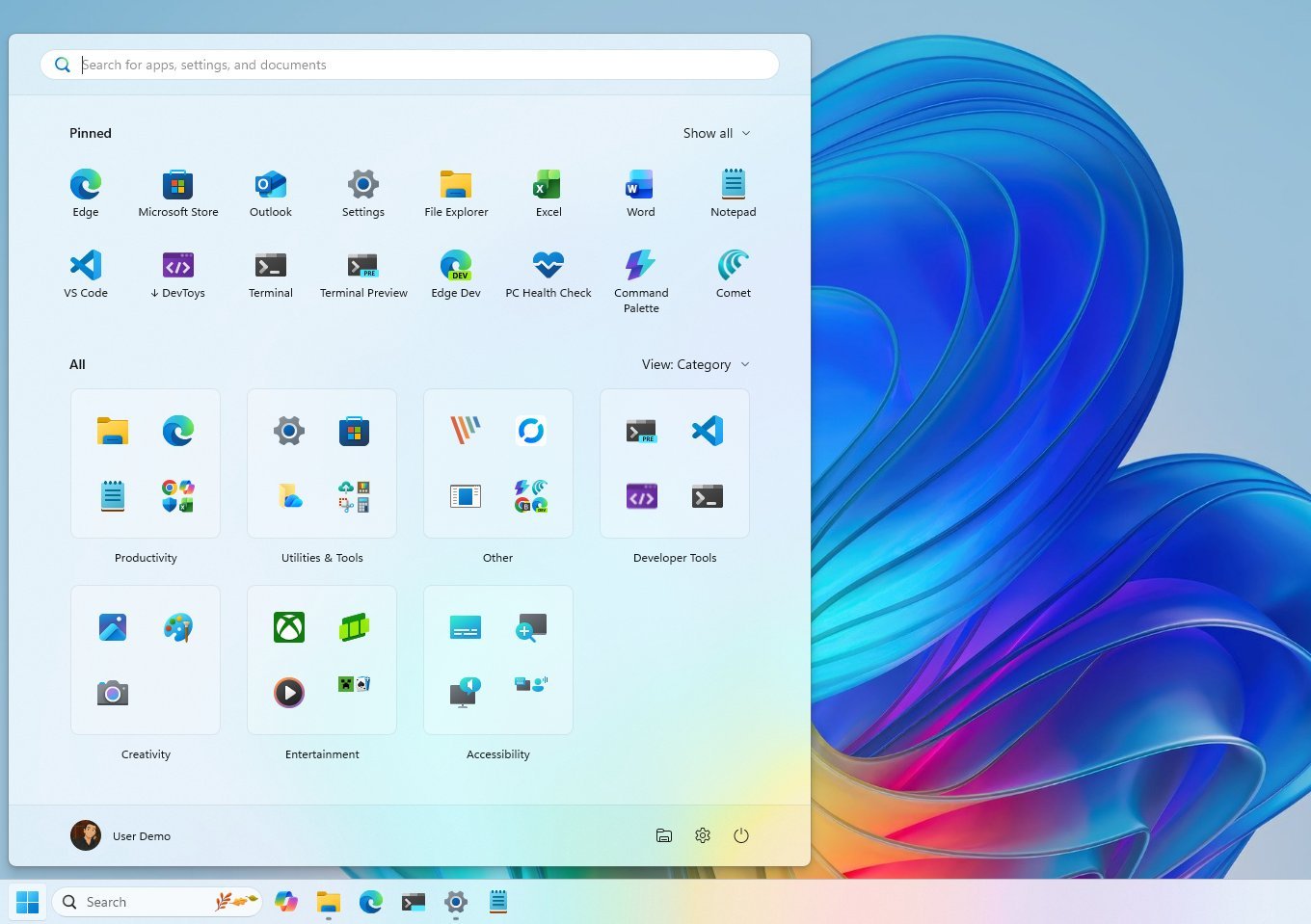
Overall design
The new Start menu offers a larger layout that adapts to the screen resolution, but you don’t have an option to set its size.
Given how large the new design is, I can already hear the complaints about not being able to resize the layout manually.
Since this new layout unifies the interface, it only provides one experience divided into three sections, including “Pinned,” “Recommended,” and “All.”
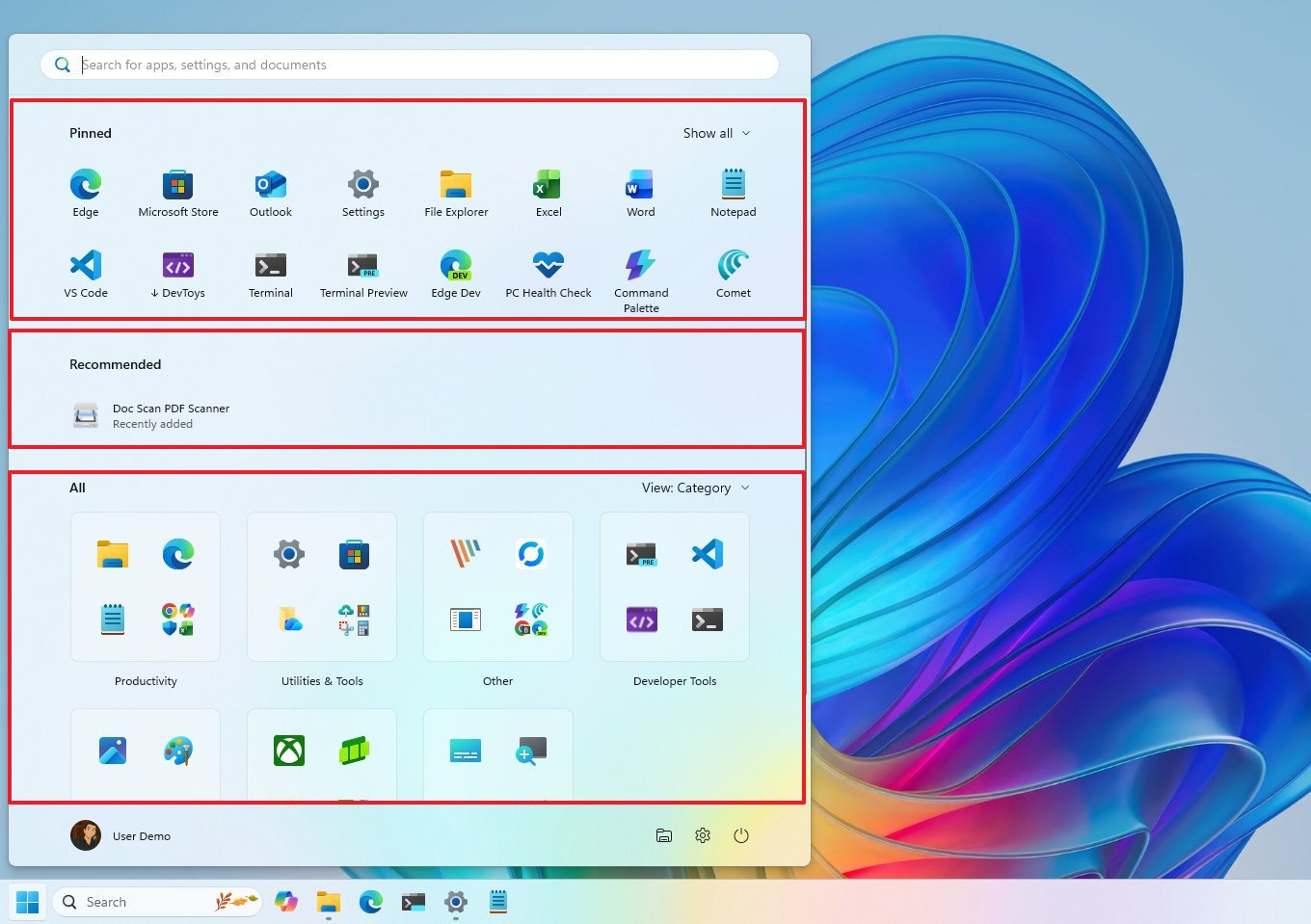
(Image credit: Mauro Huculak)
You will also notice that if you have a mobile device connected to your computer, then the Start menu will also show a toggle to show or hide the mobile sidebar.
Aside from the new design, previously available features, such as the ability to group pins into folders, context menu options, and the search box, remain available.
Pinned section
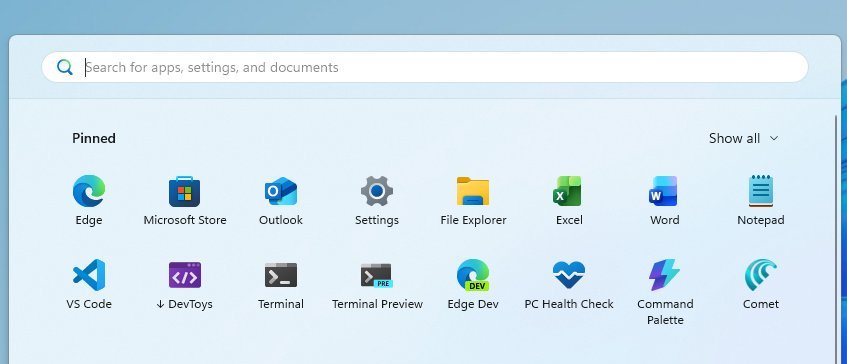
The “Pinned” section shows two rows of apps by default. If you have more apps, you can click the “Show more” or “Show less” option from the top-right side.
(Image credit: Mauro Huculak)
Also, since this is a larger layout, each row can hold up to eight different pins.
Recommended section
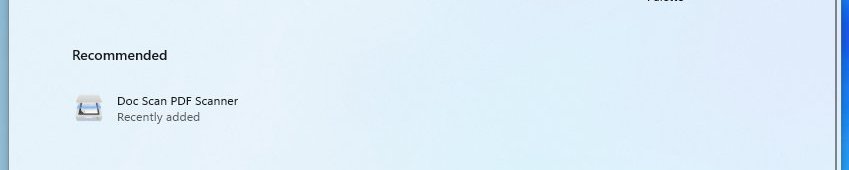
The “Recommended” section can surface recent files and applications. However, Microsoft also uses it to promote apps from the Microsoft Store, which many argue is advertising (because it is).
(Image credit: Mauro Huculak)
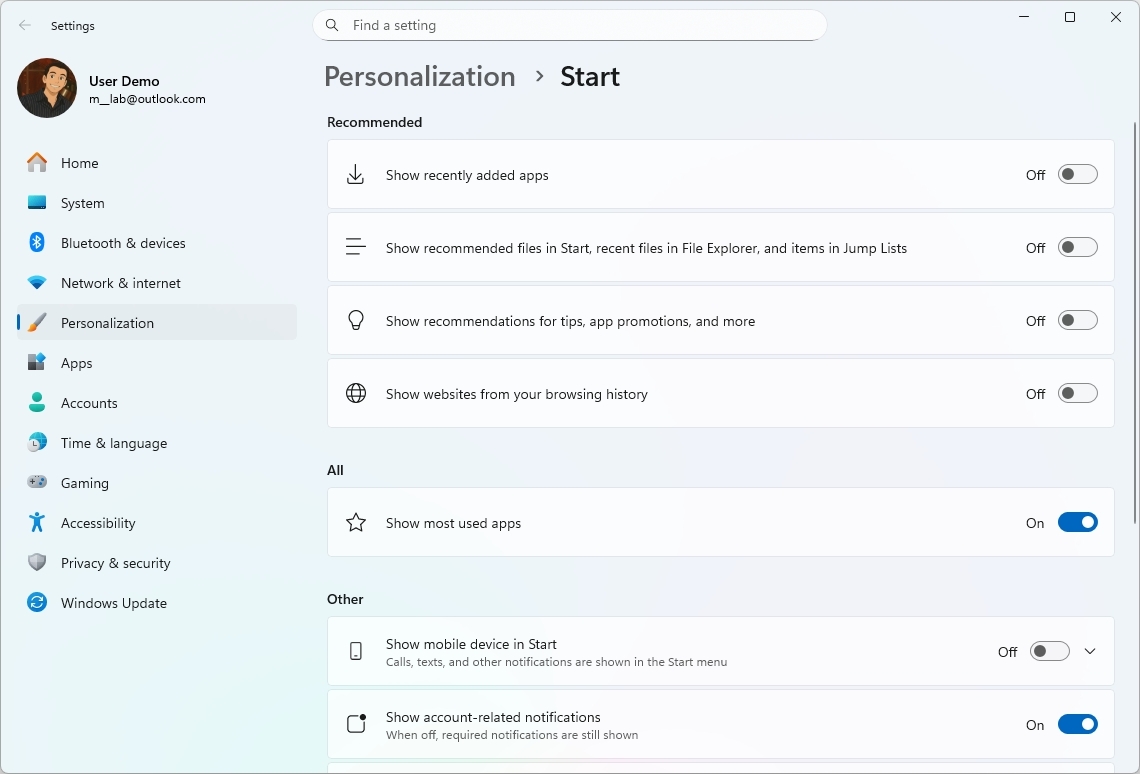
The good news about this new design is that it’s now possible to hide this section from the new Start menu. However, the company isn’t adding a dedicated option. Instead, you have to disable a few options, and then the section will be turned off automatically.
If you want to turn off the “Recommended” section, from the “Start” settings page, you have to turn off all of the options under the “Recommended” section.
(Image credit: Mauro Huculak)
You may also have to turn off the options to show browsing history and recently added apps.
It’s important to note that the menu can now hold up to six items for recommendations.
All section
Instead of navigating to another page, Microsoft is bringing the “All” menu to the main interface. However, now, it’s possible to change the sorting layout, and the options available include “Category,” “Name grid,” and “Name list.”
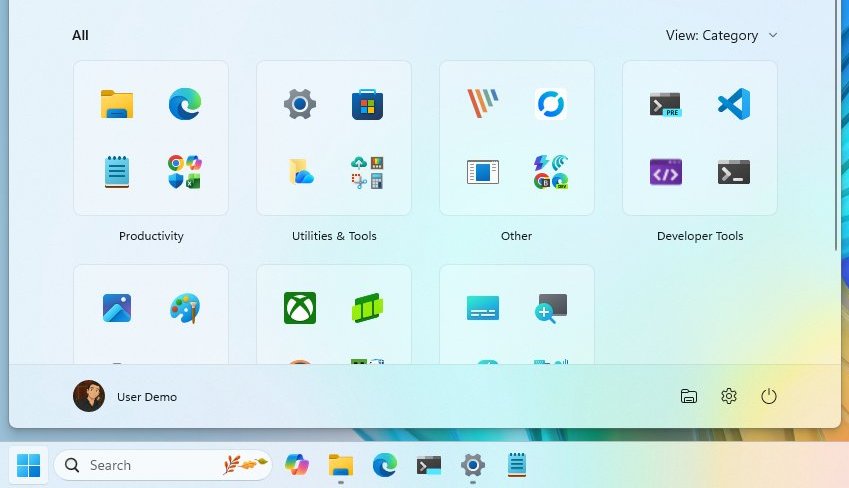
(Image credit: Mauro Huculak)
The default view now is “Category,” which groups similar apps into folders. This process happens automatically, and the system must detect at least three apps from the same category to create a new group. Otherwise, the apps will appear in the “Other” group.
Start settings page changes
Similar to the previous experience, you can still customize various aspects of the Start menu by opening Settings > Personalization > Start.
On the Start page, you’ll notice that the layout setting is no longer available, and now there are three main sets of settings, including “Recommended,” “All,” and “Other.”
(Image credit: Mauro Huculak)
However, the remaining settings are the same as before.
Alternative designs
Before landing on the refreshed Start menu, Microsoft’s design team ventured into several bold prototypes.
One early prototype featured a personalized “For You” dashboard with widgets alongside a second column listing all installed apps. Another version adopted the same approach but with softer, rounded corners and a stacked layout.
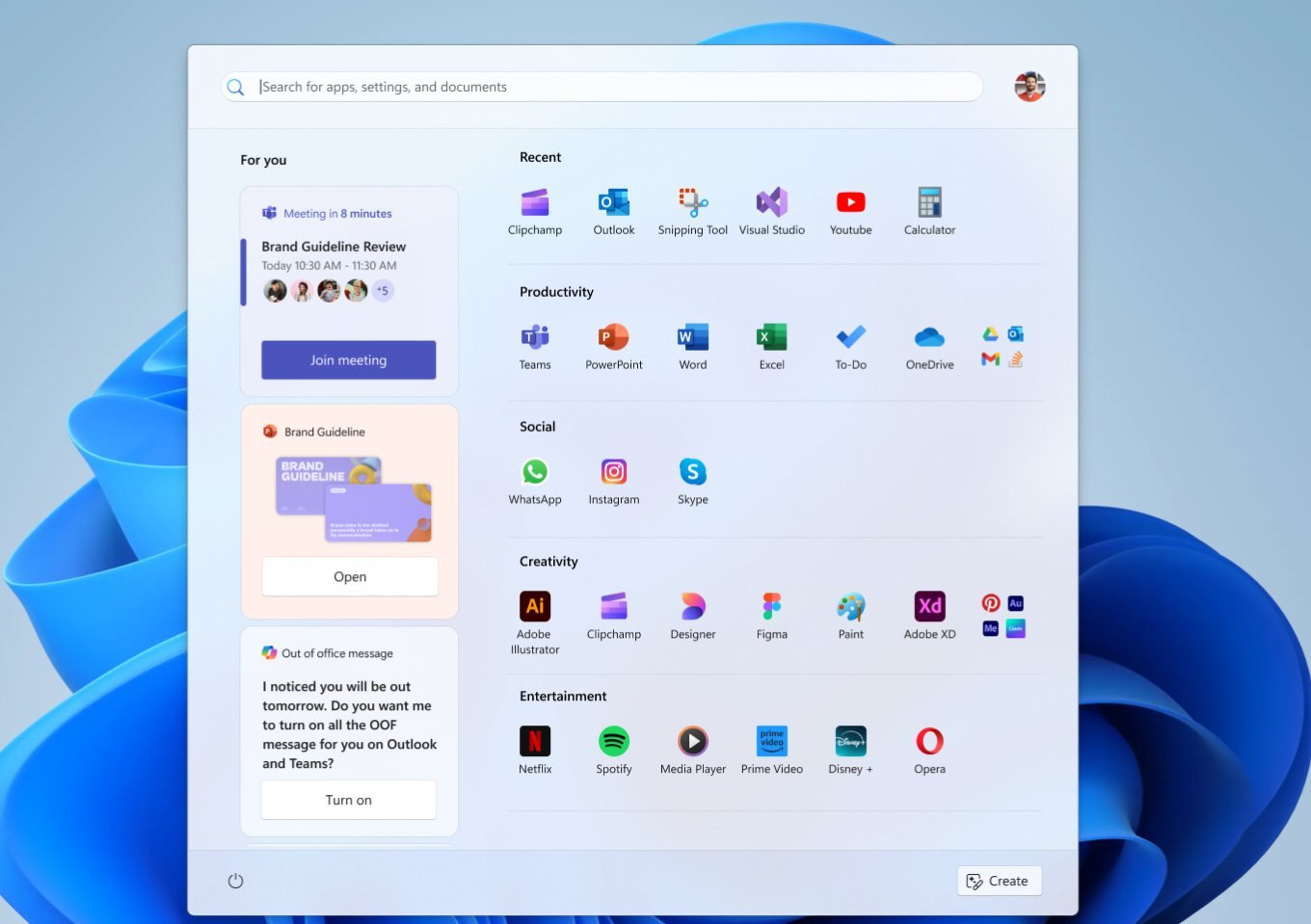
(Image credit: Microsoft)
The team also tested layouts with a left-hand navigation pane for switching between sections, a more traditional design reminiscent of the Windows 10 Start menu, and even a full-screen experience.
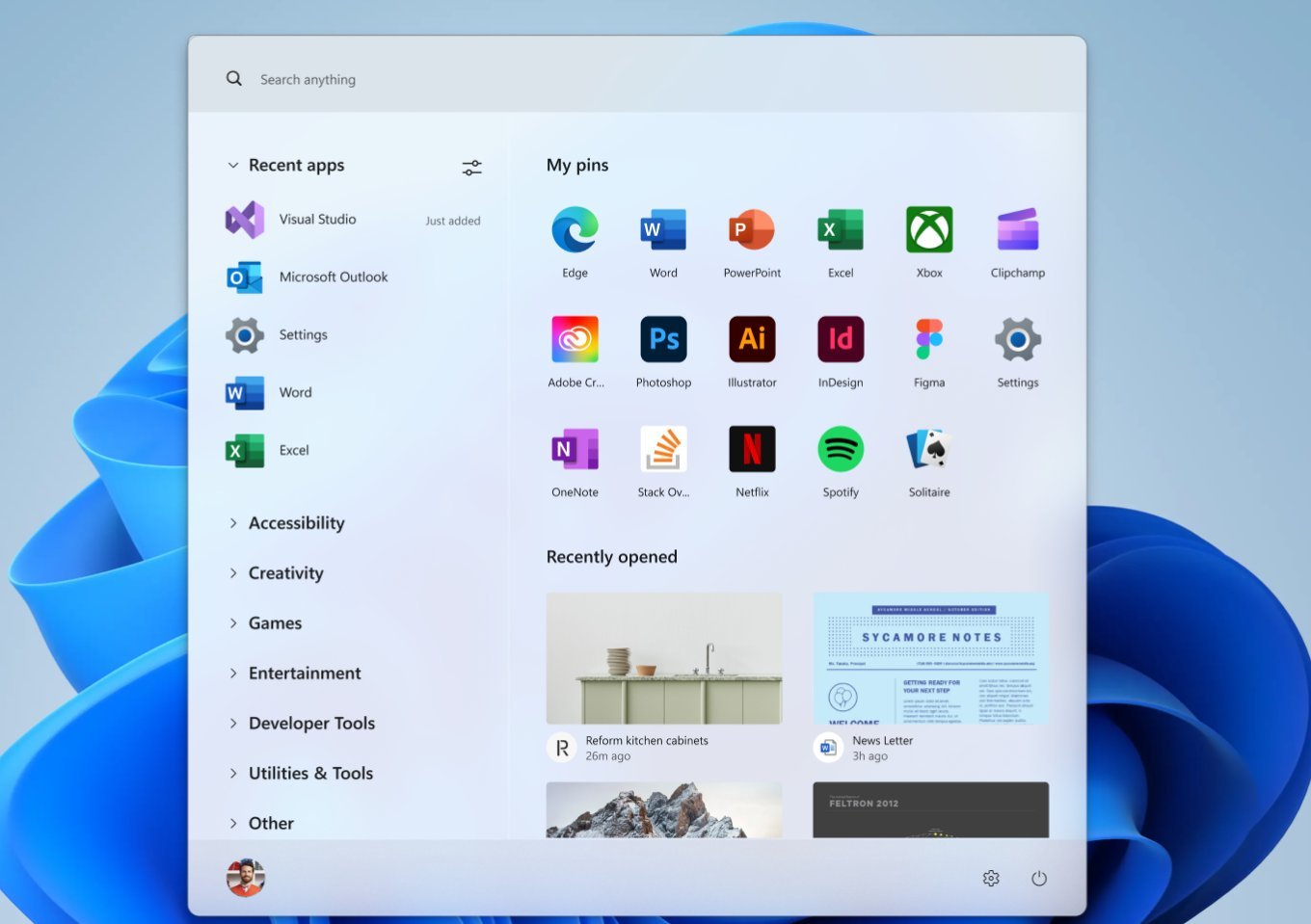
(Image credit: Microsoft)
Ultimately, Microsoft moved away from these concepts, settling on a refined Start menu that maintains the familiar structure but introduces a more cohesive and modern design language.
Microsoft plans to officially begin rolling out the new menu with the next cumulative update, scheduled for release on November 11, 2025. However, the update is already available as an optional installation by going to Settings > Windows Update, turning on the “Get the latest updates as soon as they’re available” toggle switch, and then clicking the “Check for updates” button.
What’s your verdict? Do you like the new Start menu design? Let me know in the comments.
FAQWhat’s changed in the Start menu?
The new Start menu features a single scrollable layout, category and grid views, and Phone Link integration. You can now hide the Recommended section entirely.
Which versions get the new Start menu?
Windows 11 versions 25H2 and 24H2, starting with builds 26200.7019 and 26100.7019.
How do I enable it?
Install the KB5067036 update. If it doesn’t appear automatically, you can force-enable it using ViVeTool — a safe, open-source utility that toggles hidden Windows features.
What are the new layout options?
You can switch between Category View (grouped by app type) and Grid View (alphabetical list). The menu remembers your last selection.
What’s the Phone Link integration?
A new button next to Search lets you expand or collapse content from your connected Android or iOS device — including recent activity and shared files
Can I hide the Recommended section now?
Yes. You can fully disable it from Settings > Personalization > Start — no more clutter from recent files or app suggestions.
Is this rolling out to everyone?
It’s a staged rollout, meaning not all users will see it immediately. Wider availability is expected with the November 2025 Patch Tuesday.
More resources
Explore more in-depth how-to guides, troubleshooting advice, and essential tips to get the most out of Windows 11 and 10. Start browsing here:

Follow Windows Central on Google News to keep our latest news, insights, and features at the top of your feeds!