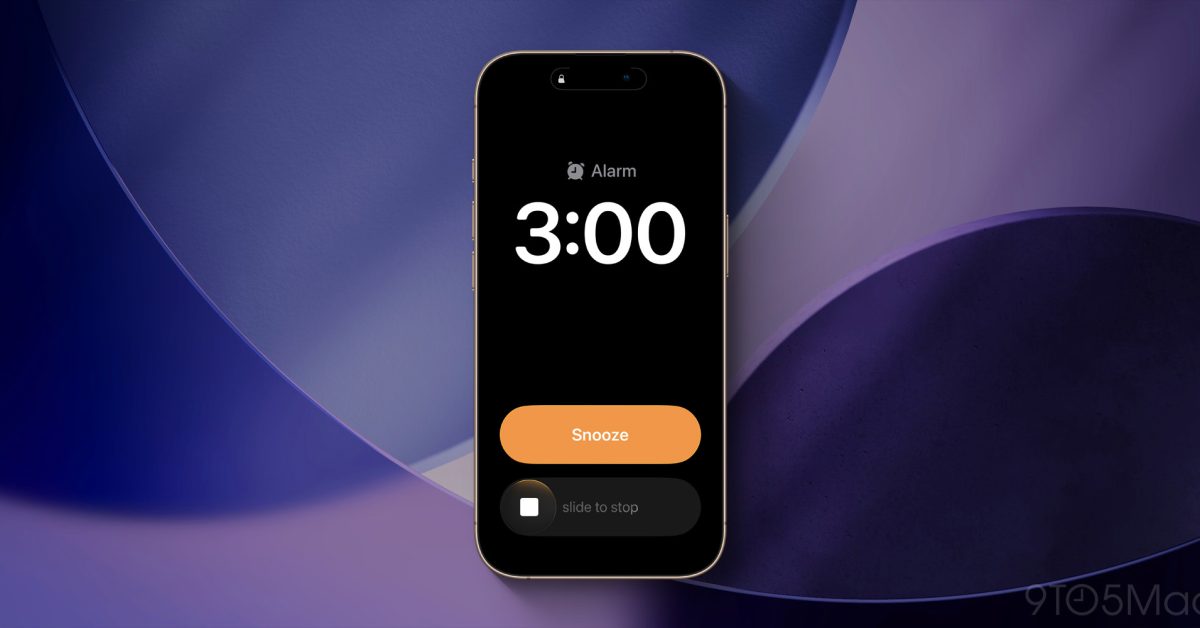
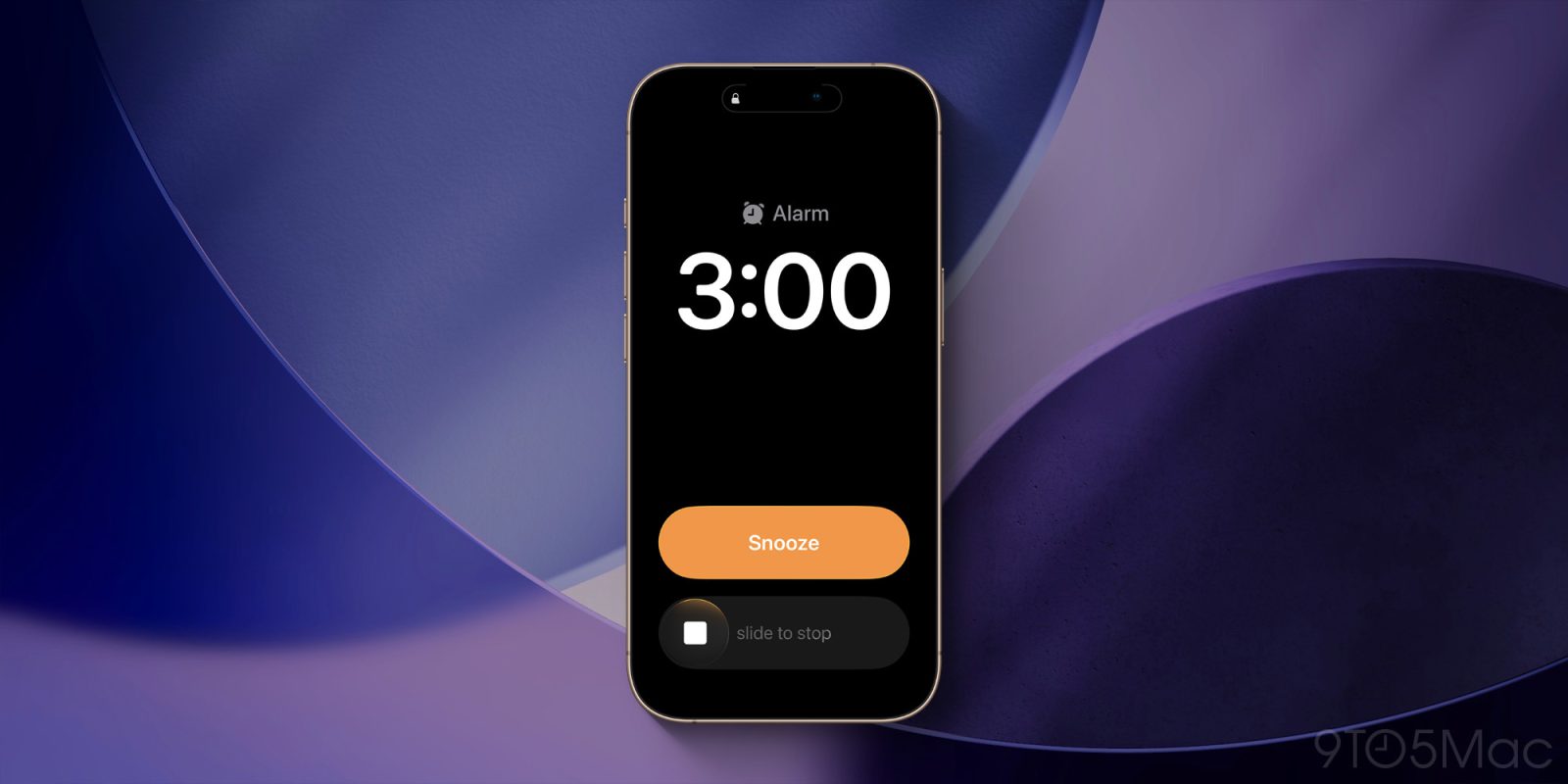
iOS 26.1 introduces a big change to how you turn off alarms and timers, replacing the ‘Stop’ button with a new ‘Slide to stop’ action. Here’s how to get the button back.
Apple lets you replace ‘Slide to stop’ gesture in iOS 26.1 with old ‘Stop’ button for alarms and timers
When iOS 26 debuted, it overhauled the design for alarms and timers on your Lock Screen. ‘Stop’ and ‘Snooze’ buttons got huge, thus making them easier to tap.
One unintended consequence of the change, however, is that some users found themselves dismissing alarms by accident.
iOS 26.1 has the solution: a new ‘Slide to stop’ gesture that replaces the previous ‘Stop’ button.
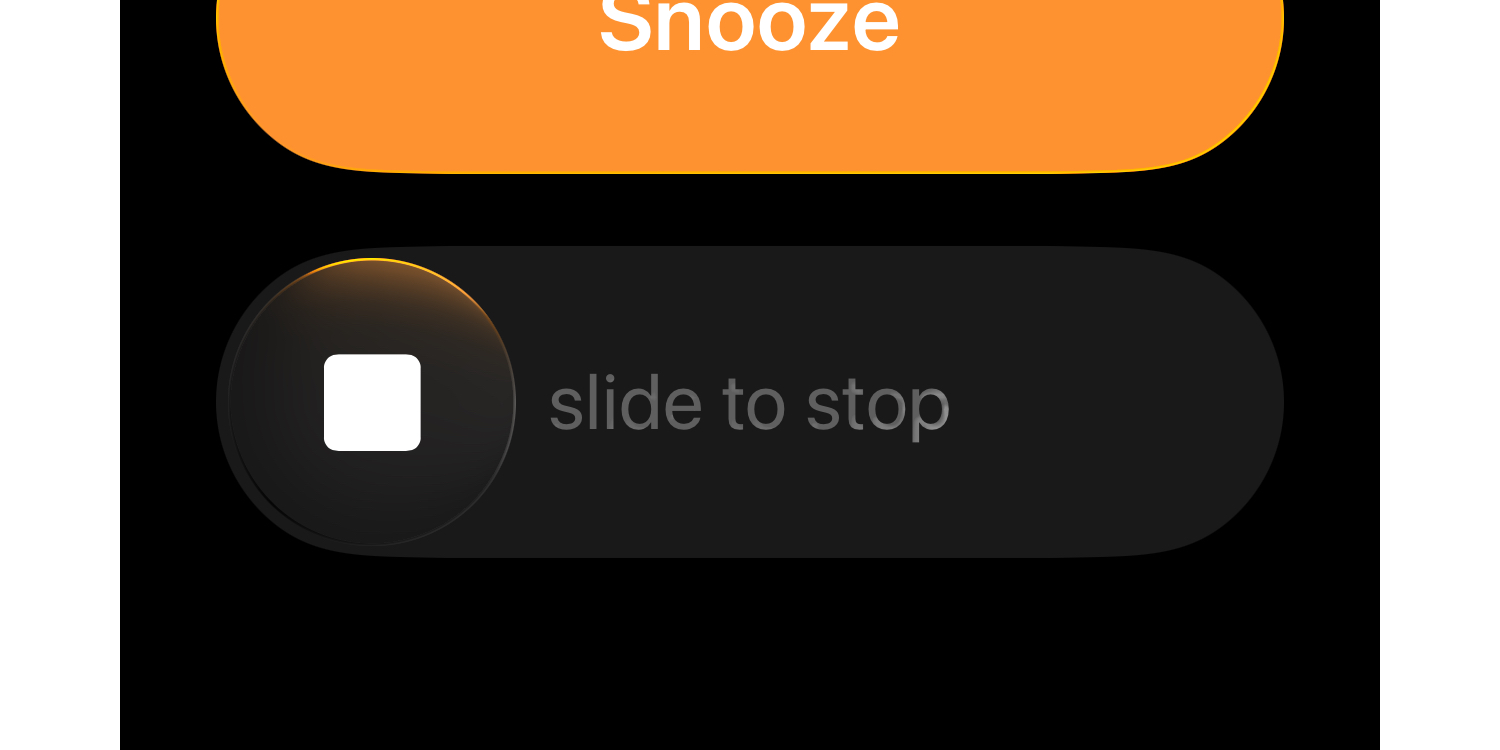
Essentially, it now takes a little more intentionality to dismiss an alarm or timer.
Apple is using the classic slider design that debuted on the very first iPhone for unlocking the device. It was also previously used for answering phone calls.
Overall, I’m a fan of the new slider for alarms and timers. But I understand how it might annoy some users who just want a button.
Fortunately, Apple understands too, and has provided an optional setting to get the ‘Stop’ button back.
In iOS 26.1, you can go to Settings ⇾ Accessibility ⇾ Touch to reverse the change.
There’s a new setting, ‘Prefer Single-Touch Actions,’ that will disable the new slider for alarms and timers and bring the single-tap ‘Stop’ button back instead.
This option joins several other optional new settings in iOS 26.1 for customizing your iPhone.
What do you think of the slider for alarms in iOS 26.1, and do you plan to revert to the ‘Stop’ button? Let us know in the comments.
Best iPhone accessories


FTC: We use income earning auto affiliate links. More.