
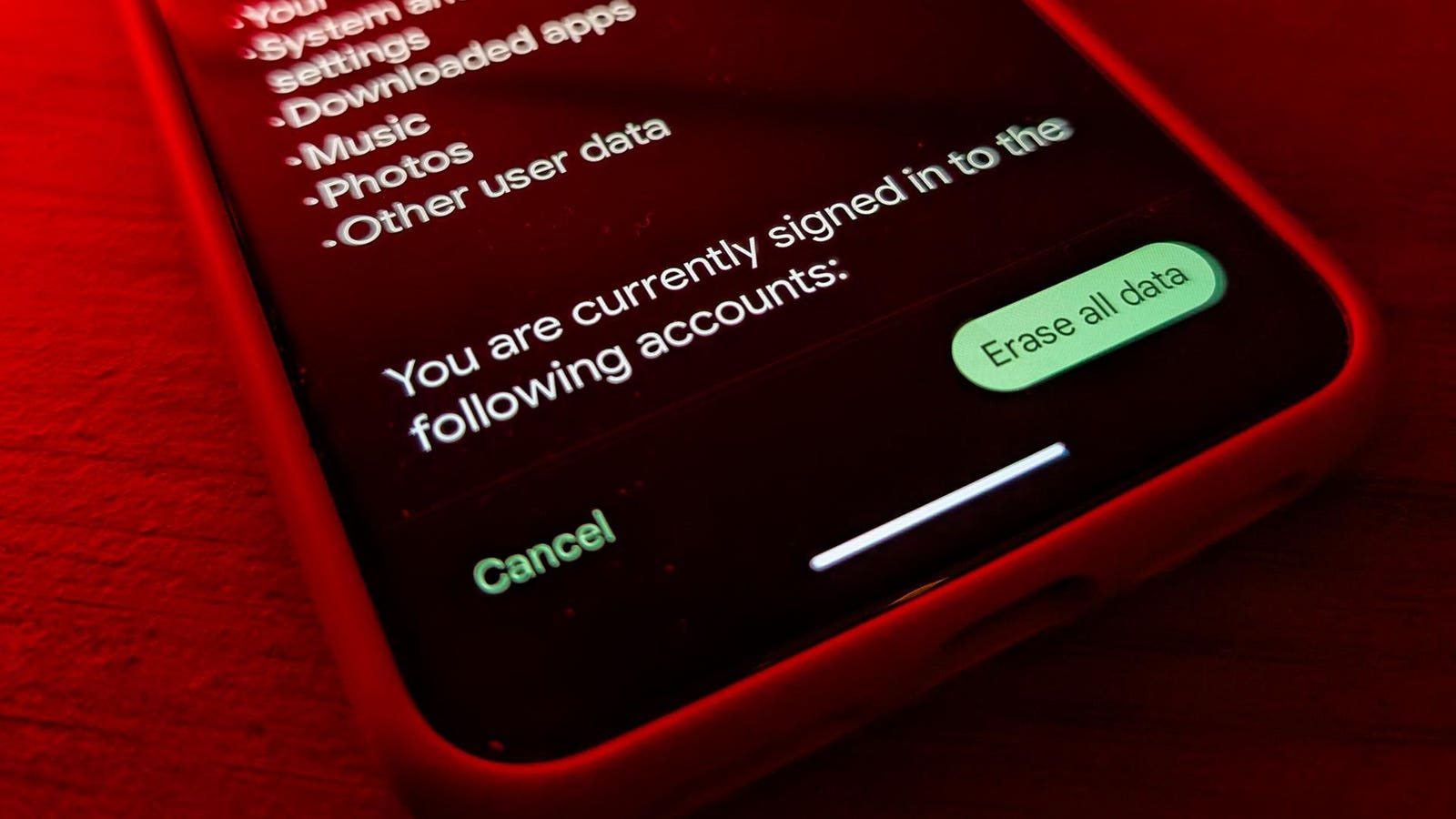
The Android factory reset screen explicitly lists “Photos” as data that will be permanently erased. Do not press this button until you verify your backup online.
PAUL MONCKTONKey TakeawaysGoogle’s “hidden” deletion. Google Photos doesn’t back up this folder by default. Keep your photos safe.Don’t trust your mobile app: You can miss files that haven’t been backed up.Do the web test: How to be 100% sure your photos are backed up.
Nov 30 Update below: I’ve added another hidden trap that could cause you to quietly lose Google Photos data in a way you probably won’t notice until it’s too late.
Also fixed some formatting for clarity. This article was originally published on November 28
With Black Friday madness driving smartphone sales through the roof, millions of users are effectively migrating their digital lives this weekend as they unbox their shiny new iPhones, Pixels and Samsung Galaxies.
However, when transferring a Google Photos library, several pitfalls must be avoided to prevent permanently losing precious memories.
The Danger Moment: Wiping Your Old Phone
As I reported yesterday regarding Google Photos’ “hidden” Perspective Tool, Google often prioritizes a clean, simplified interface over fine-grained control. The phone migration process is no exception. If you just tap “Next” without taking proper care, you may end up with a photo library that looks complete but is missing vital images you can never get back.
Here are three critical data loss traps you must avoid:
1. The “Locked Folder” Trap
This is a big one:
If you have any photos or videos stored in your Locked Folder, they are likely not backed up to the cloud. If you wipe your old phone before taking the steps below, those items will be deleted forever.
The Locked Folder is a secure folder in Google Photos protected by a fingerprint or passcode. Because of this extra security, Google keeps these files separate from your main cloud backup, leaving them more vulnerable to data loss.
The Trap: For security reasons, the Google Photos Locked Folder isn’t backed up by default, even if you have backup turned on for everything else. You must turn on Locked Folder backup separately in the Locked Folder settings if you want your Locked Folder items to be available on your new device automatically.
I’ve seen countless support queries from frustrated users who have lost their most private photos to the Locked Folder trap. Unfortunately, the response is always the same: the lost pictures cannot be retrieved once the old device has been erased.
What Not To Do: Don’t erase or reset your old device before you have everything backed up, as your Locked Folder contents will be irretrievably lost.
Don’t rely on “cable transfer” tools like Samsung Smart Switch or Apple Move To iOS. These tools can’t access your Locked Folder and won’t transfer its contents to your new device.
Do This: The most foolproof way to check if your Locked Folder is backed up is to go to https://photos.google.com/lockedfolder sign in and check to see if your photos are there. Everything in that folder has been safely backed up in the cloud and will be available from your new device. Any Locked Folder items not visible here will be lost when you wipe your old device.
If you don’t see your photos there, you can turn on Locked Folder backup to back them up before you wipe your old phone.
The Backup switch is on, showing that this local device folder will be backed up to the cloud.
PAUL MONCKTON2. The Social Media and Downloads Trap
You likely have many photos and videos in folders on your old device that haven’t been backed up. These often include images from social media apps like Instagram, messaging apps like WhatsApp, and crucially, your device’s default Download folder.
For example, images you edit or save from Instagram go into their own folder, not your main camera roll. Similarly any image or video you save from your browser typically ends up in “Downloads”, which Google Photos ignores by default to save space.
Google Photos automatically backs up everything you shoot with your camera, but often won’t include other folders on your device unless you specifically tell it to.
The Trap: You see your camera timeline successfully transferred to your new phone and wipe your old device, potentially deleting years of saved media.
What Not To Do: Don’t fall into the trap of seeing what looks like a perfect copy of your photo library on your new device and assuming you have transferred everything to your new one. You’ve probably left several files behind! On your old device, Google Photos can show a mix of cloud files and local files, tricking you into thinking all your local folders have been backed up.
Don’t skip the cable: Use the option to transfer photos and videos with your cable (or wireless) transfer tool if you’re using one. Many users turn this off to save time and storage space thinking Google Photos has everything saved, but this will leave local files behind.
Do This: Open Google Photos on your old device and head to “On this device” (it’s in the Collections tab).
Scroll through the list and check the backup switch. If the switch is off (or you see a cloud icon with a line through it), that folder is not backed up. Turn it on.
Note that the device folders themselves won’t transfer to your new device using this method, the contents will become scattered throughout your main photo library based on when they were created. If you want to keep them organized, add the contents of each folder to a new album before you transfer.
3. The Incomplete Transfer Trap
If you have backup turned on in Google Photos, your pictures should be stored safely in the cloud. Unfortunately, reports indicate this process has been known to go wrong, leaving you with an incomplete backup.
The Trap: You check your old device and your photos appear to have been backed up successfully. You then factory reset that device and discover later that some files hadn’t been backed up after all. By then, it’s too late to retrieve them.
What Not To Do: Don’t just trust the Google Photos app on your old device to verify that the backup has completed successfully. You’ll probably be safe, but some users have reported that it’s possible for an incomplete backup to show as successful in the app.
Do This: To be 100 percent sure your photos and videos are backed up in the cloud, go to photos.google.com on your new phone (or on a computer) and check them in your browser. If a photo isn’t showing up there, then it hasn’t been backed up, and you must not wipe the old phone until you have rectified the situation.
The foolproof way to verify your photos are safe is to view them in a web browser, not the app.
PAUL MONCKTON4. The Live Photo Trap
The Trap: Different devices, especially iOS vs Android, use mutually incompatible motion photo formats that often don’t transfer correctly from one device to the other.
Google Photos supports motion photos from iOS and Android devices Live Photos (iOS) and Motion Photos (Android) store motion, and sometimes audio, along with every picture. These popular formats allow you to relive the moments in a way a simple photo does not and also give you the opportunity to find your favorite shout out of the enclosed burst of images.
What could go wrong: You use a transfer app to copy all your photos to your new device. Everything seems to have transferred correctly, but you realize much later on that your live photos have reverted to still images. Their motion and video is irretrievably lost.
What Not To Do: Unless you’ve bought a Google Pixel, don’t rely on a transfer app to copy over your Live Photos. You may end up with separate photo and video clips or, even worse, static images only.
While the Pixel’s built-in Data Restore Tool officially supports Live Photo migration from iOS, the generic “Android Switch” app (iOS) (Android) often used for other other devices lacks official support for preserving motion data with audio. Neither Samsung’s Smart Switch or Apple’s Move to iOS apps will correctly migrate motion picture formats between platforms with working audio.
Do This: Use the Google Photos app on your old phone to back up your photo library, including your Live Photos before you wipe it. Google Photos supports both Android Motion Photos and Live Photos from iOS, preserving the motion and the sound in the cloud.
Even though the Pixel’s Motion Photos don’t capture audio, and Samsung devices use a different format, you’ll still be able to hear the sound in your existing Live Photos backed up from iOS as Google Photos manages the transfer of the still image, motion and audio together.
However, be aware that new motion photos shot on a Pixel, may be silent by default.
To be safe, never wipe your old devices until you have verified that you can play one of your old Motion Photos or Live Photos on your new device in the Google Photos app.
The Bottom Line: Trust Only The Web Version
Migrating your phone is designed to be fast and reliable, but when it comes to your Google Photos library, relying on Smart Switch or Move to iOS isn’t enough.
To ensure your photos and videos are fully backed up, always check Google Photos in a web browser. If they aren’t there, then they aren’t safe.
Follow @paul_monckton on Instagram.
ForbesGoogle Photos Update Warning: Essential Feature Returns, But There Is A Catch.By Paul MoncktonForbesCan You Tell If An Image Was Made By AI? Google Just Gave Everyone A Free ToolBy Paul Monckton