
![iPhone settings & features you didn't know existed [Video]](https://www.newsbeep.com/ca/wp-content/uploads/2025/12/1766036476_iphone-settings.jpg)
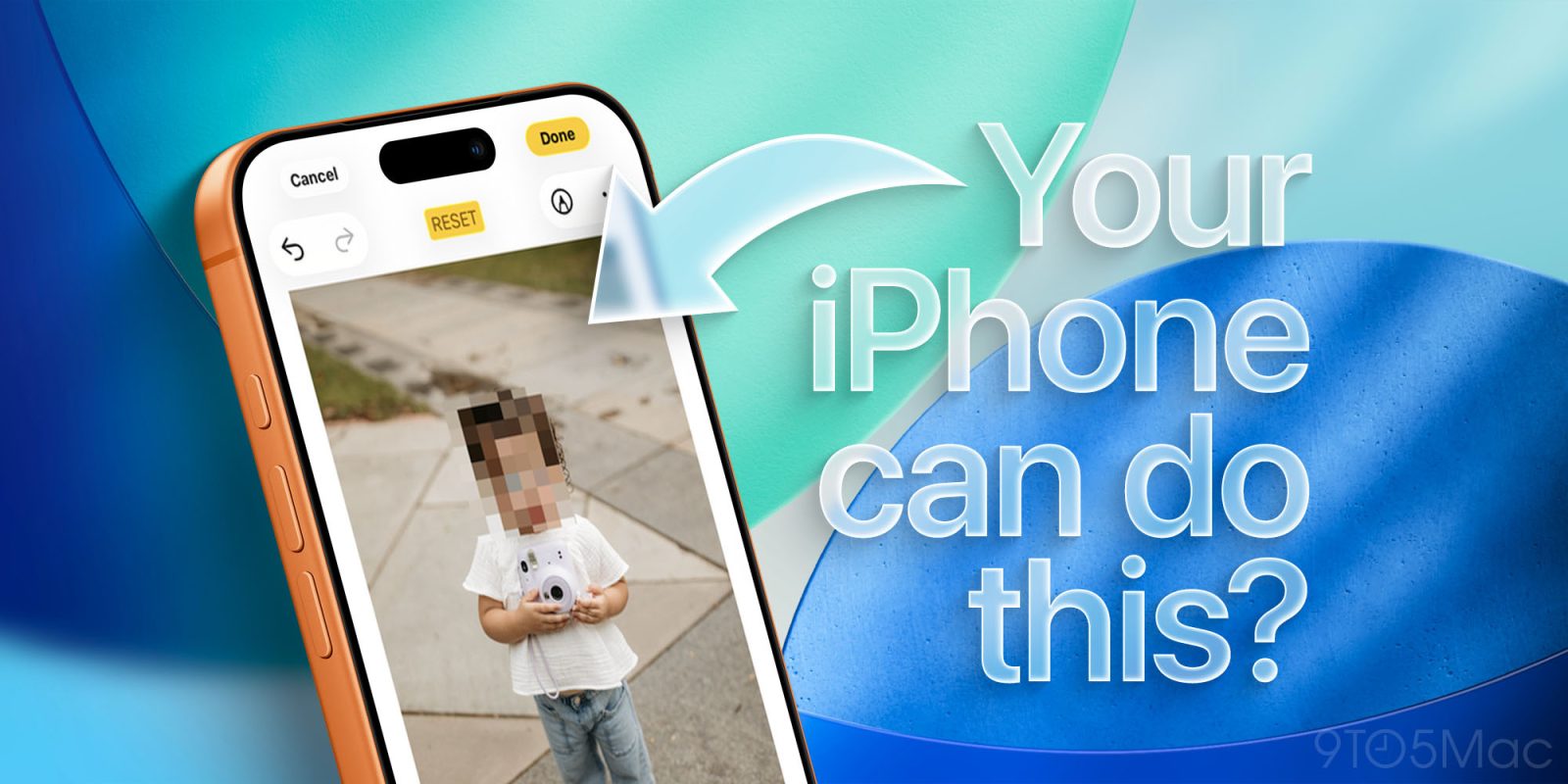
It seems that with every update, Apple quietly adds hundreds of features and settings that are very impactful but easy to miss. These are not the big headliner features, but smaller ones that, once you know about them, make your day-to-day life so much easier. Here are 15 features and settings that every iPhone owner should know about, but probably doesn’t.
Be sure to check out our video below to see all of these (and more) in action:
1. Blur faces, license plates, and more in the Photos app
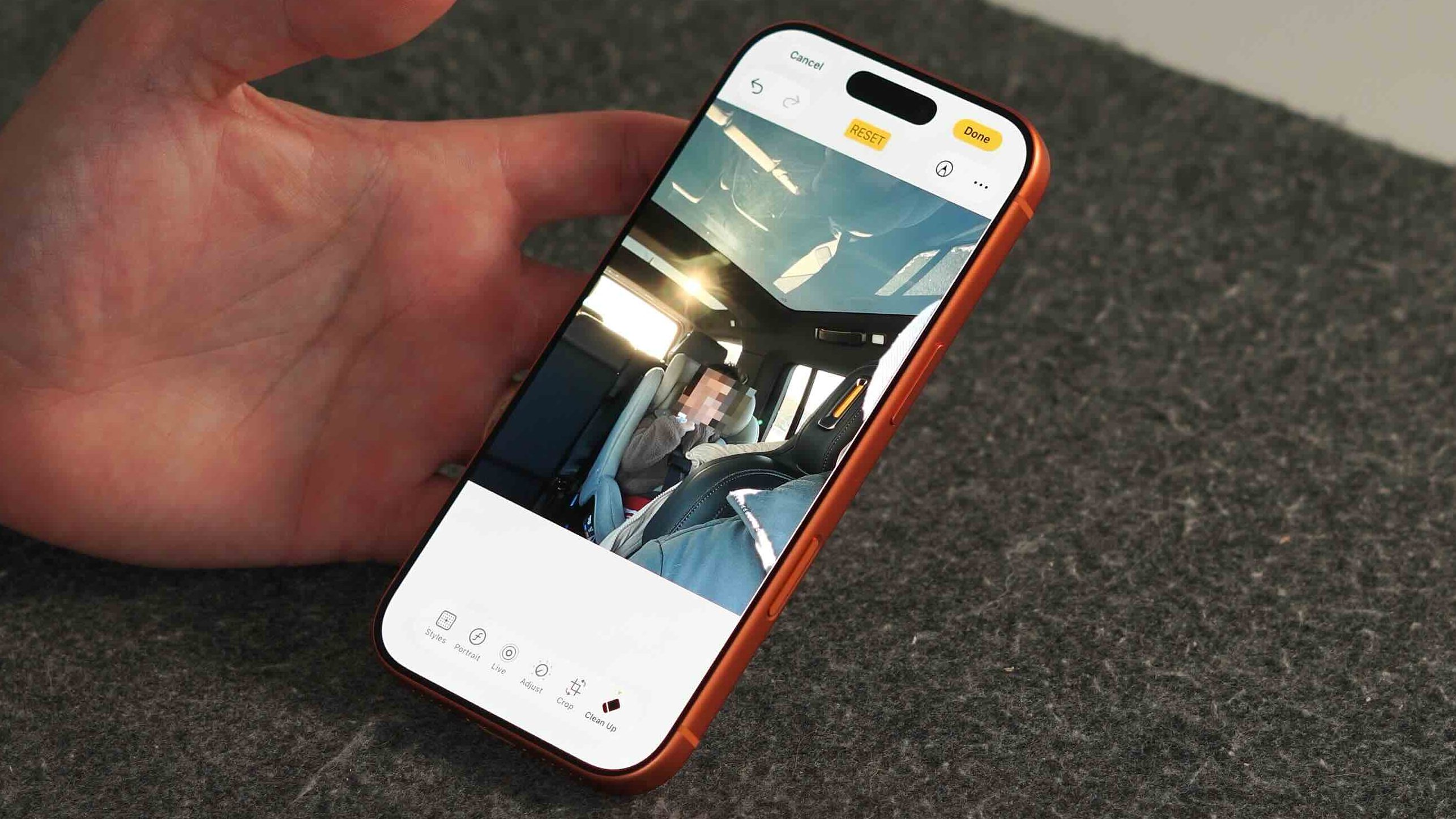
Apple introduced the Clean Up feature in the Photos app back in iOS 18. It was marketed as a way to remove unwanted objects or people directly from an image within the Photos app. But one byproduct of this feature is that it was also built to hide sensitive information. It can now blur/pixelate faces, license plates, credit card numbers, and more. Here is how to do it:
Open the Photos app and select an image
Tap Edit
Choose Cleanup
Let the image prepare for cleanup
Circle a face or license plate to blur it instantly
Tap Done to save
2. Change how incoming calls appear
There are now several options for how incoming calls appear on your iPhone. For years it defaulted to the one main view where it would take over the entirety of your screen. So if you wanted to do something while it was still ringing, it was impossible. Apple finally gives us a choice. So if you just want a small drop-down while the phone is ringing, you can have that and not be interrupted in what you are currently doing.
Open Settings
Go to Apps → Phone
Tap Incoming Calls
Choose Banner or Full Screen
Just like that, the issue is fixed!
3. Stop volume buttons from changing ringer volume
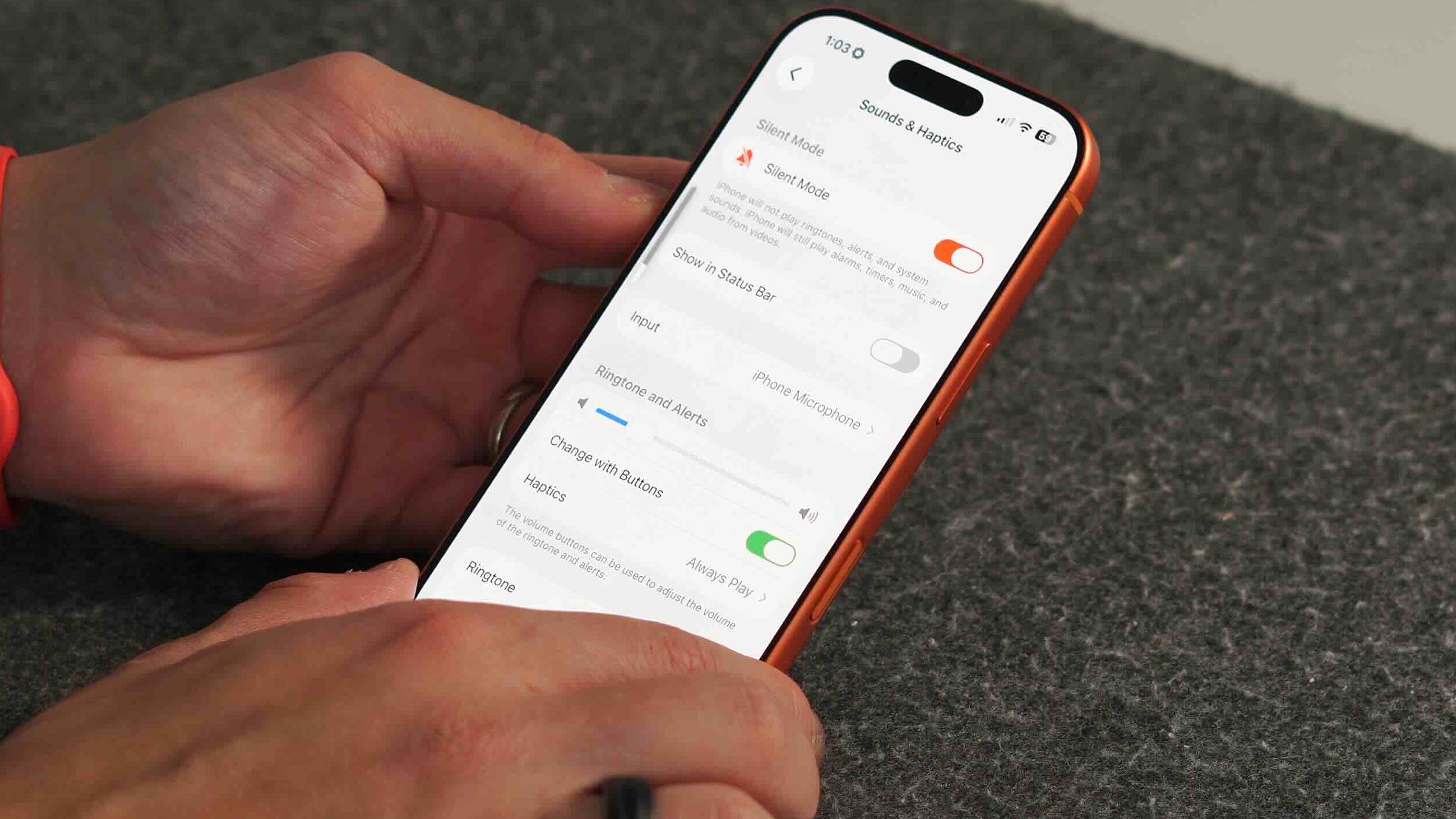
By default, the physical volume buttons control both media and ringer volume. If you mostly watch videos or listen to podcasts, this can be frustrating. This is one of the more annoying default settings. Here is how to change it so the volume buttons only change the media volume and not the ringer volume.
Open Settings
Go to Sounds & Haptics
Toggle Change with Buttons off
Volume buttons will now control media only
Have you ever dealt with this issue?
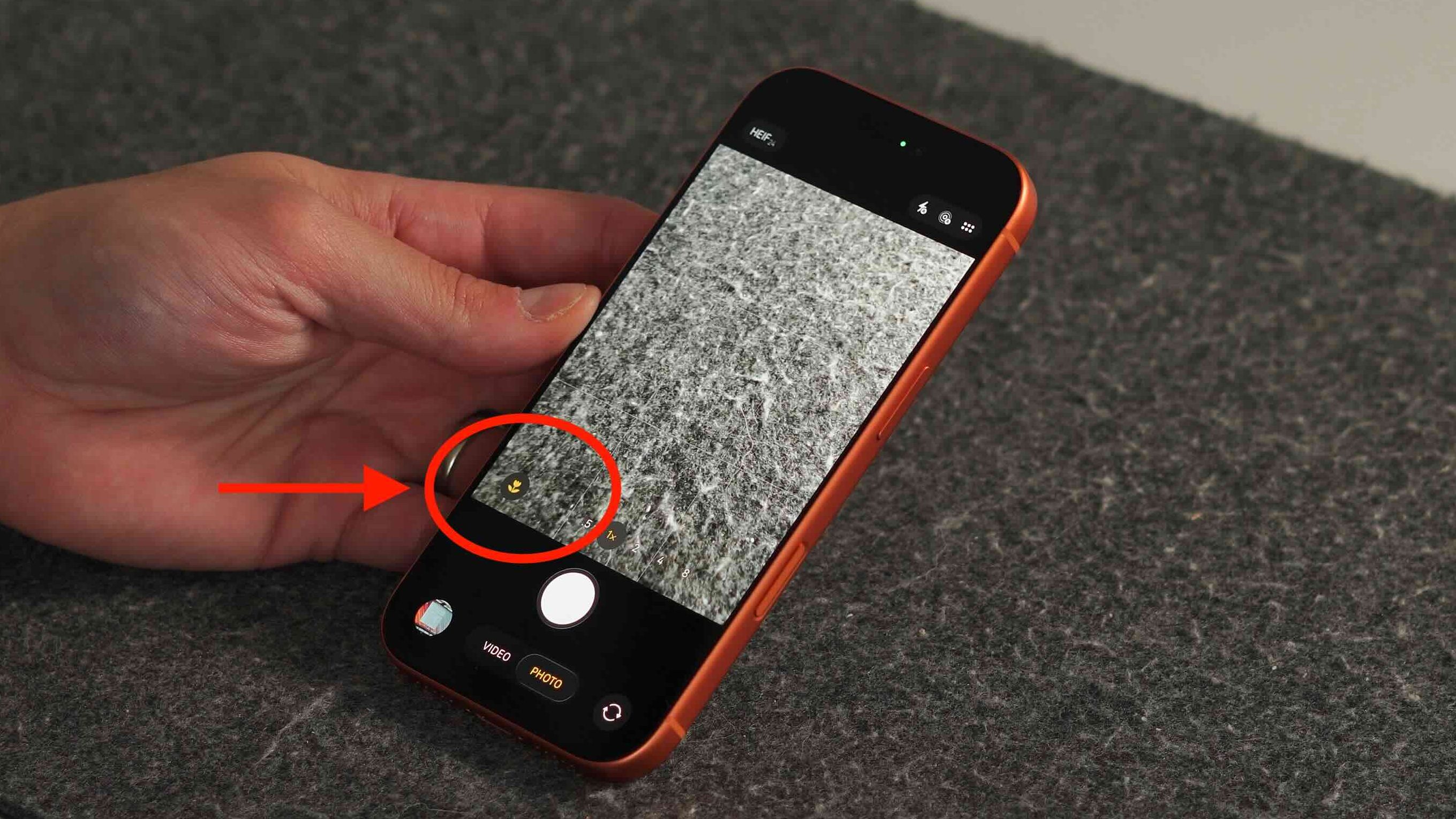
4. Take manual control of Macro Mode
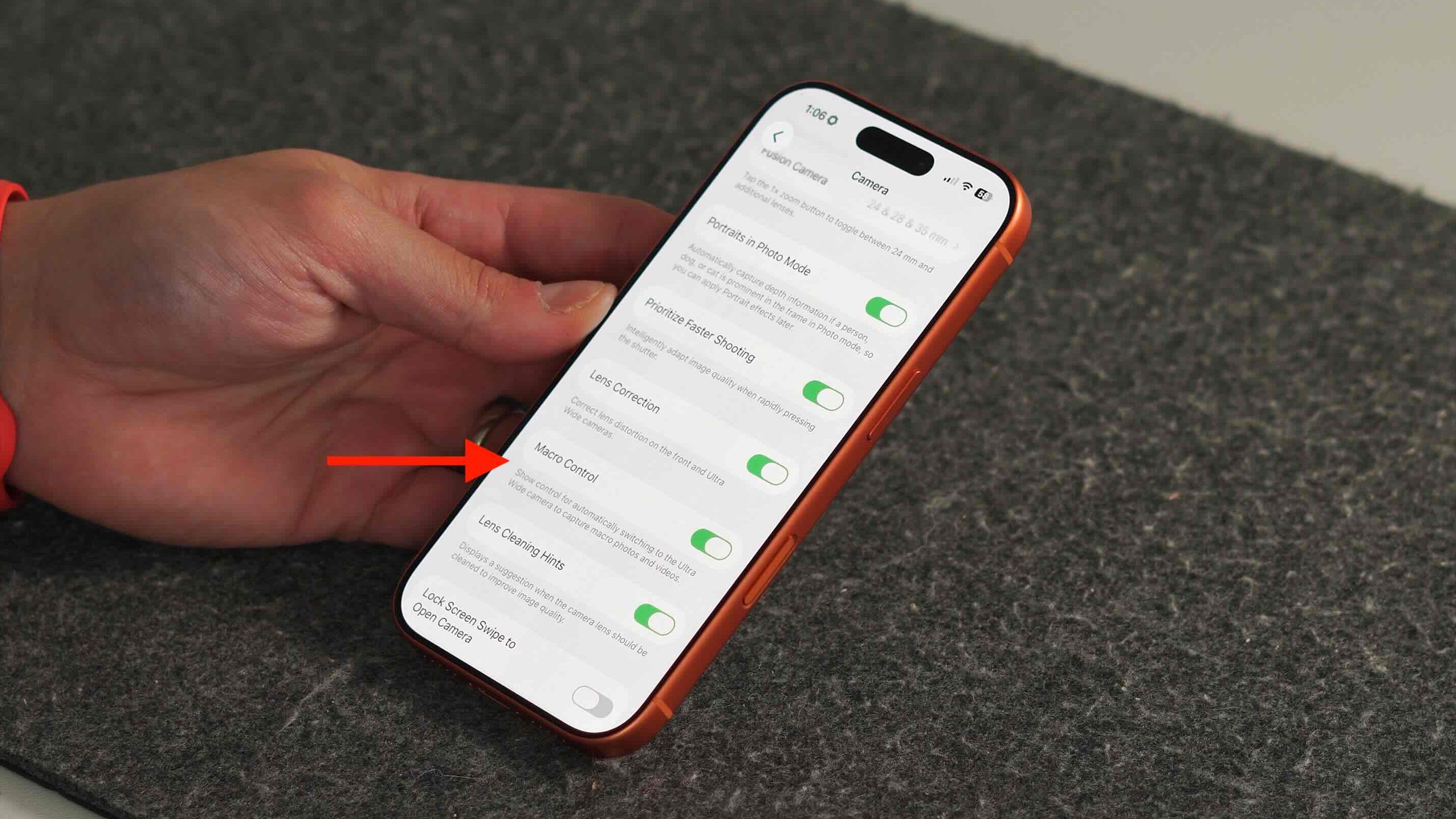
I am actually a big fan of the Macro camera on the newer iPhones. It allows you to capture some truly unique images that cannot be taken in regular camera mode. However, there are times when I bring my iPhone camera close to a subject to capture the natural blur from the main sensor, and then it automatically switches to Macro mode, ruining the shot I am trying to take. Raise your hand if that ever happens to you! The good news is that you can turn this off in the settings.
Open Settings
Go to Camera
Tap Macro Control
Turn it on to get the flower icon for manual control
Turn it off to let iOS handle it automatically
5. Share a podcast from the exact moment you are listening
The Podcast app has been continually improving with each update. Apple seems to be putting a lot of effort into making the podcast app something people use over the competition. One feature that was missing was the ability to share specific moments from a podcast episode. Podcasts are now becoming extremely long, covering a multitude of different subjects. So if there is just a small 5-minute section I want to share with friends, I can now do that directly from the podcast app. Here is how.
Open the Podcasts app
Play an episode
Tap the captions button in the bottom-left corner
Long-press on any line of the transcript
Tap Share
Send it to someone, they’ll jump straight to that moment
Final thoughts
As I stated at the beginning, Apple adds many genuinely useful iOS features. Still, the problem is that many of them are buried in settings or quietly introduced with an iOS update and never really explained. So these features go unused for the most part. My goal is to highlight a few of them so customers can be more aware of everything their iPhone can do. And we are just scratching the surface here.
Let me know what you think. Are there any features that you saw here that are worth trying? Be sure to catch our video here, where I go over all these features and more!
Best Apple deals


FTC: We use income earning auto affiliate links. More.