

There are a number of things that can drain your phone’s battery life, even something as simple as browsing Tom’s Guide is going to cause that percentage bar to slowly creep down. But Android users may be interested to know that there’s a hidden setting deep in the depths of your phone that might be making the problem worse than it needs to be.
I’m specifically talking about the “Mobile Data Always Active” feature, which keeps your phone connected to cellular signals even if you’re connected to a stable Wi-Fi network. While there are benefits to this, the main drawback is that being connected to two types of internet drains your battery.
The good news is that it is possible to switch this feature off and help preserve a little bit of battery. The bad news is that it’s not easy to find, and you might need some help to get there. Thankfully, we know exactly where to go.
You may like
The pros and cons of Mobile Data Always Active
The name for this feature is pretty self-explanatory. The idea is that your phone will always stay connected to cellular data, regardless of what other networks may be available. That way, should your Wi-Fi or wired internet connection fail, you will jump straight back onto cell data without any meaningful delay.
While it’s not always perfectly seamless, and I always seem to drop WhatsApp calls if I stray too far from my home network, it is a genuinely useful feature to have. It keeps you connected and doing what you need to do, no matter the circumstances. Though it is one of those features that’s only useful when you need it, and actively hinders your phone at other times.
The major downside is that mobile data generally uses more battery than Wi-Fi, and keeping them running simultaneously is just a redundant waste of energy. Not to mention the fact that seamless transitioning between the two could lead to you using up more cell data than you planned, which is hardly ideal if you have a strict monthly allowance.
If either of these things concerns you, then you might as well switch off Mobile Data Always Active just to be safe.
How to switch on developer options
If you haven’t got Developer Options switched on, then this is the first thing you’re going to have to do. It’s worth mentioning that Developer Options are not designed for the public at large, which means it can be risky for you to mess about with them if you don’t know what you’re doing.
However, this secret menu offers a range of toggles and features that wouldn’t normally be available. Which is a great way to ensure your phone is working the way you want, not the way the manufacturer dictates.
Here’s how to switch on Developer Options:
You may like
1. Open Settings > About Phone
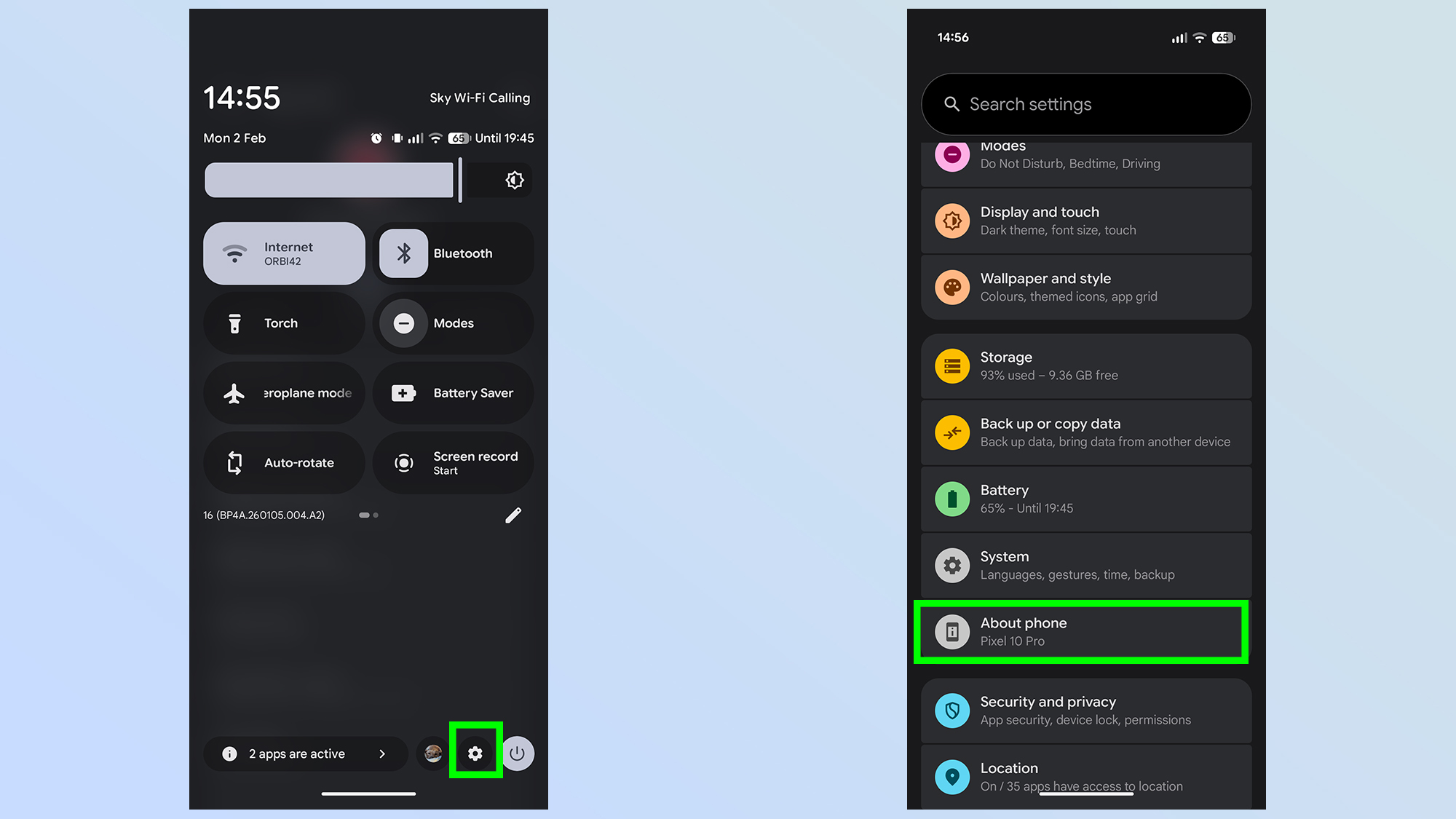
The first step is to open the settings menu, which can be accessed from the pull-down quick settings menu or the settings app icon. From there, you’ll want to scroll down to the bottom until you find the About Phone menu. Tap it
2. Tap the Build Number 7 times
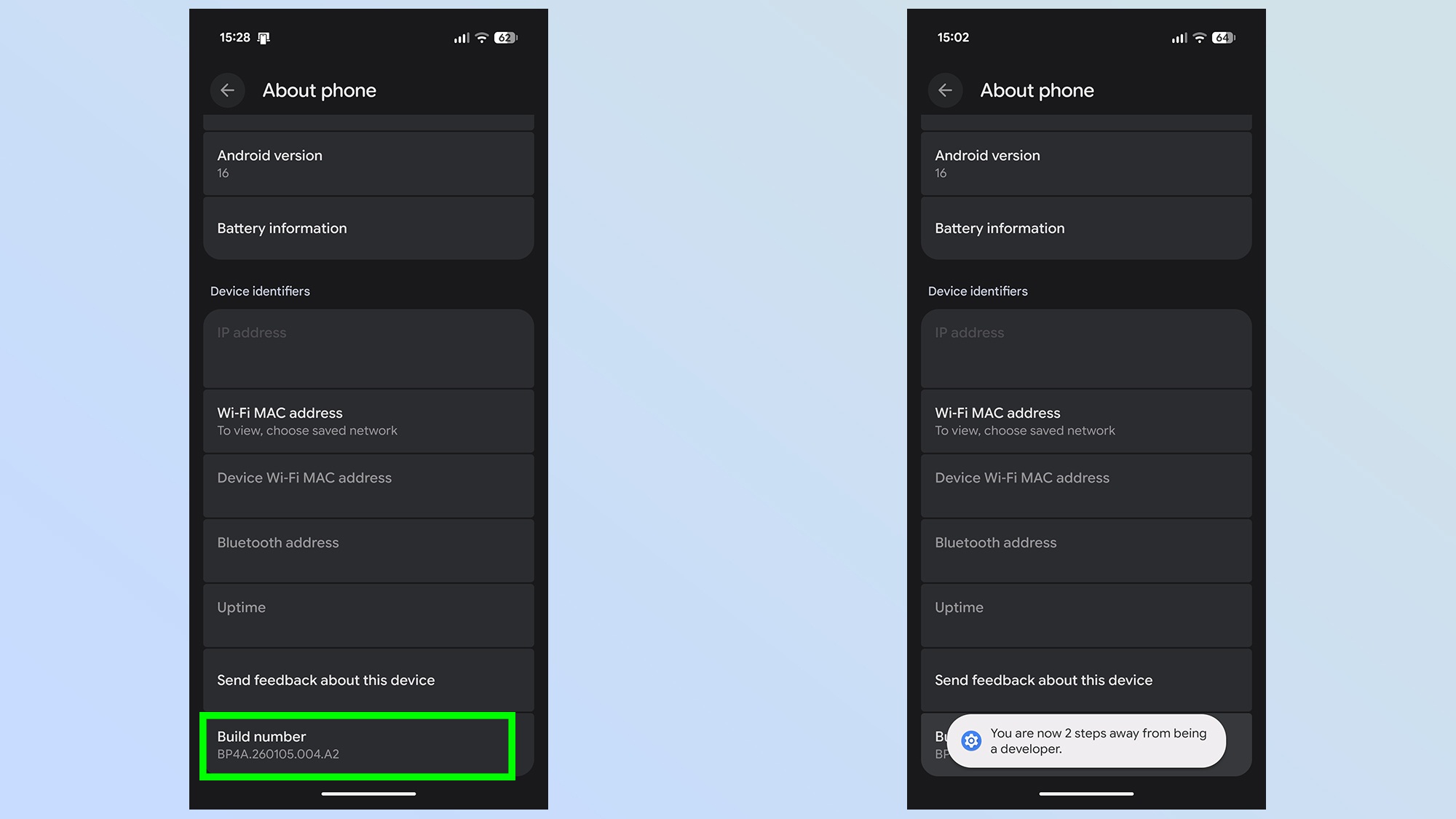
From there, you’ll want to scroll to the very bottom of the screen until you see Build Number. You’ll then need to tap this seven times in quick succession. You’ll see pop-ups flash up at the bottom of the screen telling you how many more taps are needed.
3. Verify yourself
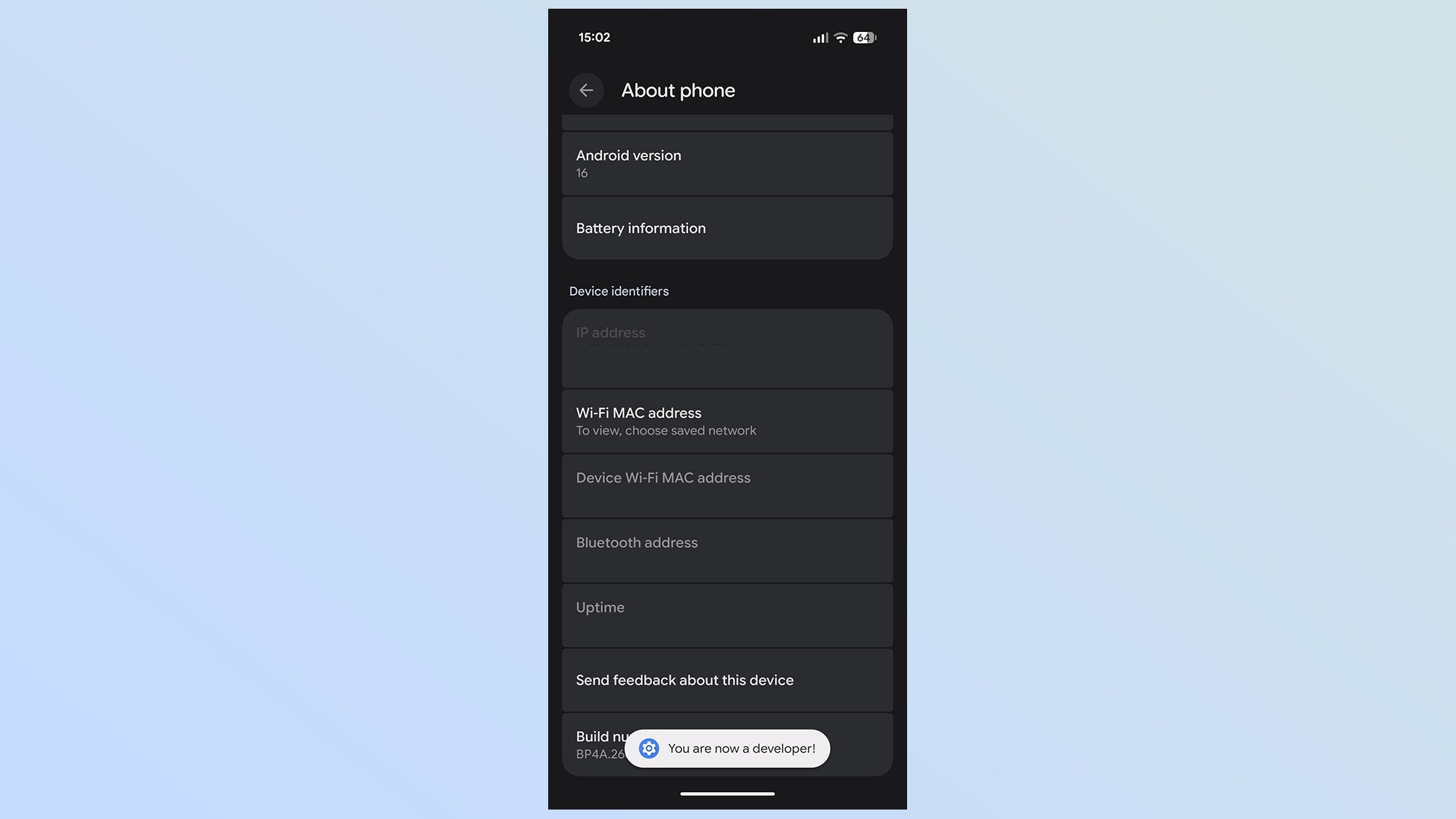
Your phone will then ask you to verify your identity with a PIN or biometric security. Once that’s done, you’ll see another pop-up at the bottom of the screen confirming that you’re a developer.
How to turn off Mobile Data Always Active
1. Open the Developer Options menu
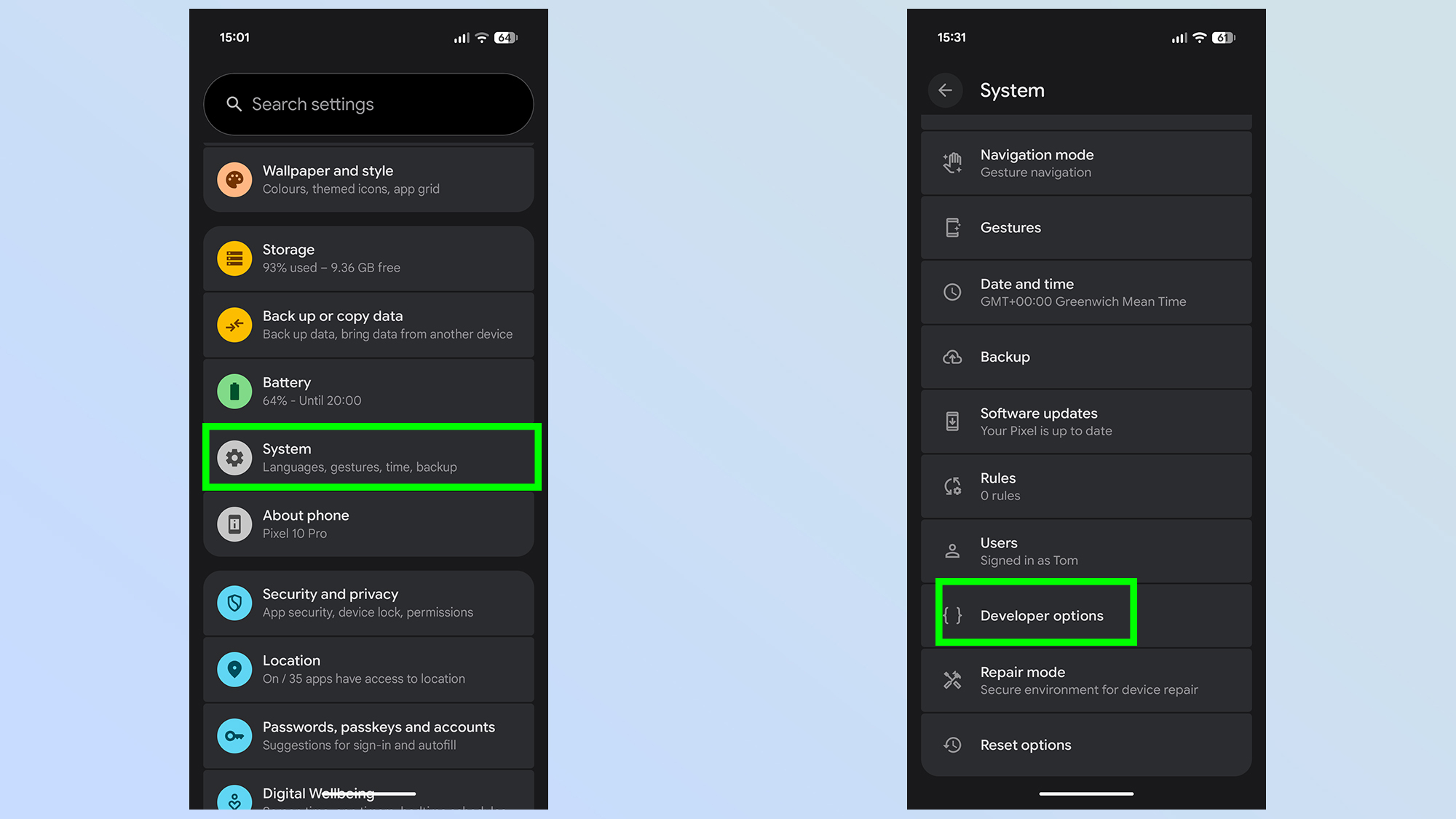
Head into the settings menu again and tap the System option. Then scroll down until you see Developer Options. Tap this to open the menu.
2. Toggle off Mobile Data Always Active
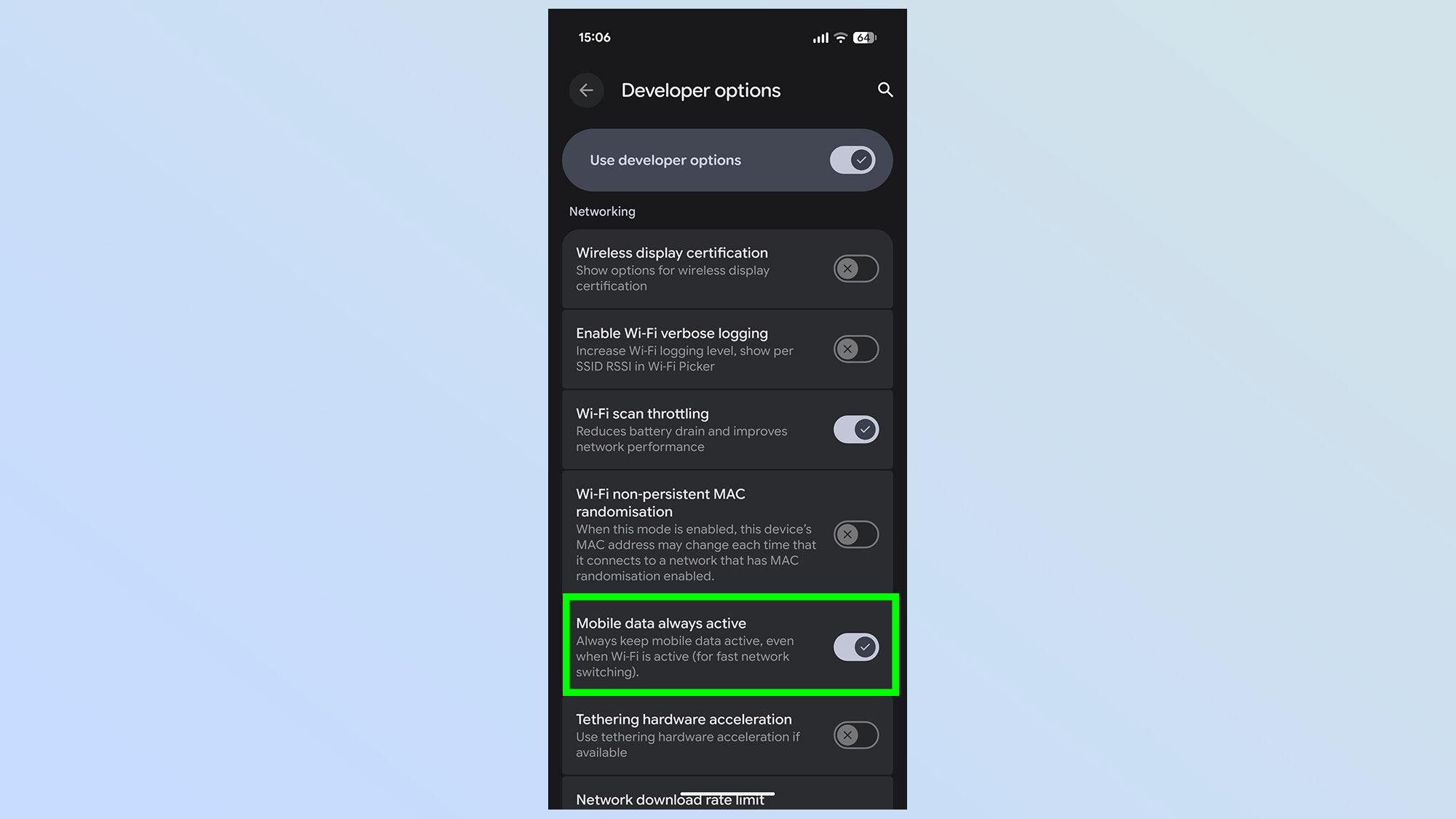
From here, you need to scroll down until you find the Networking sub-section. Take it slow, because the Developer Options menu is long, and you could easily miss it.
Once you find it, toggle off the Mobile Data Always Active option.
How turning Mobile Data Always Active off affects your phone
If you ever find yourself suddenly without Wi-Fi, Mobile Data Always Active is designed to make the switch as seamless as possible. Naturally, turning it off makes the switchover noticeably slower — though not obnoxiously slow.
There is a brief pause without a network connection, and in my experience, it lasts around 10 seconds. Which is far from the end of the world, though it is enough to disrupt anything you might be doing that requires the internet. So don’t go wandering around while you’re on a Zoom call or playing an online game.
As for the difference in battery, that’s something you will have to make up your own mind on. Toggling the feature on and off did nothing to my Pixel 10 Pro’s battery life estimate, and in both cases, my phone thinks it will be dead by 8:15 p.m. Though I wouldn’t put much faith in that estimate, considering I’m writing this at 4 p.m. and I still have 60% battery life. Unless my phone knows something I don’t.
All I know is that if you’re usually in one place with a stable Wi-Fi signal, you probably don’t need a backup ready to kick in right away. Not when the alternative is waiting 10 seconds.

Follow Tom’s Guide on Google News and add us as a preferred source to get our up-to-date news, analysis, and reviews in your feeds. Make sure to click the Follow button!
More from Tom’s Guide
Today’s best Google Pixel 10 Pro deals