
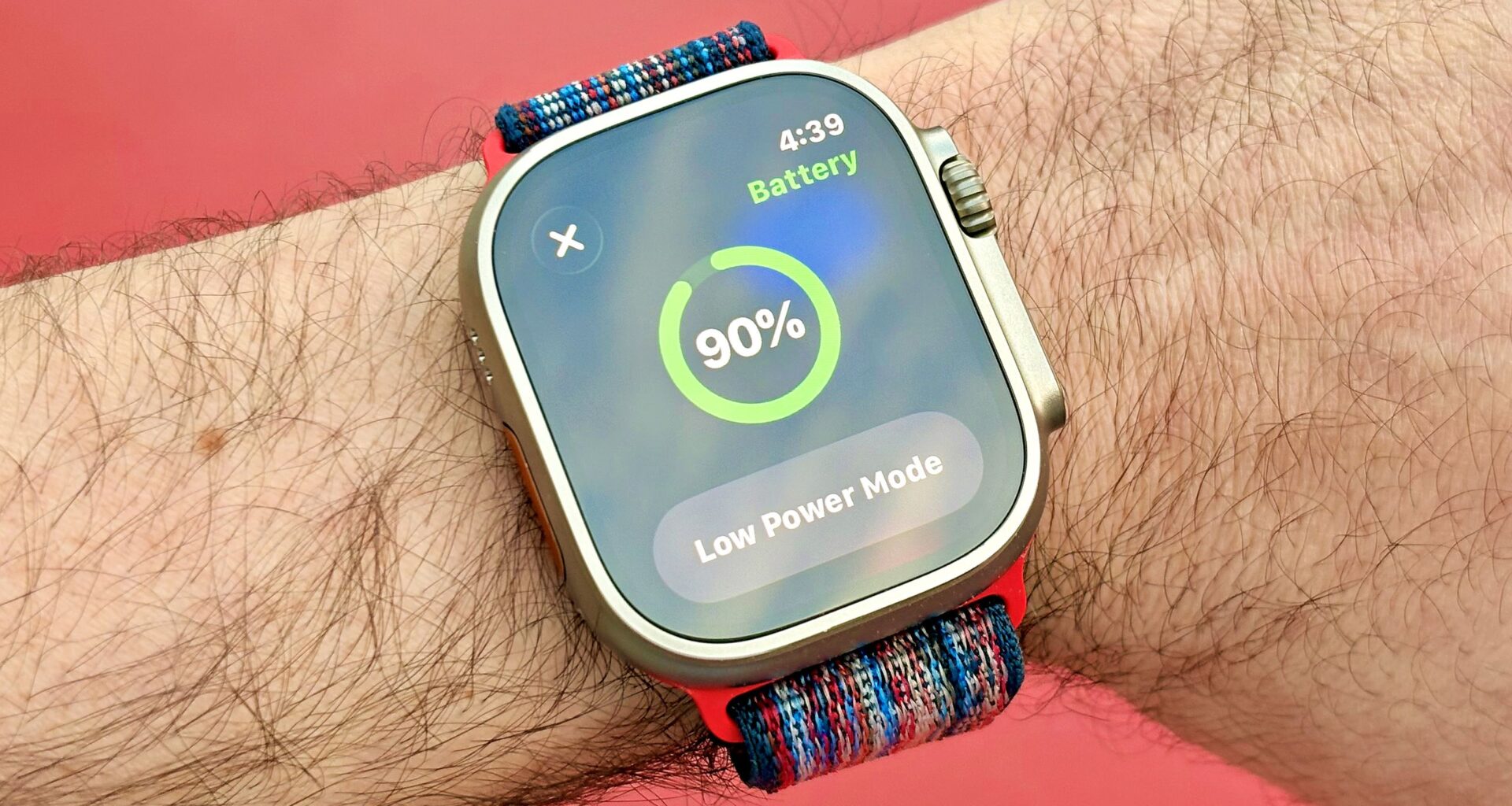
Apple makes some of the best smartwatches in 2026, but their battery life is nothing to write home about. While the Apple Watch Ultra 3 can last nearly two days per charge, the Series 11 lasts for just one, and the budget-minded SE 3 lasts for only 18 hours. The same goes for the older Apple Watch Series 9 and Series 10.
If your Apple Watch’s battery life, or lack thereof, has you feeling down, I’m here to help. As the one of the lead smartwatch reviewers at Tom’s Guide, I’m obsessed with maximizing my wrist time in between charges.
You may like
1. Switch off the always-on display
(Image credit: Future)
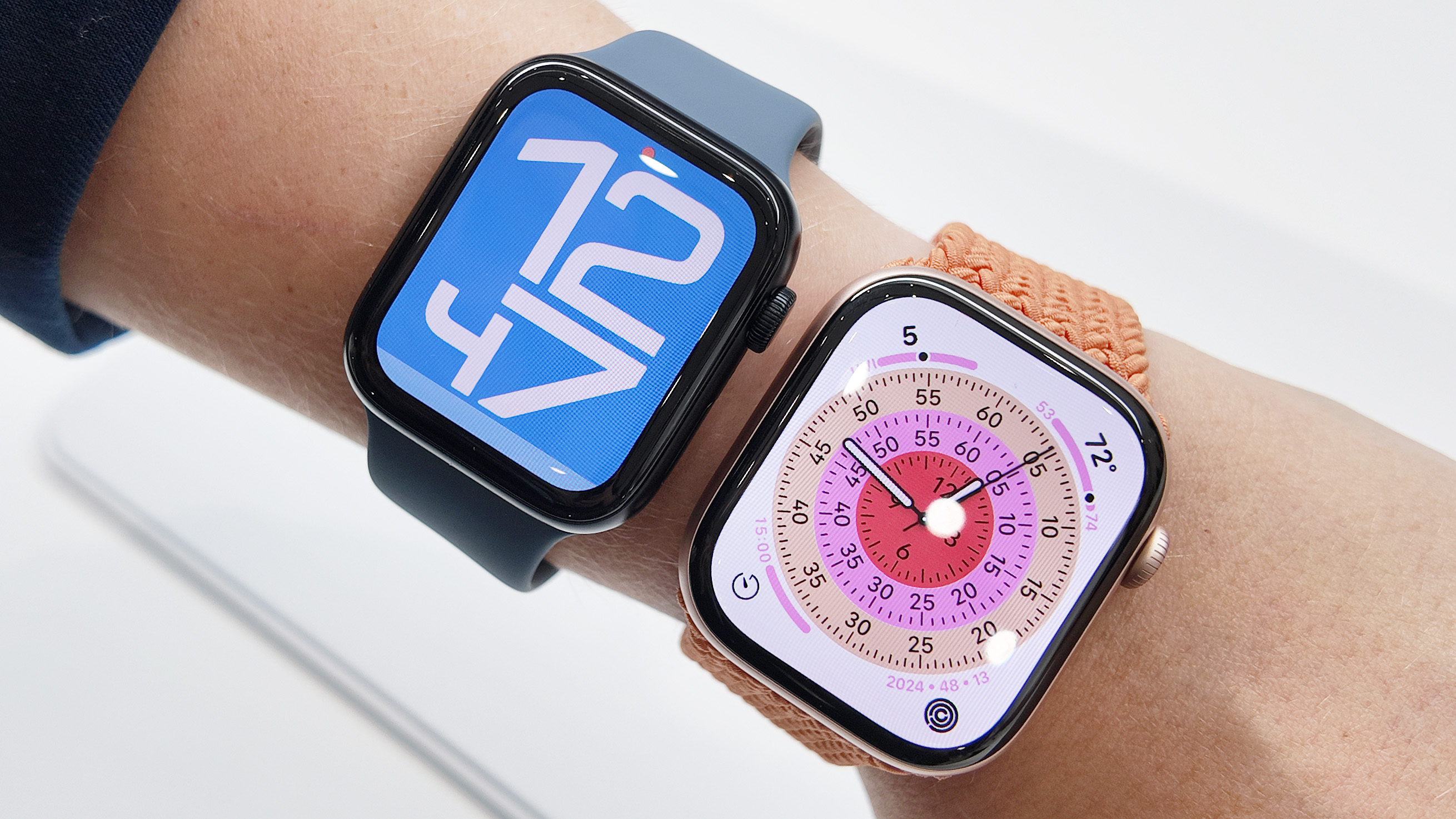
While this one doesn’t apply to some older Apple Watch models — namely the first two SE models and the Series 5 (and older) — one of the biggest overall drains on your watch’s battery performance is the always-on display feature, which shows a dimmed version of your screen with basic info, like the time and weather, when the watch is asleep.
While I’m a huge fan of this feature, it makes the Apple Watch feel more like a real wristwatch; it’s an absolute battery hog, and turning it off will instantly improve battery performance by a noticeable margin.
It’s worth noting that even with the always-on display turned off, you can still use Apple’s Raise to Wake gesture to unlock the device and view the homescreen whenever you want.
2. Avoid overly complicated watch faces
(Image credit: Future)
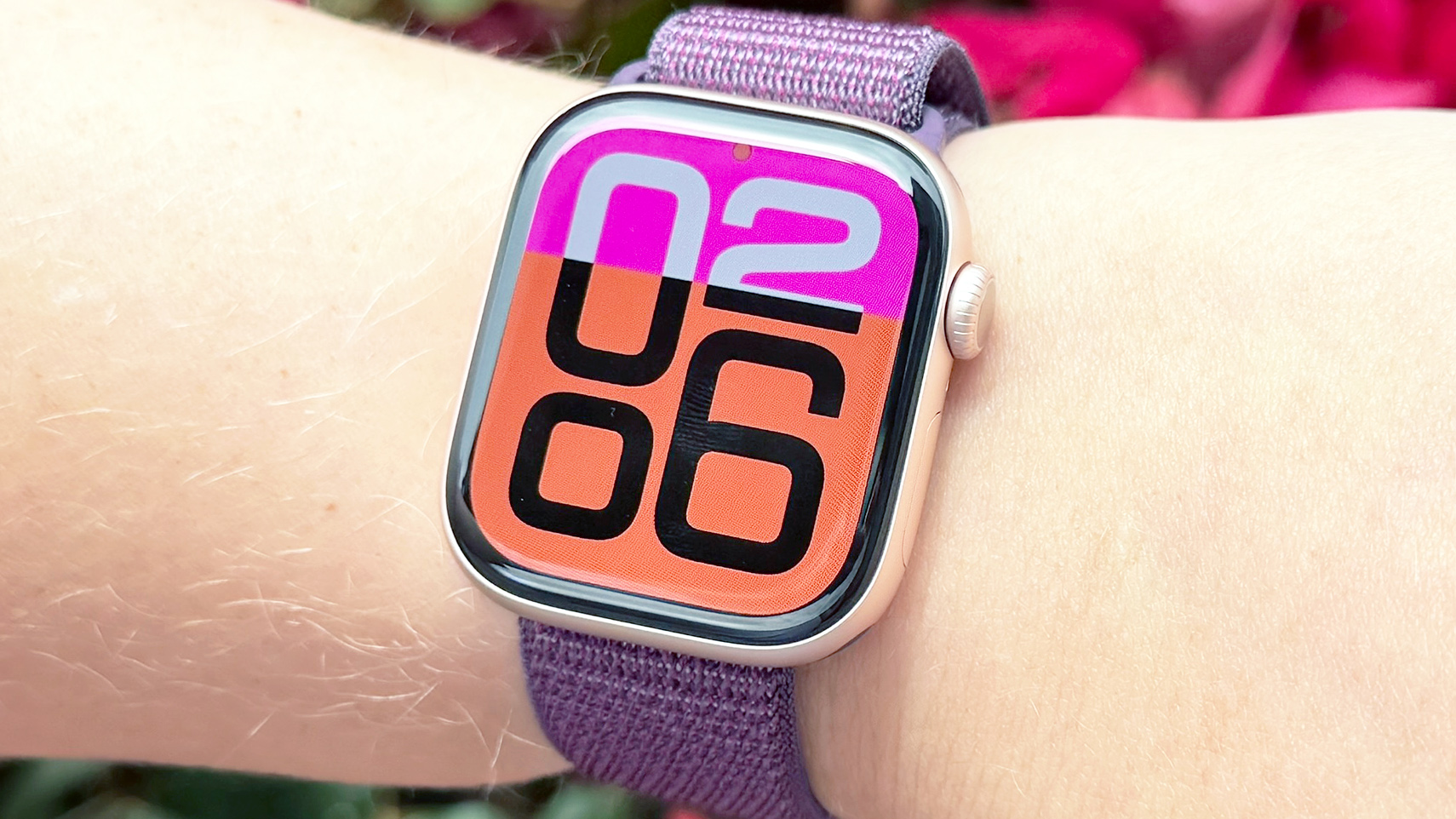
On the subject of the always-on display, if you do choose to leave the feature enabled, you can still limit its power consumption by opting for a simple watch face with minimal complications. Better yet, avoid any of the ones with animations or those that refresh frequently (like Stocks or Weather). These are the biggest power hogs.
3. Turn off cellular data when not needed
Cellular data is another big battery sucker, but you can mitigate power consumption by switching it off when you’re at home or anywhere with a decent WiFi connection. Your Apple Watch should automatically do this for you if you’re running recent software.
However, it’s not a bad idea to manually switch cellular off for extended periods when you know you won’t need it. Ultimately, maintaining a WiFi connection is much kinder to your Apple Watch’s battery life than a cellular one.
4. Turn off Background App Refresh for less-used apps
(Image credit: Future)
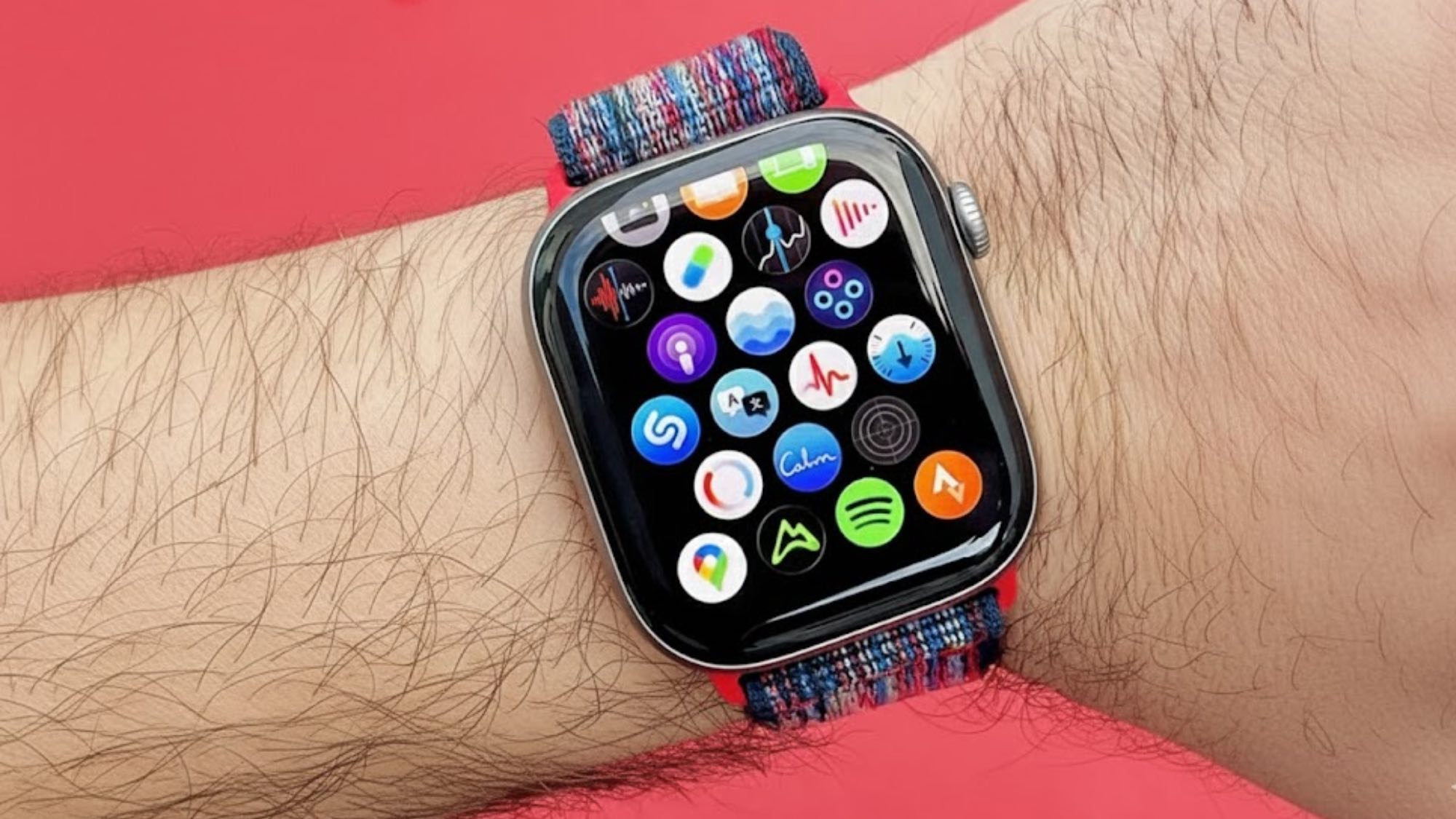
Apple’s Background App Refresh option makes it painless to maintain the latest versions of all your favorite apps. Unfortunately, it can also be a drag on your Apple Watch’s battery performance.
You may like
Fortunately, you can manually choose which apps you want to automatically update behind the scenes and which you don’t. I recommend leaving Background App Refresh switched on for only your most-used apps and no others.
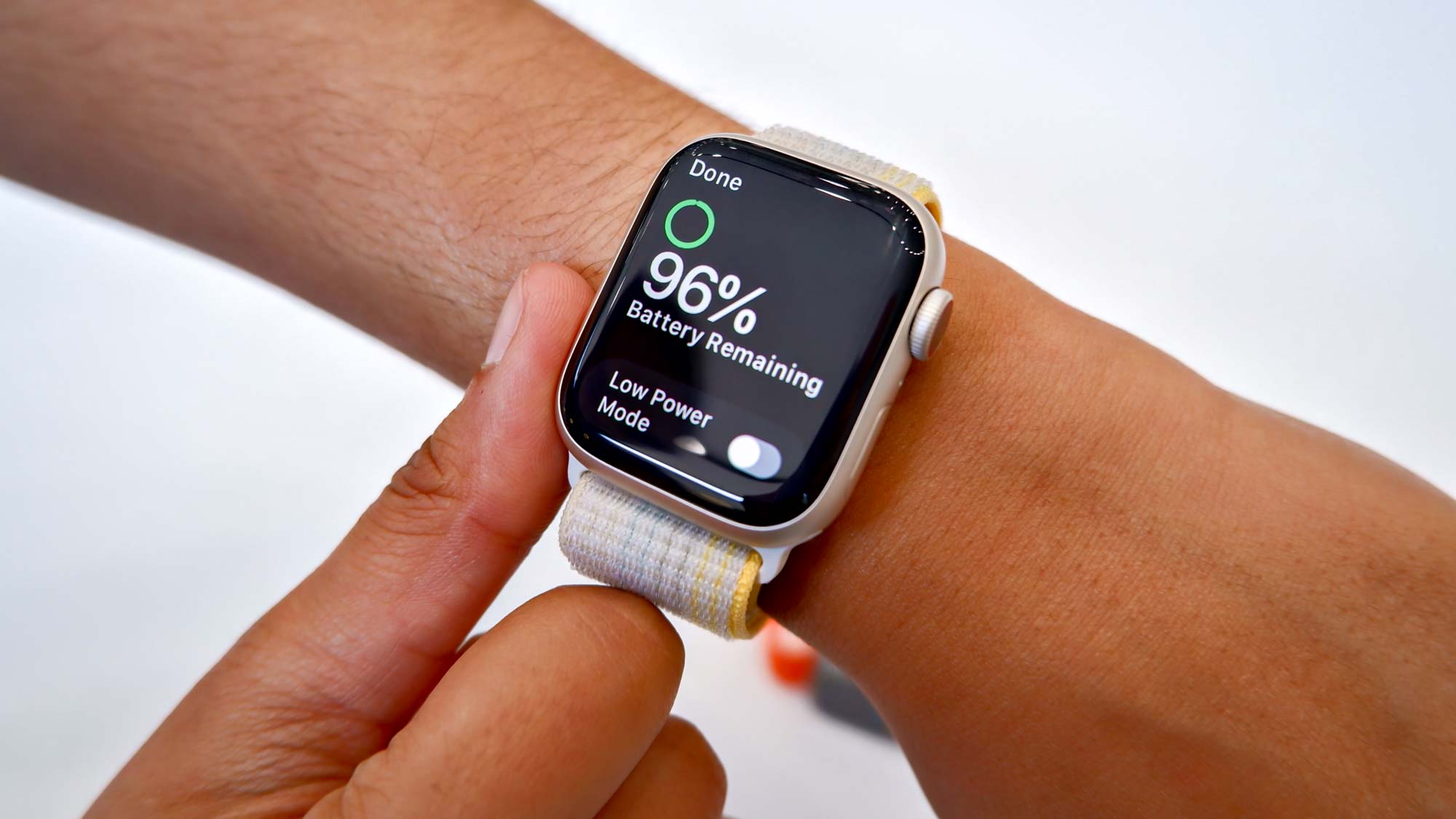
5. Turn on low-power mode
(Image credit: Future)
When all else fails, the quickest, easiest, and most effective way to improve your Apple Watch’s battery life is by switching on low-power mode.
On the Apple Watch Series 11, this increases the rating from 24 hours per charge to 38 hours. On the Ultra 3, low-power mode bumps longevity from 42 hours to 72 hours. And on the SE 3, rather than 18 hours per charge, low-power mode delivers 32 hours.
Of course, there are some downsides to low-power mode. It disengages low-power mode, background heart rate monitoring, blood oxygen saturation monitoring (for watches with the feature), and gesture controls, to name the big ones.

Follow Tom’s Guide on Google News and add us as a preferred source to get our up-to-date news, analysis, and reviews in your feeds.
More from Tom’s Guide