
Hadlee Simons / Android Authority
When Samsung releases new versions of One UI, it usually breaks some of the Good Lock modules I use every day. The One UI 8.5 beta is no exception — several Good Lock modules have been incompatible since the beta started, including Home Up. Home Up is a module that lets you tweak everything from your home screen icons to the overview menu. Samsung recently updated Home Up, and it does more than make it compatible with the latest version of One UI — it adds new features that have made my favorite Good Lock module better than ever.
Do you use Home Up?
21 votes
Yes
57%
No
24%
I don’t have a Samsung phone
19%
Widget resize
 Widget resize
  Widget resize off
 Widget resize on
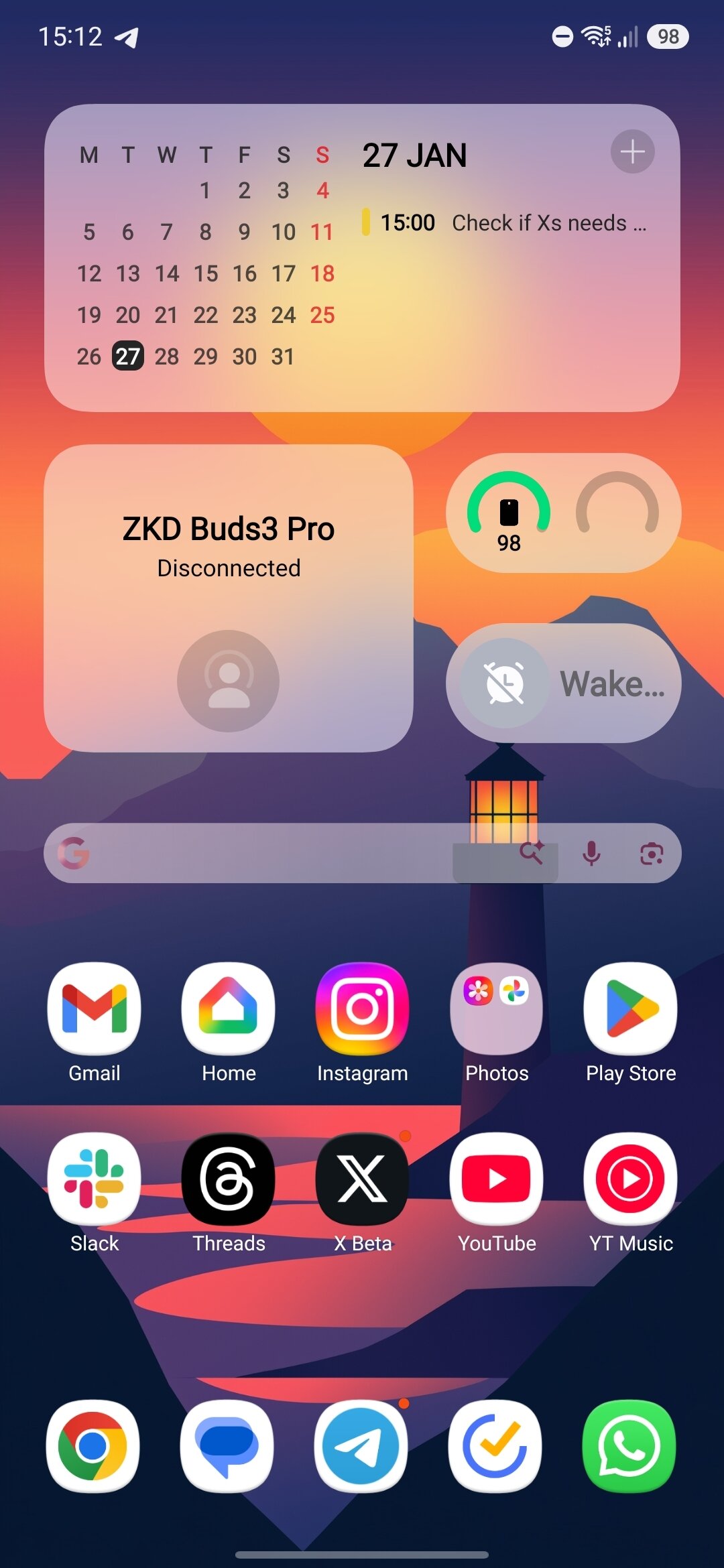
Home Up has been able to resize app icons for a long time now, and this update extends the same functionality to widgets. On all of my Samsung devices, I set the screen zoom to the smallest size because I find a lot of the UI elements in One UI to be too big. An unfortunate side-effect of this is that a lot of widgets, Google’s search bar included, don’t scale correctly and look tiny, as you can see in the second image above.
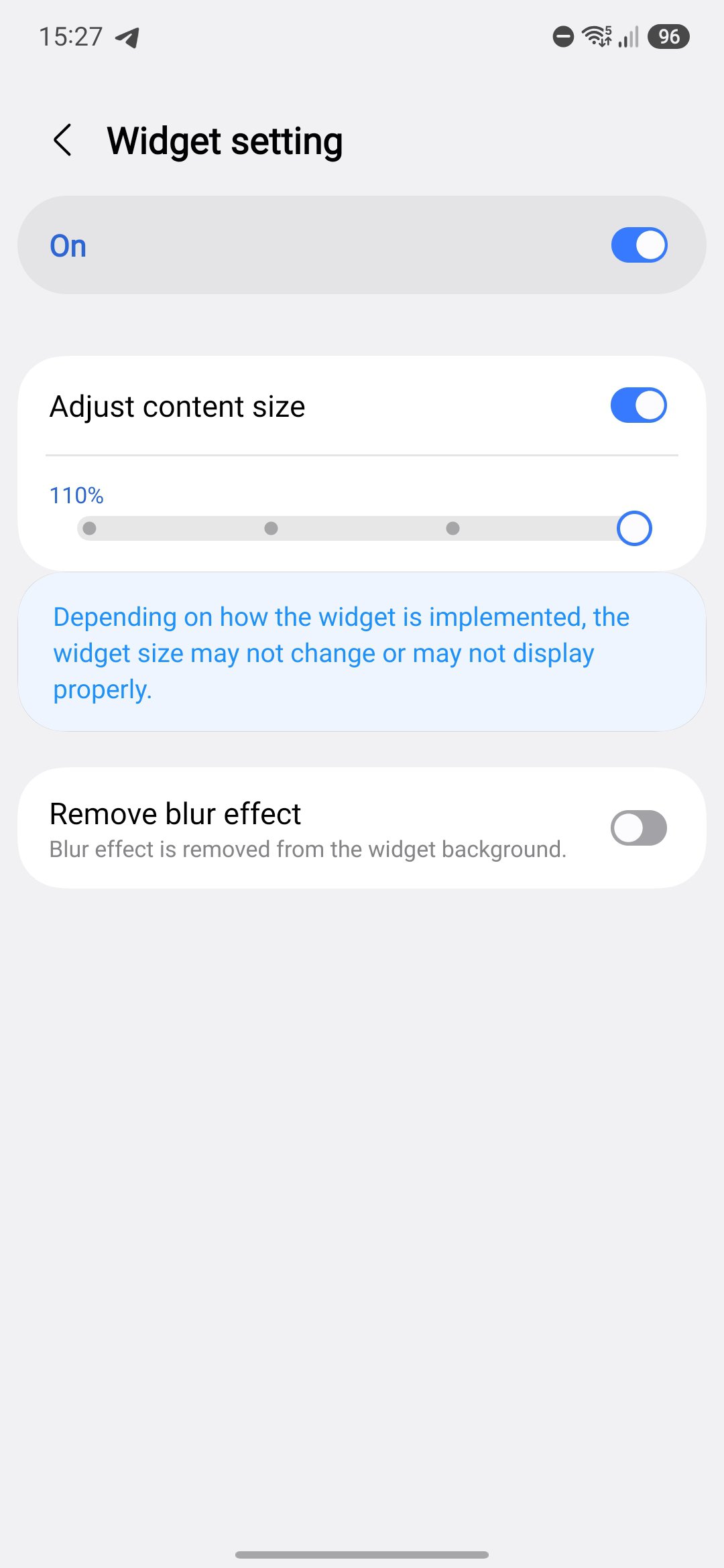
The new version of Home Up has a “Widget setting” menu that lets you increase the scaling of widgets in the home screen, which has resolved the issue I have with the search bar, as seen in the third photo. You can also remove the blur effect from Samsung’s first-party widgets from this menu, which is a nice touch if you don’t like how that looks.
Direct Share exclusions
 Direct share settings
 Exclude shortcuts
 Direct Share menu
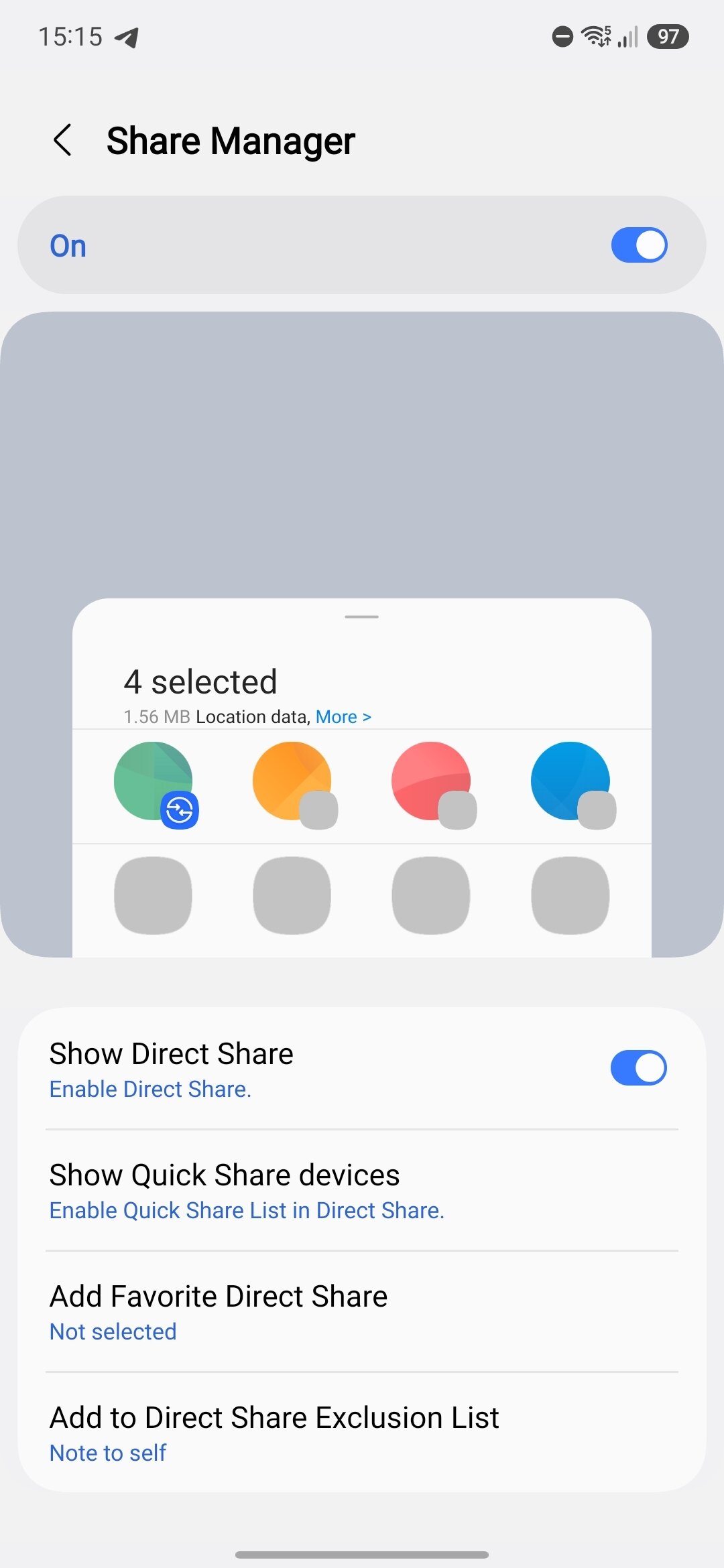
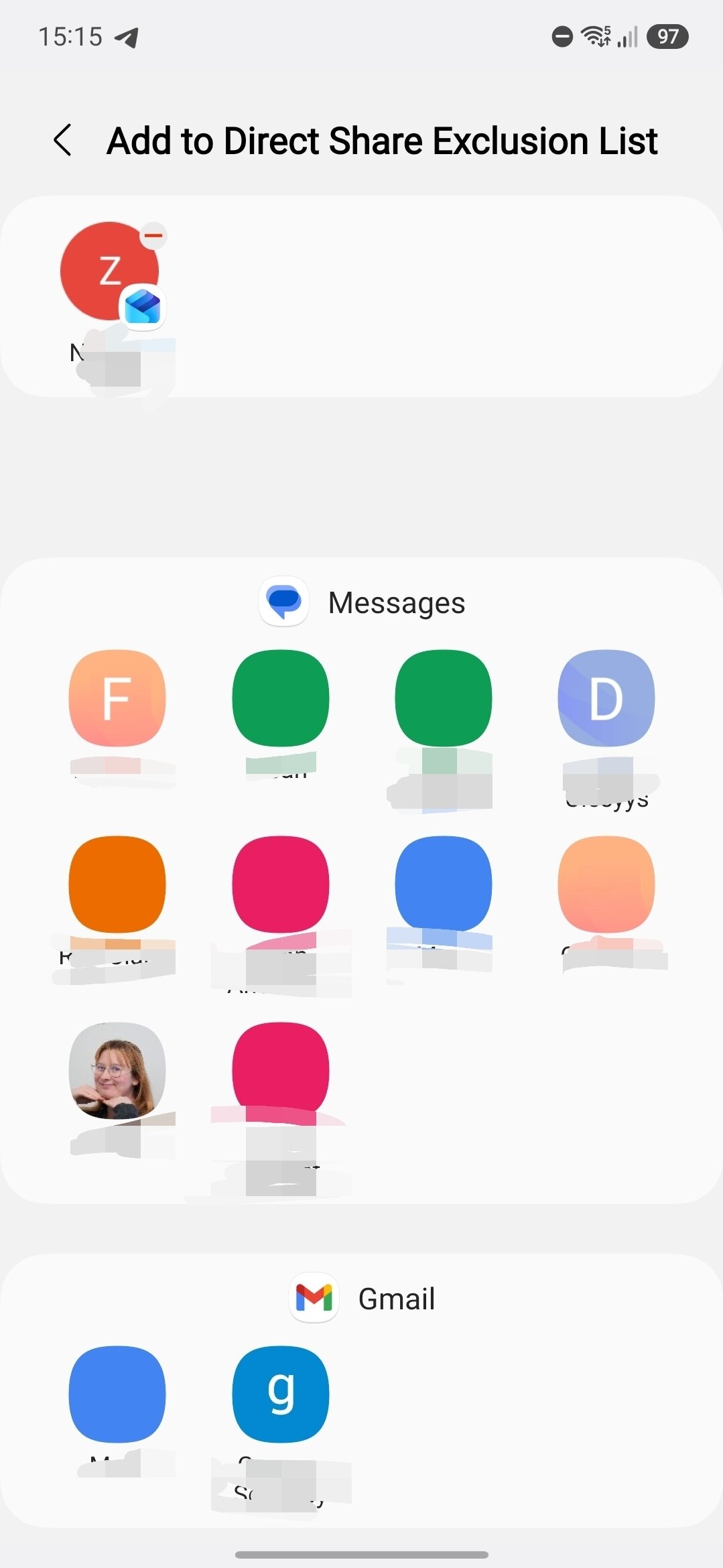
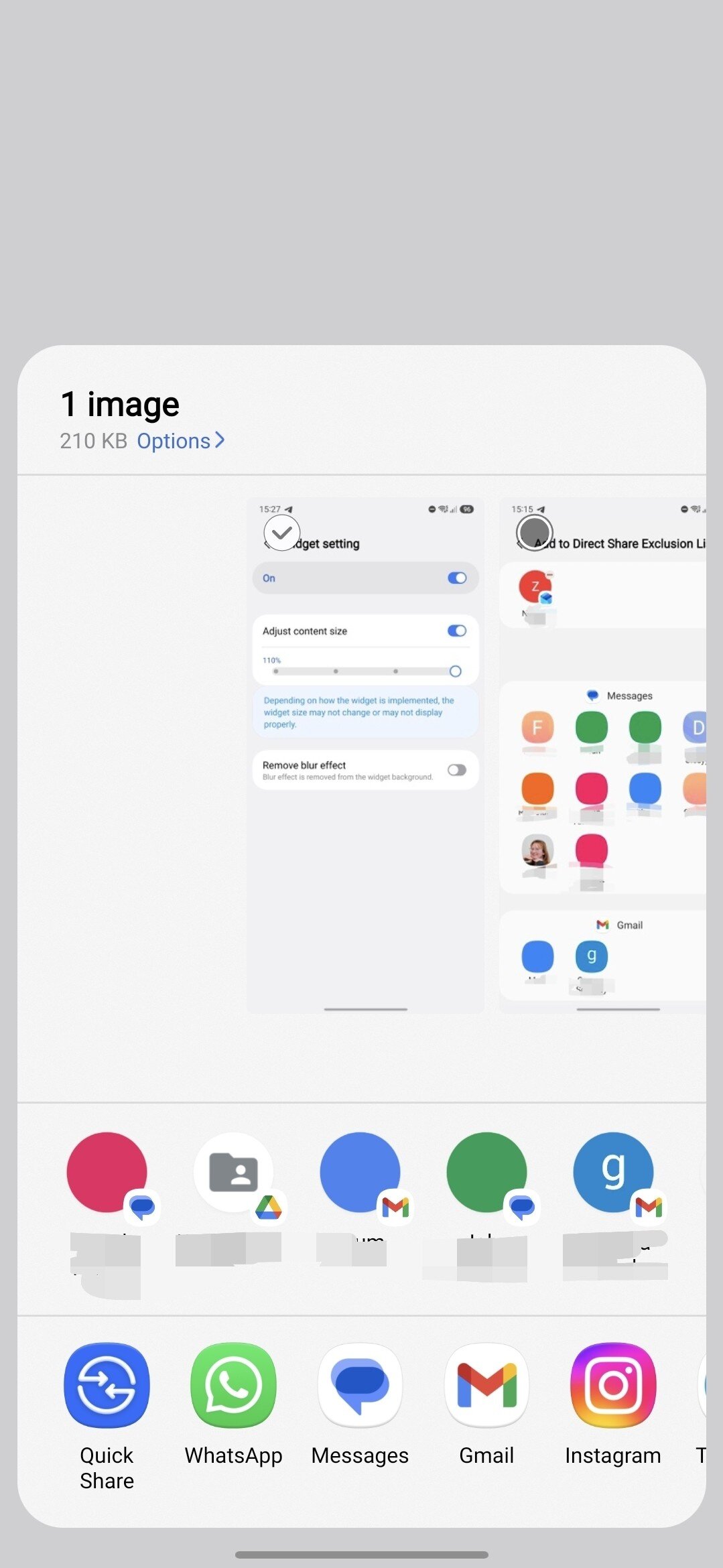
Direct Share is a part of the share menu in One UI. It suggests contacts from across your apps that you frequently share things with, and it intelligently remembers what types of files are often shared with which contact. That’s the idea, anyway. In practice, I find that it seldom suggests the right person, and I totally ignore it. For a long time, Home Up has let you pick favorite Direct Share targets, letting you pin the chats you use most for quick access. The Home Up update takes this further by adding an exclusion list. As the name suggests, this means you can block individual chats and share targets from ever appearing.
Edge Panel tweaks
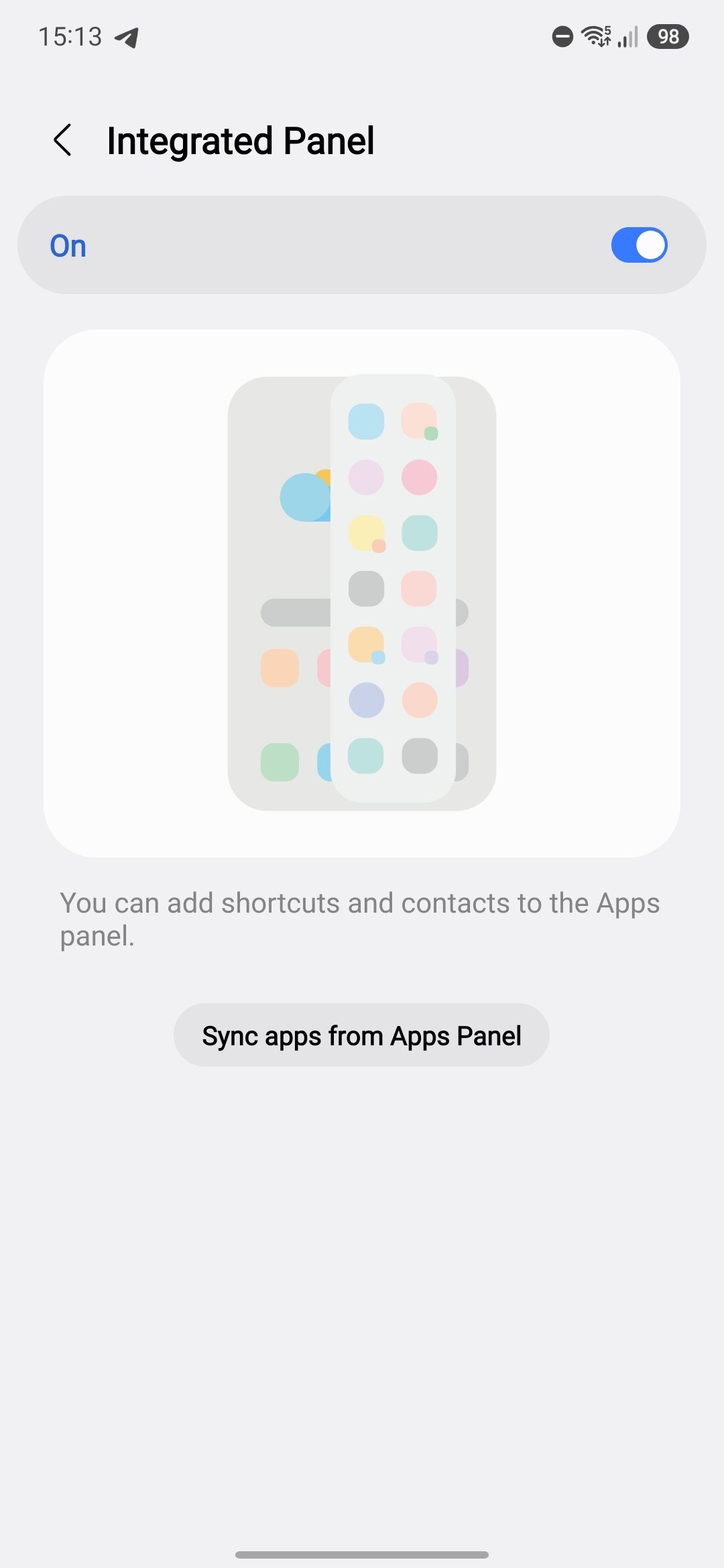 Integrated Panel menu
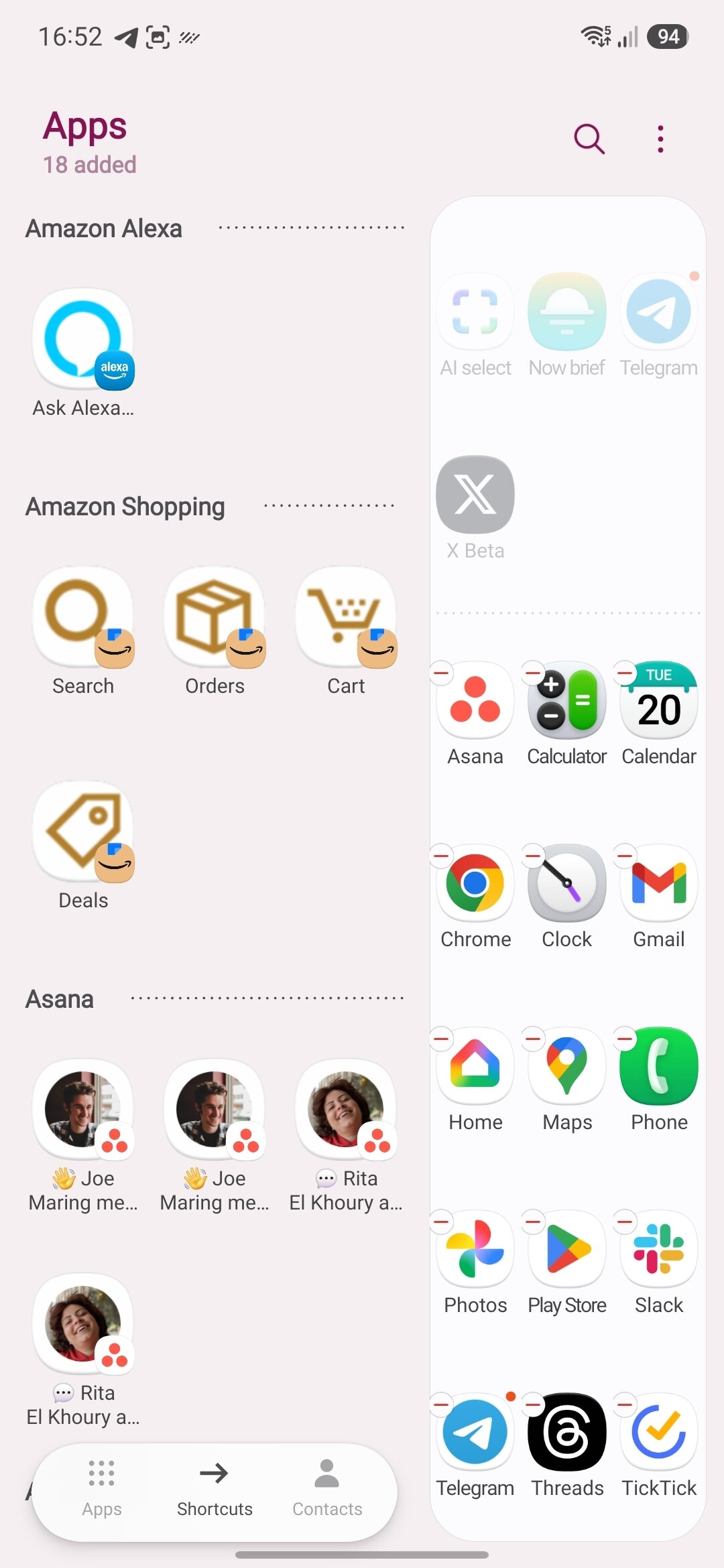 Shortcuts in apps panel
I love the Edge Panel. It’s been my multitasking secret weapon for years now, and Home Up has offered some neat options for Edge Panel ever since One UI 7. The latest update adds some quality-of-life options that rectify some of the annoyances I’ve always had with the feature. Apps, shortcuts, and contacts have always been separate panels, making it a bit of a faff to set up and navigate. In fact, I’ve always left the shortcuts and contacts panels switched off because of the extra effort involved. Home Up has added an “Integrated Panel” toggle, which combines the three categories into one Edge Panel. When you turn it on, it’ll start as a blank slate, but there’s a button that syncs over your existing apps panel. I’m already finding this useful, adding direct shortcuts to add a new task in Tick Tick and the Telegram chat I have with my wife.
Zac Kew-Denniss / Android Authority
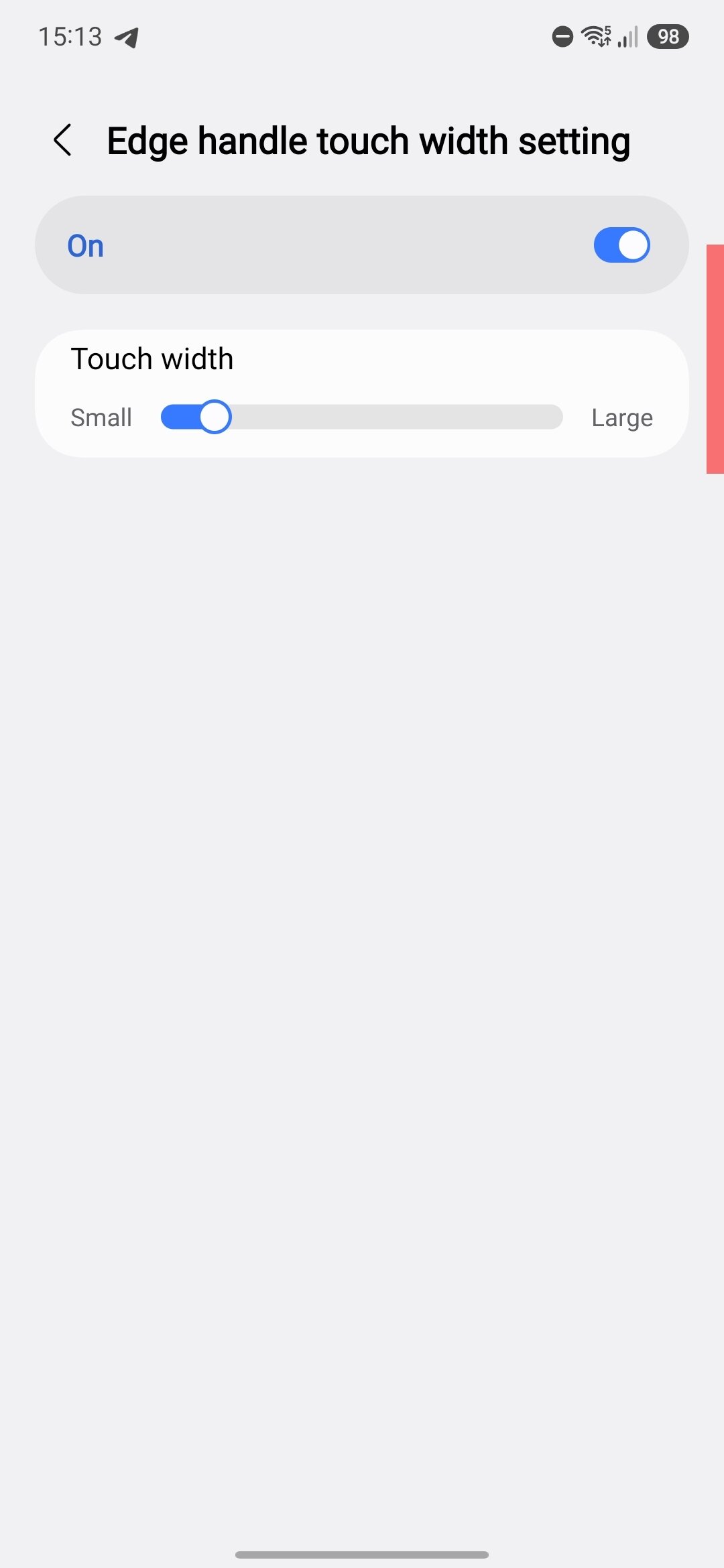
Edge Panel touch width
Finally, there’s a new option to adjust the width of the touch area for the Edge Panel. You’ve always been able to do this in the Edge Panel settings, but changing the width would make the handle itself wider, which would often cover content on the screen. This option in Home Up alters how big the touch area is without changing the handle you see. This way, you can have the handle on the smallest setting to make reading content on screen easier, while having the touch area big enough that it’s easier to reach. This is especially useful if you’re using a case that adds a lip around the screen. Bezels are so small these days that cases like that can make swiping from the very edge of the display.
Don’t want to miss the best from Android Authority?


One UI 8.5 is already one of my favorite versions of Samsung’s Android skin, and the updated Good Lock modules are only making me love it even more. What about you? Are you looking forward to trying out the new features from One UI 8.5 and Good Lock? Let us know in the comments.
Thank you for being part of our community. Read our Comment Policy before posting.