

I wasn’t in a storage crisis, but I didn’t like how quickly my photo library was growing. So, I opened Google Photos and decided to see what was actually taking up space.
In less than ten minutes, I cleared nearly 5GB. The surprising part was how easily those files had accumulated in the first place. Large videos, random screenshots, and duplicate images were cluttering my phone’s storage.
And that’s when it clicked: freeing up space once isn’t the solution. If your habits don’t change, that space fills up again.
Many people find themselves in a frustrating cycle with their digital storage. They may delete 10GB of data, feel a sense of relief, only to find that a few months later, their storage is full again.
Others face an even more annoying issue: they delete photos from their device, only to realize that the copies stored in the cloud get deleted too.
To address these problems, I decided to take a closer look at what was actually consuming storage space, how Google Photos manages backups, and what changes can prevent storage from ballooning out of control again.

Related
I’ve used Google Photos since day one, and I’m finally reaching a breaking point
My photo library is too large to manage, with over 1,000 images uploaded this year
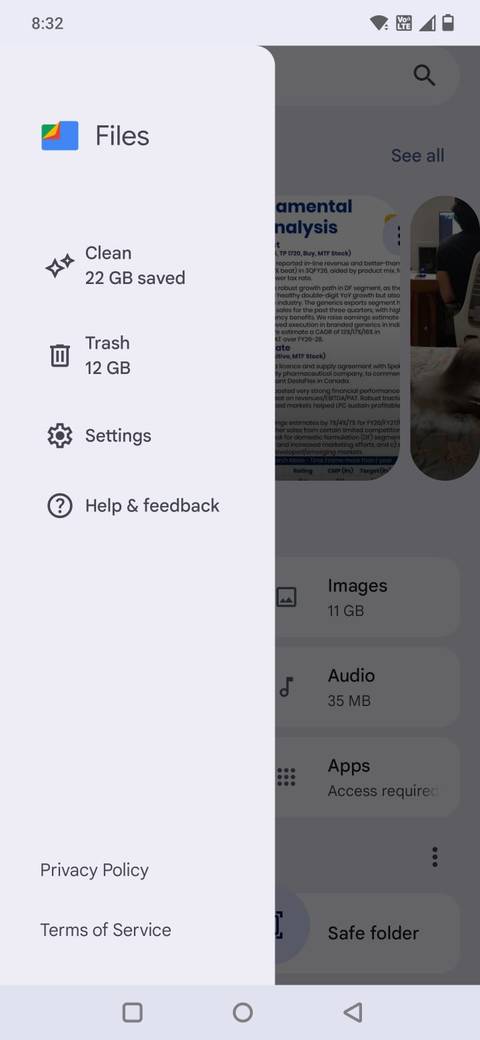
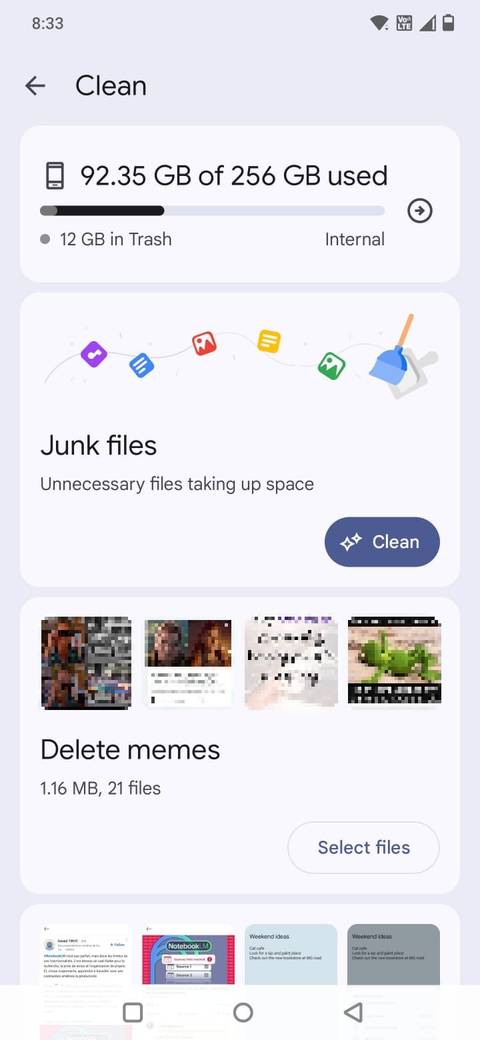
While you can audit files using the Manage storage feature in Google Photos, I ended up doing most of the cleanup through the Clean tab in Files by Google.
If you open the Files app, tap the menu icon on the left, and select Clean, it automatically scans your device and categorizes space hogs into large files, duplicates, blurry images, old screenshots, and junk files.
What makes this useful is that it shows exactly how much space each category is using. Instead of guessing, you see the numbers upfront.
In my case, large videos and duplicate images were the biggest contributors. A few taps later, I had already reclaimed several gigabytes of storage.
The advantage of using Files’ Clean feature is that it looks at your entire device storage, not just what’s inside Google Photos. That means it catches downloaded videos, forwarded media, and leftover files that don’t necessarily appear in your main photo library.
I didn’t need a third party cleaner app or a manual sweep. The built-in Clean tool surfaced the storage clutter, and within minutes, it cleared nearly 5GB.
Videos were the real space hog

Credit: Lucas Gouveia / Android Police
I expected screenshots or duplicates to take up the most space since they’re easy to accumulate and forget about. But when I checked the breakdown inside Files, it was clear that videos were doing most of the damage.
A single minute of 4K video can consume hundreds of megabytes of storage. Record a few clips at a concert, a family gathering, or even short test videos, and you’re suddenly looking at gigabytes instead of megabytes.
What surprised me most was how many clips I didn’t actually need. Short recordings and multiple takes of the same moment felt insignificant individually. Together, they were responsible for most of the storage I cleared.
The Clean tab made this obvious by grouping large files and showing their size upfront. After I saw that a handful of videos were eating more space than thousands of photos, the cleanup decisions became much easier.
If your storage keeps shrinking faster than expected, there’s a good chance video is the reason.
Don’t delete the wrong copy: Cloud vs. device storage
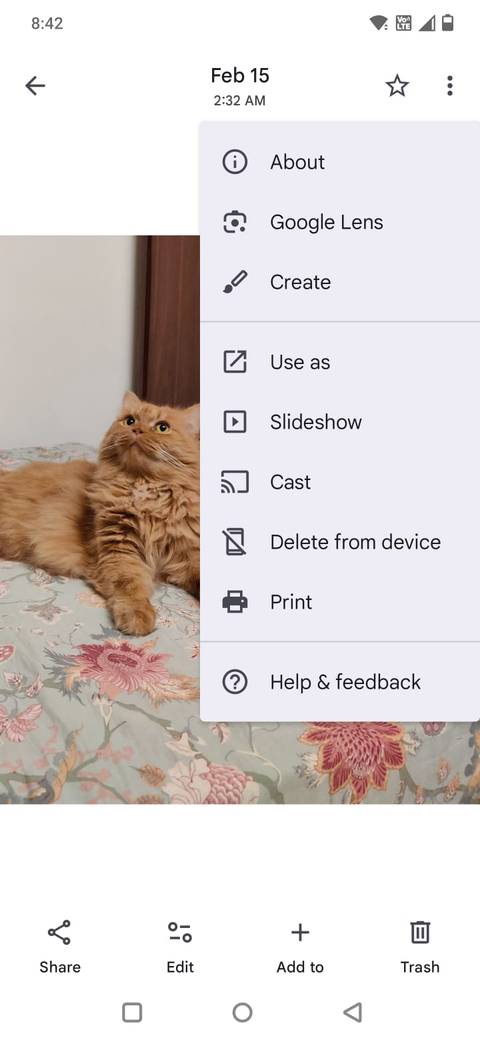
I’ve made this mistake before.
Initially, I thought that deleting a photo from Google Photos would only remove it from my phone while keeping the cloud backup intact. However, as soon as I deleted it in the app, it vanished from both my device and my Google account.
That’s because when backup is on, Google Photos syncs your library. Deleting a photo inside the app removes both the local copy and the cloud version.
Here’s the difference I learned the hard way:
Delete from device removes the photo only from your phone’s local storage. The backed-up copy remains safely stored in Google Photos in the cloud.
Trash deletes the picture from your Google Photos account entirely. When you delete a photo, it is removed from the cloud and all synced devices. The photo remains in the Trash folder for 60 days before being permanently deleted.
If your goal is to free up storage space on your device while keeping your backup safe, be sure to select Delete from device after opening the photo and tapping the three-dot menu icon.
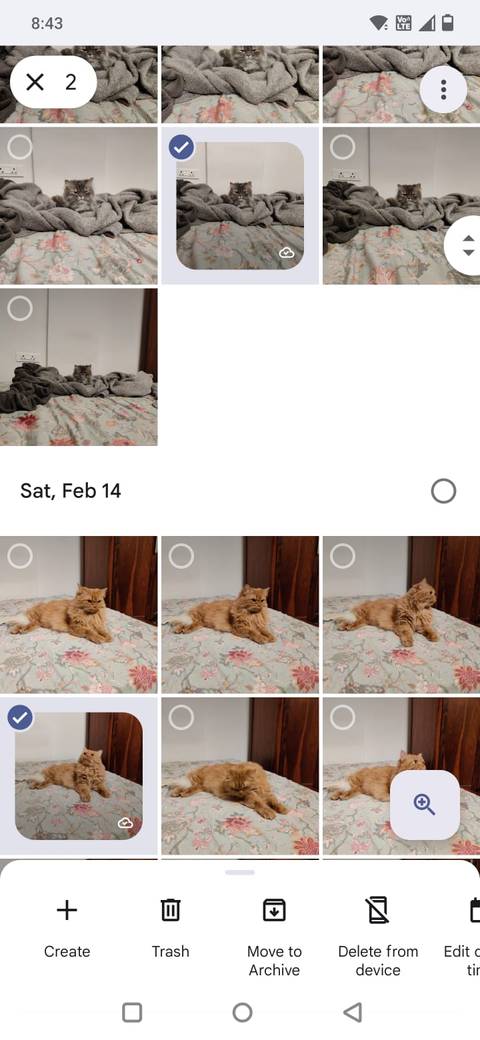
You can also delete multiple photos at once. When you select multiple photos, the Delete from device option appears at the bottom of the screen.
The 10-minute audit I’ll repeat every few months
Credit: Lucas Gouveia / Android Police | GoodStudio / Shutterstock
What surprised me most about this cleanup was how little time it took to clear up 5GB of storage.
When I knew where to look, the entire process inside Files by Google took about ten minutes. I didn’t scroll through years of memories or install a third-party cleaner. I just reviewed the obvious space hogs: large videos, old screenshots, duplicates, and leftover media.
And in my case, there’s one predictable contributor: my cats.
It doesn’t take long for dozens of near-identical pet photos to pile up. A few bursts here, a couple of short videos there, and suddenly device storage starts shrinking faster than expected.
That’s why this cleanup works for me as a recurring habit. I trim the excess photos, delete accidental clips, and keep only the best shots.
Meanwhile, I move special memories to an external hard drive. That way, they’re preserved without permanently occupying space on my phone.
Instead of waiting until storage becomes a problem, I’ll repeat this quick audit every few months. It’s a small habit shift, but it prevents the bigger cleanup later, where I’m rushed, deleting aggressively, and hoping I don’t remove something crucial.

Related
I dropped these 4 habits — and Google Photos became way better
I was using Google Photos wrong all along
A small cleanup that prevents a bigger problem
If you haven’t opened Google Files’ Clean tab in a while, it’s worth checking. You may be surprised by just how much space is available and ready to be reclaimed.
Google Photos fills up gradually. You don’t notice it because each addition feels small. Collectively, they consume a surprising amount of storage.
Using the built-in tools in Google Photos and Files made it easy to see what was taking up space. When I could see the numbers, clearing out the clutter was straightforward.