
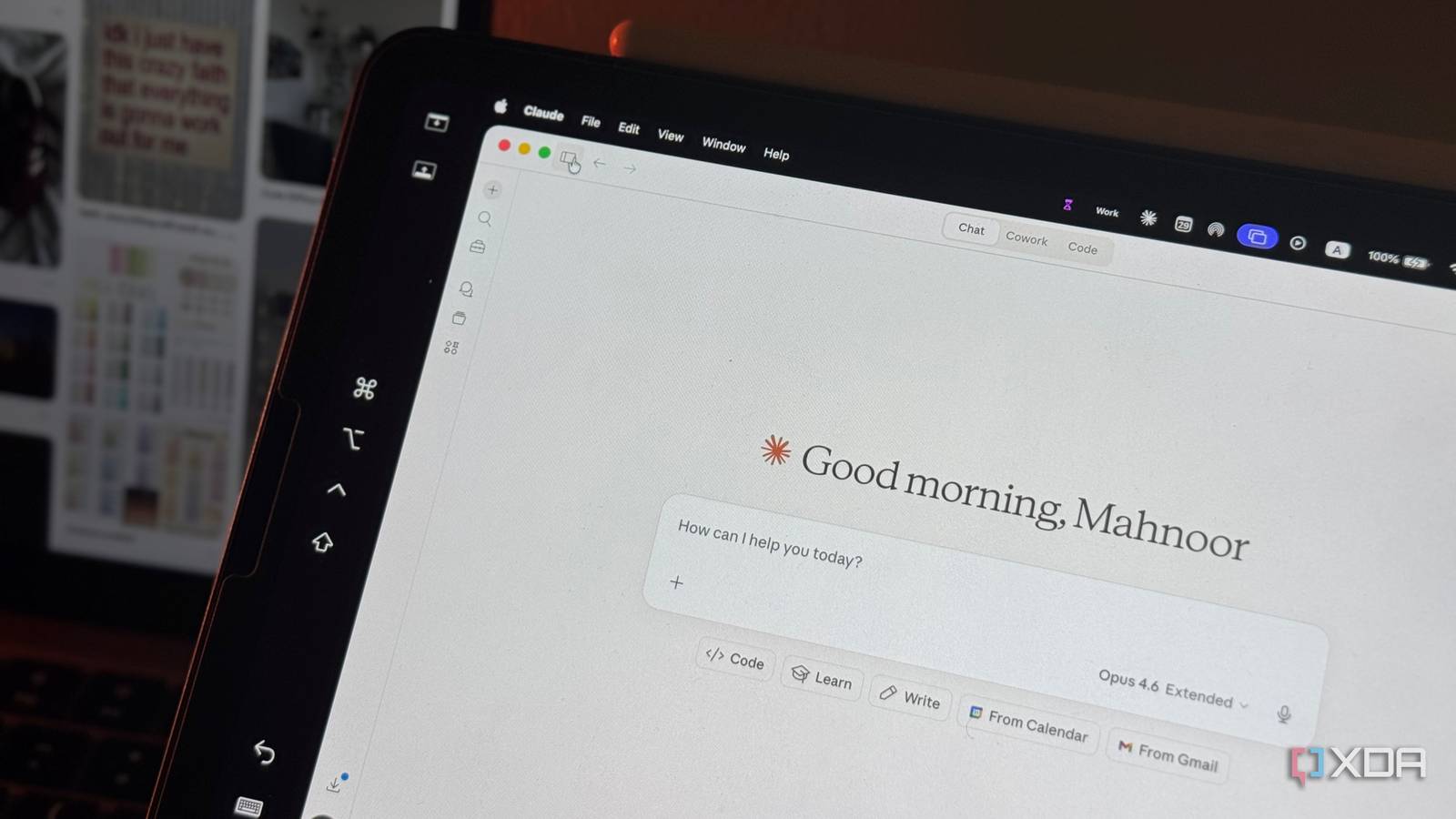
My morning routine is chaotic, to say the least. Setting aside the fact that I’m not a morning person at all and waking up on time is a challenge on its own, there’s the entire “actually figuring out what I’m supposed to be doing” problem that no amount of sleep or coffee can fix!
How many meetings do I have today? How many articles do I have due today? Do I have a college assignment I’m forgetting about? Did I finish that draft I was working on, or did I just convince myself I’d remember where I left off? Did I respond to that email I remember opening at 2 AM on my phone? Most mornings, I spent the first hour just jumping from one tab to another, trying to assemble a mental picture of what I was supposed to be doing. Turns out, all I needed to do was bring Claude into the picture by giving it access to my calendar, notes, and file system.
The shortest setup that’s made the biggest difference
I’ve talked a lot recently about how the problem with a lot of AI tools is that connecting them to your daily tools (both AI and non-AI) is clunky. You either need to pair them manually by jumping from one tool to another, or you use the tool’s built-in integration to link them. The latter is obviously what I prefer, but it sounds great until you actually try it. With most AI tools, the integration only pulls surface-level data. Most integrations are also only read-only, so if you were to ask AI to actually do something with the data it retrieves from a tool, you’re out of luck. You’ll then need to bring in a third-party automation tool to bridge that gap, which just means more setup and friction.
I’m a huge fan of pairing tools I use, and doing so manually has always ended up reaping better results than using the built-in integrations these tools offer. But of course, that requires a lot of friction like copying data between apps, double-checking that everything actually carried over, and constantly context-switching until you forget what you were trying to do in the first place. Claude is the only tool that has built-in integrations that actually work the way integrations have always promised to work. In fact, in my very first article I wrote about Claude, one of the biggest benefits of the tool I mentioned was that it pairs really well with other tools you already use.
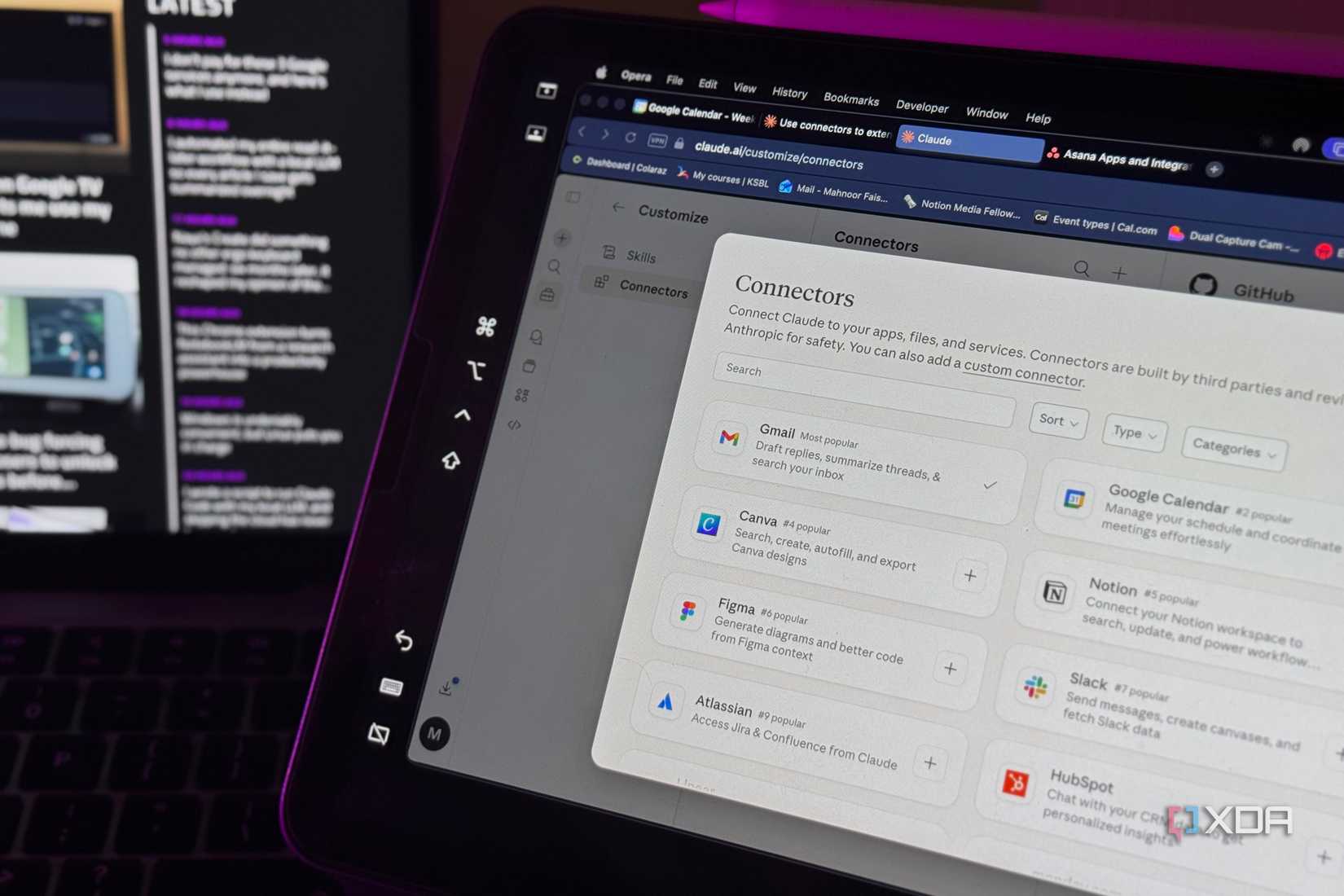
There are currently a few ways you can connect Claude to your daily tools: Connectors, MCP servers, and the Claude in Chrome extension. In this case, I use a combination of the first two. However for most, Claude’s Connectors will work just fine. They’re built right into Claude’s settings — you pick the app you want to connect, authorize it, and you’re done.
Here are some of the tools I have connected to Claude using its built-in Connectors: Gmail, Google Calendar, Notion, Google Drive, and Asana. I have it connected to a few other tools, but these are the ones that play the biggest role in my morning routine. Google Calendar is what I use to time-block practically every second of my life, Gmail is where all my work and college communications live, and Google Drive is where the majority of my files and documents end up. Asana is what most of the publications I write for use for assigning tasks, and Notion is what I use to organize pretty much every aspect of my life.
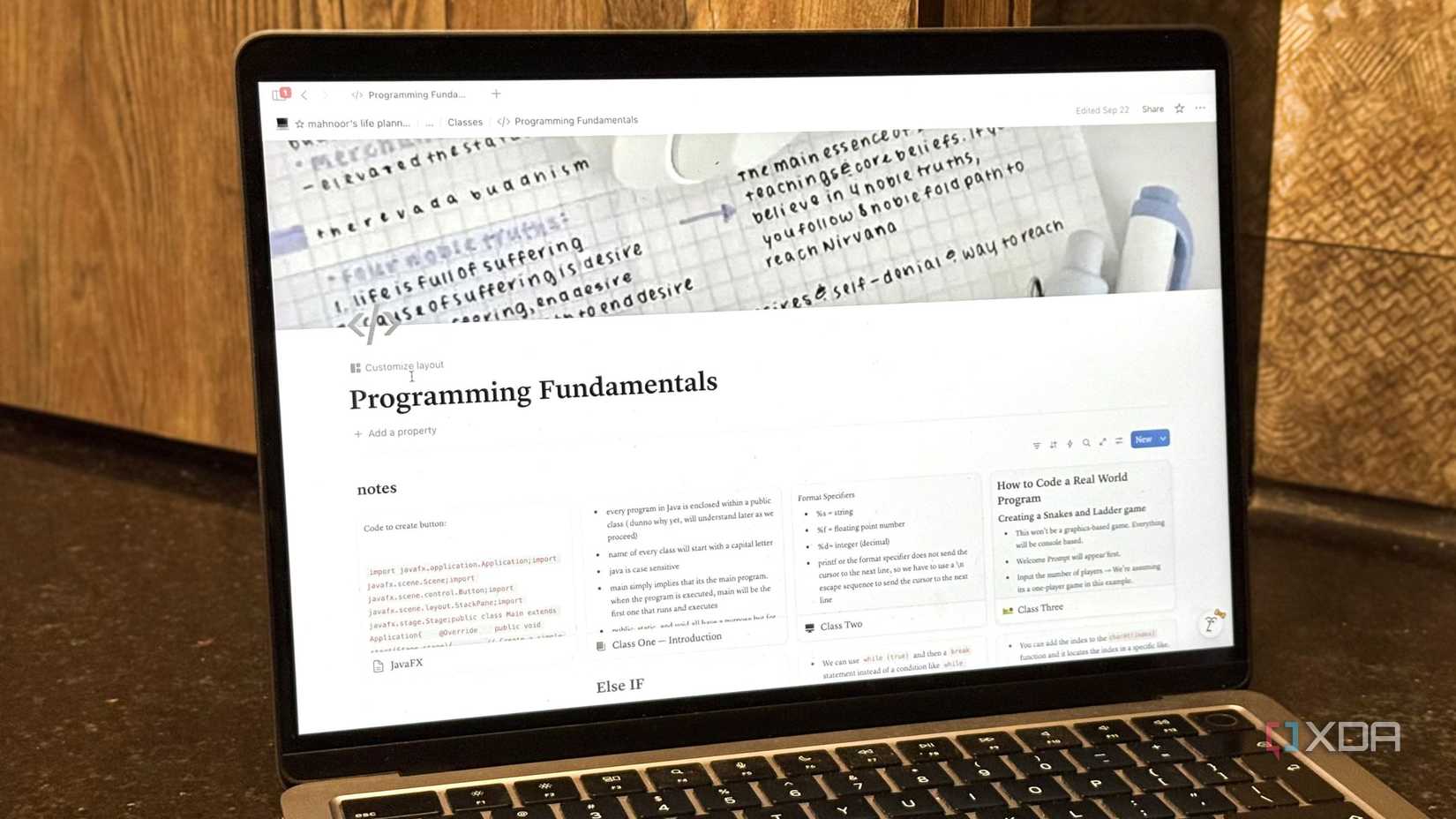
The issue isn’t that I’m not an organized person (I’m not, but I try to be). It’s more so that all the tools I use lived in their own worlds, and every morning I had to hop between all of them. With Connectors though, Claude can see across all of them at once. And if you’re using the Claude Desktop app, Cowork takes this a step further by giving Claude access to your local file system too — meaning it’s not just your cloud-based tools, but also the files and folders sitting right on your computer. Between Connectors and Cowork, there’s very little Claude can’t see.
The first thing I read every morning is a brief from Claude
I wake up and my day is already figured out
If you’re thinking “Okay, you’ve connected Claude to the tools you use. Now, what?” — that’s completely valid. Connecting your tools to yet another tool is no good if it doesn’t actually change the way you work. Claude’s Scheduled Task feature is what’s truly changed the game for this particular workflow, since it works with all the Connectors you’ve already set up. Basically, you can tell Claude to do something on a recurring schedule (daily, weekly, whatever you need), and it’ll run it automatically using the tools it’s connected to.
You can set up Scheduled Tasks through the Claude Desktop app within the Cowork feature or on Claude Code web. Given that I use the Desktop app often and already have a few scheduled tasks set up that would only work with Cowork, that’s the route I went with. In my case, I have a scheduled task set up that runs every morning and sends me a full brief of my day: what’s on my calendar for the day, what tasks are due in Asana, any emails I haven’t responded to, and relevant notes from Notion. I have it scheduled for 6 AM every morning, and it saves its findings as a markdown file on my Desktop.
When I was setting this scheduled task up, I honestly didn’t think much of it. I didn’t think it would make a significant enough difference to the way I start my mornings. However, I was completely wrong. It’s transformed my mornings from a frantic scramble of “what am I supposed to be doing today” into something that actually feels manageable.
Related
I set up Claude Code the way its creator does, and the difference is night and day
Who better to learn from than the person who made it?
I wake up, open the file, and within thirty seconds I have a complete picture of my day. I don’t need to head into my email inbox first thing in the morning and feel anxious just at the sight of it. I don’t need to head to Asana to see what tasks I have due for the day (and then spend 15 minutes procrastinating on there because I saw something unrelated). I don’t need to open Google Calendar and mentally map out my schedule while half-asleep. It’s all just there, in one file, before I’ve even made coffee.
I also use Cowork and the Scheduled Tasks feature to make various aspects of my life easier. For instance, since it has access to my local file system, I have a task that runs at the end of every day that organizes screenshots on my desktop into folders. I take a lot of screenshots for articles daily, so my desktop turns into a graveyard of unnamed files pretty quickly. Claude sorts them into folders based on the date and, when it can, the content of the screenshot. So instead of scrolling through forty “Screenshot 2026-03-…” files, everything’s already organized by the time I sit down the next morning. It’s a small thing, but it’s one of those tasks I’d never get around to doing myself.
My mornings are so much calmer and productive now
I’m still not a morning person and I dread getting out of my cozy bed. But the difference now is that when I finally do drag myself out, I’m not immediately thrown into chaos of figuring out my day ahead.