
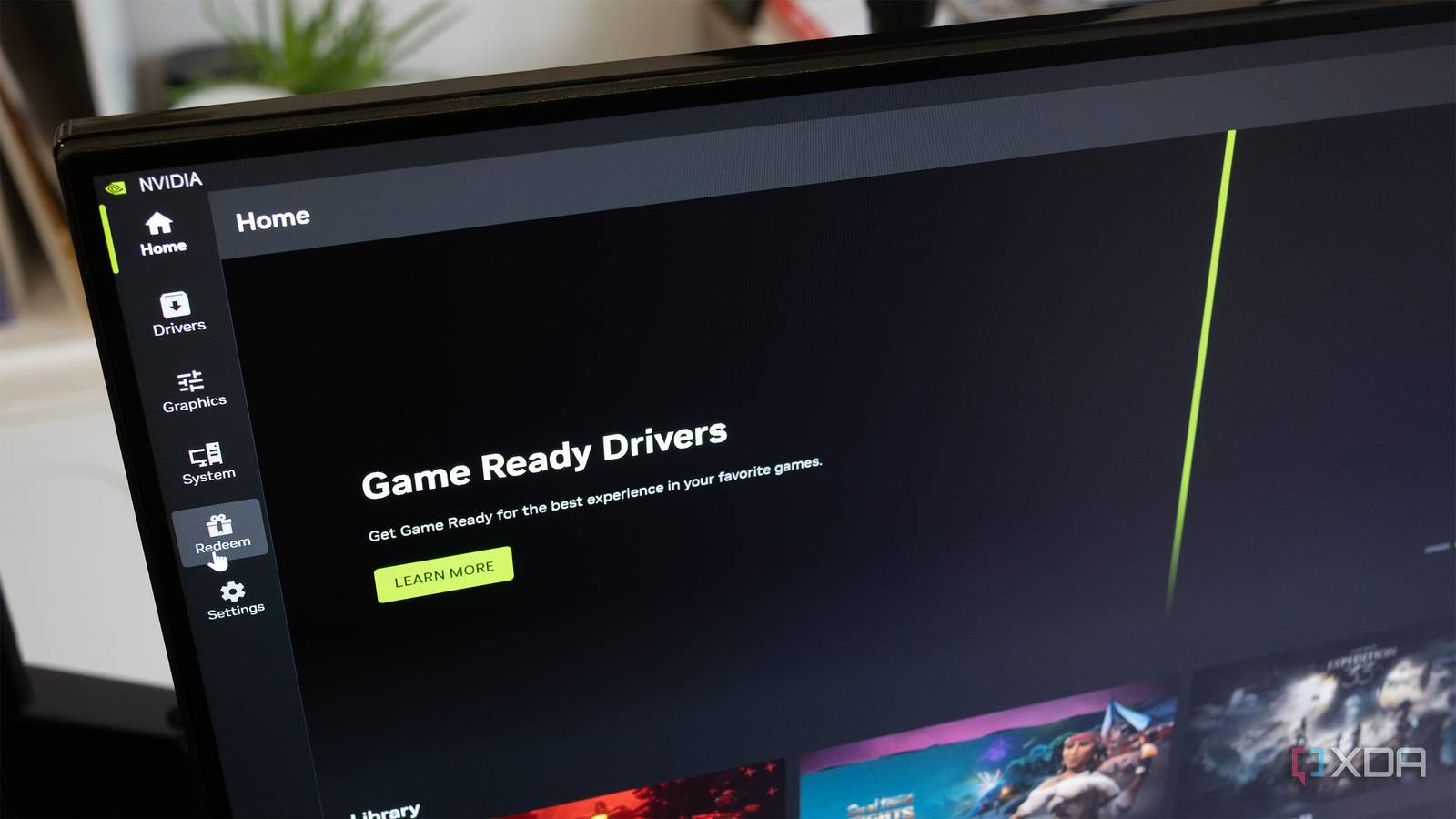
I’ve never much questioned the tools I use on a daily basis, especially when they work as well as the Nvidia App. It’s clean, it’s modern, and it most certainly feels like an upgrade over what used to be the GeForce Experience. Sure, the Nvidia Control Panel still reigns supreme when you need the most amount of control, but the App is pretty darn good, especially thanks to features like one-click GPU overclocking and per-app optimizations.
Power users, however, have always played a different game, and if something exists that can give them more control over their hardware, they will always jump at it, including yours truly. The moment I tried the Nvidia Profile Inspector Revamped, I realized just how much control I was leaving at the table, and my illusion of control using the Nvidia App was limited by the list of options Nvidia had decided I should see.
Related
DLSS 5 is further proof that rasterization’s days are numbered
For better or worse, rasterization continues to be buried, and it won’t be long until games are unrecognizable
The Nvidia App might feel complete, but its curated
It gives you control, just not all of it
To its credit, the Nvidia App does achieve exactly what it sets out to do. It makes GPU hardware and software management approachable by making driver updates seamless, per-game profiles, and neatly tucking features like recording or optimization into a neat and modern UI. It’s certainly enough for most users, and, for quite a while, it was for me too.
The problem, however, is that everything you interact with while using the Nvidia App is pre-selected. Anti-aliasing modes, frame limits, and power settings are all presented as choices, yes, but only within boundaries you never really see. The app isn’t lacking, by any means, but Nvidia deliberately keeps it scoped. You’re not configuring your GPU so much as choosing from a menu of approved behaviors.
Since it all works seamlessly, you don’t tend to question it. After all, the games run well, the performance is predictable, and there’s no obvious reason to dig deeper. In truth, though, you can have way more driver-level control over your GPU and its behavior through the Nvidia Profile Inspector.
Related
The Nvidia app does a lot, but it’s missing one crucial feature
I shouldn’t have to use a third-party tool for this.
NVPI pulls back the curtain
These settings were always there, just not for you
The Nvidia Profile Inspector is an advanced third-party utility that modifies NVIDIA driver settings for specific games. When I opened it for the first time, it felt like I was accessing something I wasn’t supposed to. In fact, NVPI barely feels like a different app – even the UI feels like a perfect extension of the existing Nvidia App. The interface is dense, and it even felt a little overwhelming at first. Once I settled in, though, I could see clearly just how many driver-level controls were being kept from me and regular users.
NVPI has options to force Resizable BAR in unsupported titles, tweak LOD bias beyond what any official UI allows, and it can even override how DLSS behaves in specific games. While the average user may never hear about something like compatibility bits, they become tools you can actively manipulate with NVPI. With each new setting I discovered, I gained more control over my GPU’s driver-level behavior, and it only felt more exciting every passing minute.
For power users, looking at the configurable settings in NVPI almost makes you wonder why they were hidden in the first place. And yet, it’s still understandable, since the plethora of settings the Profile Inspector gives you would overwhelm the average user, and also clutter up the clean UI of the vanilla Nvidia App.
Related
3 features in the Nvidia app that make it a must-have for gamers
There’s more to the Nvidia app than driver updates
I saw settings I didn’t know existed
The settings here go much deeper than you might be ready for
On the surface, the NVPI exposes overlaps with what you’ll find in the Nvidia Control Panel and the Nvidia App. After all, settings like texture filter, anti-aliasing, shader cache, and frame limiters aren’t exclusive to NVPI, and if that’s all you end up using this utility for, it would feel nothing but redundant. The real value of NVPI, however, lies in the settings that never make it to the official interfaces. With NVPI, you can force P2 state, which allows you to lock your GPU out of higher performance states under certain workloads. You can also adjust the LOD bias, tweaking the sharpness of applications in ways that the regular Control Panel and App simply don’t allow you to.
NVPI also allows you to disable Ansel at the driver level, cleanly removing its overhead from the games that don’t need it, unlocking a bit more performance out of your titles. Even VRR, which can often behave erratically when you rely on global toggles, can be tweaked through NVPI on a per-profile basis. The NVPI rabbit hole goes even deeper, with settings that don’t even pretend to explain themselves, and I had to watch tons of tutorials on them. NVPI gives you access to and control over hex-coded compatibility bits that force anti-aliasing in games that don’t support it properly, and alternate frame limiter modes that let you have finer control over how aggressively frames are queued.
One of the more surprising toggles buried inside NVPI is FG Prioritization, which controls and changes how DLSS Frame Generation behaves on your PC. You can choose between prioritizing fluidity or image quality, and that’s a setting that the Nvidia App never even acknowledged. Prioritizing image quality means that the driver will actively work to decrease the artifacting when you turn on frame generation in your games. On the other hand, prioritizing fluidity will give you smoother frame pacing, but would also result in clearer artifacting. While it’s not a massive overhaul, it still gives you real control over how the generated frames from your GPU look and feel, instead of just accepting a one-size-fits-all default that Nvidia decided for you.
Related
DLSS 4.5 is expensive, but it’s the best thing to happen to my aging RTX PC
The upside is remarkable, but the cost isn’t equal for all.
You get to decide how your GPU behaves
It gives you a good experience, not a complete one

These might not sound like flashy features, and they don’t come with tooltips or friendly descriptions that explain their function like you’re five, either. However, they do make up the difference between merely using your GPU and knowing how it works, through and through. Bear in mind, though – these aren’t settings that you can just toggle casually. I didn’t, either. Make sure you research and test your toggles, and you just might need to roll back a few changes you made with NVPI.
While the traditional Nvidia Profile Inspector requires you to uninstall the Nvidia App, I recommend using NVPI-Revamped, which is designed to work seamlessly while the official NVIDIA App is installed.
This is not an app that you install in the evening and go through overnight. I myself have learned to live with it, looking into new settings and looking up what they do before toggling them and testing their real-world results. Using NVPI also made me realize how the Nvidia App’s limited interface is intentional. It’s designed to give you a good experience, but not necessarily a complete one, because even power users have to be careful while playing around with the toggles in NVPI.
This approach works, too. Most users don’t want to think about compatibility flags or driver-level overrides, after all. They just want their games to run well and be consistent without the risk of breaking something, which is exactly what the Nvidia App provides. As such, NVPI doesn’t replace the Nvidia App, but it does shift the balance, letting you decide when consistency matters more than performance.
Related
5 ways the Nvidia app falls behind AMD Adrenalin
AMD’s GPU software is full of handy features.
I’ve seen it, and now I can’t unsee it
If the Nvidia App is a polished gatekeeper, NVPI is the key to the castle.
There’s a strange moment that came after I had used NVPI for a while — technically, nothing changed, but everything felt different. Making changes in the Nvidia app feels off now, somehow, because I know there is so much more to do beneath the surface, even if I might not feel like touching it on a given day.
Ultimately, if the Nvidia App is a polished gatekeeper, NVPI is the key to the castle itself. It replaces the “one-size-fits-all” philosophy with surgical precision, giving you ownership — and responsibility — of your entire GPU and its behaviors. After NVPI, returning to the curated simplicity of the standard interface is always going to feel like a compromise.