
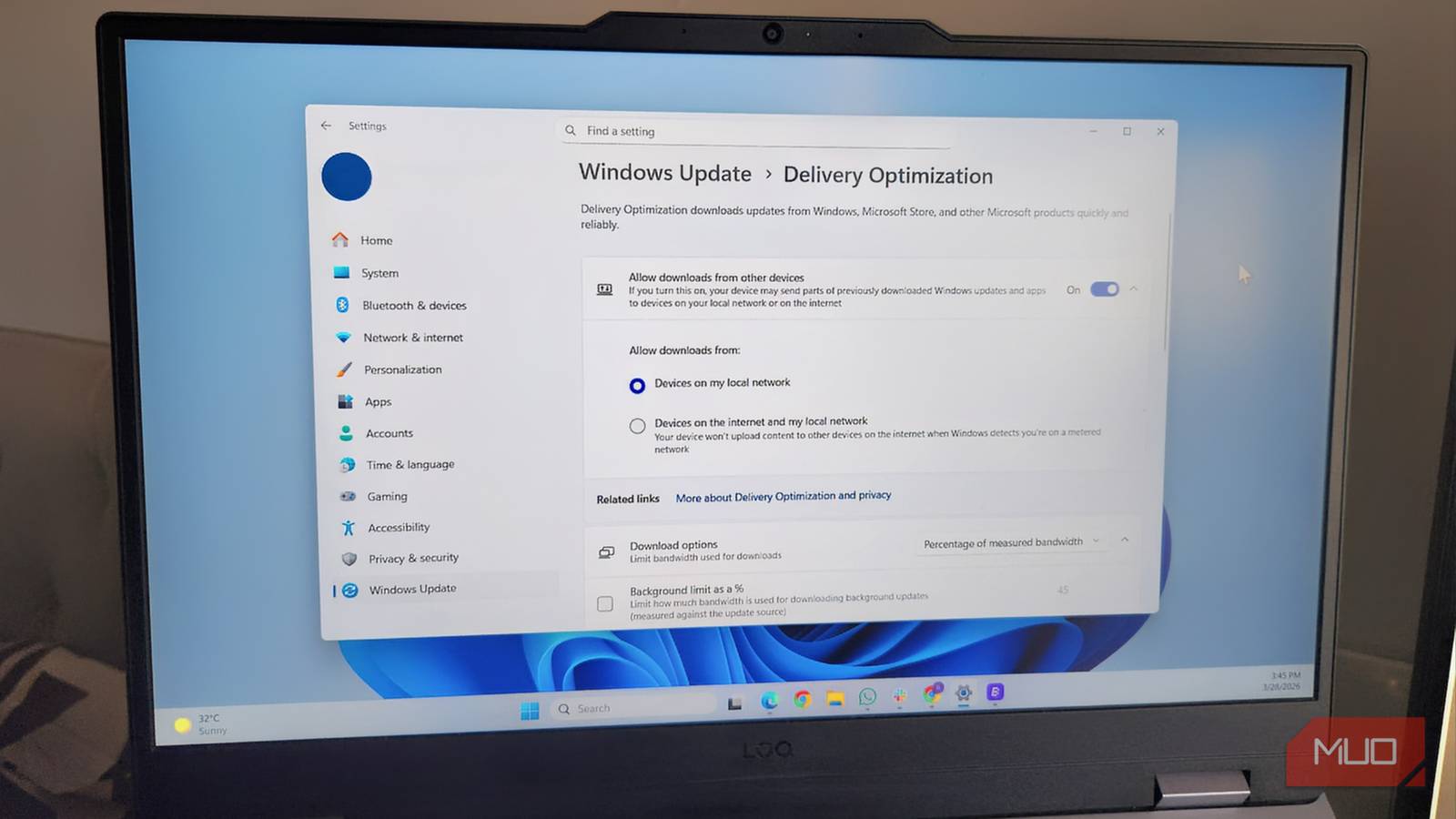
For a few weeks, it seemed like my internet was slowing down, especially when I had the most work to do. This happened in the middle of large downloads or on Discord calls. It got more confusing because internet speed tests looked fine, and I assumed it was safe to rule out a Windows issue. I started blaming my ISP because restarting the router would temporarily fix it.
After about a week of investigation, I traced this issue to the Delivery Optimization feature on my computer. I’ll show you why it was a problem and how I fixed it.
What Delivery Optimization was doing behind the scenes
Windows was sharing update data long after updates had finished downloading
Afam Onyimadu / MUO
Delivery Optimization is a useful feature of Windows. It allows your PC and other computers on the same network to download or share portions of updates and apps, rather than downloading the entire thing from Microsoft’s servers. However, you will not see any notifications or taskbar icons when your device is uploading fragments to other devices.
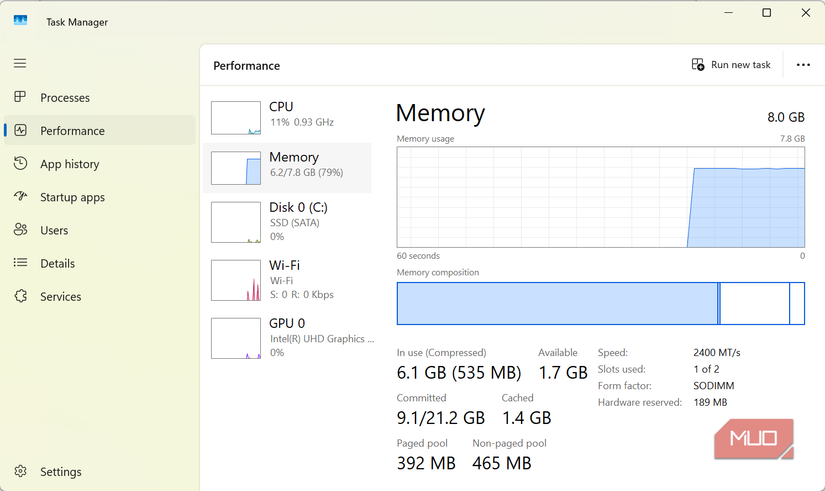
It was only the unexplained upload spikes I saw in Task Manager while I was performing heavy downloads that showed me something was wrong. I started by closing OneDrive, but the upload spikes continued, and that was when I figured out it was Delivery Optimization. There are three modes for Delivery Optimization, and they all work differently:
Delivery Optimization mode
Who your PC shares with
Upload impact on your connection
Disabled
Nobody
None—Windows fetches updates from Microsoft only
Local network only
Other PCs on your home network
Minimal—traffic stays within your router
Internet + local network
External PCs anywhere online
Can consume upload bandwidth unpredictably
Of all the modes, understanding the distinction between local and internet is important. While the traffic remains on your home network when it’s set to local, your PC can upload update fragments to strangers when set to internet. This can happen when you need to game, stream, or download very large files without any sort of warning.
Why background uploads were wrecking my connection
The problem wasn’t download speed — it was upload congestion
Afam Onyimadu / MUO
I have a heavily asymmetric internet plan, just like most homes, which means I may get just 20Mbps of uploads even if the plan is marketed as 500Mbps. My network’s latency rises as soon as upload capacity is saturated, resulting in unpredictability. Even though the upload side seems to be the cause, it affects everything.
That was the exact impact Delivery Optimization was having on my connection. The issue seemed random because uploads were not large enough to outright saturate the connection. There is a LEDBAT (Low Extra Delay Background Transport) mechanism in Windows that helps throttle back when the network is busy, but when your connection has limited upload headroom, you start noticing the dip in performance before LEDBAT kicks in. The speed tests that I ran seemed fine because they were simply measuring short bursts. However, if you have a two-hour download or a long gaming session, it becomes obvious.
This is what the experience felt like:
What you notice
What it actually feels like
What may be happening
Download speed drops midway through a large file
ISP throttling
Upload lane reaching capacity, raising latency
Voice call quality drops during a background install
Weak Wi-Fi
Delivery Optimization competing for upload bandwidth
Game lag spikes for no obvious reason
Server-side issue
Increased connection latency from background uploads
The setting that finally fixed it
Turning off internet sharing immediately made the connection feel stable again
It takes a few seconds to update this setting:
Open the Settings app.
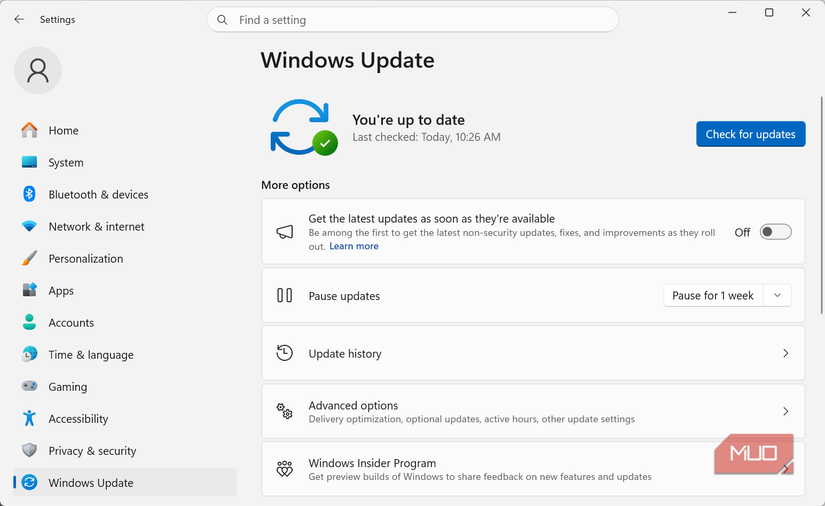
Navigate to Windows Update -> Advanced options -> Delivery Optimization.
The toggle to focus on is Allow downloads from other devices. You can totally disable this option. But if you enable it, you can determine the scope by selecting one of these options:
Devices on my local network
Devices on the internet and my local network
I chose to turn it off entirely since I have several Windows devices on my network that could be using Delivery Optimization. Almost instantly, my downloads started working without collapsing halfway through.
Note that this feature has no bearing on whether you get Windows updates. It only affects how updates are delivered or their source. So it’s safe to completely shut it down, which only means that the specific computer will not share those files outward.
You can expand the Activity Monitor option within the Delivery Optimization settings page to see how much data Delivery Optimization has shared on a computer.
There is also an upload option on the same page that you can use to cap how much data this feature can use. This may come in handy if you choose to keep the feature enabled.
Related
This Small Change Gave My Slow Windows PC a Huge Speed Boost
I can’t believe I ignored this simple trick for so long.
The weapon fashioned against your workflow
Sometimes, Windows is fighting your daily workflow, and you may not even recognize it. Several features are buried deep in the Settings app. While generally helpful, some settings work against your daily tasks.
What makes Delivery Optimization even trickier is that it generates problems with no clear signs that trace back to it. I spent a whole week with an unpredictable connection, when the root cause was just a few clicks away.