
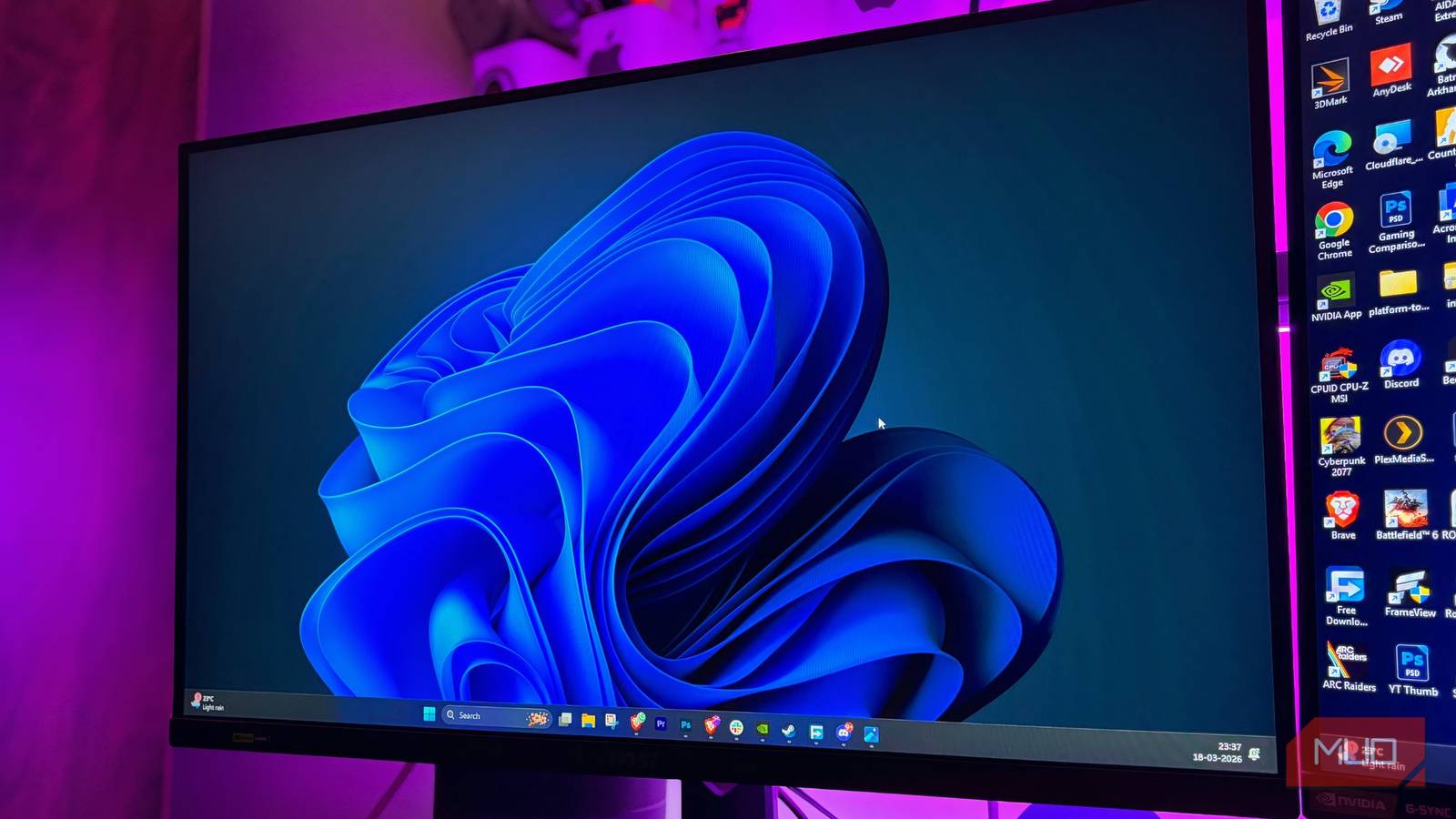
Nothing is more unsettling than seeing horizontal bars splitting your image during gameplay or even casual PC use, like web browsing or navigating the OS. This phenomenon is called screen tearing, and it’s a perennial problem for PC owners.
Now, the obvious fix most guides online recommend is to enable V-sync, a display setting that locks your PC’s frame rate to your monitor’s refresh rate, but that comes with its own drawbacks. Instead, there’s a hidden setting in your monitor that can fix your screen tearing without any hindrance.
Related
This Little-Known Smart TV Feature Can Make Your Viewing Even Better
No one talks about this feature, but it can make a big difference.
Why does your screen tear in the first place?
Your monitor and GPU were never meant to run in lockstep
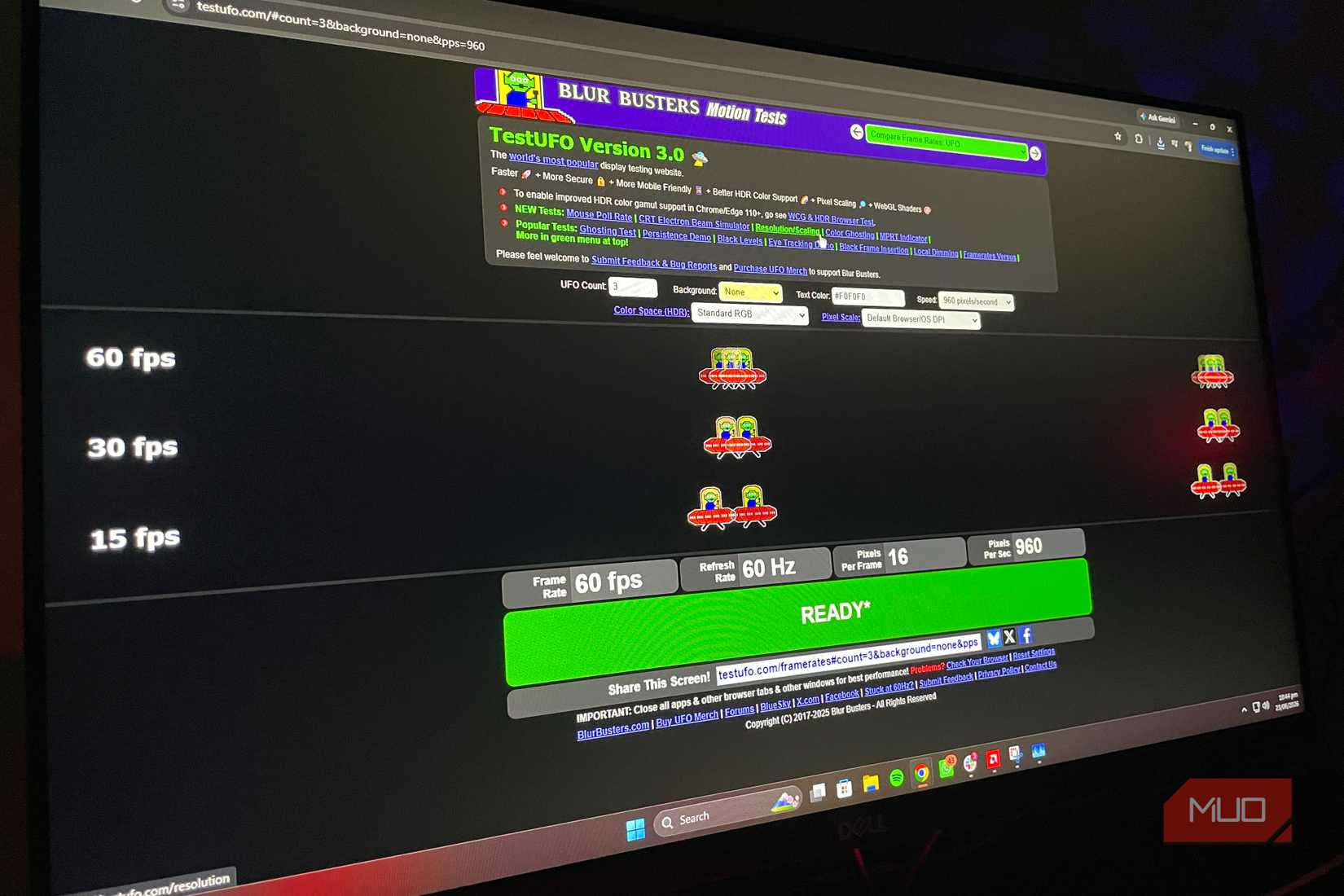
TestUFO frame skip testCredit: Shaheer Khan/MUO
Your system components aren’t synchronized by default. Take this: your GPU renders frames at a variable pace — it can either render images fast or slow depending on the workload at the moment. However, your monitor only displays an image at a fixed pace.
In a situation where your GPU has already rendered a new frame while your monitor is displaying the current one, the monitor must simultaneously display both frames, resulting in horizontal tearing. Now, enabling V-sync fixes this problem by locking your system’s frame rate to your monitor’s refresh rate, but it comes at a high cost.
Since V-sync forces your GPU to remain at your monitor’s refresh rate, it must wait until the monitor’s frame cycle is complete before rendering a new frame, which introduces latency. V-sync can ruin the gameplay experience, since every millisecond of input lag is noticeable in fast-paced games. Other than that, if your GPU fails to maintain a steady frame rate at your monitor’s refresh rate, stuttering with V-sync becomes excruciating because it then automatically drops to 120 → 60 → 30, considering you have a 120Hz display and your game is performing poorly.
Adaptive sync fixes screen tearing and everything wrong with V-sync
This is where G-Sync and FreeSync come in
Credit: Dave Meikleham \ MakeUseOf
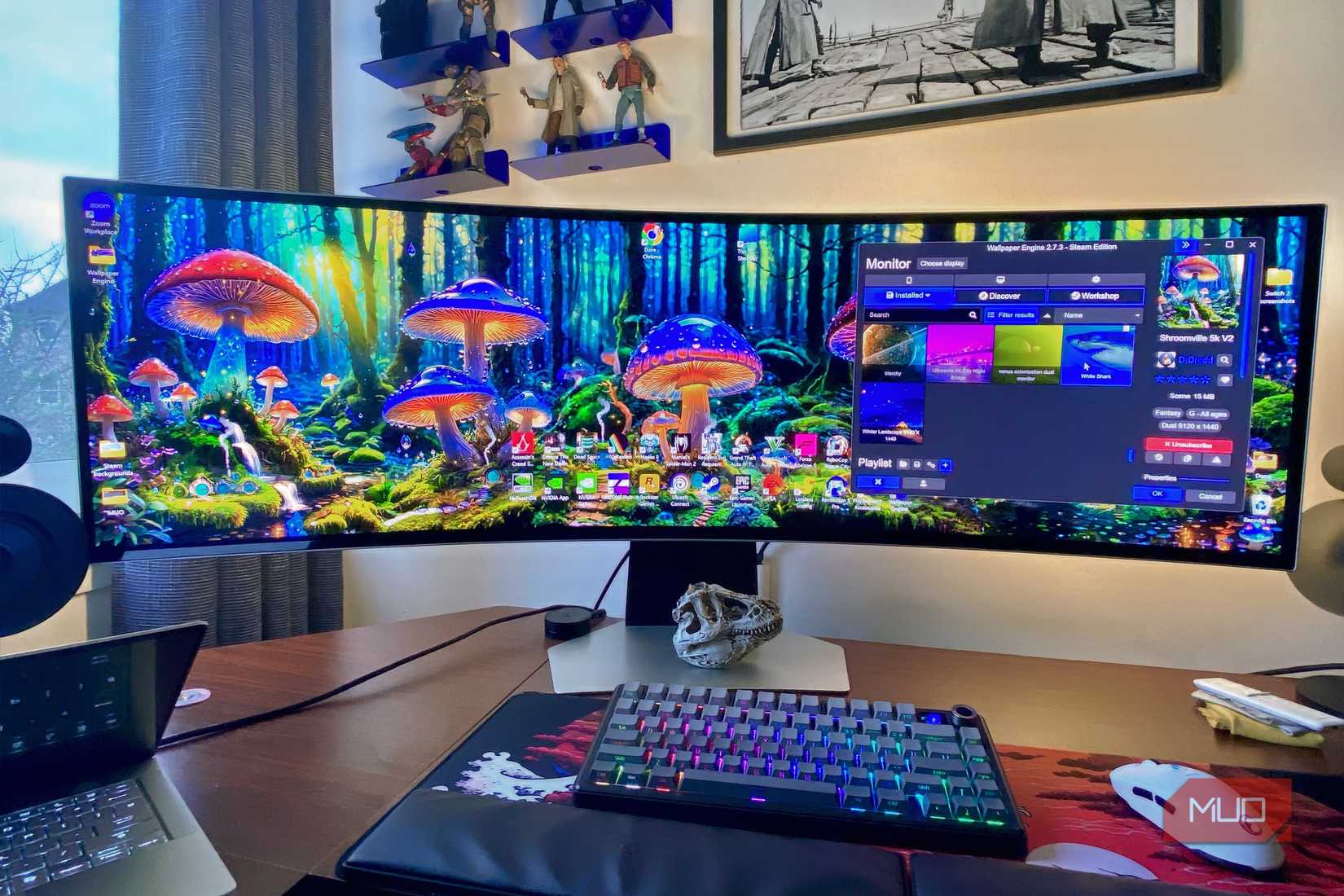
Adaptive sync technology fixes everything wrong with V-sync while eliminating screen tearing, but most monitors ship without the feature turned on by default. AMD’s implementation is called FreeSync, and Nvidia’s is called G-Sync. Instead of limiting the system itself, these technologies dynamically control the monitor to match the frame rate your system outputs.
G-Sync was first launched in 2013 and is a closed technology that not all monitors are compatible with. Nvidia adds a proprietary module to monitors that supports technology responsible for controlling the monitor’s refresh rate to align with the system’s frames.
FreeSync, on the other hand, was launched in 2015 and, unlike Nvidia’s implementation, is more of a software-based approach, since it doesn’t require a separate module inside the display as full G-Sync monitors do. FreeSync is based on VESA Adaptive Sync, an industry-wide protocol that synchronizes the monitor’s refresh rate with the input frame rate. FreeSync works through the monitor’s firmware and the GPU.
Since FreeSync doesn’t require a specific module, compatible monitors are cheaper than G-Sync monitors. However, this also makes FreeSync monitors a bit less refined, since cheaper monitors can have poor implementations. Most FreeSync monitors are compatible with Nvidia GPUs, and most G-Sync monitors also work with AMD cards. However, you’d need DisplayPort or HDMI 2.1 for it to work, since the older HDMI standard was limited to 60Hz.
How to check if your monitor supports it — and switch it on
The setting your monitor has been hiding from you
Not all monitors are G-Sync or FreeSync compatible, so you have to check the specifications before finding the setting in the first place. A general rule of thumb is that a monitor must have a refresh rate higher than 60Hz to support adaptive sync.
Assuming your display supports adaptive sync, the first step is to go into your monitor’s own settings and search for FreeSync, G-Sync, or VRR (Variable Refresh Rate).
For Nvidia GPUs, go to the Nvidia Control Panel -> Display -> Set up G-Sync, then check the Enable G-Sync checkbox and select both windowed and full-screen modes. To see if G-Sync is working, you can check the top box for display, and you can see the G-Sync indicator.
For FreeSync, open AMD Software: Adrenalin Edition -> Display -> turn on AMD FreeSync Premium or AMD FreeSync.
The menus and similar items may differ slightly, but that’s generally the right direction.
Before you switch it on, there are other considerations too
Even if your monitor supports adaptive sync technology, ensure your display is running at the highest refresh rate it supports for the technology to work properly. V-Sync and G-Sync only work over DisplayPort or HDMI 2.1, which not all GPUs or monitors support. Furthermore, I recommend capping your frame rates slightly below your monitor’s refresh rate to prevent your system from producing more frames than the monitor can handle.
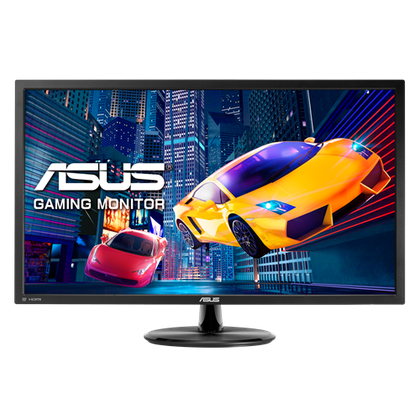
Brand
ASUS
Screen Size
28-inch
Display Technology
LED
Resolution
3840 x 2160