
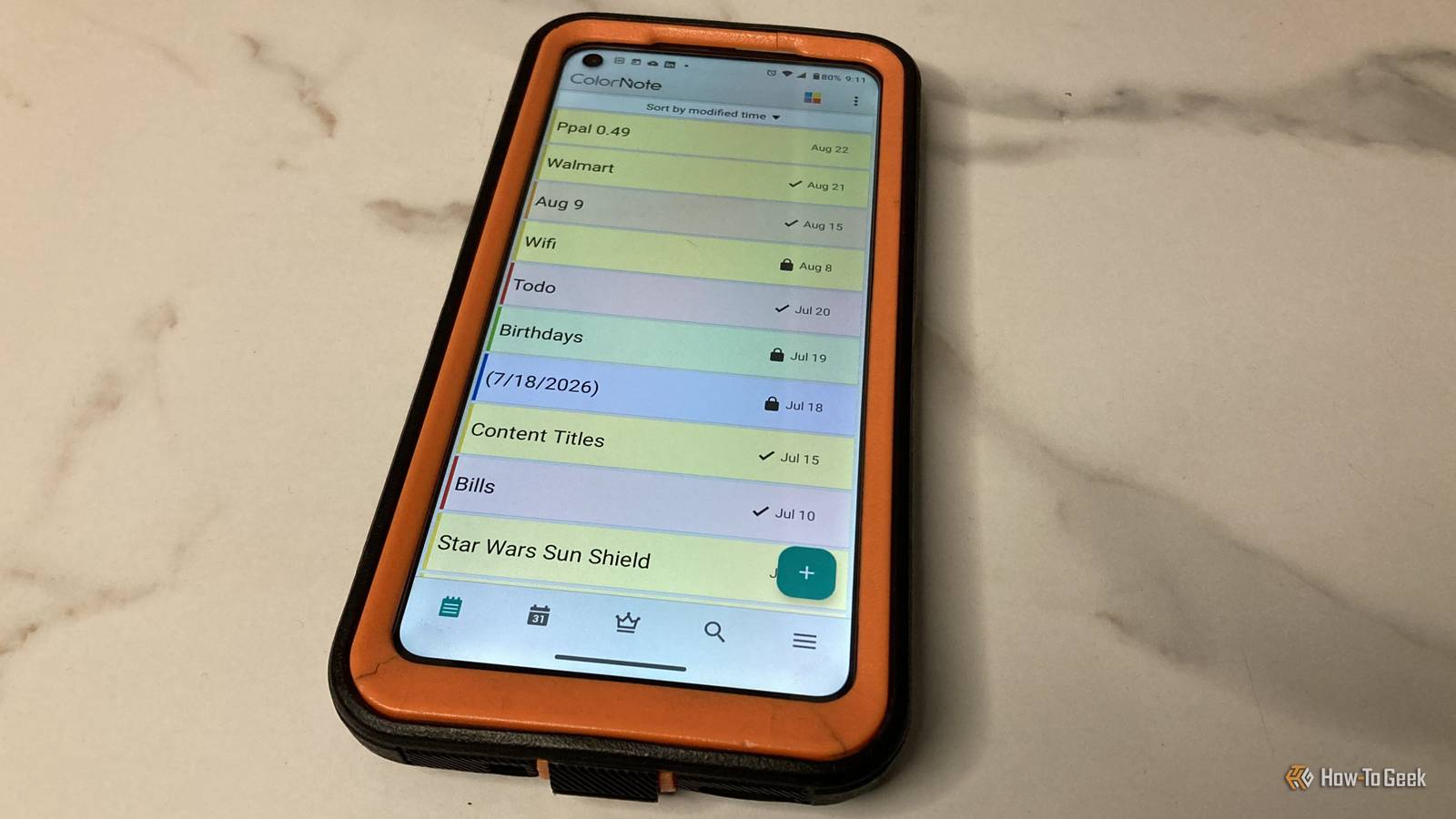
Over the years, I’ve tried many note-taking apps on my Android devices. Each one served a purpose, but most didn’t have the features I really needed. When I tried ColorNote ten years ago, it wasn’t ready to be my workhorse, but a lot has changed since then.
ColorNote has grown to include more view options, integrations, themes, and features. You can safely say that this single app combines the benefits of five different apps into one (notes, checklists, social sharing, calendar, and cloud storage)—it can simplify your life, at home or while away.
Store important notes and checklists with more organization
It’s a far cry from all those sticky notes on your wall
One of the cool features that I use with ColorNote is the colorization options where I color my notes red for the most important or urgent ones, green and blue for semi-important, and yellow or orange for the least important. I like how I can also label my colors, such as urgent, late, reference, lists, or anything I want.
Aside from notes like jet pump troubleshooting or your sister’s address, you can also create checklists—perfect for tasks, shopping, and other things like gift lists or step-by-step instructions. One thing I really enjoy is the search feature, where it crawls all notes/checklists for your search terms and displays any that include those words. The ColorNote search feature has helped me find instructions, appointments, friends’ addresses, items in checklists, and other info in various notes.
Folders (premium option only) and view options are also great features because everyone likes customizing Android and its apps to suit their needs. I’ve used the standard list view (shows note titles and date only) for a long time, but I’m starting to like the other options, including detailed view, grid, and large grid. I’ve begun using the grid more often because it displays many notes in a compact view, showing the title, date, and partial note contents—it looks really nice. I can also sort them alphabetically, by color, by modified time, or by created time.
A calendar usually has options—so does ColorNote
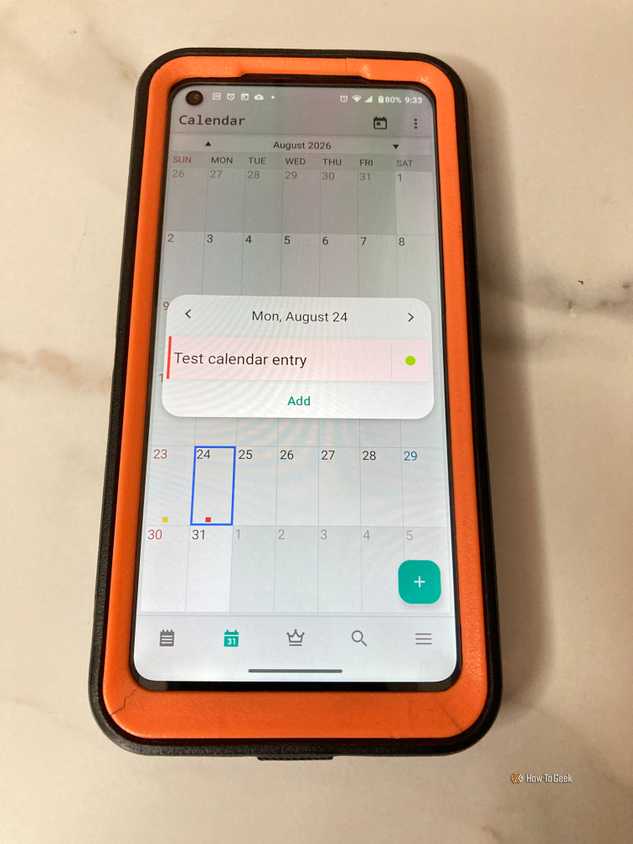
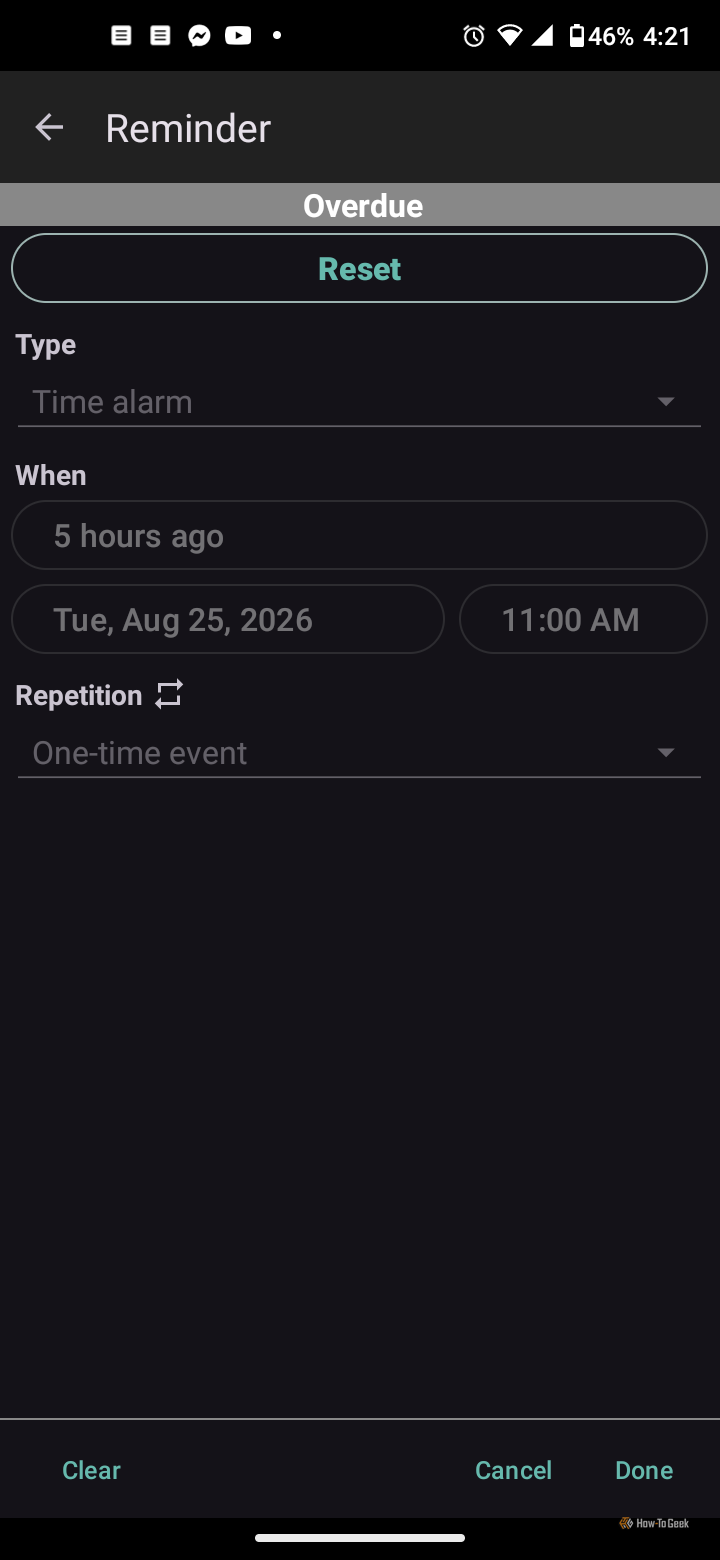
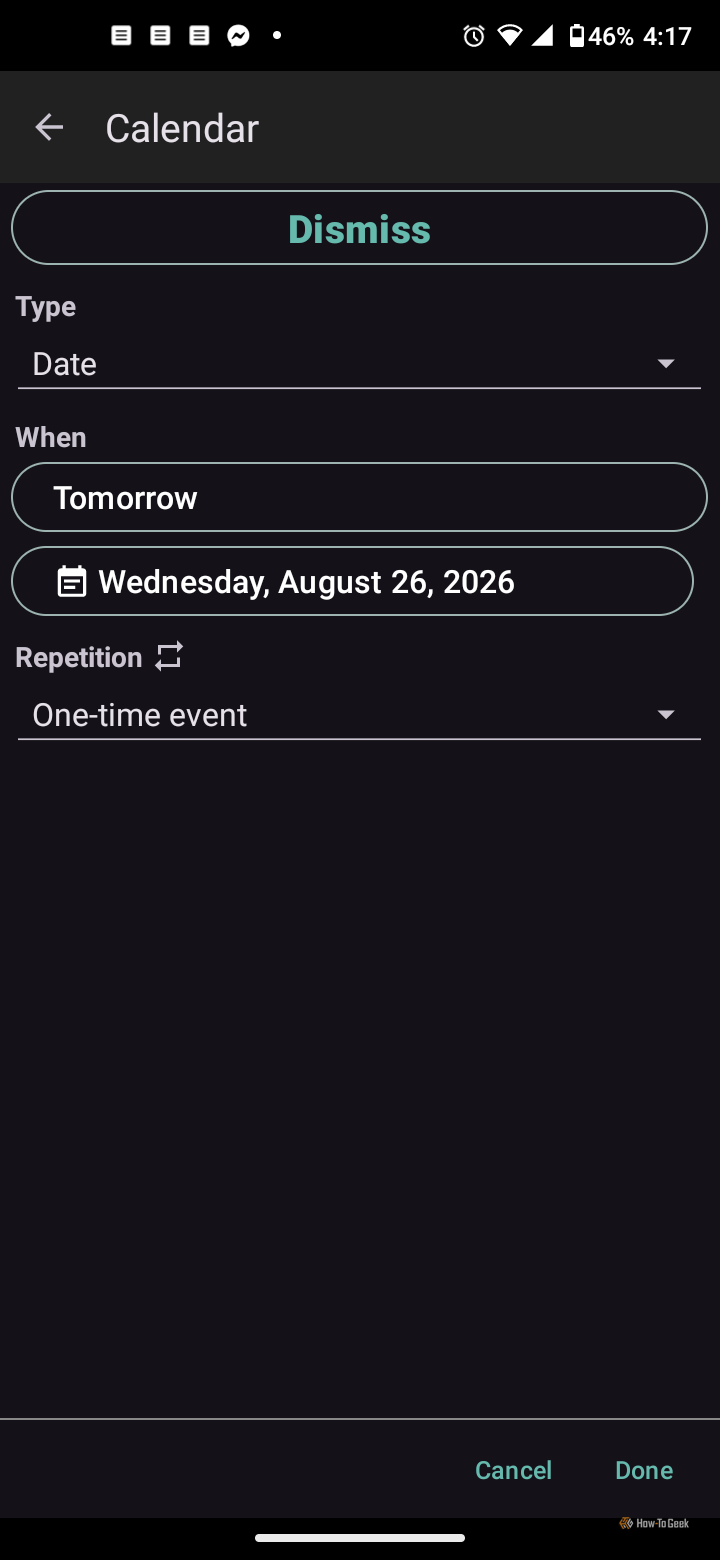
Never forget important times, dates, or to-do tasks
 Credit: Steve Larner/How-To Geek
 Credit: Steve Larner/How-To Geek
 Credit: Steve Larner/How-To Geek
 Credit: Steve Larner/How-To Geek
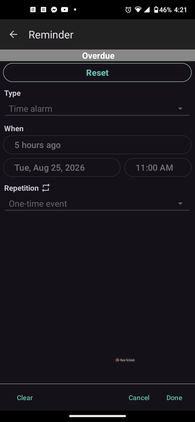
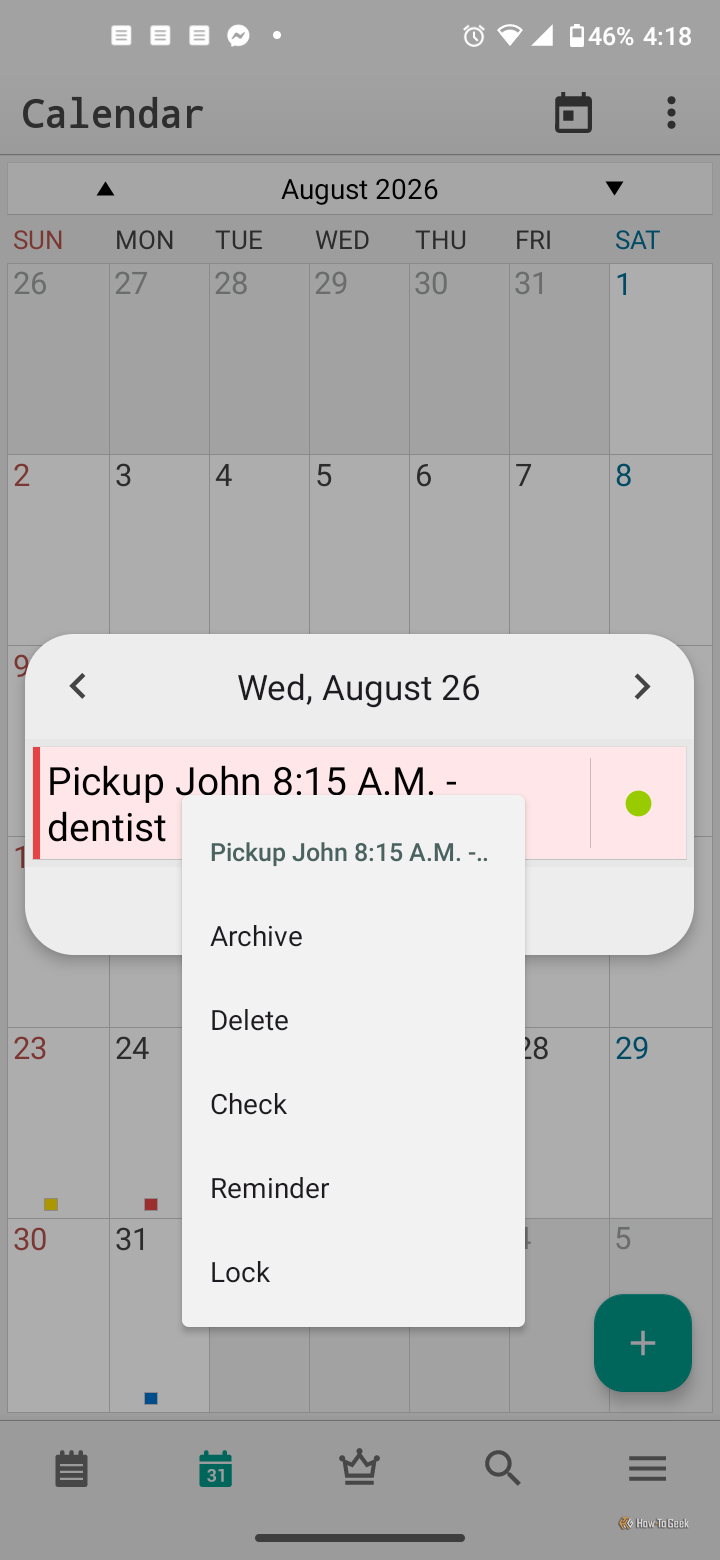
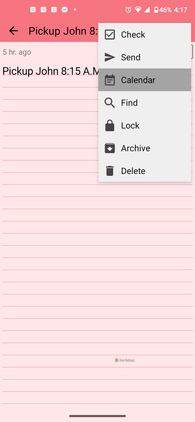 Long-pressing a ColorNote Calendar entry to launch the editing screen, then long-pressing the title opens advanced options, as shown, including Archive, Delete, Check, Reminder, and Lock.Credit: Steve Larner/How-To Geek
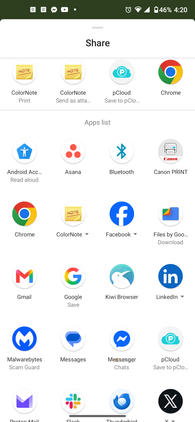 Screenshot on an Android phone displaying ColorNote’s sharing options for Calendar events and notes, where you can choose social media, SMS, various apps, and more.Credit: Steve Larner/How-To GeekClose
 Credit: Steve Larner/How-To Geek
 Credit: Steve Larner/How-To Geek
 Credit: Steve Larner/How-To Geek
 Credit: Steve Larner/How-To Geek
 Long-pressing a ColorNote Calendar entry to launch the editing screen, then long-pressing the title opens advanced options, as shown, including Archive, Delete, Check, Reminder, and Lock.Credit: Steve Larner/How-To Geek
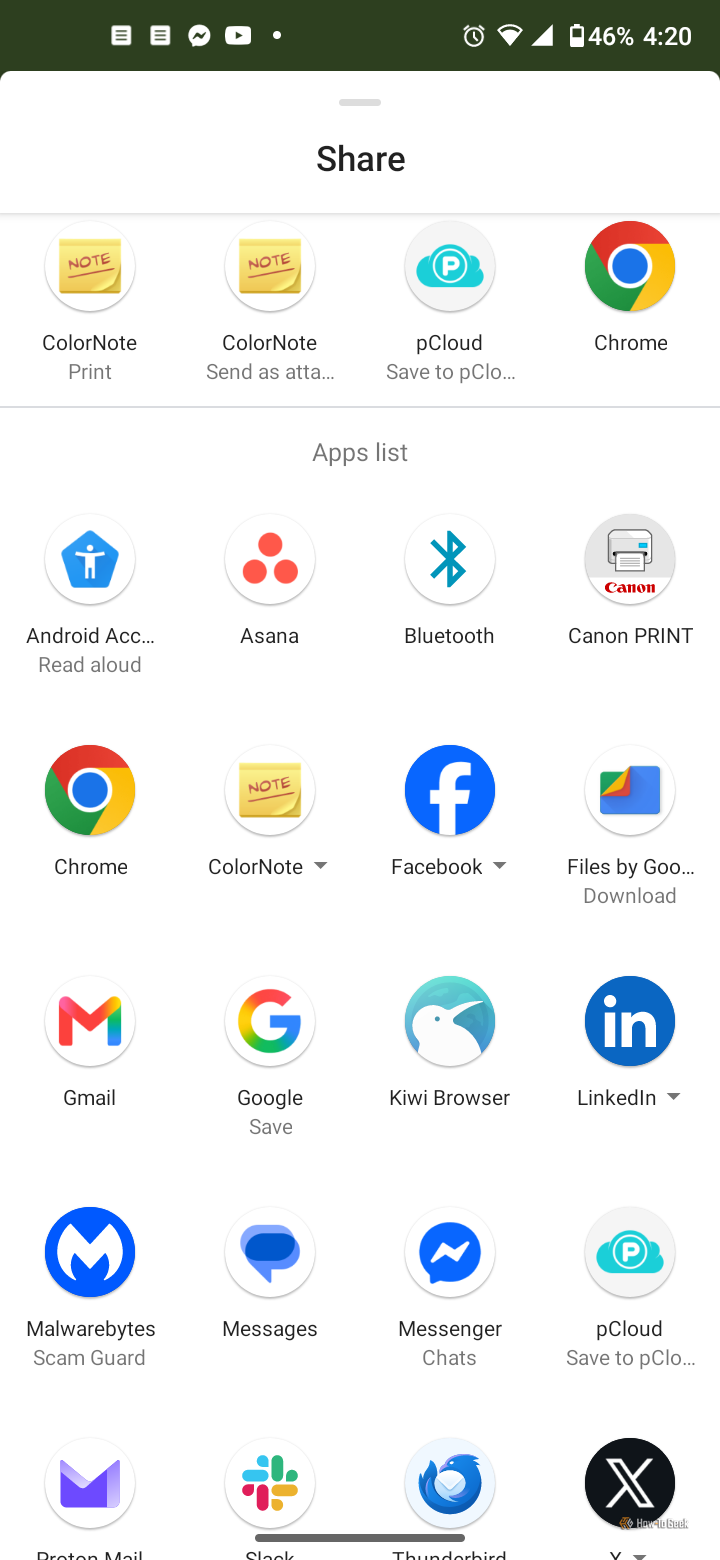 Screenshot on an Android phone displaying ColorNote’s sharing options for Calendar events and notes, where you can choose social media, SMS, various apps, and more.Credit: Steve Larner/How-To Geek
Google Calendar and Apple Calendar have their place for important work or home events (meetings, family gatherings, your dentist appointment, etc.), but notes are perfect for smaller events or checklists like the pickup day/time for your mother’s medical appointment, tasks you need completed by a certain date, bill due dates, and phone calls to make on Monday.
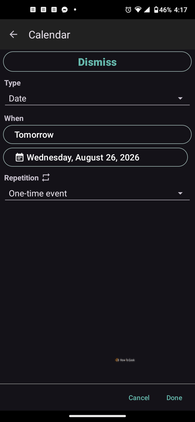
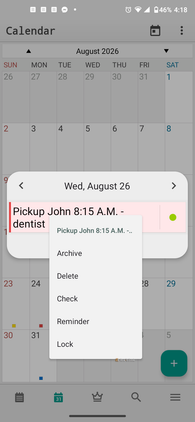
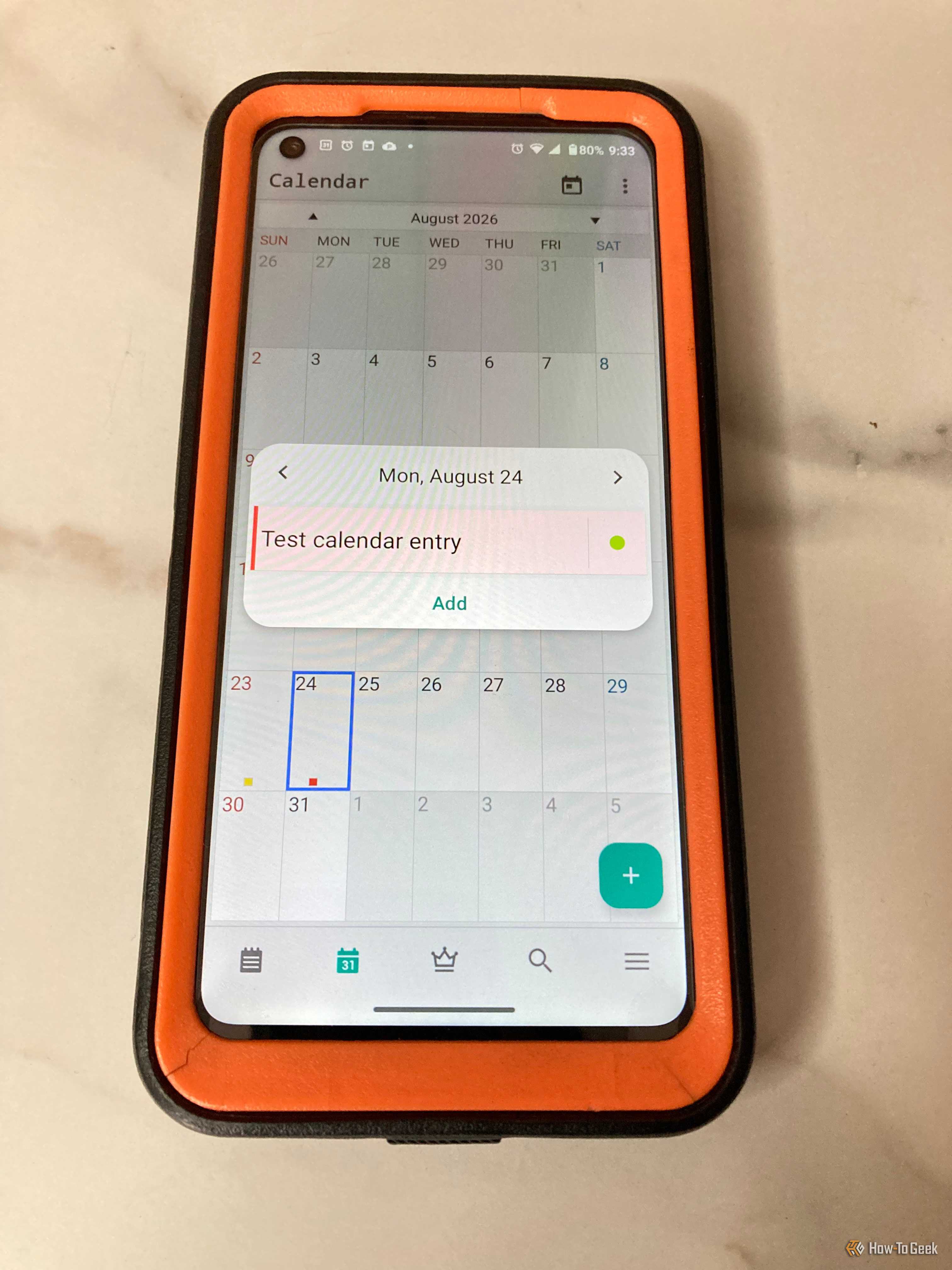
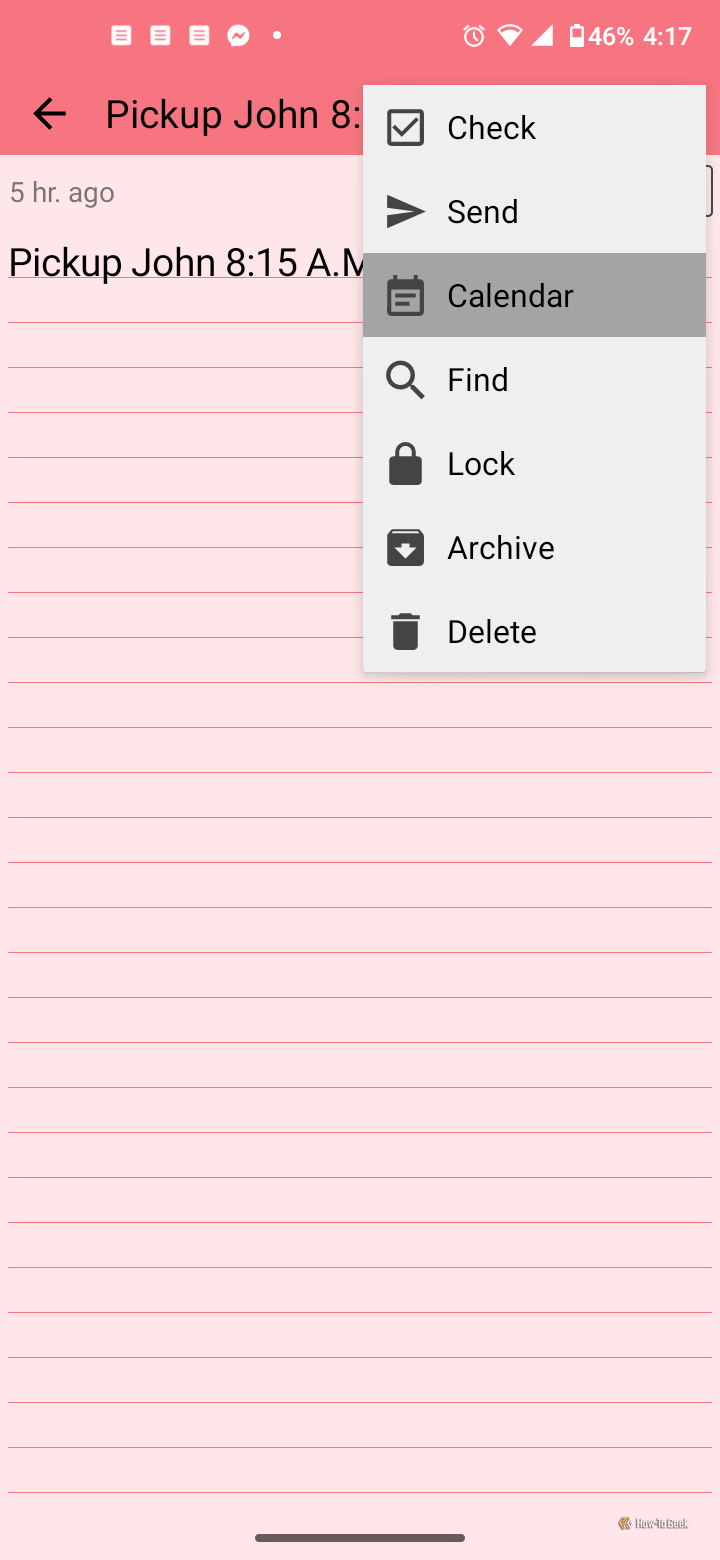
On ColorNote’s calendar feature, I simply tap a day, select “Add,” choose “Text” or “Checklist,” insert my title and description, choose the entry’s color, and tap the checkmark to save the entry. Now, I can open Calendar at any time and view all my color-coded, marked dates to see what is coming up. Of course, I tap the red ones first since I made that color priority. I can also create notes and checklists directly (but apply a reminder time), and the app adds it to Calendar automatically.
Encryption, cloud storage, and passwords are valuable assets
Access your secured and unsecured notes on your devices, anytime
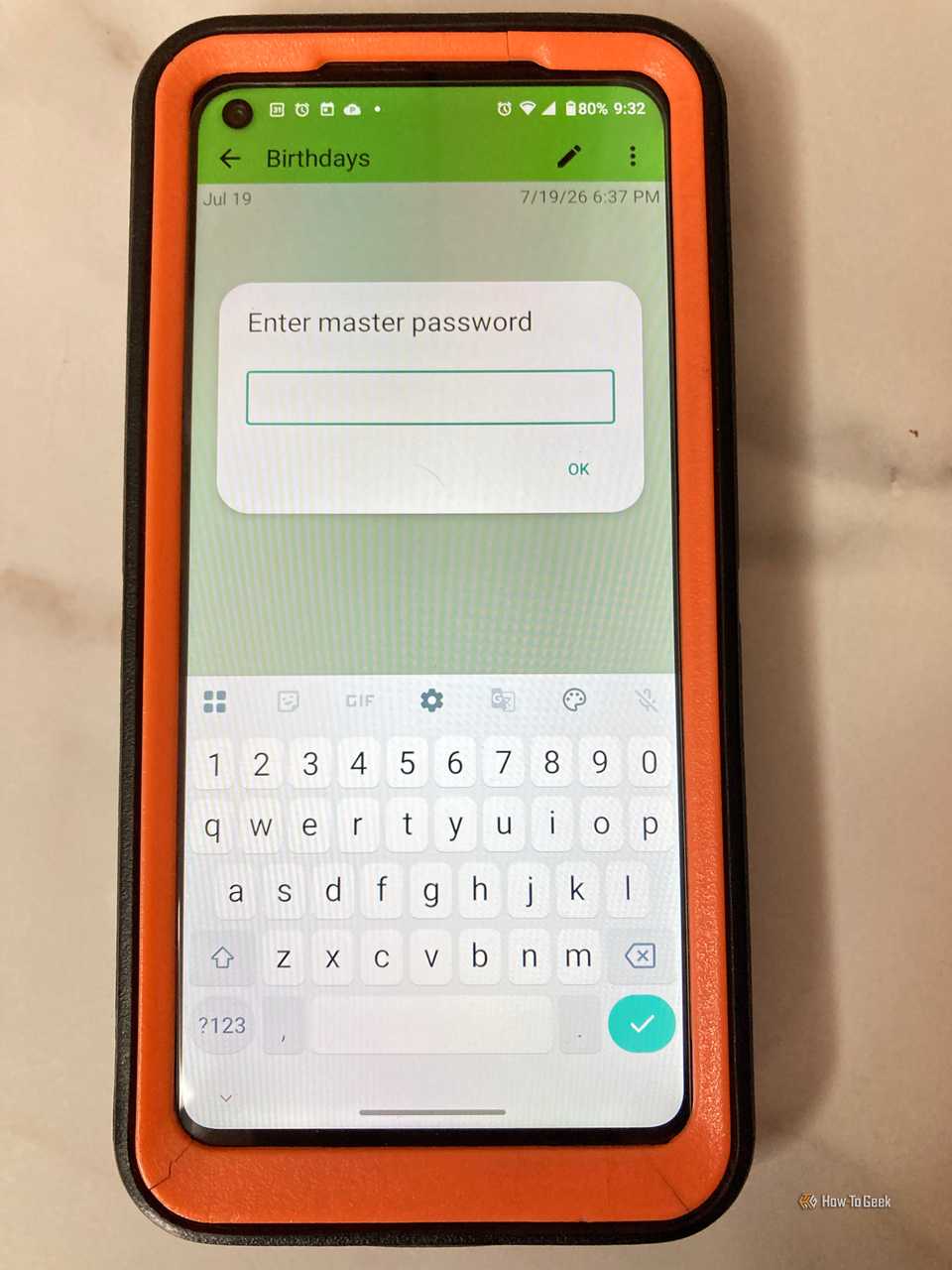 Picture of an Android displaying the ColorNote app with a password prompt to unlock a note.Credit: Steve Larner/How-To Geek
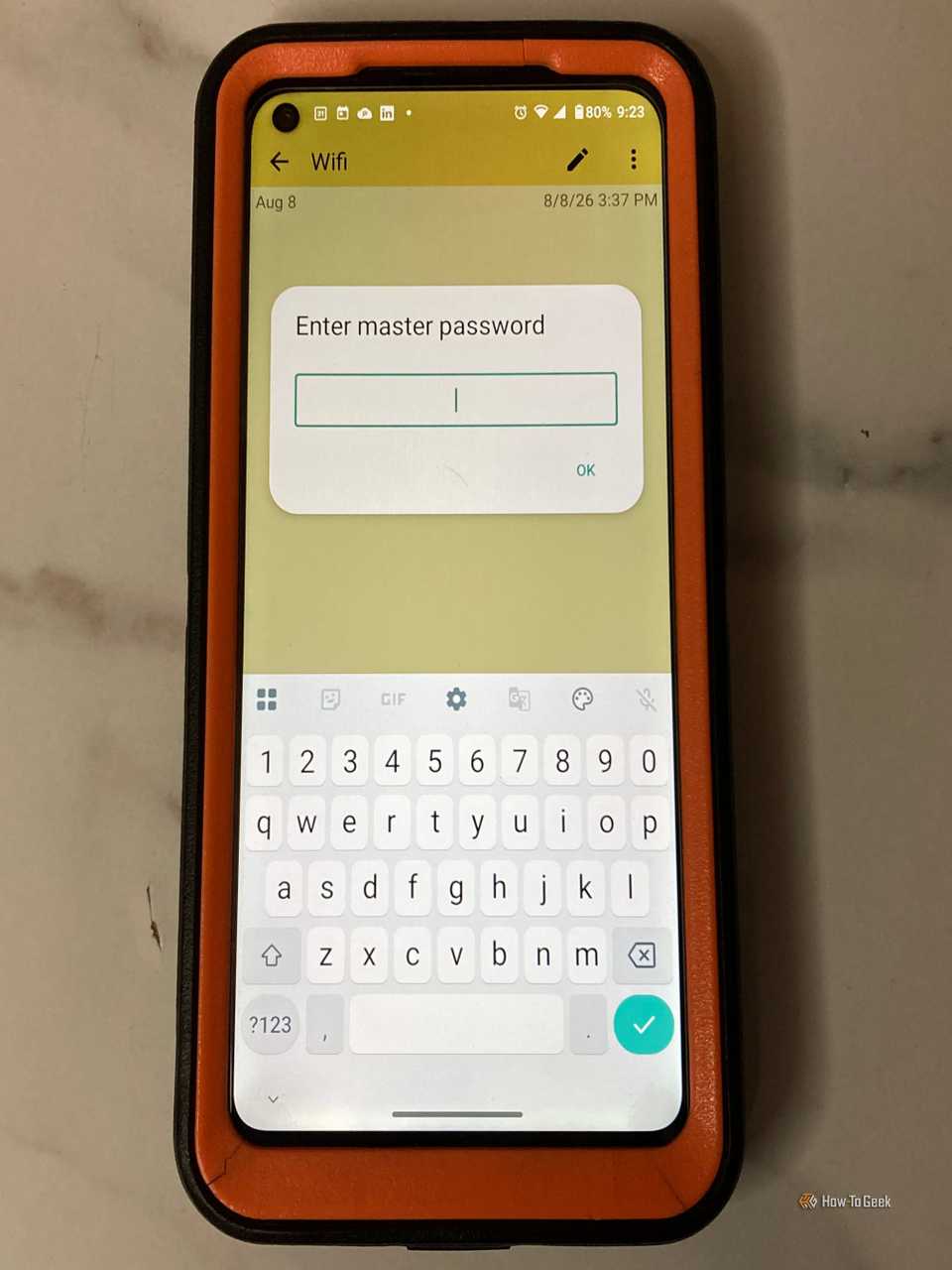 Photo on an Android smartphone, showing the ColorNote app with a password prompt to unlock a specific note and view it.Credit: Steve Larner/How-To Geek
If I have to reset my smartphone or purchase a new tablet, I know that I can easily retrieve all my notes with ColorNote’s sync/backup feature (free but must be activated). With AES encryption, my data is secured during backup and restore activities. It’s only private to me unless I share a note, checklist, or calendar with others. I also love that I can protect my notes with a master password, ensuring only I can open them. I use this feature for notes and checklists such as Wi-Fi logins, game account credentials, and birthday lists. You’ll see a lock icon next to each note or checklist that is locked behind your master password.
ColorNote’s web search and auto-link features are great
Search for words in notes plus launch phone numbers, URLs, emails, and more
If you need to look up a model, product, phrase, or word within your notes, you can highlight them and choose to search the web to get more information. This helps you see what your note was referring to on a particular subject or to obtain more details. I have a few notes listing PC components and other products where I may want to search the web for more info—ColorNote lets me do that. I also like highlighting addresses, holding down on the selection, then choosing “Map” in the pop-up bar to get directions.
If you have phone numbers or email addresses listed in your notes or checklists, you can tap them to launch the phone or email app. I’ve used this feature many times, and I like the convenience it provides.
ColorNote can share, too—from social and email to apps and SMS
Plenty of sharing options to go around
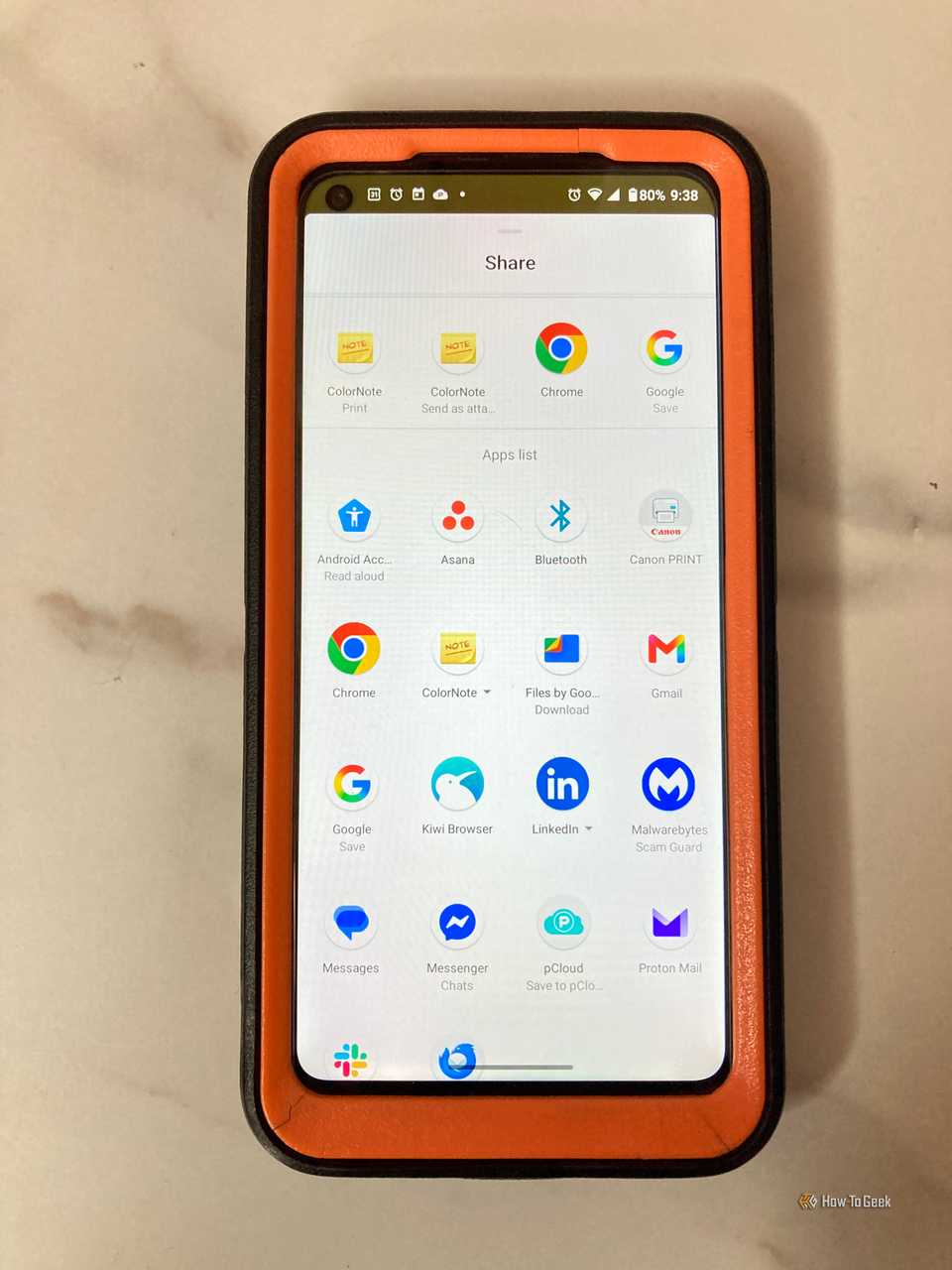 Photo of an Android phone displaying the share options for a ColorNote app note, including SMS, Meta Messenger, Gmail, LinkedIn, Slack, and more.Credit: Steve Larner/How-To Geek
 Photo of an Android phone displaying a ColorNote with the share option for Gmail.Credit: Steve Larner/How-To Geek
It may seem weird, but you can create a note with a joke or anything else you want and share it to social media like Facebook, Instagram, and Twitter with edits available. I’ve also shared appointments and shopping lists through Google Messages and Meta Messenger, but ColorNote provides many other choices such as SMS, productivity platforms like Trello, project management apps like Asana, email accounts like Outlook and Gmail, Bluetooth transfers, and even cloud storage apps like pCloud or Google Drive. I like the versatility because I can share certain notes based on various needs and scenarios.
ColorNote is full of features and continues to evolve
It’s no surprise that the ColorNote app has over 100 million downloads from Google Play and a 4.9-star rating based on close to 4 million reviews. From notes, checklists, and a calendar to social sharing, secure cloud backups, message integration, and password-protected notes, there are plenty of features to simplify your life and your busy schedule.