

The trajectory between the popularity of VPNs and the rise of streaming services shares a very similar upwards gradient.
While the likes of Netflix, Amazon Prime Video, Apple TV and BBC iPlayer have irrevocably changed the landscape of how we watch TV shows, films and even live sport, the best streaming VPNs have increased the breadth of what we can watch online to a dizzying degree — and Surfshark VPN is one of the most accomplished providers around.
When would I use a VPN for streaming?
Ever tried to access your usual domestic streaming service when traveling on vacation or on business and been told that the content is blocked in your location?
Or perhaps there’s a sporting or cultural event being broadcast in another country that isn’t being shown where you are?
Both are frustrating situations, but can be overcome by using a VPN.
That’s because when you turn on a VPN, all of your internet traffic is automatically transported through an encrypted tunnel to a server managed by your provider. This server will invariably be near to your actual location, but you can choose to channel everything through a server in another country altogether.
When you do this, your laptop, smartphone or streaming device will assume that you are accessing it from the IP address of that overseas server.
So if you’re a college football fanatic needing to catch the action when you’re outside the States, or a Brit abroad wanting to watch “Love Island U.K.” on ITVX, using a VPN lets you overcome the geographical barriers and watch as if you were back at home.
What makes Surfshark a good streaming VPN?
Put simply, Surfshark is one of the best providers in the business when it comes to streaming.
The reasons are manifold:
Unblocking prowess: It isn’t a given that a VPN will unblock Netflix, Prime Video, Disney+ or other services. In our testing, though, Surfshark showed itself to be one of the strongest providers around for getting around geo-blocks.Connection speeds: Surfshark ranks within our top five providers for out-and-out speed; we clocked it at 848 Mbps when using our 1 Gbps line. That should mean it doesn’t cause buffering when you stream.Easy-to-use apps: It’s one of the friendliest, easiest to use providers on the market, regardless of what device you use it on. That makes it particularly ideal if you’re new to the world of VPNs.Unlimited devices: Surfshark allows the use of its VPN across unlimited devices at any given time. That’s good to know if you and your family plan to use it to stream across a multitude of platforms.Servers in 100+ countries: From Albania to Vietnam, Surfshark’s network of over 4,500 servers is spread around the planet. Meaning you can access content from any of those countries.Amazon Fire Stick
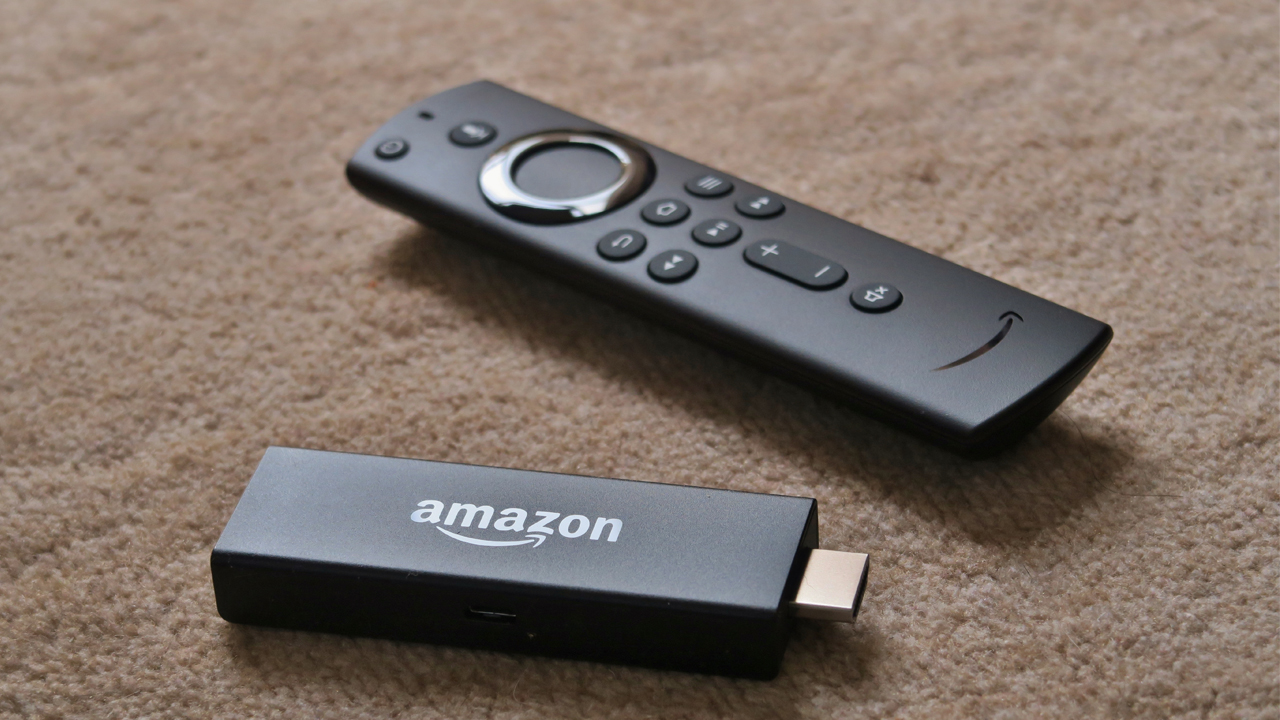
(Image credit: Picturesque Japan/Shutterstock)How to download and use Surfshark VPN on Amazon Fire Stick
Getting Surfshark — or, indeed, most other reputable VPNs — on your Amazon Fire Stick is ridiculously easy. That’s because it has a dedicated app that you can get from the Amazon Appstore:
Open your Fire Stick and head to the Amazon AppstoreSearch for Surfshark and hit ‘Download’Once downloaded, hit ‘Open’Log in with your usual credentials (or set up a new account if you don’t already have one). Alternatively, use the on-screen instructions to log in with your smartphone via a QR codeSelect the server of the country whose content you wish to accessIf prompted, accept the connection request by pressing ‘OK’ on the pop-up
Note that only the following Amazon Fire devices support Surfshark at the time of writing:
Amazon Fire TV: 1st gen, 3rd gen, 4K, TV Cube
Amazon Fire TV Stick: 2nd gen, 3rd gen, 4K, 4K Max, HD
Amazon Fire Tablet: 7, 8, 10, Max 11, Kids Tablet
Apple TV
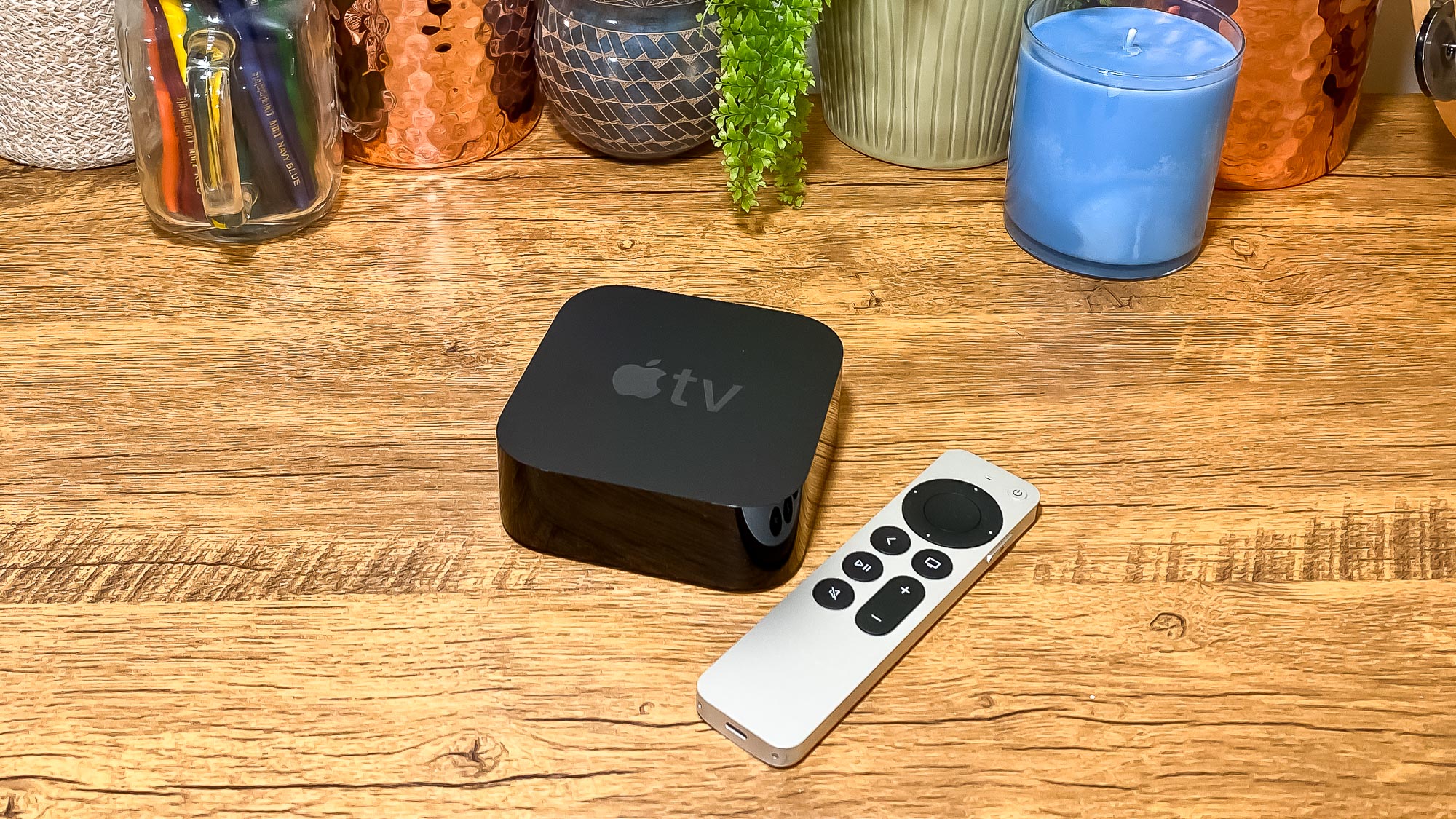
(Image credit: Tom’s Guide)How to download and use Surfshark VPN on Apple TV
Thanks to its dedicated Surfshark app, Apple TV is another really easy device on which to download and use this VPN:
Open up Apple TV and head to the App storeSearch for Surfshark and hit ‘Download’Once downloaded, hit ‘Open’Log in with your usual credentials (or set up a new account if you don’t already have one). Alternatively, use the on-screen instructions to log in with your smartphone via a QR codeSelect the server of the country whose content you wish to accessIf prompted, add VPN configurations by pressing ‘Allow’ on the pop-up
Note that only Apple TV devices with tvOS 17 or later support Surfshark at the time of writing
Roku
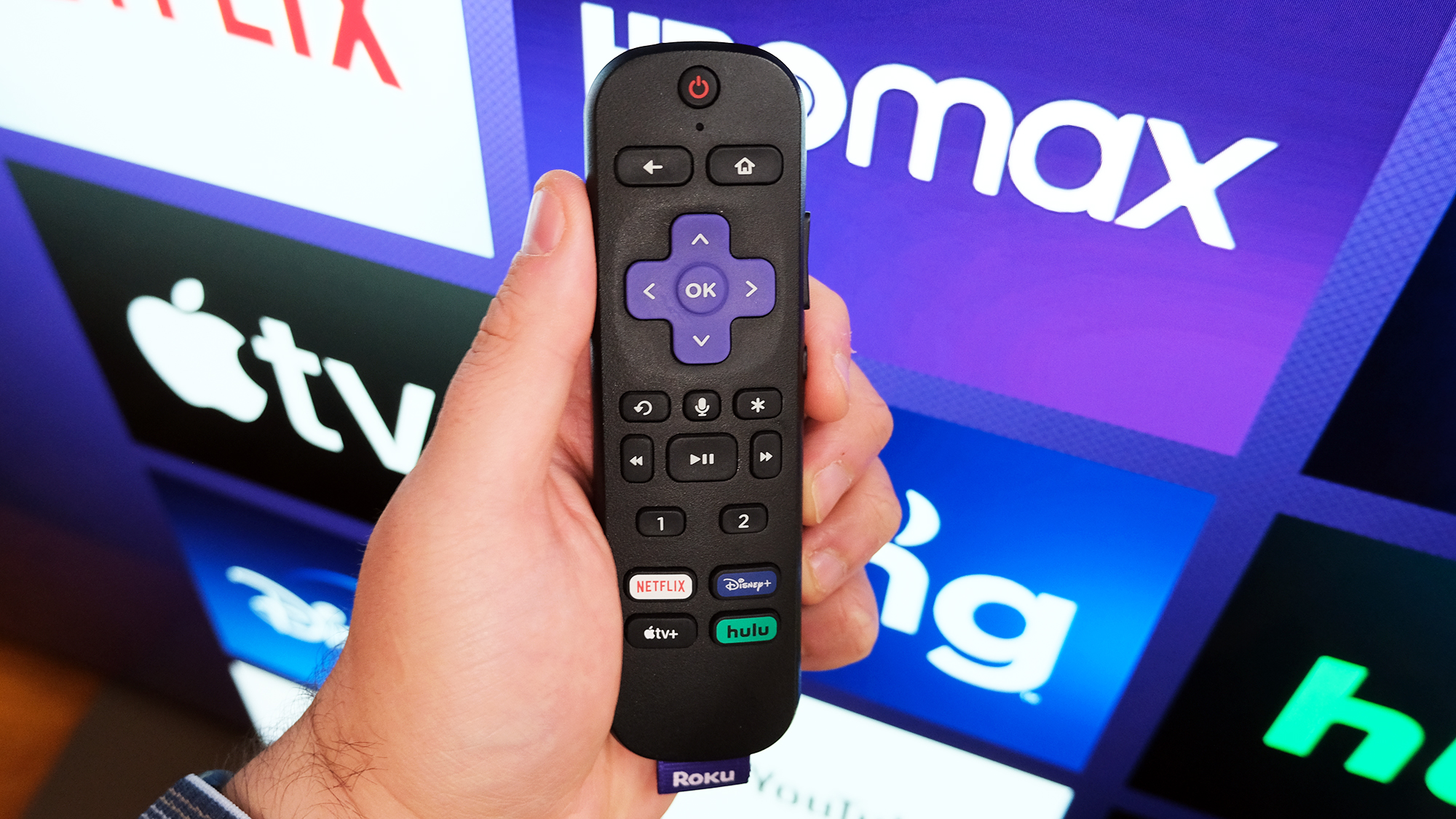
(Image credit: Henry T. Casey / Tom’s Guide)How to use Surfshark VPN on Roku
Unlike Amazon Fire Sticks and Apple TV boxes above, Roku doesn’t host native VPN apps on its devices. That means you need to find a workaround — there are two available:
i. Connect your router to Surfshark
Download the Surfshark client to your laptop or the smartphone appFind your router’s IP address. Our dedicated guide on how to find your IP address will take you through the steps if you don’t know howLogin to your router’s admin panel by typing your IP address into an internet browser and then entering your router’s username and passwordWithin your router’s settings menus, find your VPN options. These may be deeply buried within advanced settings,Head to this page on this Surfshark website and find your router typeFollow Surfshark’s instructions for activating the VPN on your specific router
ii. Set up a virtual router
Download the Surfshark client to a Windows PCOpen the client and head to the Settings menuHit ‘VPN settings’, scroll to ‘Protocol’ and choose OpenVPN (UDP) or OpenVPN (TCP)Disconnect from SurfsharkSearch for and open ‘Mobile hotspot settings’Toggle the mobile hotspot to ‘On’Make a note of network name and passwordSearch for and open ‘View network connections’ in your PC’s Control PanelRight-click ‘Data Channel Offload for Surfshark (DCO)’ and hit ‘Properties’Hit the ‘sharing’ tabCheck the first box allowing other users to connect through the computer’s internet connection. Select the name of your hotspot network adapter in the dropdown menu and hit ‘OK’Open Surfshark and select the server of the country whose content you wish to accessOn your Roku settings, select to connect to the internet via the hotspot set up on your laptopPlayStation + XBox

(Image credit: Sony)How to use Surfshark VPN on games consoles
Neither PlayStation or Xbox have dedicated VPN apps available to download from their respective stores. It means that you need to use a workaround to make use of Surfshark on your games console. There are four options you can opt for:
i. Connect your router to Surfshark
Scroll up to the Roku section above for full instructions.
ii. Set up a virtual router
Scroll up to the Roku section above for full instructions.
iii. Set up a shared connection through a Windows PC
Download the Surfshark client to a Windows PCTether your PC to the console via an Ethernet cable. If your PC doesn’t have an Ethernet port, you’ll need an adaptor to allow connection through USBConfigure your Ethernet connection according to the instructions on this dedicated instructions page from SurfsharkOpen the Surfshark client on your PCGo to the VPN Settings menu within general settings.Open the Surfsfark client and head to the Settings menuHit ‘VPN settings’, scroll to ‘Protocol’ and choose OpenVPN (UDP) or OpenVPN (TCP)Select the server of the country whose content you wish to access and turn on the VPNThat’s all you need to do on Xbox. If you’re on PlayStation, set up a Wired LAN connection by heading to Network Settings within the general settings
iv Set up a shared connection through a Mac (PS only)
Download the Surfshark client to a MacTether your Mac to the console via an Ethernet cable. If your Mac doesn’t have an Ethernet port, you’ll need an adaptor to allow connection through USBGo to System Settings on your Mac, then General, Sharing and Internet SharingHit ‘Wi-Fi’ and then ‘Ethernet adapter’. Ensure that ‘Internet Sharing’ is turned onOn your PlayStation, set up a Wired LAN connection by heading to Network Settings within the general settingsSmart TVs

(Image credit: Tom’s Guide/ HBO)How to download and use Surfshark VPN on Smart TVs
Whether you can easily get a dedicated Surfshark app on your Smart TV depends entirely on what model you have. If you’re lucky, the process is very easy. If not, it gets a little more complicated.
Start by searching your TV’s app store and search for Surfshark. Then follow the appropriate steps below:
If your Smart TV DOES have a dedicated Surfshark app
‘Download’ the Surfshark appOnce downloaded, hit ‘Open’Log in with your usual credentials (or set up a new account if you don’t already have one). Alternatively, use the on-screen instructions to log in with your smartphone via a QR codeSelect the server of the country whose content you wish to access
If your Smart TV does NOT have a dedicated Surfshark app
Scroll up to the section above about using Surfshark on a games console.
From there, you can choose your preferred method of the four provided.
Today’s best Surfshark deals
We test and review VPN services in the context of legal recreational uses. For example: 1. Accessing a service from another country (subject to the terms and conditions of that service). 2. Protecting your online security and strengthening your online privacy when abroad. We do not support or condone the illegal or malicious use of VPN services. Consuming pirated content that is paid-for is neither endorsed nor approved by Future Publishing.