
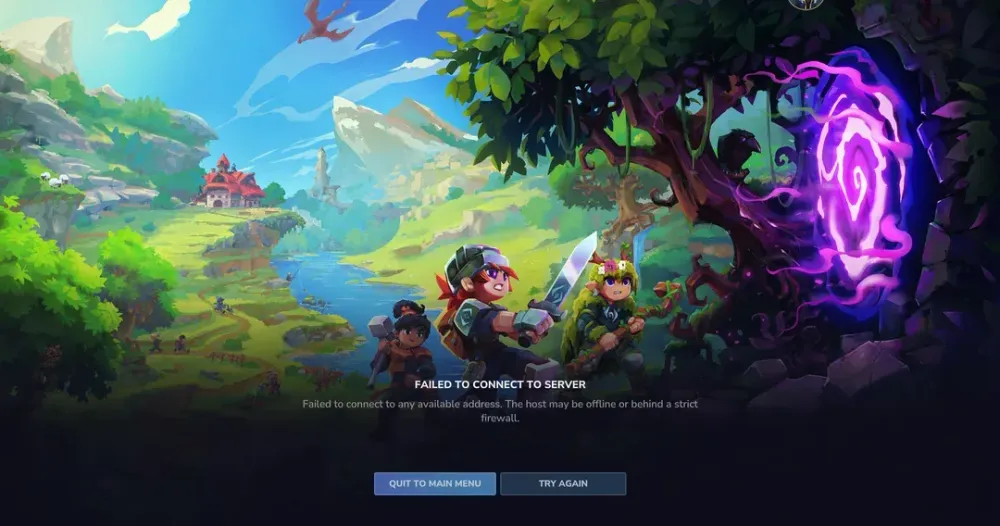
Nothing kills the excitement of diving into Hytale quite like hitting that dreaded “Failed to Connect to Server” message. Whether you’re trying to join friends or explore community servers, connection errors can turn your gaming session into a troubleshooting nightmare. The good news? These issues are usually fixable with the right approach.
What’s Really Causing Your Connection Failures?
Before jumping into fixes, you need to understand what’s blocking your path to multiplayer adventures. Hytale relies on player-hosted servers rather than official ones, which creates unique connection challenges that don’t exist in other games.
The most common culprits include:
System language mismatches causing the infamous I18nModule.getMessages errorFirewall restrictions blocking network trafficRouter configuration issues preventing proper data flowTime synchronization problems disrupting authentication Important
Since Hytale uses community servers, connection stability depends heavily on the host’s setup and network quality.
Fix the Language Bug That’s Breaking Everything
The I18nModule.getMessages error stumps countless players, but it’s actually one of the easiest problems to solve. This occurs when your system language doesn’t match what Hytale expects.
Windows Language Fix
Navigate to Settings > Time & Language > Language & Region and make these critical changes:
Set Windows display language to English (United States)Under Regional format, select English (United States)Restart the game completelymacOS Language Fix
Open System Settings > General > Language & Region and adjust:
Set Primary language to EnglishSet Region to United StatesRestart Hytale
This simple change resolves connection issues for the majority of affected players.
Tame Your Firewall Settings
Windows Defender Firewall often treats Hytale as a potential threat, blocking the connections you need for multiplayer gaming. Here’s how to fix this without compromising your security.
Quick Firewall Test
First, determine if your firewall is the problem:
Search for Windows Defender Firewall in the Start menuClick Turn Windows Defender Firewall on or offTemporarily disable it for both Private and Public networksTest your connection
If this solves the problem, don’t leave your firewall disabled. Instead, create a proper exception.
Firewall exception menu
Create Proper Firewall Exceptions
Return to Windows Defender Firewall and follow these steps:
Click Allow an app through firewallSelect Allow another appBrowse to your Hytale installation folderEnsure both Private and Public boxes are checkedRe-enable your firewallTip
If you’re still having issues, check your antivirus software for similar blocking features.
Synchronize Your System Clock
Authentication failures often stem from time mismatches between your system and the server. This creates handshake problems that prevent successful connections.
Windows Time Sync
Right-click your taskbar clock and select Adjust date/time:
Enable Set time automaticallyClick Sync now to force an immediate updateRestart HytalemacOS Time Sync
Open System Settings > General > Date & Time and enable Set date and time automatically.
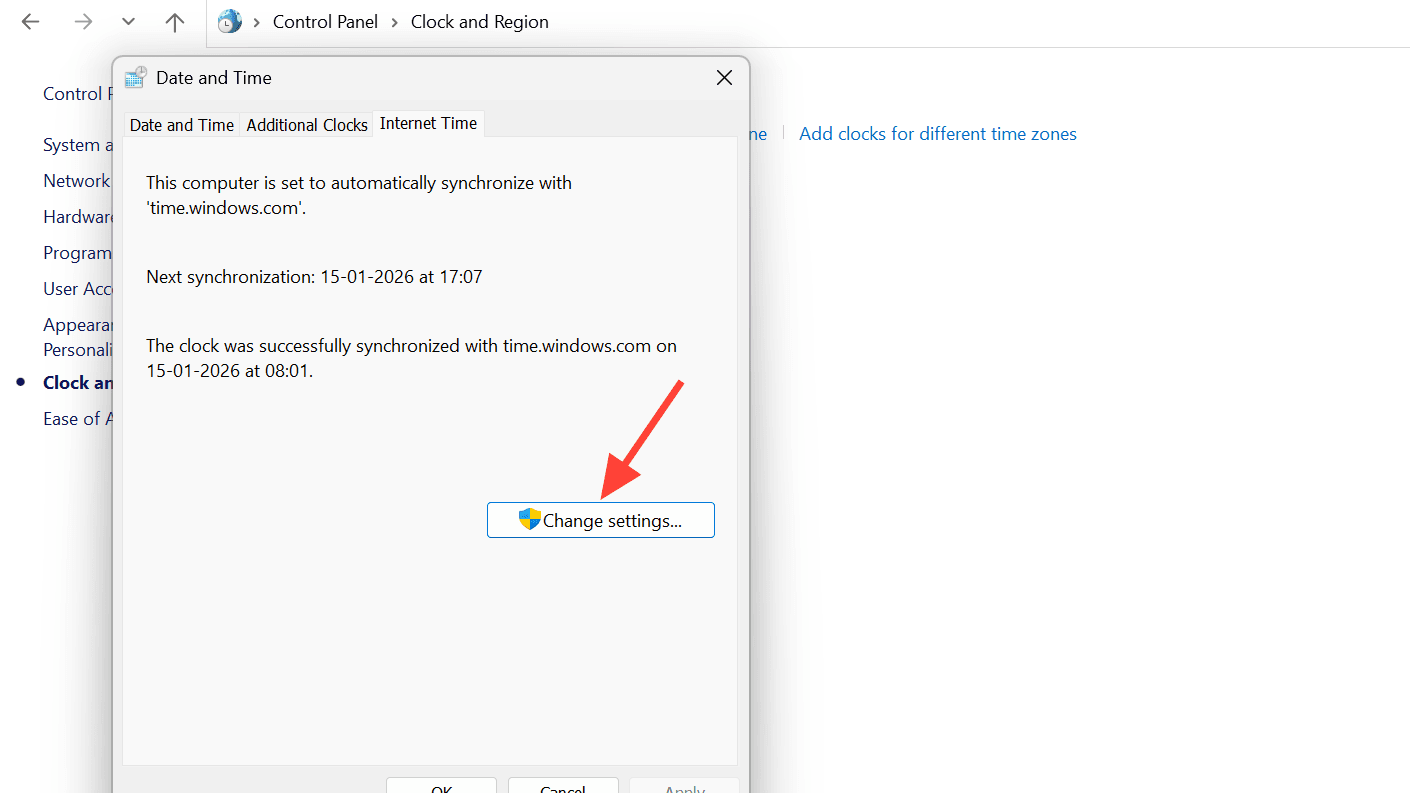
Time sync settings
Network Troubleshooting That Actually Works
When basic fixes fail, you need to dig deeper into network configuration issues that might be blocking your connection.
Router and Modem Reset
Power cycling your network equipment clears temporary conflicts:
Unplug your router and modem for 30 secondsPlug in the modem first, wait for full startupConnect the router and wait for complete initializationTest your Hytale connectionWired vs. Wireless Connections
Ethernet connections provide superior stability compared to Wi-Fi. If possible, connect directly to your router to eliminate wireless interference and packet loss.
Port Forwarding for Server Hosts
If you’re hosting a server and friends can’t connect, port forwarding is likely the solution. This process varies by router manufacturer, but the concept remains consistent.
Basic Port Forwarding StepsAccess your router admin panel (usually 192.168.1.1)Locate the Port Forwarding sectionCreate a new rule with your Hytale server portSet the protocol to TCP/UDPEnter your computer’s local IP addressWarning
Port forwarding can expose your network to security risks. Consider using a dedicated game server hosting service for better security and reliability.
For those seeking a hassle-free multiplayer experience, check out our Hytale Guide: How to Play With Friends & Setup Multiplayer Servers for comprehensive hosting solutions.
Advanced Connection Diagnostics
When standard fixes don’t work, these advanced techniques can identify and resolve stubborn connection problems.
Network Adapter Reset
Sometimes your network adapter gets stuck in an error state:
Open Device ManagerExpand Network adaptersRight-click your active adapterSelect Disable device, wait 10 secondsRight-click again and Enable deviceDNS Configuration
Switching to public DNS servers can resolve connectivity issues:
Primary DNS: 8.8.8.8Secondary DNS: 8.8.4.4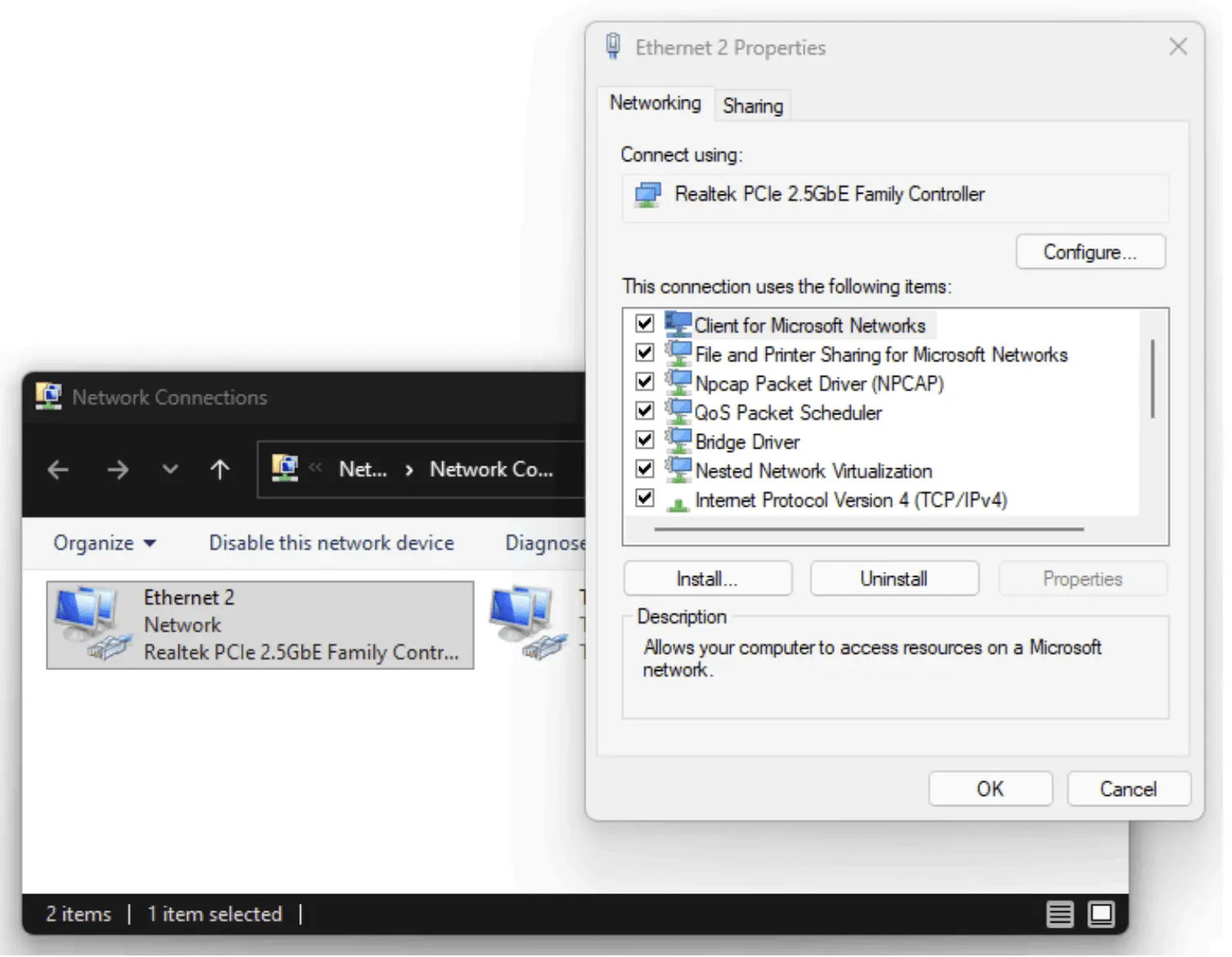
Network adapter settings
Server-Side Troubleshooting
Not all connection problems originate from your end. Server hosts should verify these common issues:
Server Status VerificationConfirm the server is actually runningCheck for error messages in the consoleVerify other players can connect successfullyMonitor server resource usageHost Network Requirements
Server hosts need adequate upload bandwidth and proper router configuration. A stable connection becomes crucial when multiple players depend on your hosting quality.
When Nothing Else Works
If you’ve exhausted all troubleshooting options, consider these final approaches:
Complete Game Reinstall
Sometimes corrupted files cause persistent connection issues:
Uninstall Hytale completelyDelete any remaining game foldersDownload a fresh copyReinstall with administrator privilegesAlternative Network Testing
Try connecting from a different network (mobile hotspot) to isolate whether the problem is network-specific or system-specific.
Info
If other players connect successfully but you can’t, the issue is definitely on your end rather than the server.
Connection problems in Hytale might seem overwhelming, but they’re almost always solvable with systematic troubleshooting. Start with the language fix and firewall adjustments, as these resolve the majority of issues. For persistent problems, work through the network troubleshooting steps methodically.
Remember that Hytale’s reliance on community servers means connection quality varies significantly between hosts. When you find servers that work well, bookmark them for future sessions. With these fixes in your toolkit, you’ll spend less time troubleshooting and more time exploring the incredible worlds that Hytale has to offer.