
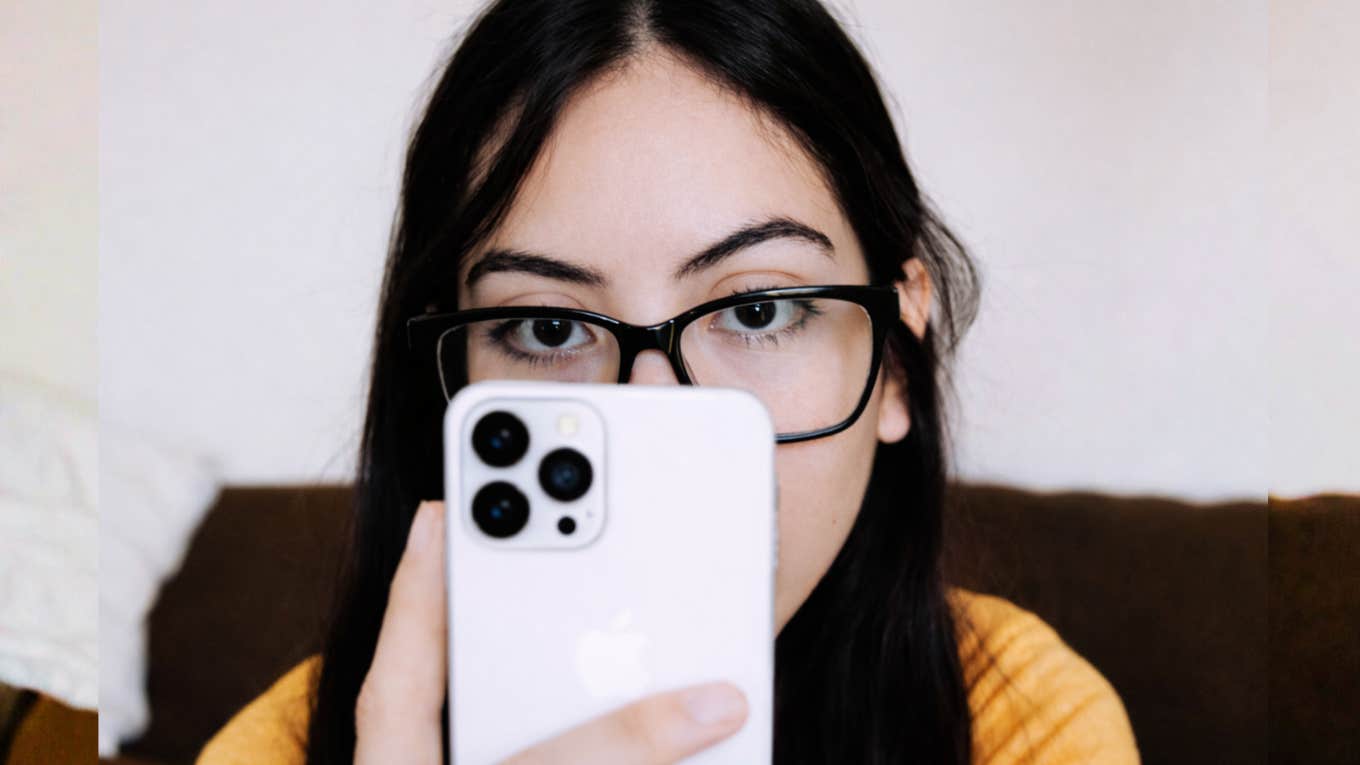
Your iPhone is leaking battery, data, and attention — and you probably don’t even know it. I realized something uncomfortable this morning. was looking at my battery stats, wondering why my phone felt sluggish by 2 p.m., and it hit me: I haven’t truly audited my iPhone’s settings in years. I’ve just been transferring the same digital clutter from one upgrade to the next.
We are moving fast toward a world where digital privacy and attention are our most expensive assets. I didn’t want to wait until 2026 to start protecting mine. Before changing anything, I set a few rules for myself.
Device: iPhone 15 Pro, iOS 17.xDuration: 7 full daysUsage: Same apps, same routines — no “digital detox” tricksGoal: Improve battery life and reduce background data use without breaking daily usability
I didn’t install new apps, reset my phone, or change Low Power Mode settings. I wanted to see what settings alone could realistically fix to save battery and privacy. Each night, I checked:
Battery percentage at 9 a.m. and 9 p.m.Screen Time totalsWhether anything felt slower, broken, or annoying enough to undoI audited my iPhone, and changing these five settings instantly saved battery and privacy:1. Background app refresh
I expected this to be a small win. It wasn’t.
Before:
By mid-afternoon, my battery was usually hovering around 38–42% on a normal workday.
After switching Background App Refresh to Wi-Fi only, I tracked battery levels for a week.
After:
At the same time of day, I was consistently ending up between 55–60%.
The surprise wasn’t just battery life — it was what didn’t break.
Notifications still arrived on timeMaps were still refreshed when I needed themThe only app that felt slower was Instagram — and only on cellular
That tradeoff felt worth it. This was the single change I kept without hesitation.
The Fix:
Go to Settings > General > Background App Refresh.Tap the top menu, then switch to Wi-Fi.
Now, your apps update silently when you are at home or the office (connected to power and Wi-Fi), but they stop draining your life force when you are out and about. It is a massive battery saver that doesn’t break your notifications.
2. Significant Locations setting
 Orhan Pergel / Pexels
Halfway through the experiment, I reconsidered turning Significant Locations back on. CarPlay ETA predictions were slightly less accurate during my commute, and Apple’s “leave now” suggestions disappeared.
I stuck with it anyway. The privacy tradeoff mattered more to me than convenience — but this was the first time I actually felt the cost of turning a system feature off.
The Real Result
This wasn’t about finding “hidden” settings. It was about realizing how many defaults quietly trade battery and attention for convenience — and how rarely we question them once they’re on.
Not every change was invisible.
Not every improvement was dramatic.
But after a week, my phone felt like mine again — not just a device optimized for someone else’s assumptions.
What I Changed
Go to Settings > Privacy & Security > Location Services.
Tap System Services.
Tap Significant Locations & Routes (you’ll need FaceID to enter).
Clear History, then toggle off.
Your maps will still work fine. Your GPS is still accurate. You just stopped carrying a digital diary of your physical movements.
3. The “noise” setting (tracking requests)
Do you love opening a new app and immediately being bombarded by a pop-up asking you to track your activity? I left this off for the full week and didn’t miss a single app feature.
I didn’t think so. Allowing apps to ask is just adding friction to your day. It’s decision fatigue you don’t need. By default, I want the answer to be “No.”
What I Changed
Go to Settings > Privacy & Security > Tracking.
Select Allow Apps to Continue Tracking or Ask Apps to Stop Tracking (Your Choice)Turn OFF “Allow Apps to Request to Track.”
When you turn this off, apps are automatically blocked from tracking you using that specific identifier (IDFA), and they don’t even get to ask. It silences the pop-ups and protects your data by default.
4. The “free labor” setting (iPhone analytics)
 the northen lense / Pexels
I paid a lot of money for my iPhone. I don’t feel the need to also work for Apple for free as a data tester.
By default, your phone sends daily diagnostic and usage data to Apple. While this is anonymized, it uses your battery and your data plan to upload these reports. If you want to maximize your device’s efficiency, you don’t need to be sending this telemetry.
After a few days, I forgot this setting even existed — which tells you how little it mattered.
What I Changed
Go to Settings > Privacy & Security > Analytics & Improvements.
Toggle OFF “Share iPhone Analytics.”
This stops your phone from constantly compiling reports in the background. It’s a small change, but it adds up.
5. The “flow killer” setting (in-app ratings)
There is nothing worse than being in the middle of a task — booking a flight, editing a photo, or checking a bank balance — and having a pop-up scream: “Do you love this app? Rate us 5 stars!”
This didn’t save battery, but it noticeably reduced daily interruptions. It breaks your flow. It’s digital nagging.
I realized I was closing these pop-ups daily, only to get frustrated every time. Then I found out you can silence them forever.
What I Changed
Go to Settings > Apps > App Store.Toggle OFF “In-App Ratings & Reviews.”
You can still rate apps if you want to by going to the App Store manually. But now, you do it on your terms, not when an app decides to interrupt you.
The Takeaway
Most of us treat our iPhones like storage units — adding more apps, more features, more noise — without ever checking what’s silently draining us. These five fixes didn’t just save battery life. They helped me reclaim attention, privacy, and digital peace.
K. Anik is a tech writer with a focused interest in Apple, Artificial Intelligence, and Technology. He translates complex technology into clear, practical insights that help everyday users and professionals make better decisions.
Related Stories From YourTango: