
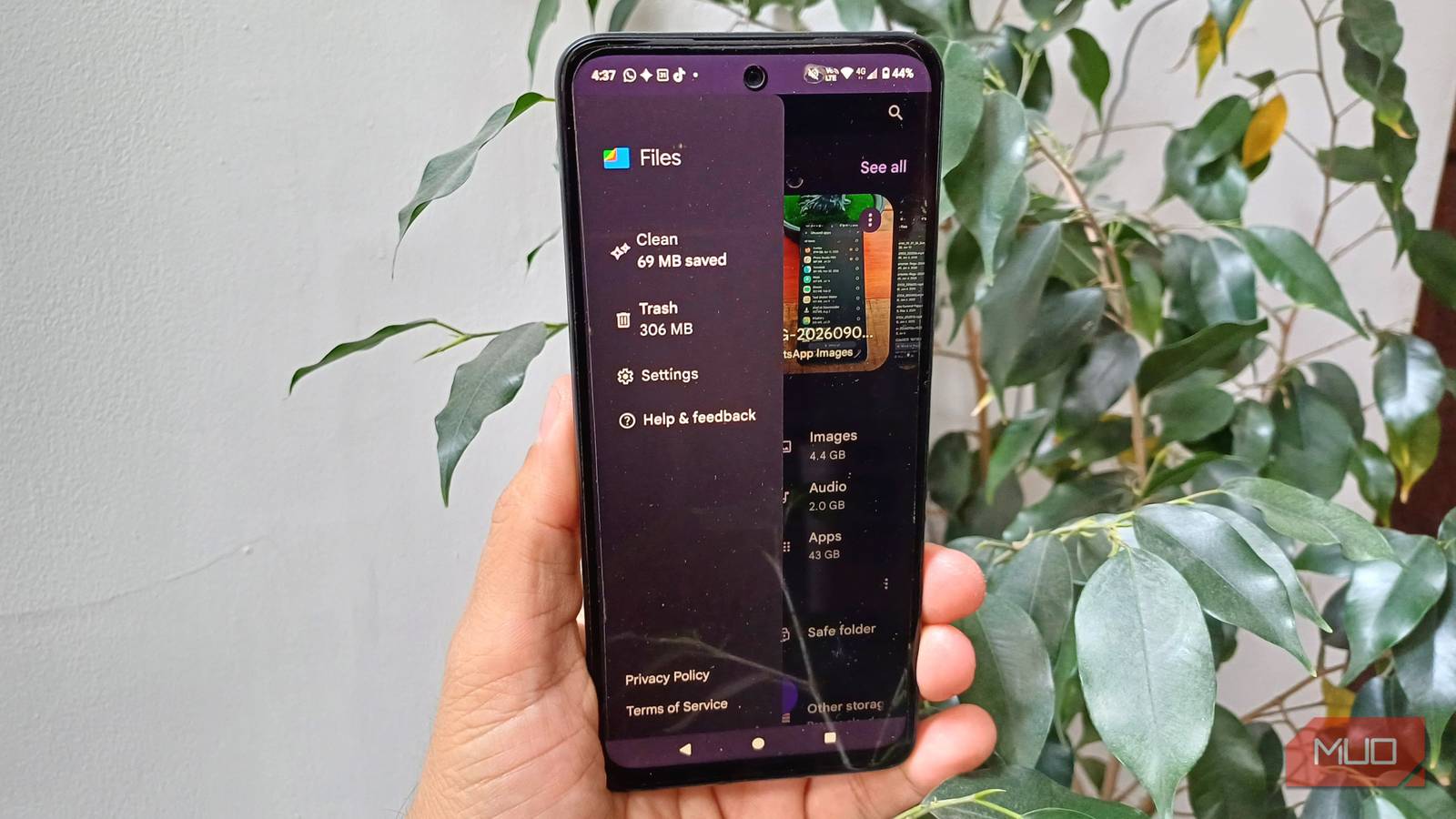
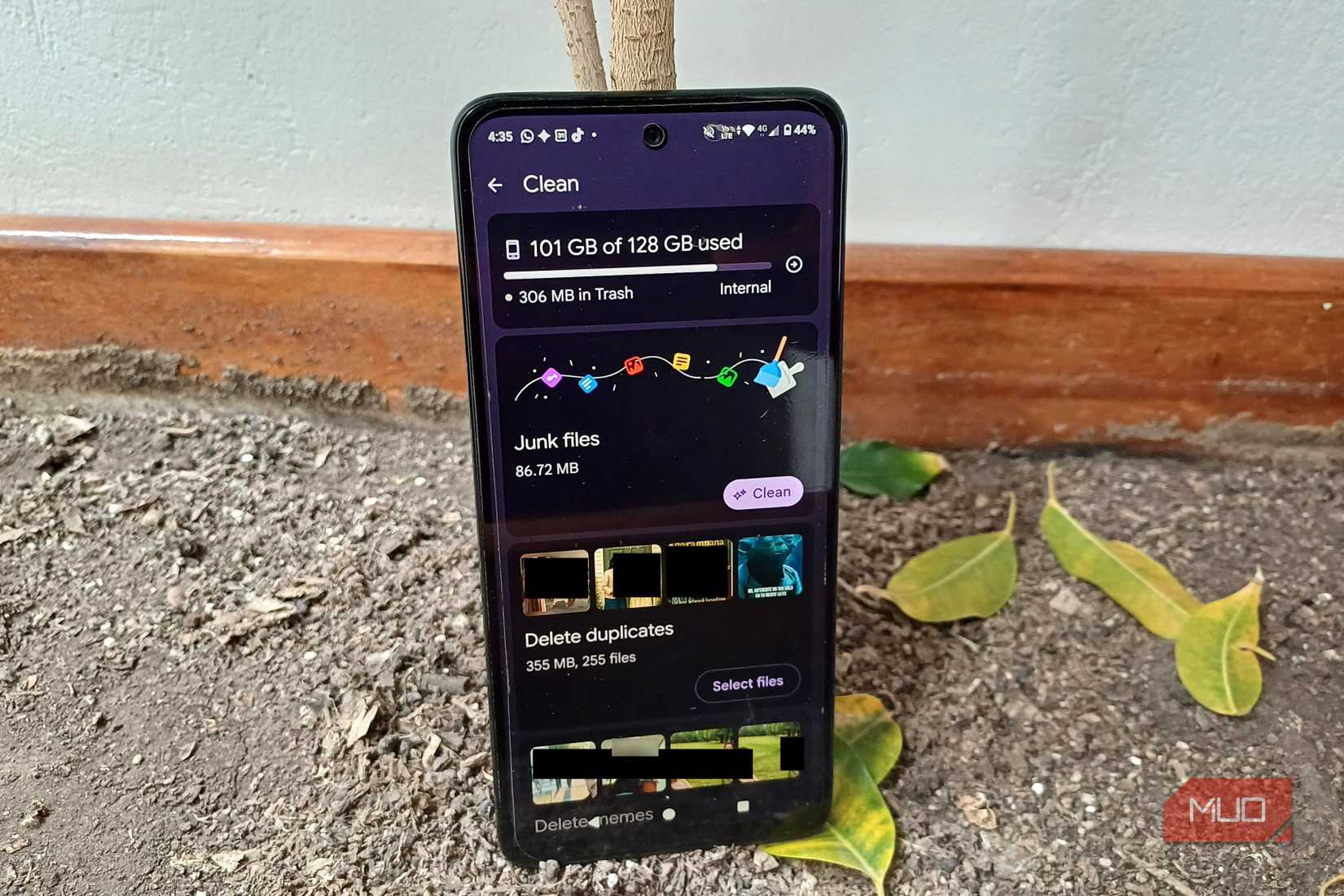
I thought I had my Moto G14’s storage under control. I already use a few of the usual ways to make space when phone storage gets full, like deleting videos, pictures, and apps every so often, so I wasn’t expecting Files to prove me wrong. Then, when I opened the Clean section and saw how much space I had used, I thought there must be some kind of mistake. I have to admit that I was surprised by what was hogging most of my storage, and it wasn’t what I initially thought.
I knew I had some large files, just not this many
They were taking up almost 15GB without me realizing it
Files proved me wrong pretty fast when I saw that I had 14.90GB under Large files. I knew I had quite a few of them, but I had no idea it was nearly 15GB. I clean out videos and other files every once in a while, so I thought I was doing a decent job of keeping the bigger stuff under control. Clearly, I was only getting rid of some of it. That’s space I can use for more recent and important files, since after reviewing them, I saw how old they were. Seeing 389 large files altogether made it even harder to dismiss as just a handful of videos I had forgotten about. By tapping the Select files button, I can browse the previews and see which ones I need to delete.
Files lets me sort them in several ways:
Newest first or Oldest first
Largest first or Smallest
A-Z, and Z-A
Changing the preview size is also a huge help, as I can choose larger previews that give me a better idea of what the video is about. That way, I don’t accidentally erase a video I want to keep. Instead of randomly deleting a few large files and assuming I’ve made enough space, I can see exactly how much space this category is taking up and work through the largest or oldest files first.
I didn’t think my unused apps were taking up that much room
Files showed me they added up to 5.07GB
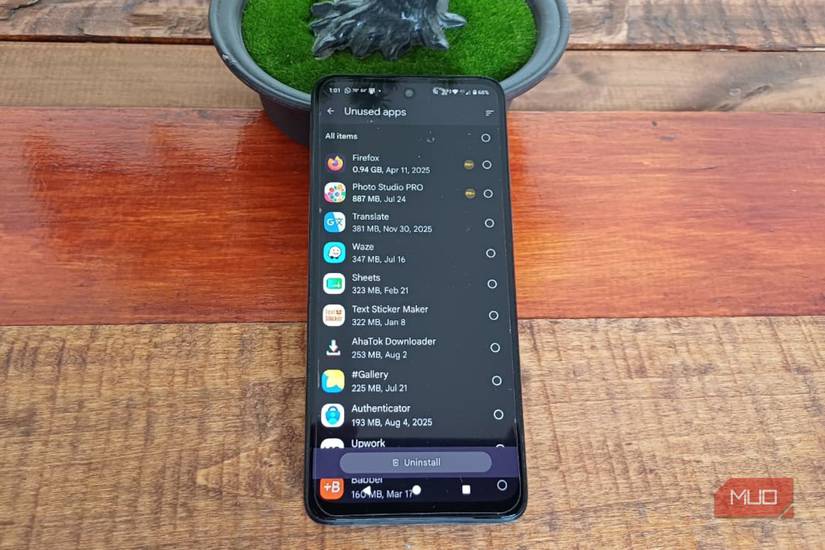
I sat there for a moment in shock at how much space the unused apps were taking up. I knew I had a few, but it never crossed my mind that the grand total would be 5.07GB. I thought unused apps were a minor problem on my phone, not something stealthily taking up more than 5GB. The number made me instantly tap the Select apps button to see what was taking up all that space. I could choose how the apps were listed, just like with the large files, so I went with Largest first. That way, the largest apps were easier to find.
I saw that the largest one on the list was Firefox, taking up 0.94GB, followed by Photo Studio PRO at 888 MB. I saw various apps I’d forgotten I even had, and even though they weren’t among the biggest, I was still going to delete them. Files helped me see which unused apps were taking up the most space instead of making me guess. My storage was reaching its limit, and I had to decide which apps or files had to go. Seeing those numbers gave me a much better place to start rather than blindly deleting things I might actually need or use later.
Files showed me just how close I was to my phone’s storage limit
The 101GB total made me rethink even the apps I still use
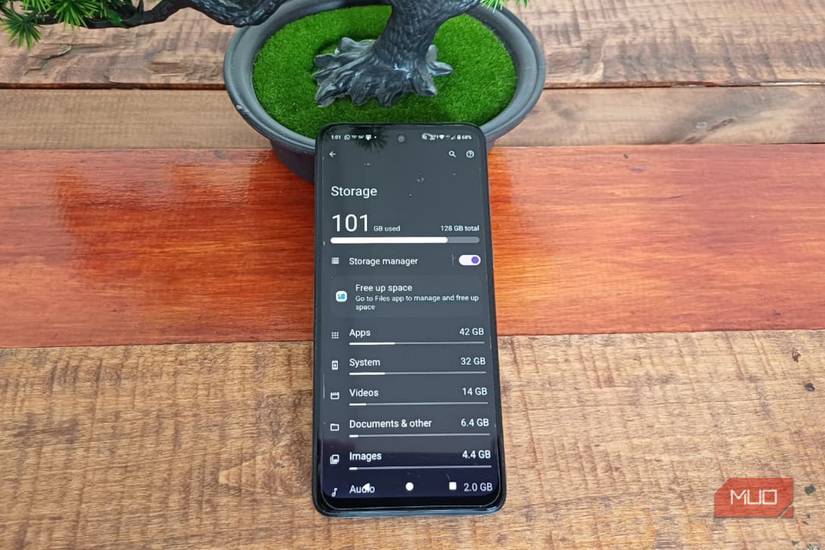
I also couldn’t believe how close I was to reaching my phone’s storage limit. My Moto G14 has 128GB of storage, and I’m already using about 101GB. I knew I had to start doing some serious cleaning. I delete pictures and videos I know I won’t need, but sometimes I forget, and they just sit there taking up space. Seeing that storage indicator in Files made me realize I didn’t have things as under control as I thought.
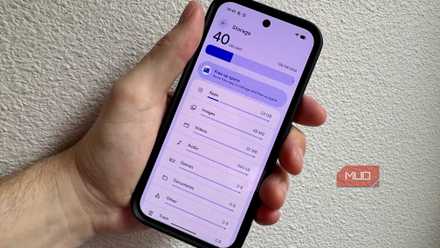
Tapping the storage indicator in Files opens Android’s Storage settings. That’s where the category breakdown below comes from.
Tapping it took me to Android’s Storage settings, where I could see where all that space was actually going. Apps were taking up 42GB, videos 14GB, docs 6.2GB, and images another 4.4GB. That 42GB in apps really stood out to me. Pointing out unused apps is one thing, but now I’m also looking at the apps I do use and wondering whether some of them are really worth the space. If I only open an app every once in a while, and it’s taking up more space than I’d like, it’s time to think twice about keeping it.
Files can only tell me so much about what I should delete
A preview doesn’t always show me why I kept a video
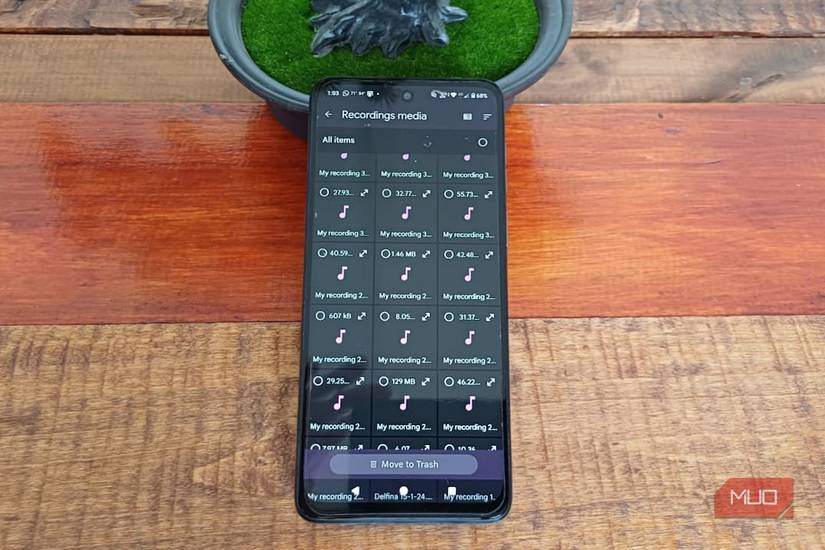
I’m not going to deny that Files is great at pointing out what’s taking up the majority of your storage. At least in my case, I could see whether I had too many apps, docs, videos, or pictures, and get a better idea of where to start deleting unnecessary files. However, even though Files does show you a preview of a video or image, it still falls short of giving you the full context of the file.
For example, you could be holding onto an old video because in the last 10 seconds, a dear pet you had years ago appears. Maybe it was a video a family member sent you, and you’re keeping it for sentimental value. But the preview might show you nothing, and even watching the first few seconds might not remind you why you kept it in the first place. Files can show me what’s taking up space, but it can’t really tell me why I kept something or whether it still means enough to me to keep it.
Related
I looked for Android’s “Other” storage mystery, and it wasn’t there
Other people’s phones are part of a decade-old, still-unsolved case.
At least Files tells me where to look first
Starting with recent files makes that 15GB pile easier to work through
True, the preview you get in Files doesn’t really give you much context on why you may have saved the file in the first place. But at least for me, that’s not the biggest problem. It would be worse to accidentally delete something important just because I’m rushing to make space for other files that might be less important. Files at least gives me a good starting point by showing me what’s taking up the most storage.
For example, I knew I had a lot of files, but I didn’t know almost 15GB was tied up in large files. So that’s where I’ll start looking first. I can start with the most recent files too, since I’m more likely to remember why I saved those than something that’s been sitting there for weeks or maybe even months. Files has no way of knowing what’s more important to me, but at least I’m not going in blind. And since I still have some storage left, I can take my time and start deleting unnecessary files when I have some free time.
Now I know where to start
Files didn’t clean my phone for me, but it did stop me from guessing where most of my storage was going. Now I know the biggest storage hogs are my large files and apps, so I’ll start there instead of deleting things at random.