
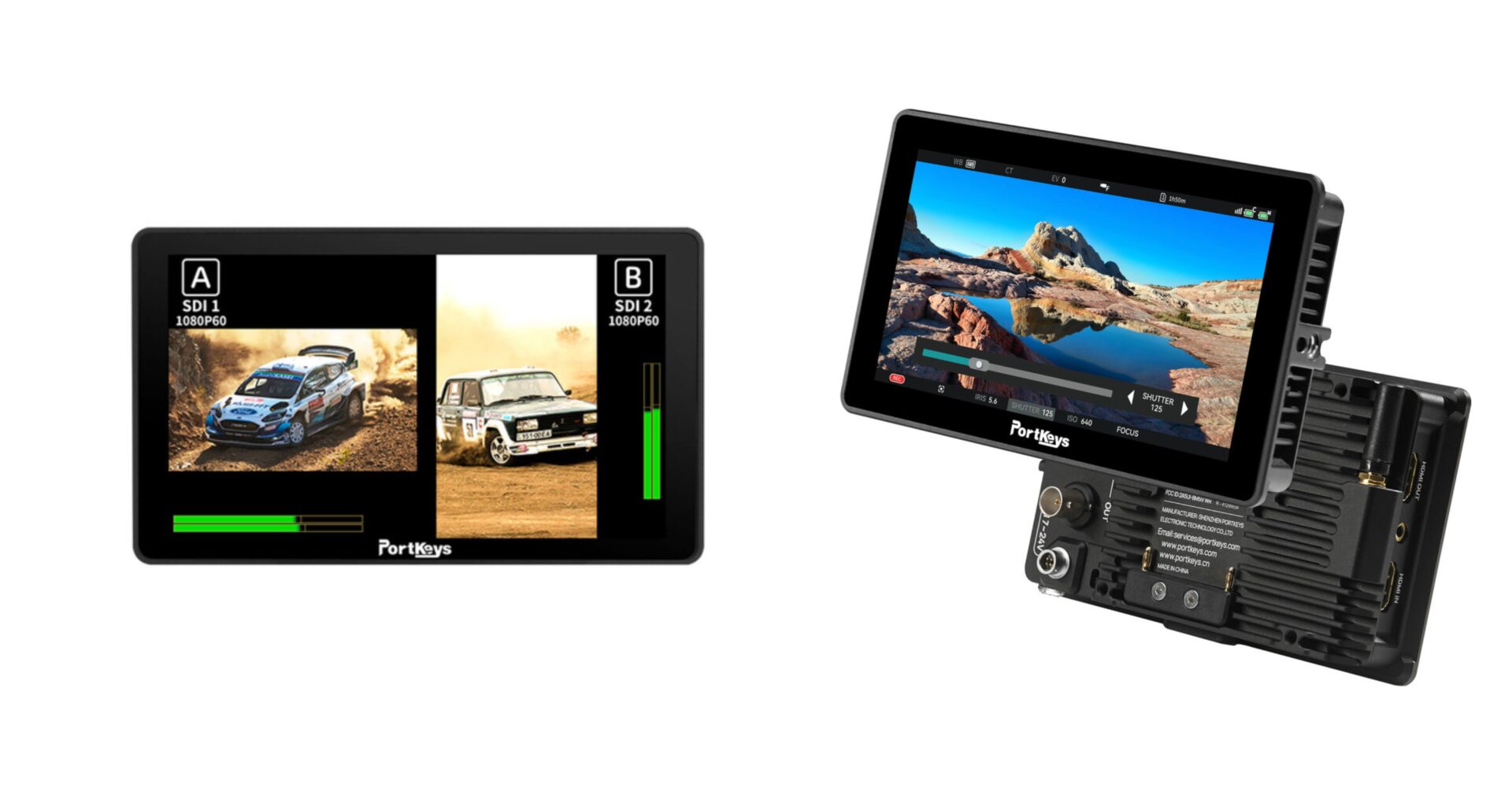
PORTKEYS has put out a tutorial video showing you how to do firmware updates with their CINENORM system monitor series, which includes the BM5 IV, BM5 IV WR, and BM7 II DS. It’s good to see PORTKEYS producing a ton of informative videos that help with set-up and operation. More companies should be doing the same!
Preparation Steps:
USB Drive: Use a USB 2.0 drive (maximum 64 GB) formatted as FAT32 or FAT.
Download: Visit the official Portkeys website, navigate to Support, then Firmware Upgrade, and download the file for your specific monitor model.
Setup: Extract the downloaded file and ensure the .bin files are placed in the root directory of the USB drive.
Upgrade Process:
Power: Ensure the monitor has a sufficient battery charge before beginning.
Connection: Insert the USB drive into the monitor’s port.
Navigation: Go to Settings > Monitor Settings > swipe up > Firmware.
Execution: Select Upgrade and confirm Yes.
Important Warnings:
Do not power off or operate the device while the progress bar is active, as this could interrupt the update.
Once finished, verify that the installed firmware version matches the one you downloaded.
CINENORM OS
PORTKEYS CINENORM OS operating system is based around a custom page system. Users can access seven custom pages to add and store their favorite monitoring tools. Monitor settings can be saved on a USB stick, so you can import and load your user profile to any Portkeys monitor running CINENORM OS.
All monitor tools have been categorized into six categories: exposure, focus, waveform, monitoring, color mixing, and dual screen. This categorization makes searching, finding, and adding tools to each page faster without browsing all of the 25+ monitoring tools.
PORTKEYS monitors with camera control capabilities can adjust the settings and control more than 80 camera models from eight different brands. With CINENORM, a camera control category has been added to allow users to check their wired/wireless camera connection settings quickly. Also, the appropriate connection method for each camera is displayed in the camera control menu.