
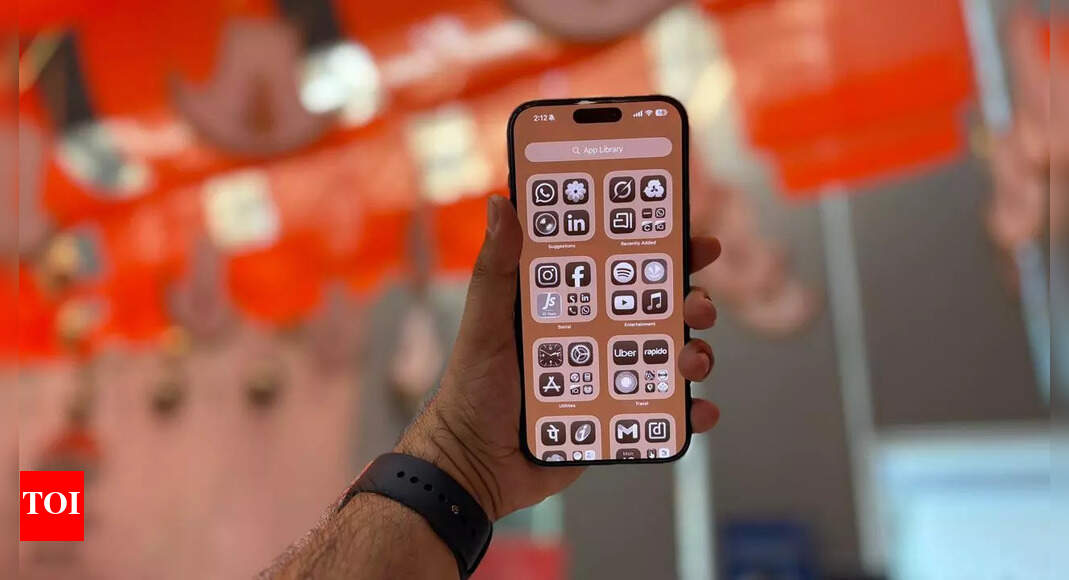
 iPhones offer built-in privacy features that let users monitor and control which apps can access their camera, microphone or location. These indicators and settings help users maintain privacy by revealing when apps are actively listening or tracking, enabling them to manage permissions accordingly. The feature provides real-time visual indicators and detailed permission controls within the iPhone’s Settings app. Understanding how to access and interpret these signals can help users protect their personal information and ensure that apps access only what’s necessary for their functions. But first, you need to know about the real-time privacy indicators that help iPhone users to identify which apps are actively using their microphone, camera, and location or tracking activity on other apps:.
Real-time privacy indicators on iPhone
iPhones display coloured dots and icons in the status bar to alert users when their microphone, camera, or location is being accessed:Orange dot: Appears in the top-right corner whenever an app is actively using your microphone.Green dot: Indicates the camera is in use, or both the camera and the microphone are being accessed simultaneously.Arrow icon: Shows when an app or system service is using your location. A purple arrow means recent use; a grey arrow indicates use within the last 24 hours.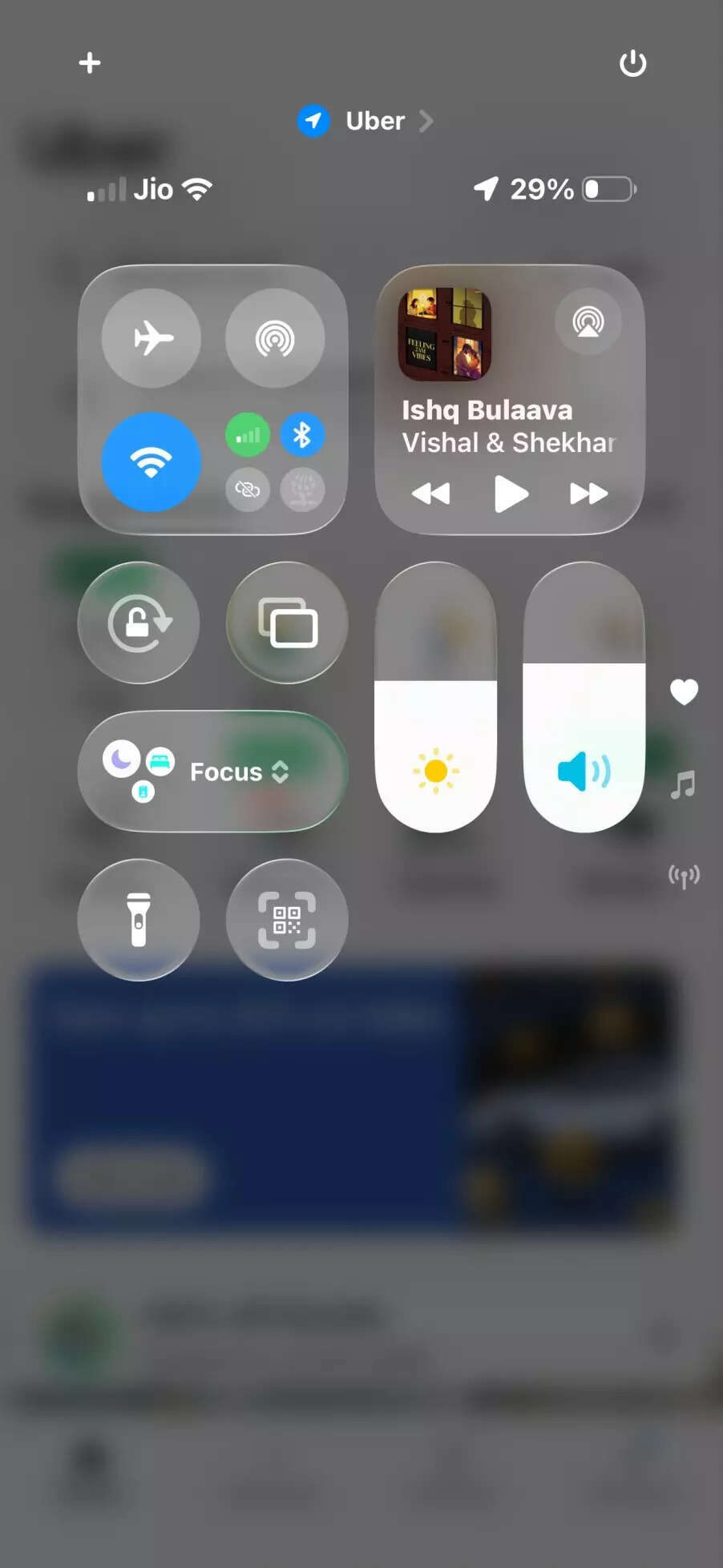 To identify which app triggered these indicators, open Control Centre by swiping down from the top-right corner (on Face ID devices) or swiping up from the bottom (on Home button devices). The app’s name and icon will appear at the top.
How to check location tracking permissions
To review which apps have access to your location and manage their permissions:Open Settings and tap Privacy & SecuritySelect Location ServicesScroll through the list of apps to see their permission status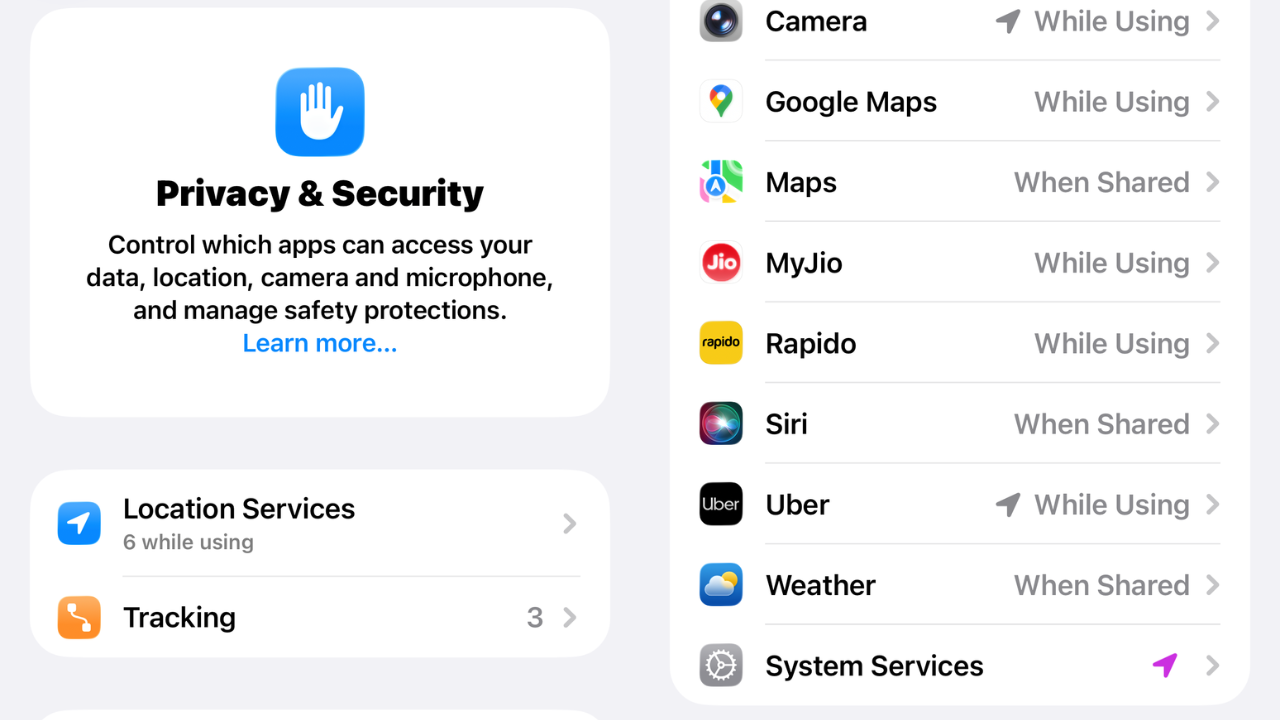 Look for the arrow indicators:Purple arrow: App recently used your locationGrey arrow: App used your location within the last 24 hoursTap any app to view details, including when it was last usedChange permission levels: “Never,” “While Using the App,” or “Always”Toggle “Precise Location” on or off depending on whether the app needs your exact locationScroll to the bottom and tap System Services to review which built-in iPhone features use location
How to check microphone and camera access
To see which apps have permission to use your microphone or camera:Go to Settings > Privacy & SecurityTap the Microphone to see all apps with microphone accessTap Camera to view apps with camera accessToggle off the switch next to any app to revoke its permission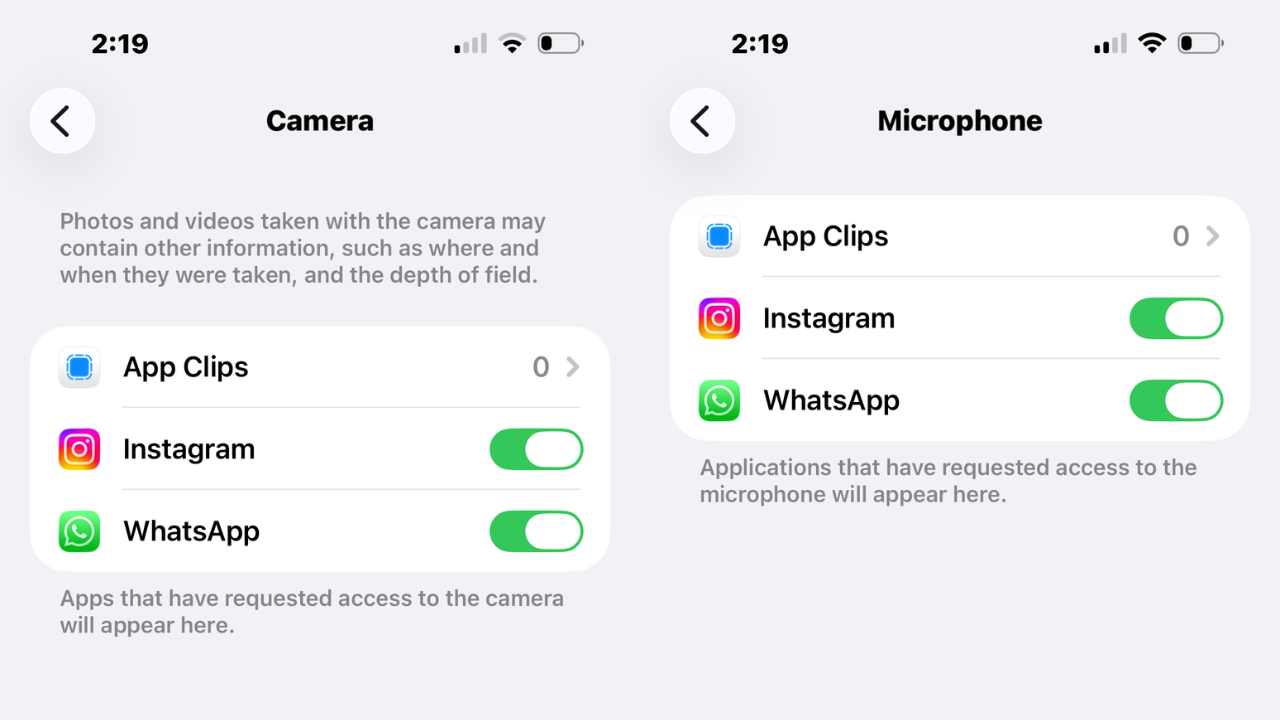 Apps must request permission before accessing these features and explain why they need access. You can review and change these permissions at any time.
How to monitor cross-app tracking
To check which apps are tracking your activity across other apps and websites:Navigate to Settings > Privacy & Security > TrackingReview the list of apps that have requested tracking permissionTurn tracking on or off for individual appsToggle off Allow Apps to Request to Track at the top to stop all future tracking requests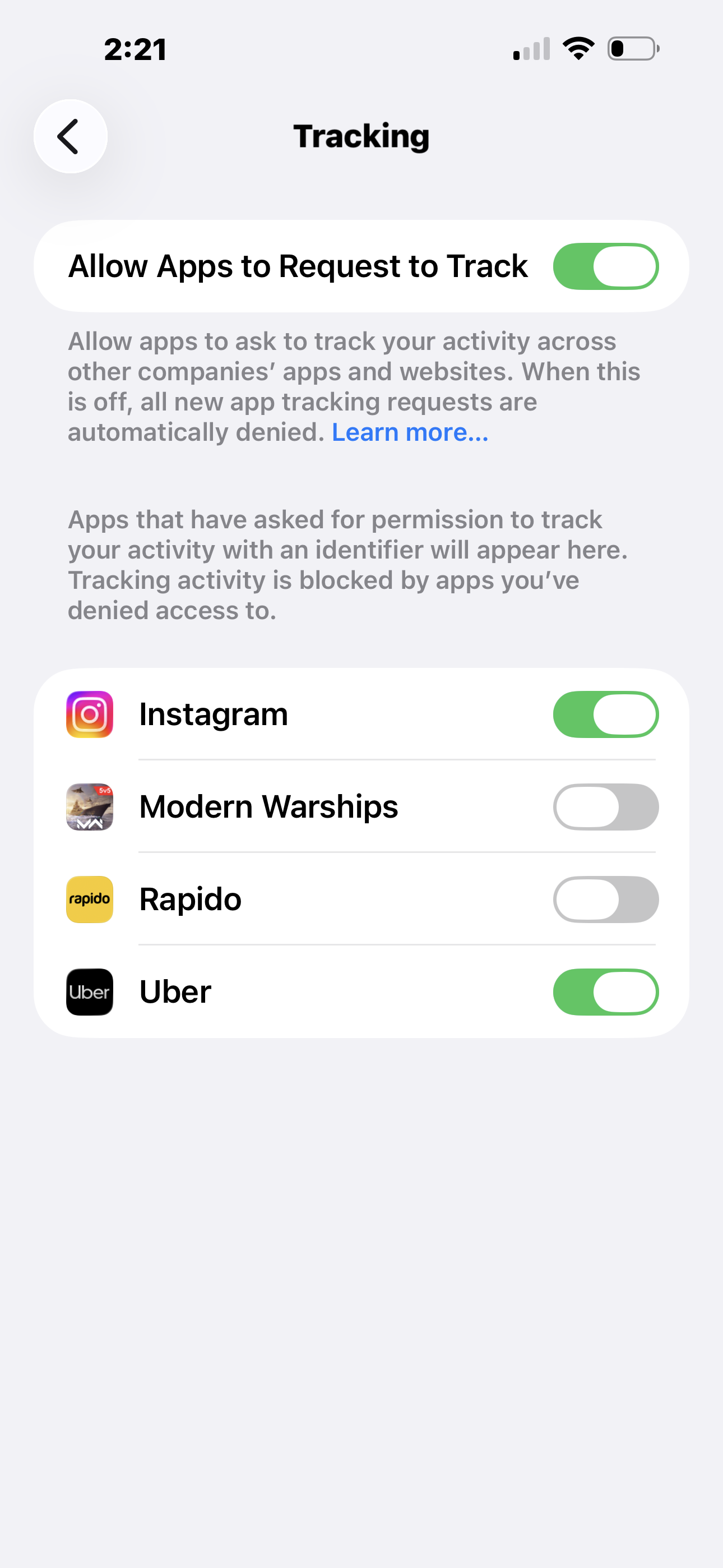
How to use App Privacy Report for a detailed history
For a comprehensive seven-day overview of how apps have used your data:Go to Settings > Privacy & SecurityScroll to the bottom and tap App Privacy ReportTurn on the feature if it’s your first time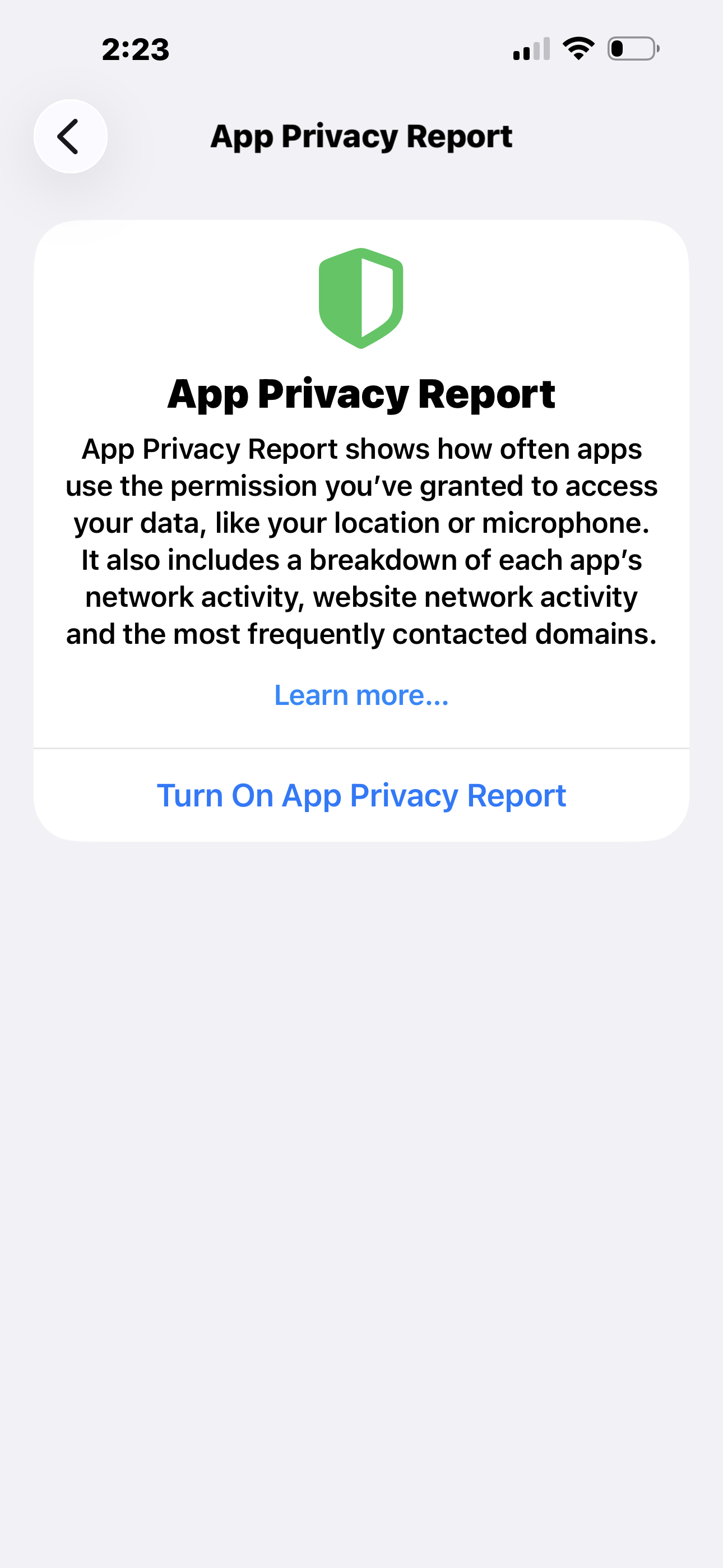 View which apps accessed your microphone, location, photos, and other data, including timestamps
What to do if you spot unusual activity
iPhone’s privacy features allow users to maintain control over their personal information. If you notice suspicious app behaviour:Revoke permissions for apps that don’t need access to function (for example, a calculator requesting microphone access)Delete unfamiliar apps you don’t remember installingKeep iOS updated to ensure you have the latest privacy and security protectionsRegularly review the App Privacy Report to stay informed about app behaviourBy actively monitoring these indicators and managing permissions, users can ensure their iPhone only shares information with trusted apps that genuinely require access to provide their intended services.