
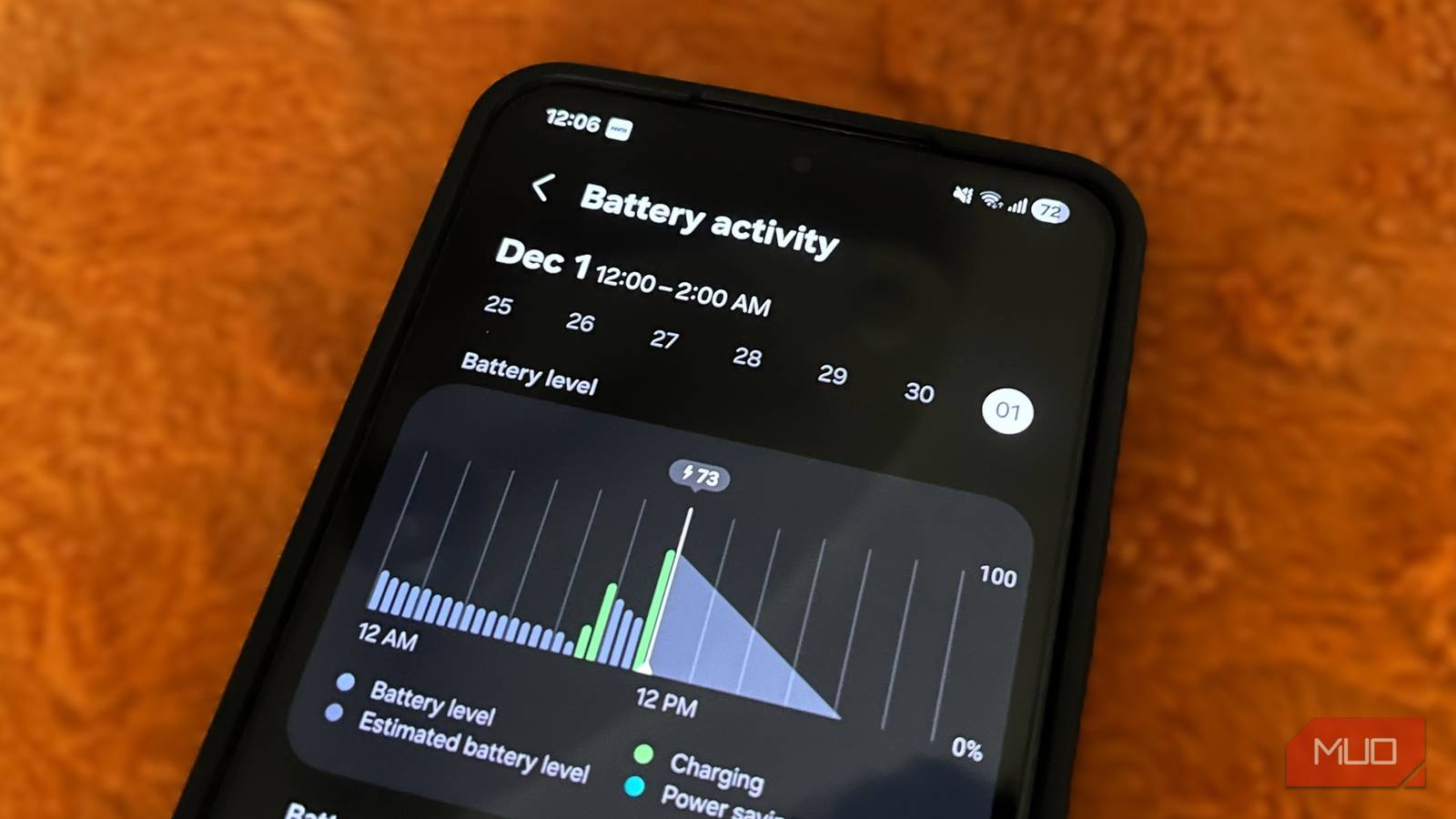
My phone and I had a complicated relationship. I gave it attention, kept it updated, bought new cases for it, and in return… it would die before dinner. For a while, I blamed the apps, software updates, even its battery health. But what eventually worked wonders for me was changing the tiny habits that I never thought twice about.
Once I tweaked my phone’s display settings, turned off unnecessary haptic feedback, and reduced the number of widgets scattered across my home screen, I started noticing real improvements. And the best part is that none of these changes felt like sacrifices.
Keep the brightness low and consistent
A small tweak that makes a big difference
Credit: Sergio Rodriguez / MakeUseOf
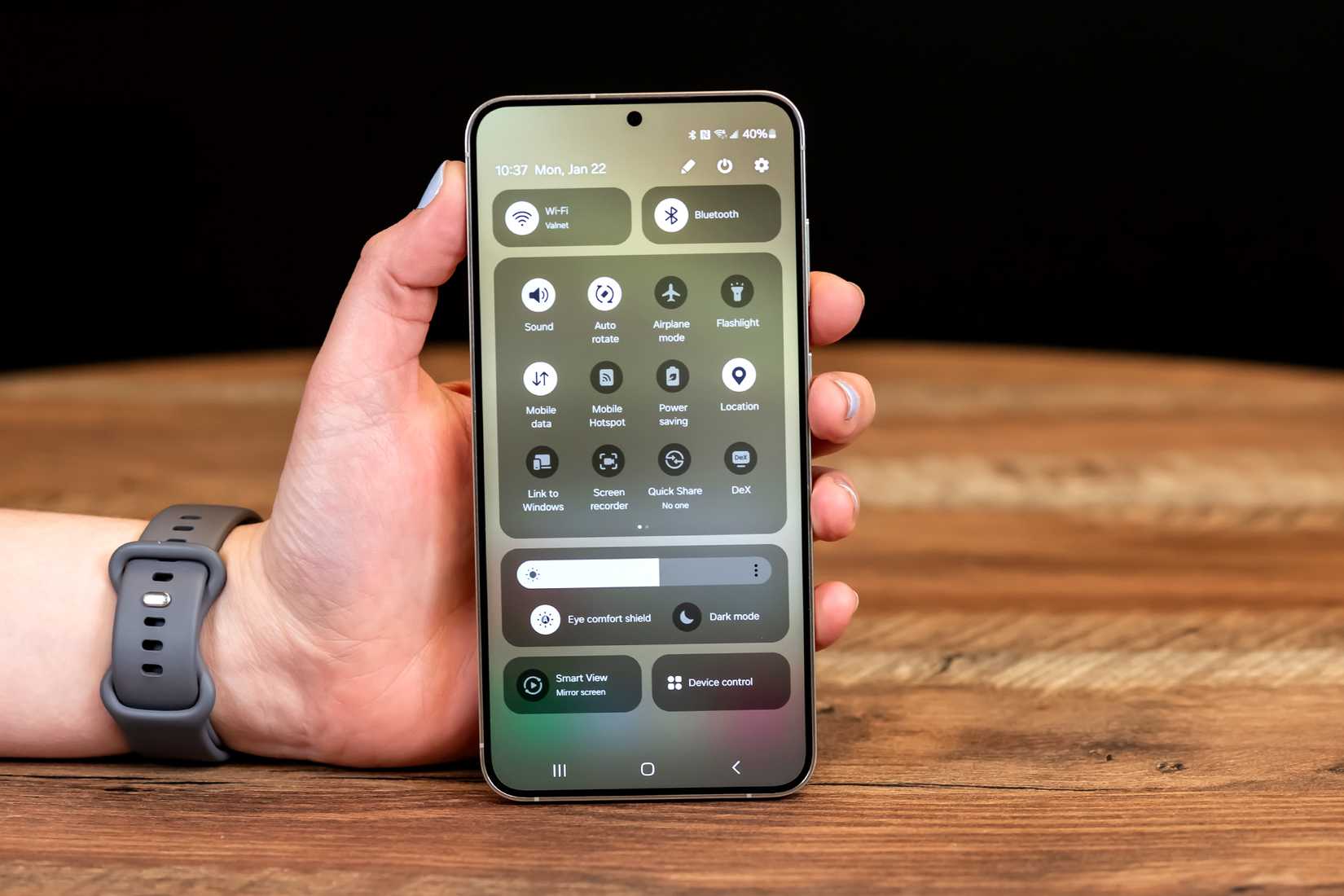
Your phone’s display affects the battery life more than anything. And that also means tweaking the display settings is one of the most effective ways to squeeze more hours out of every charge. Most people don’t notice how often they crank the brightness up and leave it that way. That tiny change keeps draining the battery for the rest of the day and gives you nothing in return.
One way to solve this is by turning on adaptive brightness, so your phone can adjust things for you. But keep in mind that this feature learns from your habits. If you constantly bump the brightness higher than what’s needed, your phone assumes that’s what you want and starts doing it automatically.
To avoid this, try keeping your screen at a comfortable low level and only raise it when absolutely necessary. Over time, adaptive brightness will adjust to your calmer habits.
Use dark mode everywhere
A simple switch that pays off
Dark mode isn’t just a style choice. On modern Android phones with OLED or AMOLED screens, it can noticeably stretch battery life. That’s because in dark mode, these displays only light up individual pixels instead of the entire panel, so when a part of the screen shows black, many of the pixels turn off completely. And fewer lit pixels means less power used.
The trick is to use dark mode everywhere you reasonably can. You can turn it on system-wide and set your apps to follow the system theme so you’re not bouncing between light and dark screens.
Another benefit of dark mode is that it feels easier on the eyes, especially at night or in low light. That means you’re less likely to raise the brightness to compensate. It’s a win all around.
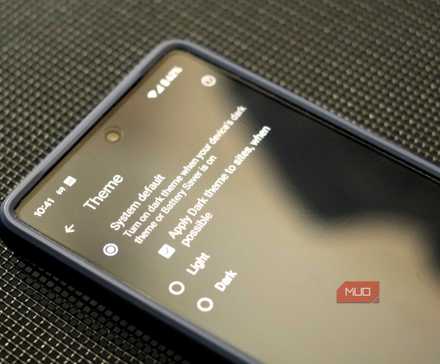
How to Enable Dark Mode for Google Chrome and All Websites on Android
Chrome on Android comes with two dark mode options, including a hidden setting that lets you view all websites with a dark theme.
Shorten screen timeout
Don’t let your screen stay awake when you’re not
Pankil Shah / MakeUseOfCredit: Pankil Shah / MakeUseOf
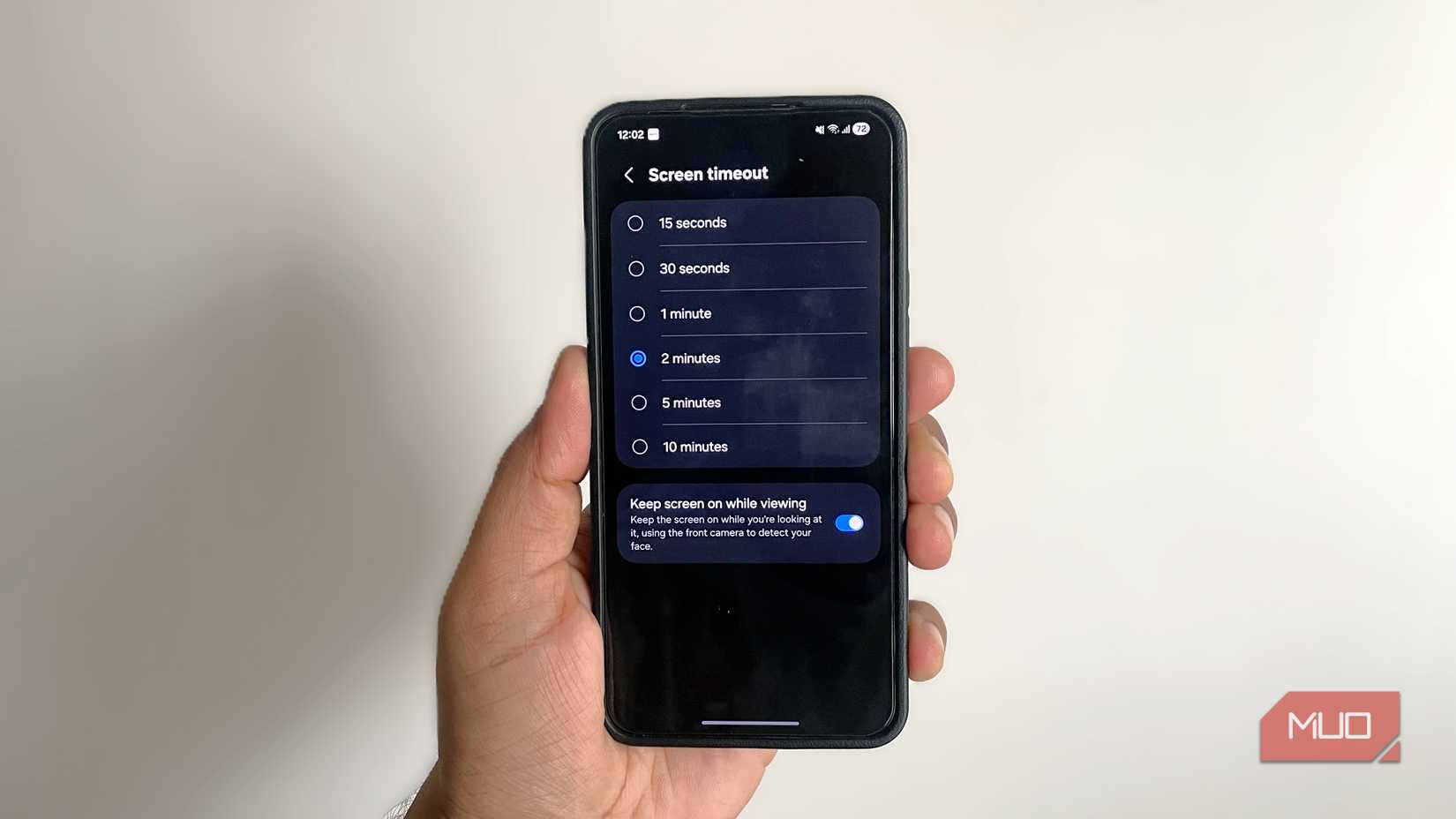
Another silent battery killer is your phone’s screen timeout. Think about it. Every time you put your phone down without locking it, the screen stays on longer than necessary. Those extra seconds may not seem like a lot, but when that happens dozens of times a day, it can all add up.
Shortening the screen timeout can help fix that. Drop it to something like 15 or 30 seconds. You’ll barely notice the change, but your battery absolutely will. And if you’re worried about this causing your screen to turn off when you’re reading something or admiring a picture, Android offers a solution for that too.
You can turn Keep screen on while viewing. This setting uses the front camera to detect whether you’re looking at the screen. If you are, it stays awake.
Disable keyboard sounds and haptics feedback
Your thumbs don’t need a drum solo to type
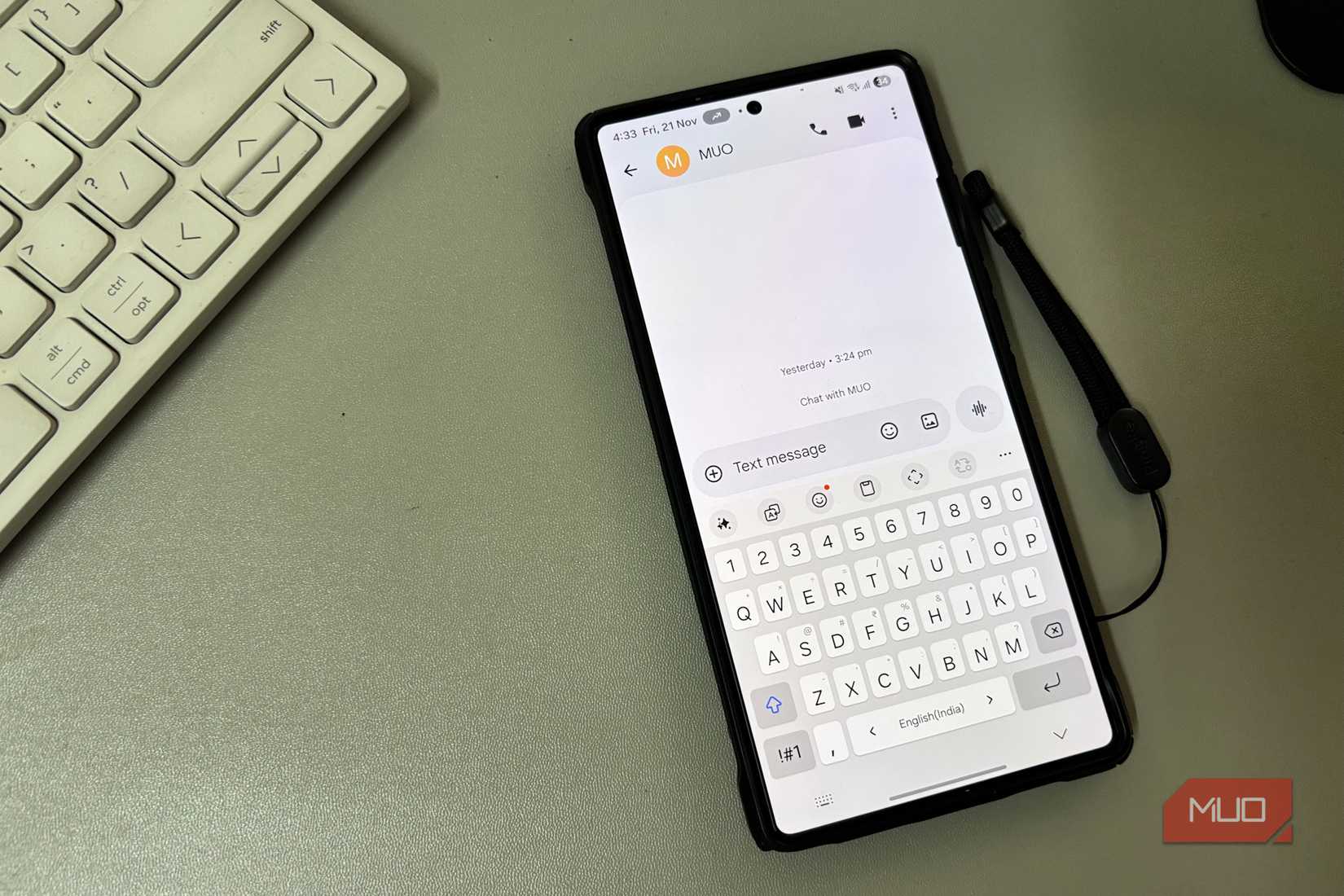
By default, your phone’s keyboard makes little clicks and gives you tiny vibrations with every tap. It feels satisfying at first, but those sounds and each buzz all use power. And if you’re someone who types a lot, you can imagine how your keyboard can affect the battery life.
The truth is, most people don’t actually need this feedback. After a day or two without them, you barely notice they’re gone. What you do notice is that your phone keeps a bit more charge at the end of the day.
Keep the useful ones and ditch the rest
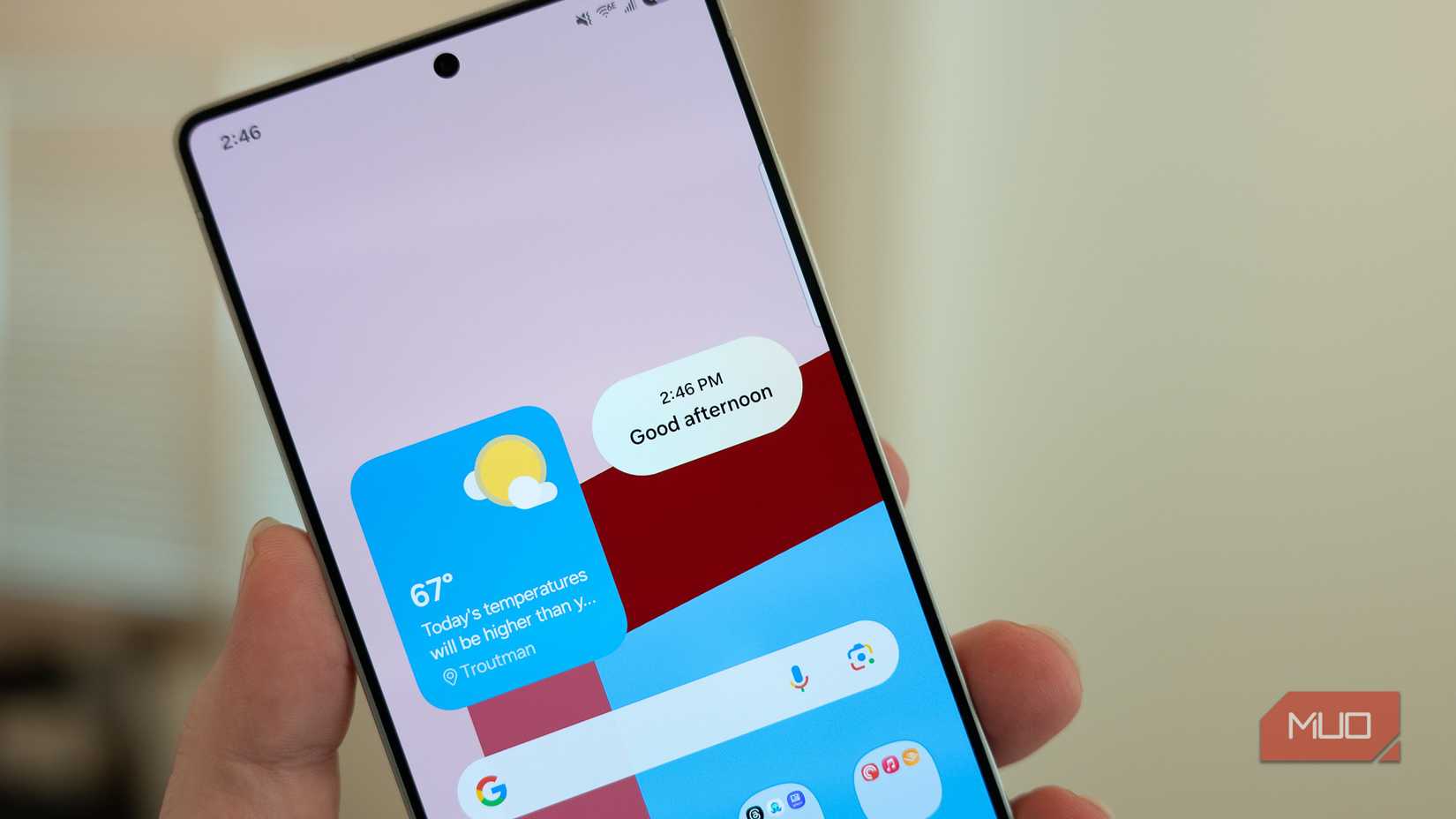
Widgets are handy. You can simply glance at your home screen or lock screen and view important information without opening anything. But this convenience comes at a cost. Since these widgets need to refresh constantly to update live data, they do impact battery life.
Of course, two or three won’t make a noticeable difference. But you don’t want to get carried away and add a widget for almost every little thing. If there’s a widget that was once useful, but you barely look at it anymore, it’s probably time to let it go.
Turn off Wi-Fi, Bluetooth, and Location when not needed
Use connections only when you need them
Digvijay Kumar / MakeUseOfCredit: Digvijay Kumar / MakeUseOf
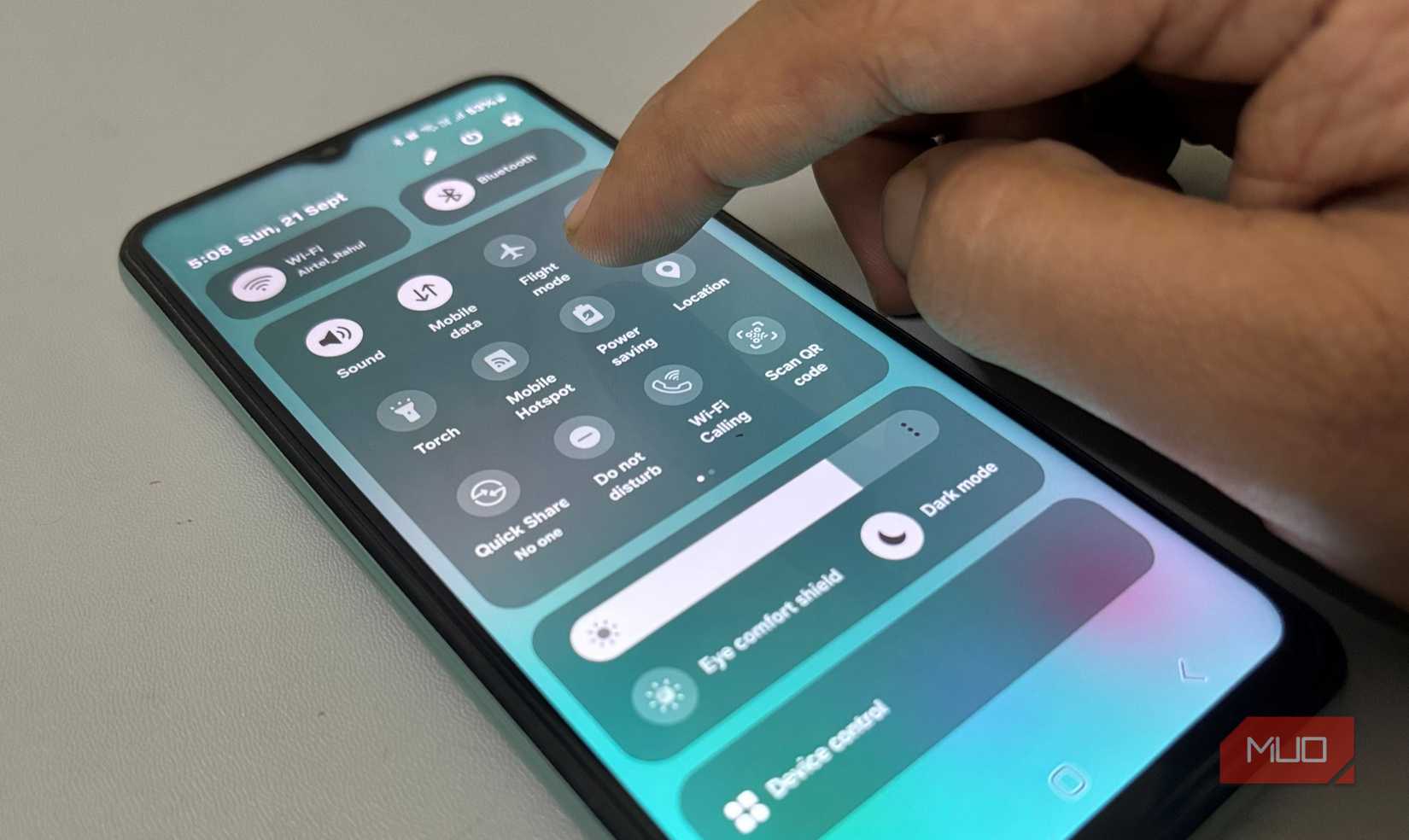
Your Android phone constantly looks for connections. Wi-Fi scans for networks, Bluetooth searches for nearby devices, and location services keep checking where you are. These features are incredibly useful, but they also affect the battery life.
The fix is simple. If you’re not using them, turn them off. When you’re away from your home or office, leaving Wi-Fi on only makes your phone waste power. The same goes for Bluetooth.
However, location services are one of the biggest drains. That’s because every app that has access to track you can check your whereabouts even when you’re not using it. So it’s best to turn off location services from the quick settings panel when you don’t need them.
Improving the battery life on Android doesn’t have to be about extreme hacks or sacrifices. It mostly comes down to fixing small bad habits that affect how much power your phone burns through each day. Of course, all of this won’t magically make your phone last twice as long as before, but you’ll definitely see meaningful improvement.