

My favorite thing about owning a Google Pixel smartphone is the convenience.
The shockingly intuitive interface, combined with its integration with Google services like Gmail and Calendar, makes using the device almost too easy, especially if you take advantage of more advanced features like Quick Share and Quick Settings.
I often find myself aggressively recommending the phone to my non-tech-savvy friends because I genuinely believe it would unlock a previously unknown level of convenience in their everyday lives.
Still, no phone is perfect, even the Pixel 10.
I’ve recently discovered that the convenient new lock screen widgets are essentially impossible to use if you turn on Face Unlock, the most convenient security feature on the entire device.
Read our review
The Google Pixel 10 is the Android you buy when you’re sick of using an iPhone
The entry-level Pixel delivers value
There can only be one
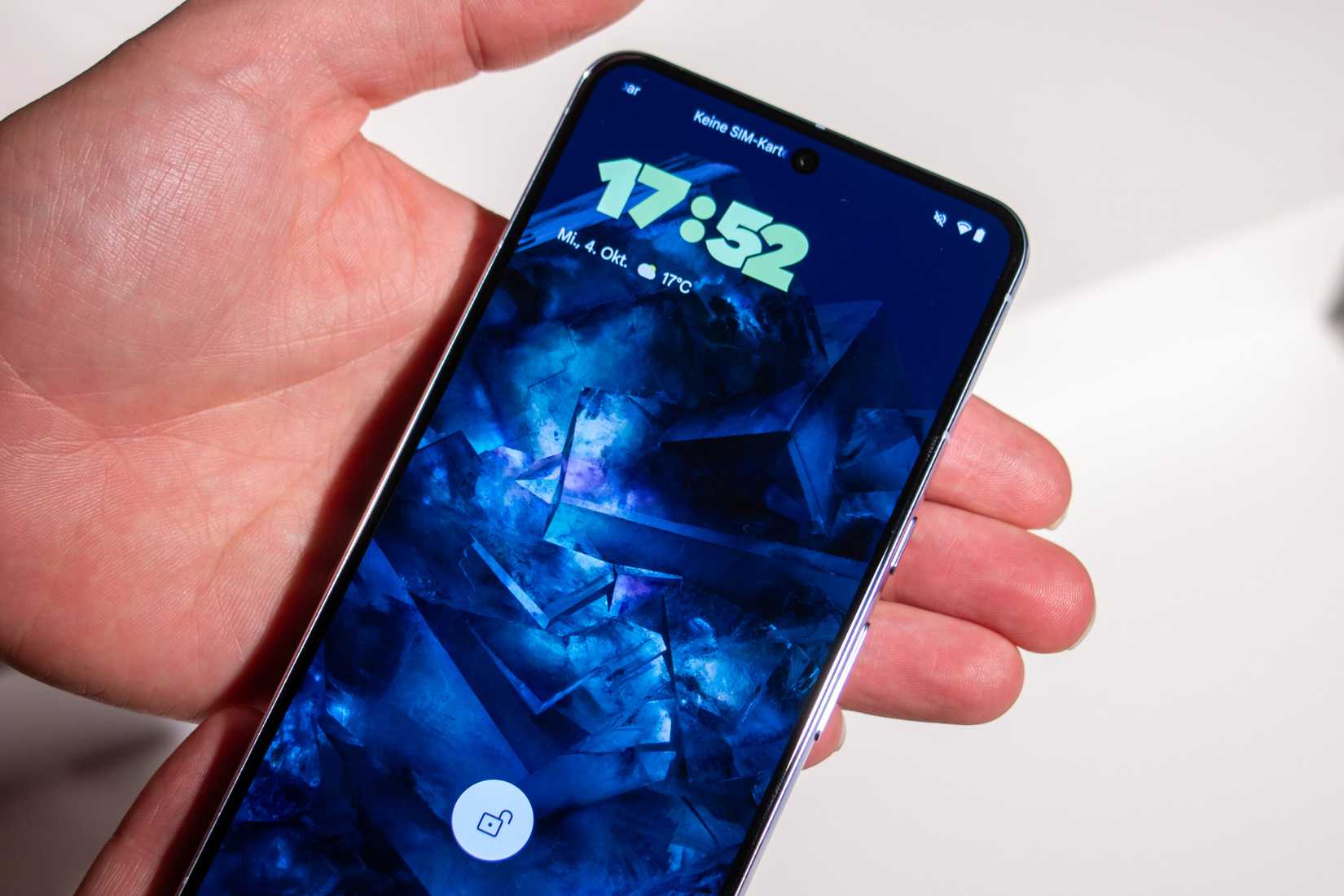
This month, Google added the lock screen widgets feature to some of its devices.
It has rolled out gradually to Pixels during December, and yours truly finally updated his phone and gave it a try.
The functionality is pretty simple.
Instead of unlocking your device, you can simply swipe left on the lock screen to get access to some helpful widgets, like weather or Gemini.
After a few clicks through some settings, the functionality was enabled, and I went to test it out immediately.
However, as I picked up my phone in hopes of swiping to the left with the device still locked, it immediately unlocked, and I was taken to the home screen.
My initial instinct was that I had left it unlocked somehow, so I tried it again with no luck.
I quickly realized this was not a glitch or a problem with the interface. This was a problem of convenience.
That’s right, the Face Unlock feature was unlocking my device so quickly and efficiently that I never even had a chance to access the lock screen widgets.
The only way I could use the lock screen widgets was to tilt my phone up towards the ceiling or otherwise angle it away from my face somehow.
Suffice to say, the convenience of lock screen widgets has a huge caveat if you use the Pixel 10’s most valuable security feature.
The convenience of Face Unlock
It’s simply too convenient to disable
There is an easy solution to this problem.
If I really want to use the lock screen widgets that were launched by Google this month, all I have to do is disable the Face Unlock feature. No big deal, right?
There is just one problem, though.
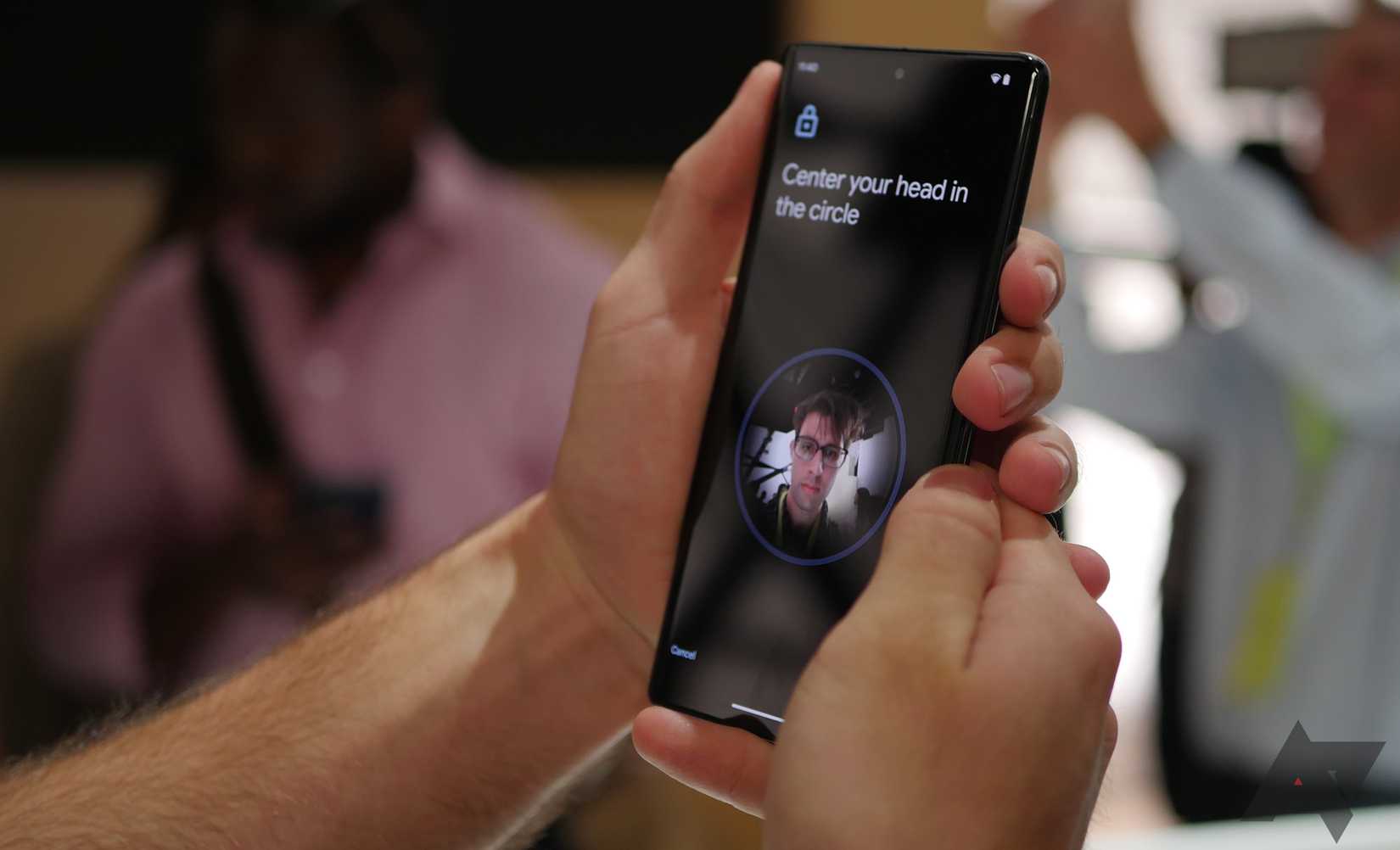
The Face Unlock feature on the Pixel is quite good. So good that if pretty much any part of your face is within a wide field of view of the front-facing camera, the device will immediately unlock.
When it comes to using the Pixel 10 on a daily basis, I have to say that Face Unlock is an absolute dream.
The unlock speed is nothing if not impressive, which means I rarely, if ever, have to deal with the less-than-proficient fingerprint reader.
This is particularly helpful in the middle of a blistering Chicago winter that perennially requires gloves.
If I’m being completely honest with myself, Face Unlock is one of the best features on the Pixel 10, if only because its presence in the background makes the entire experience that much more streamlined.
After all, you can’t access the top-tier camera or the Gemini AI model unless you can actually access the phone itself.
All that to say, I am not going to get rid of the feature that allows me quick and easy access to my device in favor of a feature that already exists on my Pixel 10 when it’s unlocked.
There is a fix
But it makes Face Unlock a bit less convenient
As was pointed out to me by a coworker, there is a fix to this problem that will allow you to still use Face Unlock while accessing lock screen widgets.
All you have to do is disable the Skip lock screen feature in the Face Unlock settings. This feature generally allows you to immediately access your home screen without swiping or otherwise touching your device.
With this feature off, your device can be unlocked while still displaying the lock screen. You’ll be able to swipe to the left to access your widgets, and take advantage of this new feature.
Still, by disabling this feature, you’re taking some of the wind out of the Face Unlock sails. The ability to access your phone immediately without having to swipe up is convenient, and this catalyst for the lock screen widgets gets rid of that.
If you really want the best of both worlds, though, a little compromise, hopefully, won’t be that much of a dealbreaker.
Credit: Google

9/10
SoC
Google Tensor G5
RAM
12GB
Storage
128GB / 256GB
This striking-looking addition to the Pixel line offers a slew of Gemini features, an 5x telephoto lens, and seven years of updates, making this a smartphone that will last you a while.