
Google Pixel phones have some of the best AI integration of any devices, and this pertains to the cameras, too. While many of the neat photo editing features Google released for its latest Pixel devices now work in Google Photos as well, across any device, there are some that remain exclusive to the company’s own branded phones. And they’re not just party tricks; they work well.
In some cases, other brands have their own variations on the features, to varying degrees of success. But when it comes to taking photos with a Google Pixel phone, there are a few features you’ll find especially worth using. They can help you take better photos and ultimately get better results. Keep in mind that some of them are exclusive to specific models, however, and most are only available on the last few generations of Pixel devices.
Best Take
It’s a brilliant feature for group pics
Any time I take a group photo or have someone take it for me, I make sure to get multiple shots. Most people do this for good reason. Chances are, someone is looking away in one photo, someone has their eyes closed in another, maybe there’s a silly face from a mischievous kid in the photo where everyone else looks perfect. All you can do with most phones is take a burst of pics and hope for the best. With Google Pixel phones, however, from the Pixel 8 and up, you can alter faces after capture to get the, well, best take. The Best Take feature is one of the most useful AI photo features.
Let’s say in one photo, Dad has his eyes closed, and in the other, Mom isn’t smiling. You can click individual faces, then scan through facial expression options from other images of the same group and replace them one by one. It effectively selects the best expressions for each person from a series of photos and combines them into a single photo. With the latest Pixel 10 line, there’s an AI-powered Auto Best Take mode that does the work for you.
Add Me
It’s hit and miss, but solves a common issue

Credit: Google
I have had mixed results with the Add Me feature on Pixel phones. But once you get the hang of it, it works well. One of the cool tricks only Pixel phones can do, the idea is that whenever there’s a group photo, unless you awkwardly ask a stranger to take the photo or set up a tripod or mount with a remote trigger, one person is inevitably always left out of the photo because they’re behind the camera. The idea with Add Me is that you can leverage AI to superimpose the person into the photo as if they were there.
Set the mode, take a photo of everyone but the photographer, then have the photographer step into the photo while everyone continues to pose, but someone on the other end goes behind the camera to take the second shot. The two images are combined, and a single photo is recreated with everyone in it. Sometimes it looks artificial, and I’ve had issues aligning the composition just right when there are major height differences between photographers. But with some patience and practice, you can get group photos at the remote cabin with no one else around and no additional accessories needed.
Camera Coach
Get guidance for framing and composition
For those who need help taking better photos, Camera Coach is a simple AI-powered tool that guides you for framing, composition, and even lighting. Hold the phone out to take a photo, then activate the feature using the star icon at the top right. The scene is analyzed, you’re asked to confirm your goal, and you get tips to help you improve.
This might mean taking a vertical rather than a horizontal photo, having someone stand in a different position, or moving an item to the left or right. It might advise to switch camera modes, or change lighting, or tap on a focal point to ensure it’s in perfect focus. It works great for taking things like food photos, landscapes, and scenery. It’s also useful for content creators who might rely on others to take the photo for them. Hand over the phone with Camera Coach on and instruct the person to listen to the guidance to frame you perfectly for an Instagram-worthy shot.
Made You Look
Perfect for toddler and baby shots
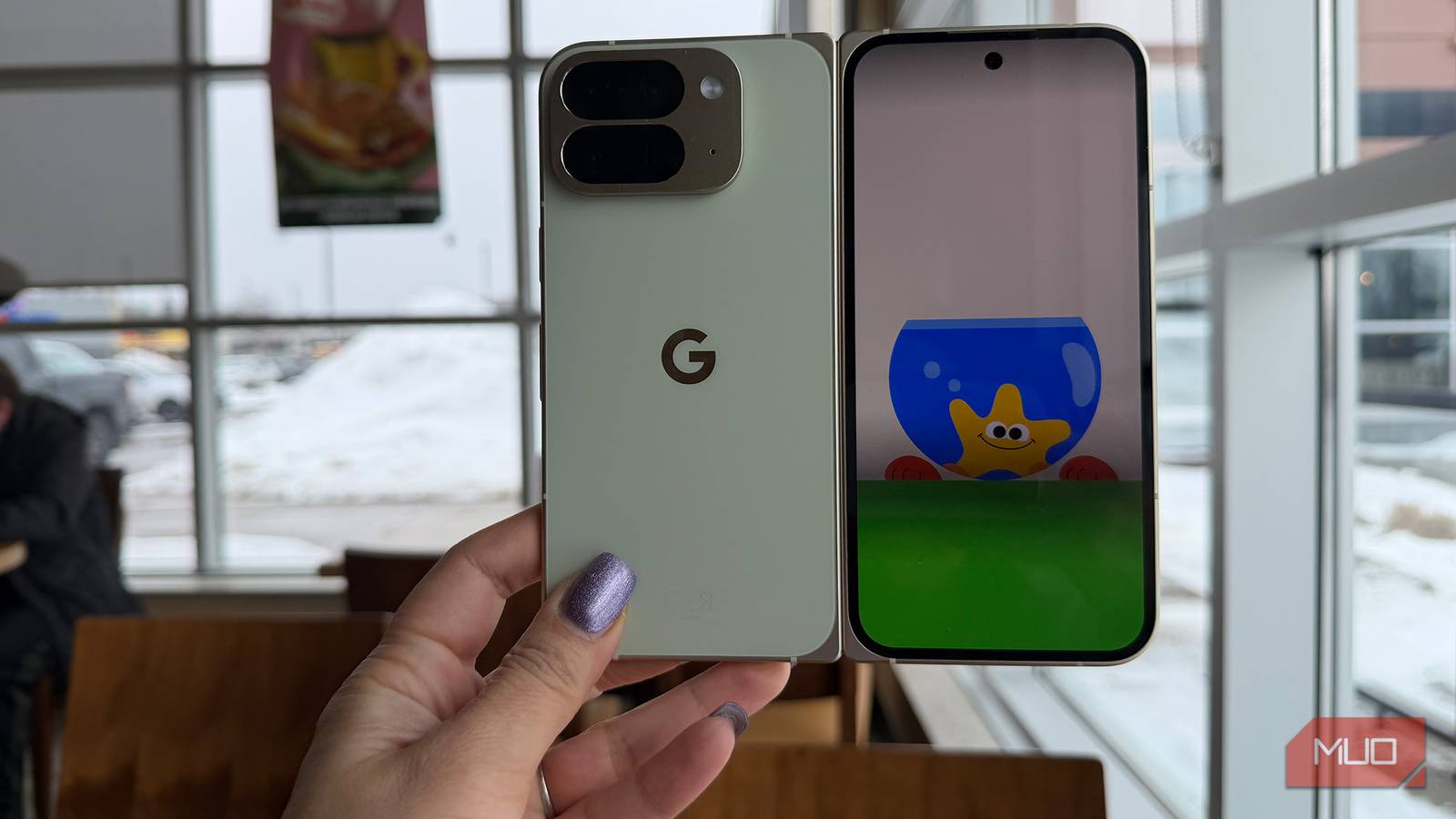
I feel like I would have used this feature a lot when my son was a toddler. Exclusive to Google Pixel foldable phones like the 9 and 10 Pro Fold, the latter in the newest Google Pixel lineup, it’s a really clever way to leverage the dual-screen design. Unfold the phone, open the camera app, and select the Made You Look option. A selection of animations from which to choose pops up. Select the one you want and leave sounds on or turn them off. The cute cartoon image appears on the outer screen, instantly capturing the attention of a baby or toddler who was too distracted to look straight into the camera or in the middle of a crying session.
The dancing creatures and catchy sounds might only grab their attention for a few seconds, but it should be long enough to get a photo with a smile or laugh. Unfortunately, using this feature defaults to the 10MP selfie camera, so there’s a trade-off in quality and resolution. But it’s worthwhile to get that photo with Santa, a family group image, or a keepsake of your busy toddler in an adorable outfit.
Pixel phone cameras are top-notch
Credit: Brady Snyder / MakeUseOf
Every premium smartphone nowadays has impressive cameras and photo editing features that you can leverage both pre- and post-capture. But Google Pixel phones really kick it up a notch with unique features you can only find in these devices. There are even things your Pixel camera can do besides taking photos.
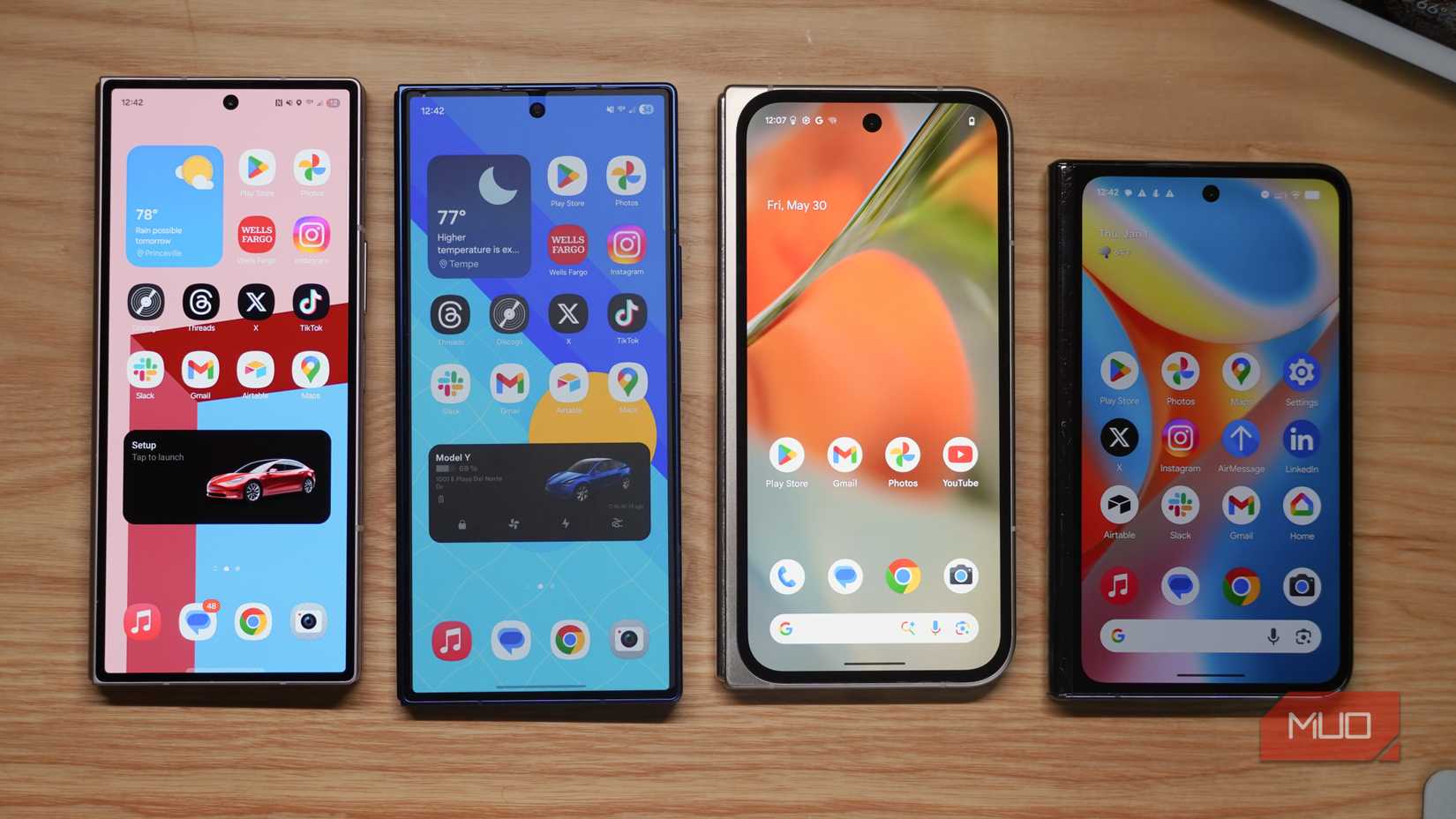
Sure, some other phones have similar features, like Motorola’s Camera Cartoon, which is similar to Made You Look, and Samsung’s Best Face, an interpretation of Best Take. But Google Pixel phones focus heavily on helping you get the best shots possible in virtually any scenario.