
 Jack Wallen / Elyse Betters Picaro / ZDNET
Follow ZDNET: Add us as a preferred source on Google.
ZDNET’s key takeawaysEnabling Linux support on Android has several benefits.With this feature, you can create and run bash scripts.This is very handy for learning the ins and outs of scripts.
Bash scripts are a great way to automate all sorts of repetitive tasks — you can run backups, clear temporary files/logs, rename or batch-rename files, install or update software, and much more.
Although writing such scripts isn’t nearly as hard as you might think, it does take some time to learn the ins and outs of bash scripting.
Also: 6 hidden Android features that are seriously useful (and how they made my life easier)
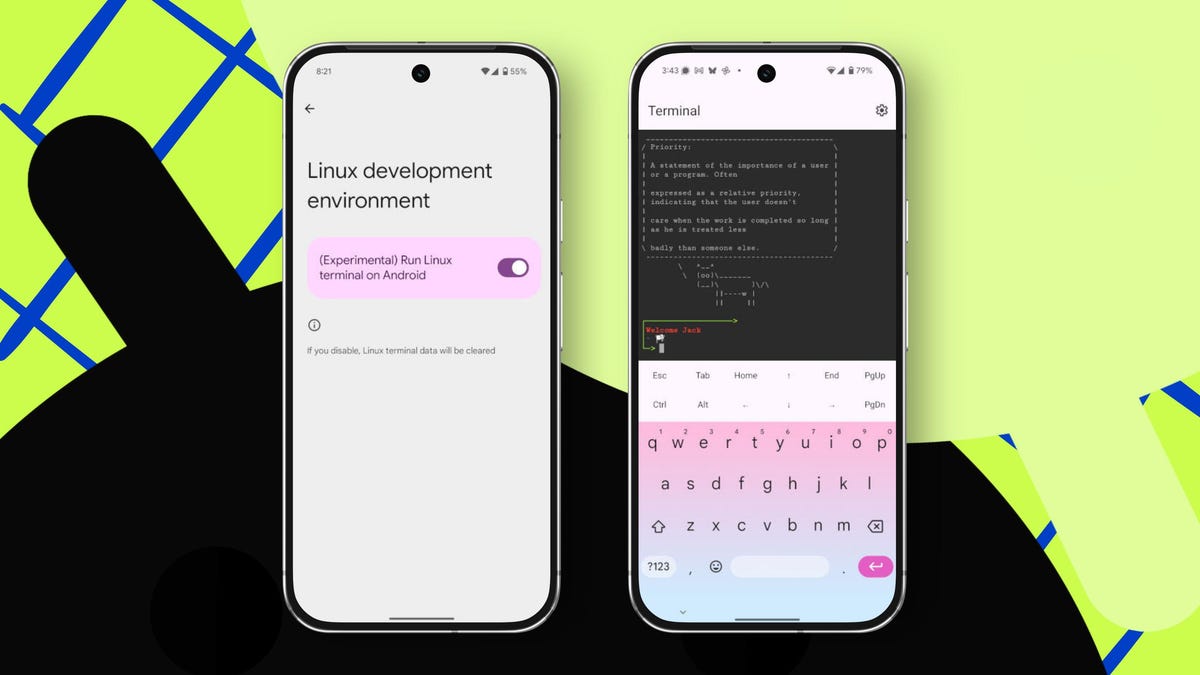
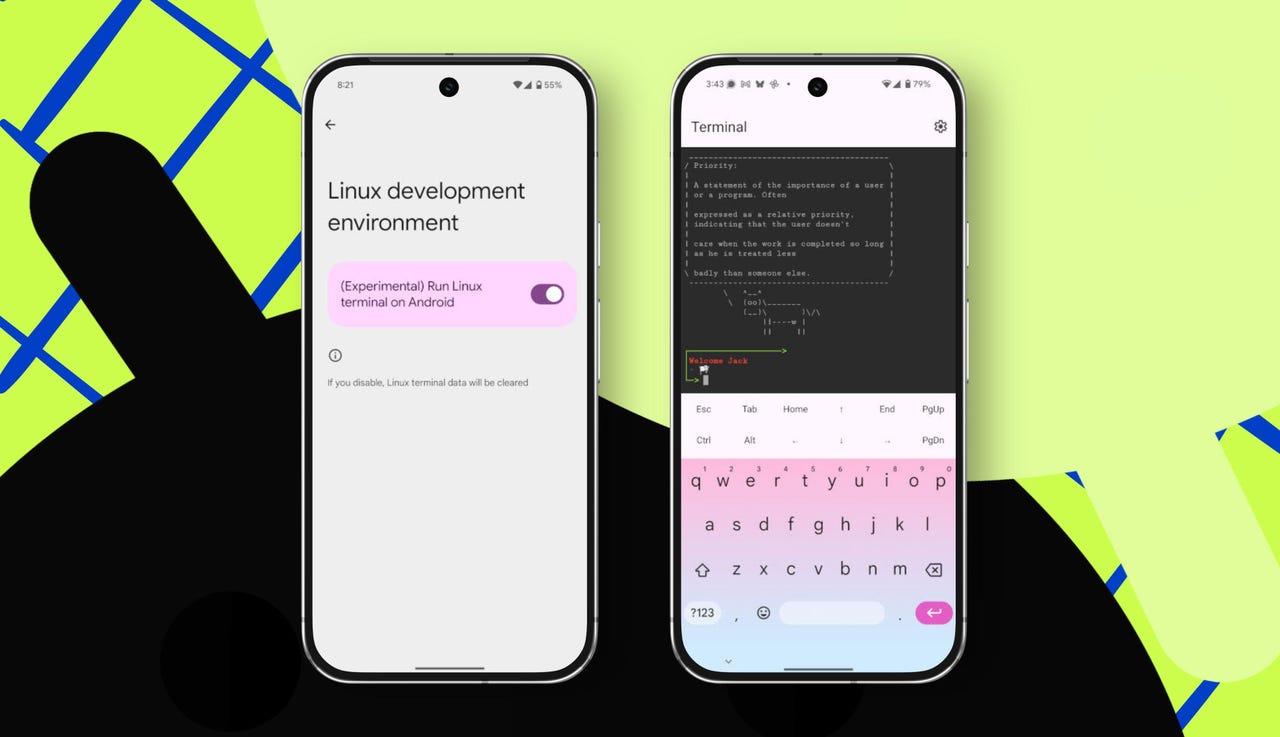
Good news: If you have an Android device, you can enable the Linux terminal, which means you can create or practice your bash scripting on the go.
If that sounds like something you’d like to try out, keep reading to learn more about writing Linux bash scripts on Android.
How to write Linux bash scripts on your Android
What you’ll need: The only thing you’ll need for this is an Android device with the Linux environment enabled. You can find out how to do this in my article, “How to use the new Linux terminal on your Android device – it’s easy.”
With the Linux terminal ready, let’s start our bash script journey.
Installing nano
Here are the steps for installing the nano editor, which you’ll use to create/modify your bash scripts.
Open your App Drawer and search for the launcher labeled “Terminal.”
Before you can install nano, you have to first update Linux. To do this, type the following command in the terminal:
sudo apt update
After that command completes, upgrade with:
sudo apt upgrade
You can now install the nano editor with the command:
sudo apt install nano
After that, you’re ready to go.
Creating your first script
Creating a basic Linux bash script is actually quite easy. Let’s create a script that simply prints “Hello, ZDNET” in the terminal.
To do this, issue the command:
nano hello.sh
You should now see an empty file ready for content. The first line of any Bash script is:
#!bin / bash
Note: Make sure to remove the spaces on either side of the / character.
Also: How to clear your Android phone cache (and wipe out lag for good)
What the above line does is ensure the script is run via the Bash shell.
The next line will be:
echo “Hello, ZDNET”
Save and close the file by tapping Ctrl and then tap x on the keyboard. When prompted, type y, then tap Enter.
Next, you need to give the script executable permission with the command:
chmod u+x hello.sh
Let’s run our script and see what happens, which is done with:
./hello.sh
You should see “Hello, ZDNET” in the output.
Let’s write a more useful script. We’ll create a script that removes files from the /tmp directory. Although you should really let the system handle this, the script is a good intro for those new to the task.
Create the file with:
nano delete.sh
As usual, the first line is the same as it was in the above script. The main line of the script is then:
rm -rf /tmp/*.*
Save and close the file. Give the new script executable permission with:
chmod u+x delete.sh
You can now run this file with:
sudo ./delete.sh
You have to use sudo because changing anything within /tmp requires admin privileges. If you look in /tmp, you’ll find it’s now empty.
Also: The first 8 Linux commands every new user should learn
Remember, although the above method of removing files isn’t the normal route, it’s a good way to learn. Let’s create a backup with a script that requires user input.
Create a new file named input.sh. In that file, place the same starting line at the top and then add the following:
read -p “Enter your name: ” name
echo “Hello, $name! Welcome to ZDNET.”
Save and close the file. After giving the new script executable permissions (chmod u+x input.sh), run the command (./input.sh), and you’ll see the output with the name you typed.
Keep this in mind
Remember, you’re using Linux on Android, so I wouldn’t consider this a viable way to manage your Android device. However, it’s a great way to learn how to write bash scripts for Linux.
However, I’d like to add an asterisk to the above caveat. You can access some of the Android directory structure, specifically, /mnt/shared. In that directory, you’ll find sub-directories of some of the apps you’ve installed on your devices. For example, one directory is /mnt/shared/Pictures.
Let’s say you want to create a script to empty that directory. That script starts with the same first line as always, and adds the following:
sudo rm /mnt/shared/Pictures/*.*
Also: My 8 must-use Linux commands, and how they can make your life easier
So, yes, creating Bash scripts on Android could be useful (other than for education). However, please do be careful when using Bash scripts in the Android directory. It’s fine to use them in the Linux environment, because you can always disable Linux support and re-enable it to start all over. If you messed up the Android file structure, you might have to do a factory reset. You don’t want that.