

Background apps on Android are those apps that continue running even when they’re not visible on the screen. For instance, you’ve opened Instagram and are scrolling through reels. When you switch to another app and later return, you’ll often find the app exactly where you left it. That’s because it hasn’t fully shut down. While it isn’t actively in use, it may still be maintaining your session, refreshing content, or handling notifications in the background.
For a long time, many people developed the habit of manually closing apps as soon as they were done using them. That advice made sense years ago, when memory management wasn’t as efficient. Today, however, Android handles background processes far more intelligently. You can restrict apps from running in the background if needed, but force-closing everything out of habit isn’t beneficial. In fact, constantly reopening apps can consume more resources and may even make things worse on your Android.

Related
These 9 Apps Might Be on Your Android Phone Without You Even Knowing It
But they aren’t a danger.
It does more harm than good
The myth of “cleaning up” your phone
Credit: Shimul Sood / MakeUseOf
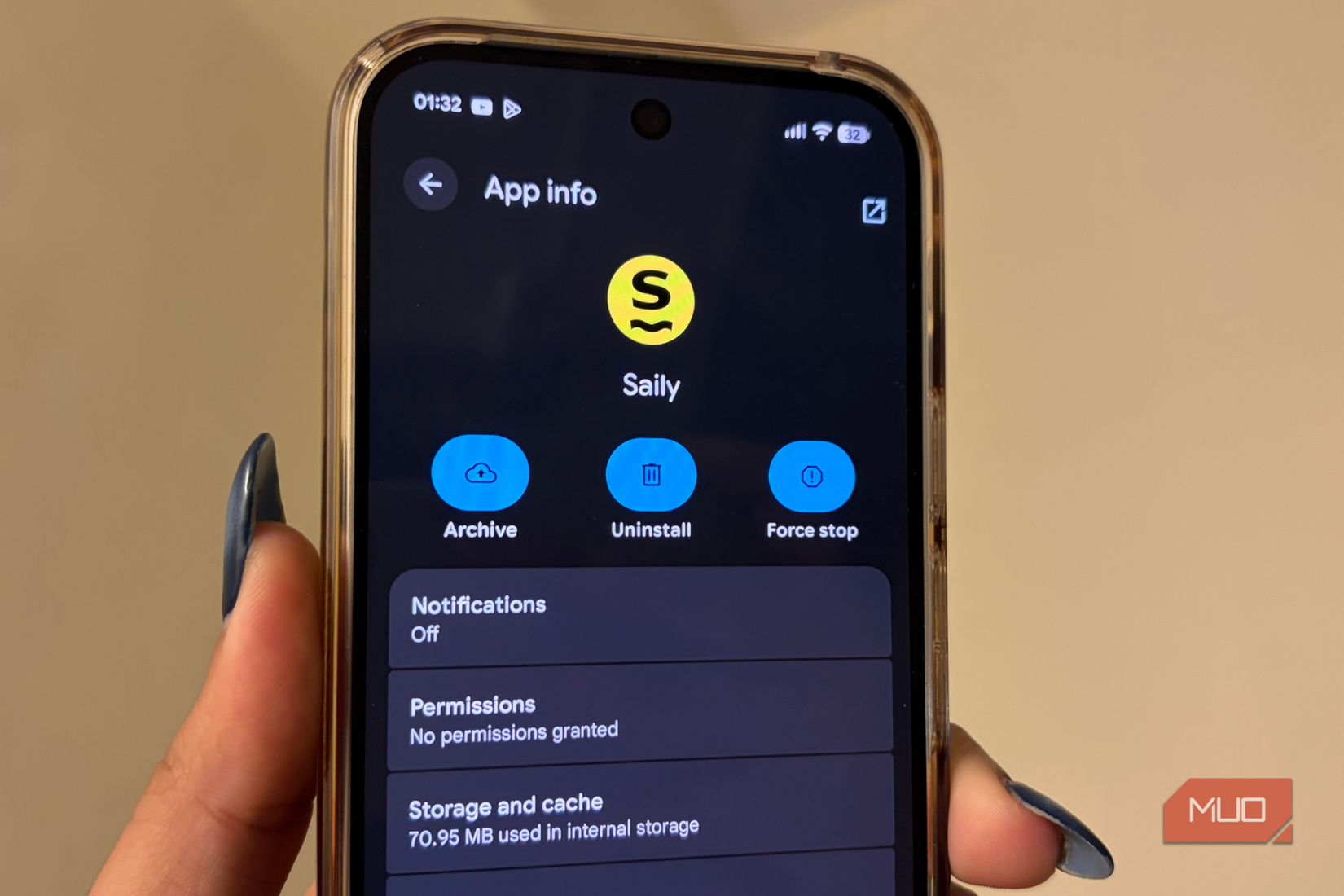
When you force-close an app running in the background, your phone has to work harder the next time you open it. Instead of quickly resuming where it left off, the system must reload the app from scratch, rebuild its state, and fetch fresh data for you. In simple terms, restarting an app often requires more processing effort than letting Android manage it in memory. That extra work can lead to higher battery usage and unnecessary strain on system resources, such as RAM.
For instance, if you close the Spotify app after every use, reopening it means waiting for the app to relaunch, reconnect, and reload content. Multiply that behavior across several apps throughout the day, and you’re not saving energy; you’re repeatedly asking your phone to do the same heavy lifting. So, if the goal is smoother performance, force-closing everything usually has the opposite effect: slower app launches, more background processing, and less efficient resource use. It’s essentially making your smartphone work harder instead of ‘smarter.’
That said, there are valid reasons to close apps. If something is glitching, freezing mid-task, draining excessive battery, or causing noticeable heating, force-closing can help reset things. But outside those situations, manually killing apps out of habit tends to do more harm than good. Letting Android handle background processes is generally the smarter approach.
Android’s system management does the work for you
The magic of not micromanaging
Yadullah Abidi / MakeUseOfCredit: Yadullah Abidi / MakeUseOf
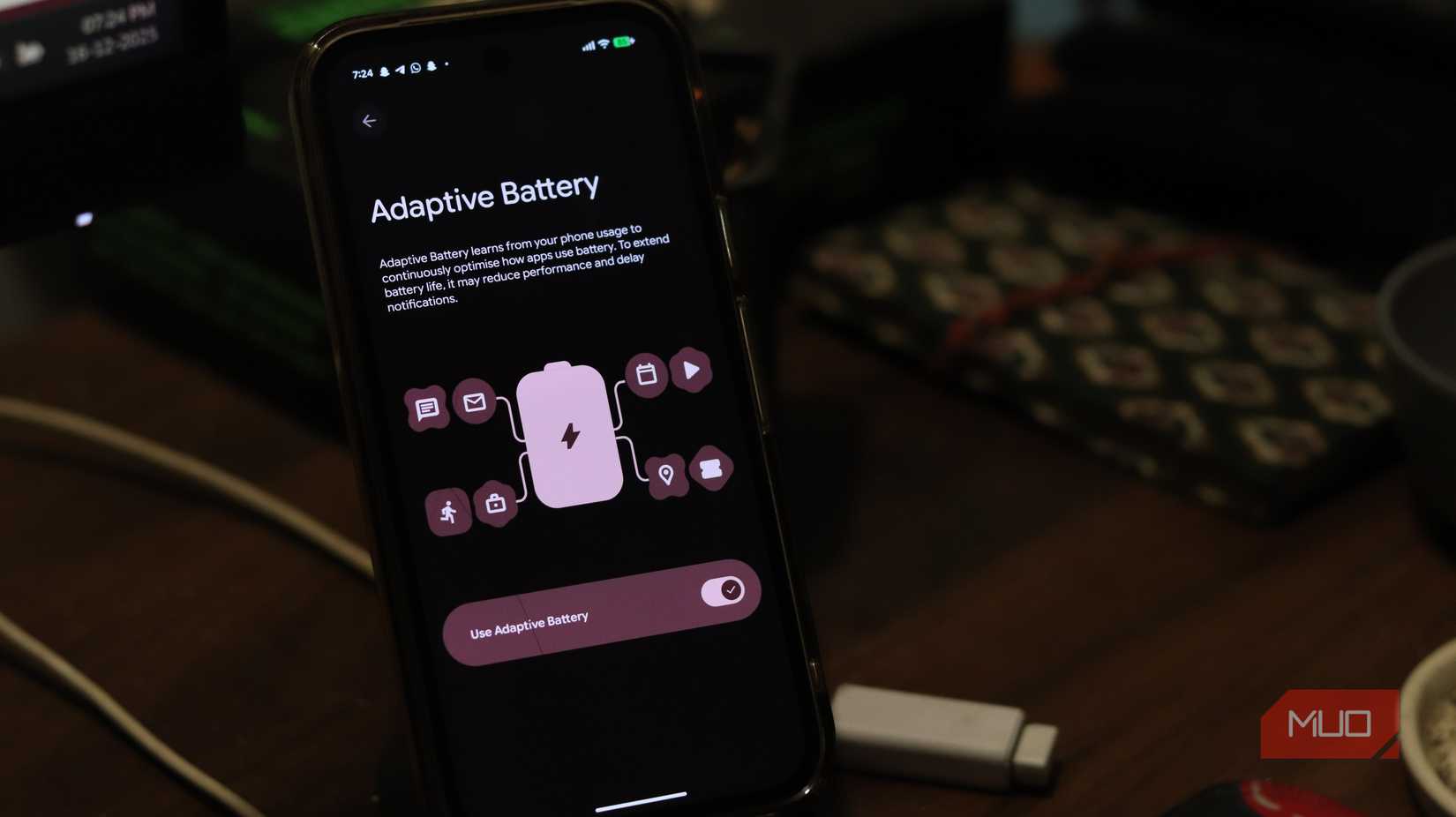
Adaptive battery on Android is an AI-driven feature that quietly learns how you use your phone’s apps. Instead of treating every app the same, it watches your daily habits to figure out which apps you often open and which mostly sit unused. Based on that, Android intelligently manages background activity by giving priority to apps you rely on, while pushing rarely used apps into deep sleep so they don’t keep draining power behind your back.
For instance, if you open WhatsApp, Instagram, or Spotify multiple times a day, Android makes sure these apps get the resources they need to open quickly and run smoothly. On the other hand, apps you install once and barely touch, like a food delivery app you use once a month or a random game you tried and forgot, are restricted from running freely in the background. This way, your battery is spent on things you actually use, not wasted on apps that do nothing useful, at least for you.
That said, Adaptive Battery doesn’t work instantly. It needs time to observe your usage patterns and learn which apps matter to you. As it adapts, frequently used apps are prioritized, while less-used ones may have their background activity limited. To save even more power, Android can also delay notifications from low-priority apps until you open them again. Over time, the results in better battery life without you having to manually manage or close apps yourself.
Making sure adaptive battery is enabled on your phone
A quiet check that makes a difference
Adaptive Battery is one of those useful Android features that works without requiring much effort from you. In most cases, it’s enabled by default, but it’s still worth checking to make sure it’s active on your device. Verifying this only takes a minute:
Open the Settings app on your phone.
Scroll down and tap Battery.
Go to Battery Saver (or a similarly named battery management section, depending on your device.)
Tap Adaptive Battery and check whether Use Adaptive Battery is switched on.
If it isn’t, simply toggle it on.
Once enabled, the feature doesn’t start optimizing things instantly. It takes a few days to observe how you use your apps, learn your patterns, and adjust background activity accordingly. After that learning phase, it works quietly in the background, prioritizing power for the apps you use most and limiting unnecessary drains from the ones you don’t.

Related
Change These Settings to Stop New Android Apps From Spying on You
Freshly-installed apps can do a lot more than you’d like, until you rein them in.
The art of doing nothing to your apps
Most of us have apps on our phones that we may have opened once and completely forgotten about. That’s normal. To be fair, a large chunk of these are pre-installed apps that we never really asked for in the first place. The good news is that unused apps are rarely the ones hurting your phone’s efficiency. If you’re not opening them, Android usually keeps them restricted in the background.
Even I used to believe force-closing apps were good phone hygiene, too, until I realized they were actually doing the opposite. Modern smartphones are far smarter than we give them credit for. Letting it manage resources automatically leads to smoother performance and better battery life. At this point, working with your phone instead of controlling it is the smarter way forward.