
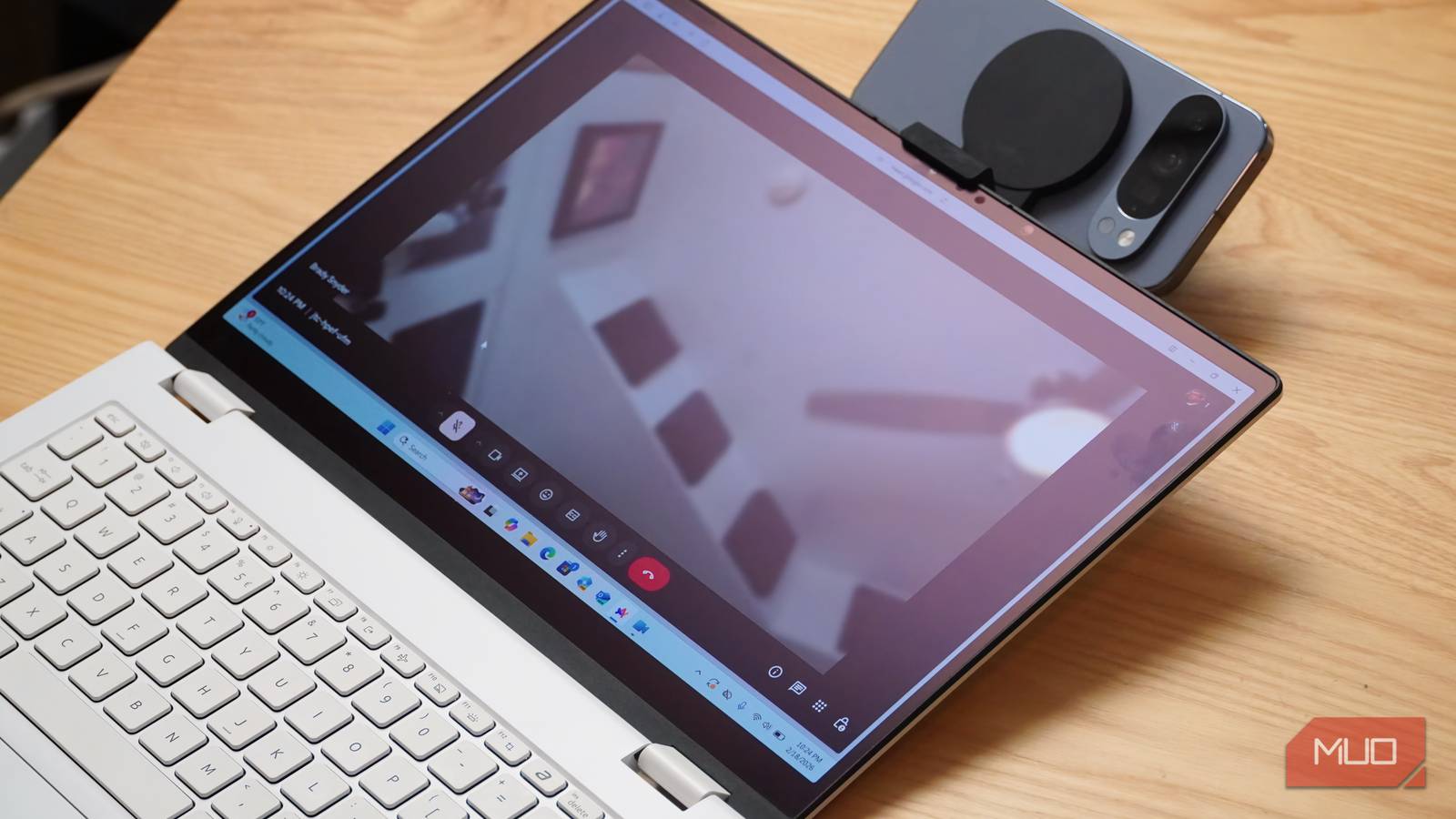
Laptops are starting to deliver high levels of performance inside power-efficient packages, changing what kind of work you can get done while staying mobile. Surprisingly, as components like processors and memory improve, others seem to be stagnant. While our smartphones have excellent cameras, the top Windows laptops are still lucky to ship with a small 1080p sensor. It’s an issue on the desktop, too, because most monitors don’t include a webcam, microphone, or speaker. Instead of buying a standalone webcam, the dream is using the smartphone you already own.
Apple and Motorola were some of the first brands to deliver first-party features that use your phone’s rear cameras as a webcam. Now, the tools are everywhere, and the most compatible one is built by Microsoft. It’s called Connected camera, and it taps into Windows 11 features including Manage mobile devices and Phone Link to provide a seamless camera-streaming experience. I was shocked at how quickly I was streaming live video from my Google Pixel 10 Pro to Google Meet on my Windows 11 laptop. It’s just as good, if not better, than Apple’s Continuity Camera tool for iOS and macOS.
Get started with Phone Link by connecting your devices
You’ll need to add your phone as a connected mobile device on Windows
Cross-device features in Windows 11 are very intertwined, and it can be difficult to identify which tools are powered by which feature. In this case, Connected camera in Windows 11 requires the Manage mobile device feature. Managed devices can appear in the Windows File Explorer, be used as a webcam, or send notifications to your Windows PC when new photos are captured. Microsoft’s Phone Link taps into Windows 11’s mobile device management suite for certain features. So, you could use Connected camera without setting up Phone Link, but setting up Phone Link with Manage mobile device will also work.
To link your Android smartphone to your Windows PC, you can open the Settings app in Windows 11 and click the Bluetooth & devices tab. Then, navigate to Manage devices → Add device and scan the QR code that appears on your Windows PC screen with your phone. Confirm the connection by verifying a pairing code and granting the Link to Windows app on Android the necessary system permissions. When finished, press Done on your Android phone, and it will now be a managed device on the Windows 11 PC you paired.
To use Connected camera, you need an Android phone running Android 10 or later with the Link to Windows app updated to version 1.23112.189 or higher. You also need a PC running Windows 11 and Wi-Fi connections for both devices.
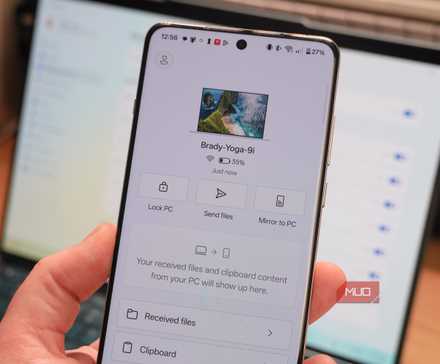
Alternatively, you could open the Phone Link app on Windows 11 and the Link to Windows app on Android to connect your smartphone with your PC using Phone Link. This cuts out the process of needing to manually bridge the Manage mobile device connection in Windows settings, streamlining setup. That said, Phone Link is technically optional, so you can use Manage mobile device if you don’t plan to access any other Phone Link feature.
A paired smartphone will appear under the Manage devices tab in the Windows 11 settings app. Find your device in the list and toggle Use as connected camera to enable the feature, though it should be turned on by default following the initial connection process. When active, you can select an Android phone as a camera source in the Windows 11 settings app or any app or site using the camera.
Related
Most people ignore this powerful Windows productivity feature
You might not consider Microsoft’s Phone Link to be a valuable productivity tool, but it’s an essential piece of my Windows workflow.
What it’s like to use your Android phone as a webcam
I’d call the experience plug and play, but it’s completely wireless
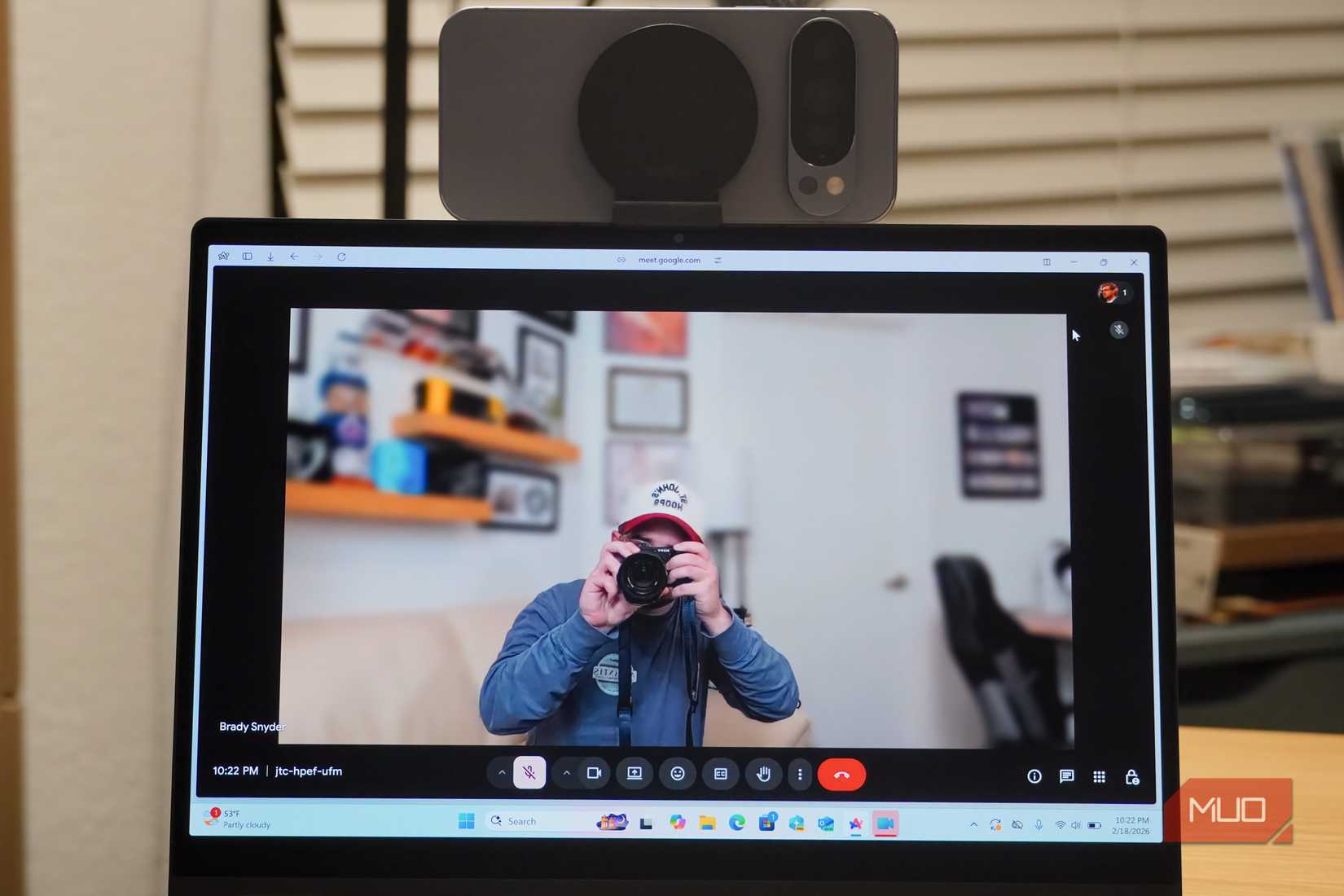
I was pleasantly surprised at how easy using my Google Pixel 10 Pro as a Connected camera for my Windows laptop was after completing the initial setup process. I used a MagSafe/Qi2 mount to attach the Android phone to the lid of the laptop and started a Google Meet video call. From there, Google Meet and Windows 11 immediately started using my Pixel 10 Pro as the default video input without any manual action required on my part.
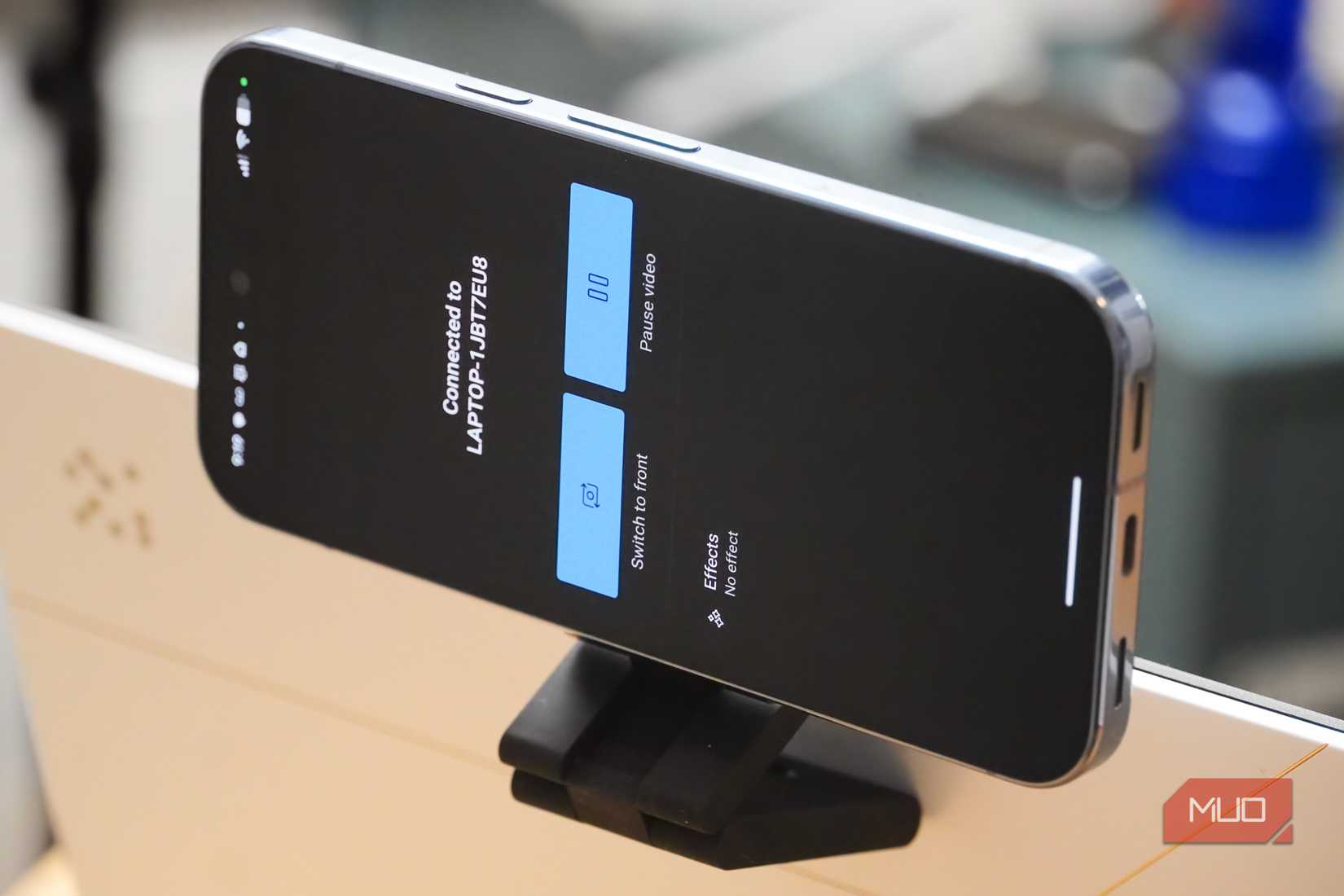
With the Connected camera feature active, your Android phone’s display shows a dedicated screen with large video controls available. You can access many of these same controls from the Windows 11 taskbar. For example, you can switch between the front and rear cameras or pause your video feed straight from your Android phone. You can also set Windows webcam effects using the device, and it’s neat that these work regardless of whether you use a default webcam or your smartphone.
Credit: Brady Snyder / MakeUseOf
You’ll notice there isn’t a button to switch between horizontal and vertical video inputs on either device, and that’s because this is handled automatically. Using auto-rotate, your video input will match the orientation of your smartphone. If it’s horizontally mounted on your laptop, the video input will automatically be horizontal as well. Since the Connected camera feature adds your smartphone as a webcam input in the Windows settings app, it will work with any app or site that asks to use your camera.
Microsoft’s Phone Link feature works with iPhones, but the more specific Manage mobile devices suite only works with support Android phones and tablets.
The Connected camera feature is better than your webcam
Make calls, change the song, or remotely control your phone
Credit: Brady Snyder / MakeUseOf
It’s worth noting that Connected camera will not take full advantage of your Android phone’s standout camera sensors. Due to wireless latency constraints, you won’t get anything close to the 4K quality most modern flagship smartphones support. Instead, you’re more likely to see something like 720p or 1080p at 30 FPS while using your Android phone as a webcam in Windows 11.
Yes, that might be lower than the 1080p or 4K quality of a dedicated webcam. But that doesn’t tell the whole story. Using your Android phone as a webcam brings along the benefits that come with having a larger, more advanced sensor and your phone’s image processing pipeline. Even streamed at 720p, I’d expect an Android phone used as a Connected camera to outperform built-in webcams and many low-end accessories. I saw an immediate upgrade compared to my laptop’s stock webcam, and that’s why I’ll keep using Phone Link and managed devices in Windows 11 for the Connected camera tool.

OS
Windows (Phone Link); iOS, Android, macOS (Link to Windows)
Developer
Microsoft
Cost
Free