
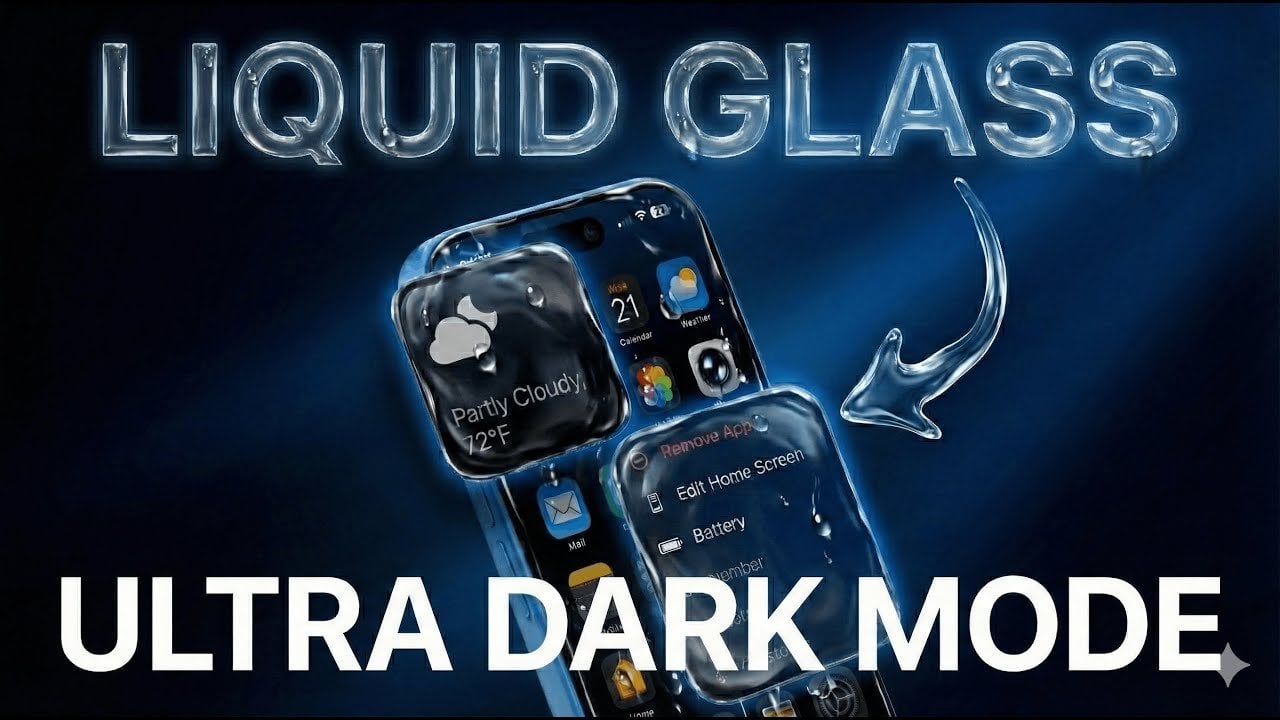
The latest iOS 26.2 update introduces exciting display customization options, including an upgraded Dark Mode and the new Liquid Glass feature. These enhancements allow you to create a sleek, energy-efficient interface while improving visibility in low-light settings. As outlined by Phones & Drones, Liquid Glass adds a tinted background that reduces glare and complements Dark Mode, making it ideal for OLED screens. With just a few adjustments in your iPhone’s settings, you can achieve a more refined and personalized display experience.
This step-by-step guide will walk you through allowing Liquid Glass, optimizing Dark Mode, and fine-tuning accessibility settings like Reduce Transparency and Increase Contrast. You’ll learn how these features work together to enhance readability, extend battery life, and create a cohesive dark aesthetic across your device. Whether you’re aiming for better usability or an improved visual experience, this guide has everything you need to make the most of iOS 26.2’s display features.
iOS 26.2 Display Upgrades
TL;DR Key Takeaways :
Liquid Glass Feature: iOS 26.2 introduces the Liquid Glass feature, offering a tinted background that reduces glare, enhances visibility in low-light conditions, and integrates seamlessly with OLED displays for a sleek and modern interface.
Enhanced Accessibility Settings: New accessibility options like reduced transparency, increased contrast, and button borders improve usability and readability, especially in darker settings, benefiting users with visual impairments.
Dark Mode Improvements: Dark Mode in iOS 26.2 can be customized further with scheduling options and integration with Liquid Glass, creating a cohesive and polished look across the device.
Battery Efficiency: Darker display settings, including Dark Mode and Liquid Glass, optimize battery life on OLED iPhones by reducing pixel illumination and conserving energy.
Personalized Display Customization: iOS 26.2 allows users to tailor their iPhone interface with extensive customization options, combining Dark Mode, Liquid Glass, and accessibility features for a functional and visually stunning experience.
Understanding Liquid Glass and Its Benefits
The Liquid Glass feature in iOS 26.2 offers a new level of display customization. This feature applies a tinted, immersive background that complements Dark Mode, reducing glare and enhancing visibility, particularly in low-light environments. Activating Liquid Glass is straightforward:
Open Settings > Display & Brightness.
Find the “Liquid Glass” option.
Switch the setting from “Clear” to “Tinted.”
This adjustment not only enhances the aesthetic appeal of your iPhone but also integrates seamlessly with OLED display technology. The result is a sleek, modern interface that improves readability and usability. Whether you’re browsing apps, reading in dim lighting, or simply navigating your device, Liquid Glass delivers a refined and practical user experience.
Optimizing Darkness with Accessibility Features
To further refine your iPhone’s dark interface, iOS 26.2 provides accessibility settings that allow for deeper customization. These settings are particularly useful for enhancing visibility and usability while maintaining a darker aesthetic. Key adjustments include:
Reduce Transparency: This option minimizes the transparency of system elements, such as notifications and the dock, creating a more solid and cohesive dark appearance.
Increase Contrast: By darkening interface elements and improving text visibility, this feature ensures better readability in low-light conditions.
Show Borders: Adds white outlines around buttons and interactive elements, making them easier to distinguish in darker settings.
These features not only improve the visual experience but also make the interface more accessible for users with visual impairments, making sure that everyone can benefit from the enhanced display options.
iPhone Ultra Dark Mode & Liquid Glass : Enable it Now!
Enhance your knowledge on iPhone iOS 26 by exploring a selection of articles and guides on the subject.
Maximizing Dark Mode for a Unified Look
Dark Mode remains a cornerstone of iOS customization, and iOS 26.2 enhances its functionality to give you greater control. To enable Dark Mode permanently:
Go to Settings > Display & Brightness.
Under “Appearance,” select “Dark.”
For a more dynamic experience, you can schedule Dark Mode to activate automatically at sunset or during specific hours. When paired with Liquid Glass and accessibility adjustments, Dark Mode creates a cohesive and polished look across your device. This combination not only enhances the visual appeal but also ensures a seamless user experience.
Improving Battery Life with Darker Displays
One of the most practical advantages of darker display settings is improved battery efficiency. iPhones with OLED screens benefit significantly from features like Dark Mode and Liquid Glass, as darker pixels consume less power. By reducing pixel illumination, these settings help conserve energy without compromising functionality or style.
For users who rely on their devices throughout the day or have smaller battery capacities, these optimizations can make a noticeable difference. Features such as reduced transparency and increased contrast further contribute to energy savings, allowing you to enjoy longer usage times while maintaining a visually appealing interface.
Customizing Your Display for a Personalized Experience
iOS 26.2 offers extensive customization options to tailor your iPhone’s interface to your preferences. You can adjust the appearance of notifications, widgets, and other elements to create a cohesive and personalized look. Whether you prefer a sleek monochromatic design or a vibrant yet darkened interface, these settings provide the flexibility to match your style.
By combining Dark Mode, Liquid Glass, and accessibility adjustments, you can create a display that reflects your unique preferences while enhancing usability. These tools empower you to transform your iPhone into a device that is both functional and visually stunning.
Media Credit: Phones And Drones
Disclosure: Some of our articles include affiliate links. If you buy something through one of these links, Geeky Gadgets may earn an affiliate commission. Learn about our Disclosure Policy.