
The internet is incredible. Almost the entirety of human history is available at any time, right at your fingertips. And while that’s a phenomenal achievement for humanity, it’s also overwhelming.
While you only have a tiny sliver of a fragment of that information, it can still be a lot. An endless stream of data from your family, friends, apps, emails, and more, constantly pouring into your mind from your phone, your computer, your watch.
It’s a lot. But it doesn’t have to be.
I’ve taken the dive, and trimmed everything that needs to be trimmed. Here’s how I digitally decluttered my life, in less than an afternoon’s time.
Related
How a month-long app purge finally fixed my relationship with my phone
Pressing the reset button did more than clean up my homescreen
Stripping out unused apps
I’m going to start with one of the easiest and quickest things you can do to remove clutter from your life: stripping out all those apps you just don’t use.
This is easier than you might think because your phone likely has the ability to zero in on these apps without you lifting a finger.
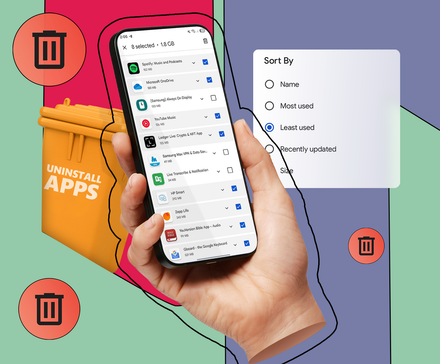
Head to your Settings app, then tap Apps > Unused apps. Here you’ll find a list of the apps you haven’t used for specific periods of time, and you can scroll down to see those that haven’t been opened for the longest time.
This is where you should start your pruning.
You should be fairly merciless, but keep in mind the difference between useless apps and apps you haven’t used in a while. Everyone has useful apps that aren’t everyday apps, and you should keep those.
But those games, productivity, and other apps? Get rid of them. It’ll make your app list much neater, and you’ll spend less time scrolling to get where you need to.
Cutting out those bothersome notifications
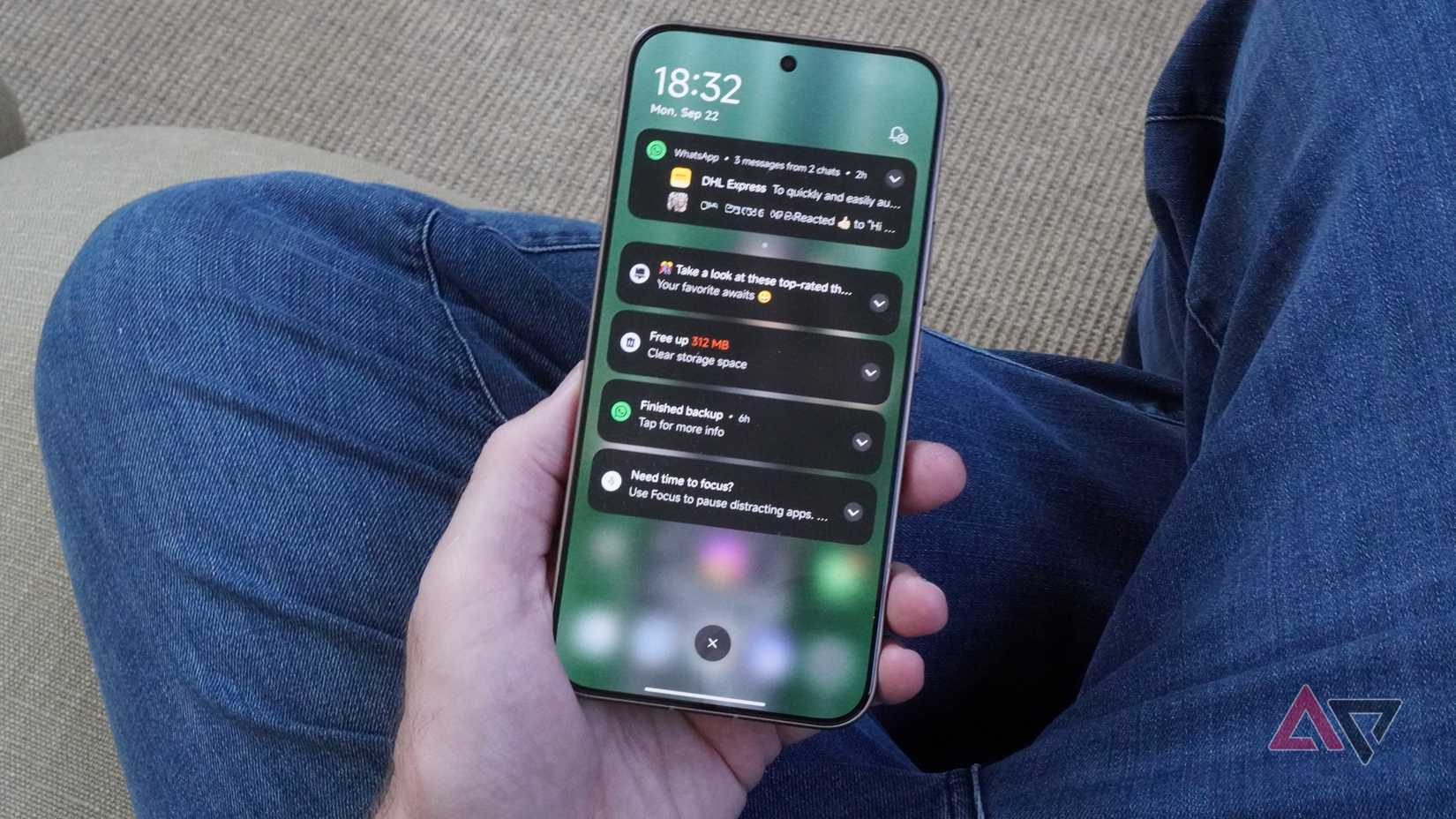
Notifications are one of the most important areas to touch on.
If you’re anything like me, you get dozens of notifications a day, and most of them are irritably swiped away like bothersome flies.
Let’s cut down on those. Open your Settings app again and head to Notifications > App notifications.
Again, be merciless. Slice out those notifications you really don’t need. Get lots of promotional notifications? You don’t need those. Pointless alerts from apps that are only useful when you want them to be? Get out of here.
Messaging and social media apps are the ones you really need to think about. Do you really need up-to-the-second notifications on these?
If you’re anything like me, you check them enough anyway, so you won’t be leaving anything unattended for long.
One big recommendation for Android 16 devices is also to switch on Notification cooldown. This excellent feature stops successive notifications from the same app from buzzing you over and over again.
Remember those long group conversations you aren’t taking part in? With this option on, every successive notification will dim down until it stops notifying you altogether, saving you the irritation of a constantly chiming or vibrating pocket.
Finally, Notification organizer is another must. This uses Google’s AI to organize notifications into categories, so you can check all your news notifications at once, and other things like that.
Like Notification cooldown above, Notification organizer won’t be available for everyone, but it’s worth using if you have it.
Curate past photos every day

Not all of your photos are snapshots into treasured memories, as a lot of chaff ends up in your cloud storage and gallery app. Clear it out.
That’s a really big ask. So my method is to take it one day at a time. One day, but many years.
Go back through Google Photos, Gallery, or other photo app, and go back to today’s date, but for last year.
Remove anything that’s not needed: Memes, pictures of your lunch, screenshots of conversations. Just keep the stuff that matters, the stuff that makes you happy.
Then do the same for the year before, and so on.
This is one you need to keep up with. But if you’re just chilling out in the evening, this is a great way to keep yourself a little entertained, and do something worthwhile at the same time.
Plus, you’ll probably find something fun to share with friends and family.
Unsubscribe and deal with emails by sender
This is something of a two-pronged attack.
If you’re anything like me, tackling your stack of unread emails will take quite some time. Thankfully, there’s a straightforward way to deal with this.
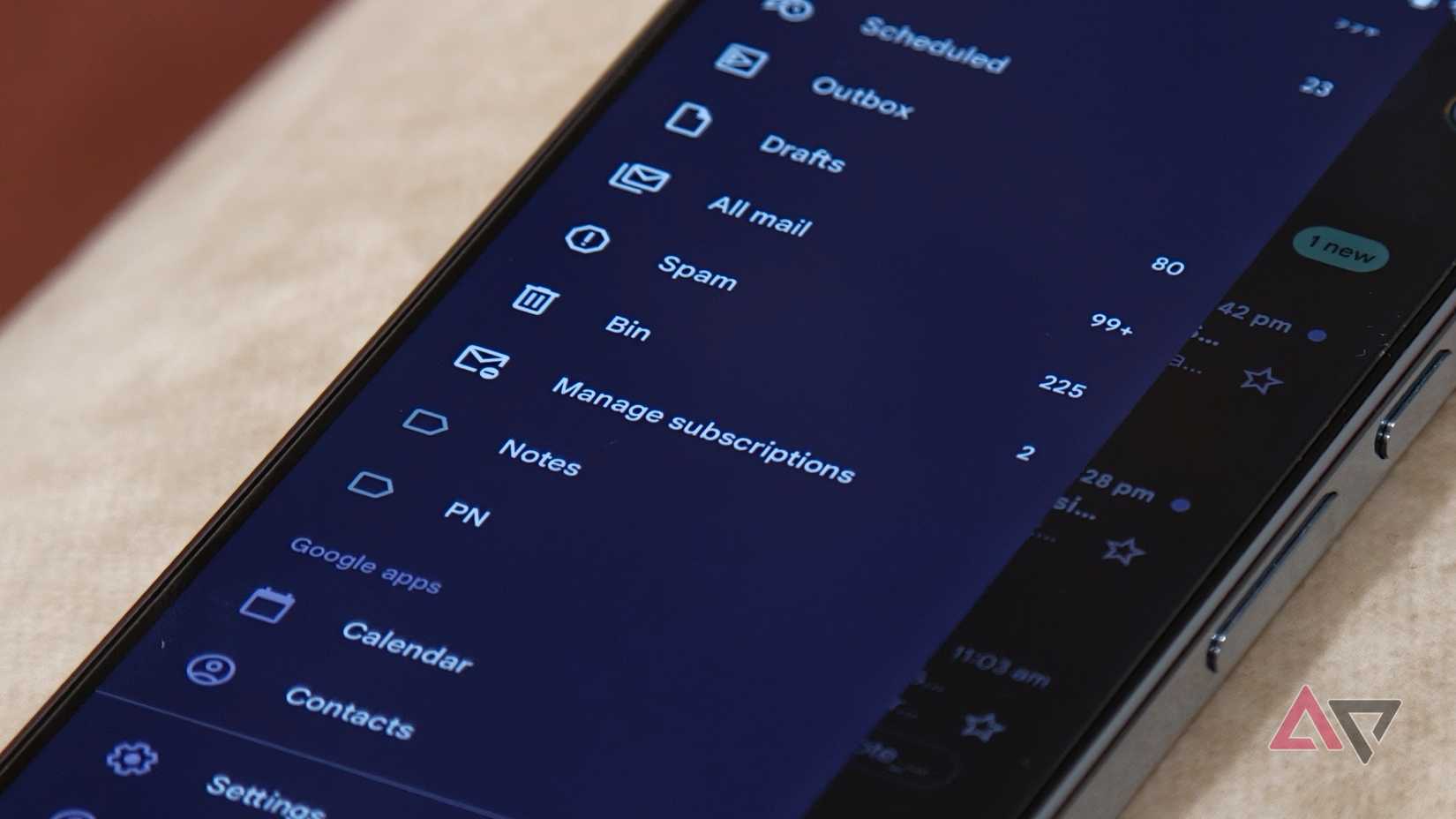
Sadly, your options while using your phone are a bit limited, so your main job here is to unsubscribe, unsubscribe, unsubscribe. Get rid of anything you don’t need.
I know this is basic, but we all need to be reminded of the basics from time-to-time, and stuff does tend to build up when we’re not paying attention. But the bulk of the impact will be done on a computer.
Here, you’ll want to copy and paste email addresses into your email client’s search bar, select All, and choose Mark as read.
If you’re using Gmail, you may have the option to select every email included in the search, instead of just the fifty or so on that screen. Unless you want to manually check through all the emails, you absolutely check this box.
Then, select Mark as read and move on. It may take a little while for that command to be processed, but when it does, you’ll be able to clear hundreds of emails at once.
I managed to drop my unread emails from 20,000 to around 17,000 in about a quarter of an hour — and that felt really good. Still a long way to go, but making progress.
Manage those passwords
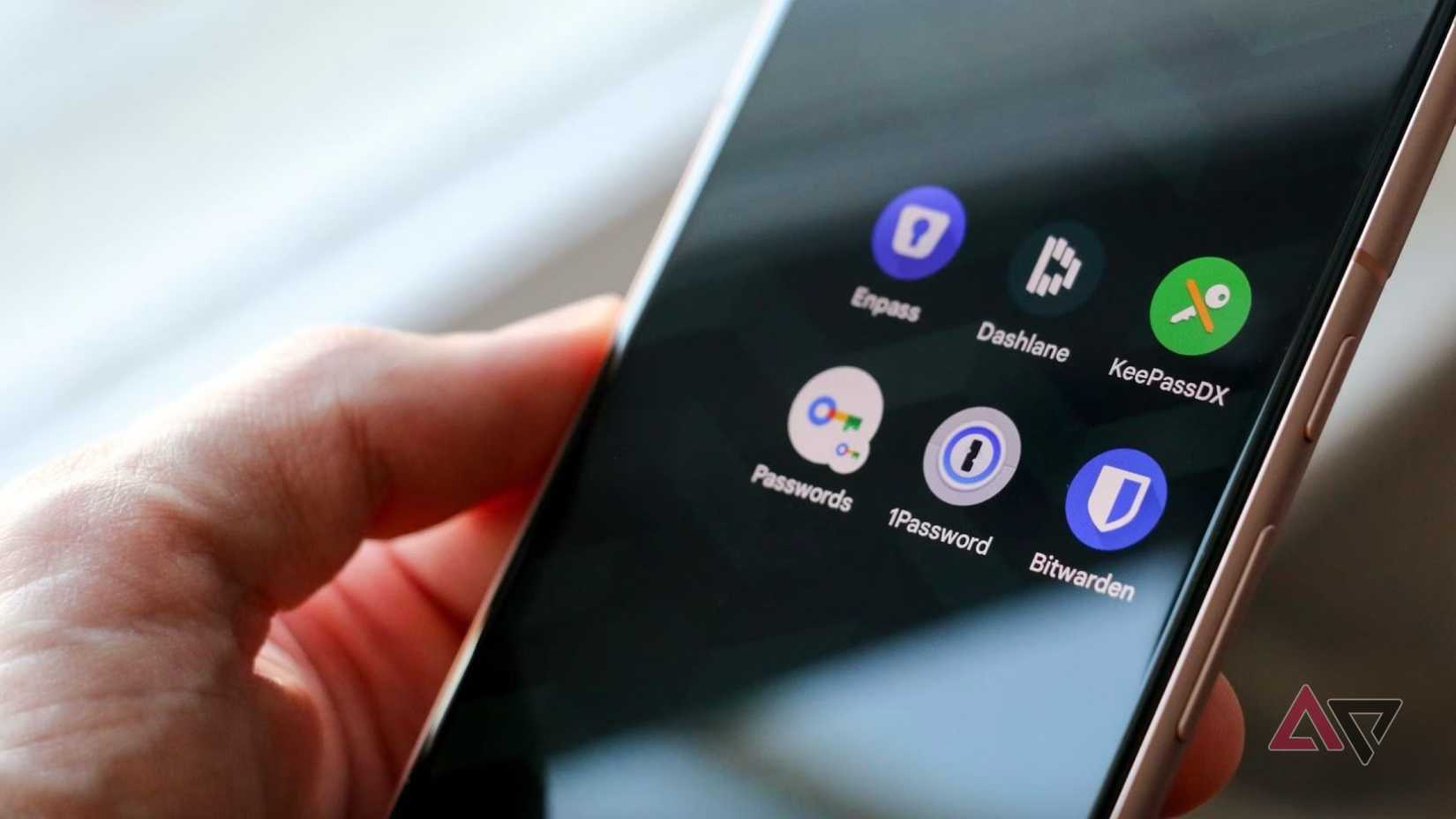
If you don’t have a password manager, consider this a big kick in the pants to get one.
Remembering all those passwords is a massive mental load, and one you really don’t need. Especially when you are likely to have hundreds of accounts.
You’ve either figured out a system for tracking all of those, or you reset passwords a lot more often than you should.
A password manager would save you from that. All you have to remember is the password to your vault, and everything else is stored there.
I personally swear by Bitwarden, but you can use whichever service suits your needs or budget.
Really, the important part is that you do use one. And after it’s set up, you don’t need to worry too much about it.