
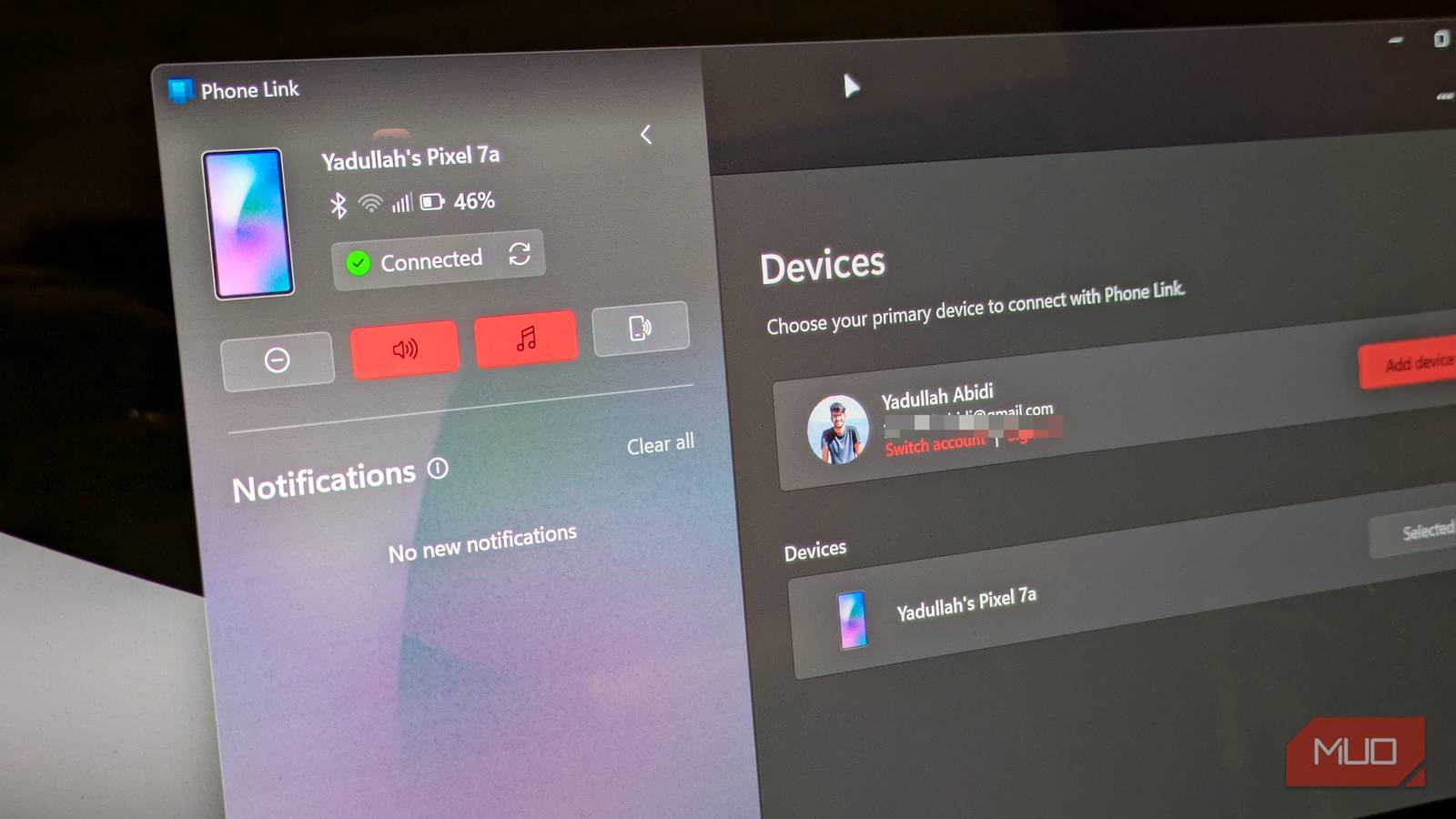
I absolutely love the new Phone Link on Windows 11, and more so because I exclusively use Samsung phones, so there are extra perks due to the Samsung and Microsoft partnership. For instance, some of the best Phone Link features are exclusive to Samsung Galaxy phones, including cross-device copy-paste, drag-and-drop file transfer, RCS messaging support, and instant hotspot.
Even if you’re using a non-Samsung phone, there’s more to Phone Link than just screen mirroring, call transfer, and notification syncing. However, several of its most useful features come disabled by default, so you need to tweak a few toggles to get the most out of it.
Instant hotspot
Turn your phone’s hotspot on and off from your PC
Tashreef Shareef / MakeUseOfCredit: Tashreef Shareef / MakeUseOf
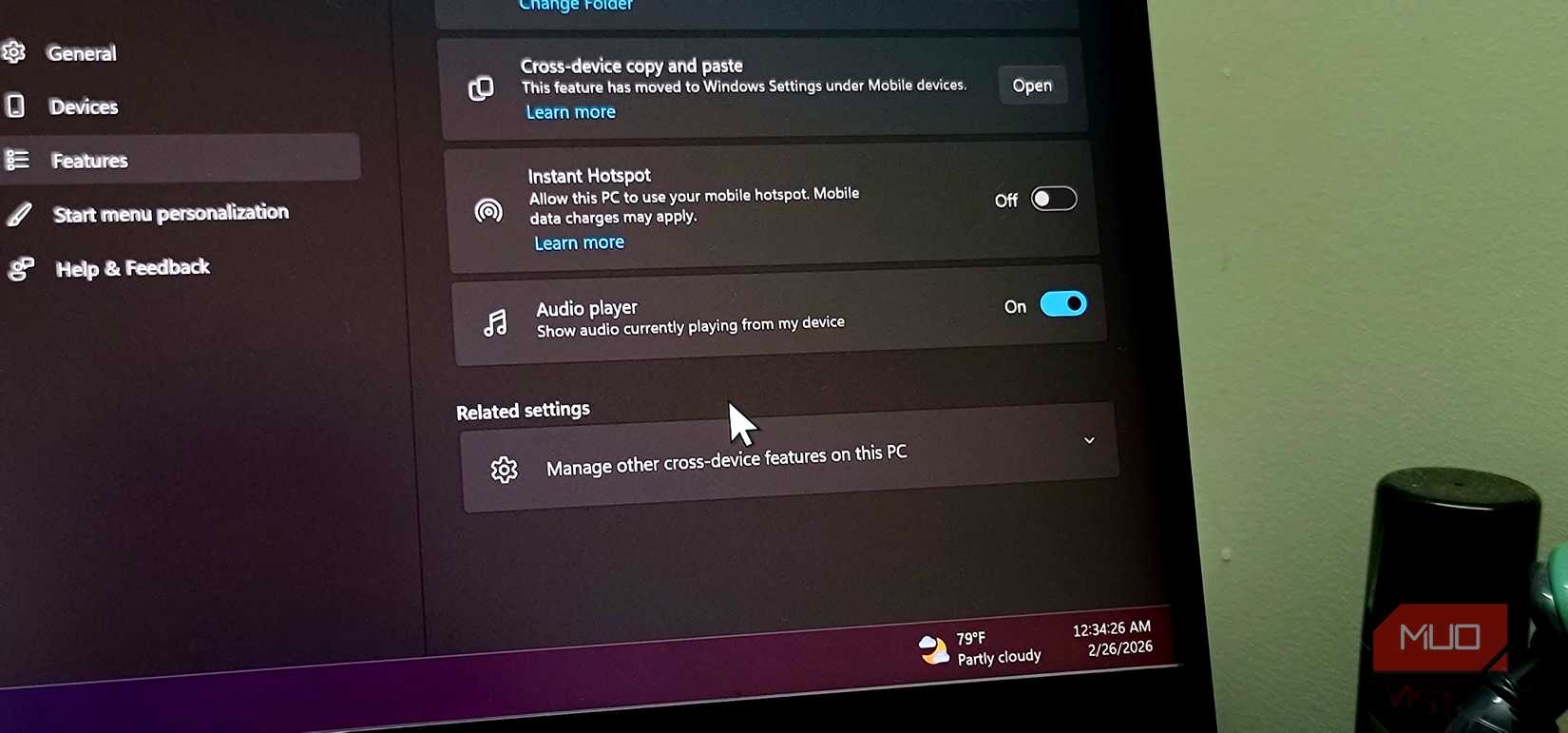
Instant Hotspot is one of those features that sounds trivial until you need it. I travel with my laptop often, and when there’s no Wi-Fi around, I tether to my phone. Normally, that means pulling out my phone, toggling the hotspot on, then connecting from my PC. It’s not a huge hassle, but it’s a bit cumbersome.
With Instant Hotspot enabled, I can do all of this from the Windows taskbar. I click the network icon, expand the Wi-Fi list, and my phone’s hotspot shows up as an available network. When I click Connect, Windows turns on the hotspot on my phone and connects automatically.
To set it up, open Phone Link, click the Gear icon to open Settings, then go to the Features tab. Scroll down to Additional settings and click Setup Instant Hotspot. It’ll send a permission request to your phone, so tap Allow on the notification, and you’re done.
This feature was exclusive to Samsung phones for a while, though a few OnePlus devices now support it too. If you’re on a Samsung Galaxy, it should work out of the box after the initial setup.
Change the audio source
Route phone audio through your PC speakers
Tashreef Shareef / MakeUseOfCredit: Tashreef Shareef / MakeUseOf
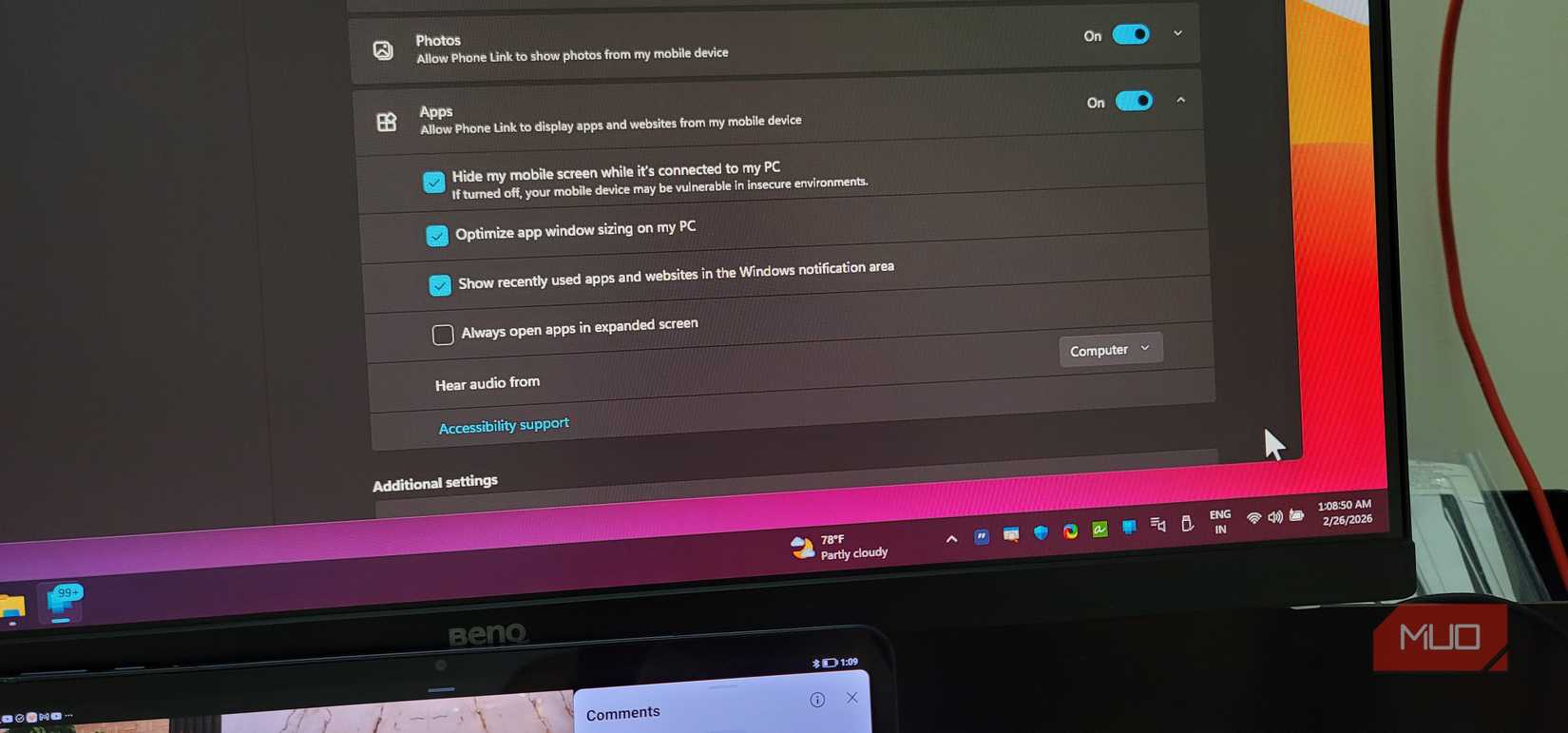
By default, when you mirror an app or play media through Phone Link, audio comes out of your computer’s speakers. That works fine most of the time, but sometimes you’d want it to play on your phone instead. For instance, if your phone is connected to a Bluetooth speaker, and you want to keep using that output.
Phone Link lets you switch between the two. Open Settings, go to the Features tab, and expand the Apps section. You’ll see a Hear audio from the dropdown with two choices: Computer and Mobile device.
I keep mine set to Computer since my laptop speakers or headphones are usually what I’m using while working. But when I’m streaming music through a connected speaker, switching to Mobile device keeps the audio routing intact while I still control the phone from my PC.
Quick settings
Control DND, volume, and more without touching your phone
Phone Link has a row of quick settings buttons in the upper-left area of the app window that are easy to miss. These let you control a handful of phone settings without picking up your device, and I use them more than I expected.
The Do Not Disturb button, which looks like a minus (-) icon, toggles DND on your phone. Click it once to enable DND, click it again to turn it off. This is useful if you are in a meeting or need to focus; you can toggle DND from your PC, and your phone stops buzzing on my desk.
Next to it is the speaker icon, which cycles through your phone’s volume modes. The first click switches to Vibrate, and clicking again goes to Silent. One more click brings it back to Volume on. I use this a lot when my phone is across the room, and I don’t want to get up just to mute it.
Then there’s Play Sound, which is a lifesaver when you’ve misplaced your phone. Click the phone with speaker icon, confirm with Play sound, and your phone will ring at full volume for about 20 seconds. To stop it, open Link to Windows on your phone and tap Stop.
There’s also a built-in audio player control that shows what’s currently playing on your phone and lets you pause, skip, or adjust playback from your PC. Together, these quick settings make Phone Link feel less like a notification mirror and more like a proper remote control for your phone.
Access apps without unlocking
Skip the unlock prompt when screen mirroring
Phone Link has a very useful feature that lets you use your phone’s apps directly on your PC. You can open apps, type with your keyboard, and interact with your phone as if it were right in front of you.
But it has one frustrating issue. Every time you click any icon to launch the app, it prompts you to unlock your phone first. You either walk over to your phone and use your fingerprint or enter your PIN through the on-screen prompt. Having to unlock the device each time I want to access any app on my PC made me stop using this feature altogether.
You can bypass this by tweaking a setting on your phone. Open the Link to Windows app on your Android device, tap your Profile, then go to Settings and then More Settings. Under the Mobile App Access on PC section, enable the Skip Unlock to Access Mobile Apps on PC option. Your phone and PC need to be on the same Wi-Fi network for this to work.
After enabling this, Phone Link won’t ask you to unlock your phone when you start mirroring. You can open any app, check messages, or browse your phone’s content directly from your PC without the extra step.
Phone Link does more than you think
I’ve tried Phone Link alternatives like KDE Connect, and while some have their strengths, I keep coming back to Phone Link because of how deeply it integrates with Windows.
These four settings took me a while to discover, but they’ve noticeably improved how I use my phone and PC together. If you’ve been treating Phone Link as a basic notification viewer, it’s worth spending some time in its settings. There’s a lot more hiding under the surface than what you see on the first launch.