
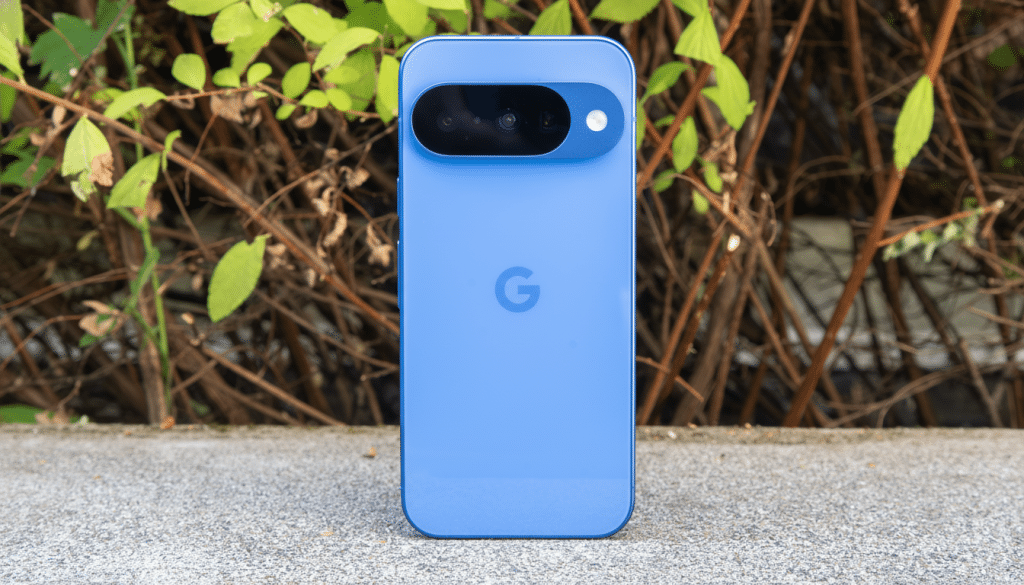
Android users have long envied the tap-and-go convenience of AirDrop. Now, in a notable interoperability move, Google’s Quick Share can hand off files directly to AirDrop — but only on a small club of devices. If you’re holding a Pixel 10 series phone, you can beam photos, videos, and documents to an iPhone or Mac almost as seamlessly as iPhone-to-iPhone transfers. Here’s what changed, which models work, and exactly how to do it.
What Changed in Quick Share and Why It Matters Now
Quick Share, Google’s built-in proximity sharing tool, now discovers nearby Apple devices and completes the transfer through AirDrop on the receiving side. The handshake happens locally using Bluetooth for discovery and Wi‑Fi for the actual transfer, mirroring how both ecosystems already move files at high speed without a data connection.

This matters because mixed households and workplaces are the norm. Analysts at Counterpoint Research estimate Android powers roughly 70% of smartphones worldwide, meaning cross‑platform sharing is no longer a fringe need. By letting Quick Share and AirDrop speak to each other, Google and Apple lower one of the most frustrating walls between platforms.
Which Android Phones Actually Support It
Only Google’s Pixel 10 series currently supports Quick Share‑to‑AirDrop transfers. If you have an earlier Pixel or a non‑Pixel Android phone, you won’t see nearby iPhones or Macs in Quick Share yet.
On the Apple side, any recent iPhone, iPad, or Mac with AirDrop enabled can receive. The recipient must have Bluetooth and Wi‑Fi on and AirDrop set to either Contacts Only or Everyone for 10 Minutes. If AirDrop is set to Contacts Only and you’re not in the recipient’s contacts with a matching email or number, the iPhone won’t appear — switch to Everyone for 10 Minutes in Control Center when in doubt.
How To Use Quick Share To Send To AirDrop
On your Pixel 10, open Quick Settings and make sure Quick Share is toggled on. You can also find it under Settings > Connected devices > Quick Share. Set your device visibility as needed.
Pick the content to send. In Google Photos, Files, or any app with a Share button, select your items and choose Quick Share from the share sheet.
Wait for nearby devices to populate. When the intended iPhone or Mac appears, tap its name. If the iPhone is locked or its screen is off, ask the recipient to wake it so AirDrop can prompt properly.
The recipient sees an AirDrop prompt to Accept or Decline. Once accepted, the transfer begins instantly over a local Wi‑Fi link. Large video files usually move far faster than traditional messaging or cloud uploads.
Verify delivery. On iPhone, images and videos typically land in Photos; PDFs and other documents arrive in Files unless a specific app claims them. On a Mac, check the Downloads folder by default.
Troubleshooting and Transfer Tips for Smoother Sharing
Keep both devices within a couple of meters and avoid physical obstructions. Personal Hotspot can block peer‑to‑peer links — turn it off on the iPhone if discovery fails.
If the iPhone is set to Contacts Only and you don’t match a saved contact method, the device won’t appear. Temporarily switch AirDrop to Everyone for 10 Minutes, then switch back when done.
On Pixel, ensure Bluetooth and Wi‑Fi are on, and that Battery Saver or Airplane Mode isn’t restricting radios. If discovery stalls, toggle Quick Share off and back on, or briefly toggle Bluetooth.
Update both devices. On Android, Quick Share relies on system components like Google Play services; on iPhone, AirDrop improvements arrive via iOS updates. Fresh software often fixes flaky discovery.
Security and Privacy Considerations for Local Transfers
Quick Share and AirDrop are designed for local, encrypted transfers. Discovery typically uses low‑energy Bluetooth, while the payload moves over a protected peer‑to‑peer Wi‑Fi link, meaning your files don’t traverse the public internet.
Google says independent security researchers reviewed the safeguards behind this feature before release. Both Apple and Google have also collaborated on wider cross‑platform safety standards, such as alerts for unknown Bluetooth trackers, signaling a broader commitment to interoperability without sacrificing privacy.
What to Expect Next for Wider AirDrop Compatibility
Google has indicated it plans to expand AirDrop compatibility beyond the Pixel 10 series, but timelines and partner models have not been detailed. If you rely on cross‑platform sharing and don’t own a Pixel 10, the best move today is to watch for system updates from your phone maker and from Google’s core services.
For now, Pixel 10 owners get a genuine quality‑of‑life upgrade. Set up Quick Share, confirm the recipient’s AirDrop settings, and you can finally move files between Android and iPhone the way it always should have worked — quickly, locally, and without a cable or cloud detour.