
Ask ten people what they use AI for in 2026, and chances are you’ll get some version of the same three answers: writing emails, brainstorming ideas, and replacing Google Search. However, in the last few months, the tasks AI can handle have grown far beyond the chatbox.
Rather than you asking a chatbot a question and simply getting a text response you can copy and paste somewhere else, AI is now capable of actually going ahead and doing tasks for you. That shift is exactly what makes AI tools worth subscribing to, including Claude. While Claude’s excellent at what every AI does well, it’s the ability to connect it to actual tools that makes it worth paying for.
Custom and pre-built
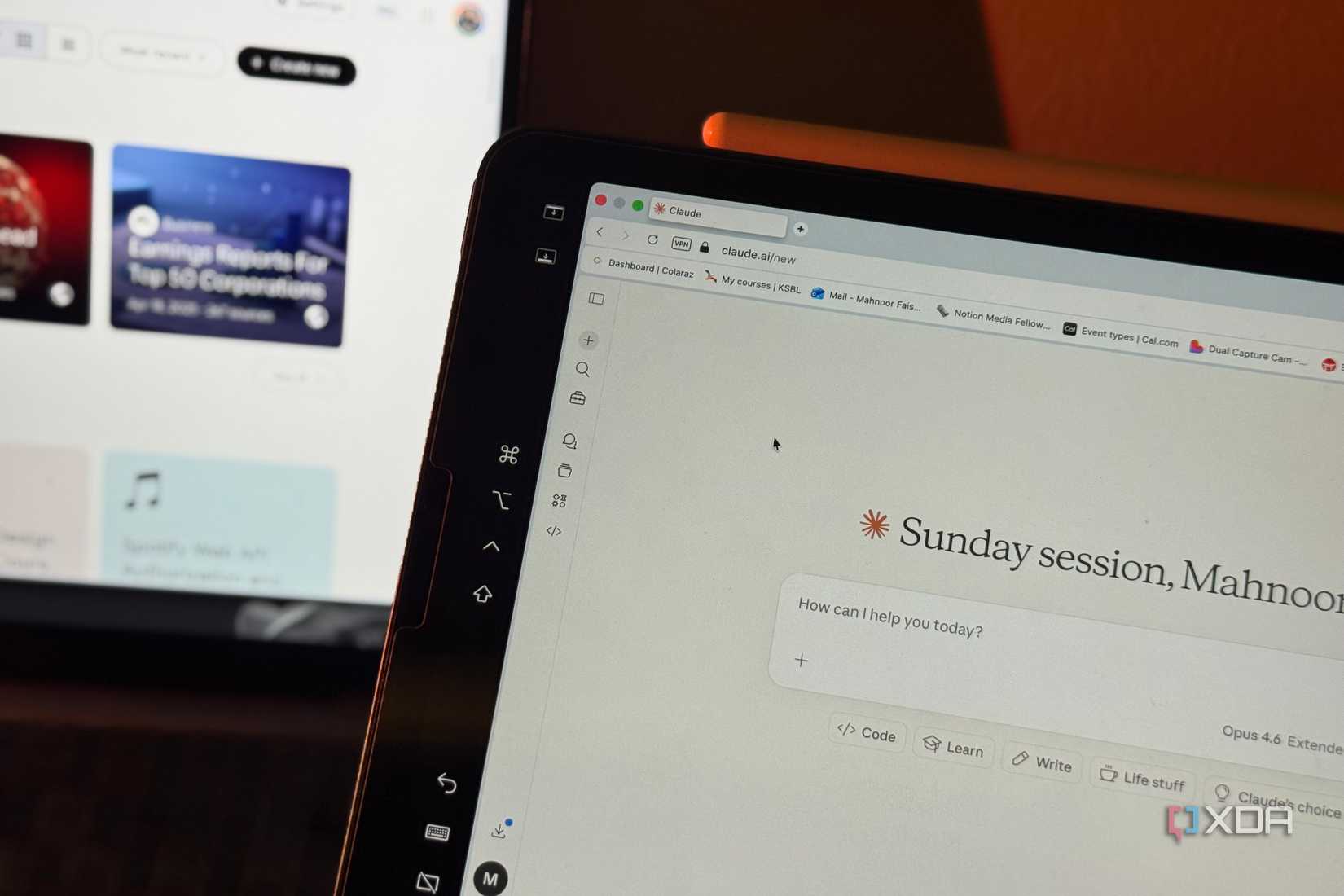
If you’ve read my work before, you might be aware that I’m always looking for ways to pair the tools I use. My thinking is: if a tool’s
powerful on its own, imagine what it can do when it can talk to the other tools in my stack.
I’ve been pairing productivity tools (not necessarily ones with AI) with primarily AI tools since ChatGPT launched publicly. And for the longest time, the process was very manual. I’d copy from one app, paste it into the AI, get a response, and then copy it back into another app. It worked, and it definitely helped speed up my workflow. However, it certainly wasn’t as seamless as you’d expect.
While users came up with solutions like Chrome extensions for tools like NotebookLM to make pairing simpler and help it play nice with other tools, the integrations AI companies themselves were shipping were extremely underwhelming.
Fast-forward to today, and the integration game has completely changed. Talking about Anthropic’s Claude specifically, we can break the ways it connects to external tools into two categories of Connectors — a feature that lets Claude access and take actions inside third-party apps.
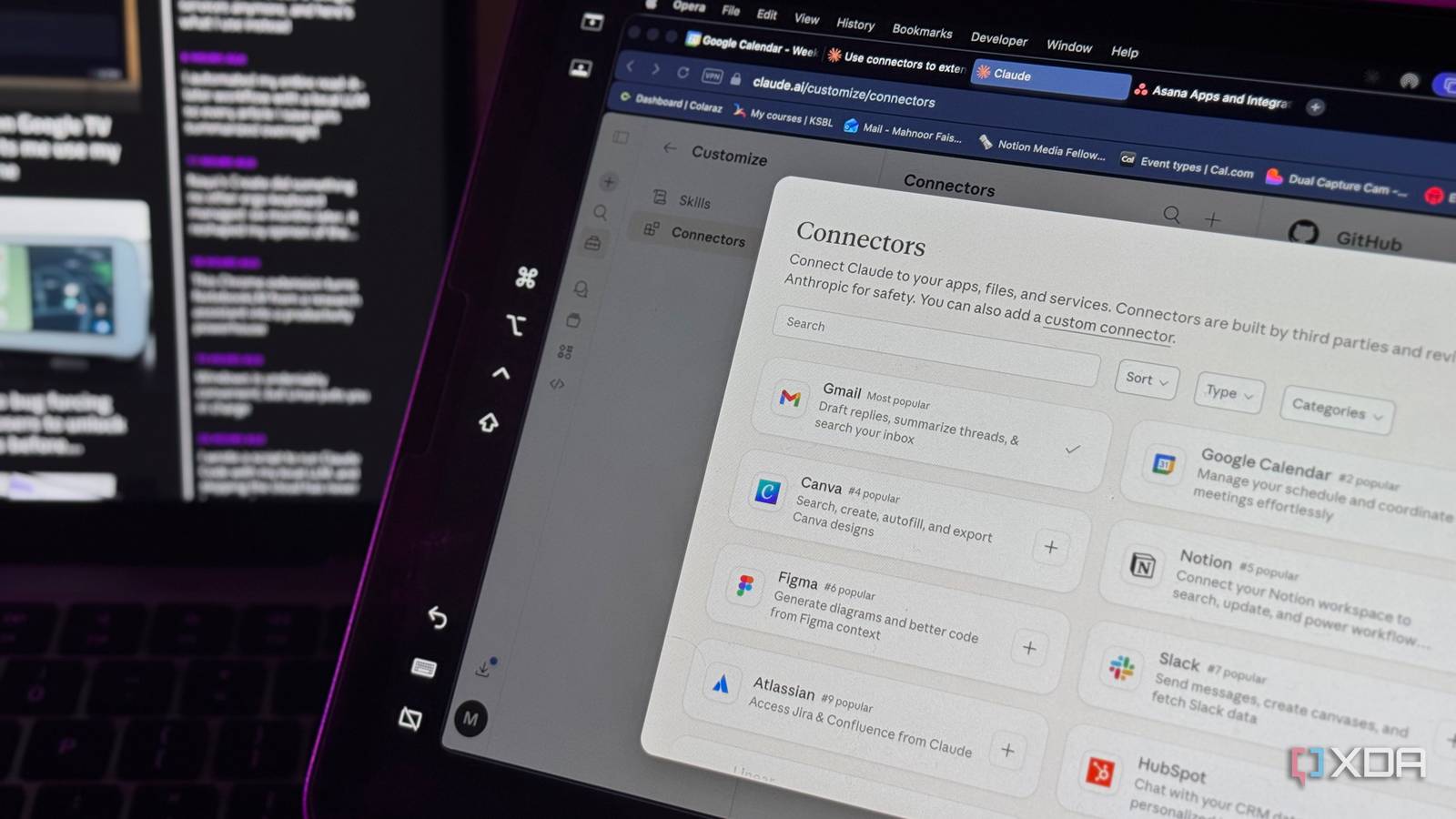
First, Anthropic has a bunch of official connectors for widely used apps you probably already use, and they only take a couple of clicks to set up. Some apps you’ll find here include Gmail, Google Calendar, Canva, Notion, Figma, Slack, HubSpot, Gamma, Granola, Vercel, Asana, Indeed, ClickUp, and more. These are built by third parties but are all reviewed by Anthropic for safety.
Custom Connectors, on the other hand, allow you to connect Claude to tools that aren’t available in the official directory yet. Claude lets you do this through something called a remote MCP server. MCP stands for Model Context Protocol, a universal standard Anthropic created that lets AI tools communicate with external apps. If a service has an MCP server URL (which a lot of tools now do), you can simply paste it into Claude’s settings and connect to it directly.
Keep in mind that the services you connect to Claude using this method aren’t verified by Anthropic, so make sure you trust the source before connecting. If it’s a well-known service, you’re good to go.
Connectors are ridiculously easy to set up
Only takes a minute
Whether you want to set up a pre-built connector or add a custom connector, both options are fairly easy to set up.
Simply click the Customize button on the sidebar, then click Connectors. From there, hit the plus (+) icon, and you’ll see two options: Browse connectors and Add custom connector. If you want to browse Claude’s connectors directory, select Browse connectors. Then, just hit the Connect button next to the connector you’d like to set up and follow the on-screen instructions.
If you’d like to set up a custom connector, click Add custom connector instead. Here, all you need to do is enter the connector’s name and the URL of the remote MCP. You can grab this URL from the tool’s official website or documentation —most services that support MCP will have it listed in their integrations or developer settings page.
So, how can you actually use these connectors?
Where the magic actually happens
The way you can use Connectors within Claude differs depending on the tool you’ve connected. Some connectors are read-only and only let Claude read and pull data. On the other hand, other connectors let Claude actually perform actions within the app, like creating, editing, and sending things within the apps.
When you’re authorizing a connector, you’ll be able to see exactly what it’ll be able to access. You can also tweak the exact permissions within the connector’s settings. Each connector has a Tool Permissions section that breaks down its capabilities into read-only tools and write/delete tools. For each one, you can set it to Always allow, Needs approval, or Never allow.
For instance, with the Google Calendar connector, you’ll need to grant it permission to view events on all your calendars, see and download any calendar you access, and also see edit, share and permanently all the calendars you can access using Google Calendar. This means that you can search through your calendar within a Claude thread, schedule new events, edit or cancel existing ones, and have Claude cross-reference your availability.
Similarly, the Notion Connector lets you create, edit, search and organize content directly from Claude! What would previously take jumping from one app to another is now handled all in one place. You can ask Claude to pull up all your notes from Notion, create a new page from scratch, update a database with new content, and more, without even opening Notion yourself.
You can also use all of these connectors collectively within a thread. For instance, I could ask Claude in a thread to find important press emails from my inbox, organize them, and add to my Notion dashboard!
Don’t sleep on Connectors
I’m always looking for ways to simplify my workflow, and reducing the number of tools I use. So, condensing them into as few windows as possible is always the move. Claude with Connectors gets me closer than anything I’ve used before. If you’re a Claude user, trust me when I say you’re leaving so much on the table by not setting these up.