
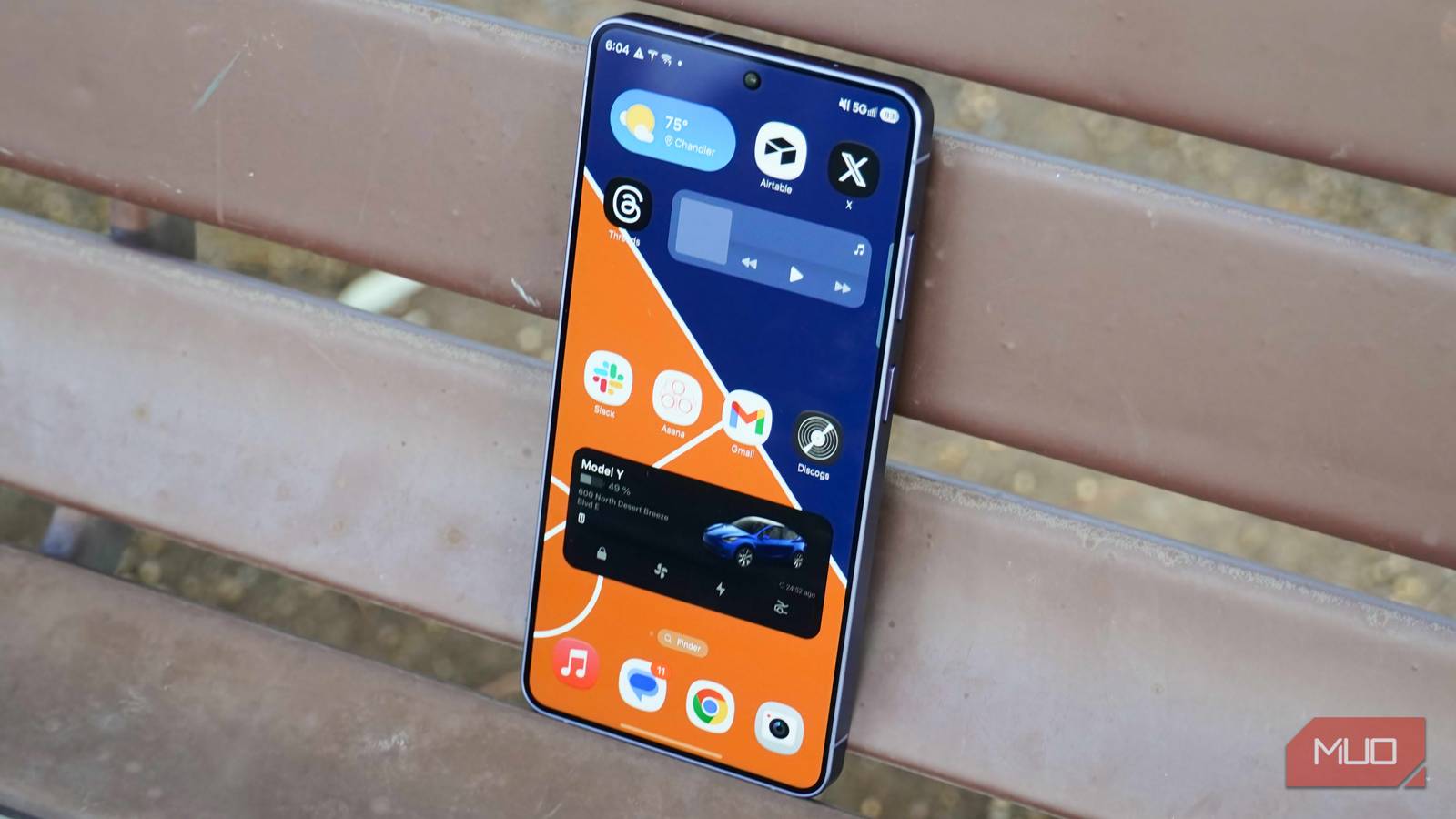
Samsung phones come with a lot of extra features you won’t find in other Android phones. Some of these are absolutely useful, but there are also others, which collect data, push ads, or try to be helpful in ways that don’t always land.
All of this because features like Customization Service, RAM Plus, Edge Panels, and Galaxy AI cloud processing are turned on by default. That’s why I always like to take a few minutes to disable them before I actually start using my phone.
Customization Service
The feature that knows too much
Setting up your Samsung account is one of the first things you have to do on a new Galaxy phone. And while doing that, you also agree to the Customization Service, which is Samsung’s built-in data profiling engine. It looks at what apps you use, how often you use them, and things you search for on the internet.
This matters more than you think because of the sheer amount of data the Customization Service collects. This includes everything from your contacts list and call logs to even what type of music you listen to. Samsung then uses this data to build your profile, which helps it serve personalized ads, promotions, and recommendations across its apps and services.
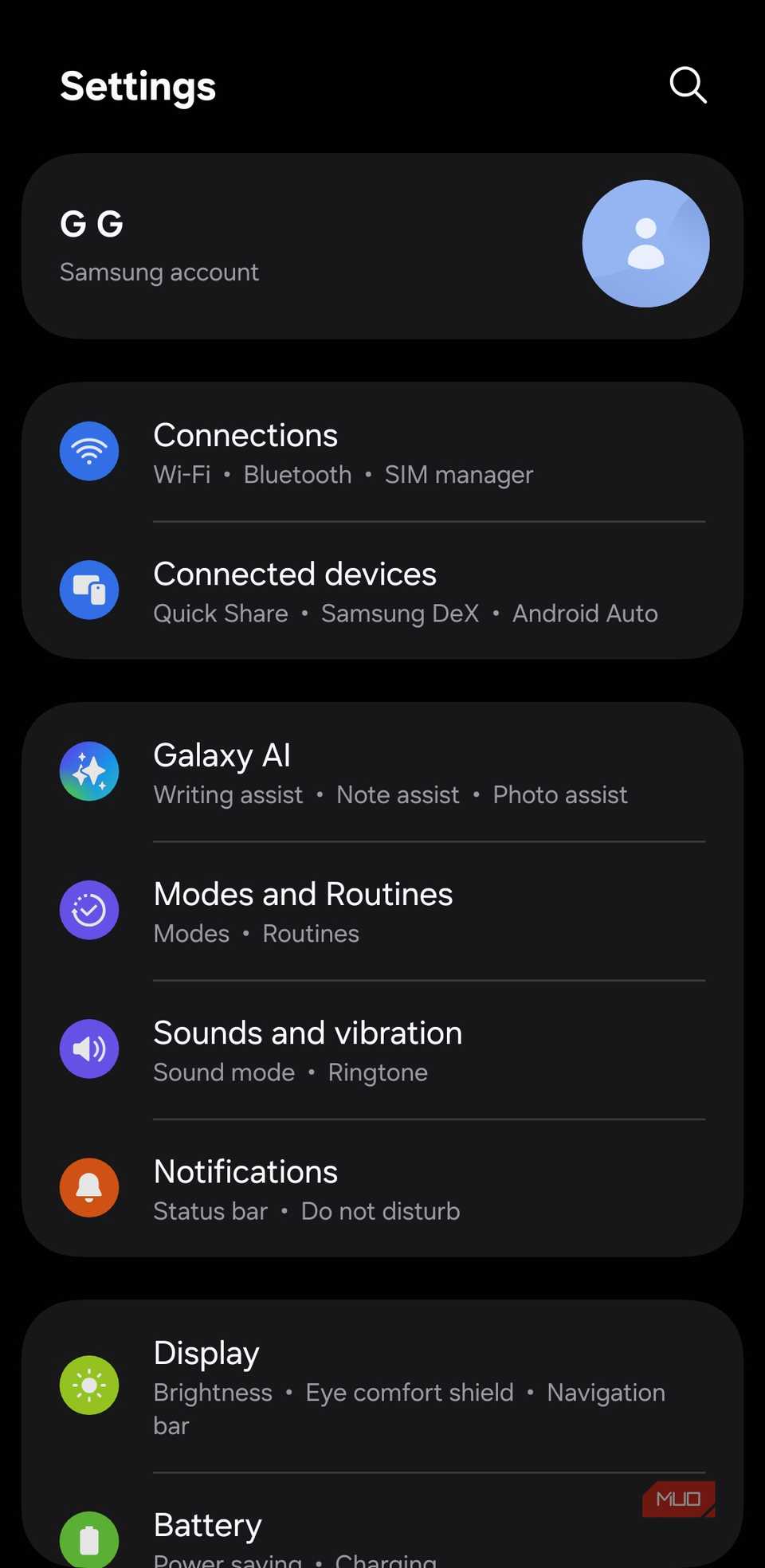
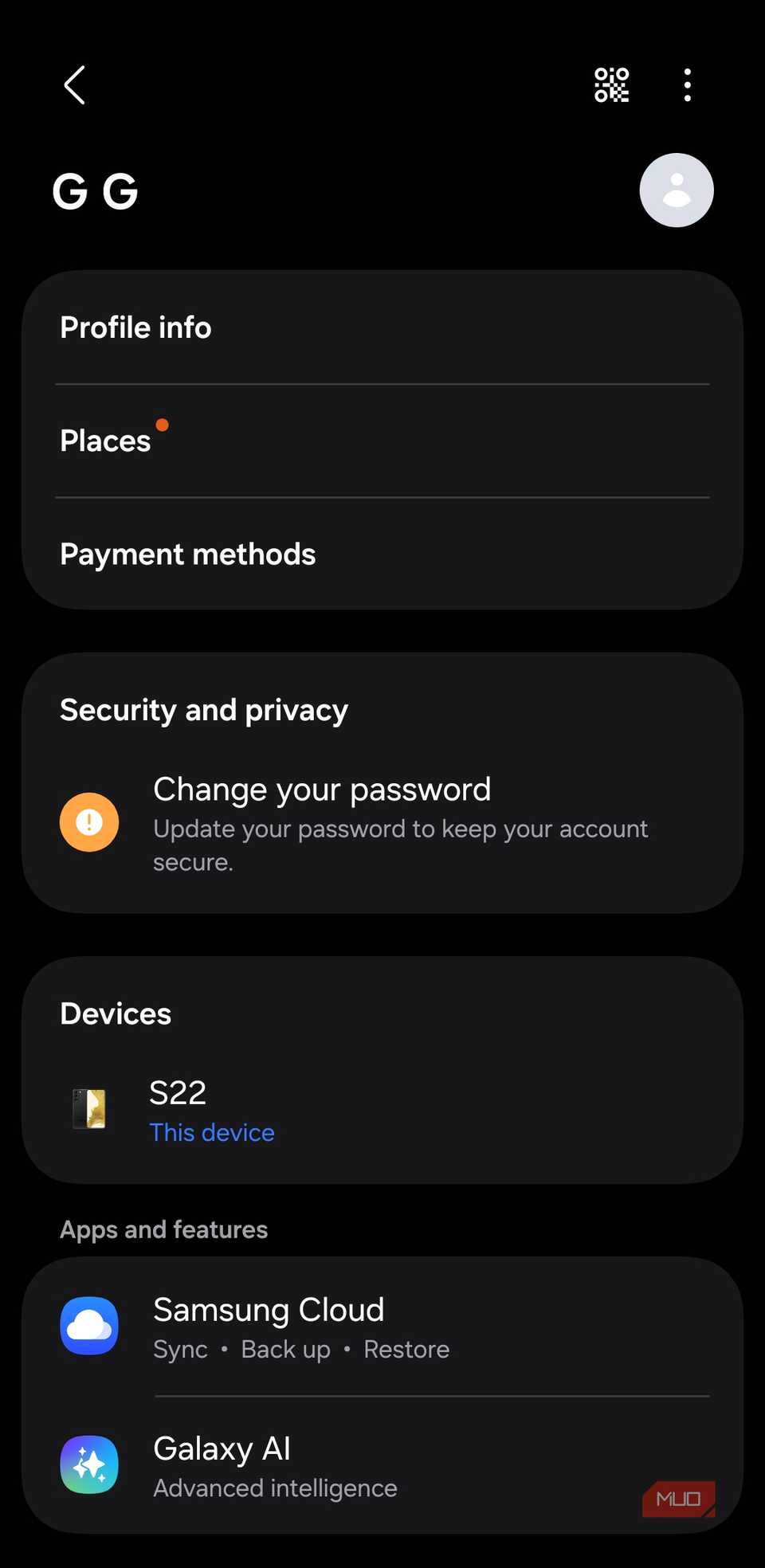
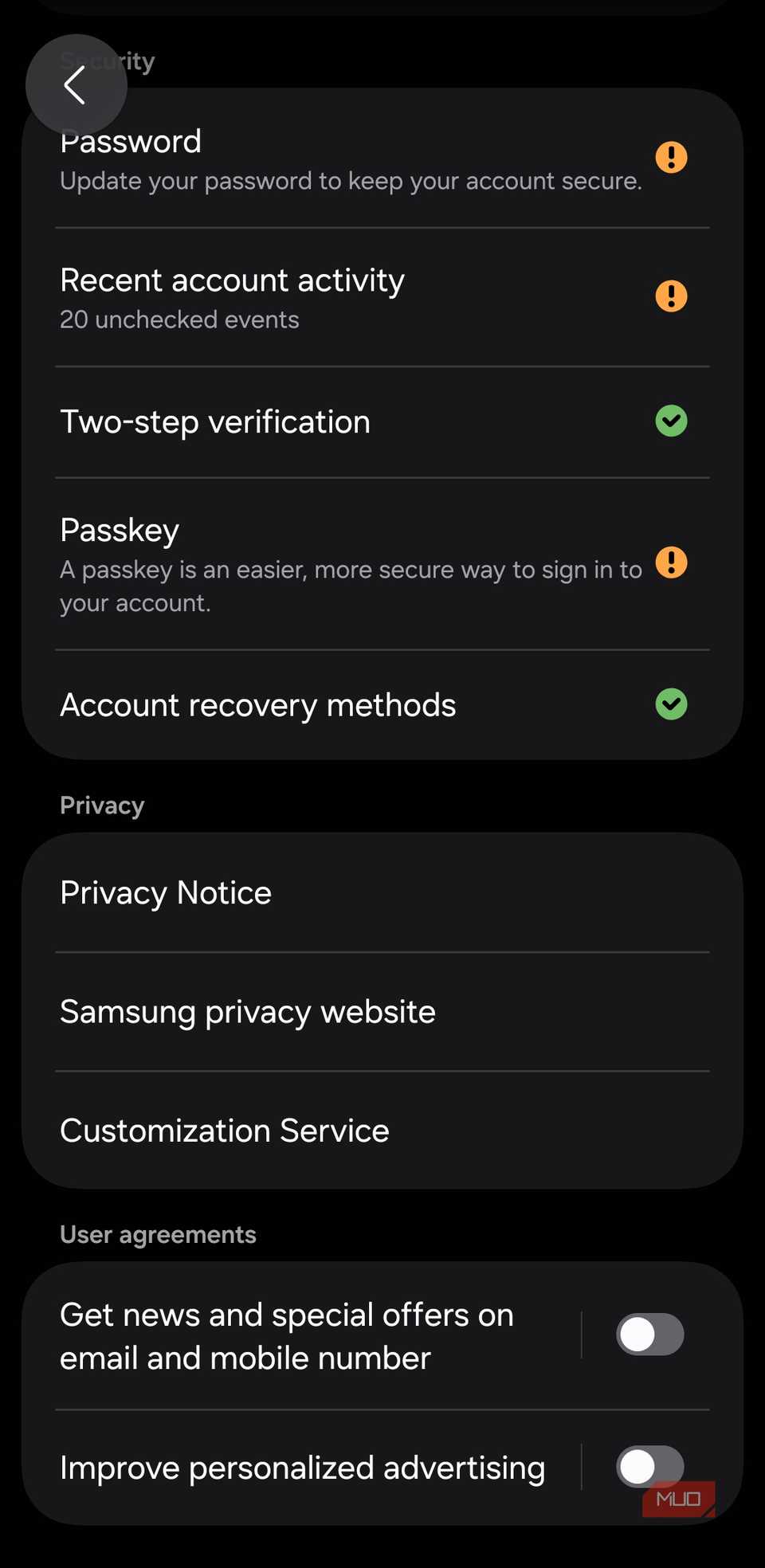
For me, that’s a bit too much access for something I never asked for, which is why Customization Service is one of the first things I disable. You can do the same by heading to Settings > Samsung account > Privacy and security > Customization service.
Samsung’s app and product recommendations
Nobody likes ads on a phone they already paid for
 Screenshot by Pankil Shah — No attribution required
 Screenshot by Pankil Shah — No attribution required
 Screenshot by Pankil Shah — No attribution required
If there’s one thing Samsung really doesn’t hold back on, it’s recommendations. From the moment you set up your phone, you’ll notice subtle nudges everywhere. App suggestions from the Galaxy Store, promoted content in notifications, and those occasional “you might like this” pop-ups in system apps.
All of these are essentially ads in disguise. What’s worse is that they appear even if you have a $1000 flagship Galaxy phone. Samsung lets you put a stop to this, but the option is tucked away in settings.
Head to Settings > Samsung account > Security and privacy, and turn off Get news and special offers on email and mobile number and Improve personalized advertising.
RAM Plus
It sounds useful, but it’s not
 Screenshot by Pankil Shah — No attribution required
 Screenshot by Pankil Shah — No attribution required
 Screenshot by Pankil Shah — No attribution required
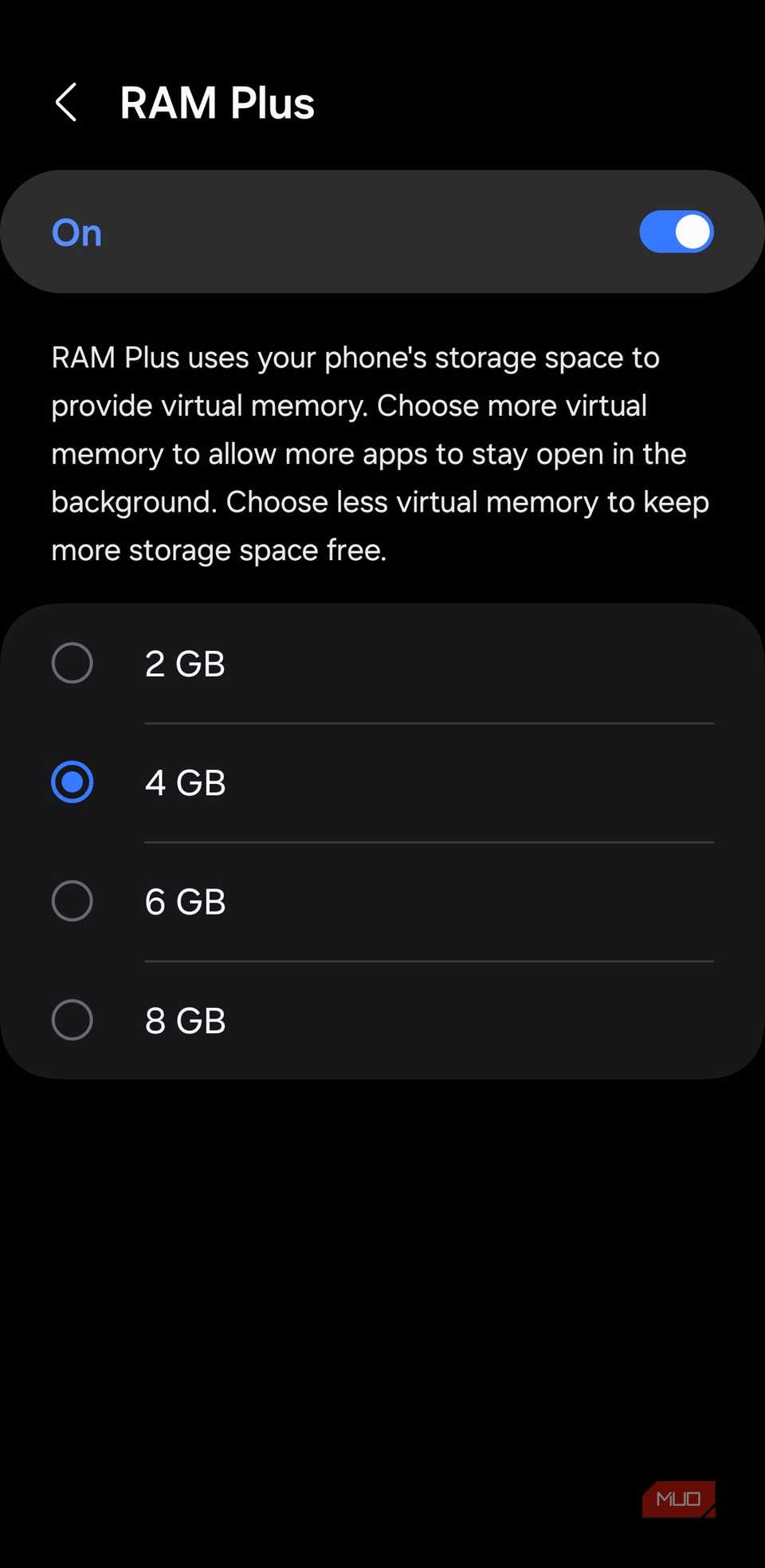
RAM Plus is basically Samsung’s take on virtual memory. This feature uses a portion of your phone’s internal storage and uses it as virtual RAM to help with multitasking and background processes. But the thing is, your phone’s internal storage isn’t as fast as actual RAM. So when your phone uses RAM Plus, it is relying on slower memory, which can affect performance.
Also, if your phone already has 6GB, 8GB, or more RAM, which it most likely has, you simply don’t need RAM Plus. Android is already very good at managing memory on its own, and adding slower virtual RAM into the mix often does more harm than good.
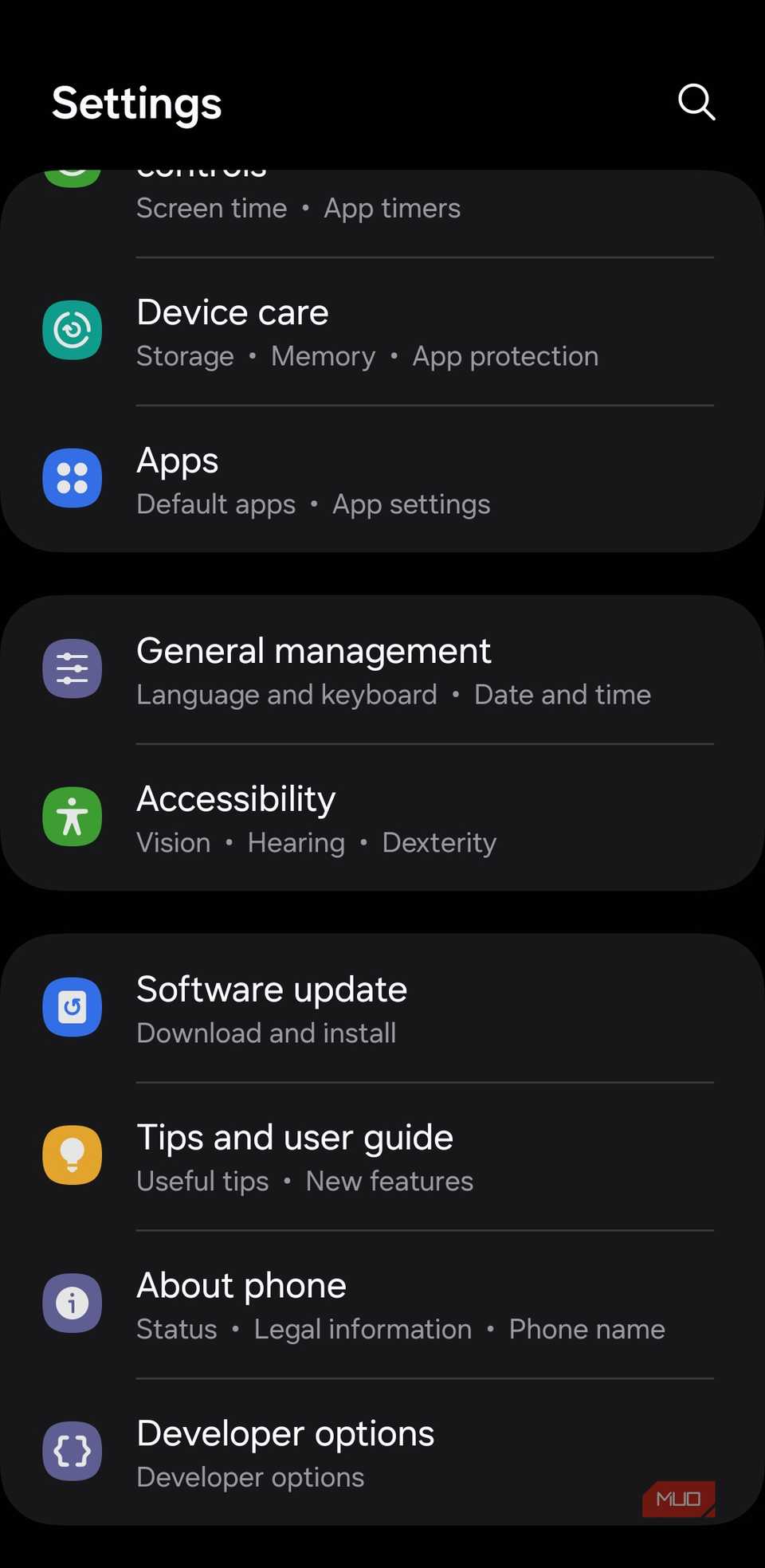
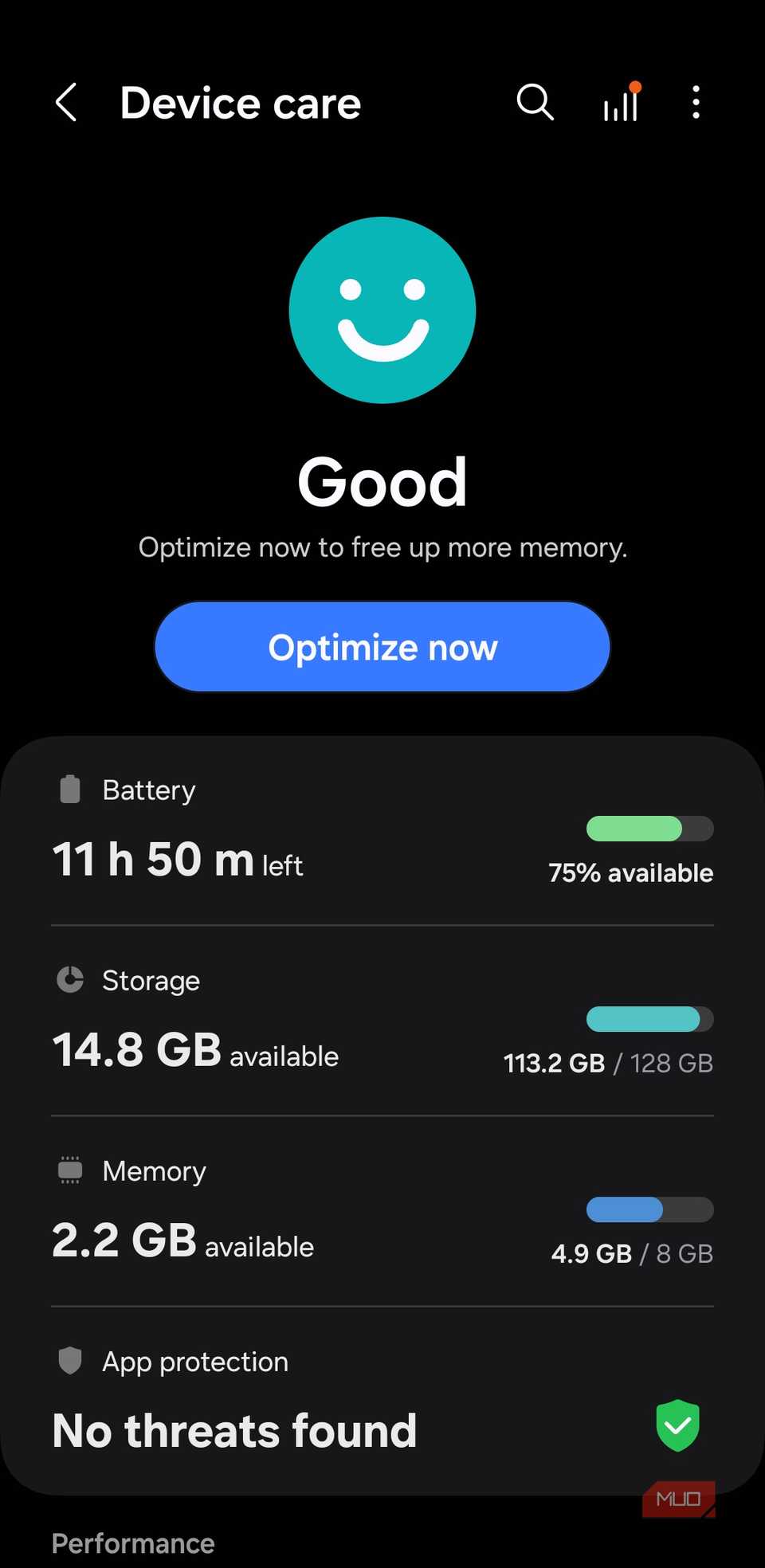
So yes, RAM Plus doesn’t need to be enabled from day one. To disable it, head to Settings > Battery and device care > Memory > RAM Plus.
Related
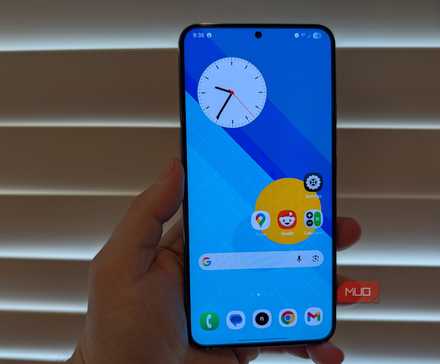
I turned off these 4 Samsung features and now my phone feels faster
Make your Samsung Galaxy feel faster with these quick changes.
Edge panels and Wallet shortcut
I keep triggering them by mistake
Edge panels live on the side of your screen, so your favorite apps, contacts, and tools are only a swipe away. It’s one of those features you either use daily or never at all. Personally, I don’t find them useful. For one, it permanently shows a transparent handle on the side. More importantly, it’s easy to activate it unintentionally when I’m just trying to swipe left.
Thankfully, disabling Edge panels is easy. All you need to do is head to Settings > Display > Edge panels and turn off the toggle.
Another similar shortcut is Samsung Wallet’s swipe-up gesture. It’s convenient as it lets you access your favorite debit and credit cards by simply swiping up on the home screen or lock screen. But if that’s not something you need, you could end up triggering it unnecessarily. To turn it off, head to Samsung Wallet Settings, tap Quick access, and disable Swipe up gestures.
Stop Galaxy AI from sending data online
No need to send your personal data to cloud
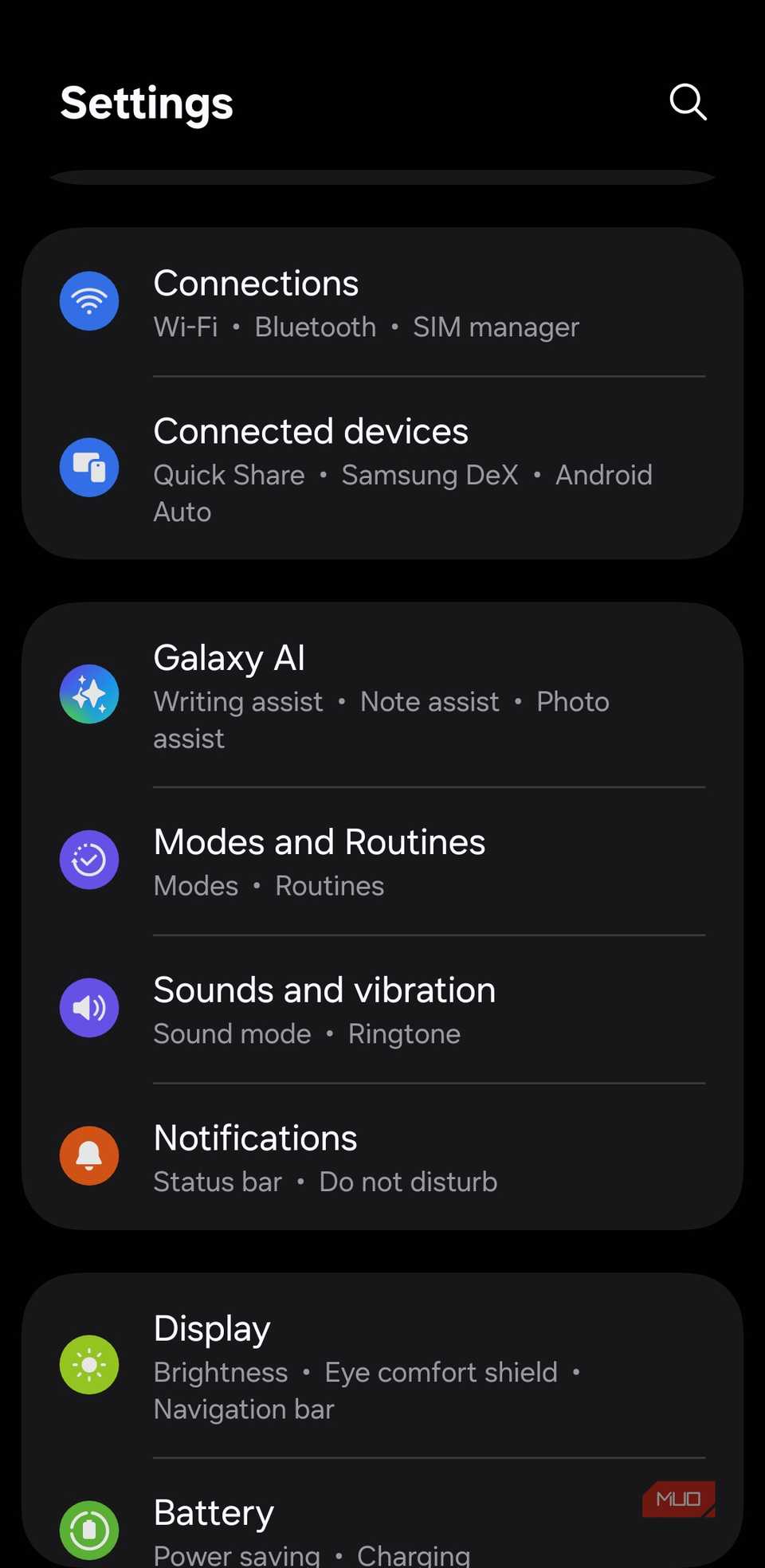 Screenshot by Pankil Shah — No attribution required
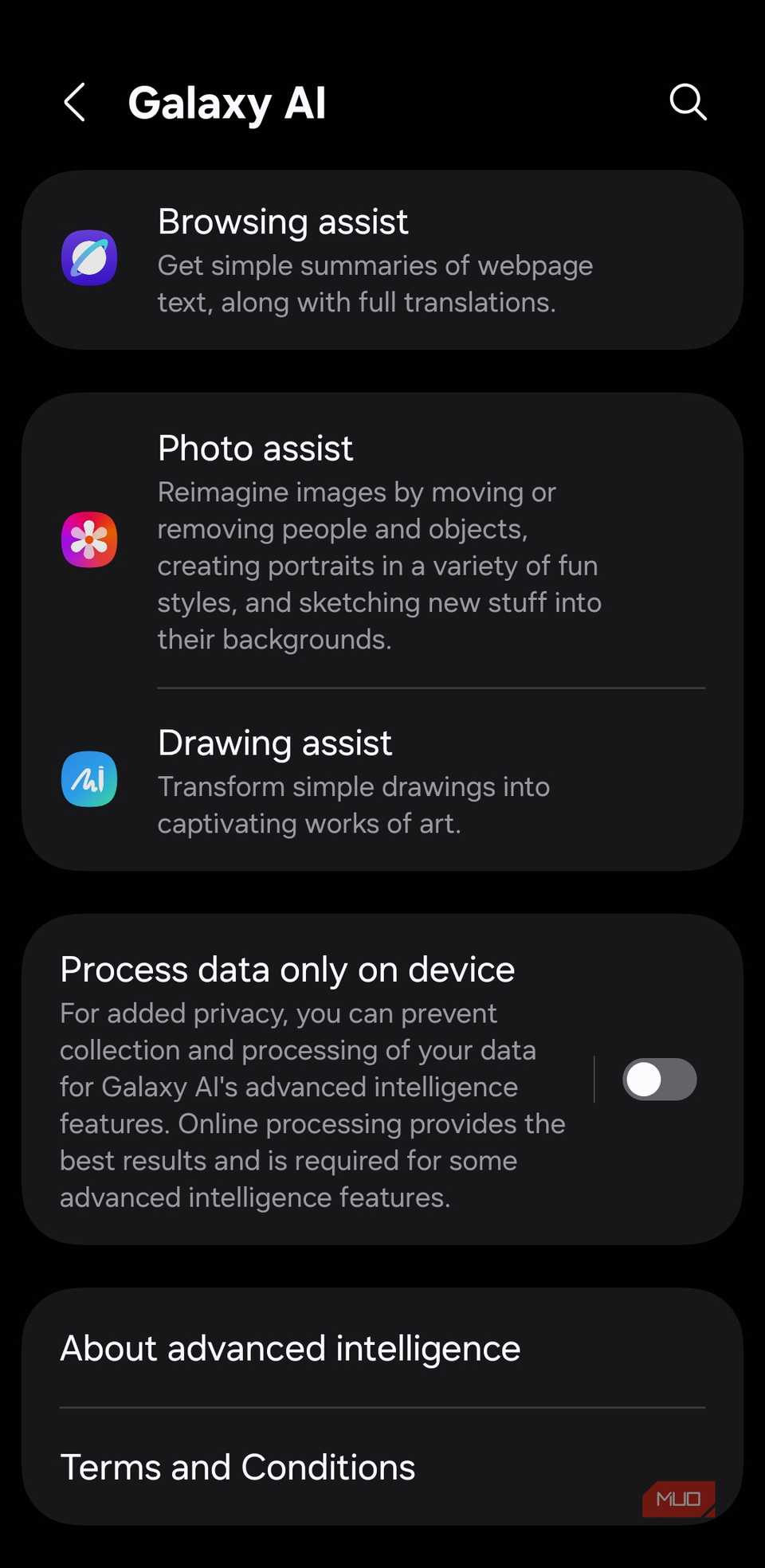 Screenshot by Pankil Shah — No attribution required
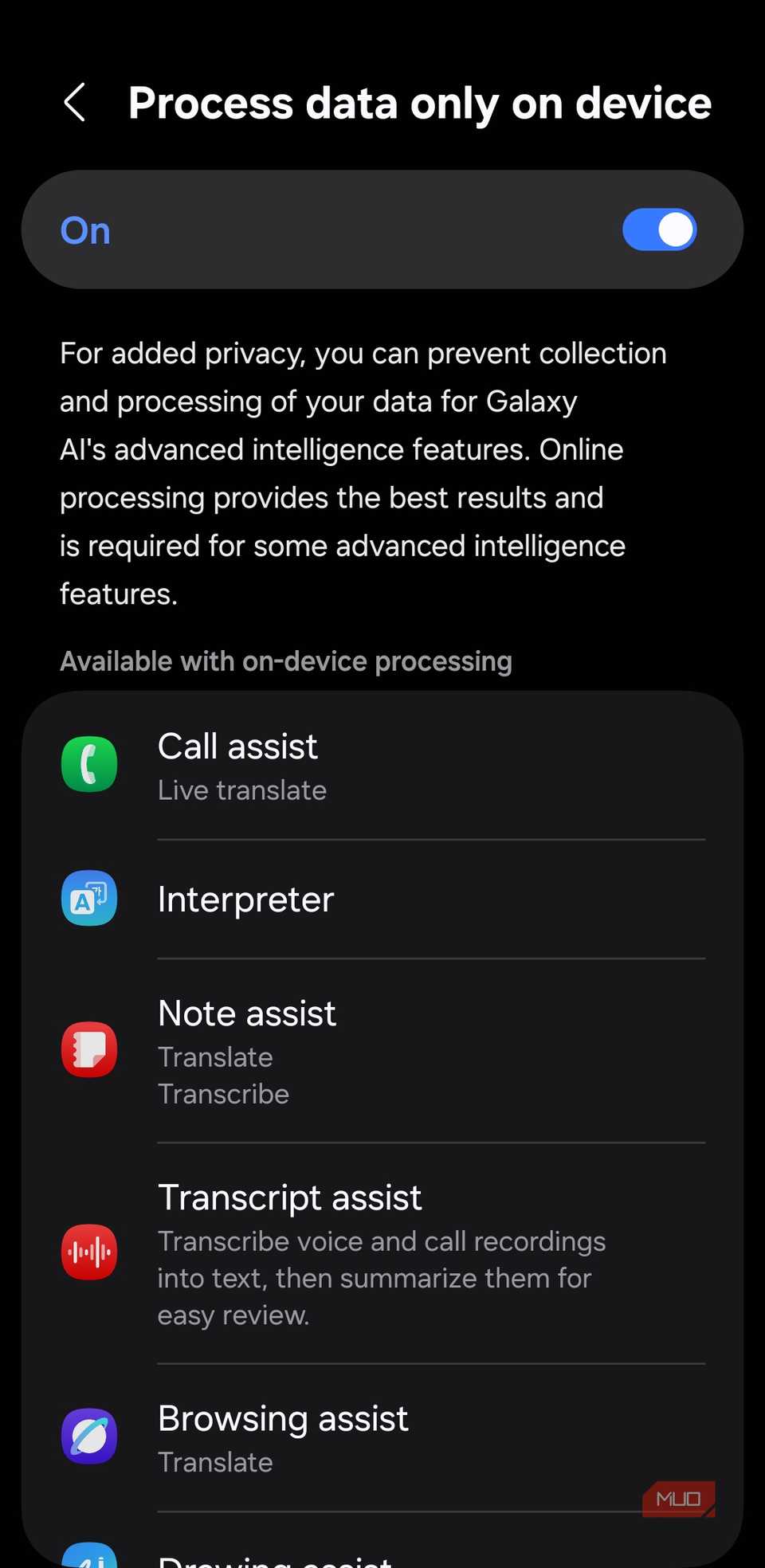 Screenshot by Pankil Shah — No attribution required
Some of the most useful features on your Samsung phone are powered by Galaxy AI. Things like live translation during calls, writing assist in Samsung Keyboard, generative edit in Samsung Gallery, and a few others. The problem is, many of these AI features rely on cloud processing by default. That means when you use them, your data is sent to Samsung’s servers for processing.
While this isn’t a bad thing, it’s also not ideal if you’re worried about privacy. The good thing is you can force Galaxy AI to process data strictly on your device. The catch is that certain features that rely on cloud processing will stop working. If you’re fine with that, head to Settings > Galaxy AI and turn on Process data only on device. You’ll then see a list of AI features that’ll still work.
Of course, the above list is just the start. Depending on your personal preference, you might want to disable on-screen navigation buttons, Bixby, useless pre-installed apps, and more. It’s best to take care of these things during the initial setup, so they don’t get in your way.
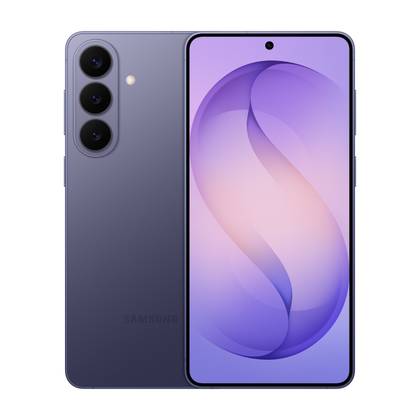
SoC
Snapdragon 8 Elite Gen 5
Display
6.7-inch Dynamic AMOLED 2X
RAM
12 GB
Storage
256 or 512 GB
Battery
4,900 mAh
Operating System
Android