
Sometimes the default settings on your phone are fine (but sometimes a few small tweaks can have a big impact on battery life). Whether Google, Samsung, or OnePlus, these companies have gotten good at optimizing the Android experience to work for most people. But you are not most people — you, like me, want better.
And whether it’s taking control over your auto-brightness so that it’s calibrated just right, customizing Android’s powerful Share Sheet to work the way you do, or changing a simple setting to not clutter your home screen every time you add an app, there is much you can do that defies the defaults of your phone that can lead to a better experience (speaking of making things better, please switch to gesture navigation). I’ll show you a few such changes I’ve made and how you can too.
Stop automatically adding new apps to your home screen
It makes a huge mess
Credit: Brandon Miniman / MakeUseOf
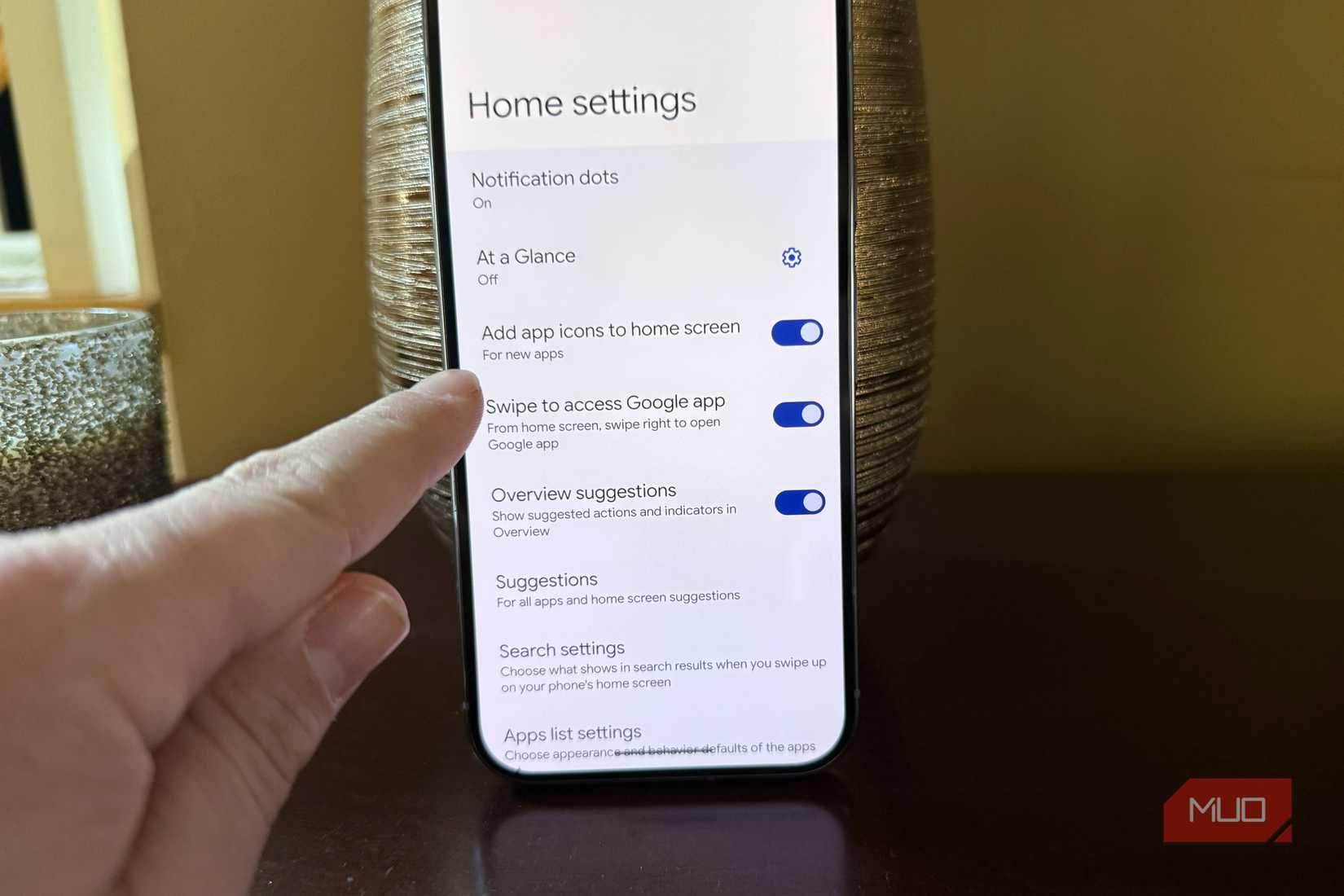
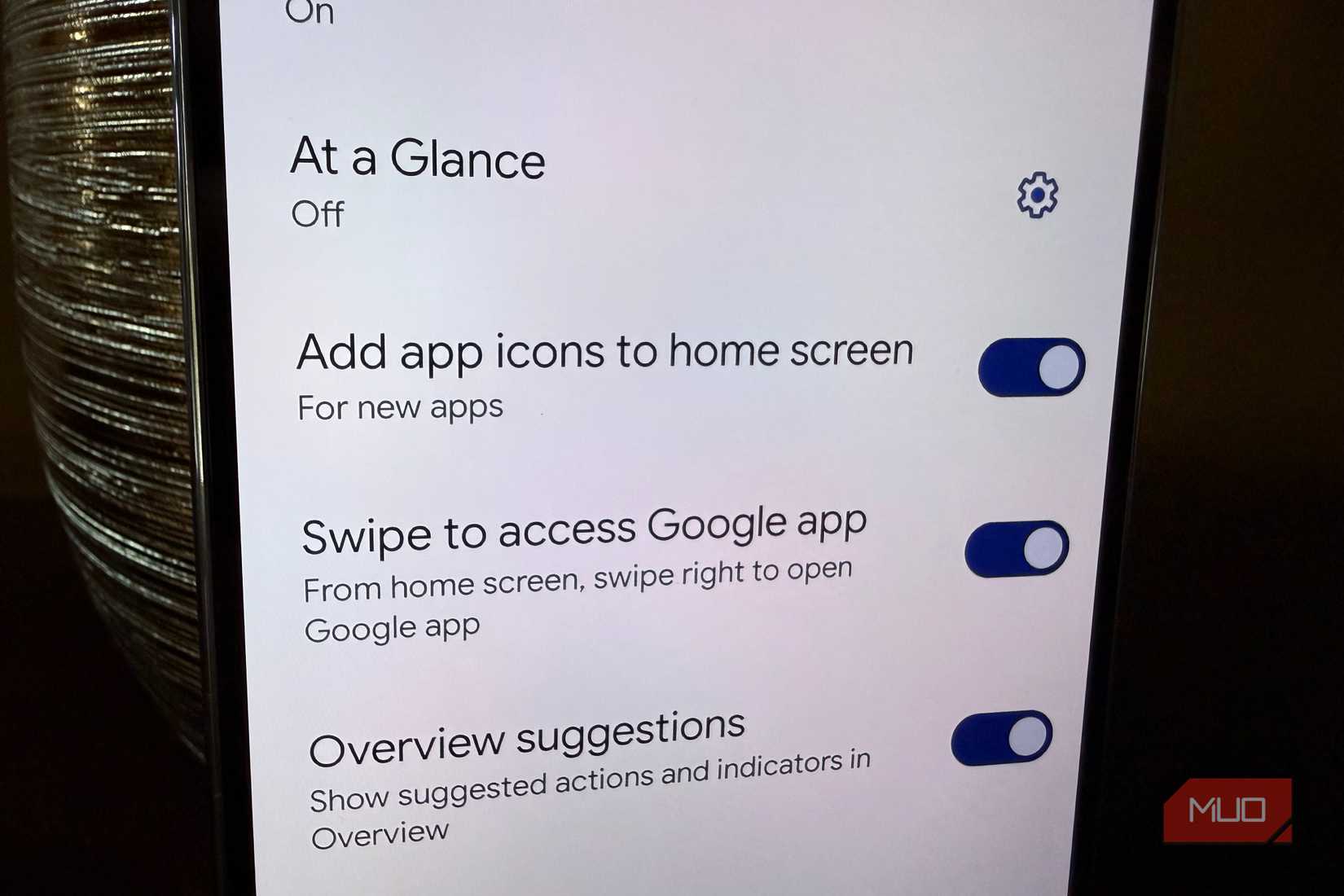
Did you notice how every time you add a new app from the Play Store, an icon shows up on your home screen? Maybe you want to be the one to decide when an app gets prominent placement on your home screen. At least I do. In fact, I like to put apps in my notification shade to keep things clean.
By default, your phone is set up to add apps to your home screen any time you install a new one. To stop this setting that just results in clutter, follow these steps: tap and hold on your home screen, tap settings -> uncheck add new apps to home screen or “add app icons to home screen.” Almost all stock launchers have this option, and it’s always on by default for some reason, but it’s an annoying feature that, if left on, will only make your home screen feel chaotic and unorganized. So turn it off. Next, we will cover how to make the Share Sheet in Android work a lot better for how you use your phone.
Master your share sheet
Pin your favorite people and apps
The Share Sheet in Android is very powerful. In one panel, you can not only pick which app you want to share content with, but you can also pick more granular choices like a specific person and a specific app. For example, I tend to email myself links and other content often, so the Share Sheet lists the “Brandon Miniman Gmail” share option prominently.
I highly suggest you pin your favorite people and apps to your Share Sheet, so that each time you bring it up, your most common share options and people are easy to reach. To pin any person or app to your Share Sheet, just tap and hold the people or apps you want to feature first (you can have up to 10 pins).
How to customize the Share Sheet on Samsung
With a Good Lock module
Credit: Brandon Miniman / MakeUseOf
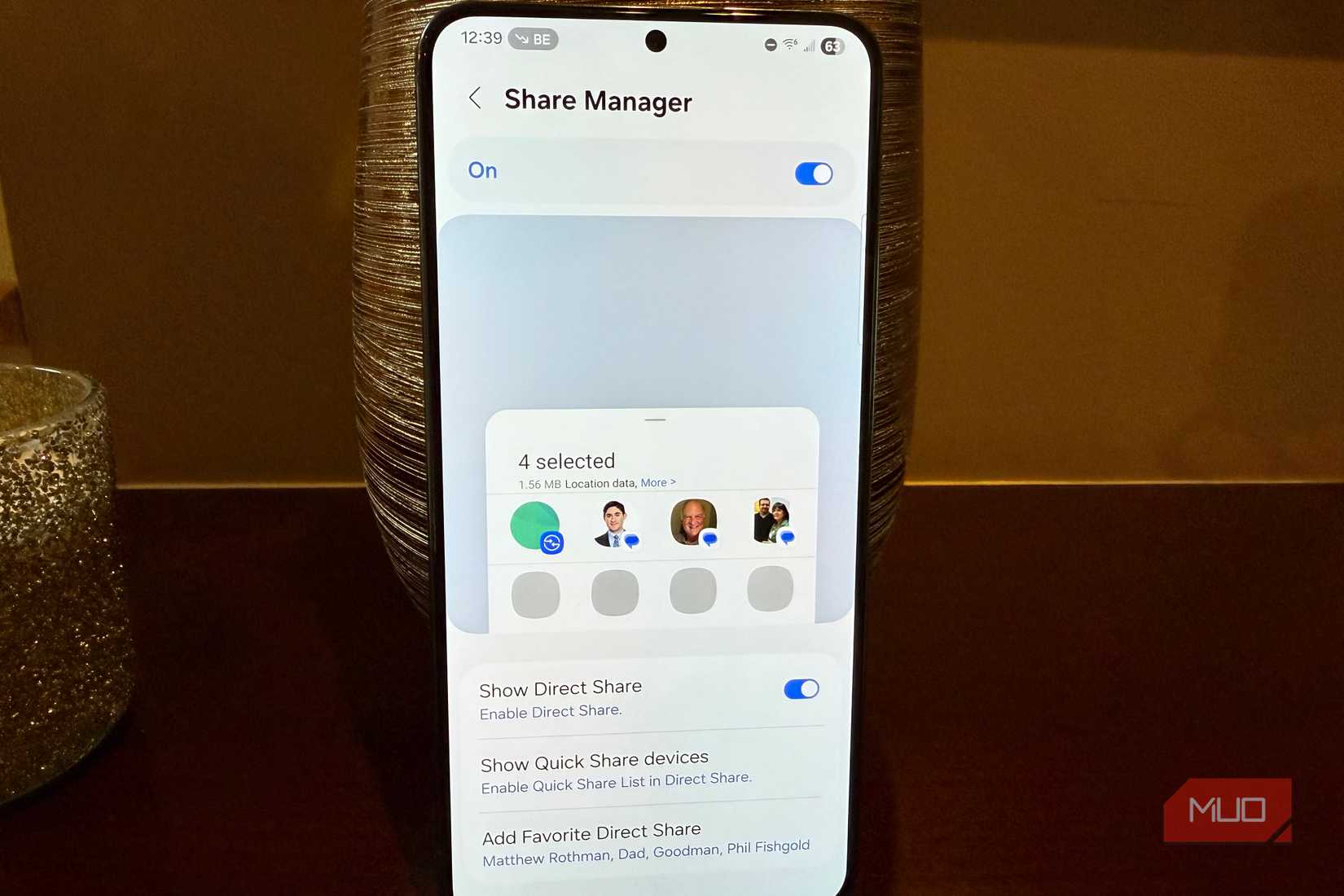
Tweaking the Share Sheet is easiest on a Pixel, but if you’re using a Samsung, you can download the Home Up module in Good Lock, then go to Share Manager to customize it. If you don’t use this module, and you have a Samsung, you won’t be able to customize your Share Sheet like you can on a Pixel. Next, let’s explore ways to make auto-brightness work much better.

OS
Android
Developer
Good Lock Labs
Good Lock is a powerful customization suite for Samsung Galaxy devices, offering a collection of modules and plugins that let you personalize almost every aspect of your phone. With Good Lock, you can tweak the lock screen, home screen, navigation bar, keyboard, notifications, and more to match your style and workflow.
Calibrate auto-brightness
Sometimes it needs to be corrected
Credit: Brandon Miniman / MakeUseOf
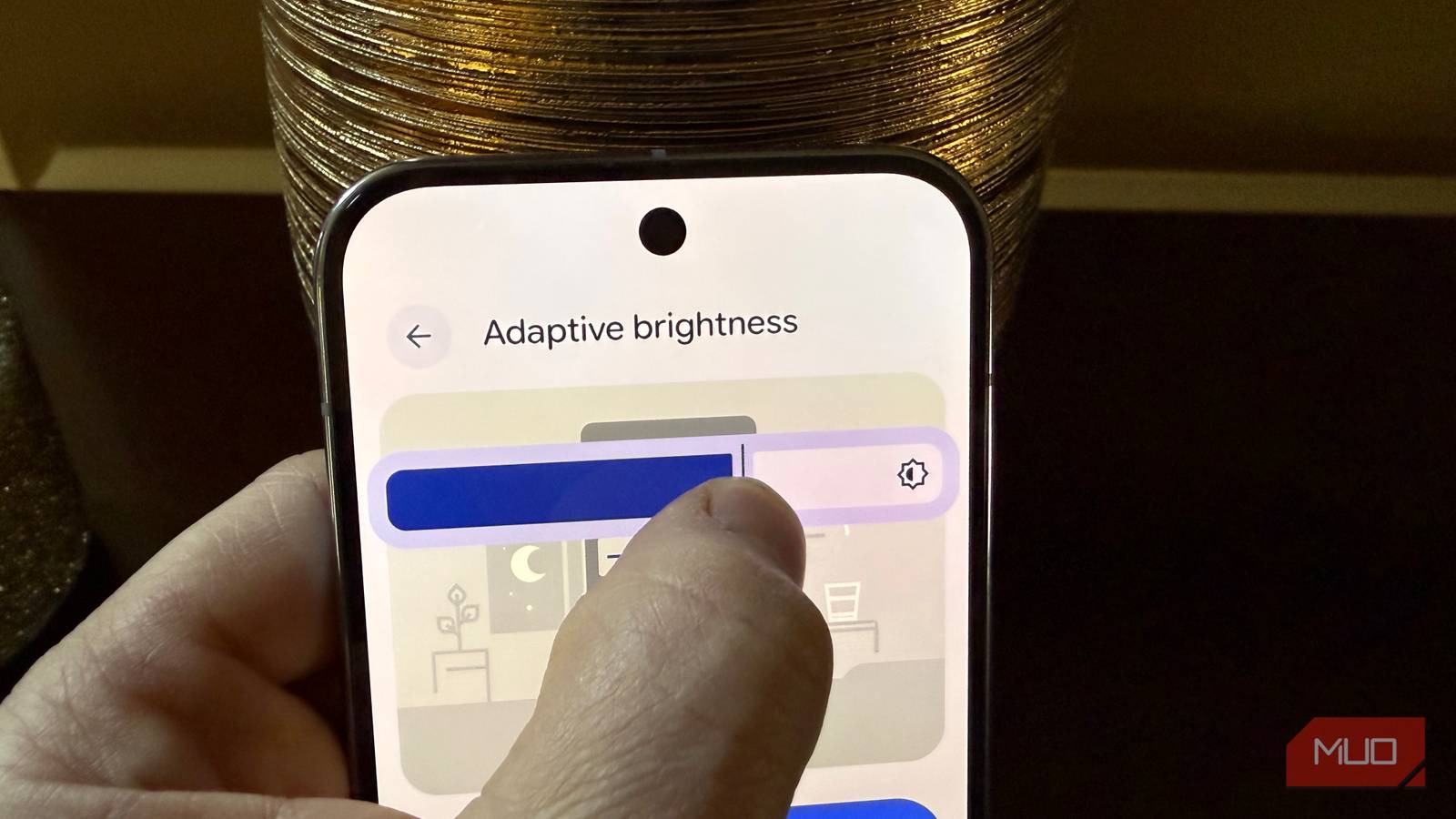
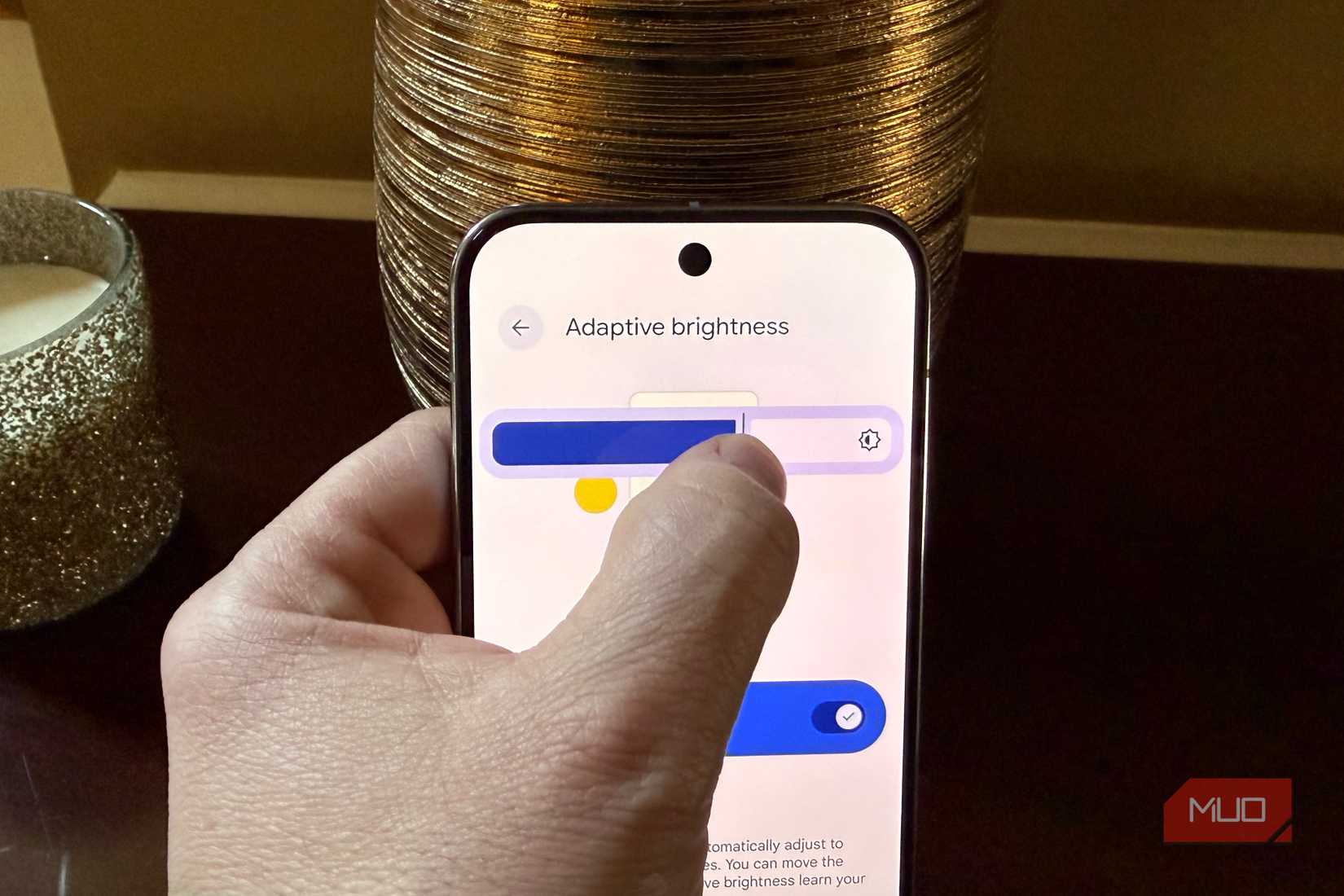
It’s best to leave auto-brightness turned on, but sometimes it’s wrong, and you need to calibrate it. To do that, first make sure auto-brightness is turned on within display settings. Then, to train it, just manually adjust the brightness slider in your notification shade whenever you need to “correct” the brightness.
For example, if you’re in the blinding sun and the display isn’t at 100% brightness despite auto-brightness being on, manually slide the brightness to 100% to calibrate it so that it knows “if ambient brightness is high, maximize screen brightness.” Or, if you’re in a dim room and the brightness isn’t very low, just manually adjust the brightness to a low level that is legible to teach it “if ambient brightness is low, minimize screen brightness.” If you do this a few times during the day, you’ll recalibrate the brightness to be at the correct levels, so your phone will properly adjust brightness going forward.
Related
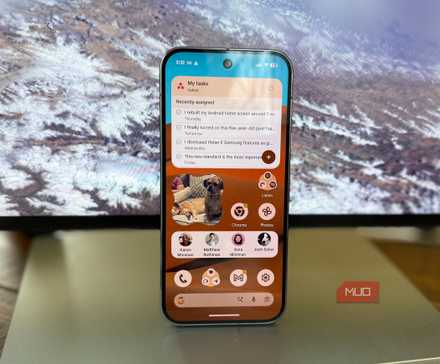
This 3-widget setup is the only Android home screen you need
Simplify your home screen with just the basics for a clean, functional look.
Set your defaults right
For a better experience
Credit: Brandon Miniman / MakeUseOf
I’m always looking for ways to make Android less cluttered and to bring the tools I often use to the fore, so I don’t have to waste time digging. By keeping your home screen clean of all your new apps, by tweaking your share sheet to put your most-used share options front and center, and by calibrating your auto-brightness, you can take back control from Android’s defaults and get your phone to work the way that you do.