
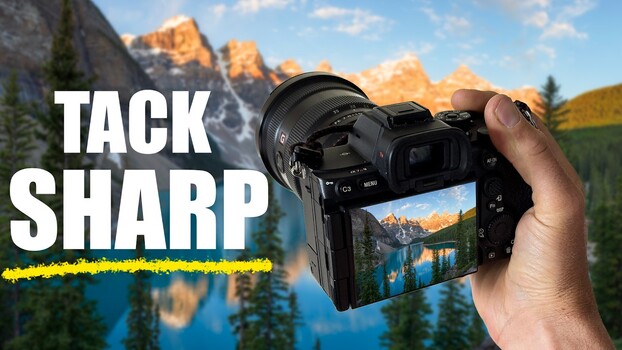
Achieving tack-sharp landscape images from foreground to background is one of the more technically demanding challenges in the field. Focus stacking solves it, and it’s more accessible than most people assume.
Coming to you from William Patino, this practical video walks through the entire focus stacking process, from capturing frames in the field to blending them in post. Patino shoots on a Sony a7R V and points out that most modern mirrorless cameras already have a built-in focus bracketing mode, which automates the capture side of things considerably. The core idea is straightforward: when a single frame shot at f/11 still leaves parts of the scene soft, whether in the foreground or background, you capture multiple frames at different focus distances and blend them into one sharp result. Patino starts at the foreground and progressively shifts focus toward the background, either manually or using the camera’s built-in bracketing function.
One of the more useful pieces of advice Patino gives is about aperture selection during the shoot. He recommends staying at f/8, f/11, or f/16, not because you need extreme depth of field from a single frame, but because a higher aperture creates more overlap between each focused frame. That overlap is what makes the blending process cleaner and reduces the total number of frames you need. Shooting at f/2.8 means more frames, more chances to miss part of the sequence, and a harder blend in post. He also emphasizes shooting more frames than you think you need, giving yourself a buffer in case one of them causes issues during blending.
On the post-processing side, Patino covers two workflows depending on how you manage your raw files. If you use Lightroom, you select the files, right-click, and open them as layers in Photoshop. From there, you select all layers, run Edit > Auto Align Layers on the Auto projection setting, then Edit > Auto Blend Layers set to Stack Images. Photoshop handles the rest. If you use Adobe Bridge instead of Lightroom for raw file management, as Patino does, you go through Tools > Photoshop > Load Files into Photoshop Layers, and the blending process from that point is identical. One practical finishing detail: after blending, there’s usually a small amount of blank space around the edges of the image. Patino walks through how to handle that using the Transform > Scale tool in Photoshop, which lets you crop selectively by side rather than uniformly, giving you some control over the final composition. The video is a tight, no-fuss tutorial that covers both the field technique and the complete post-processing workflow without unnecessary detours. Check out the video above for the full rundown from Patino.