
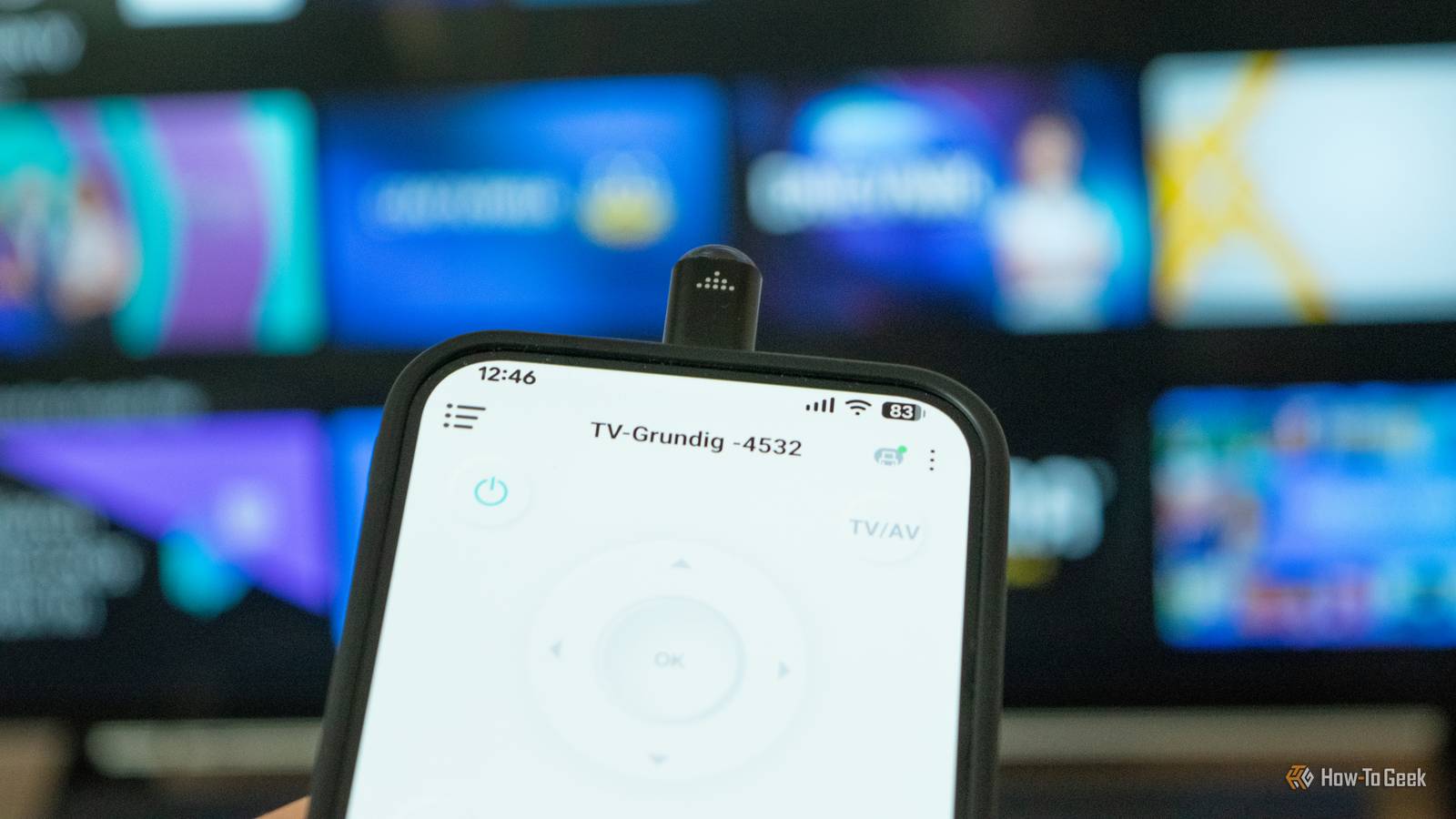
Installing an IR (infrared) remote control app on my Symbian-powered Nokia 6600 and then using it to control my flat-screen CRT Samsung TV was one of those “the future is now” moments where I realized my smartphone was indeed a mini computer capable of all kinds of things. I had a blast messing with my mom and friends, changing channels, and turning off their TV with my phone’s secret power. Until I ran out of TVs to mess with.
Many early Android phones came with IR blasters too, but as time passed, fewer and fewer brands equipped their handsets with this handy feature, with only a few brands, such as Xiaomi, still offering IR blaster-equipped phones. If you miss being able to control devices equipped with IR sensors with your smartphone, fret not, you can still do it. All it takes is spending about $15 on a USB IR blaster adapter. I did just that, and I’m pretty satisfied with the results.
The setup process was a breeze
Plug and play (mostly)
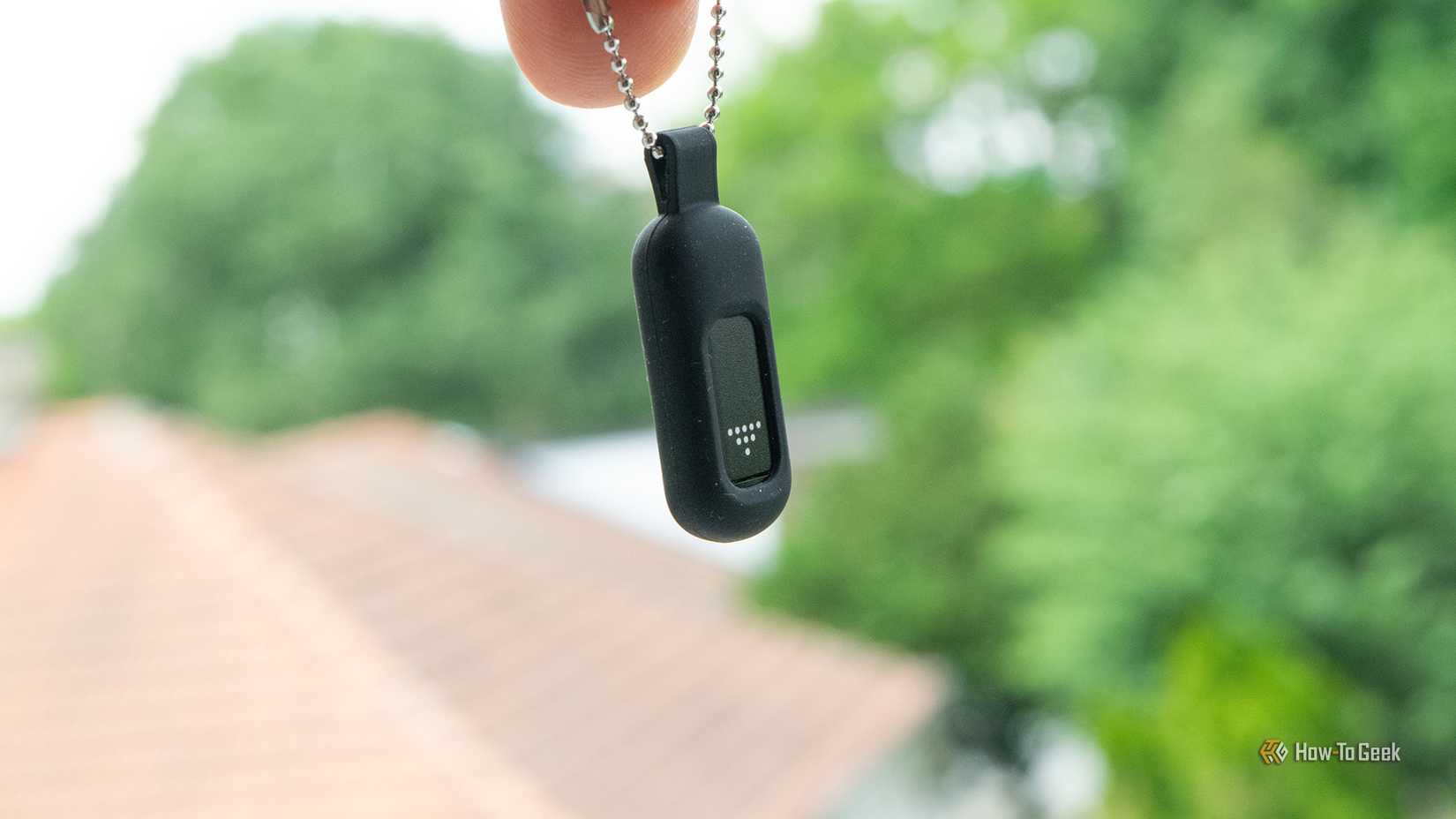
I bought the same IR adapter linked above, but I ordered mine from Temu. As you can see from the photos above, it’s tiny and weighs only a few grams. It comes with a soft rubber enclosure you can carry on a keychain, which is a nice touch because you can’t really keep it plugged into your phone all the time.
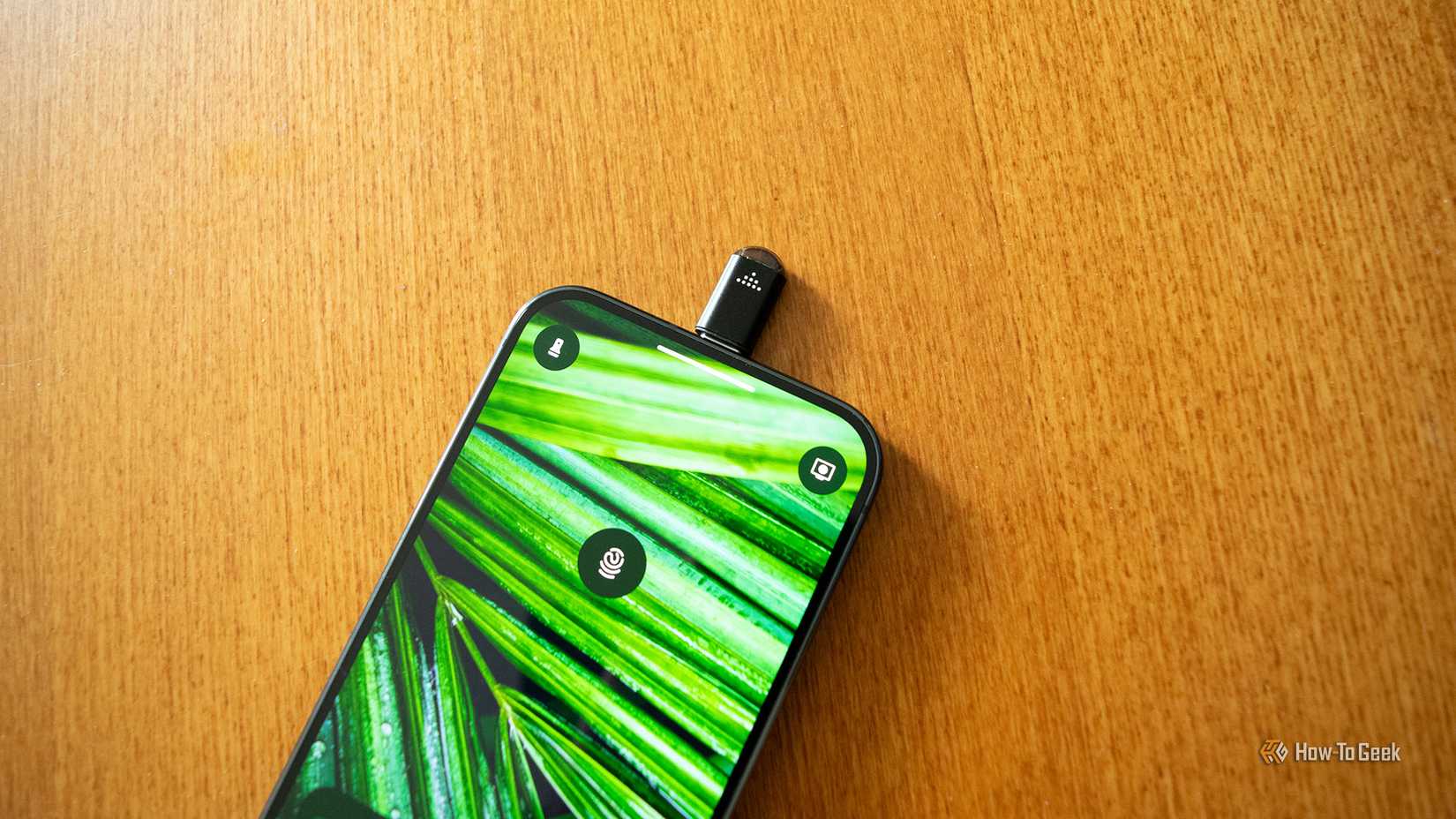
Once the adapter arrived, all I had to do was scan the included QR code (make sure not to throw away the user manual, because it contains info on which app you should download), which took me to the Google Play Store where I downloaded the necessary companion app. Then I plugged the thing into my Google Pixel 10 Pro’s USB-C port, and the companion app launched with its UI flipped so I could use it with the adapter pointed toward the front.
The app then automatically launched a brief tutorial showing you how to search for devices, pair them using different remote configurations stored in the app’s database, as well as edit or remove saved remotes. Then it was time to put the gizmo to the test.
The tiny gizmo is surprisingly versatile
I got it working with most of my IR-controlled devices
Credit: Goran Damnjanovic / How-To Geek
I don’t have too many devices that work with IR remotes (a TV, soundbar, my ISP’s Android TV streamer, a pair of computer speakers with Bluetooth support, and an AC unit), but some of those are quite old and made by obscure brands, so I didn’t think the companion app would have their remote configurations in its database. I was only half right.
I first tried finding a remote config for my 10-year-old cheap Grundig TV (a once-famous German brand now owned by a Turkish hardware manufacturer). The first config that worked had all the buttons mapped correctly, aside from swapping the Menu and OK buttons.
This was annoying because the Menu button (which functioned as the OK button) was tucked behind the three-dot menu on the virtual remote, so I always had to take two steps to use the OK command. I then restarted the setup process and found another configuration where every button worked properly. If you run into a similar issue, try finding another remote config for your device; it might work better.
My JBL soundbar worked great with the first functioning remote config, but I again had to keep looking for the right configuration for my Edifier speakers because the first one that worked didn’t include the Bluetooth button, which the speakers support. Luckily, I found one that worked perfectly.
Credit: Goran Damnjanovic / How-To Geek
Conversely, my AC unit, made by an obscure Chinese brand (VOX, for what it’s worth) that’s almost 15 years old according to my landlord, refused to work with the minuscule gadget. While I did find multiple VOX AC remote configurations in the companion app’s database, none of them worked.
The app’s IR remote copying feature—where you point the original remote toward the IR blaster adapter, press buttons on the remote, and try copying them to the virtual remote—didn’t work either. Bummer. As for my ISP’s Android TV streamer, I couldn’t even find it in the app’s database.
While not perfect, I’m satisfied with the results because the AC unit is very old, and I didn’t expect the app to include my ISP from a small European country in its database anyway. If you’re living in the US, however, you probably won’t have trouble finding your ISP because the app includes every major internet and TV service provider: Xfinity, Comcast, Verizon, Dish Network, DirecTV, and T-Mobile, and others. It also lists many major European players.
The companion app is serviceable
Not great, not terrible
Honestly, the number of brands included in the companion app’s database is staggering. The database contains hundreds of them across 16 categories. Just note that some categories (such as Amplifier) also include subcategories; speakers and soundbars, in the case of amplifiers.
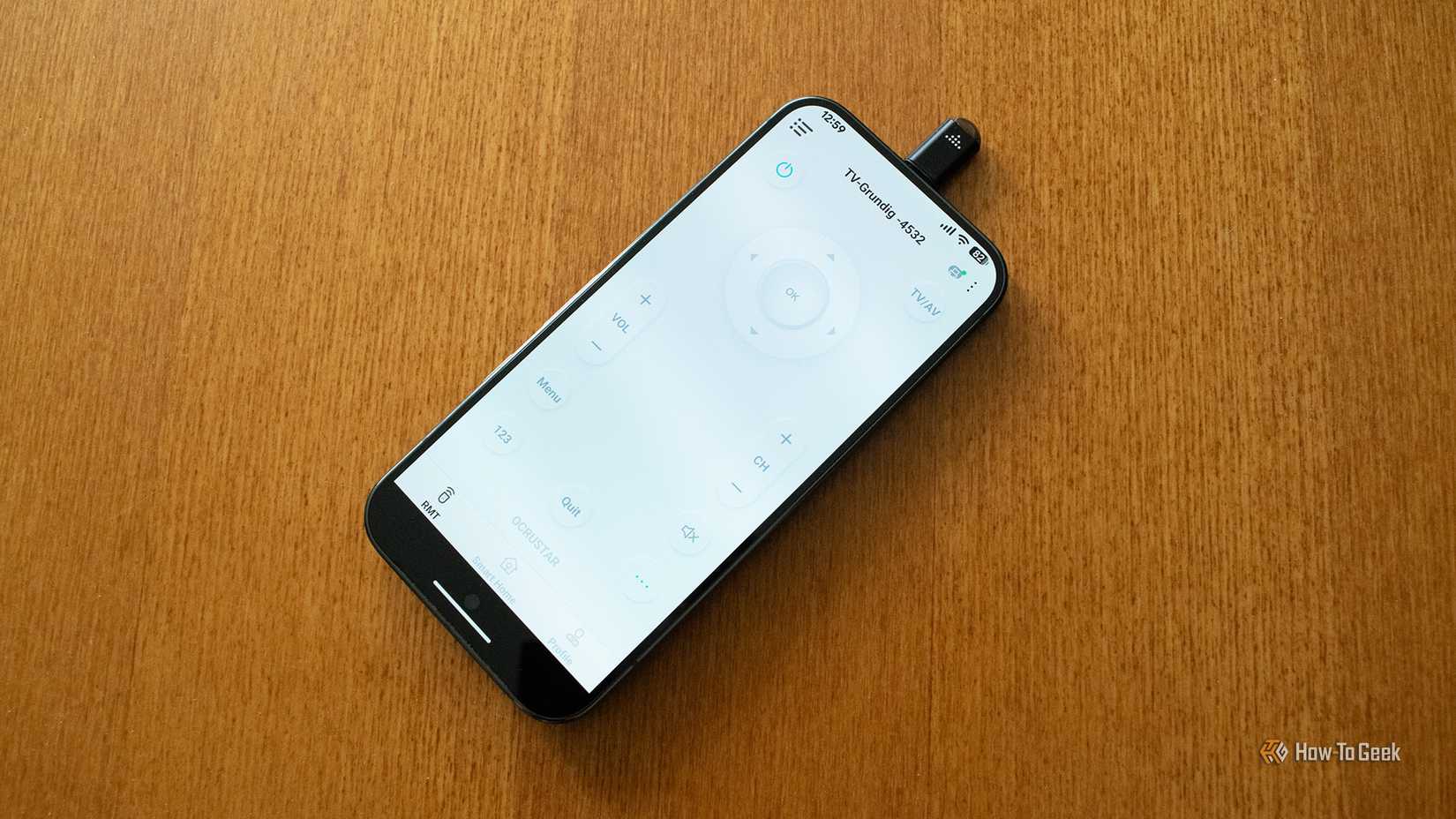
The app’s UI is serviceable, but it’s obvious it’s made by a small Chinese company. Some prompts are still in Chinese, the translation is all over the place, and some features are half-baked, like the IR copying one where AC buttons are labeled “Volume Up” and “Volume Down,” along with a number of buttons whose functions you have to guess because the translation sounds off.
What really grinds my gears is that while you can edit virtual remote layouts, you can’t add extra buttons from the three-dot menu to the main remote screen, which would be very handy because some useful controls (like switching the speaker source to Bluetooth) are hidden there. All in all, the app is usable, but it’s far from perfect.
Just note that it also supports controlling smart devices over Bluetooth, but I didn’t want to give an unknown Chinese app access to my IoT devices.
I won’t replace every remote I own with this phone IR blaster
But it’s great to have in a pinch
Credit: Goran Damnjanovic / How-To Geek
While this was a very cool experiment that took me back to my teen years, I won’t replace my remotes with this adapter.
That said, I’m definitely keeping it around in case I lose my soundbar or speaker remotes (both are super tiny and easy to misplace), or for situations where I come across a device that doesn’t include its original remote control. I’ll also use it to mess with my friends’ TVs for laughs, because why not!
I didn’t have high expectations, but I was left impressed
Before the adapter arrived, I didn’t think it would work with my TV and my AC, but I was only half right. On the other hand, I managed to pair it with my speakers and soundbar without any effort. It not working with my Android TV streamer is completely understandable, considering my ISP is a relatively small company from a small country.
All things considered, I was left impressed. The thing cost me peanuts, I had a fun afternoon testing it, I’ll definitely find uses for it in the future, and I can’t wait to haunt my friends with ghost remotes. 8/10, would buy again.
Related
Why Android phones used to feel more innovative (and what we lost)
Features that felt futuristic in 2014…but aren’t available today.