
Slow mobile internet can be frustrating when you’re trying to stream videos, browse websites, or use apps. The good news is that you can speed up your mobile internet with a few simple adjustments to your phone’s settings.
Whether you’re using an iPhone or Android device, these tips will help pages and videos load faster and improve your overall browsing experience.
Over time, your browser accumulates cached files that can slow down internet performance. Clearing this data frees up storage and can speed up your browsing.
For Safari on iPhone:
Go to Settings > Safari
Scroll down to “Clear History and Website Data”
Tap “Clear History and Data” to confirm
For Chrome on Android:
Open Chrome and tap the three-dot menu
Go to Settings > Privacy
Tap “Clear Browsing Data”
Select Cookies, Site Data, and Cached Images and Files
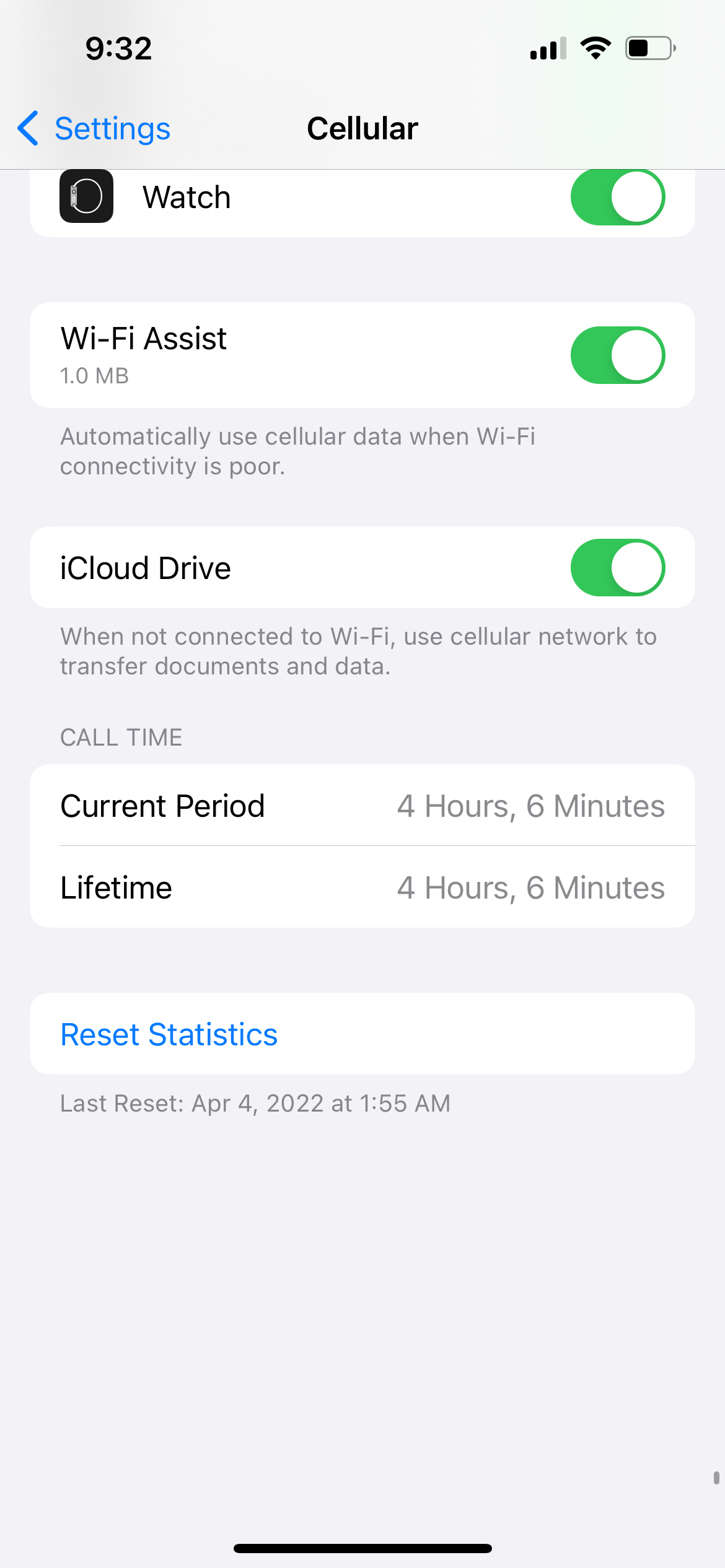
WiFi Assist automatically switches to cellular data when your WiFi connection is weak, ensuring you stay connected to the internet.
Go to Settings > Cellular
Scroll to the bottom
Toggle WiFi Assist on
Samsung’s Adaptive WiFi works similarly to iPhone’s WiFi Assist, switching to mobile data when WiFi becomes unreliable.
Go to Settings > Connections > WiFi
Tap the three-dot menu > Advanced
Under Intelligent WiFi, toggle “Switch to mobile data” on
Disable Maximize Compatibility for Personal Hotspot
If you’re using an iPhone as a personal hotspot, turn off “Maximize Compatibility” to maintain faster 5GHz WiFi instead of reverting to slower 2.4GHz.
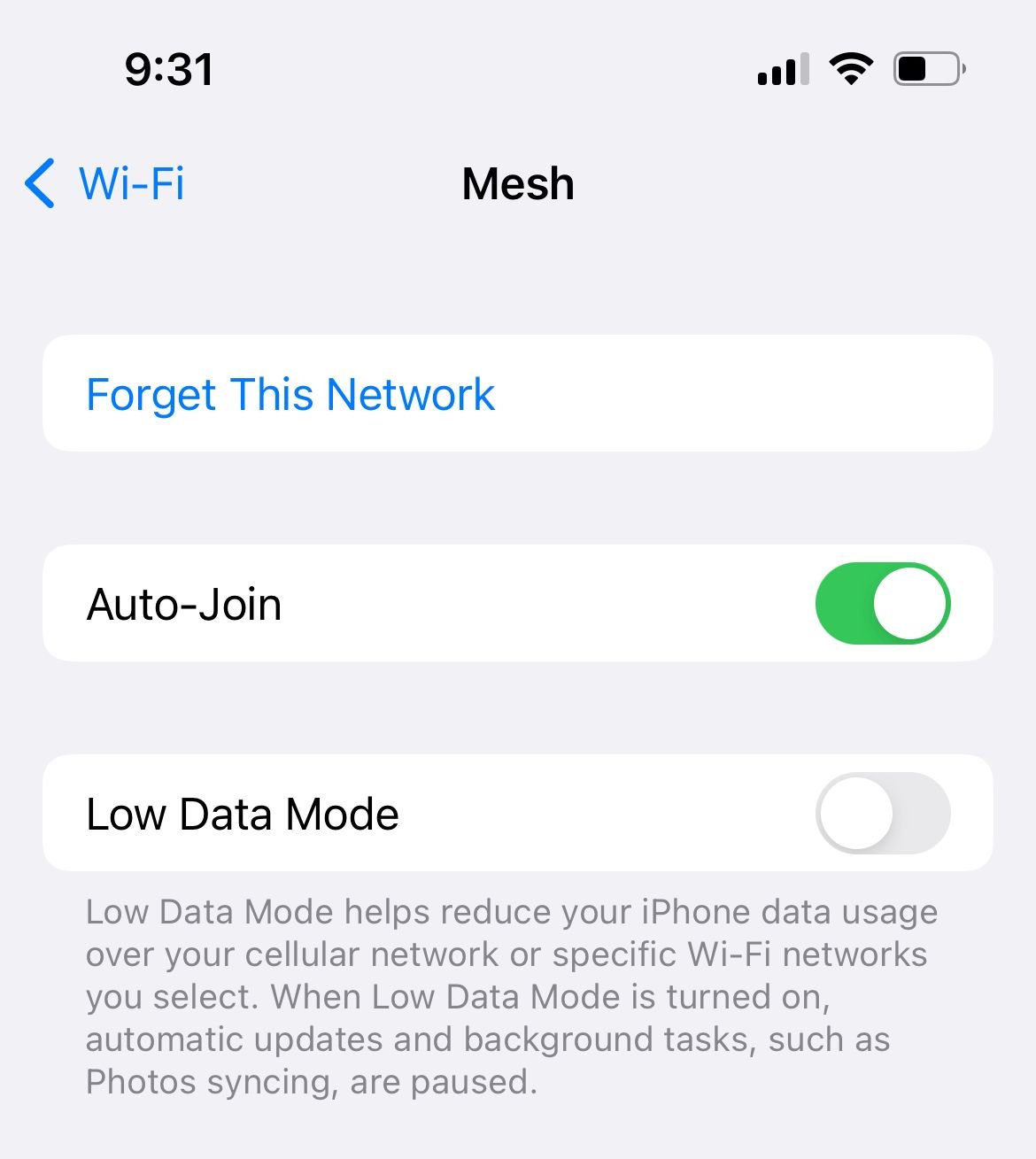
Low Data Mode reduces background data usage by pausing automatic updates and background processes.
Go to Settings > WiFi
Tap the information icon next to your network
Toggle Low Data Mode on
Data Saver prevents apps from using data in the background without your permission.
Go to Settings > Connections > Data Usage
Tap Data Saver
Toggle Data Saver on
Clear App Cache Data (Android)
Clearing app cache can resolve internet slowdowns caused by corrupted data files.
Go to Settings > Apps
Find Google Play Services
Tap “Clear cache”
For iPhone:
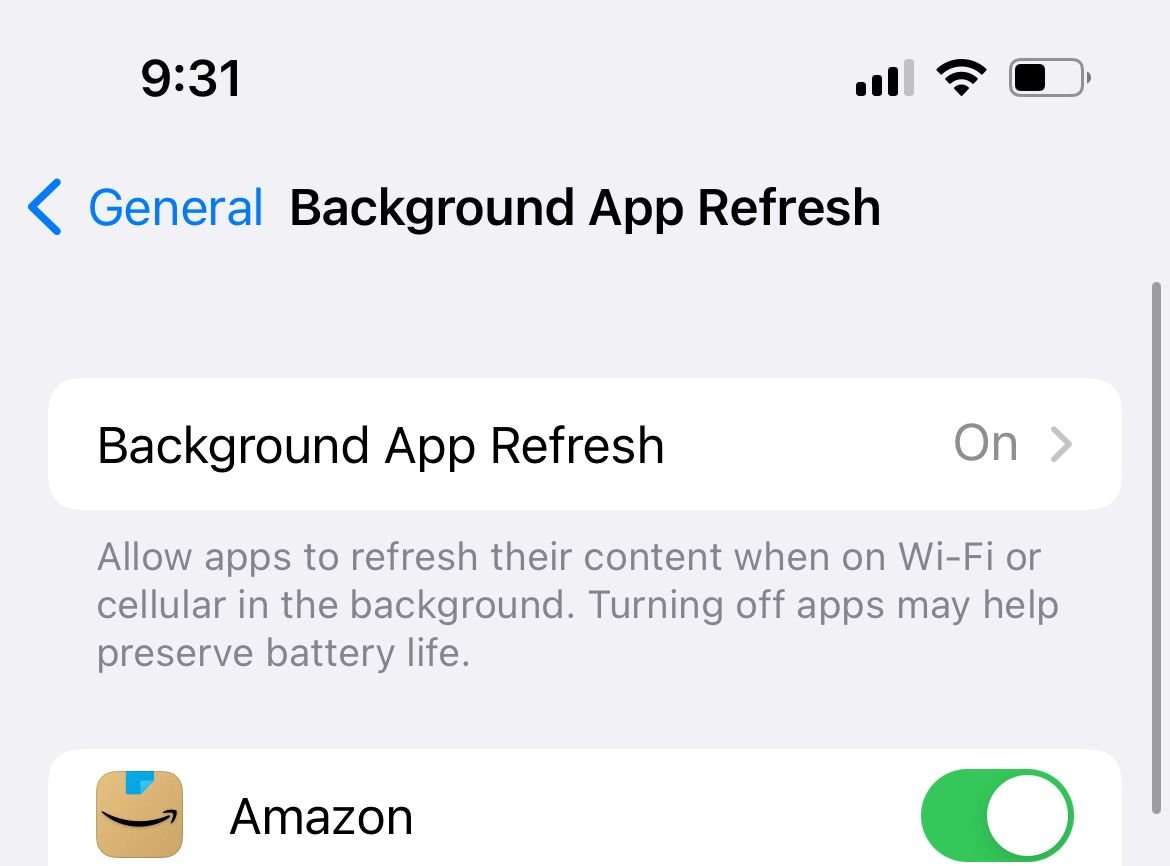
Go to Settings > General > Background App Refresh
Set to “Off” or select specific apps
For Android:
Go to Settings > Apps & notifications
Select an app with high battery usage
Tap “Background restrictions” > “Restrict”
Closing unused apps frees up system resources and can improve internet performance.
For iPhone:
Swipe up from the bottom and pause
Swipe left or right through apps
Swipe up on apps to close them
For Android:
Tap the recent apps button
Swipe apps away to close them
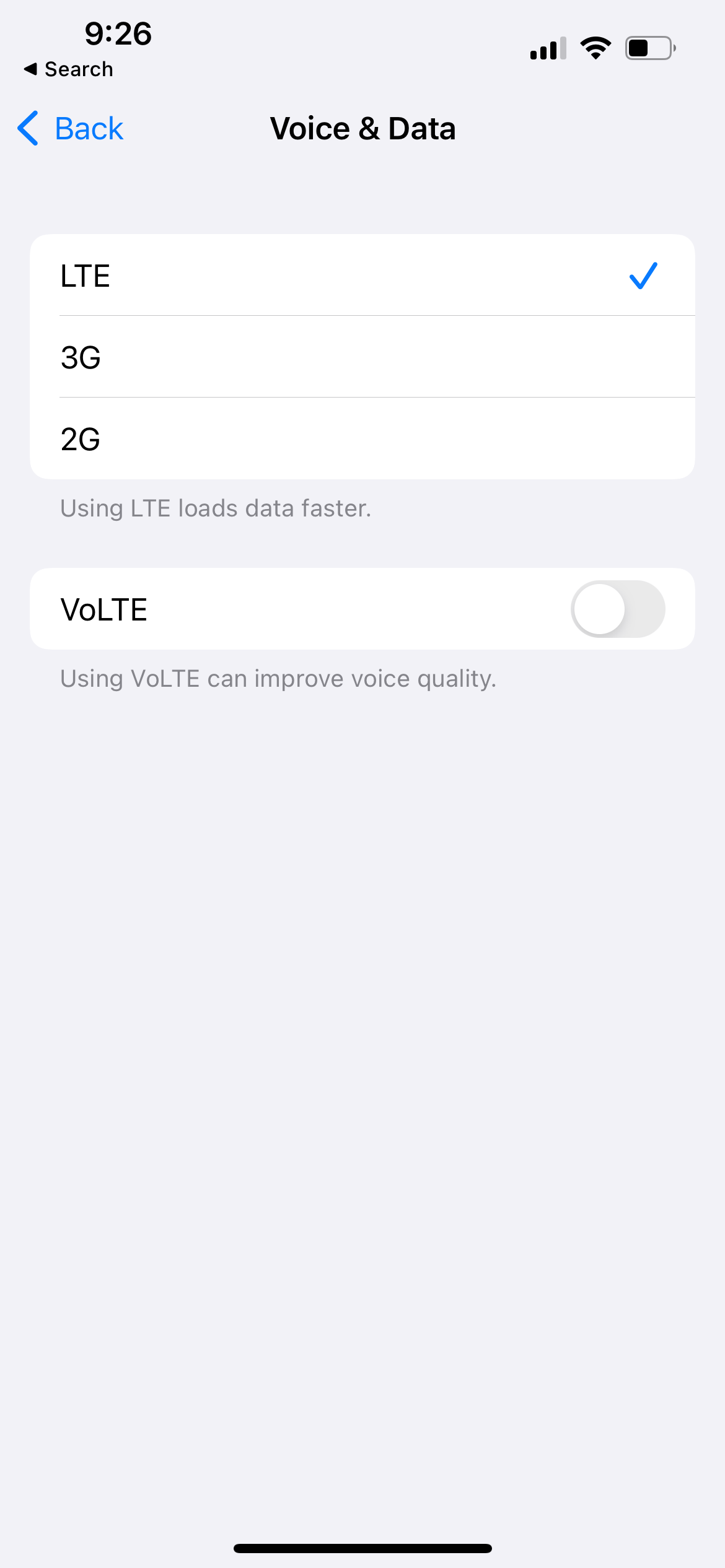
For iPhone:
Go to Settings > Cellular > Cellular Data Options > Voice & Data
Select 4G/LTE or 5G for faster speeds
Incorrect date and time settings can cause connectivity issues.
For iPhone:
Go to Settings > General > Date & Time
Toggle “Set Automatically” on
For Android:
Go to Settings > System > Date & Time
Enable “Automatic Date and Time”
VPNs can slow down internet speed. If you’re experiencing slow connections, try turning off any VPN apps.
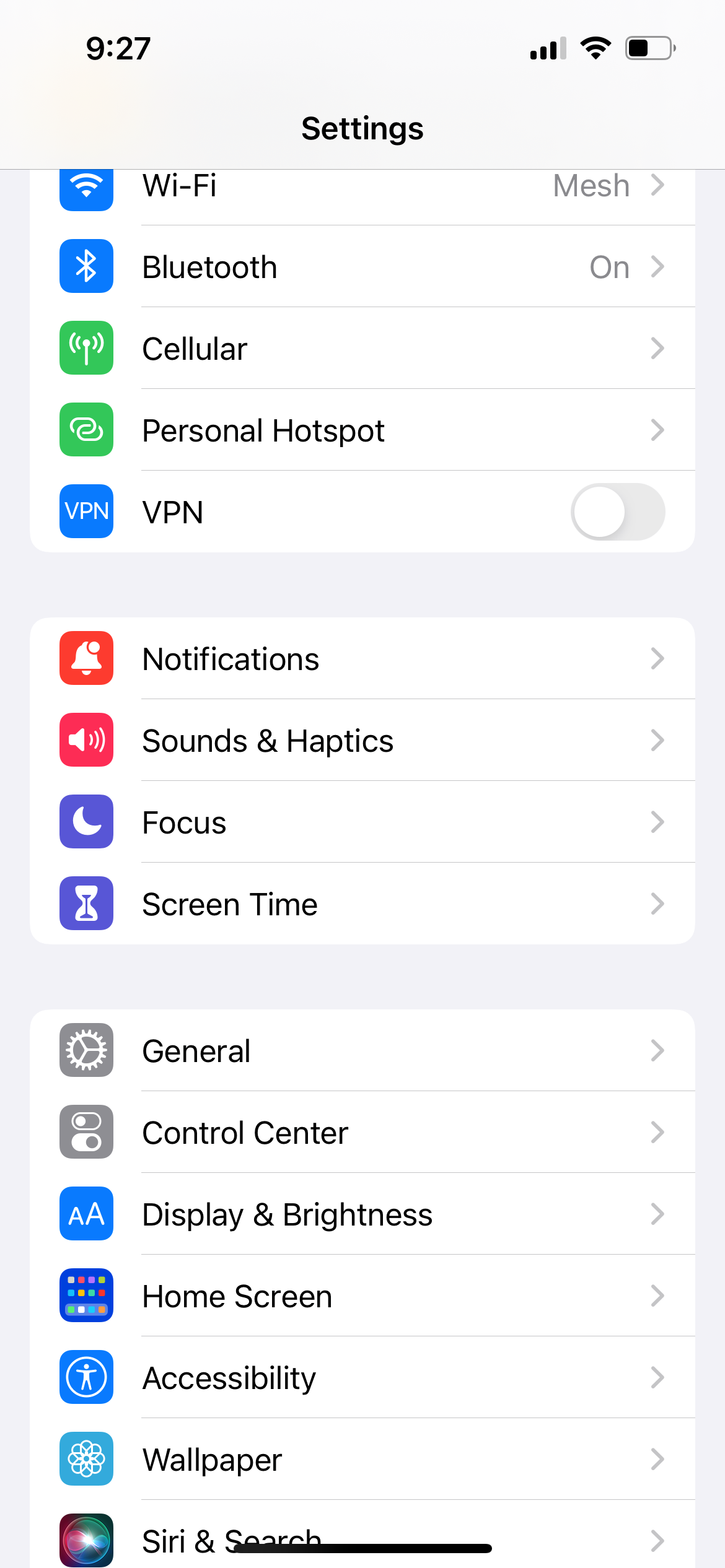
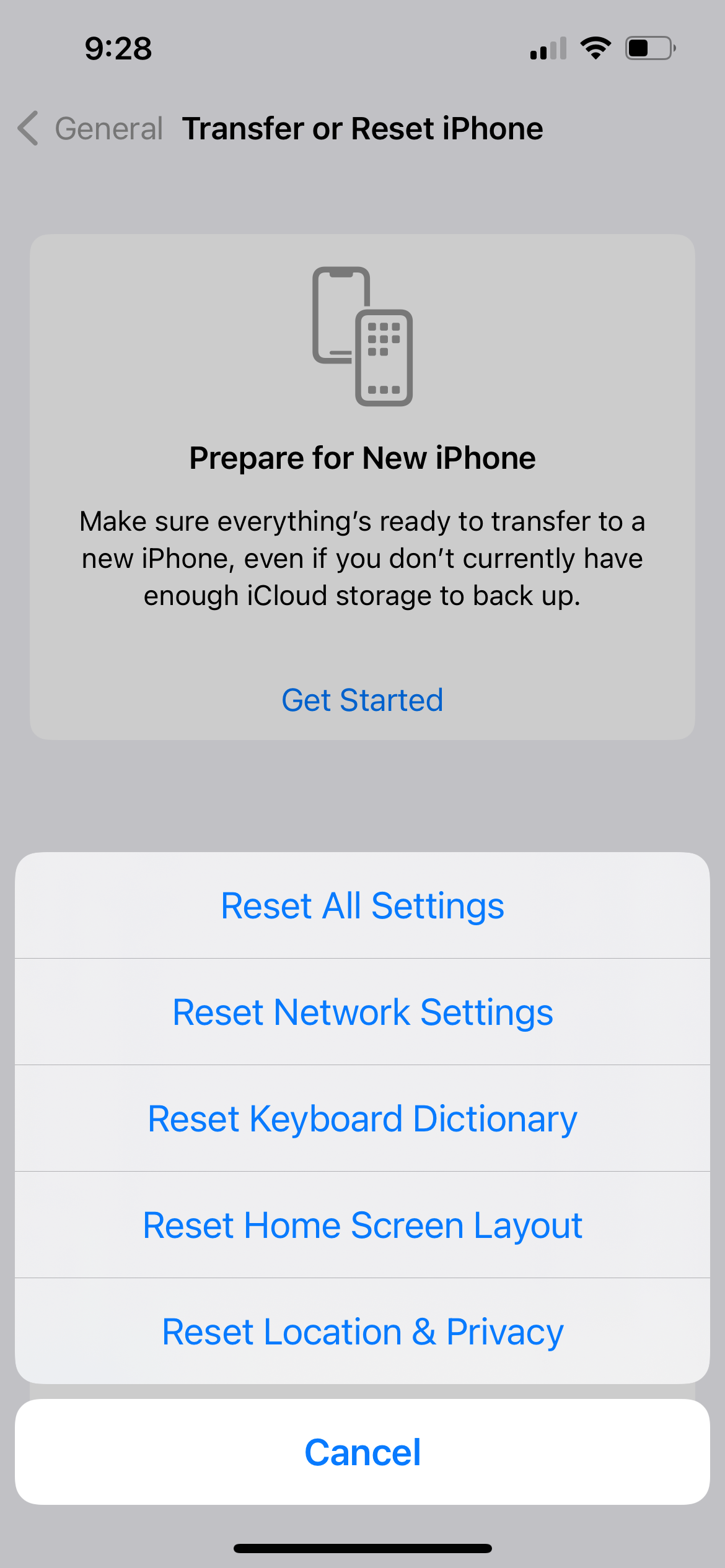
If other methods don’t work, resetting network settings can resolve persistent issues.
For iPhone:
Go to Settings > General > Transfer or Reset iPhone > Reset
Tap “Reset Network Settings”
For Samsung:
Go to Settings > General Management > Reset
Tap “Reset network settings”
Confirm the action
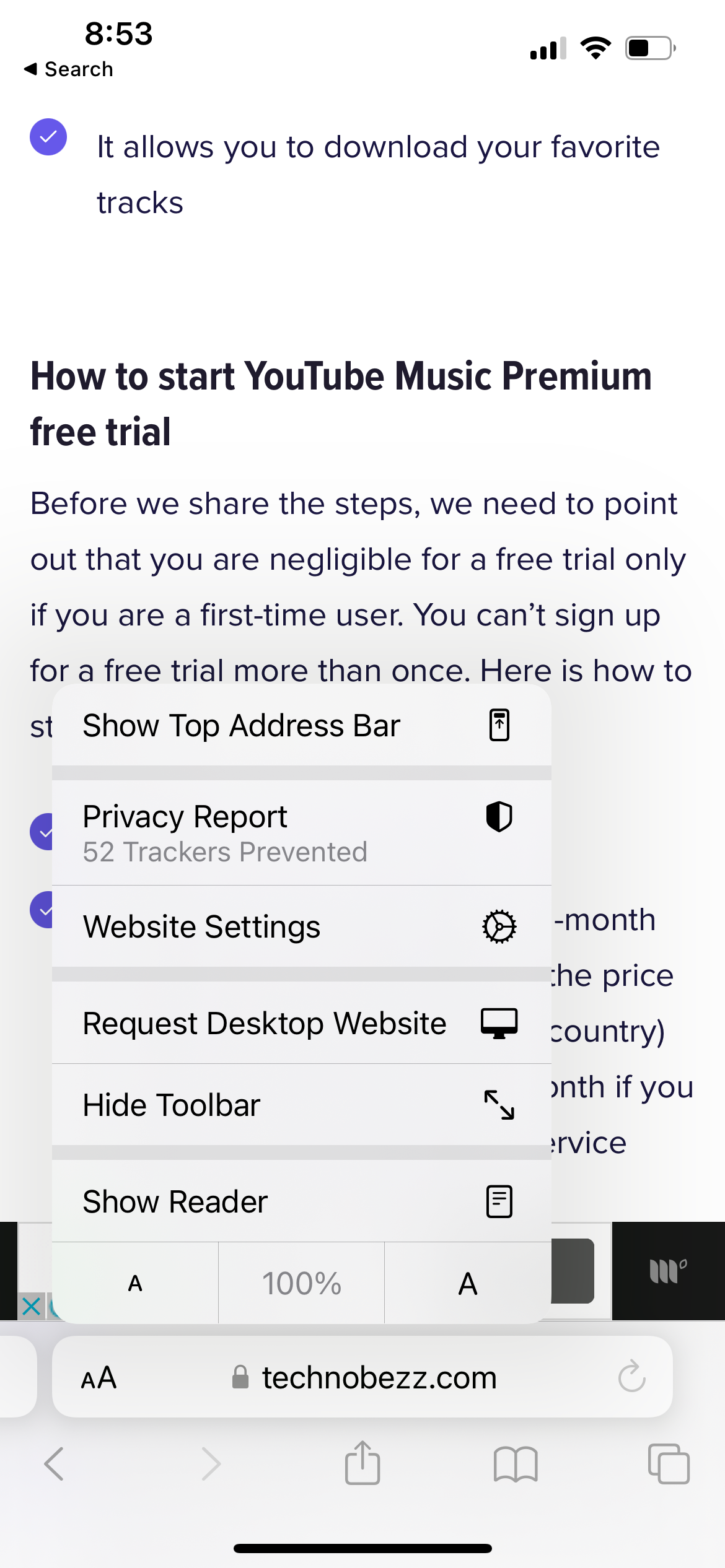
Reader mode loads only text content, making pages load faster by skipping images and ads.
For Safari:
Tap the “AA” icon in the address bar
Select “Show Reader”
For Chrome:
Tap the three-dot menu > Settings > Accessibility
Enable “Simplified view for web pages”
Install the latest iOS or Android updates, as they often include performance improvements and bug fixes.
A simple restart can resolve many internet connectivity issues and clear temporary glitches.
When using mobile data, look for “H+” or “4G/LTE” indicators on Android, which confirm you have a fast enough connection for most apps.
By implementing these settings adjustments, you can significantly improve your phone’s internet speed and enjoy faster browsing, streaming, and app usage.