
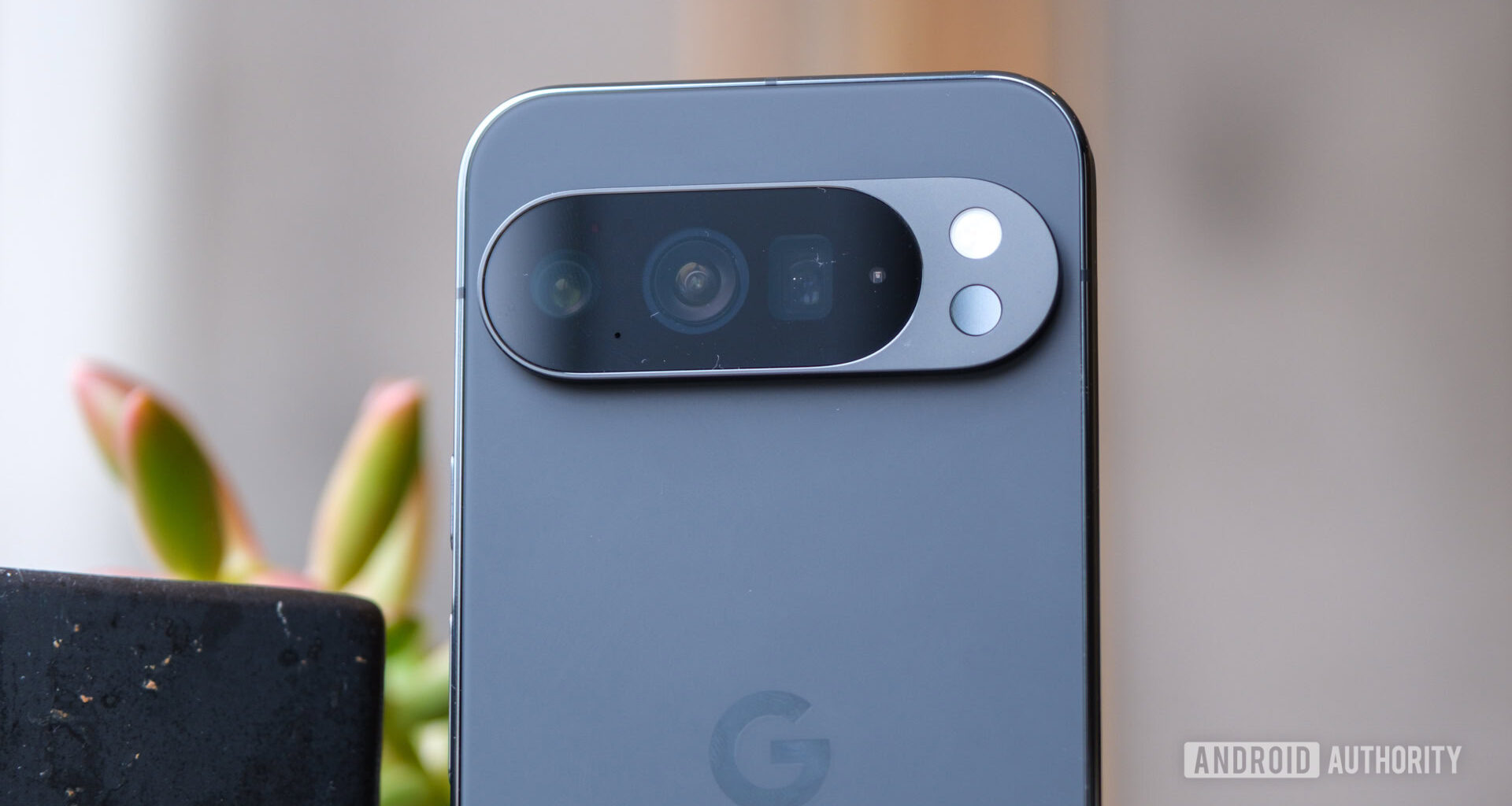
I’ve been a Google Pixel guy ever since the original Pixel was released in 2016. I love Pixels so much because of Google’s software design, excellent Pixel-exclusive features, and — of course — the cameras.
The main draw to the Pixel camera experience is its simplicity. You take out your phone, press the shutter button, and you’re all but guaranteed a good-looking photo. And as great as that simplicity is, there are also plenty of settings you can configure to customize the camera.
From easier shooting controls to clever storage management, here are seven of the best camera settings for your Google Pixel that you probably aren’t using.
What’s your favorite hidden Pixel Camera app setting?
385 votes
Framing hints and grids
32%
Quick access controls
10%
Locked focus
23%
Changing volume key action
6%
Motion Photo settings
12%
Disable selfie mirroring
10%
Storage Saver
6%
Other (let us know in the comments)
2%
Use framing hints and a grid
Joe Maring / Android Authority
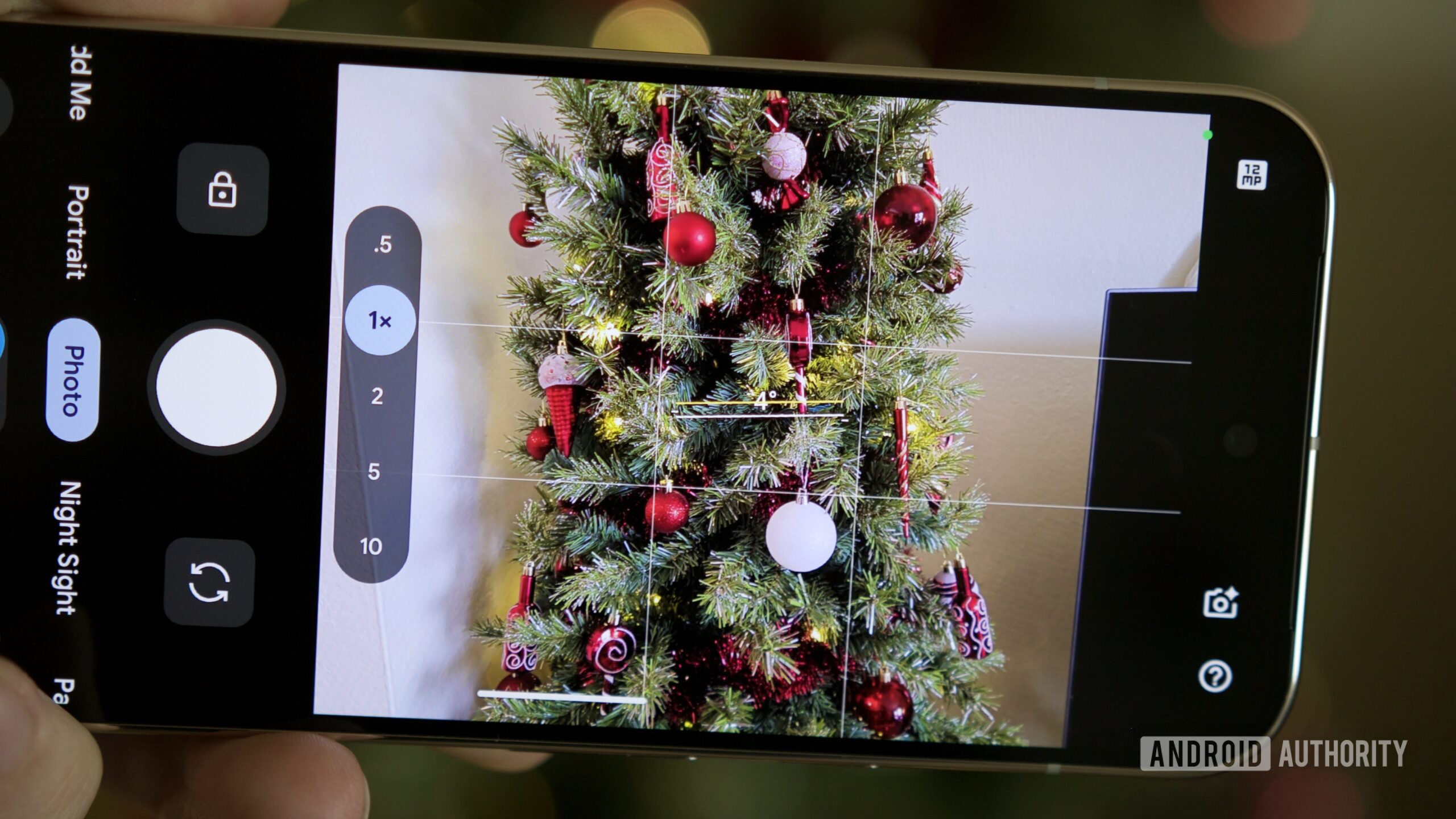
As convenient as it is to rely on your Pixel to snap a good photo in almost any scenario, a truly great picture always starts with proper framing and alignment. And you might not have known it, but your Pixel has two settings to help you with this.
In the Pixel Camera app, tap the Photo Settings icon in the bottom left corner and then tap the three dots (right above the Pro button) to open the main camera settings page. From here, scroll down to the Composition section to find Framing hints and Grid type.
When framing hints is enabled, you’ll see a leveling line in the viewfinder to show if you’re holding your phone straight or at an angle. It also shows the degree of your current angle/tilt, and you’ll feel a subtle vibration when you level it out. Meanwhile, grid type allows you to select one of three grids to overlay onto the viewfinder: 3 x 3, 4 x 4, or golden ratio. You can choose to only use framing hints or only use a grid, but I’ve found using both is the best way to perfectly line up my shots every time before pressing the shutter button.
Enable quick access controls
Joe Maring / Android Authority
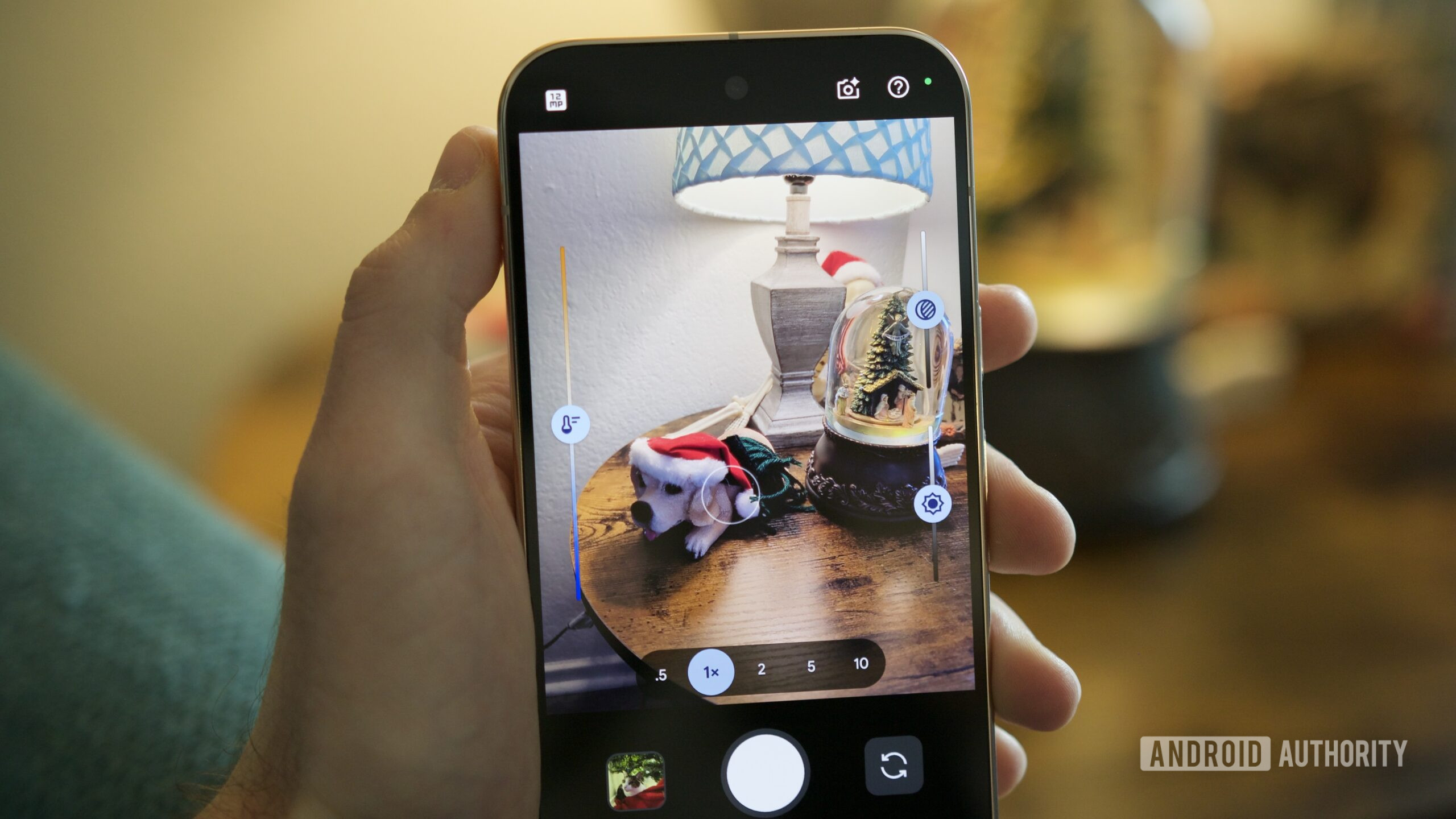
In addition to framing your photos better, your Pixel also has hidden controls that let you easily adjust shadows and other settings right from the viewfinder. You may not always want to do this, but in situations where you do, these controls are invaluable.
To get started, open the Pixel Camera app, tap that same Photo Settings button on the bottom left corner, tap the three dots again, scroll down to Fast access, and tap the toggle next to Quick access controls. Now, go back to the main camera screen and tap anywhere on the viewfinder. When you do this, you’ll see three new sliders you can use to adjust your photo before capturing it.
The slider on the left adjusts the white balance, while the two on the right control your shadows and exposure. Whether you want to make your photo a bit cooler, brighter, or more contrasty, these quick access controls let you to do just that.
Hold the viewfinder to lock focus
Joe Maring / Android Authority
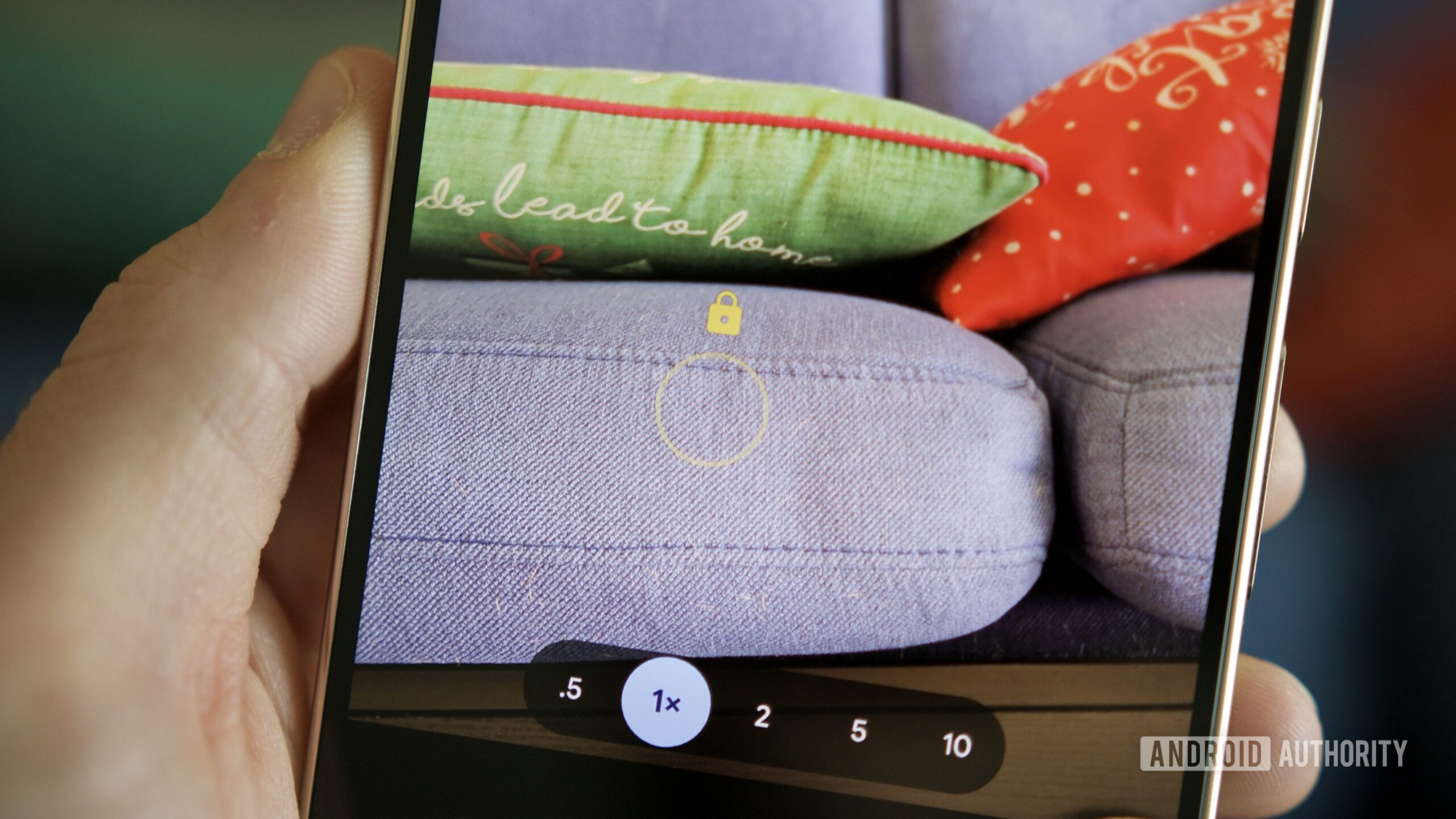
While we’re at the viewfinder, there’s another little trick here you probably didn’t know about. When you tap a subject in the viewfinder, a white circle appears around it and automatically keeps the subject in focus even if you move the camera or change your position.
However, if you press and hold anywhere in the viewfinder, that circle will turn yellow and lock focus in that specific area. Google’s autofocus is usually pretty reliable, but there are some scenarios where you want to lock focus on a specific spot and keep it from changing. In these situations, pressing and holding like this is the best way to do it.
Change the volume key action
Joe Maring / Android Authority
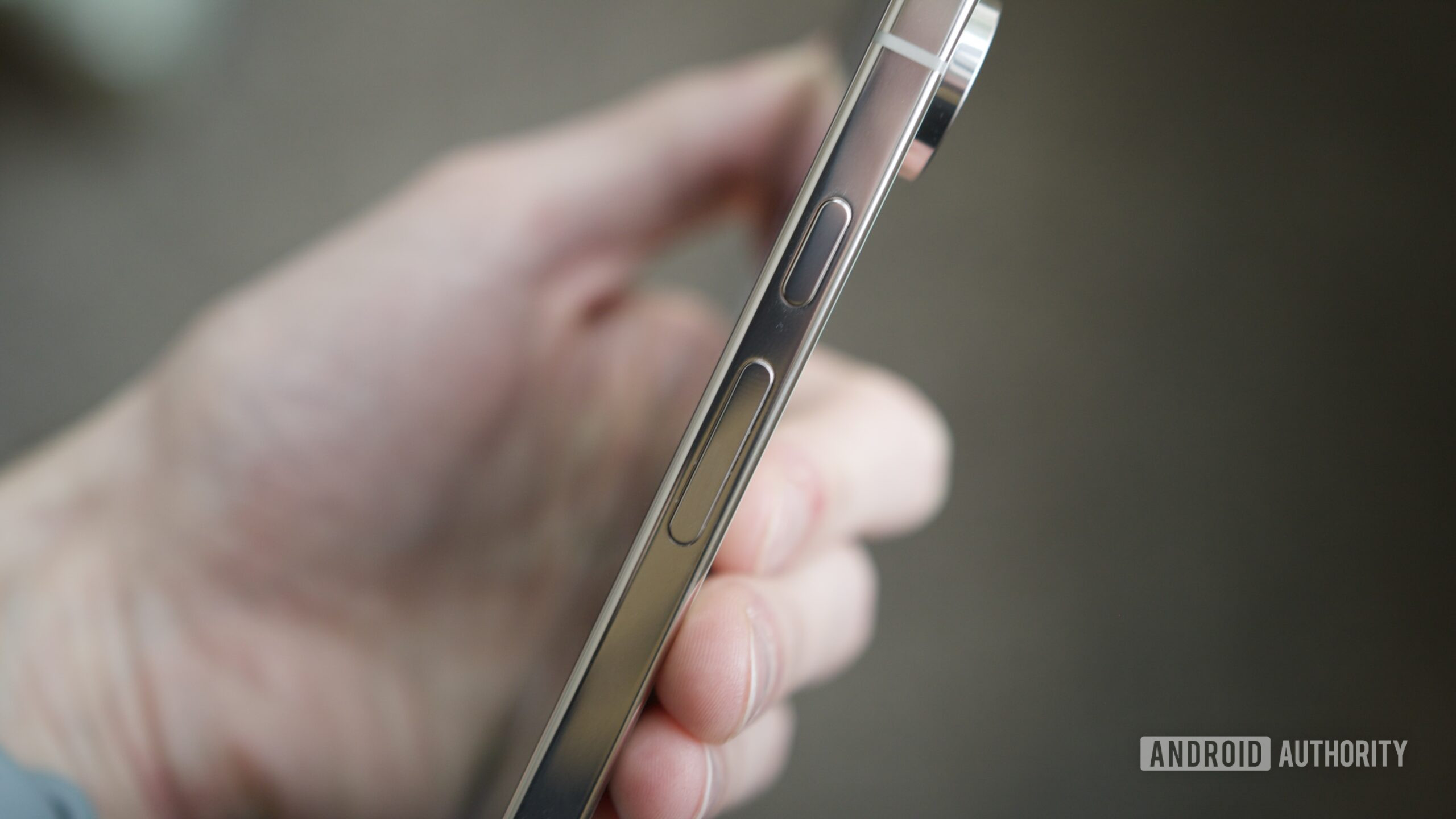
By default, the volume button acts as a shutter button when you’re using the Pixel Camera app. It’s nice having a physical button you can press to snap a photo, but did you know you can change it to something else?
Open the Pixel Camera app, tap the Photo Settings button, tap the three dots, and scroll down the page until you find the Fast access section. Tap Volume key action and change it from Shutter to Zoom. Now, pressing the volume keys while you’re in the viewfinder controls your camera’s zoom — pressing volume down zooms out and volume up zooms in. On the Pixel 10 Pro, pressing the volume buttons can change the zoom range to 0.5x, 1x, 2x, 5x, 10x, 30x, 50x, and 100x.
I learned about this when my colleague Rita El Khoury wrote about the Pixel Camera’s volume zoom setting earlier this year, and it’s been a game-changer ever since. I’ve always found the touchscreen controls for camera zoom a bit finicky, and this makes snapping to the perfect zoom range easier than ever.
Edit your Motion Photo settings
Joe Maring / Android Authority
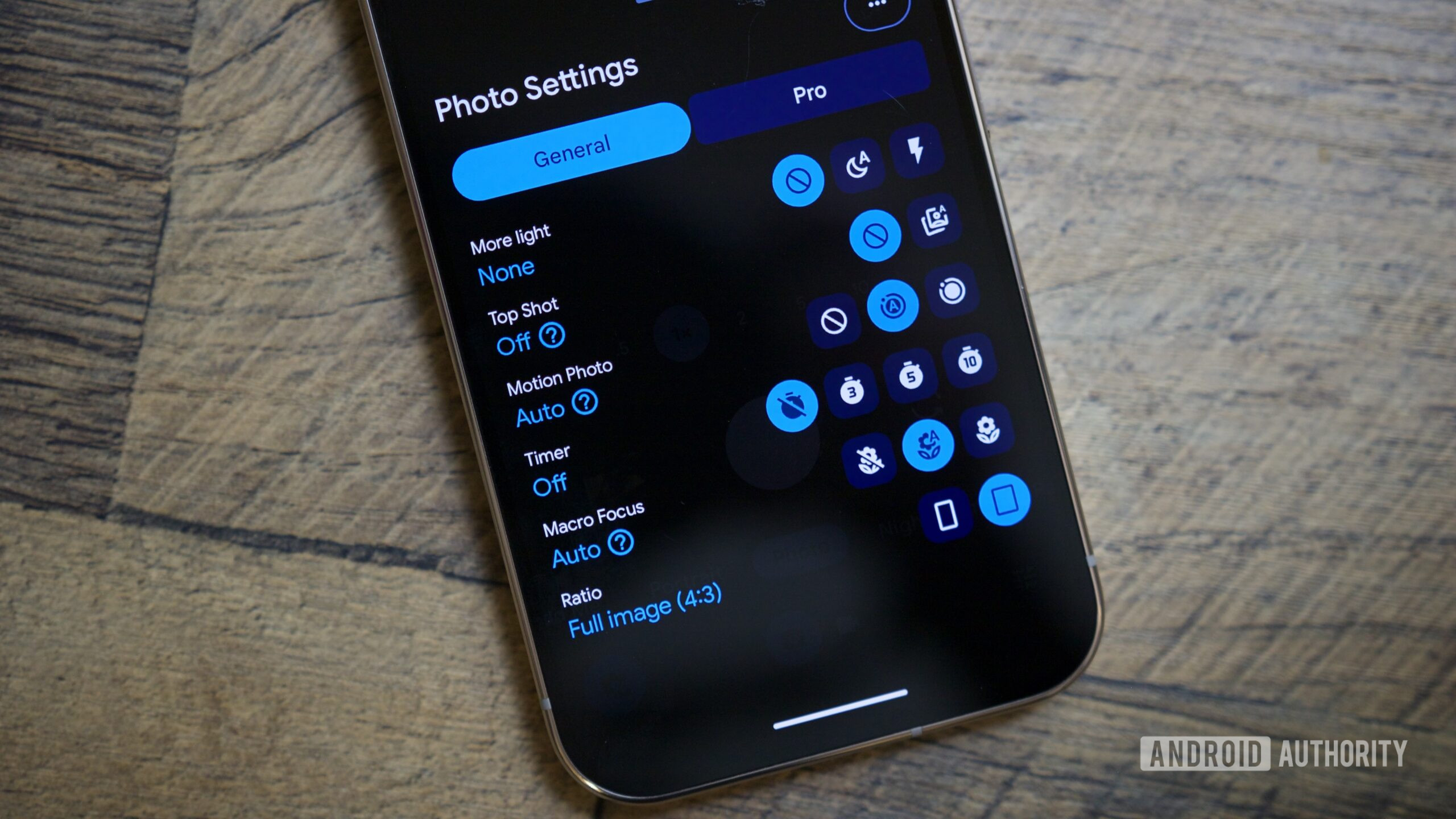
One of my favorite underrated features in the Pixel Camera app is Motion Photo. It records a small video snippet before and after you press the shutter button, which you can view at any time in Google Photos. I know it sounds cheesy, but it really does add some life and magic to an otherwise still photo, just like the Live Photo feature on the iPhone.
Motion Photo is set to Auto by default, and in this mode, your phone will automatically decide whether or not to turn a picture into a Motion Photo. Alternatively, you can enable Motion Photo for every picture you take — or turn it off if you don’t like the feature. To do this, open the Pixel Camera app, tap the Photo Settings button, find the Motion Photo section, and toggle it to Off or On, depending on your preference.
Disable mirroring for selfies
Joe Maring / Android Authority
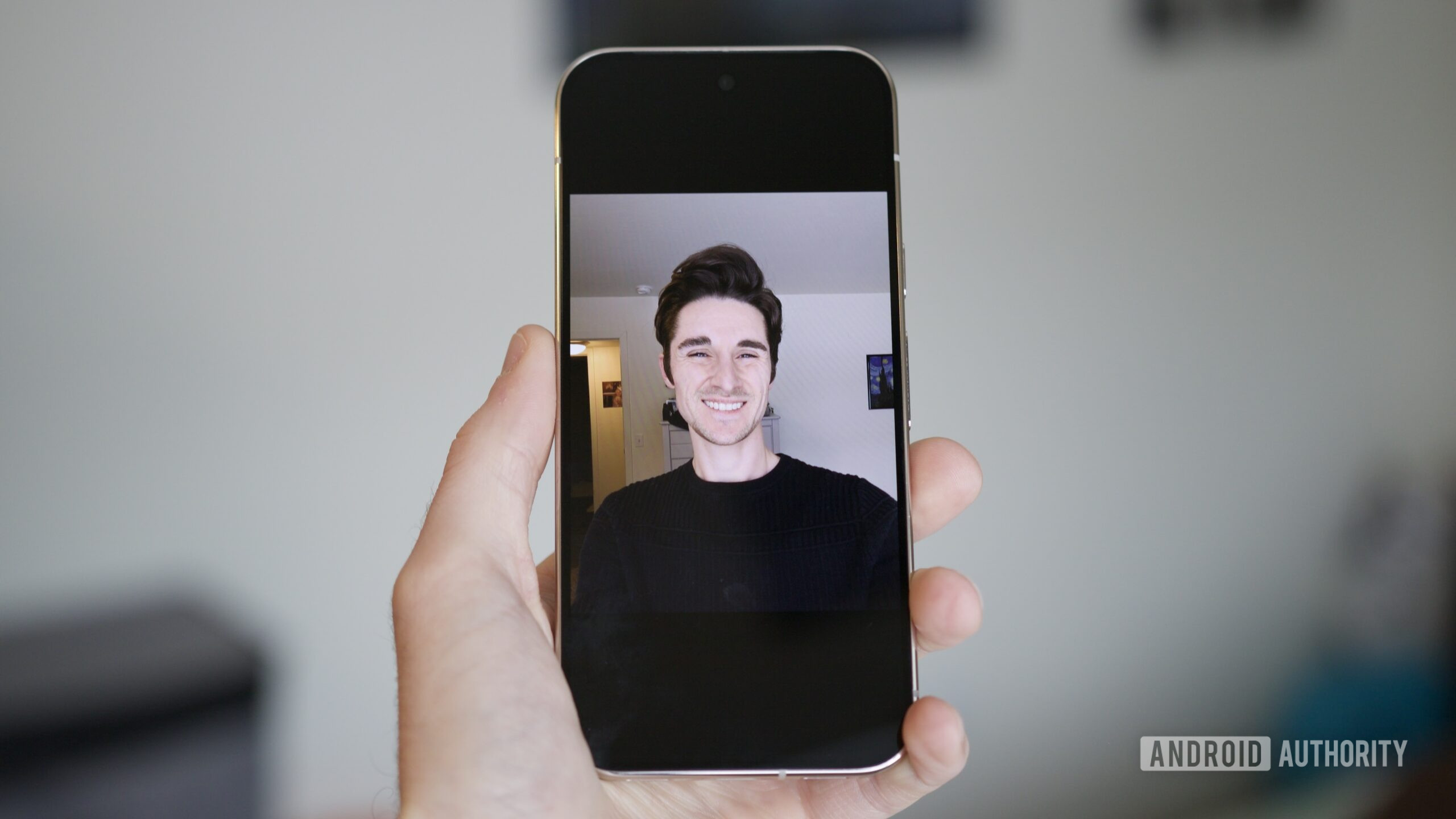
When you take a selfie with your Pixel’s front-facing camera, the photo is reversed from what you see in the viewfinder, just like a mirror. If you don’t like this, you can change it with just a few taps.
To do this, tap the Photo Settings button in the Pixel Camera app, tap the three dots to open the main settings page, and scroll to the Composition section. Tap the toggle next to Keep selfies as seen, and now photos from the front-facing camera will be saved just as they appear in the viewfinder — no more mirroring.
Turn on Storage Saver if your storage is low
Joe Maring / Android Authority
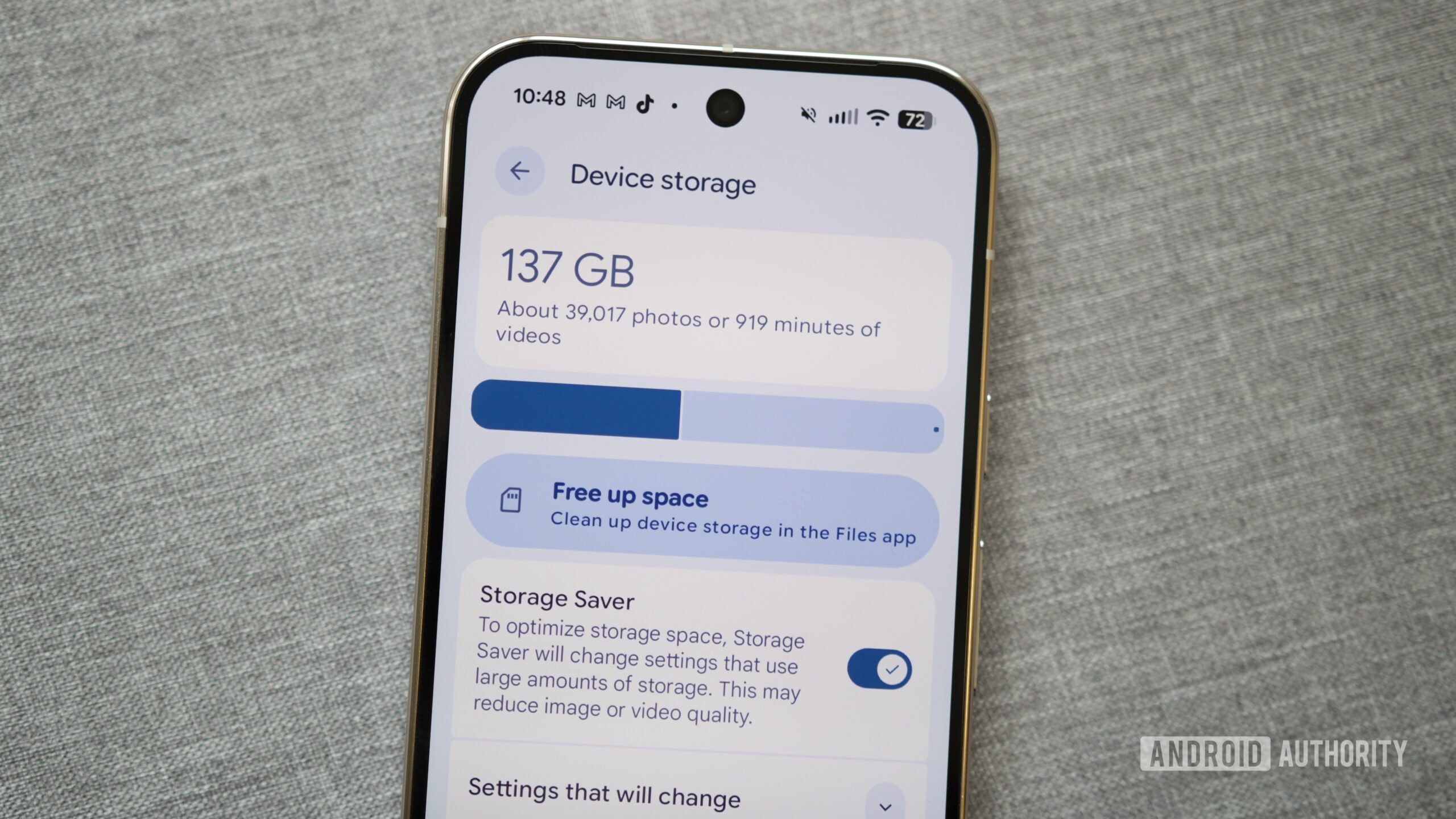
Last but not least, this final Pixel Camera setting can really come in handy when your phone is running low on storage, but you still want to keep taking pictures. From the Pixel Camera app, tap the Photo Settings icon, tap the three dots, and tap Device storage. From here, tap the toggle next to Storage Saver.
Once enabled, Storage Saver adjusts numerous camera settings to keep your photos and videos as lightweight as possible. It caps video recording at 1080p Full HD, disables Video Boost, limits your still photo resolution to the default setting, and more. You can tap Settings that will change to see everything impacted, and you can tap a toggle next to Turn off when storage is available. When you do this, Storage Saver will be enabled but won’t go into effect until your phone has less than 1GB of remaining storage.
While Storage Saver won’t magically add more space to your phone, it is a clever way to ensure you can keep taking as many photos and videos as possible with the limited storage left on your device.
Those are my favorite hidden settings for the Pixel Camera app, but what are yours? Is there a setting here you really like? Is there something else you love that I didn’t mention? Whatever it is, let me know in the comments below.
Don’t want to miss the best from Android Authority?


Thank you for being part of our community. Read our Comment Policy before posting.