
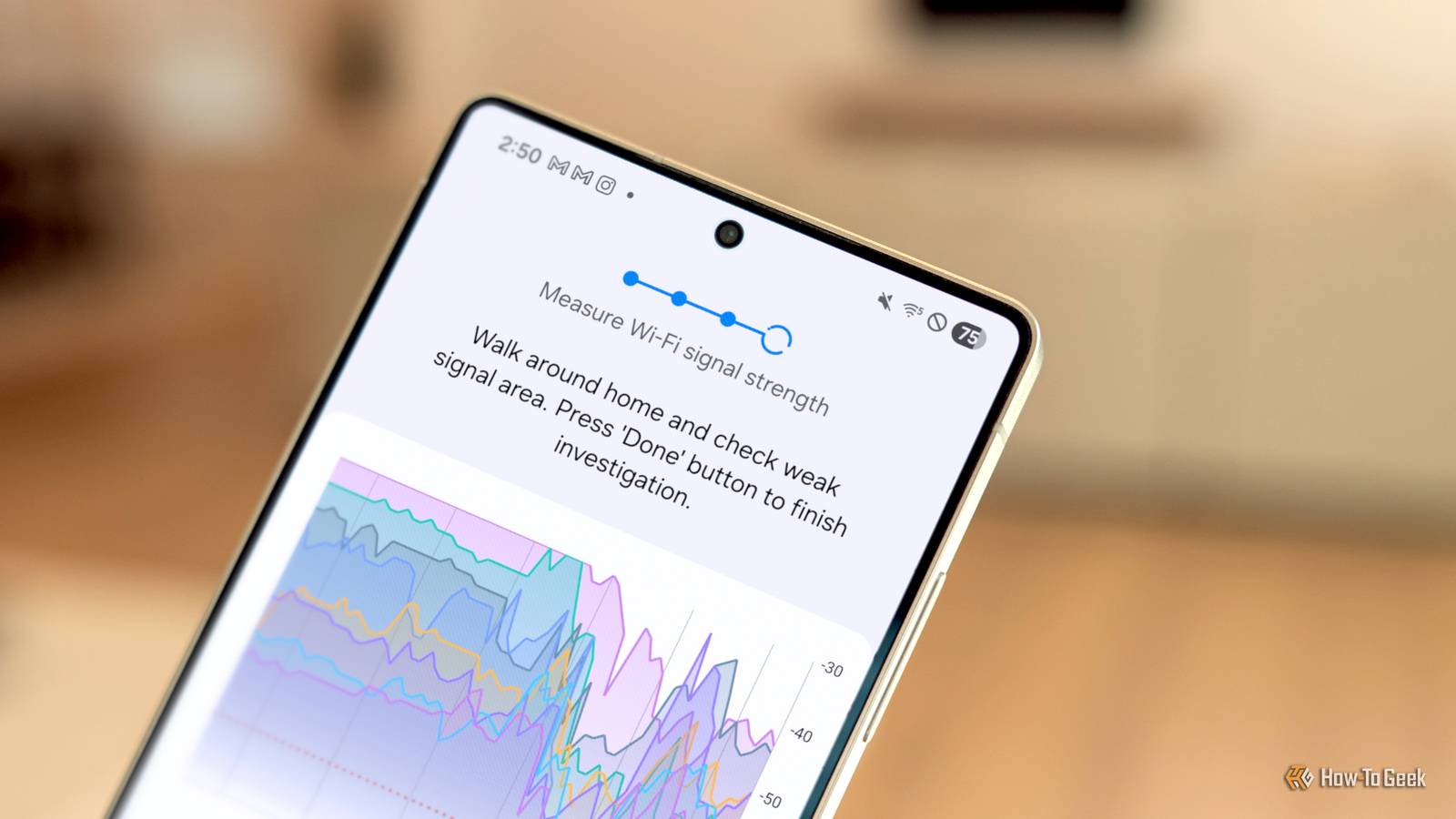
Wi-Fi is all around us, but it’s obviously not something we can see with our eyes. That makes it easy to miss Wi-Fi dead zones in your home, which is exactly what happened to me. Thankfully, Samsung Galaxy phones have a super handy Wi-Fi mapping tool built in.
Here’s the problem I was dealing with: My Onn Google TV 4K Pro drops its Wi-Fi connection much more than it should. What makes it even more annoying is that I have to fully reboot the device to connect again, but that’s another story. I couldn’t figure out why this was happening—my home has a mesh access point on every floor.
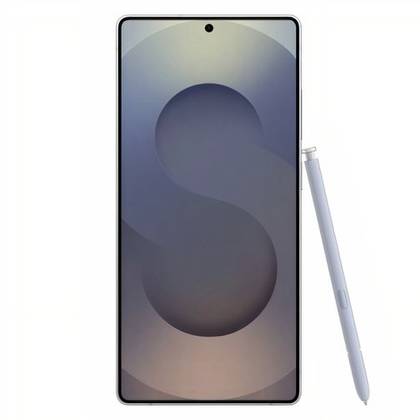
I recently heard about a hidden feature on Samsung Galaxy phones called “Connectivity Labs,” and one particular aspect sounded like the perfect tool for getting to the bottom of my problem. So, I pulled out my Galaxy S25 Ultra and my detective cap.

8/10
Brand
Samsung
SoC
Qualcomm Snapdragon 8 Elite for Galaxy
Samsung Connectivity Labs
Yet another hidden Galaxy feature
Samsung Galaxy phones have a lot of features—much more than Pixel phones, by comparison. Most of the time, when we talk about “secret” features, they’re from Samsung’s excellent Good Lock app. If you’re a power user or just someone who likes to customize their phone, it’s a must-have. The feature I’m talking about today, however, is not from Good Lock.
“Connectivity Labs” is tucked away several layers deep in the Wi-Fi settings. It’s essentially a hidden section, very similar to Android’s developer options. There’s a very specific way to enable the Connectivity Labs—I’m genuinely not sure how the average person is expected to find it on their own.
First, you have to navigate to the “Intelligent Wi-Fi” settings. You can find it by searching in the Settings app or going to Settings > Connections > Wi-Fi > three-dot menu > Intelligent Wi-Fi. Once you’re on this screen, you have to tap the “Intelligent Wi-Fi” title at the bottom of the page repeatedly until a message says “Connectivity Labs is enabled.”
Now you’ll see a new “Connectivity Labs” option at the bottom of the screen—tap it. There’s a ton of information about your Wi-Fi network and activity here. It shows usage in time and data, which bands are being used and how much, the type of Wi-Fi you have, and a bunch of toggles. If you’re a networking nerd, this is a great place to get lost.
Run a home Wi-Fi inspection
You will need to stand up for this. Sorry!
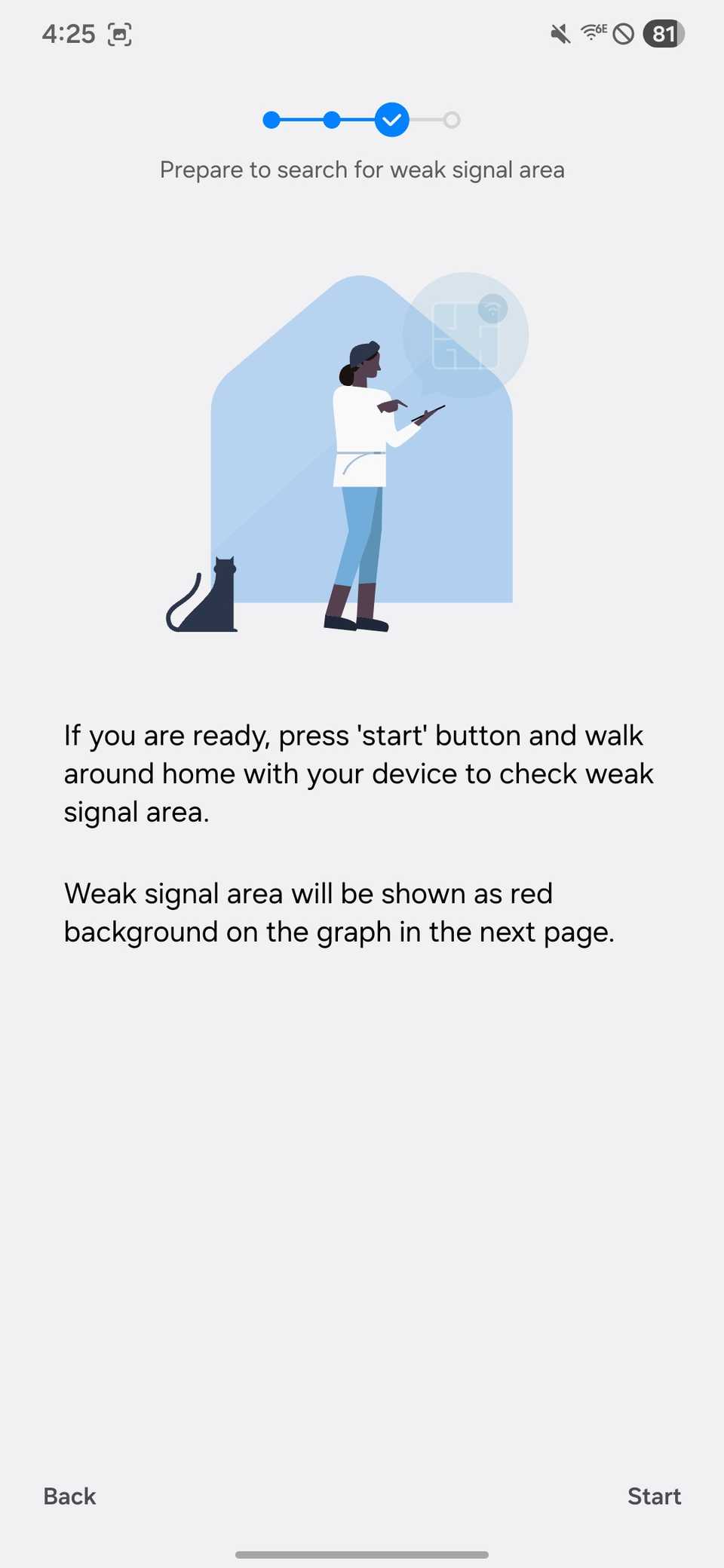
The section I was interested in is called “Home Wi-Fi inspection.” First, it asks you to select your home Wi-Fi network names. If it detects any improvements you could make, you’ll see them next—mine was already “well configured.” Tap “Next” for the really cool stuff.
The next part of the inspection involves walking around your home to scan the Wi-Fi strength. Signal strength is depicted in a real-time graph with lines for each access point in your home network. In my case, I have an Eero mesh network, which means I see each Beacon and it’s 5Ghz and 2.4Ghz bands listed here.
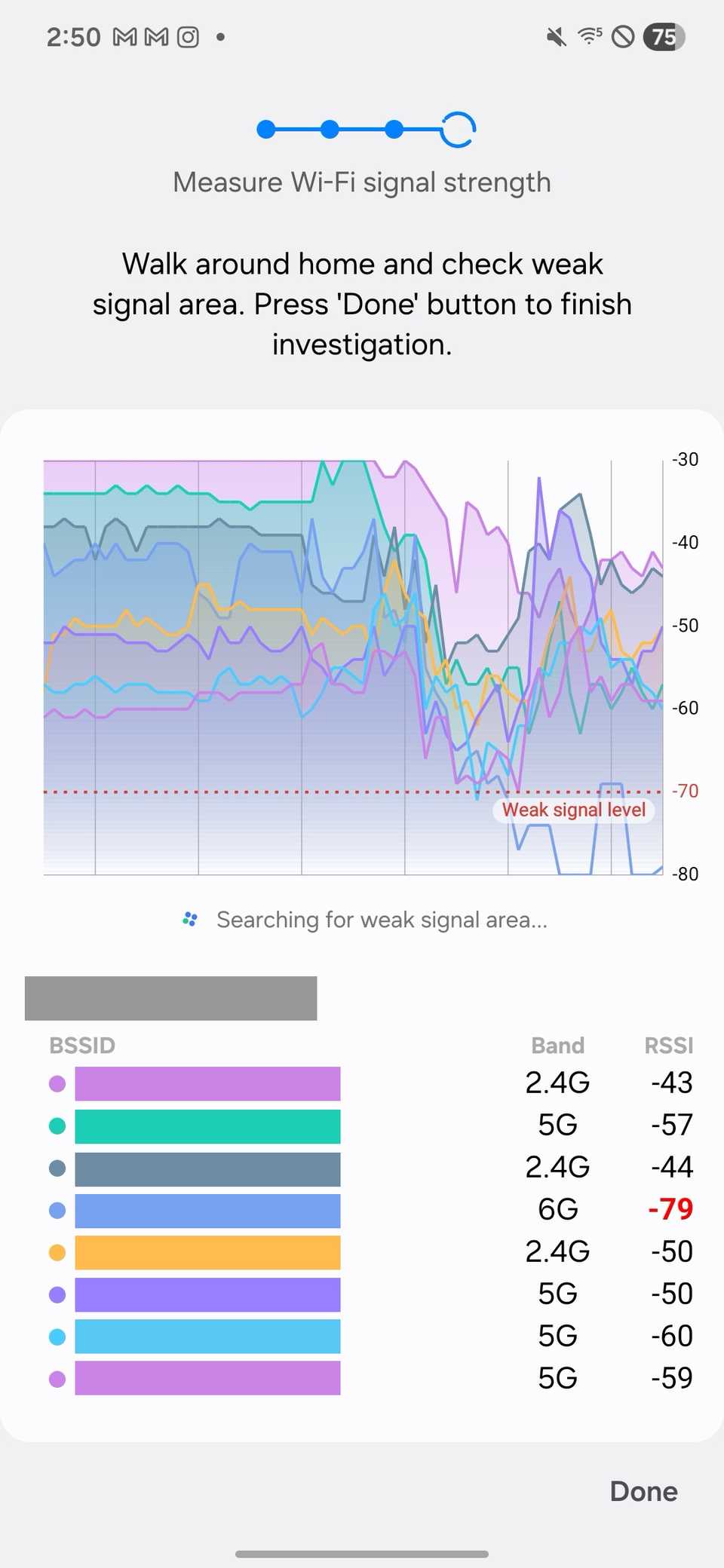
Sadly, it doesn’t show specific names, but I was able to match the BSSIDs with Beacons by checking the Eero app. This ended up being very important for me. By walking past my Google TV from multiple directions, I discovered what was causing the problem.
It turns out that my Google TV was placed in a location that made it frequently switch between two different Beacons, one being on a different floor of my home. Every time this happened, the connection would drop, and the Google TV would fail to reconnect. Annoyingly, Eero doesn’t allow you to force a device to only use one Beacon, so the only thing I could do was move the TV or the Beacon—I chose the latter.
A cool tool that should be easier to find
I would never have expected a feature like this to be baked into One UI. To be honest, Samsung is probably doing itself a disservice by hiding Connectivity Labs so deep in the Settings. It’s the perfect thing for a Good Lock module focused on networking.
Samsung Galaxy owners aren’t the only ones who can do this nifty Wi-Fi scanning trick. Ubiquiti has an excellent free app called “WiFiman” in the Play Store. It allows you to visualize your Wi-Fi network’s coverage on a floor plan. Check it out and take care of those dead zones for good!