
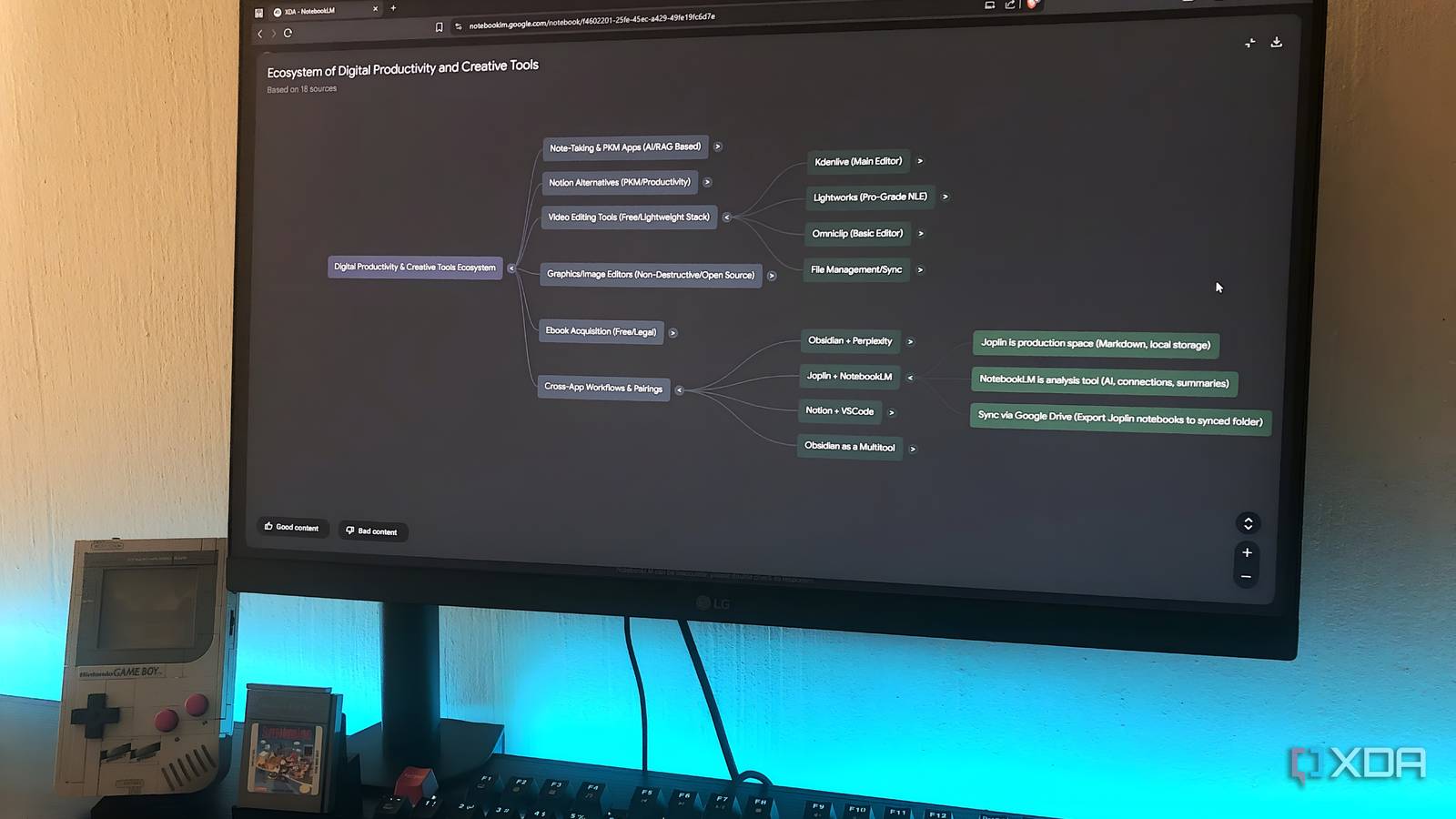
While ChatGPT was subpar at best when it first launched publicly and hallucinated its way through half the answers it gave, it was still impressive enough to make people overlook the flaws and believe in what it could eventually become. NotebookLM was my version of that. I began tinkering around with the tool back in its scrappy Google Labs days, when it was nowhere near what it is now, yet was compelling enough that I kept coming back. Credit where credit is due, it did have the entire drop your sources and chat with them workflow nailed from the start. However, it was bare bones beyond that.
Despite everything, I believed in where it was going before it had any right to earn that faith. Then came Audio Overviews, and suddenly everyone had a reason to care. The feature blew up, got the headlines, and became the thing people associated with NotebookLM. Mind Maps arrived not long after, but they never got that same moment in the spotlight. And that’s the strange part: despite being one of the oldest features in NotebookLM’s lineup now, Mind Maps remains wildly underrated.
Want to stay in the loop with the latest in AI? The XDA AI Insider newsletter drops weekly with deep dives, tool recommendations, and hands-on coverage you won’t find anywhere else on the site. Subscribe by modifying your newsletter preferences!
NotebookLM solved the hard part, but not all of it
The Chat panel only helps if you know what to ask
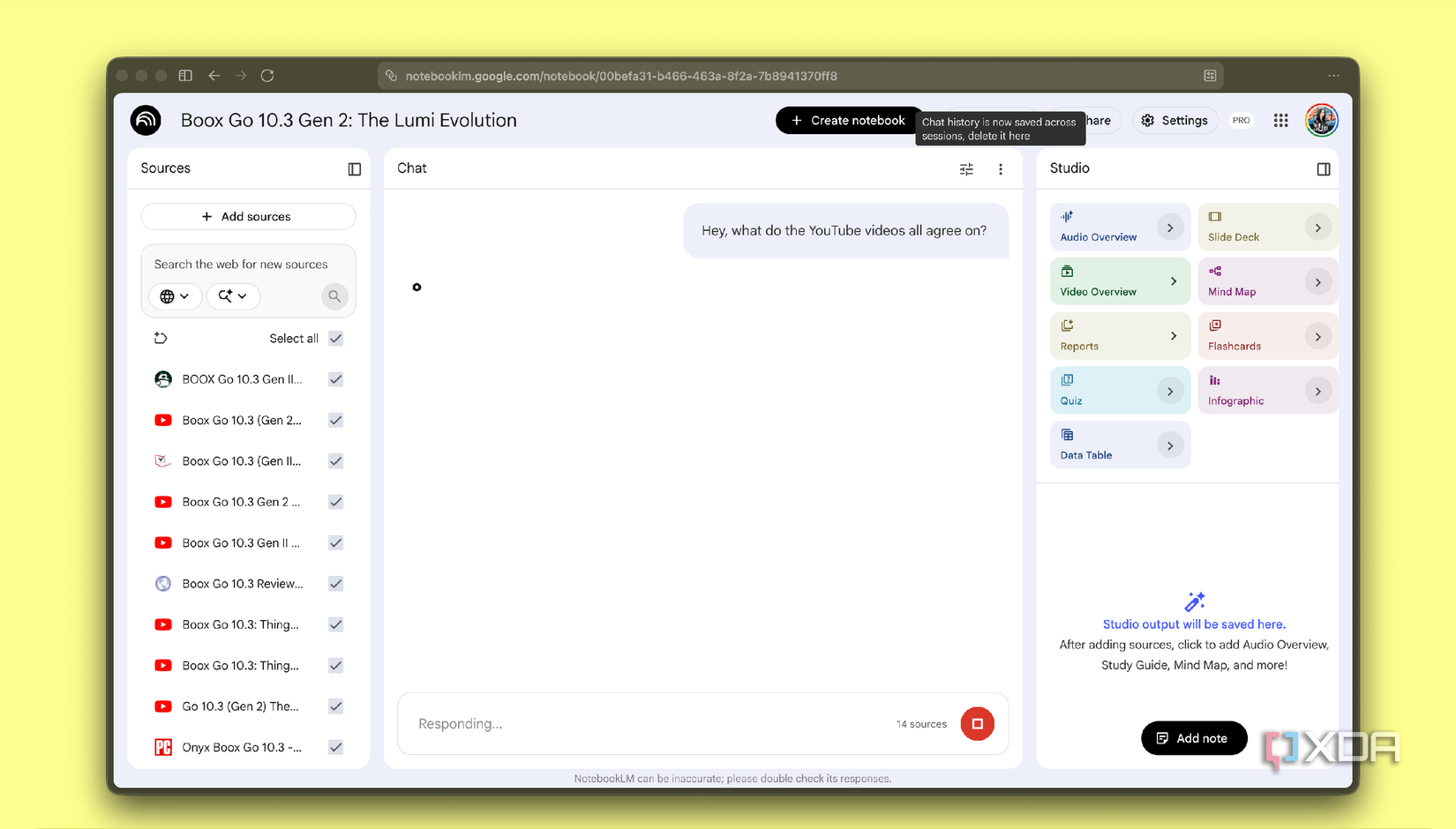
If you go back and look at the original blog post introducing NotebookLM, you’ll notice the team kept emphasizing one thing: the tool was built to deal with the sheer amount of information out there. One of the biggest challenges they kept hearing about was synthesizing facts and ideas from multiple sources. You have the sources you want, but making the connections between them is time-consuming. And while NotebookLM delivers on that promise for the most part, there are still a few spots where friction creeps in. Mind Maps is the only feature that smooths a lot of that friction.
For instance, when you’re interacting with your source material through questions in the Chat panel, there’s an unavoidable element of friction. You ask a question, you get a response back. However, to ask the right questions, you sort of need to already know what’s in your sources. And if you don’t, you end up learning by asking questions, working your way toward the right ones through trial and error. Audio Overviews ease that a little by giving you a broad overview of everything, but that workflow starts to get weird the moment you’re juggling a lot of sources.
Mind Maps is the quickest way to go from chaos to clarity
The friction NotebookLM forgot to fix, fixed
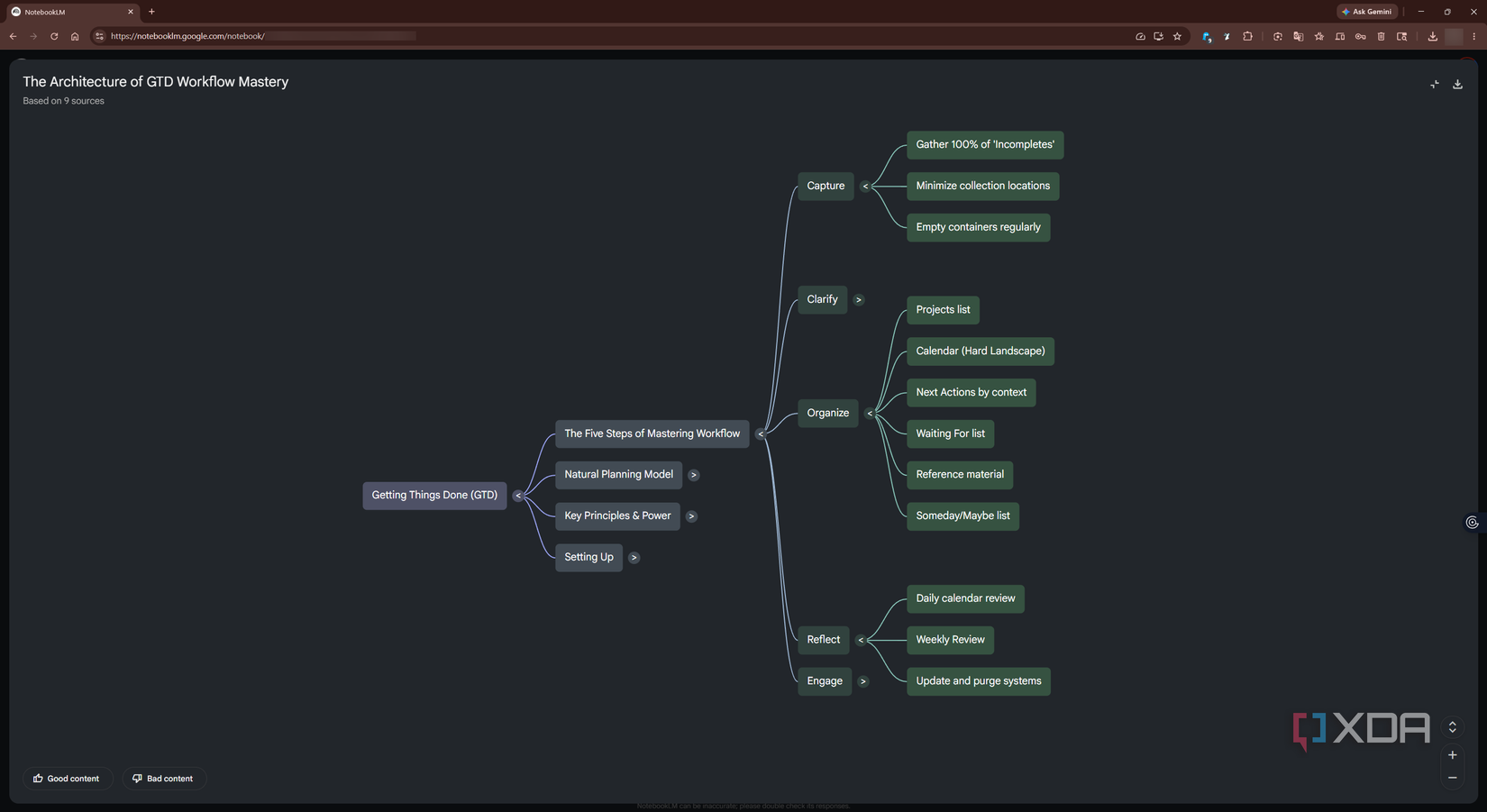
The Mind Maps feature fixes both the problems above. Instead of querying your sources one question at a time or sitting through an overview, you get a branching diagram that lays out the main topics and how they connect at a glance. You don’t need to know what’s in your sources to start, because the map shows you the shape of everything up front. With NotebookLM’s Mind Maps, every node is interactive. This means you can click into any branch to get a focused explanation about that specific topic.
Ultimately, the questions you ask are informed by what you’re actually looking at rather than what you’re guessing might be there. It flips the whole interaction in a way that meaningfully helps. Instead of you working out which questions to ask, the map shows you exactly what’s worth asking about. You also get to clearly see how the topics across your different sources connect to one another, which is the one thing none of NotebookLM’s other Studio outputs can really show you. A summary or an Audio Overview can tell you what your sources say, but a Mind Map is the only one that lets you actually trace how an idea in one source links to an idea in another, visually, in a way you can follow.
The new customization update makes it even better
It only took Google a year, but here we are
For the longest time, Mind Maps had one major weakness. The auto-generated map tried to surface every possible connection across all your sources at once. With three or four sources, that was fine. But the moment you had a notebook with a dozen-plus sources, the map turned into a sprawling web of every relationship it could find, which is functionally the same as showing you nothing at all.
That changed a few weeks ago, when NotebookLM rolled out prompt-based customization for Mind Maps. There’s now a small pencil icon next to the Mind Map tile, and clicking it opens a text panel asking what you want the map to focus on. You type in your prompt, hit generate, and the map that comes back is shaped by what you actually asked for instead of whatever NotebookLM guessed your sources were broadly about. If you still want the everything-map, you can skip the prompt entirely and generate it the way you always have.
This update is what finally made Mind Maps click for me. Instead of asking NotebookLM to map everything, you can point it at the exact thread you’re trying to follow, and the result is far narrower, more focused, and actually readable. If I have a notebook full of lecture slides and I want to see how one specific concept shows up across different units, I can prompt the map to show me just that. The connections it surfaces are the ones I came looking for, rather than the ones an algorithm assumed a generic user would want.