
Samsung prompts you to create a Samsung account when setting up a new phone. It’s easy to think signing in with a Google account is enough, but aside from accessing the Play Store, I personally use my Samsung account more. The list of perks is longer than I expected.
Back up and sync certain apps
Just like Apple and Google, Samsung provides a way for you to back up some of your phone apps online—specifically the various Samsung apps that came with your phone. This includes the essentials, like your phone dialer history, your contacts, and your calendar. You can also save how your apps and widgets are arranged on your home screen, so you don’t have to do all of that again from scratch.
Then there’s syncing across multiple devices. I am writing these words directly on my Samsung Galaxy Z Fold 6. It’s far from the only Samsung device in my home. My wife has a Galaxy Z Fold 5. We as a family have a household of Galaxy devices.
Our Samsung accounts allow us to sync our calendars, which we manage using Samsung Calendar. Technically, we could use Google Calendar accounts for this, but Google already has enough information about us—I don’t want to actively provide more. We also use our Samsung accounts to sync Samsung Notes. Samsung One UI 8 adds syncing functionality to Samsung Reminder—my personal favorite to-do list app.
Make payments with Samsung Wallet
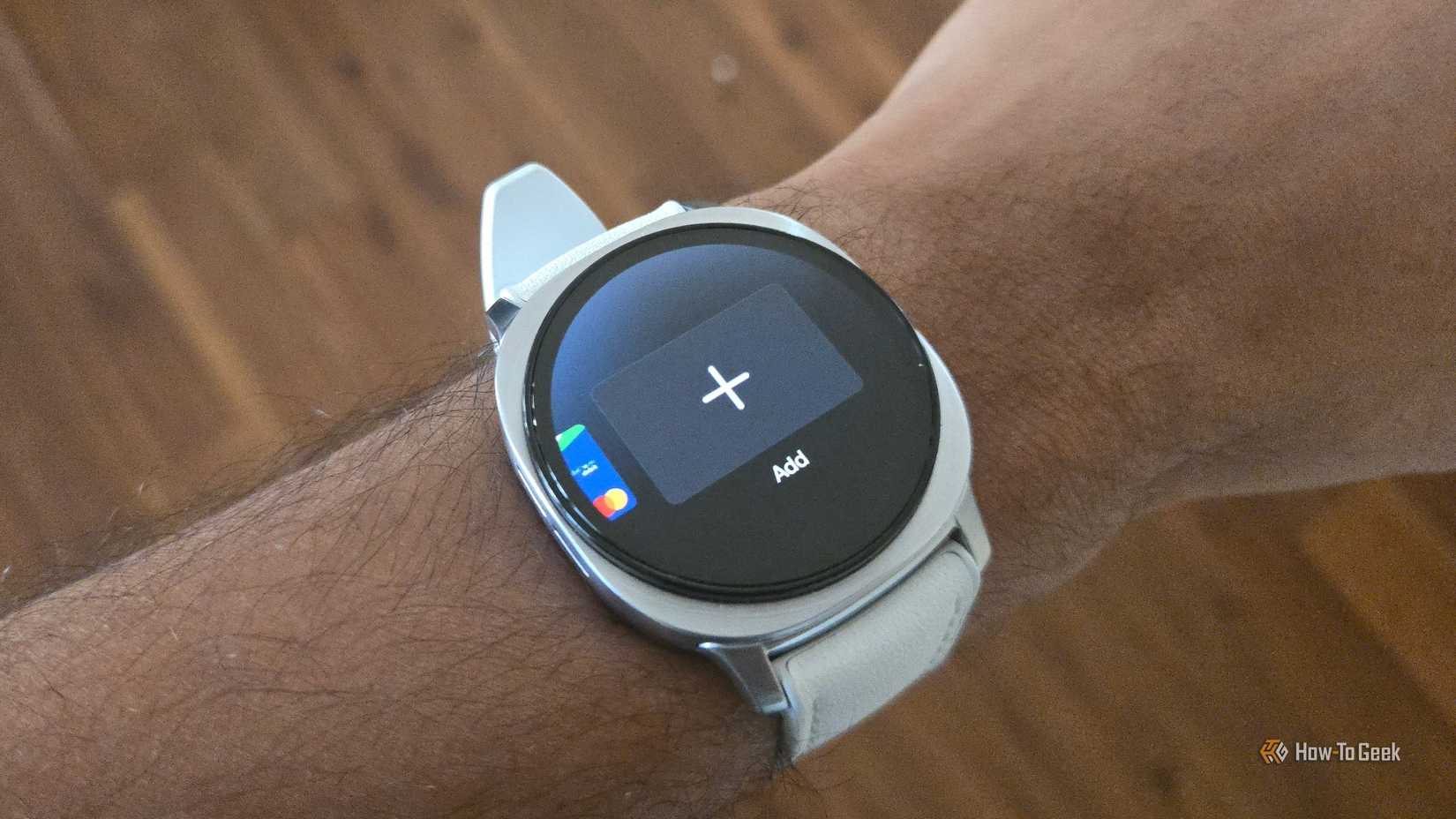
I almost exclusively use my phone or watch to make payments when the option is available. On Samsung devices, there’s a choice to make—Google Wallet or Samsung Wallet. I’ve opted for Samsung Wallet. To do so, I needed a Samsung account.
There aren’t many features that distinguish Samsung Wallet from Google Wallet, but as a general rule, I opt not to choose the Google option when given the choice. So here I am. With a Galaxy Watch 8 on my wrist, it’s hard to resist the convenience of holding down the bottom button and holding my wrist against the payment terminal.
Credit: Bertel King / How-To Geek
Connect multiple devices together
Apple hardware is well known for how well it all plays nicely together. Your MacBook connects to your iPhone, which connects to your Apple Watch, which connects to your AirPods. But if you go all-in on Samsung hardware, you find Samsung’s ecosystem is just as good.
You don’t need to create a Samsung account to pair a Galaxy Watch to your phone, but having an account does make it easier to connect existing Samsung devices to new ones. Having an account helped me Samsung Frame TV know that I already owned Galaxy Buds FE that can be used as an audio output.
If you have a Galaxy Book laptop, you can access files and apps directly from your phone using Samsung Phone Link. A Samsung account is also needed to have phone calls from your phone ring on your laptop or Galaxy XR headset.
I use Samsung’s voice assistant and smart home controls
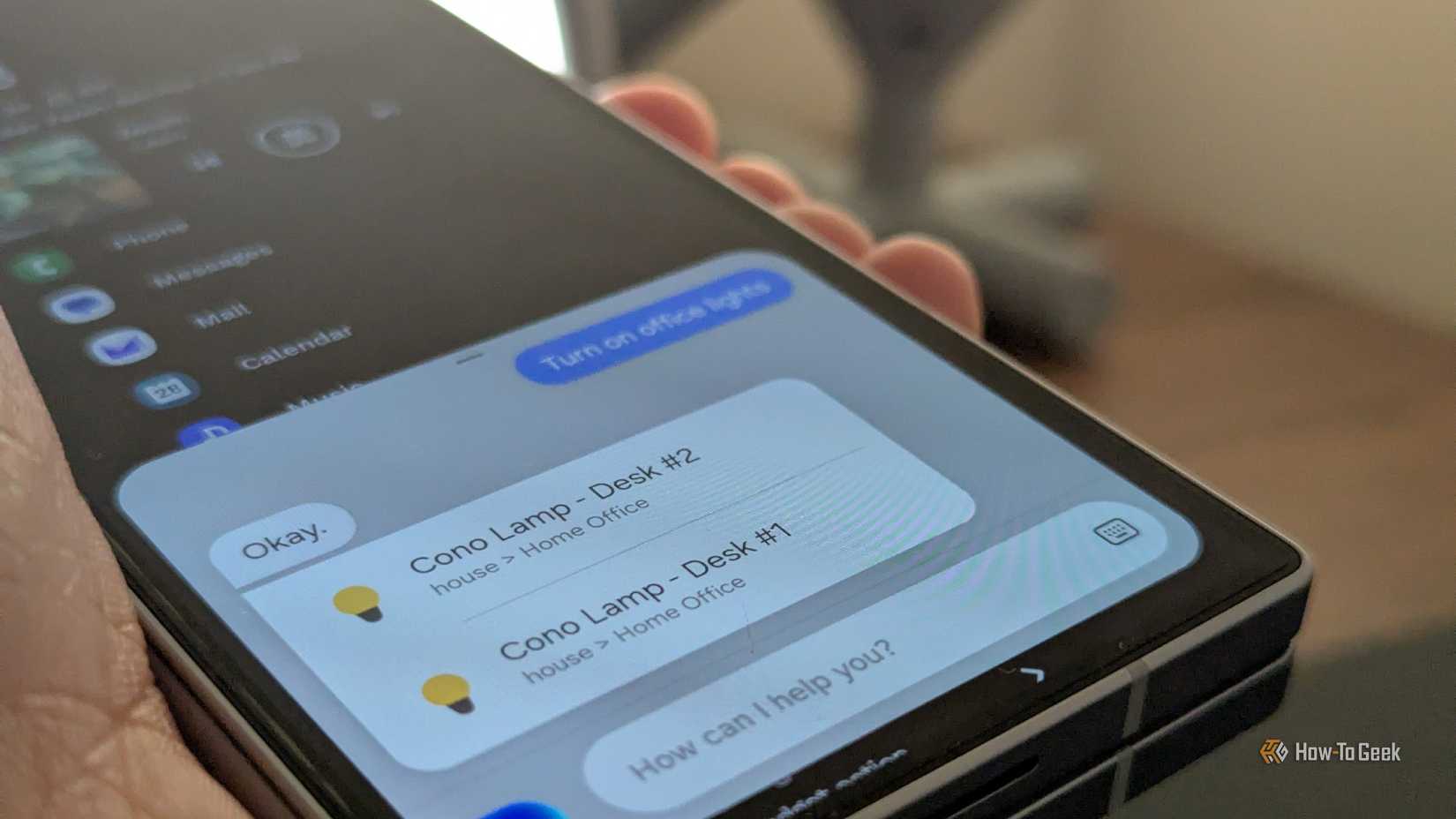
We all know about Amazon Alexa. Fewer know about Bixby, Samsung’s voice assistant. Bixby is not a chatbot I can have conversations with (nor do I even want to), but it does a good job of allowing me to control different parts of my phone using voice commands. When paired with Samsung SmartThings, Samsung’s hub for controlling smart devices, Bixby is even more useful. I talk to Bixby to turn on and off lights in my home.
Credit: Bertel King / How-To Geek
Both Bixby and SmartThings require a Samsung account. I’ll gladly choose Bixby over Google Assistant and the SmartThings over Google Home.
Enhanced Data Protection encrypts much of this data
I prefer to store my data offline. I even back up my phone directly to external SSDs and flash drives, just as you might a PC. When I do back up data online, I opt for end-to-end encryption wherever possible.
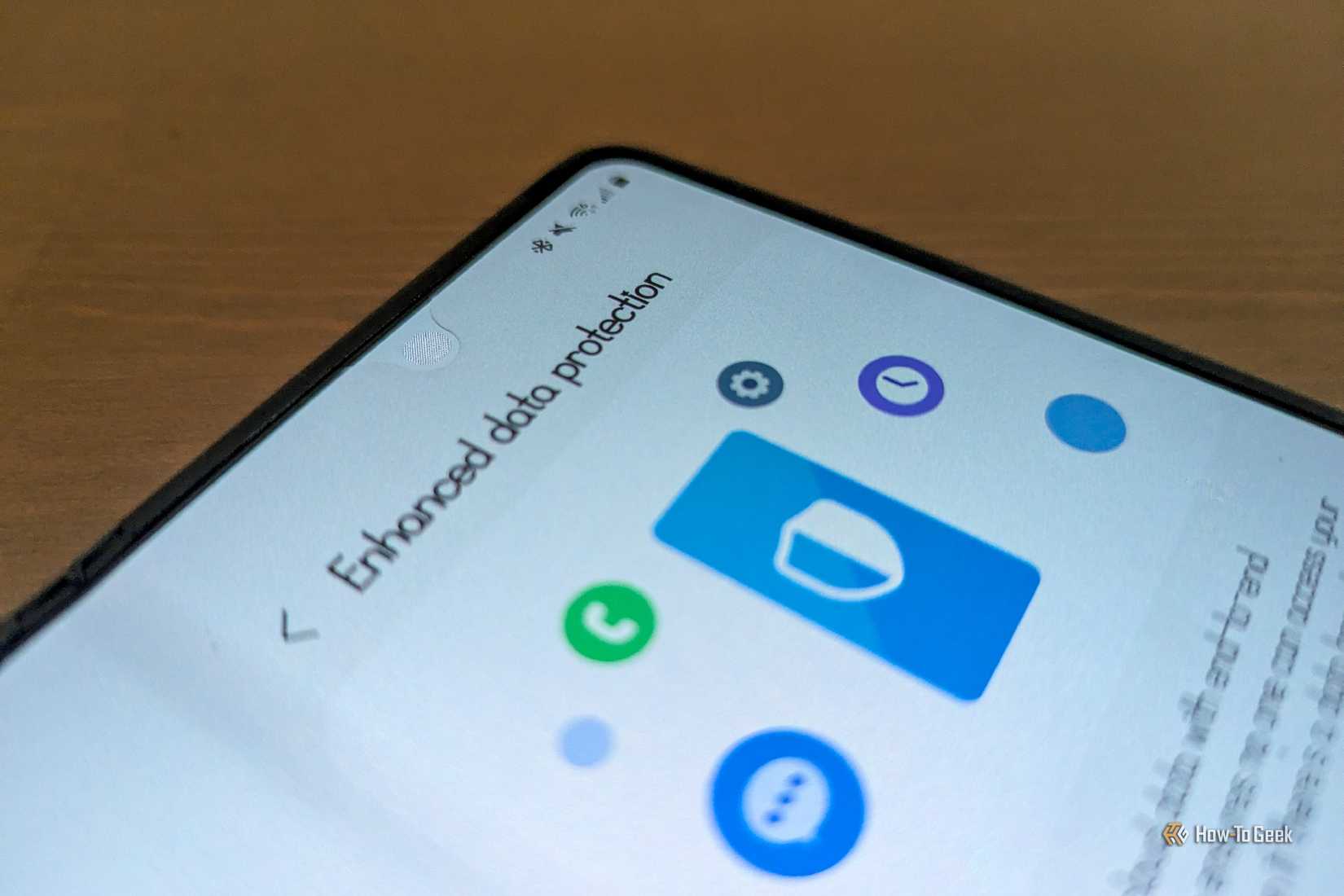
I didn’t start backing up any data to my Samsung account until I learned about Enhanced Data Protection. This safeguards certain information even from Samsung, such as my call history and contacts. Sadly, the list isn’t comprehensive. Neither Samsung Notes nor Samsung Calendar are encrypted in this way. I’m hoping this changes soon.
Credit: Bertel King / How-To Geek
I buy some fonts from the Galaxy Store
I like changing my system font. Most phones allow you to tinker with the size and maybe a few built-in options, but they require you to install a third-party app in order to go deeper. Samsung phones let you download new fonts of wildly different styles. The catch? Those fonts have to come directly via the Galaxy Store.
While I would much prefer being able to drag fonts that I’ve downloaded from elsewhere into a folder, fonts generally only cost a dollar or two on the Galaxy Store. That’s an amount I don’t mind paying. I’m open to font designers having an alternative source of revenue and can easily justify sliding them a buck for a font I see every day.
While you can download apps and updates from the Galaxy Store without a Samsung account, you need to register if you want to add the financial information needed to make purchases. There are other things you can buy from the Galaxy Store, like apps and games. It’s the option to buy themes and wallpapers that stands out to me more, even though I don’t buy either.
Early access to betas
I was more eager for the Samsung One UI 7 update than I’ve been for any new version of Android in years. I didn’t want to wait for the full release. Instead, I downloaded the beta.
To download beta versions of One UI, you need to register inside the Samsung Members app. There’s no fee required, but you do need a Samsung account to get in. At that point, you will be able to download any current beta available for your device.
Signing up for a beta doesn’t keep you running betas indefinitely. When the beta matures into a stable release, you’re transferred over automatically with a system update. If you want to join a future beta, you’ll have to manually sign up for that one. This is what I did when I downloaded the One UI 8 beta to gain one multitasking feature.
From my experience, One UI betas have been stable enough for my day-to-day use, even as someone using my phone as my PC. Does that mean your experience will be the same? Hardly. As the disclaimer goes—be sure to back up your data and only take the risk if you have a second device on standby.
It’s easy to overlook the extent to which I use Samsung-specific features and how many of those require an account to operate—like Samsung Wallet, Bixby, and SmartThings. Then there are the features I’m only just starting to use, like Samsung Find to help me not lose any of the various Galaxy devices in my home. Samsung likes to pack features into its products, and a Samsung account is no exception.