
Samsung Galaxy phones are among the best Android devices you can buy, not just because they’re packed with features, but also for their software experience and stock apps. I’d go as far as to say the Samsung ecosystem is as good as Apple’s. Here are three pre-installed stock Samsung apps I absolutely love.
The software on Samsung phones continues to improve each year. We love the latest One UI 8.0 based on Android 16, which delivers a great experience. And to make things even better, apps like Samsung’s Calendar, Clock, and modes and routines, as well as others, enhance the experience even further.
HTG Wrapped 2025: 24 days of tech
24 days of our favorite hardware, gadgets, and tech
Samsung Clock is better than the competition
Credit: Sergio Rodriguez / How-To Geek
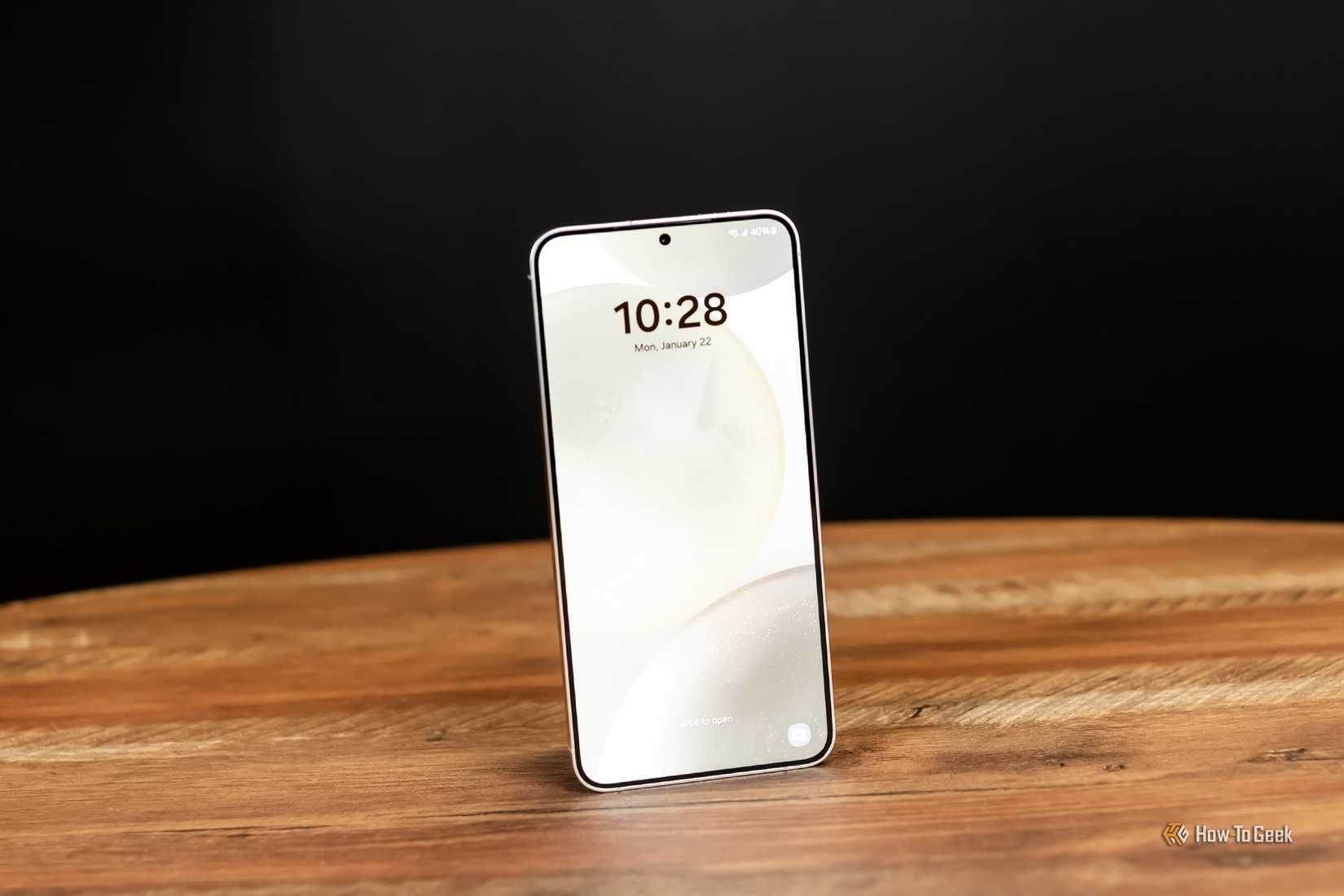
Samsung phones are packed with so many excellent features that it’s sometimes easy to forget about the little things. One in particular is the pre-installed Clock app, which, in typical Samsung fashion, is extremely customizable and better than any other alarm app I’ve found.
This isn’t the first time I’ve mentioned how great Samsung’s Clock app is, and that’s for several reasons. The clock app makes it easy to set a ringtone or alarm, adjust the volume, and then decide on crucial settings like snooze intervals or the number of times you can tap the snooze button.
My wife constantly complains about the snooze settings on her iPhone. On my Samsung Galaxy, the snooze button can be 5 minutes, 15 minutes, 45 minutes, or even an hour. Although I don’t know who’s snoozing that long. Either way, most apps don’t give you that kind of flexibility. You can choose any duration you want, along with how many times you can hit the snooze button.
Samsung’s Clock app also includes features such as alarm groups, custom backgrounds, and setting a sleep mode schedule. I appreciate that once I set an alarm, a toast notification appears, indicating the time remaining before the alarm sounds, letting me know how long I’ll get to sleep. Again, it’s the little things, and this clock is perfect for my needs.
Modes and Routines are my favorite
Credit: Samsung
I recently switched to a Google Pixel 10 Pro XL, but only for a little while, and another feature I sorely missed is Samsung’s Modes and Routines. This is an app integrated into the settings menu, and its automation controls are an absolute game-changer.
With Modes and Routines, you can customize and automate your Galaxy in ways many other phones can’t. Well, not without downloading something like IFTTT, known as “If This Then That,” but Samsung’s implementation is far better in my opinion.
For example, I have my phone on silent mode almost 24/7, but I still want it to ring for important calls. Using modes and routines, I can easily set a routine that, if my wife calls, my phone automatically disables silent mode for her contact only, lets the phone ring, and then returns to silent mode after the call.
Not only can I make it ring, but it’ll let me choose the volume and such. And again, after that call, my phone remains in silent mode. It’s incredibly powerful, and that same type of granular control is available for any app, mode, feature, or setting on the device.
I use different modes or routines for bedtime, and I have a few set for when I leave the house that automatically turn off all the lights, check that the garage is shut, and other helpful things, all tied to my home automation apps.
Related
This Overlooked Feature Made My Samsung Phone Twice as Useful
Make your Samsung phone serve you better.
You can further customize Modes and Routines using Samsung’s Good Lock app, which is also excellent. I have weather-based routines to automatically turn on my home air conditioning in the summer, and have it set to turn off auto-rotate whenever I open my gallery or watch a video. Neat, right?
The Now Bar keeps getting better
Credit: Justin Duino / How-To Geek
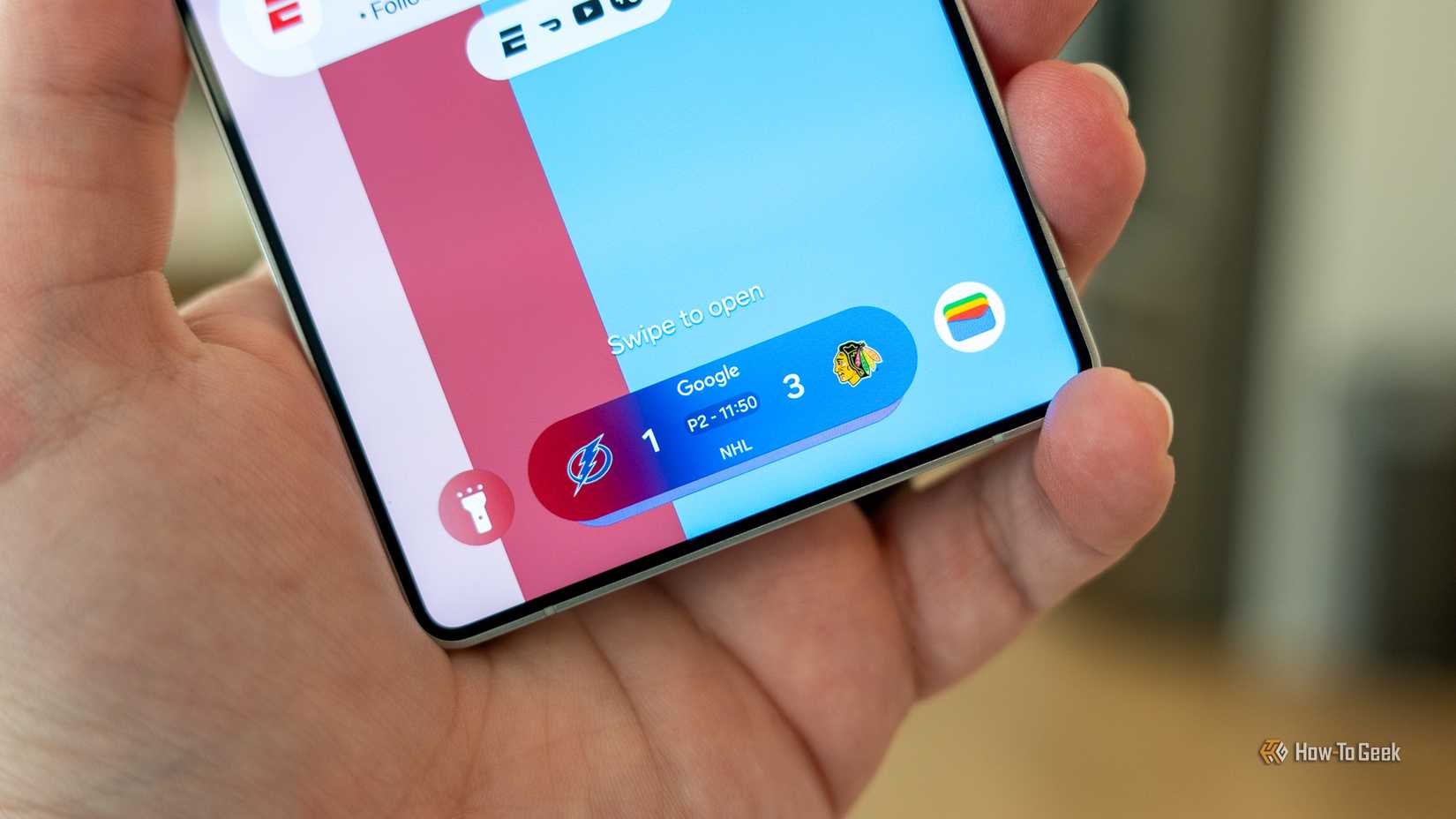
When Samsung first announced the Now Bar and Now Brief, I initially dismissed them. And while I still don’t use Now Brief, the Now Bar is absolutely incredible for sports fans. Sure, every phone has customizable widgets, but I didn’t realize how much I love the Now Bar until I had to use a phone without it during the NFL season.
For those unaware, the Now Bar is an app in settings that you can customize with everything from sports alerts and scores, Google maps navigation instructions, media player controls, Samsung Health or Wallet, and more.
Once it’s set up, whenever a sporting event or navigation is in progress, a small, pill-shaped persistent lock screen widget appears near the bottom of the screen, displaying important information. You’ll see turn-by-turn directions, game scores or start times, and more. Once you unlock the phone, that little pill-shaped widget appears in the notification pull-down bar. It’s incredibly useful and makes it easy for me to follow my Green Bay Packers.
Samsung’s Now Bar is even better in the latest One UI 8.5 software, and although I still think it could be improved, it’s one of my favorite Galaxy features that I don’t want to go without.
Your Galaxy phone or tablet is equipped with advanced features that other devices lack, and many of them are so simple that you probably never thought to try them out. For example, two honorable mentions are the Samsung Reminders app, which is arguably better than Google Tasks, and Samsung’s internet browser is also quite excellent.
It’s easy to default to apps like Google Chrome, Tasks, or use the same third-party alarm app you’ve enjoyed for years. But once you try some of Samsung’s apps, you’ll never want to go back.